> For the complete documentation index, see [llms.txt](https://docs.cloudeka.ai/llms.txt). Markdown versions of documentation pages are available by appending `.md` to page URLs; this page is available as [Markdown](https://docs.cloudeka.ai/cloudeka-api-list/command-reference/cldkctl-edit/service.md).
# service
The edit service command allows you to modify the configuration of an existing Service in your Kubernetes cluster. You can update metadata, selector labels, ports, or other networking properties without disrupting existing connections.
## Usage
```
cldkctl edit service [name] [flags]
```
## Steps
Follow the steps below to run and view the result of this command:
1. Run the following command in your terminal:
```
cldkctl edit service [service name]
```
2. Replace \[service name] with the name of the Service you want to modify.
3. If the Service is in a namespace other than default, add the -n or --namespace flag followed by the namespace name.
4. To view the list of available resources before editing, refer to the corresponding get service section.
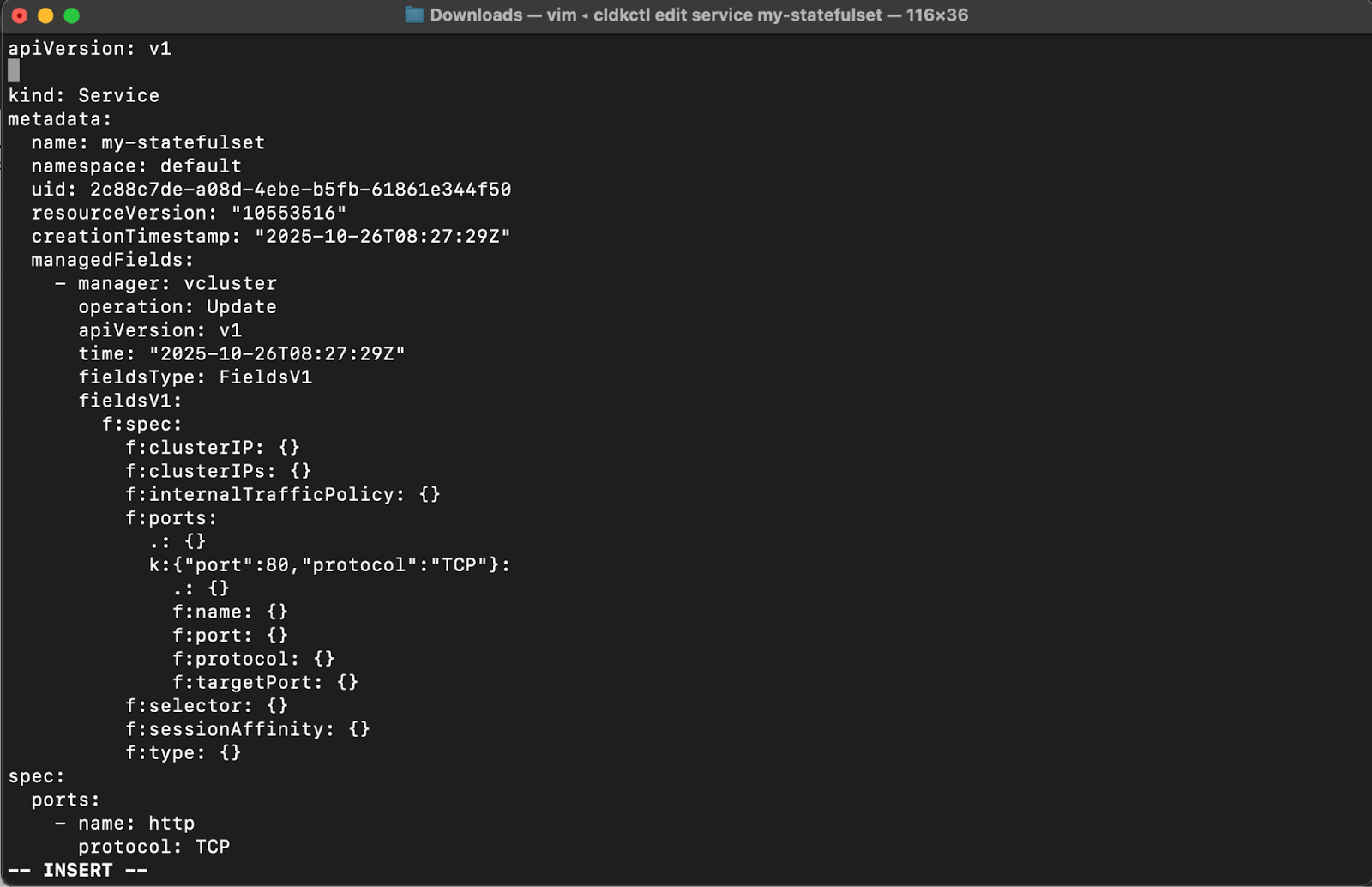
5. The Service manifest file will open in your default text editor (default: vim). Edit the configuration as needed, then save and close the editor to apply the changes. If you are using vim, press i to enter insert mode and make your edits. When you have finished editing, press Esc, type :wq, and press Enter to save and exit. To exit without saving changes, type :q! and press Enter.
6. Once completed successfully, a message “✓ Service updated” will appear in your terminal.
## Flags
{% hint style="info" %}
This command supports [global flags.](/cloudeka-api-list/global-flags.md) Refer to the Global Flags section for details.
{% endhint %}
| Flag | Description |
| ---------- | ------------------------------ |
| -h, --help | Help for edit service command. |