> For the complete documentation index, see [llms.txt](https://docs.cloudeka.ai/llms.txt). Markdown versions of documentation pages are available by appending `.md` to page URLs; this page is available as [Markdown](https://docs.cloudeka.ai/cloudeka-api-list/command-reference/cldkctl-flexi/storage/resize.md).
# resize
Resize a specific flexi storage by its ID and new size.
## Usage
```
cldkctl flexi storage resize [flags]
```
## Aliases
```
resize, resz
```
## Steps
Follow the steps below to run and view the result of this command:
#### Interactive Mode
1. Refer to the [**Flexi Storage List**](/cloudeka-api-list/command-reference/cldkctl-flexi/storage/list.md) section to obtain the **storage ID**.
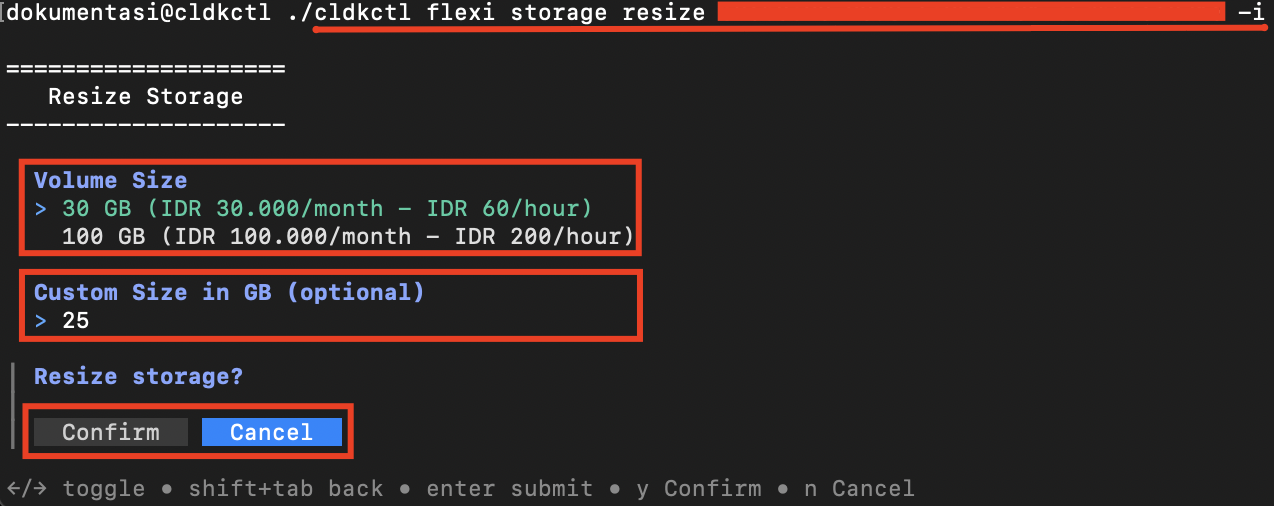
2. Run the following command in your terminal:
```
cldkctl flexi storage resize [storage_id] -i
```
3. Replace **\[storage\_id]** with the actual storage ID.
4. The terminal displays the **Resize Storage** form. Select the **Volume Size**, or enter a value in **Custom Size in GB** if you want to specify a custom size.
5. Confirm the resize operation by selecting **Confirm**, or cancel the process by selecting **Cancel**.
6. Once completed successfully, the terminal displays the success message.
#### Non-Interactive Mode
1. Provide all required values using command flags.
2. Add `--auto-confirm` or `-y` to skip confirmation prompts in non-interactive mode.
3. Run the command in your terminal.
4. Once completed successfully, the terminal displays the success message.
## Flags
{% hint style="info" %}
This command supports [global flags](/cloudeka-api-list/global-flags.md). Refer to the Global Flags section for details
{% endhint %}
| Flag | Shorthand | Default | Description |
| -------------- | --------- | ------- | ----------------------------------------------------- |
| --auto-confirm | -y | false | Skip confirmation prompt |
| --custom-size | | | Custom size in GB (must be greater than current size) |
| --help | -h | | Help for the resize command. |
| --interactive | -i | false | Force interactive TUI mode |
| --volume-size | | | Volume package ID (from predefined sizes) |