Generate new token
Generate Token functions to create a personal access token that serves as the user's identity and access permission to Cloudeka services. This token ensures that every access to the system is secure and verified, without the need to use an account or password directly.
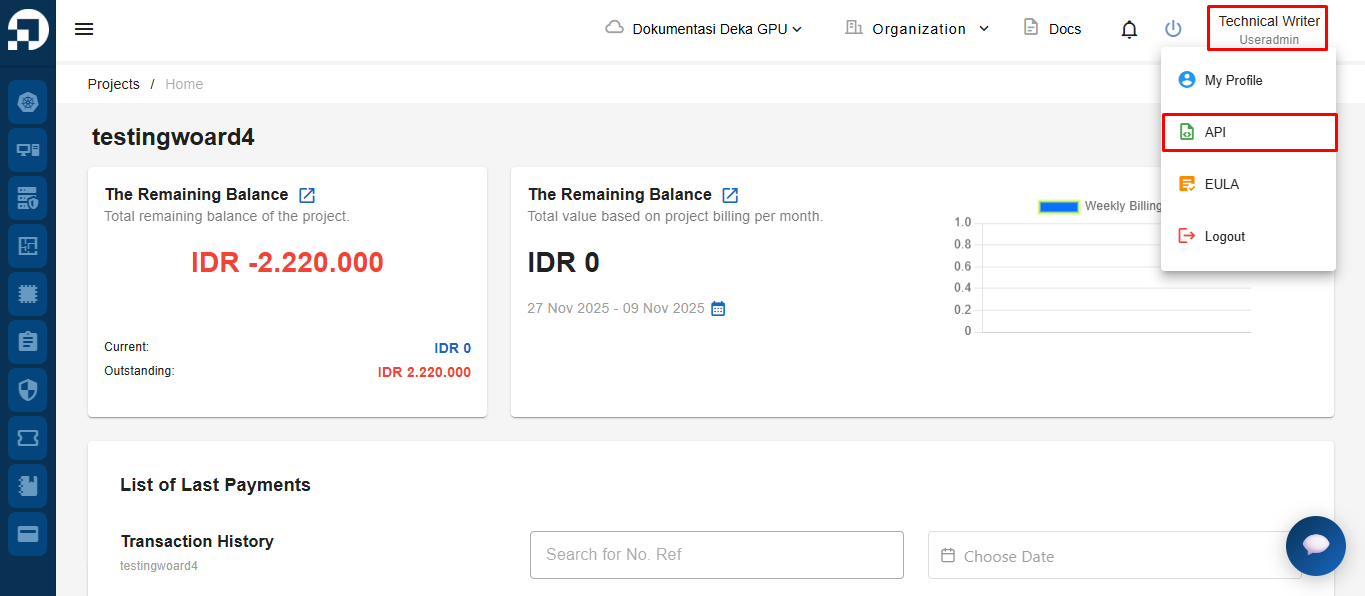
On the Service Portal AI page, click your profile name in the top-right corner, then select API.

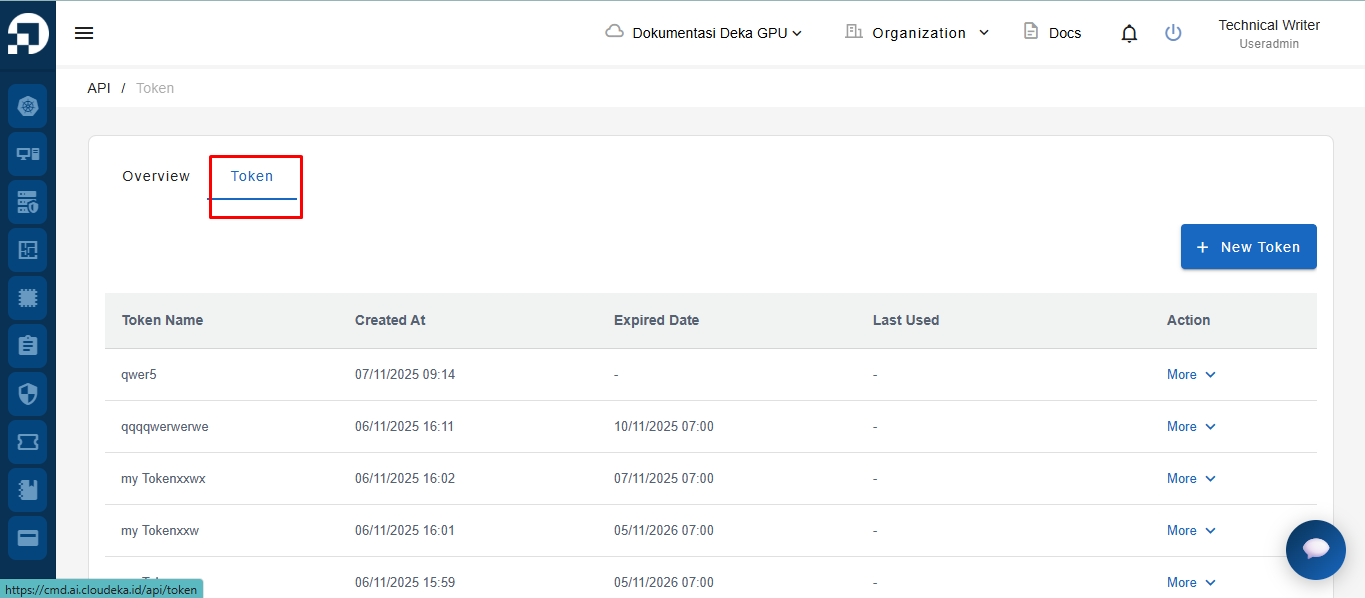
The system will display the API Overview page → select the Token tab.

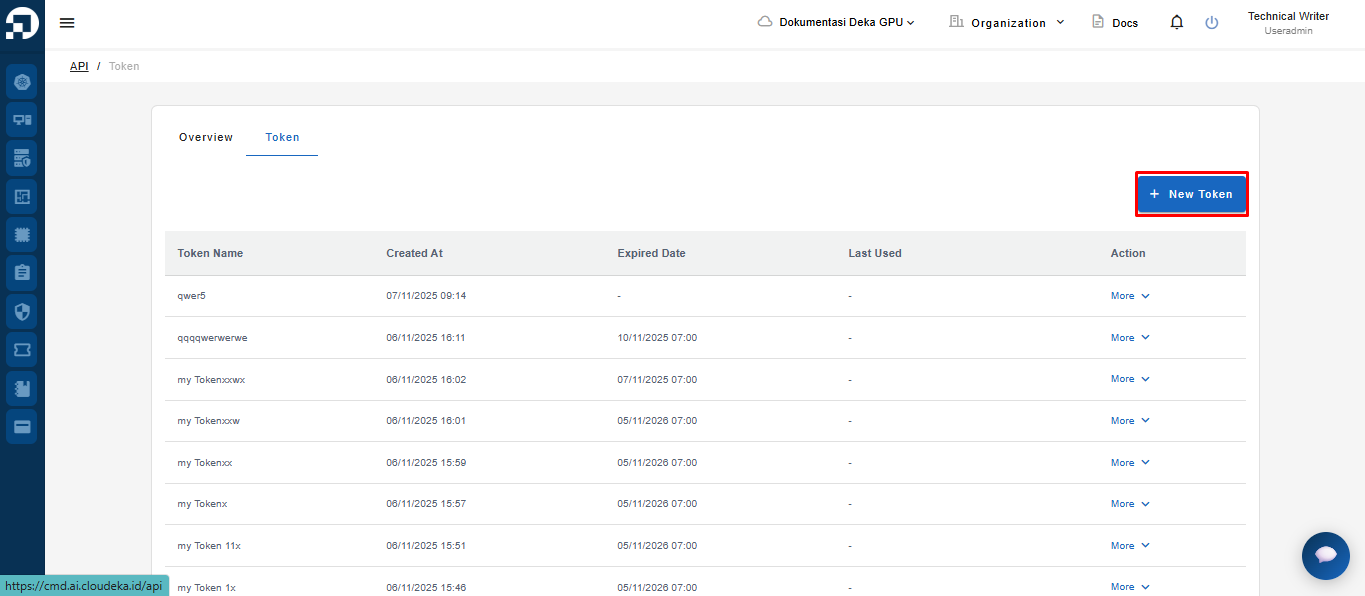
On the Token page, click the New Token button.

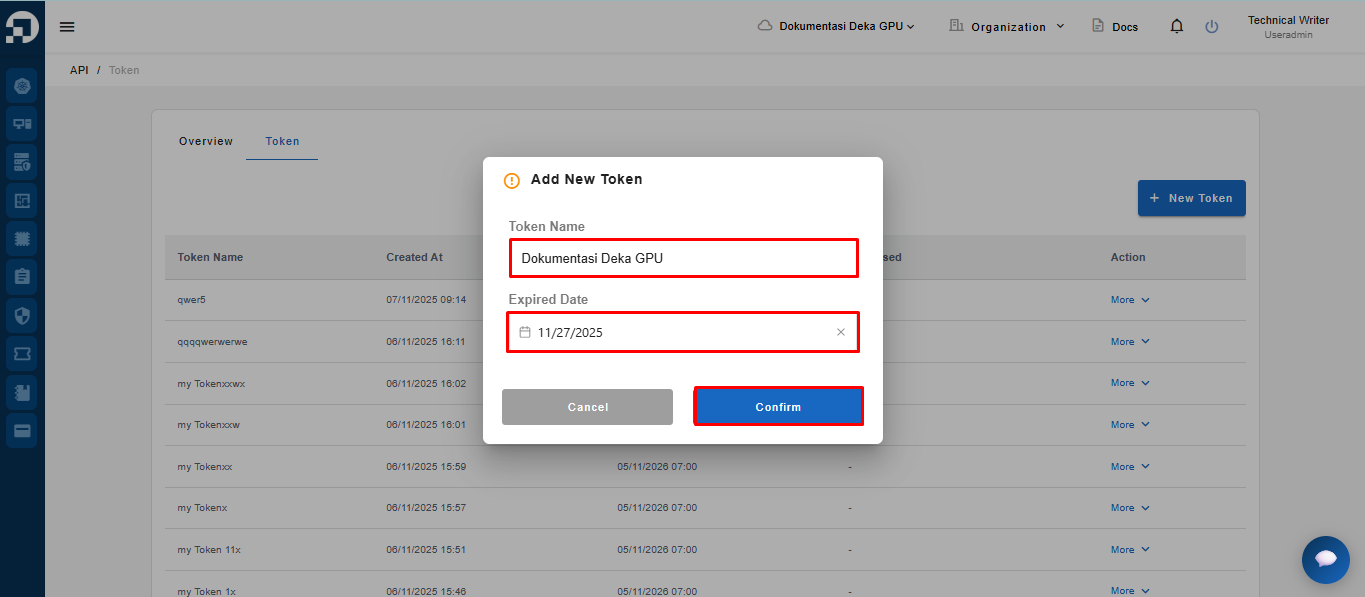
The system will automatically display the Create Token form — fill in the token details, then click the Confirm button.

Token Name
Used to provide a name or label for the created token.
Expired date
Used to set the token’s expiration date.
Note: If the Expired Date field is left empty, the token will remain active indefinitely.
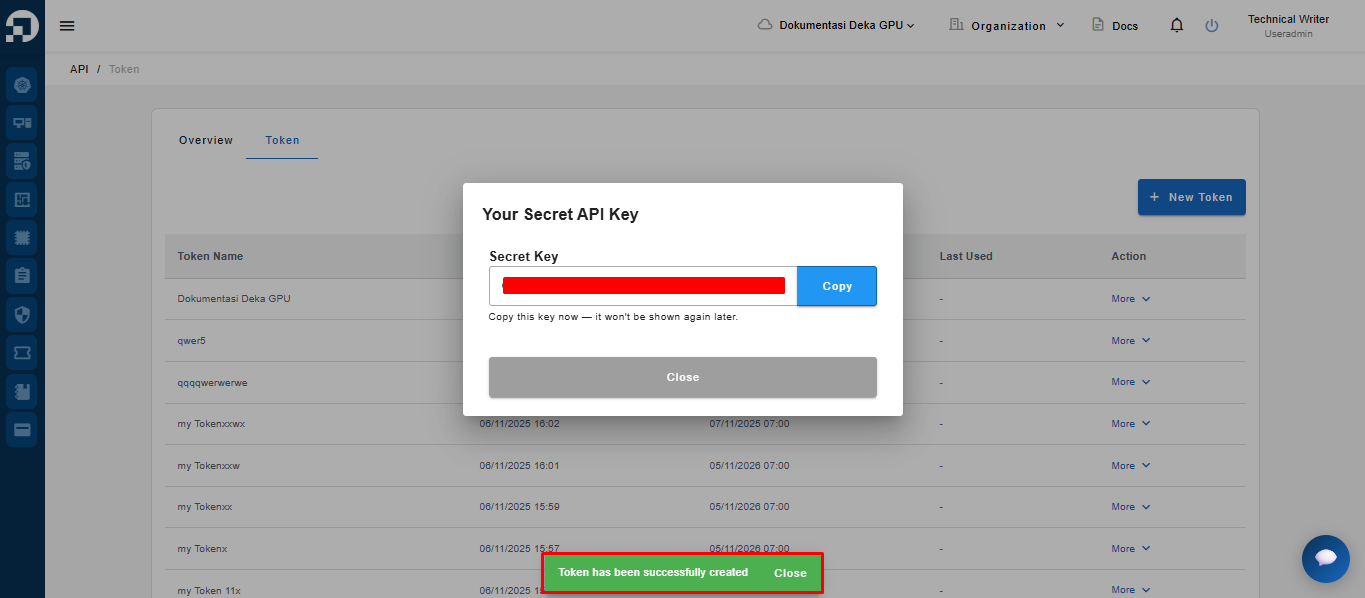
After completing the token data input, the system will display a notification saying “Token has been successfully created”, followed by a dialog box showing the Secret API Key.
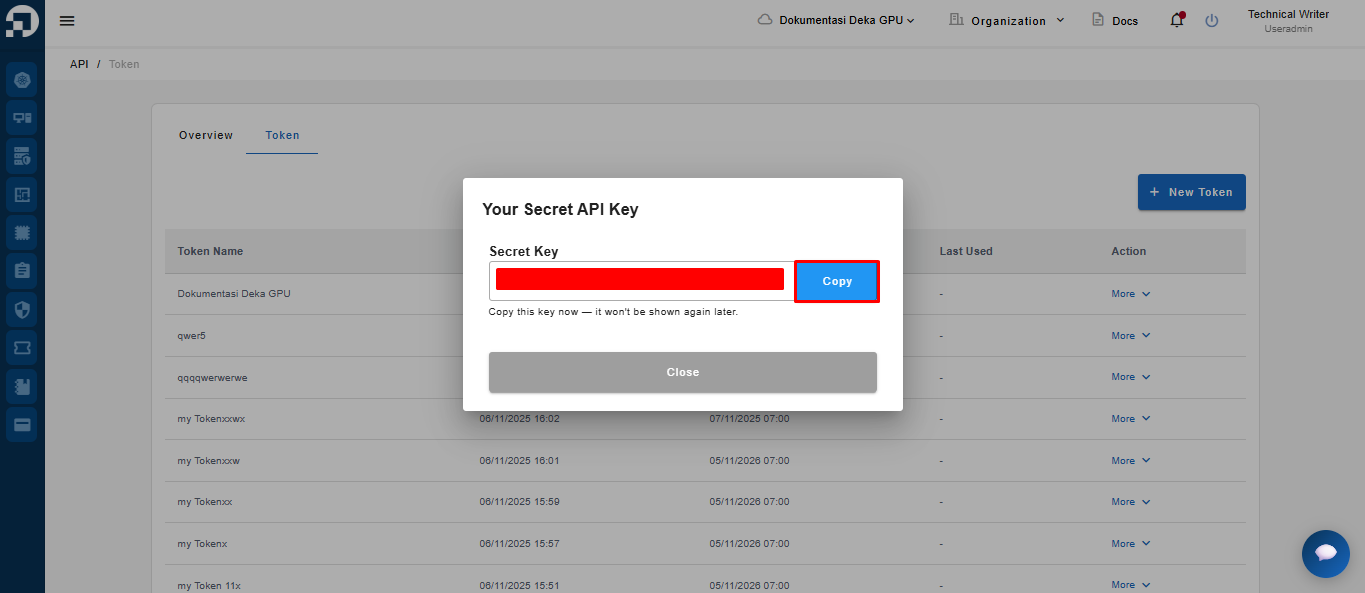
Click the Copy button to copy the Secret API Key

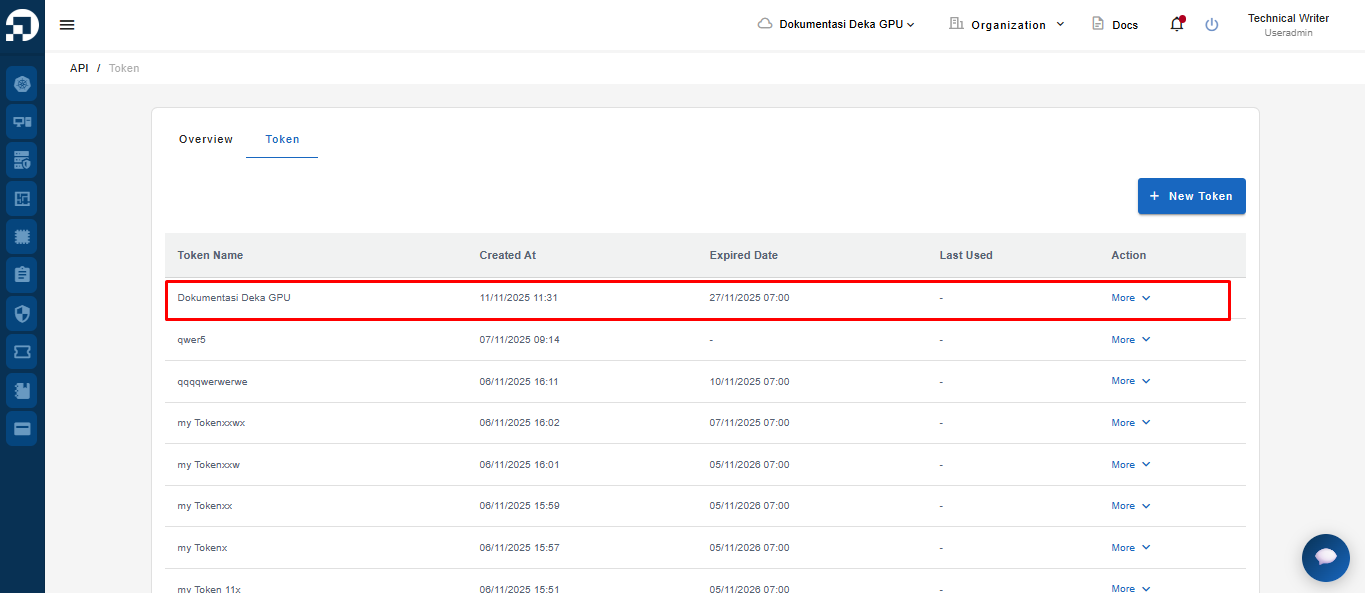
Click the Close button when finished. The created token will then appear in the token list table.

Last updated
