Create Deka CDN
Following are the steps for creating a Deka CDN on the Service Portal Cloudeka.
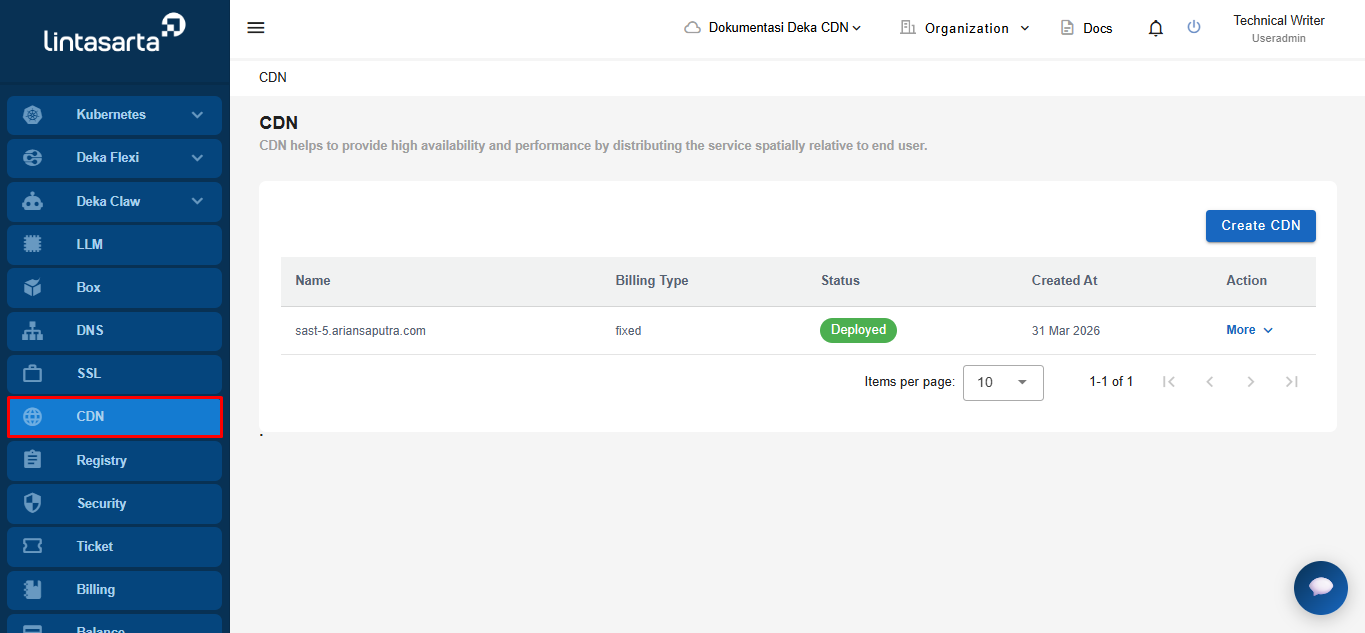
On the Manage Module click the CDN menu.

The CDN menu page appears, then click Create CDN.

Fill in the fields provided on the Create CDN page.
Domain
The name of the website address used.
IP Address
The IP address the domain uses.
Port
There are 2 options among them: a. Port 443 is used for HTTPS websites. b. Port 80 is used for HTTP websites.
SSL
It functions to enable encryption of the connection between the user and the CDN server. By enabling SSL, the data sent and received will be secured through the HTTPS protocol, protecting sensitive information from unauthorized access and increasing user trust when accessing content through the CDN.
Billing Type
The type of payment used in the project.
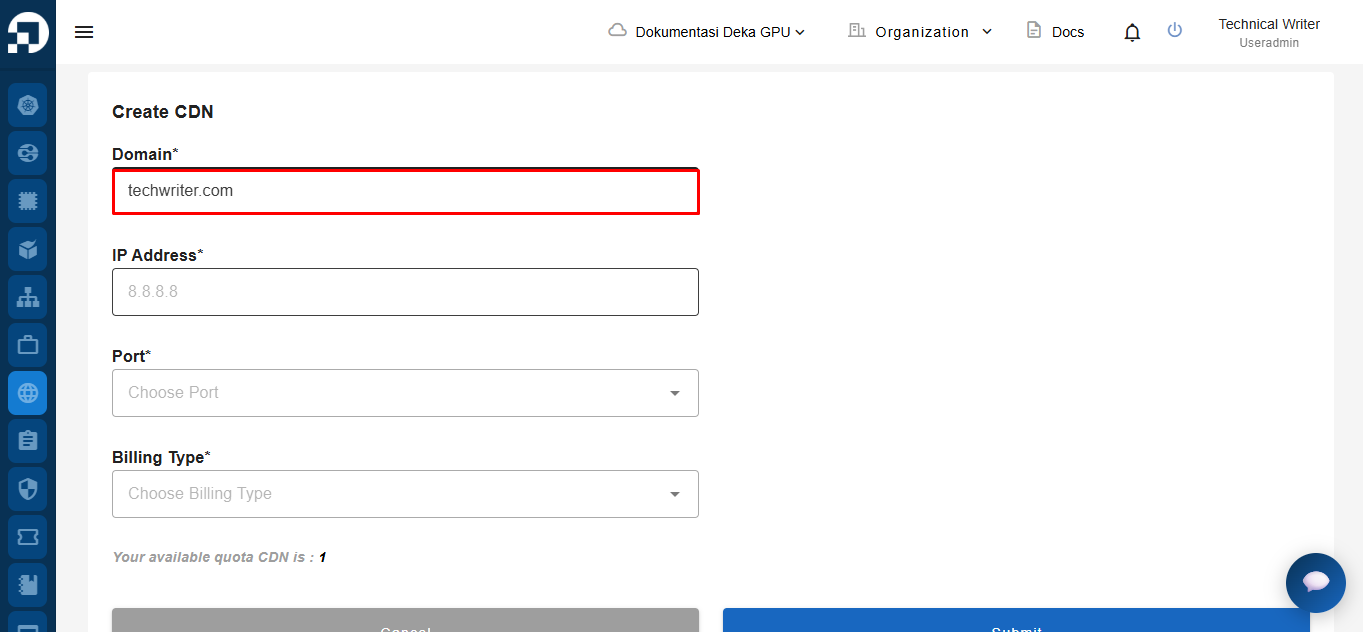
On the Domain column fill in the domain name techwrite.com

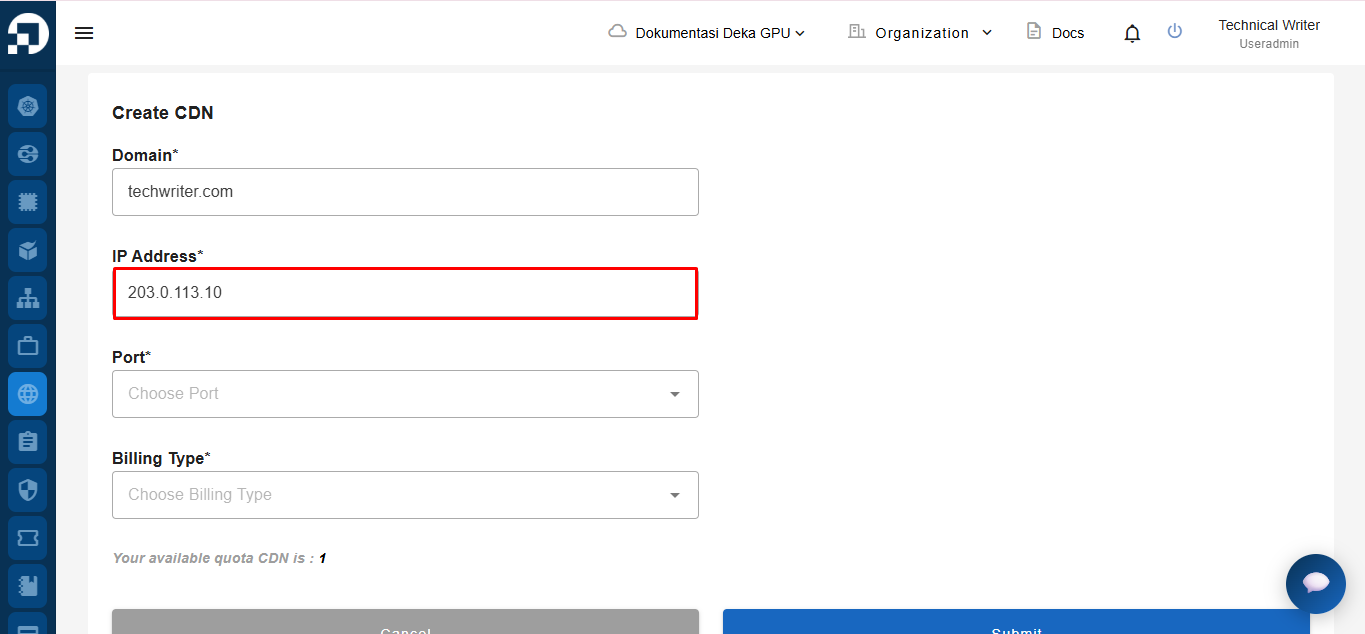
Fill IP Address column.

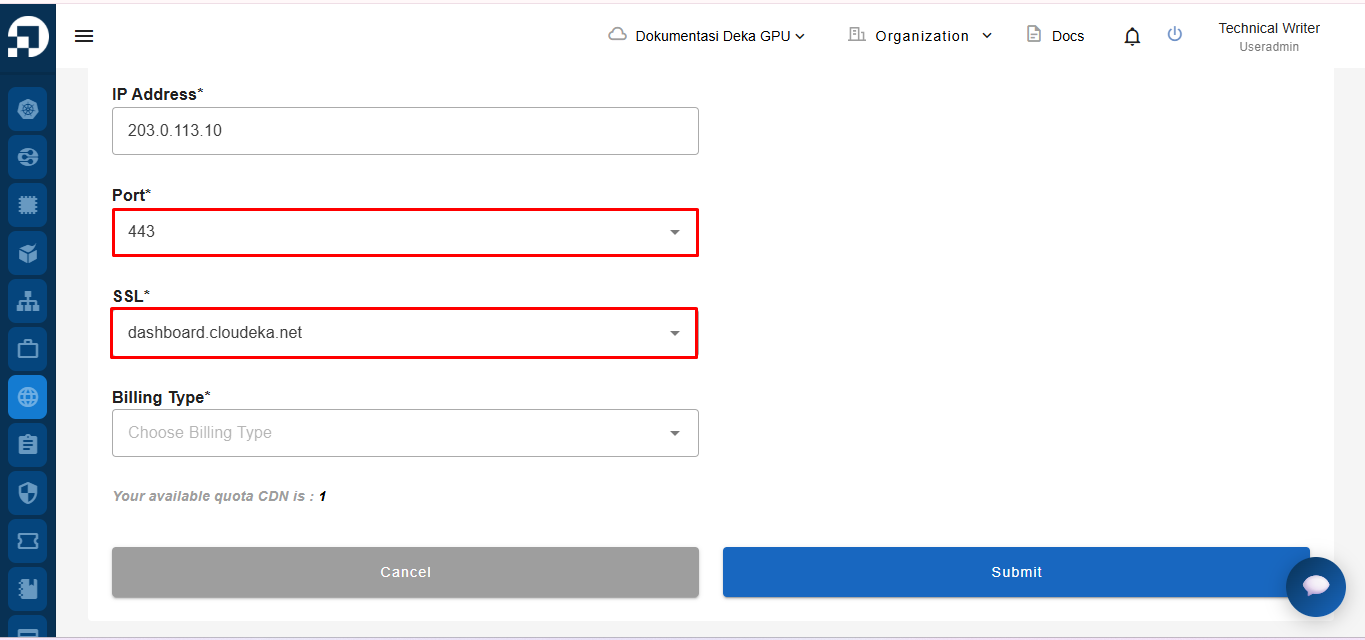
On the Port column check the HTTPS port 443. If you select port 443, you can choose SSL.
You must Import SSL in the Service Portal Cloudeka.

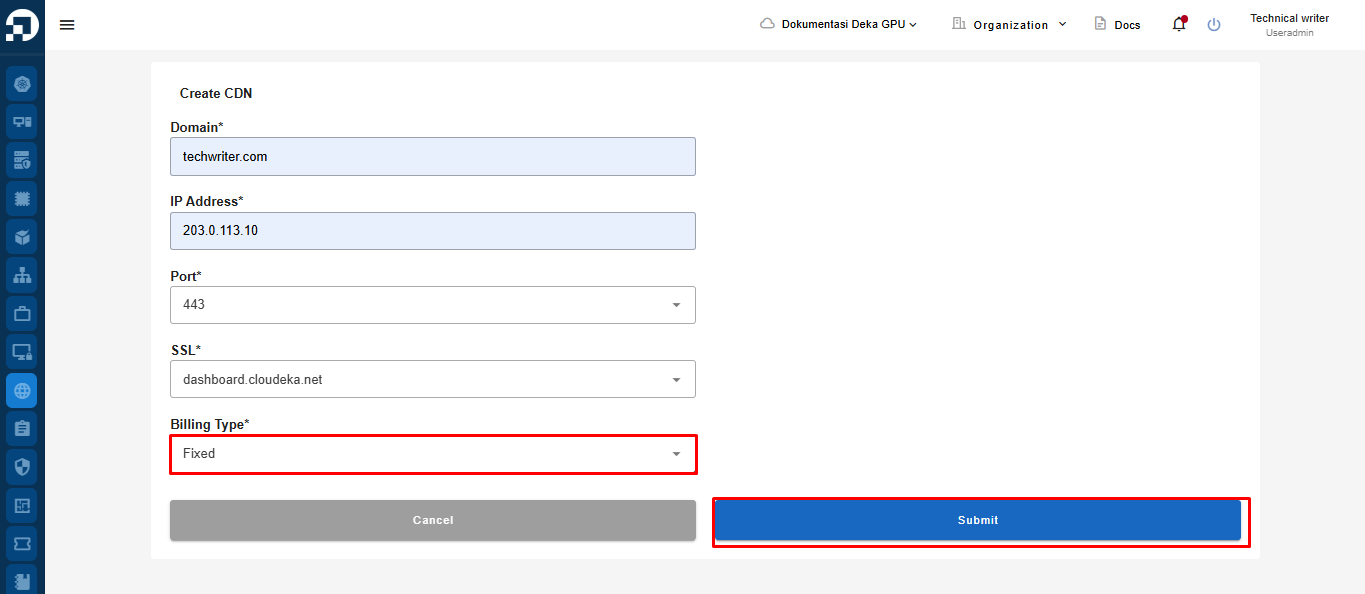
On column Billing Type select payment type Fixed.After filling out all the forms, click the submit CDN button.

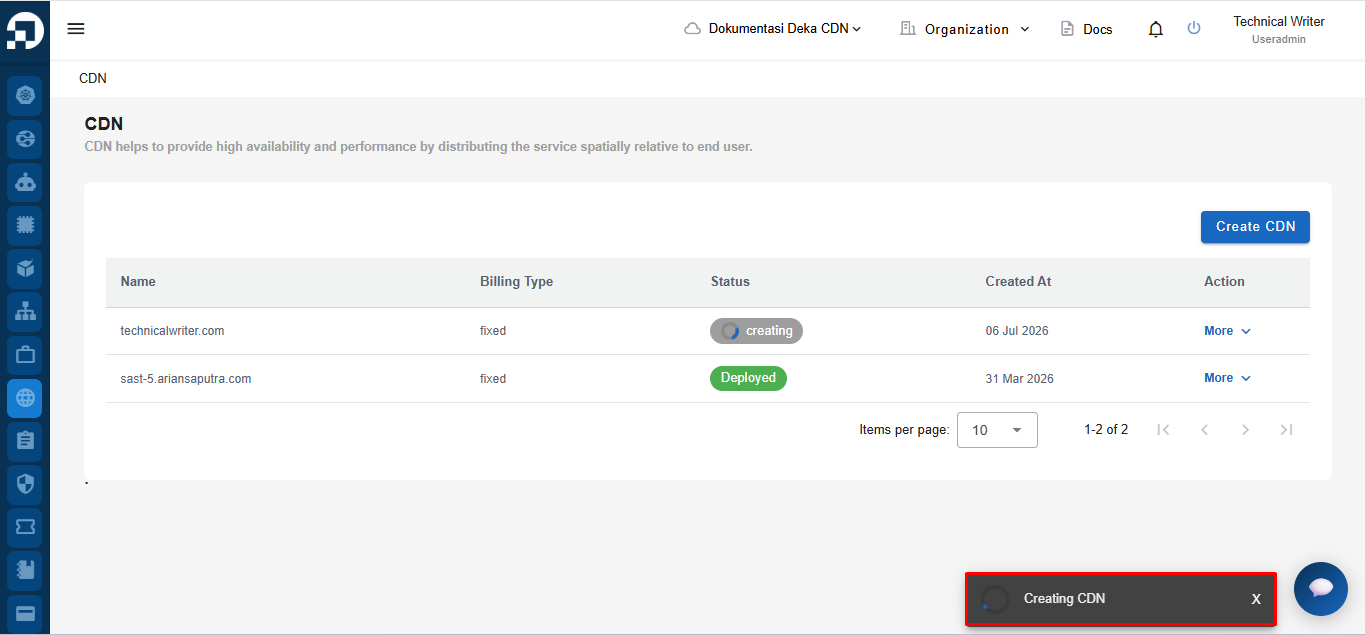
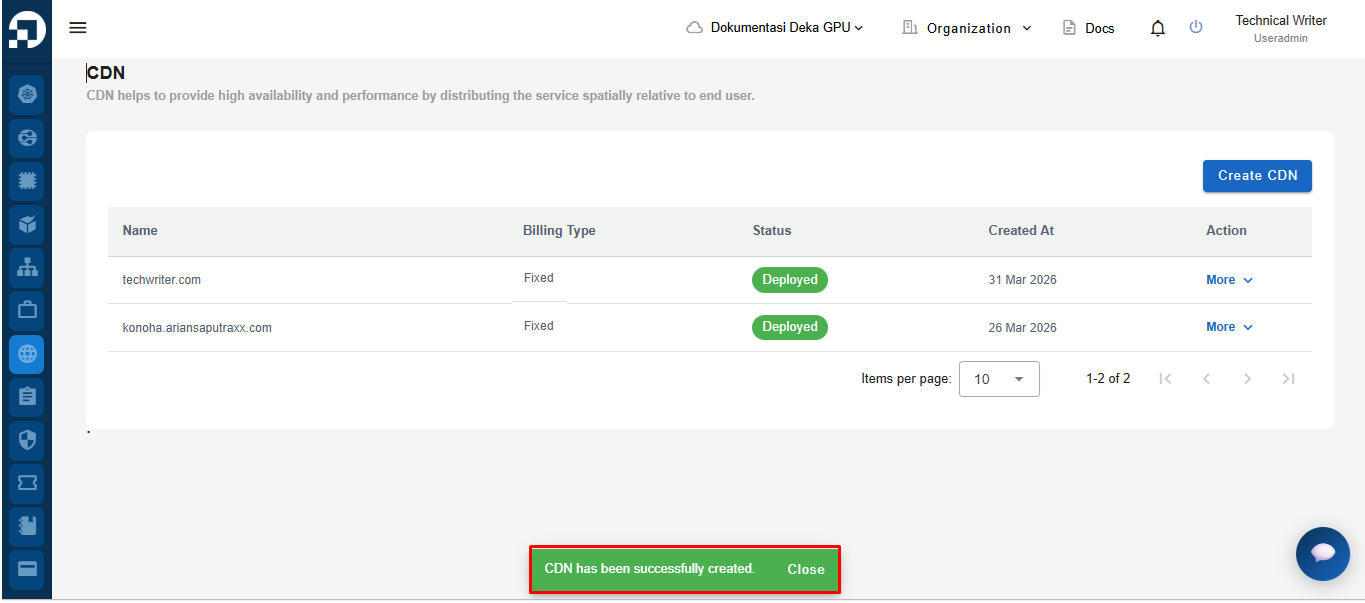
Show notification Creating the CDN that the CDN creation process is in progress, wait for the notification to change to CDN [nama domain] has been successfully created!.
Last updated