> For the complete documentation index, see [llms.txt](https://docs.cloudeka.ai/llms.txt). Markdown versions of documentation pages are available by appending `.md` to page URLs; this page is available as [Markdown](https://docs.cloudeka.ai/deka-claw/create-deka-claw/connect-your-telegram-bot.md).
# Connect Your Telegram Bot
After completing the **Channel Type** configuration, scroll down to the lower section of the page to continue the bot configuration process in the **Connect Your Telegram Bot** section. Next, to connect your bot to Telegram, follow these steps:
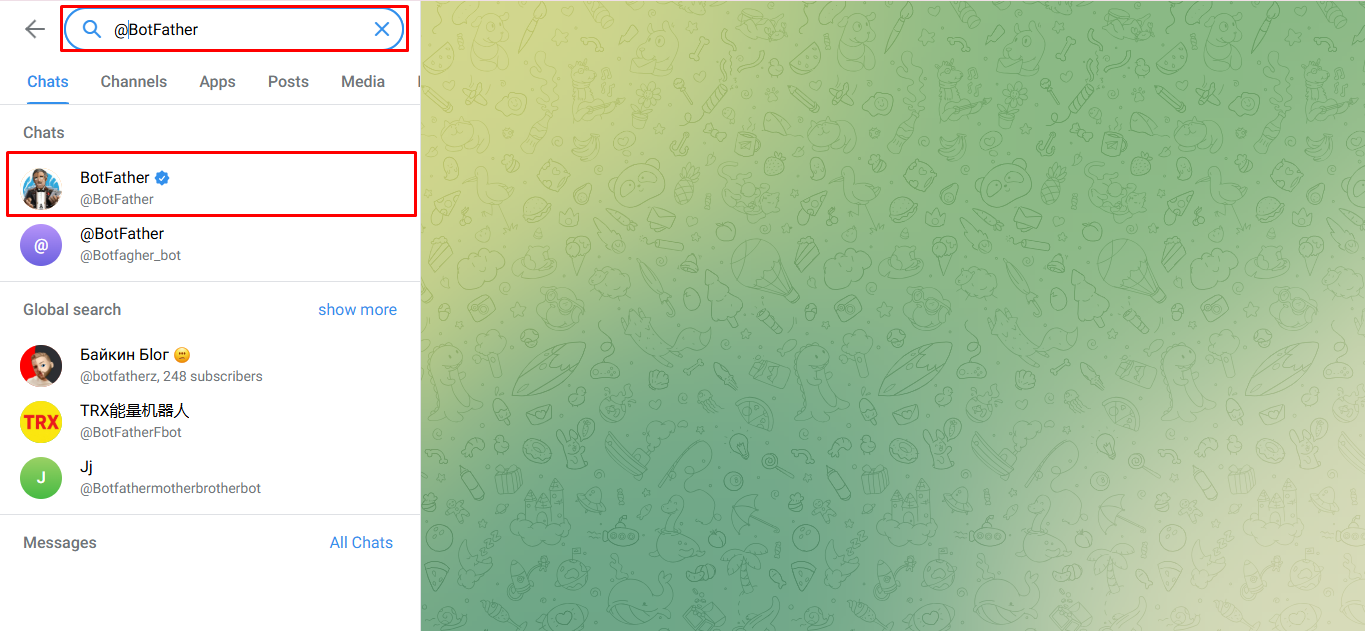
Open the Telegram application and search for **@BotFather**.
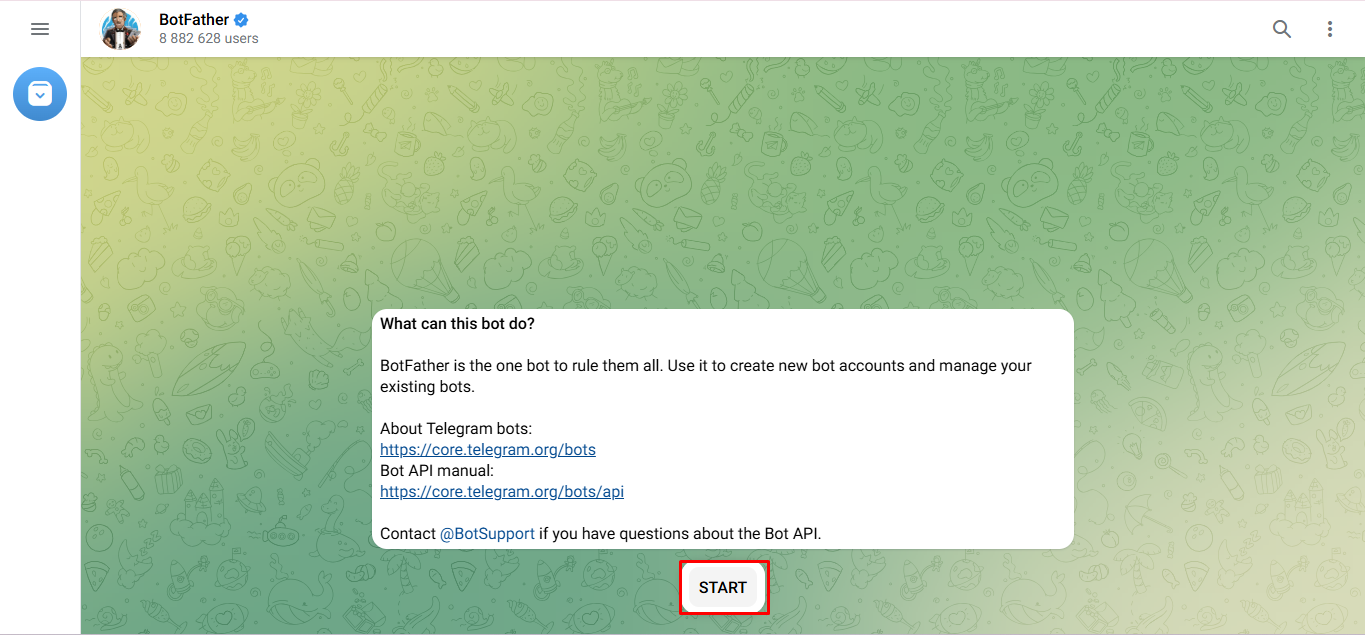
Then click the **Start** button or run the **/start** command in the BotFather chat.
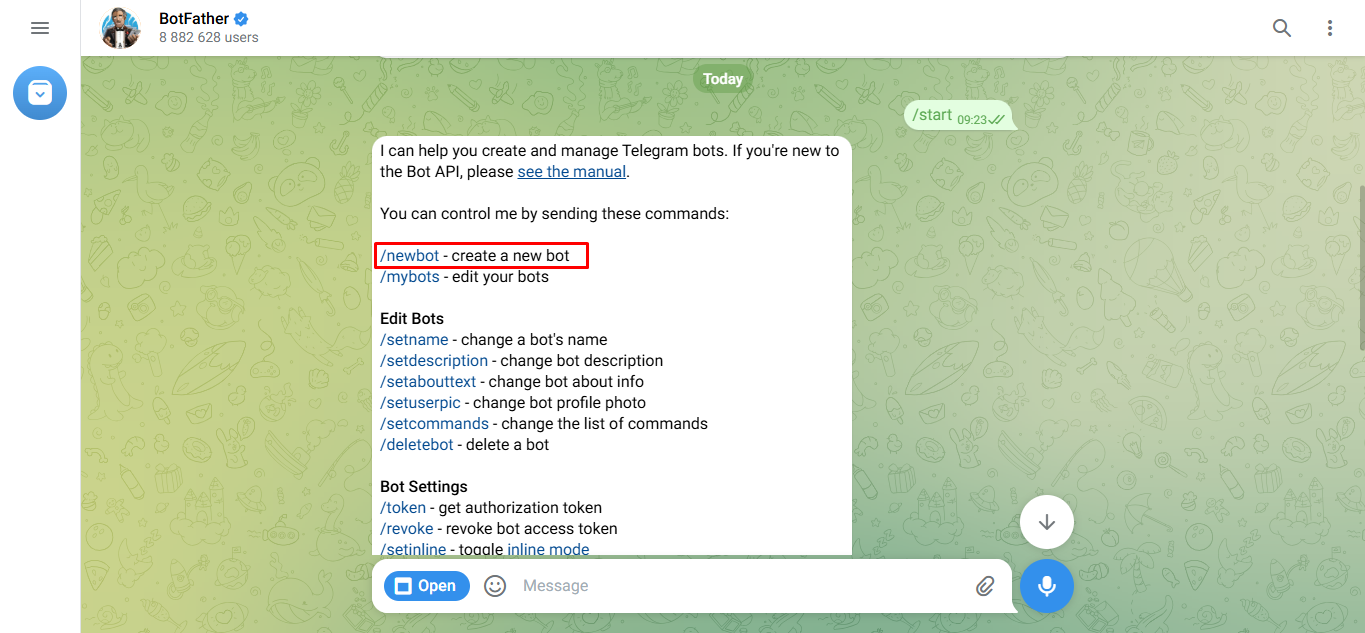
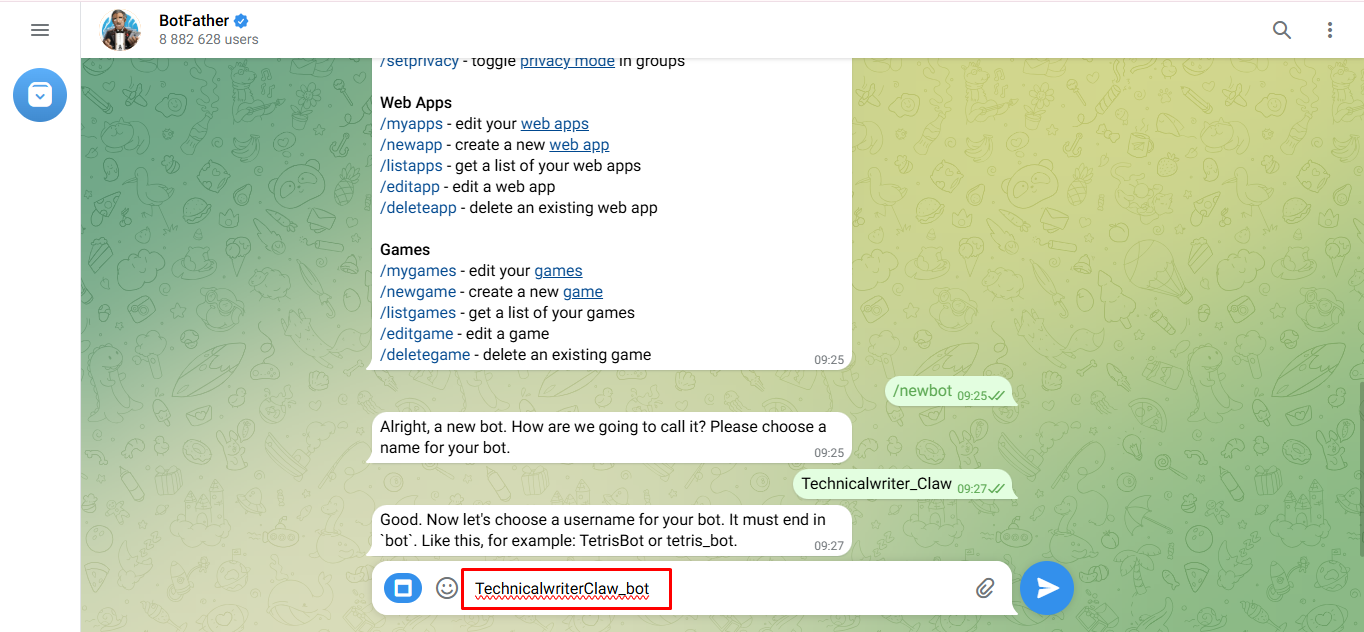
After the **/start** command is executed, BotFather will display several available commands. To create a new bot, click the **/newbot** command, then follow the instructions provided by BotFather until the bot creation process is successfully completed.
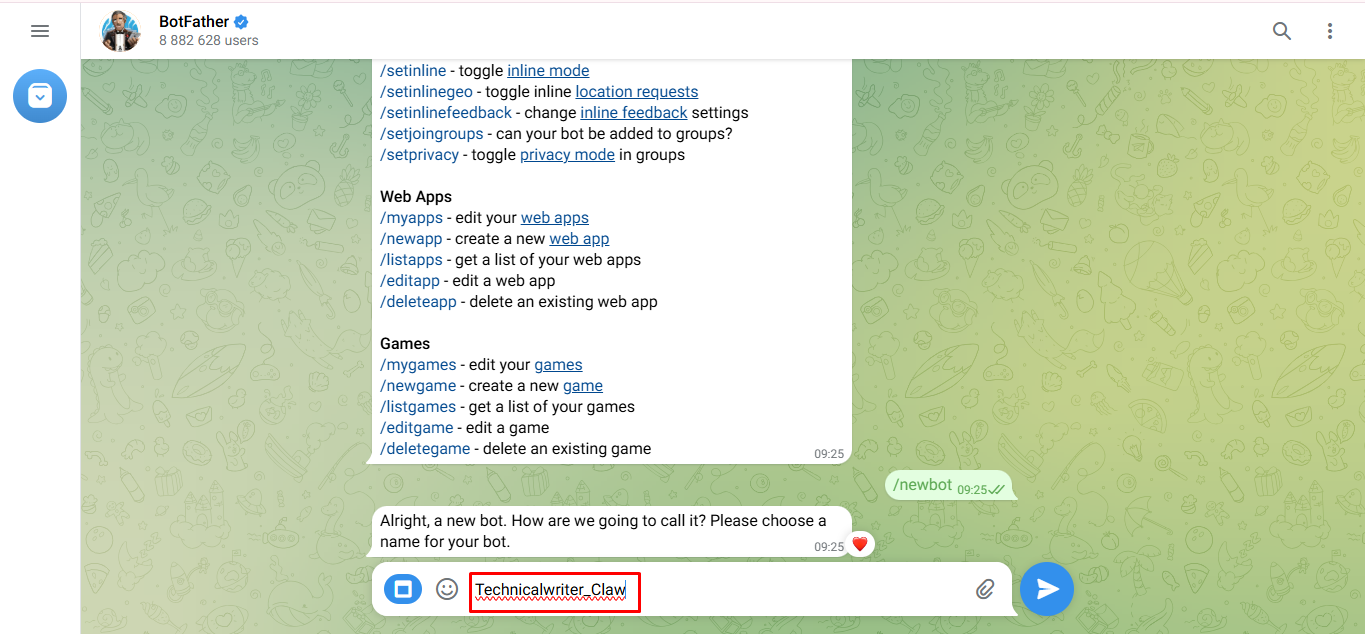
Next, enter the bot name you want to use, then send the name in the BotFather chat to continue the bot creation process.
After the bot name is successfully created, BotFather will ask the user to define the bot’s **username**. The bot username must end with the word **bot**, for example **TetrisBot** or **tetris\_bot**.
Enter the desired bot username, then send the username to continue the bot creation process.
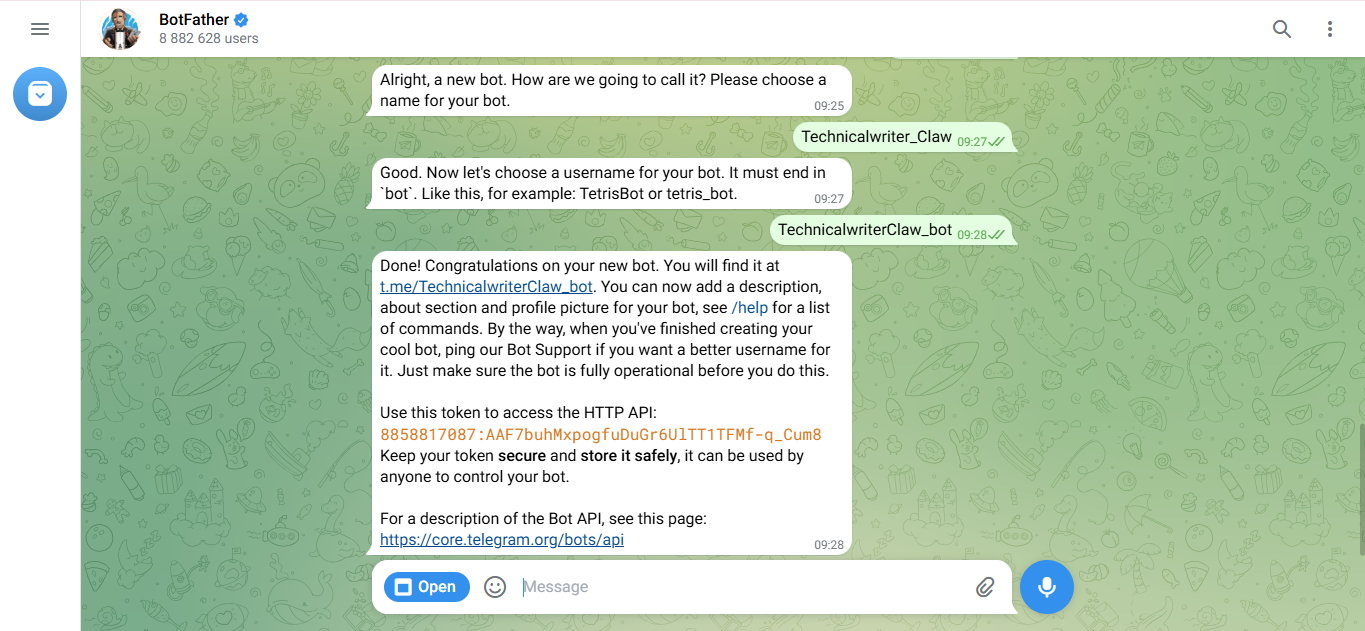
If the bot username is successfully created, BotFather will display a notification confirming that the bot has been successfully created along with the bot username information and the **bot token** used for Telegram Bot integration.
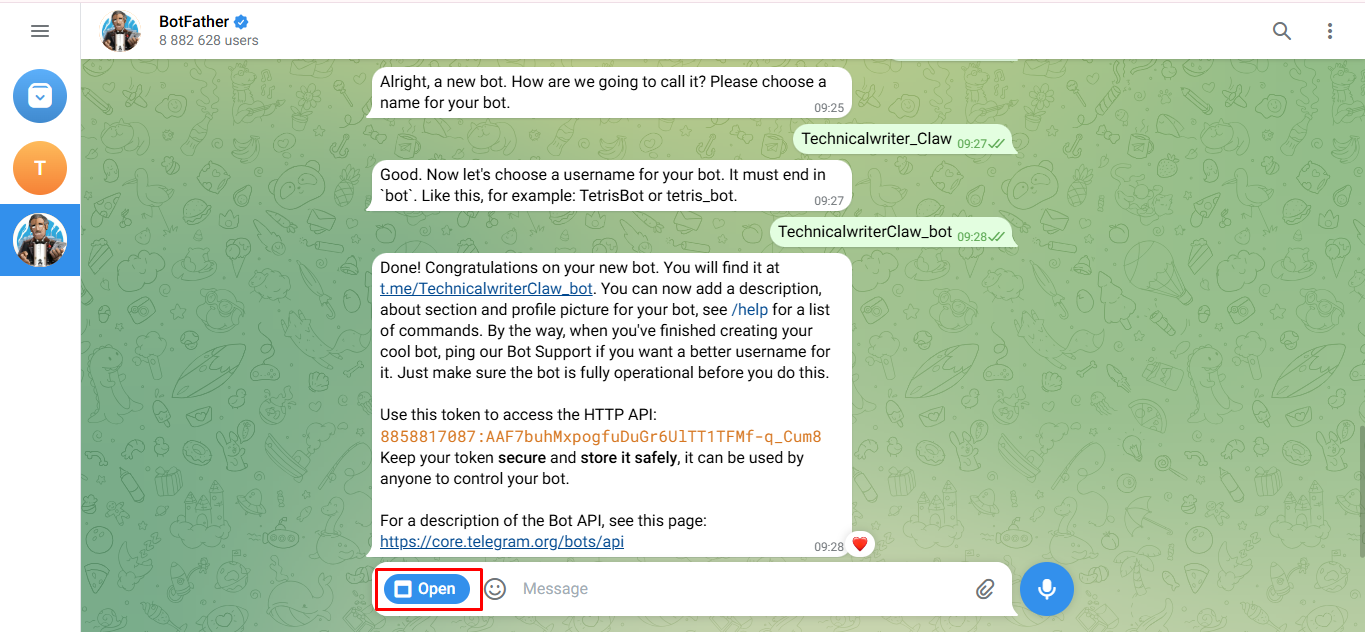
Click the **Open** button to open your newly created Telegram bot and continue the setup process to get the bot token.
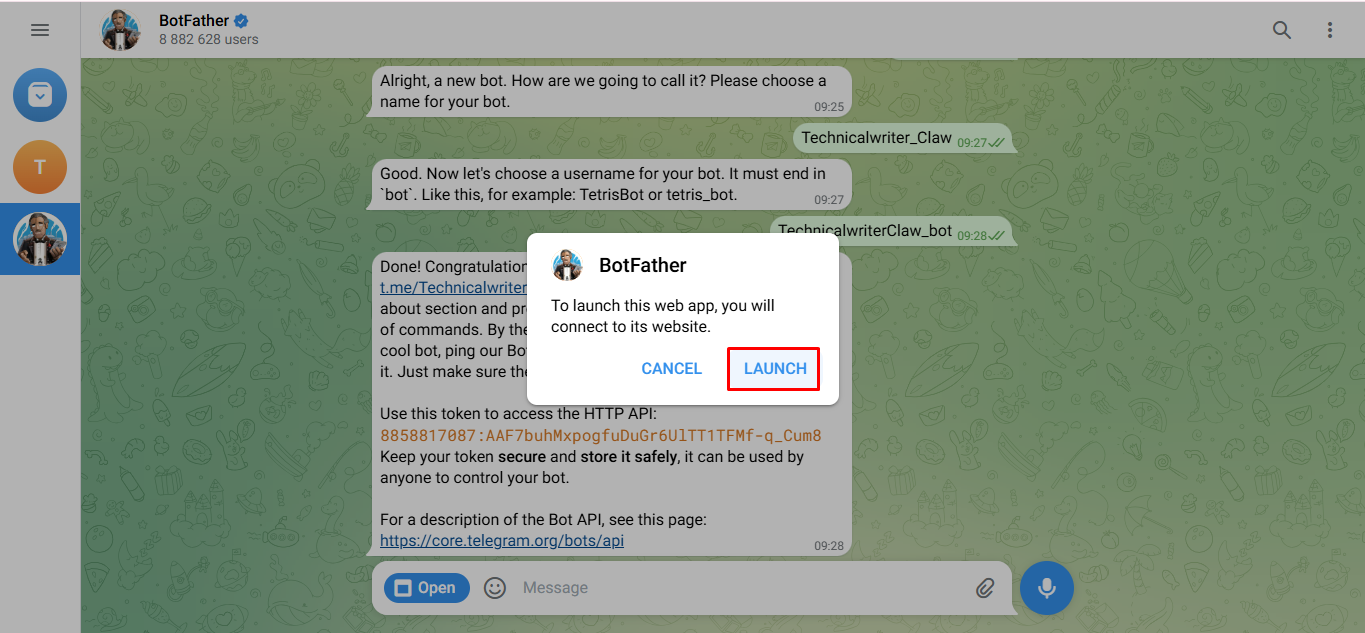
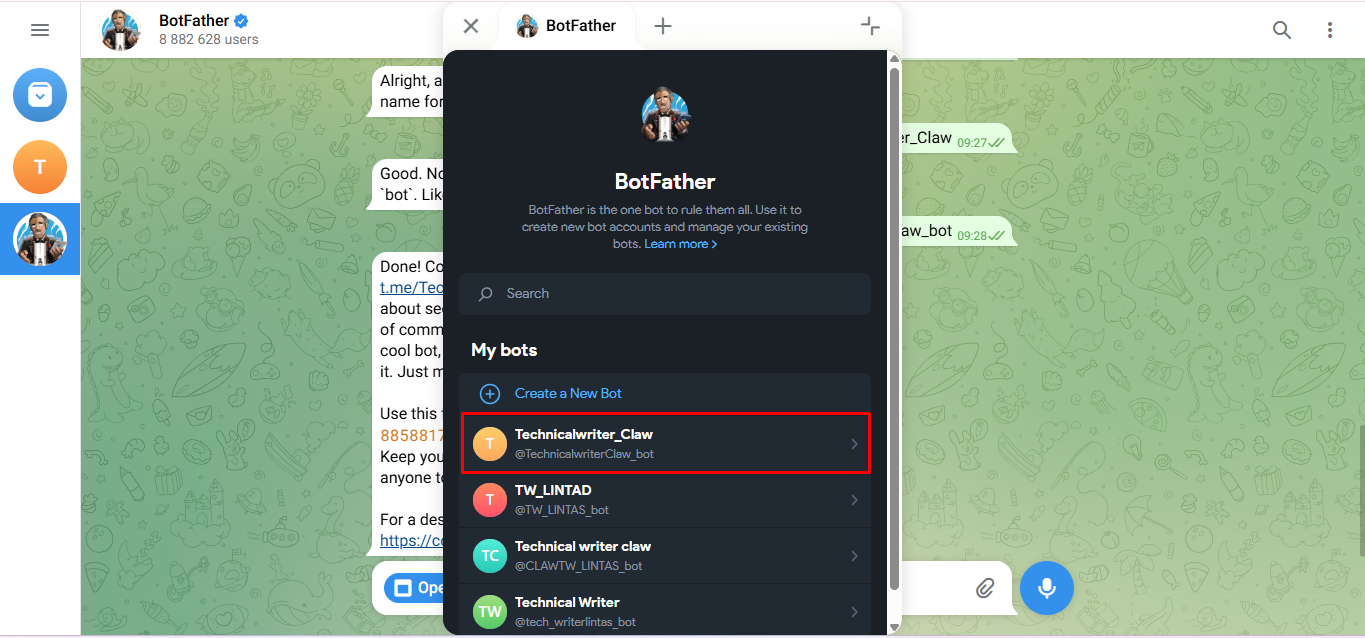
A confirmation notification will appear before opening the bot. Click the **Launch** button to open the bot and view the list of bots you have created.
The system will display a list of bots that have been created. Click the bot you want to configure to continue the setup process.
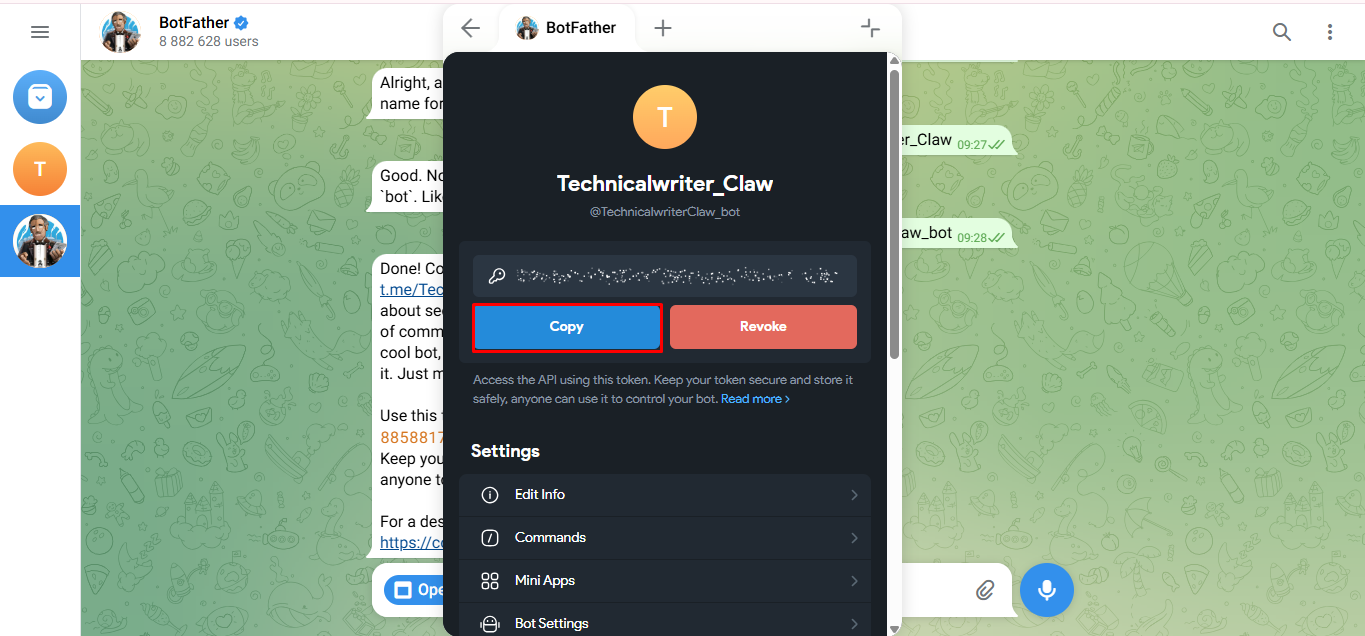
Copy the generated **bot token**.
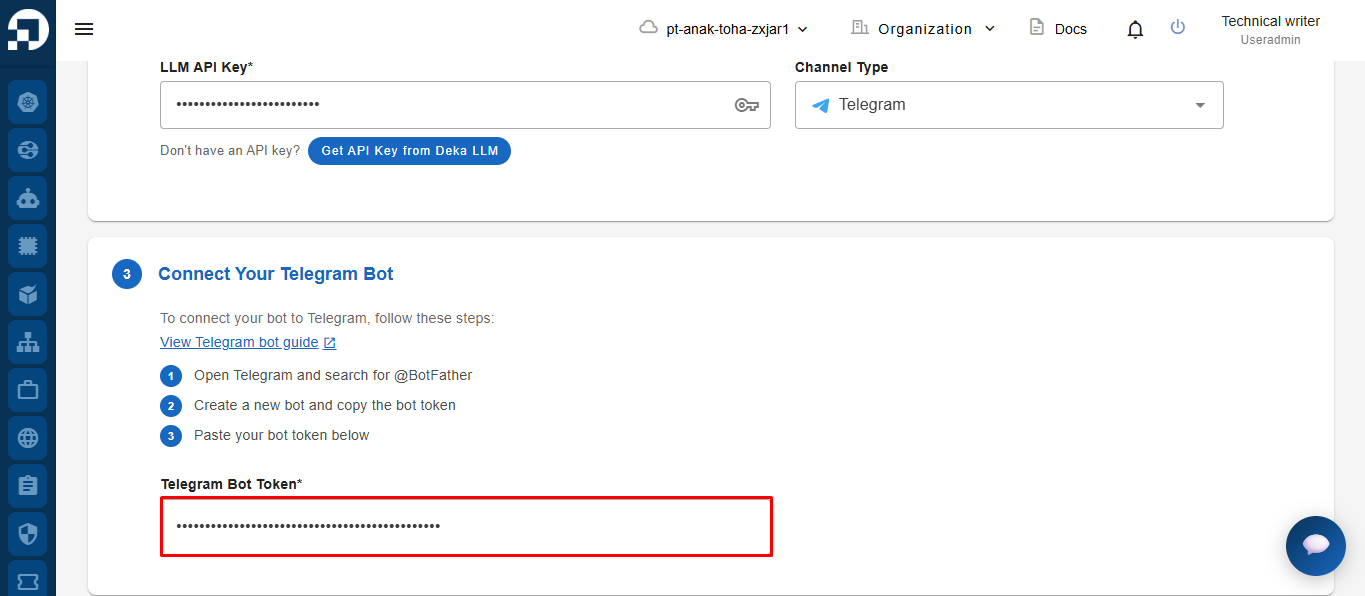
Finally, enter the **Telegram Bot Token** in the provided field to connect your bot to Telegram.
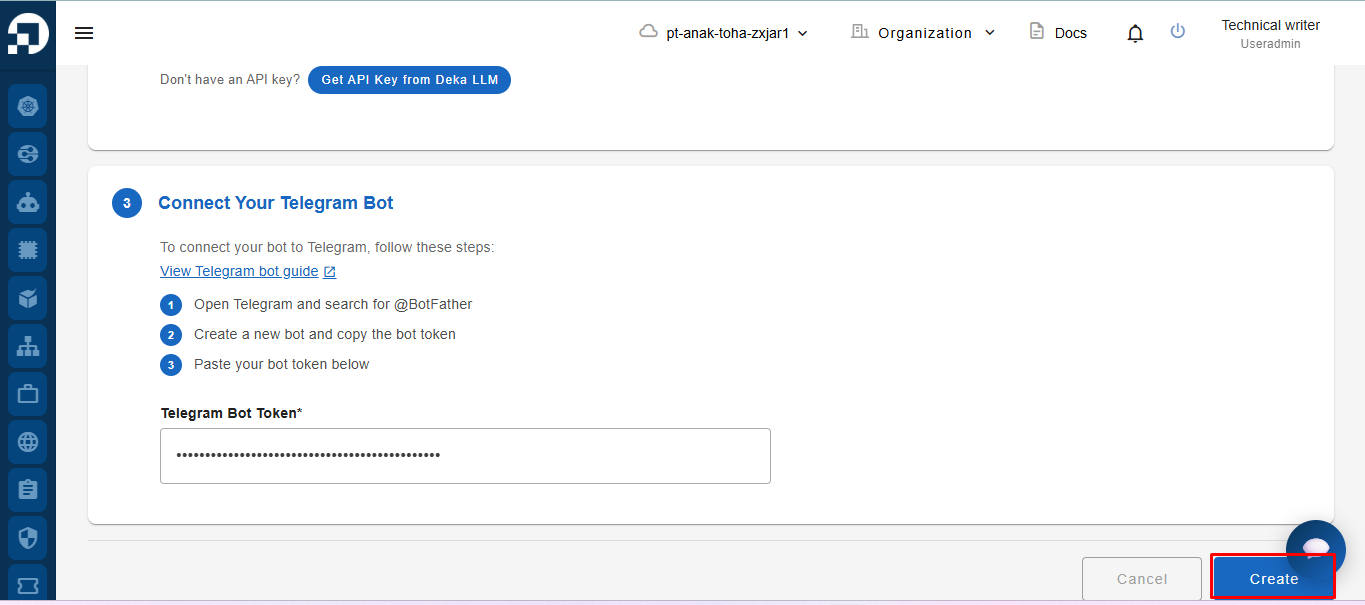
After all data and configurations have been completed, click the **Create** button to create the bot.
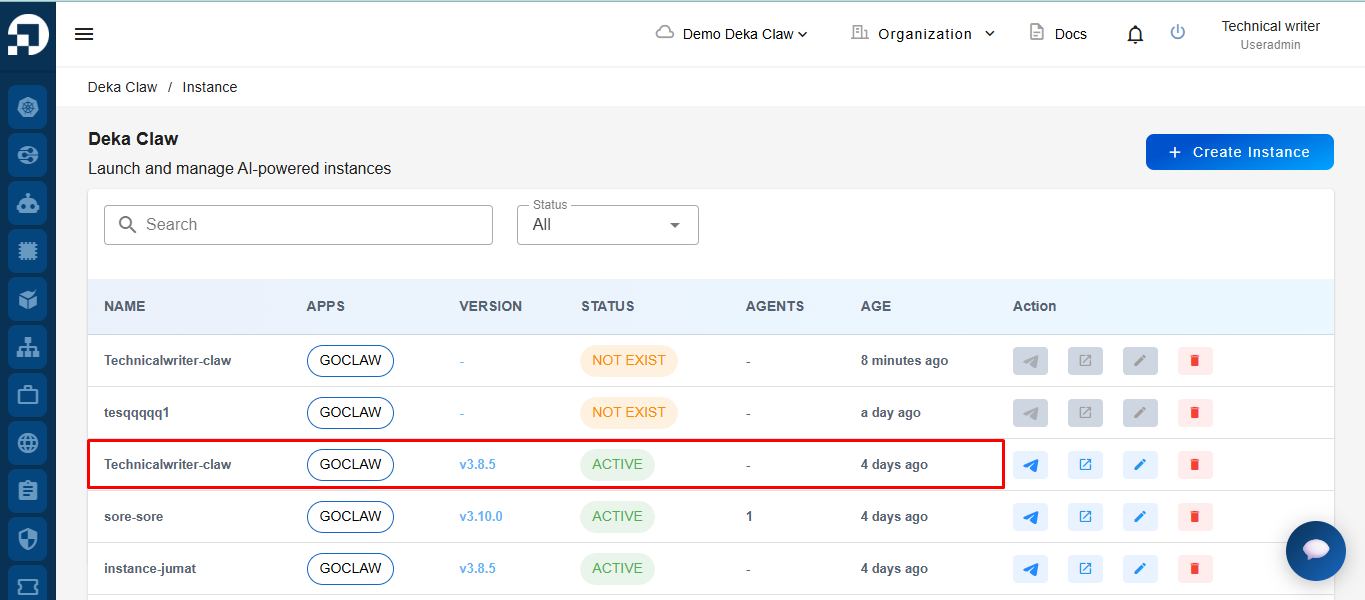
After the instance is successfully created, the newly created data will automatically be displayed in the instance table.
After the instance has been successfully created, the newly created data will automatically be displayed in the instance table.
You can then continue to the[ **Open GoClaw**](/deka-claw/open-goclaw.md) guide to access the GoClaw dashboard and manage your bot configuration.