Page cover
For the complete documentation index, see llms.txt. This page is also available as Markdown.

Create Agent

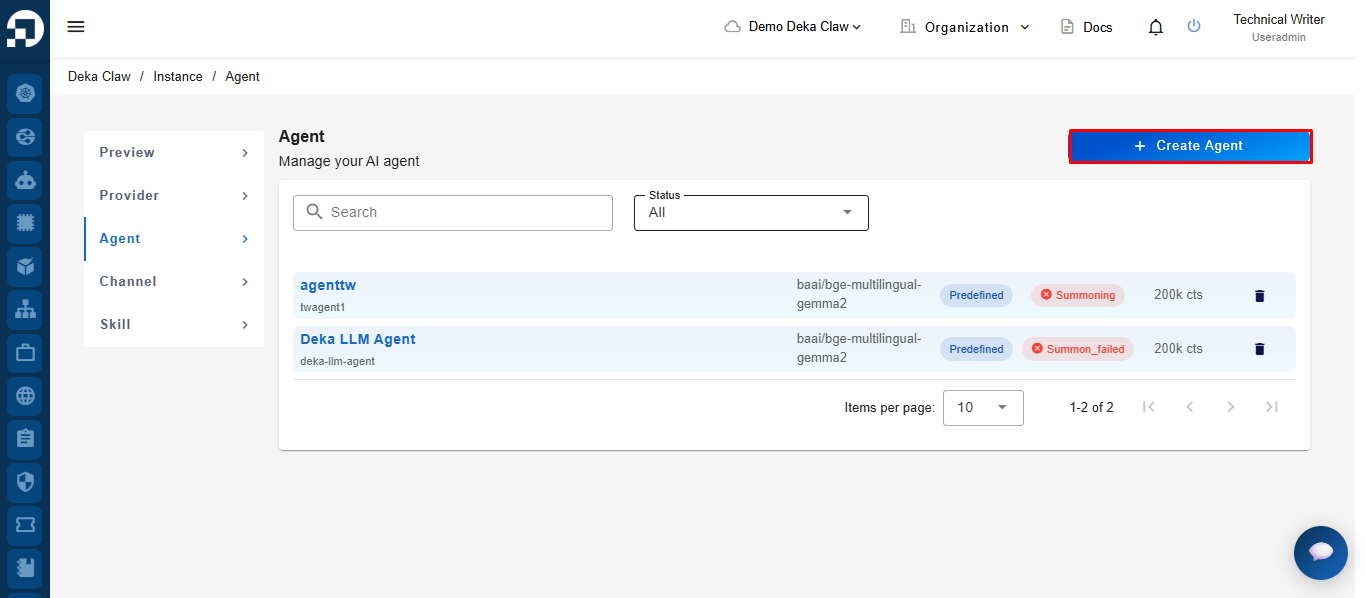
The Agent feature is used to create and manage AI agents within a Deka Claw instance. An Agent defines how the AI behaves, including its identity, personality, communication style, model configuration, and operational settings. Agents can automatically process requests and generate responses based on the configured instructions and selected AI model.

The Agent menu allows users to:

  • Create and configure AI agents.

  • Define the agent’s role, personality, and behavior.

  • Select the AI provider and model used by the agent.

  • Manage agent status and settings.

  • View, edit, and delete existing agents.

  • Connect agents with channels and other Deka Claw components to support automated conversations.

To create an Agent, click the Agent menu, then click the Create Agent button.

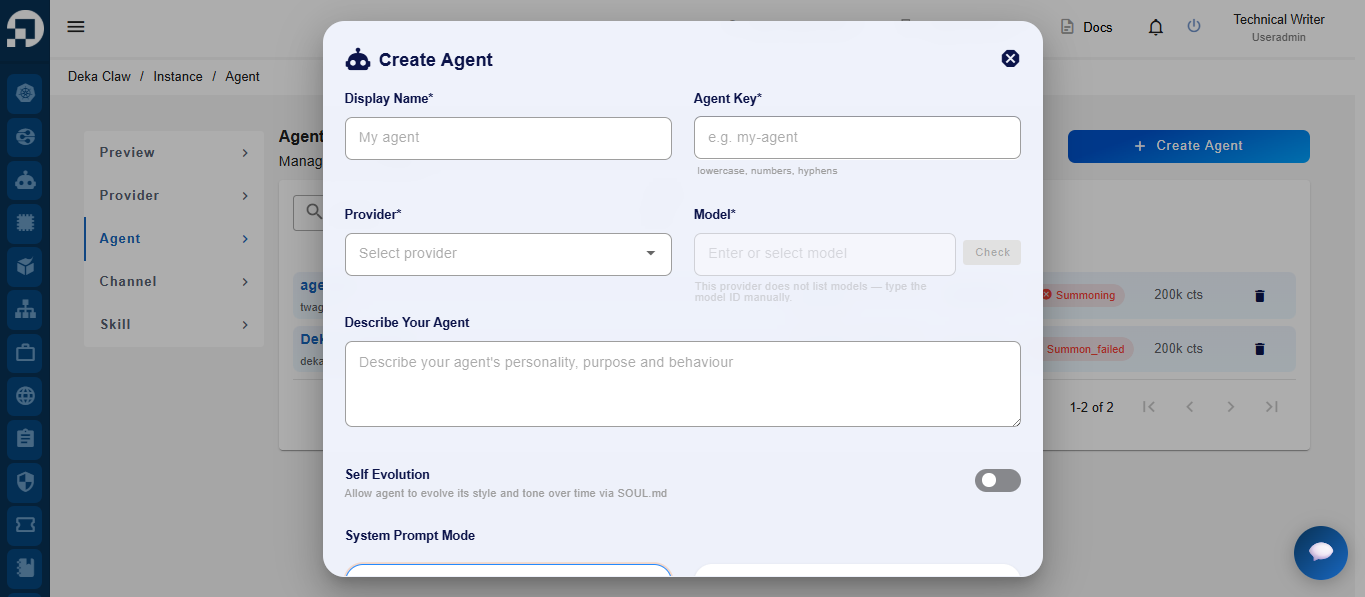
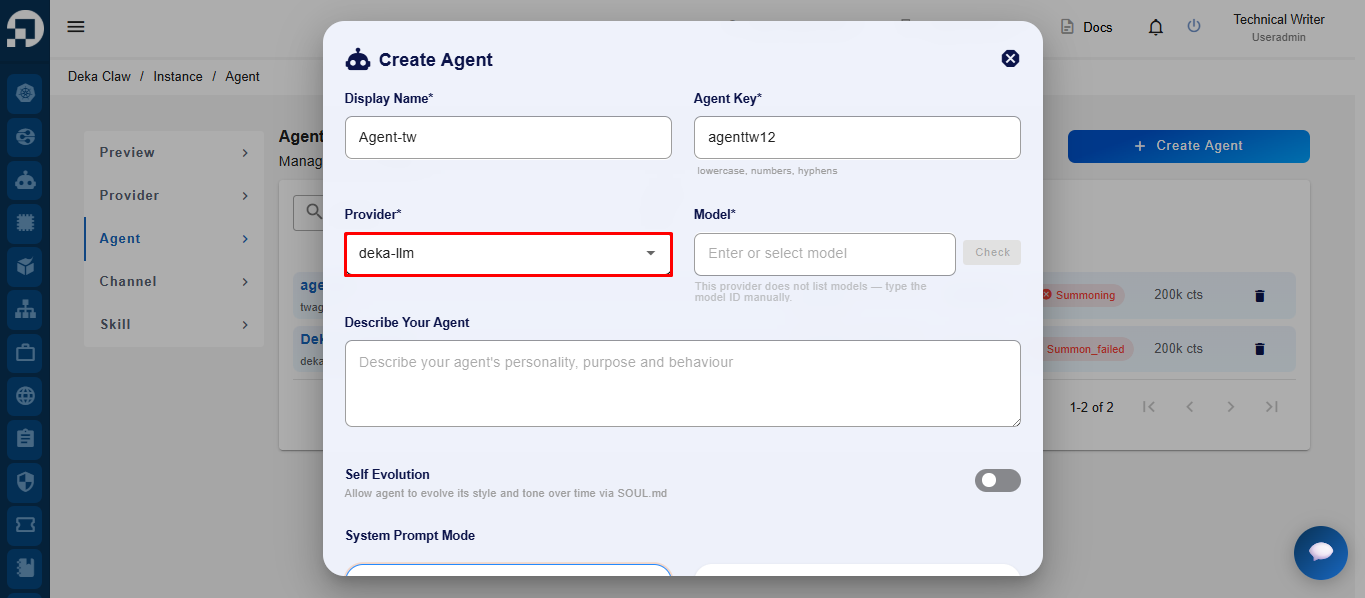
After clicking the Create Agent button, the system will display the Create Agent form. Complete the required information to configure the Agent according to your requirements.

Column
Description

Display Name

The name displayed for the Agent in the system.

Agent Key

A unique identifier for the Agent. The Agent Key can contain lowercase letters, numbers, and hyphens (-).

Provider

The AI Provider used by the Agent. Select a Provider that has been configured previously.

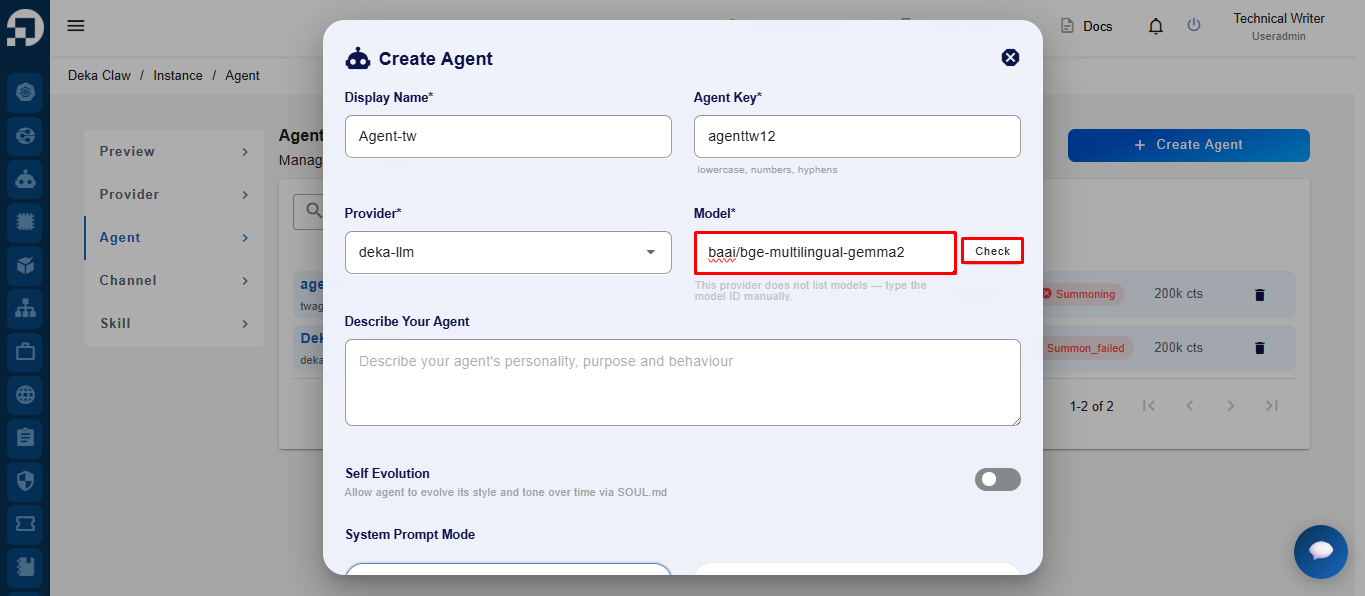
Model

The AI model used by the Agent to process requests and generate responses.

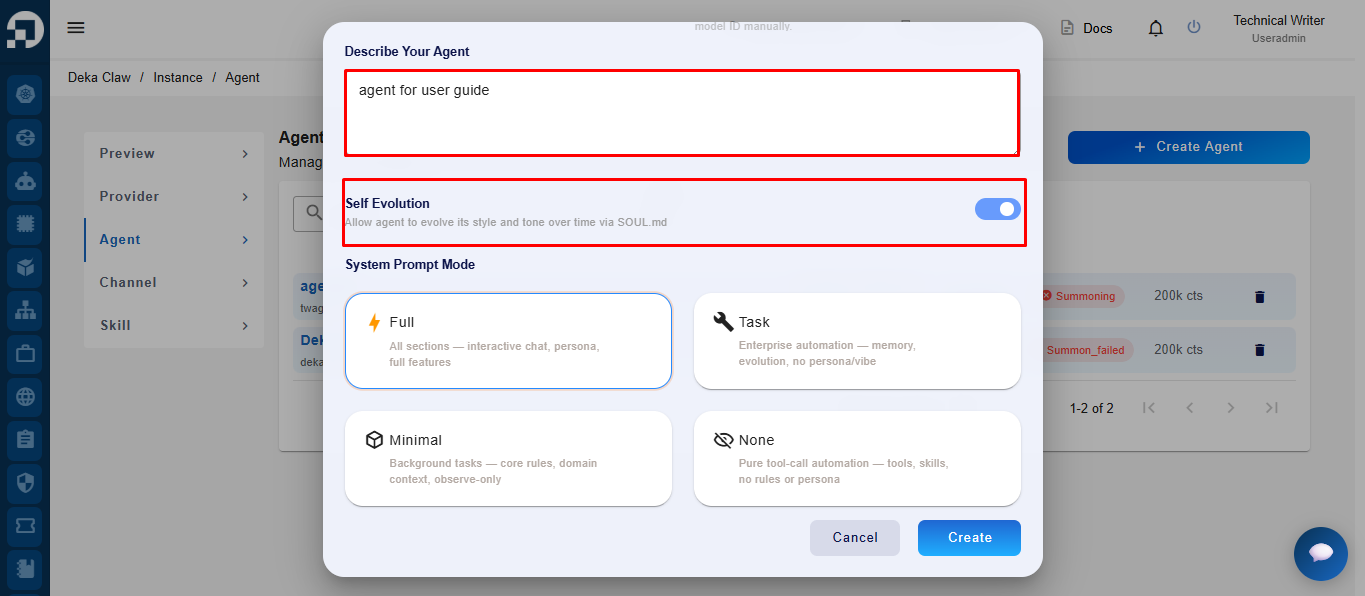
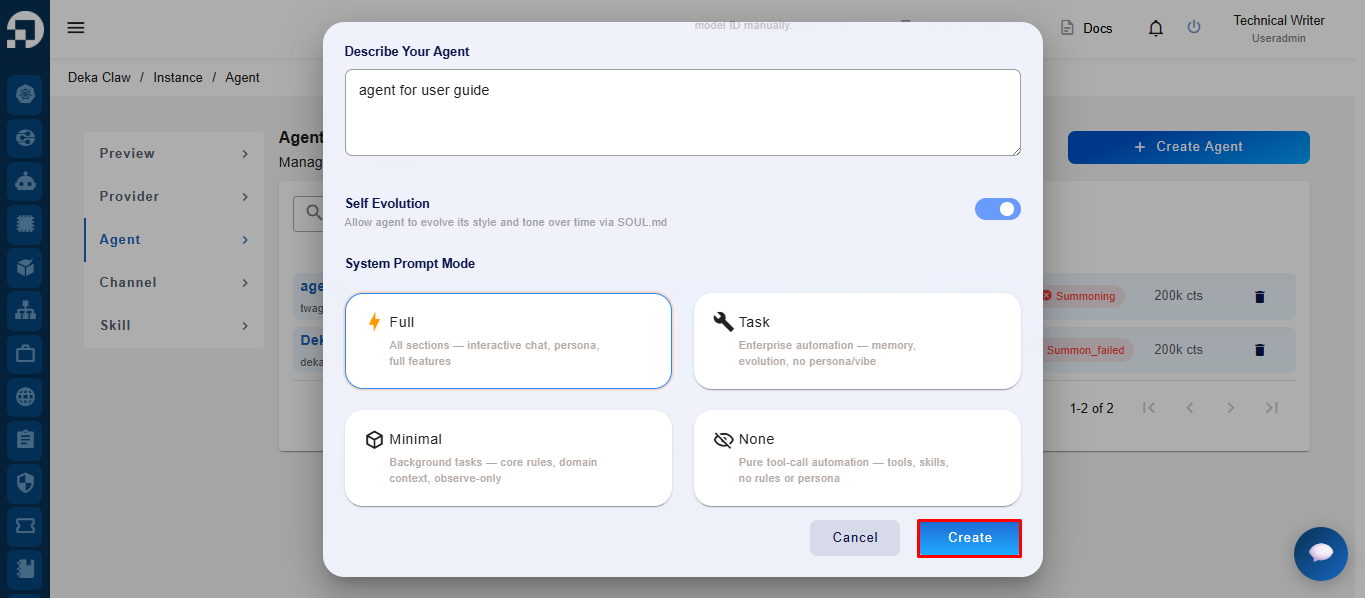
Describe Your Agent

A description that defines the Agent's personality, purpose, behavior, expertise, or functionality.

Self Evolution

Enables the Agent to gradually adapt its communication style and behavior over time based on interactions and stored knowledge.

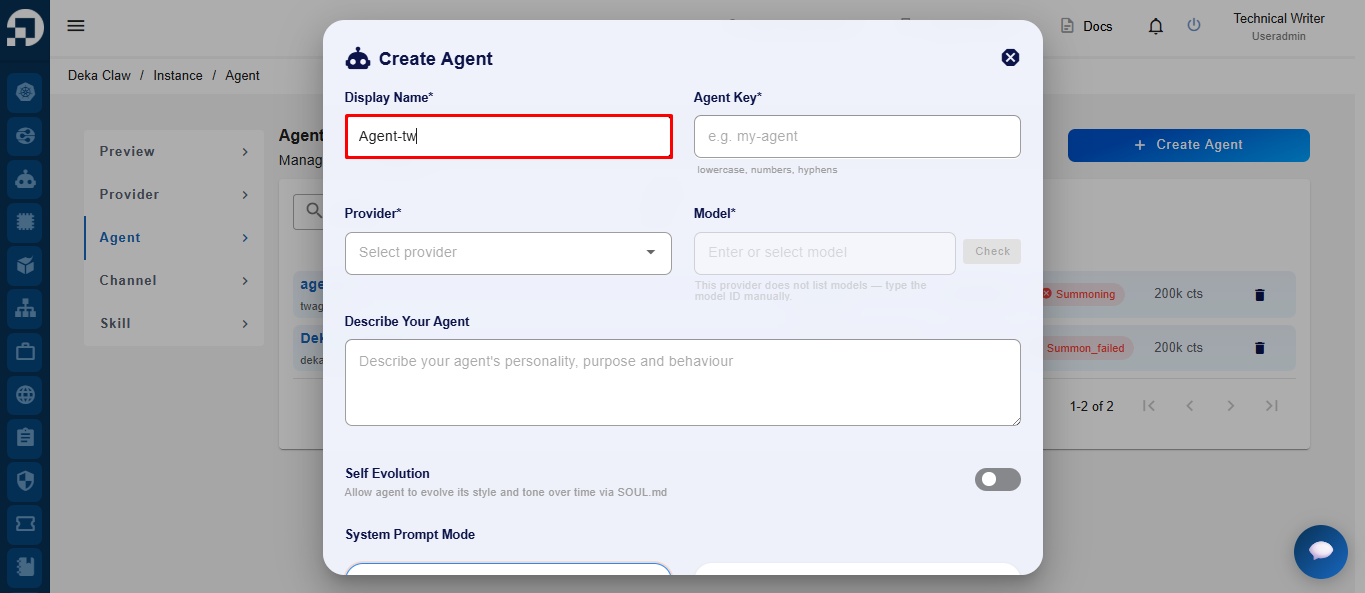
Enter the Agent display name that will be used as the Agent identity in the system.

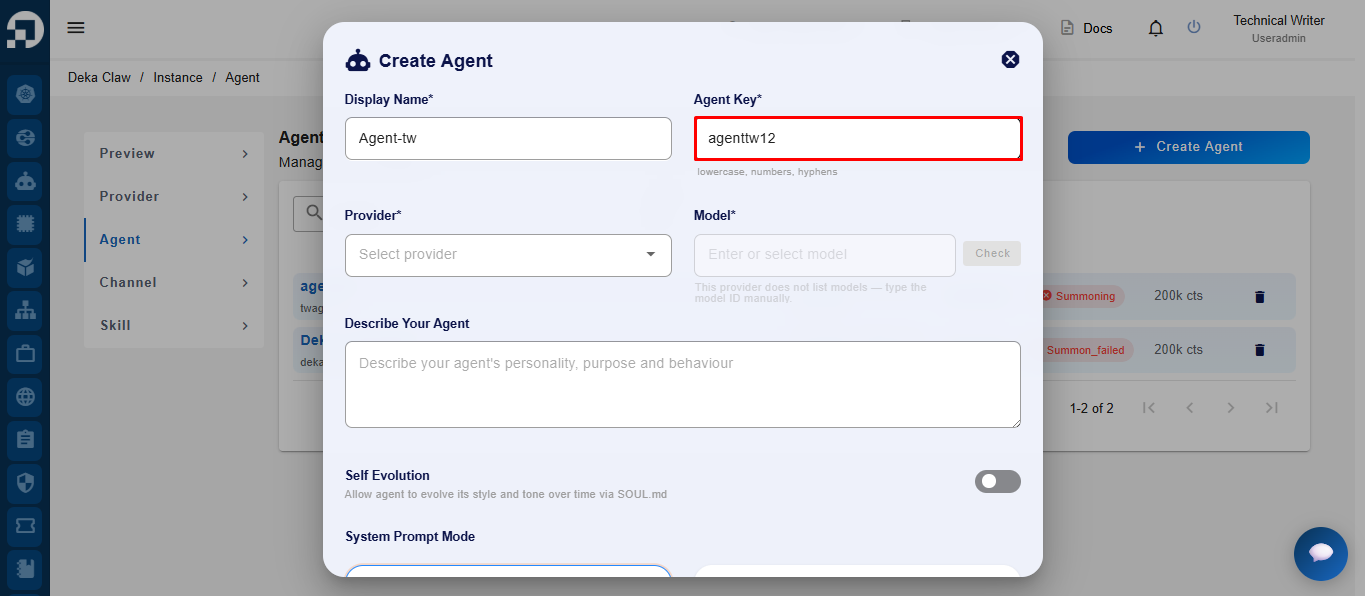
Enter a custom Agent Key as the unique identifier of the agent. The Agent Key can contain lowercase letters, numbers, and hyphens (-).

Select a provider that has been previously created in the Provider menu to be used by the Agent.

Select the AI model to be used based on the selected provider. If using OpenRouter, choose the model according to your needs from the available model list. After selecting the model, click the Check button to verify that the selected model can be accessed and used properly.

Enter the Agent description to define the Agent’s personality, purpose, behavior, or functionality. The Self Evolution feature allows the Agent to gradually adapt its response style and behavior based on interactions.

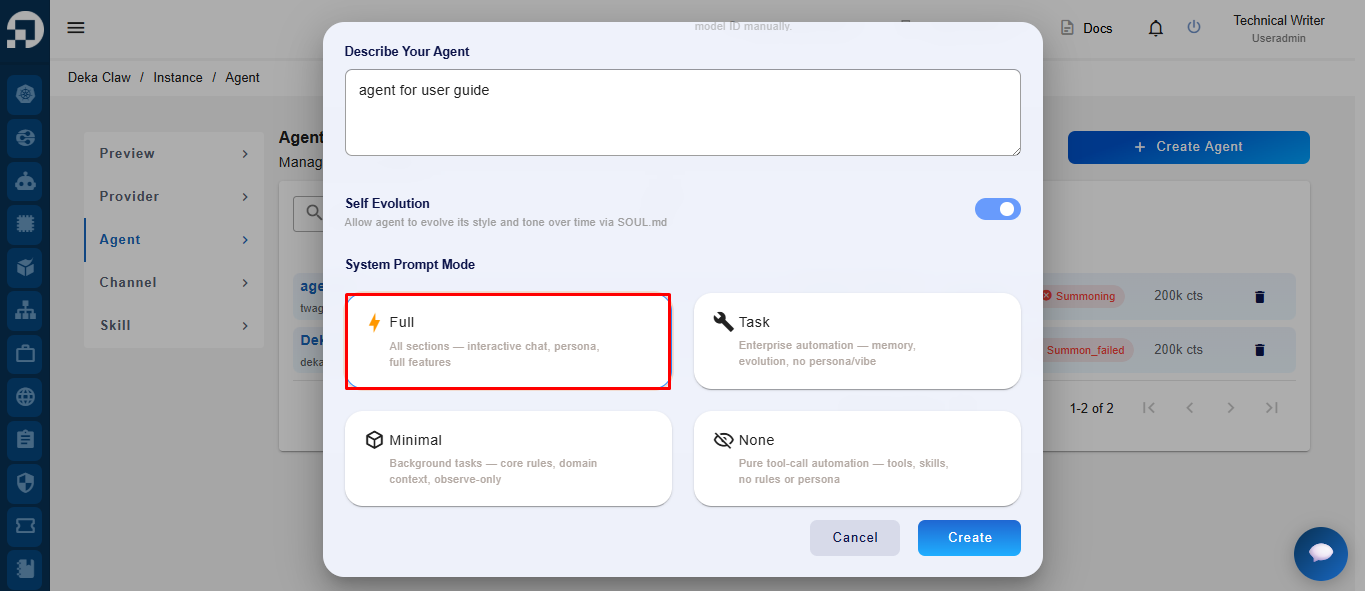
Select the system prompt mode based on your needs. Full mode provides complete features including persona and interactive chat, while Task mode is intended for automation and task execution.

After completing all configurations, click the Create button to create the Agent.

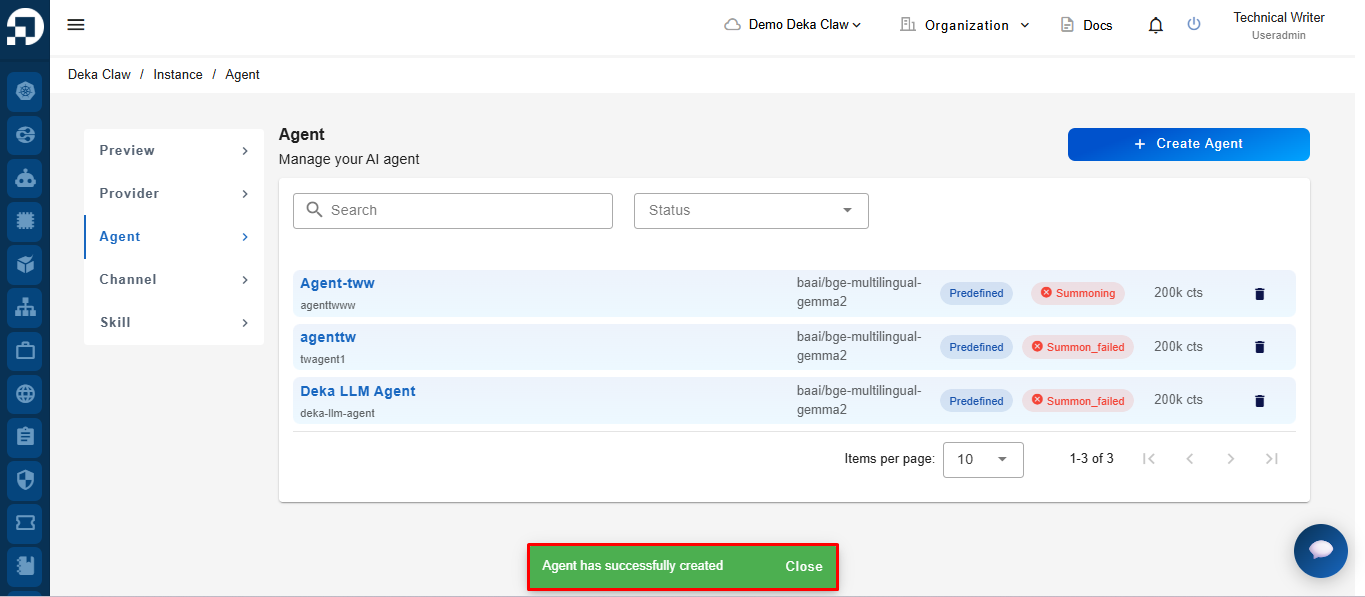
If successful, the system will display the notification message "Agent has successfully created", indicating that the new Agent has been successfully created.

Last updated