Create Channel
Before create Channel, make sure you have a agent. You can see this section for Create Agent.
The Create Channel feature is used to set up a new connection between Deka Claw and a communication platform (such as Telegram), allowing bots or agents to interact with users through that channel.
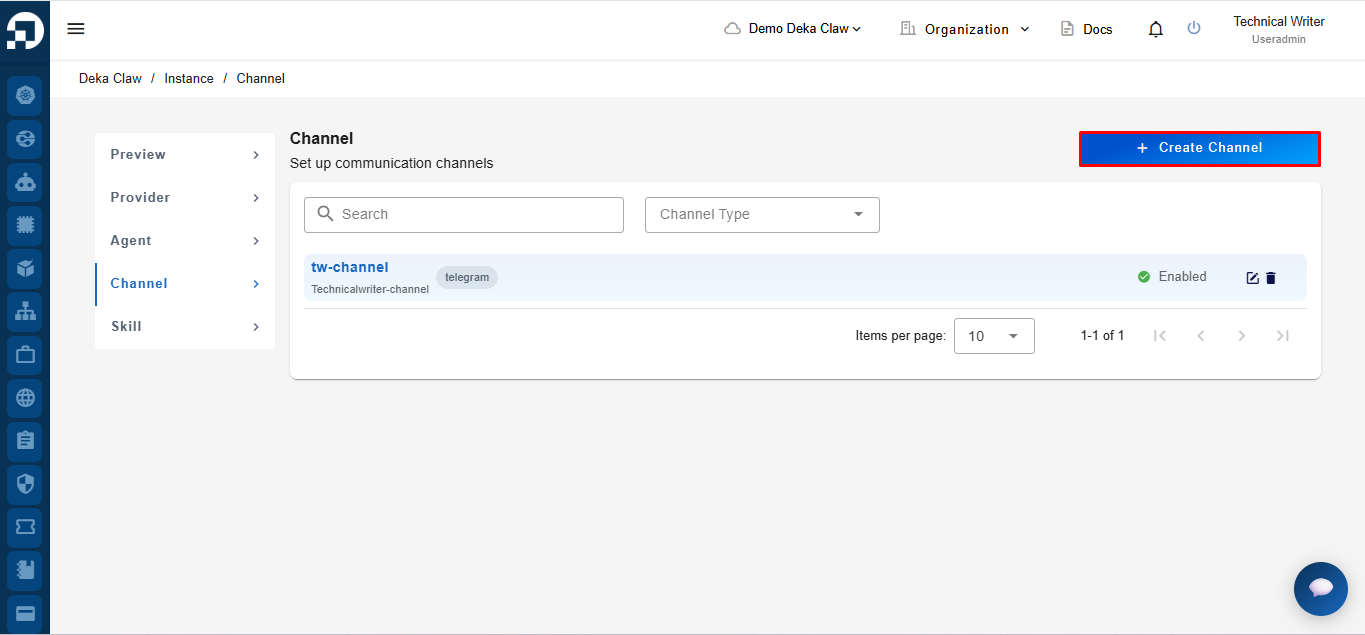
To create a Channel, click the + Create Channel button

After clicking the Create Channel button, the system will display a channel creation form consisting of several sections. These sections include Basic Information to enter the channel’s basic information, Channel Type to select the Channel type to be used, and Agent to specify the agent that will be connected to the Channel.

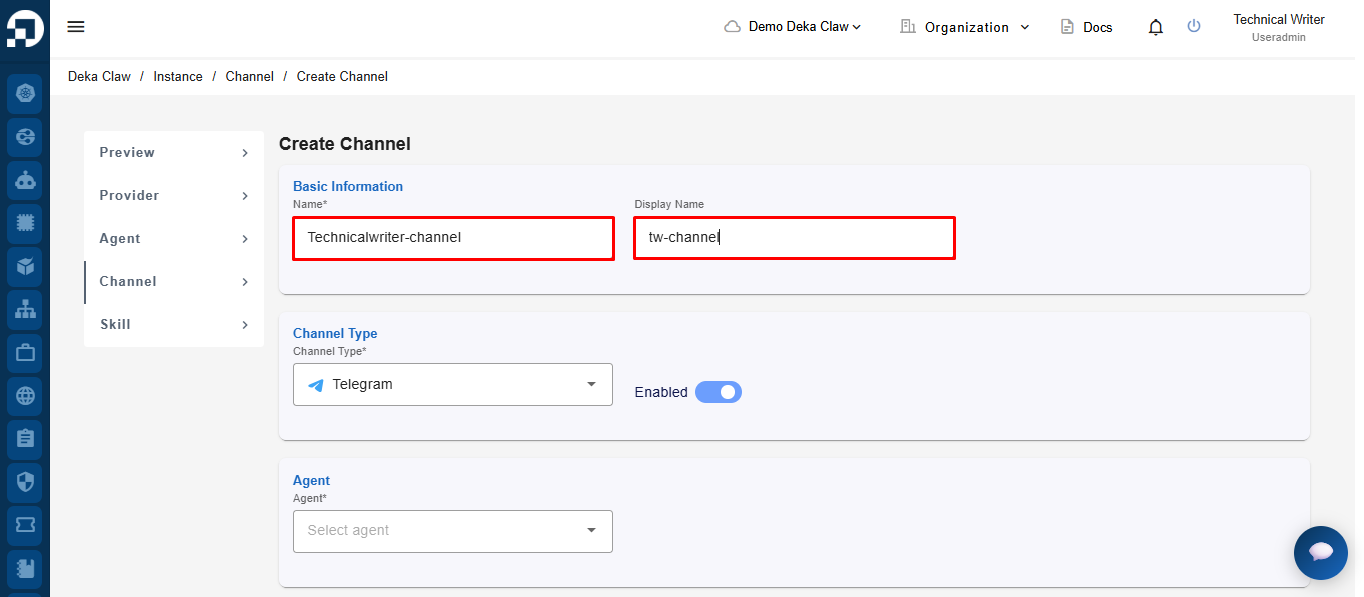
Name
The unique name used to identify the Channel within the system.
Display Name
The display name shown for the Channel in the user interface.
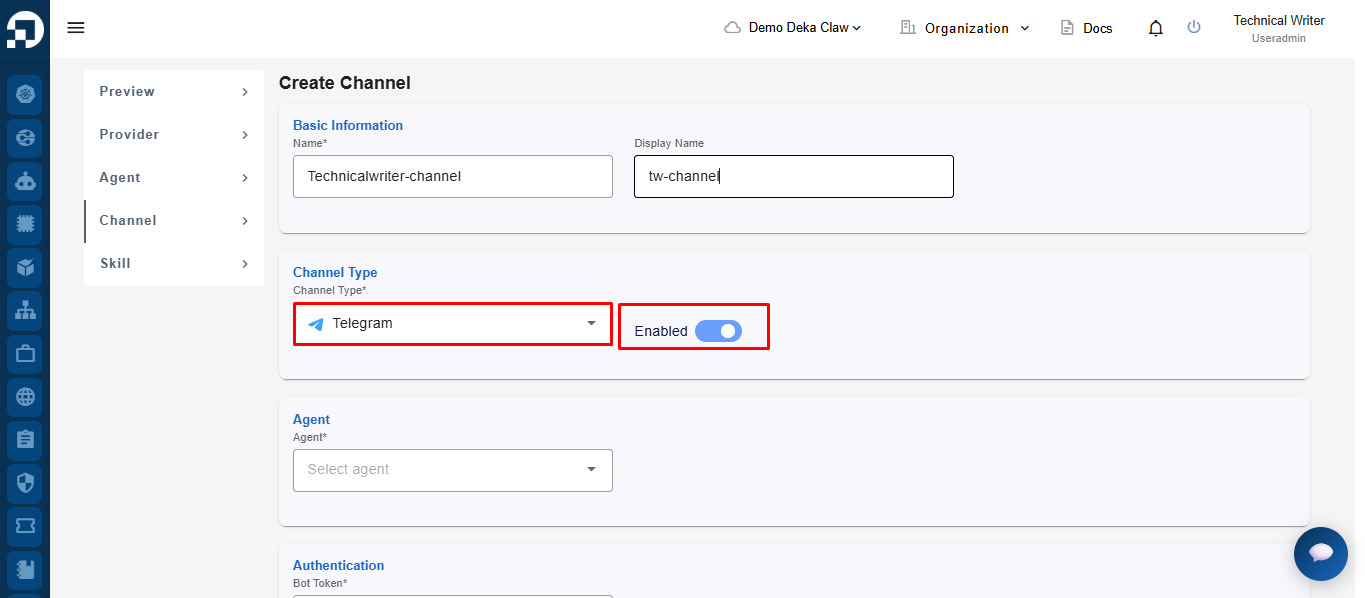
Channel Type
The communication platform used by the Channel, such as Telegram.
Enabled
Enables or disables the Channel after it is created.
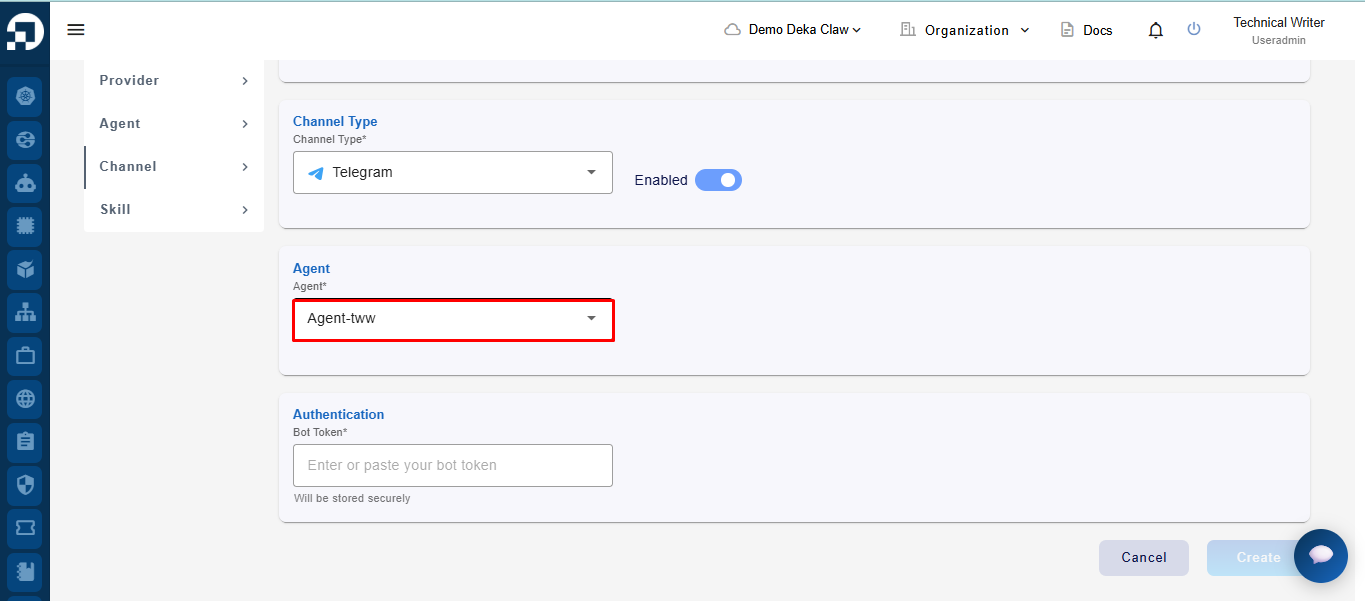
Agent
The Agent that will be connected to and used by the Channel.
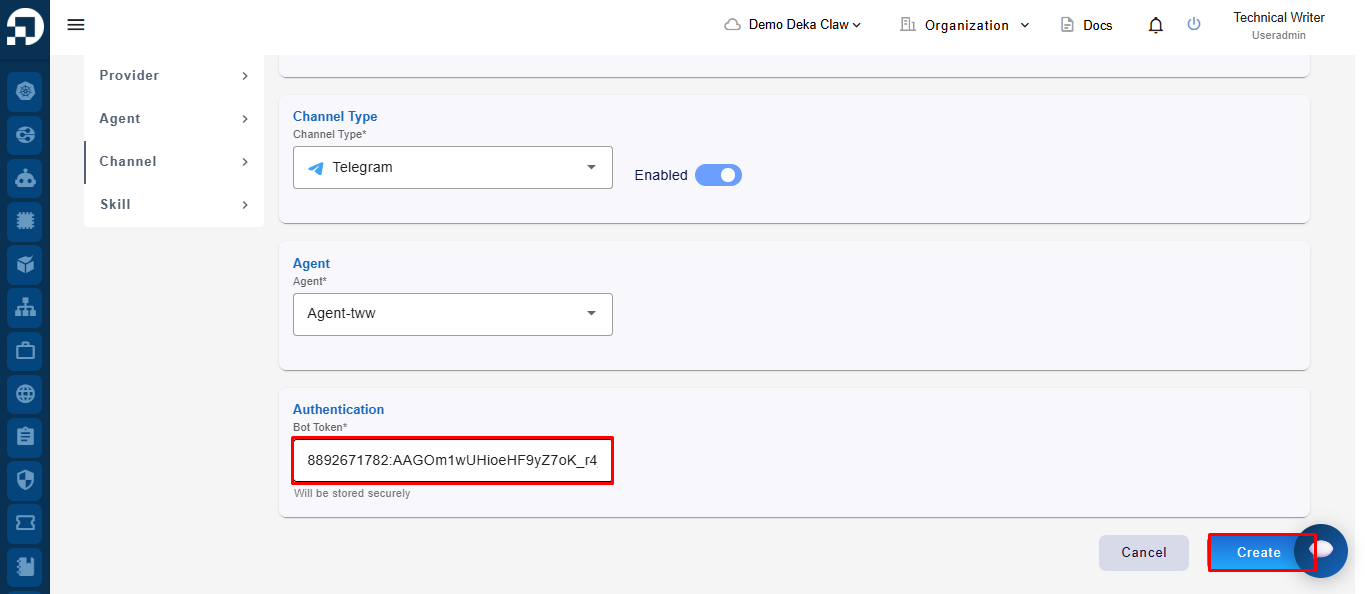
Bot Token
The authentication token used to connect the Channel with the messaging platform.
Enter the Channel name in the Name field. In the Display Name field, enter the Channel display name as needed.

In the Channel Type section, select the channel type to be used, then enable the Enabled toggle if the Channel should be activated immediately.

Next, in the Agent field, select the Agent to be connected to the Channel.

In the Bot Token section, enter the bot token for channel authentication. After all data has been filled in, click the Create button to create the Channel.

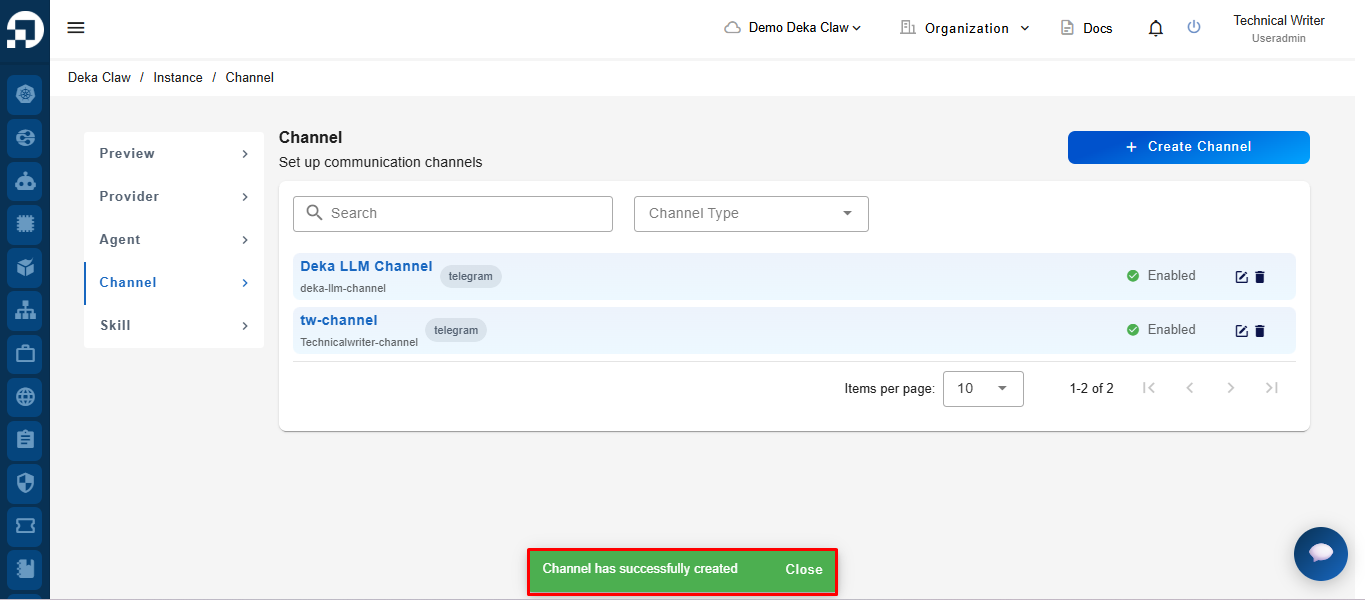
After the create process is completed successfully, the system will display the notification message "Channel has successfully created"

Last updated