Page cover
For the complete documentation index, see llms.txt. This page is also available as Markdown.

Create Provider

The Create Provider feature is used to add a new AI model provider to the system, including configurations such as the provider name and API key, so it can be used by Agents and other features.

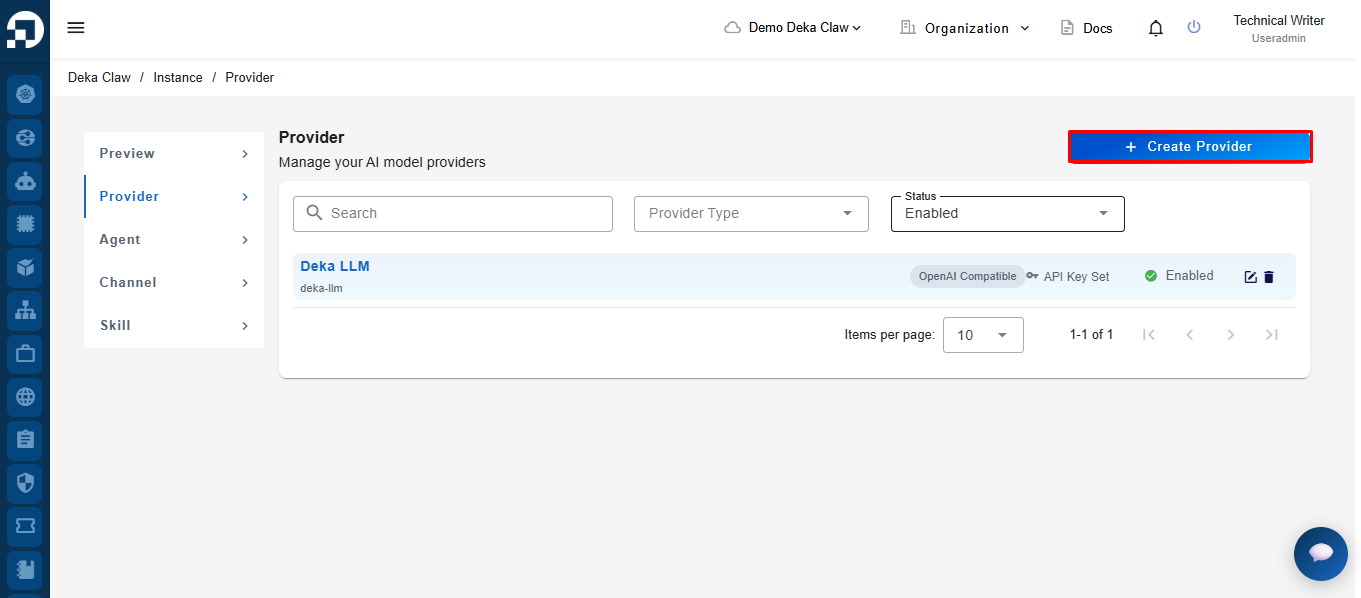
To create a new provider, click the Create Provider button.

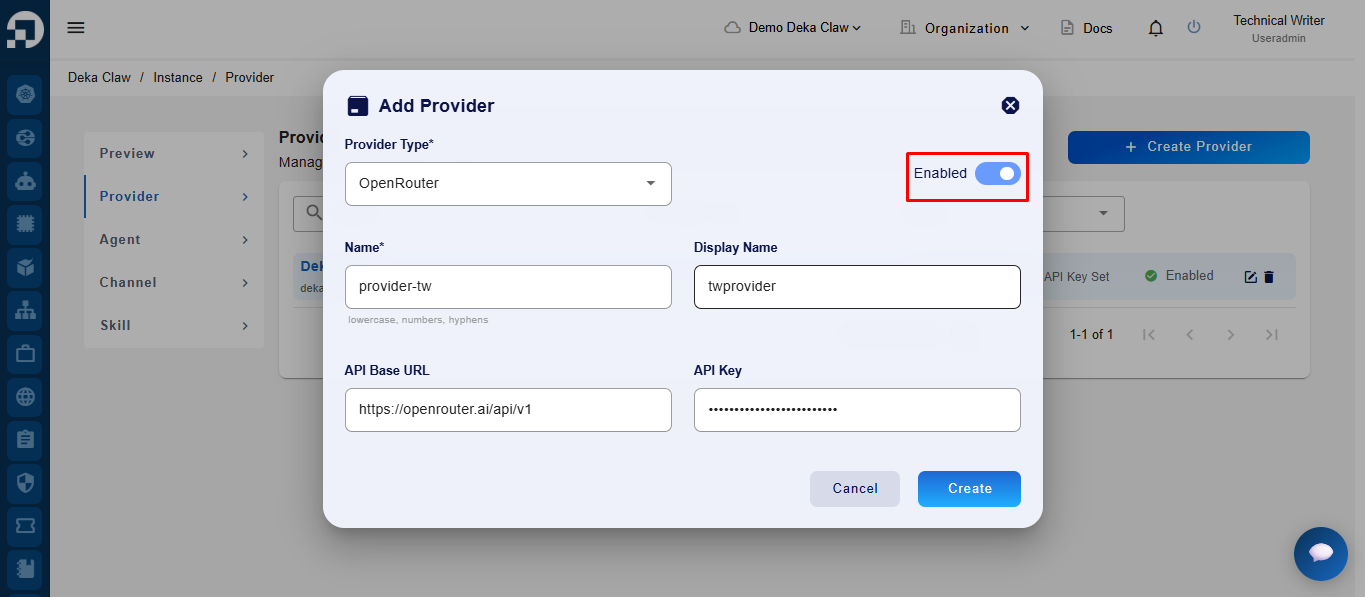
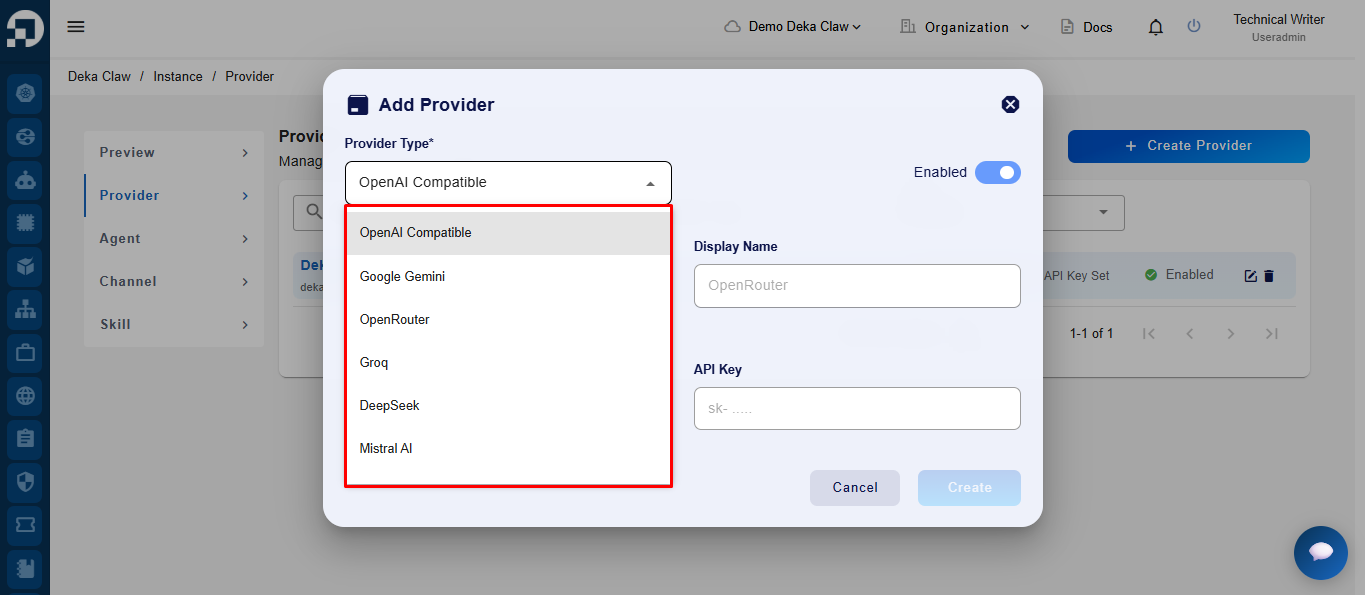
After clicking the Create Provider button, the system will display a form for entering Provider information. Select the Provider that you want to use.

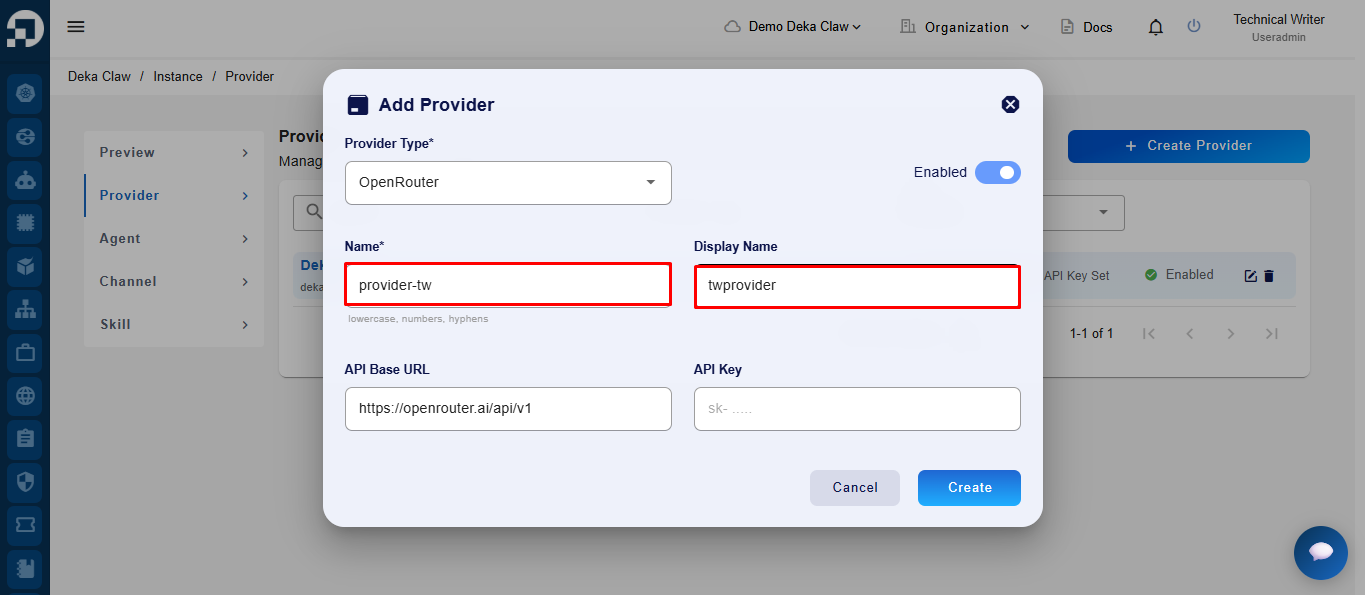
Then, enter the Name and Display Name.

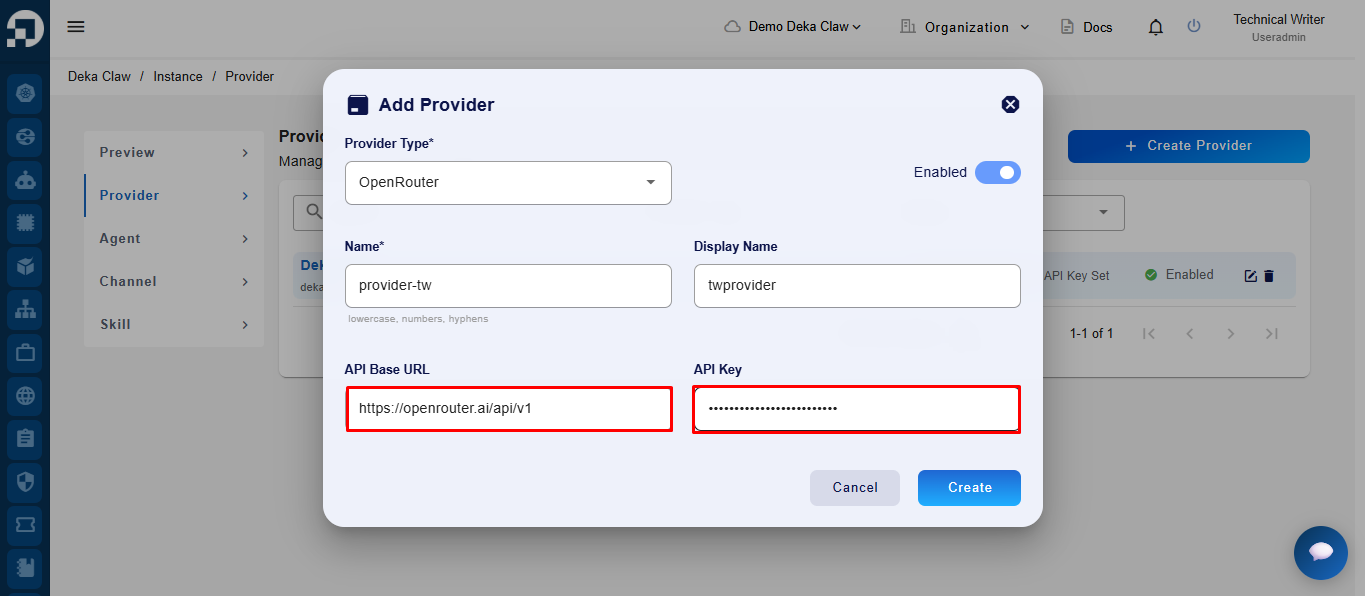
Complete the API Base URL and API Key according to the selected Provider, then enable the provider if required.

  1. The API Base URL is obtained from the official website of the LLM Provider being used.

  2. The API Key is obtained from the LLM provider account or dashboard and is used for authentication when connecting the Provider to the system.

  3. To obtain the API Key, refer to the LLM guide documentation Provided by the selected Provider.

Column
Description

Provider type

Defines the type or compatibility of the Provider (e.g., OpenAI-compatible).

Name

A unique identifier for the Provider (usually lowercase, no spaces).

Display Name

The name shown in the UI for easier recognition.

API Base URL

The base endpoint URL of the Provider’s API.

API Key

The authentication key used to access the Provider’s service.

Enabled

Toggles whether the Provider is active and available for use in the system.

After completing all required information, enable the Enabled option.

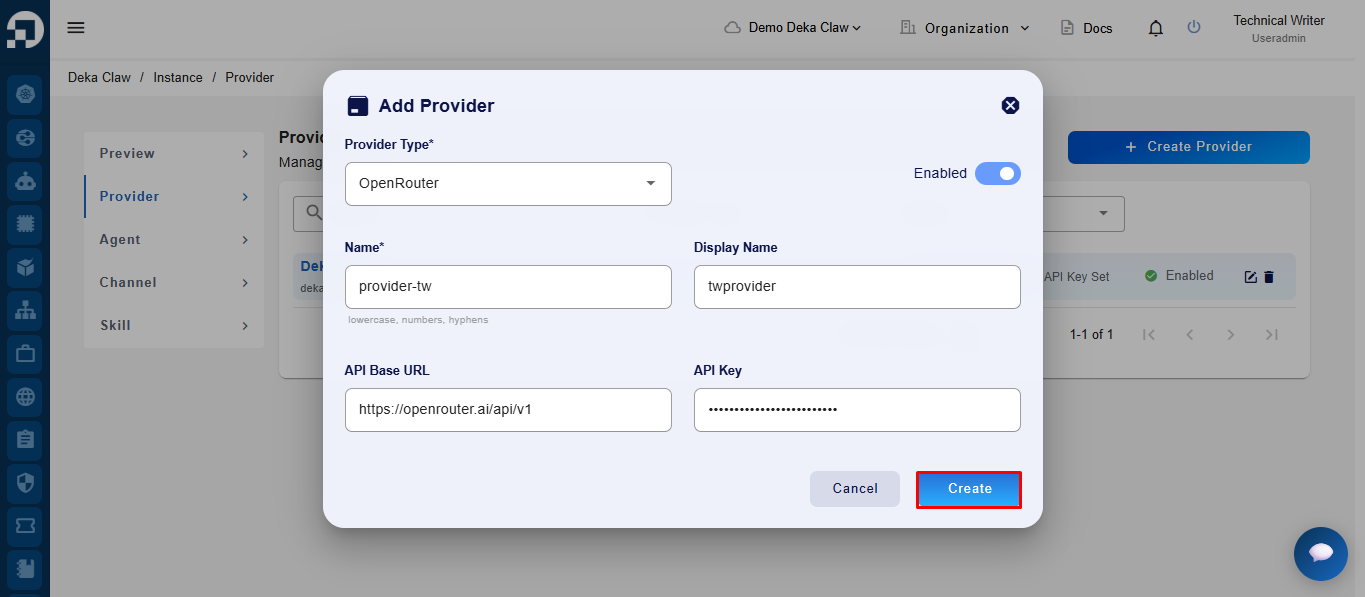
Click Create to save the configuration.

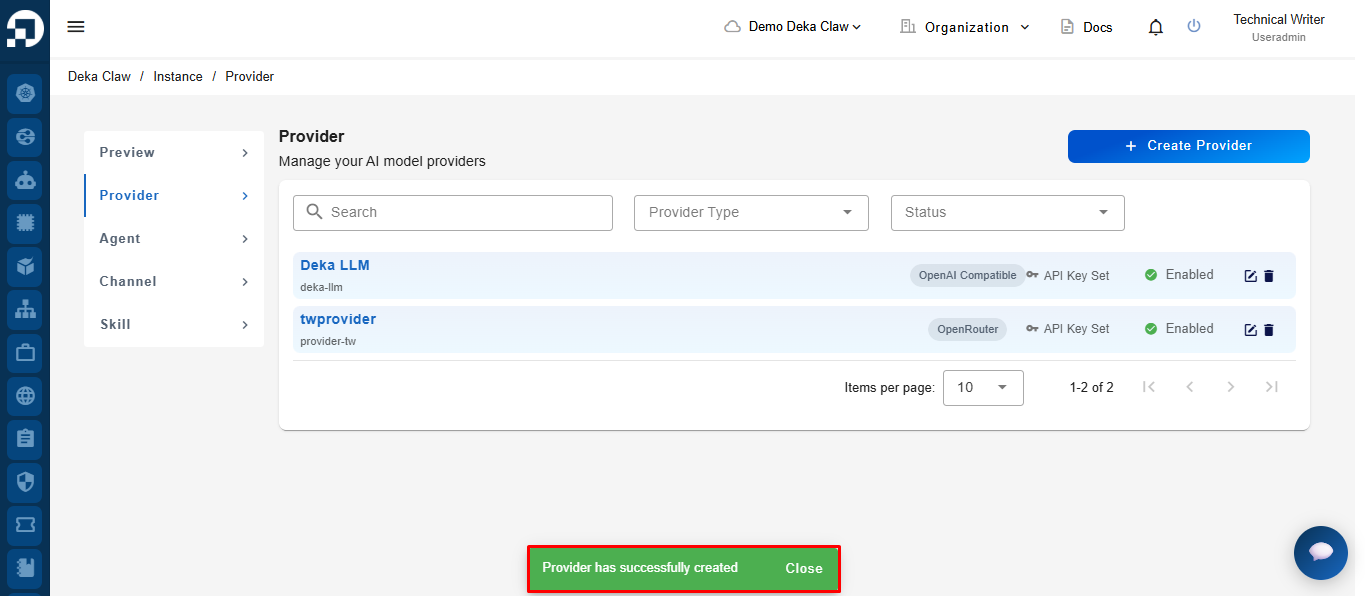
If successful, the Provider data will be added to the Provider table, and the system will display the following notification: "Provider has successfully created".

Last updated