Setting DNS Management
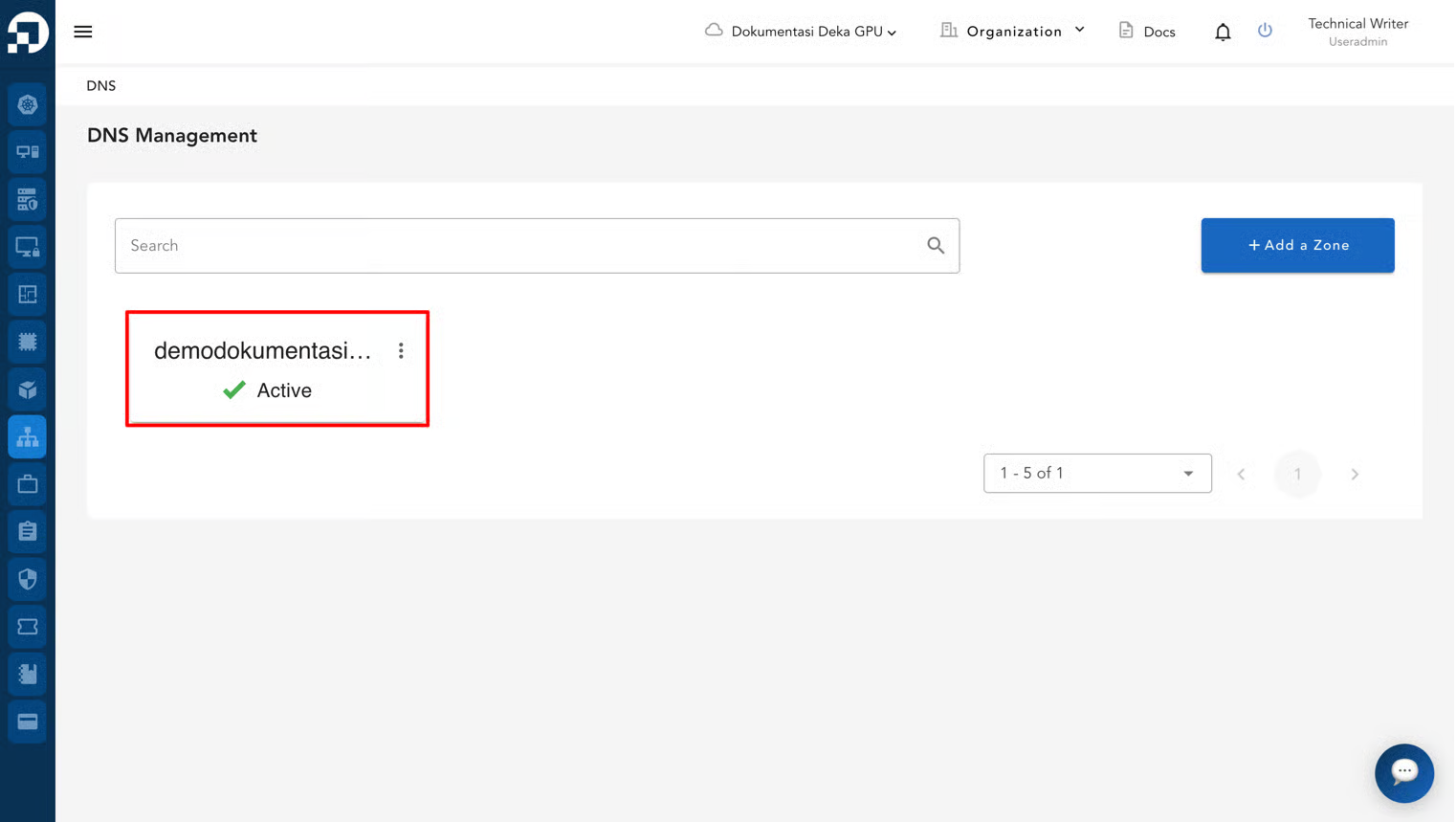
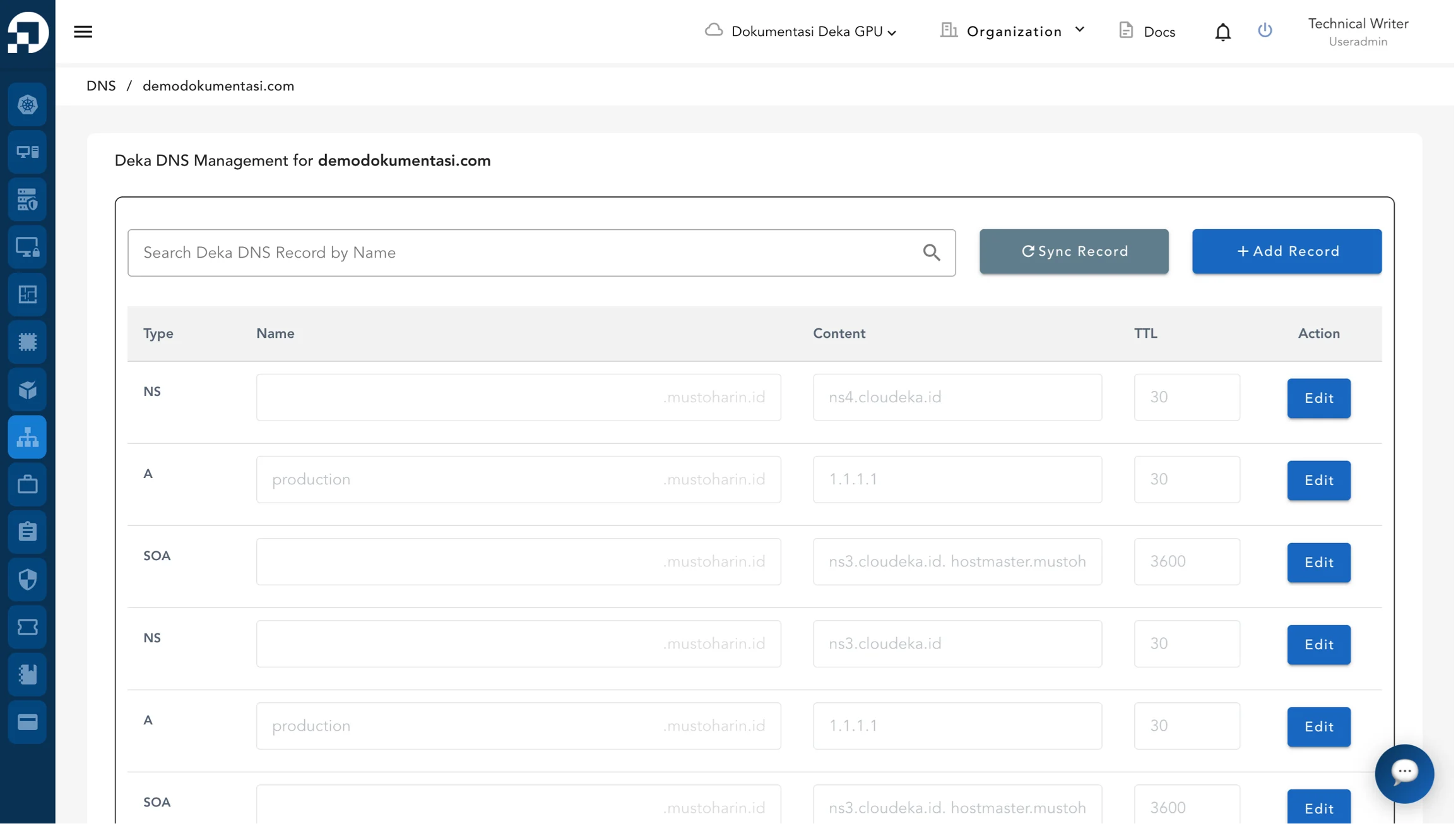
To configure DNS records for a specific domain, open the DNS Management page and select the domain that has been created, such as demodokumentasi.com. After the domain is selected, the DNS Management page for the selected domain will be displayed.

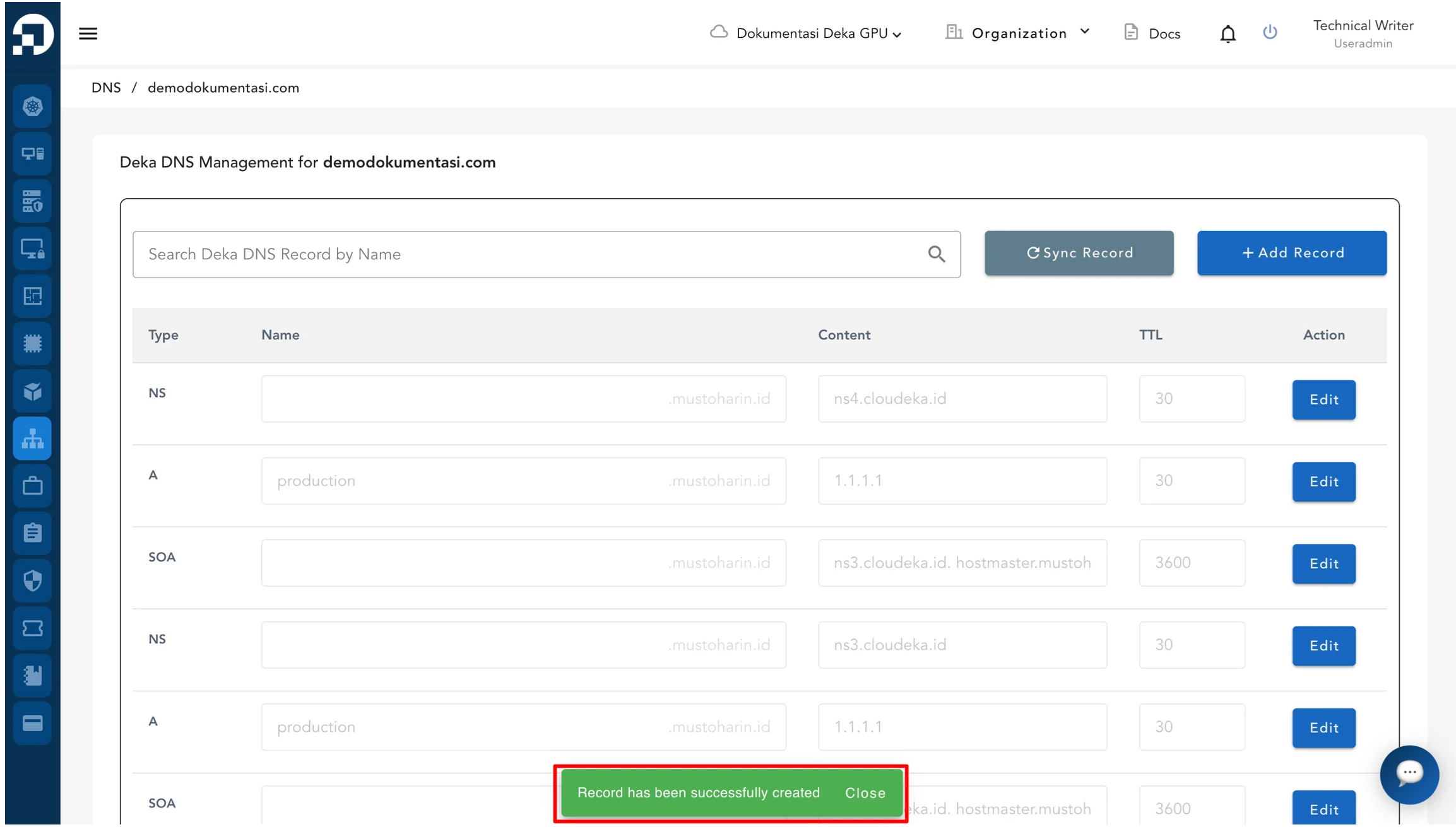
The DNS Management for demodokumentasi.com page is displayed, showing the list of DNS records for the selected domain.

Add Record
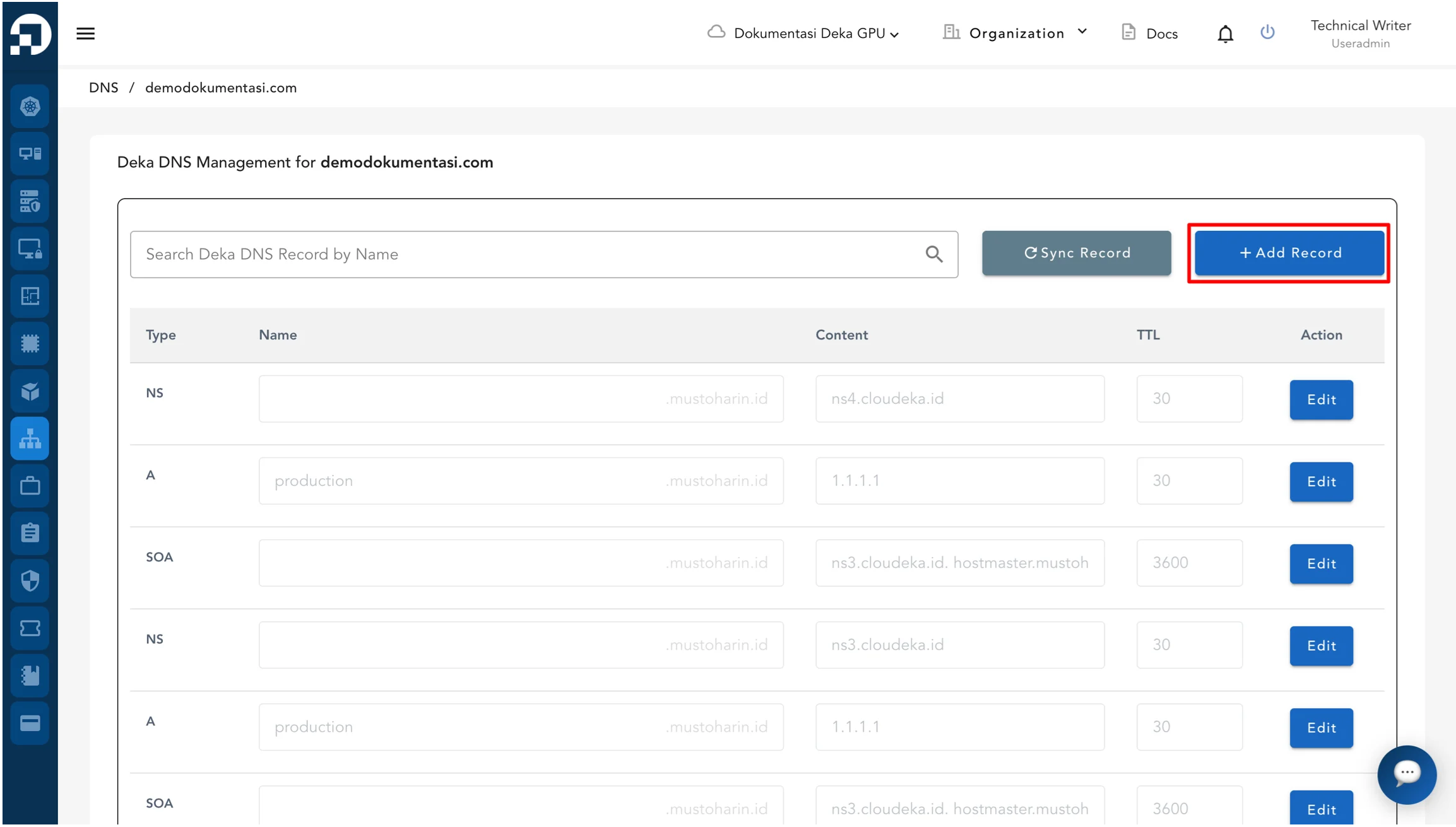
Click the +Add Record button to create a new DNS record for the selected domain.

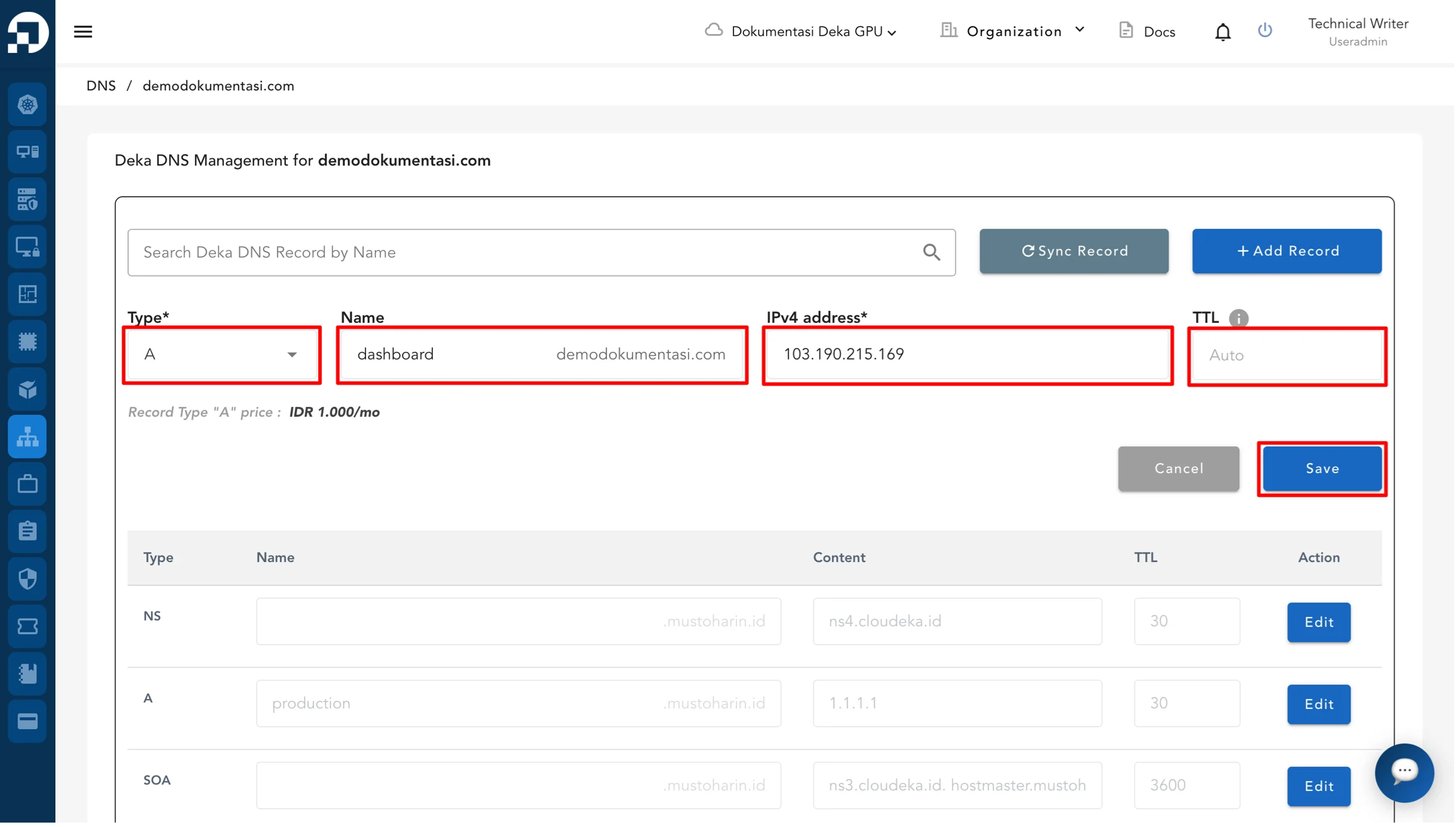
After clicking Add Record, a form appears to create a new DNS record. Fill in the required fields, then click the Save button.

A notification appears confirming that the record has been successfully created.

The following table describes each field available when adding a DNS record.
Type
Users can choose data type for explanations can be seen in Table 10.2 List of Data Type and Type
Name
Fill domain name because this field must be filled in
Content
Adjusting to Type selected for this field must be filled in
TTL
If the TTL is emptied the default calue stores is 86400 (24 Hours)
The following table describes the supported DNS record types and their purposes.
A
IPv4
For IP address version 4, use 32 bits
192.168.1.4
AAAA
IPV6
For IP address version 6, use 128 bits
2001:0000:3238:DFE1:0063:0000:0000:FEFB
MX
String
Used for email server identification
- mx.domain.com - ‘mx.domain.com’ - “mx.domain.com”
TXT
String
Used for SSL verification.
- txt.domain.com - 'txt.domain.com'
SRV
String
Used to place futher related to service (IP, port, or other description)
100 43 tipesrv.format-record.com
CNAME
String
Digunakan untuk memetakan nama alias ke nama domain
- cname.domain.com - 'cname.domain.com' - "cname.domain.com"
SPF
String
Userd for email security
"v=spf1 include:_spf.google.com -all"
PTR
String
Used as reverse text of a record
- ptr.domain.com - 'ptr.domain.com' - "ptr.domain.com"
Nameservers
Select server name
ns1
Server name 1
ns2
Server name 2
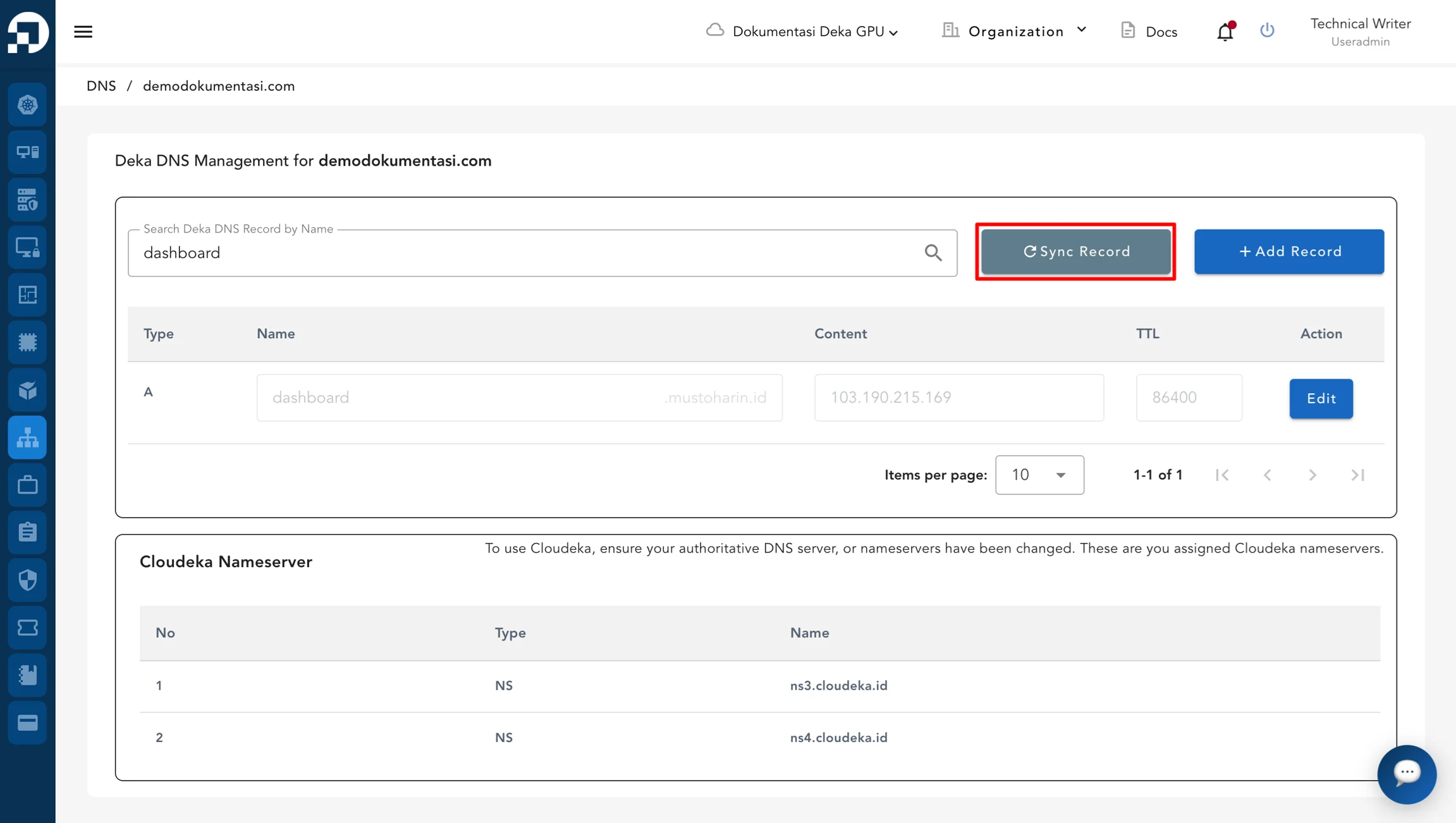
Sync Record
On the DNS Management page, the Sync Record button is available to synchronize the existing DNS records. After clicking the Sync Record button, the system starts the DNS record synchronization process.

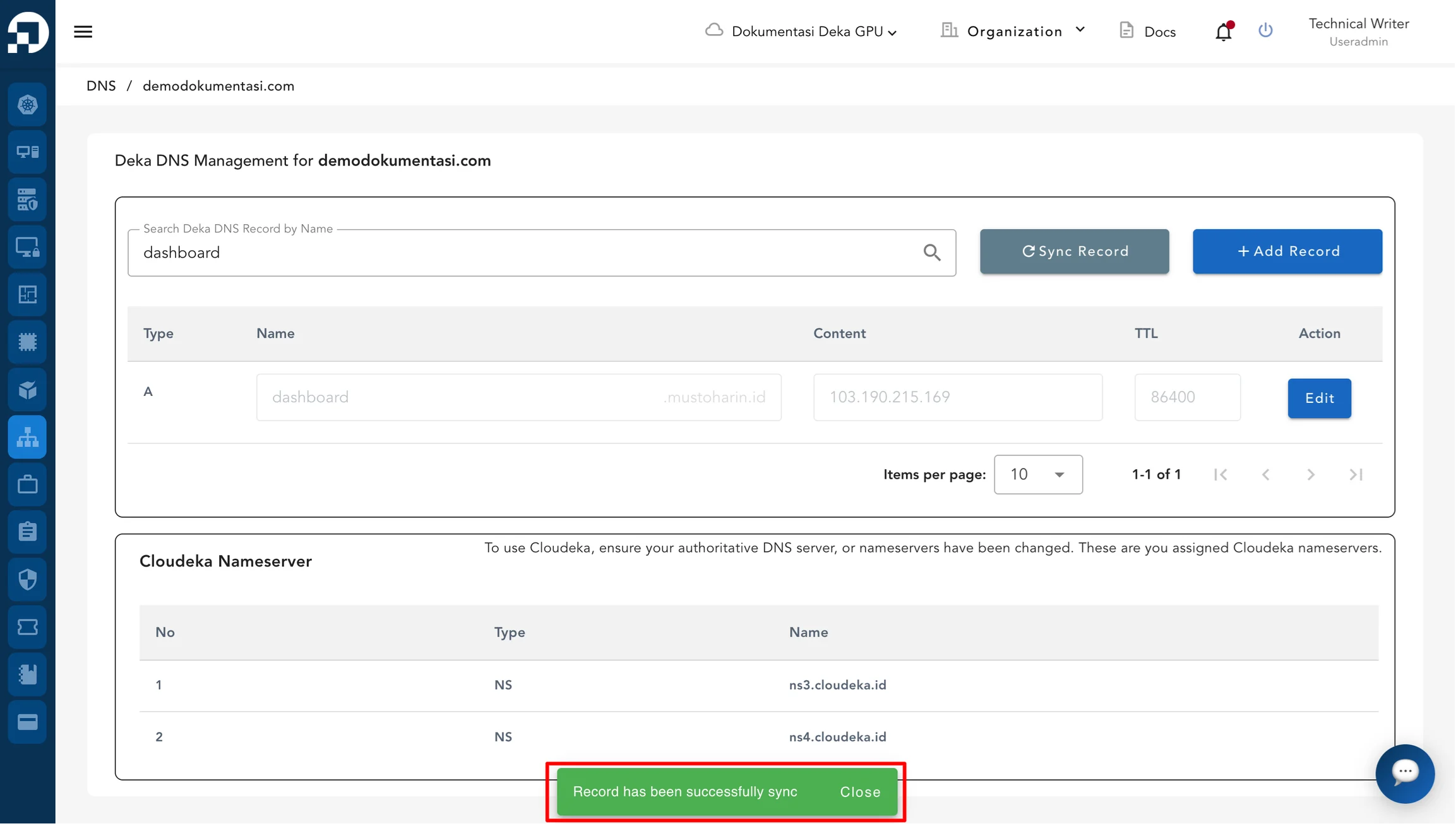
Once the process is completed, the system displays a confirmation message stating that the record has been successfully synced.

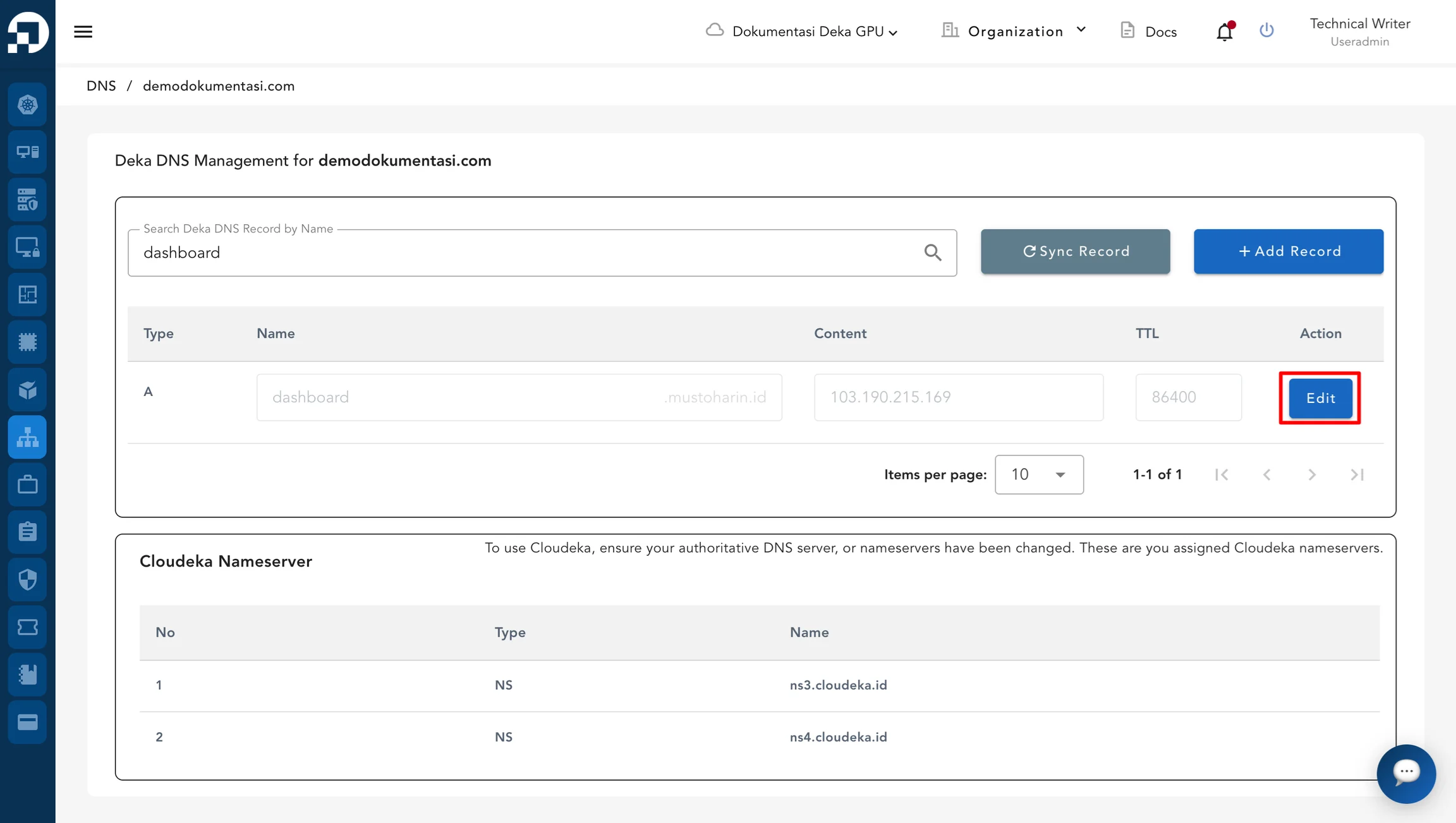
Edit Record
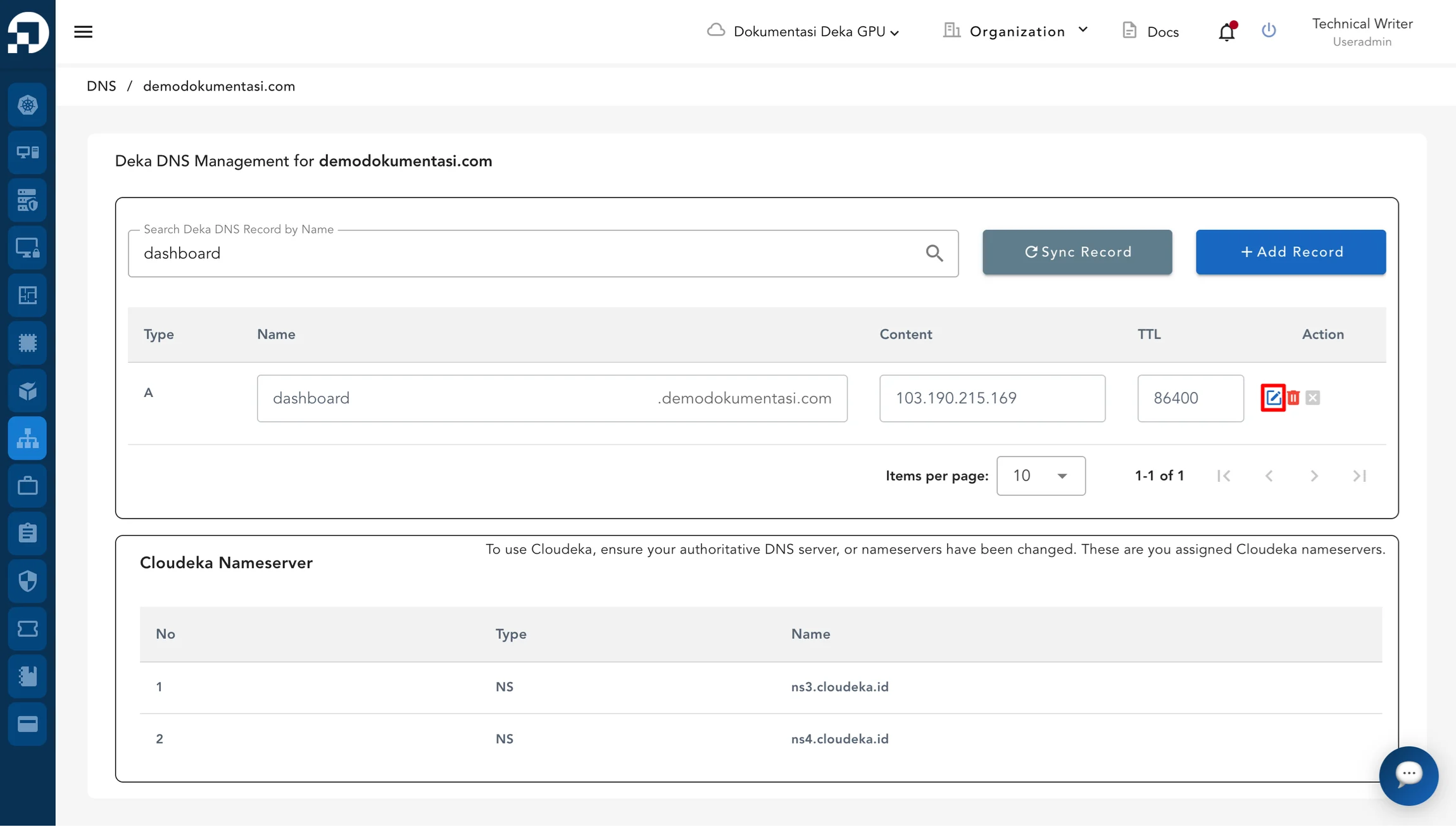
To modify an existing DNS record, the Edit button in the Action column can be selected.

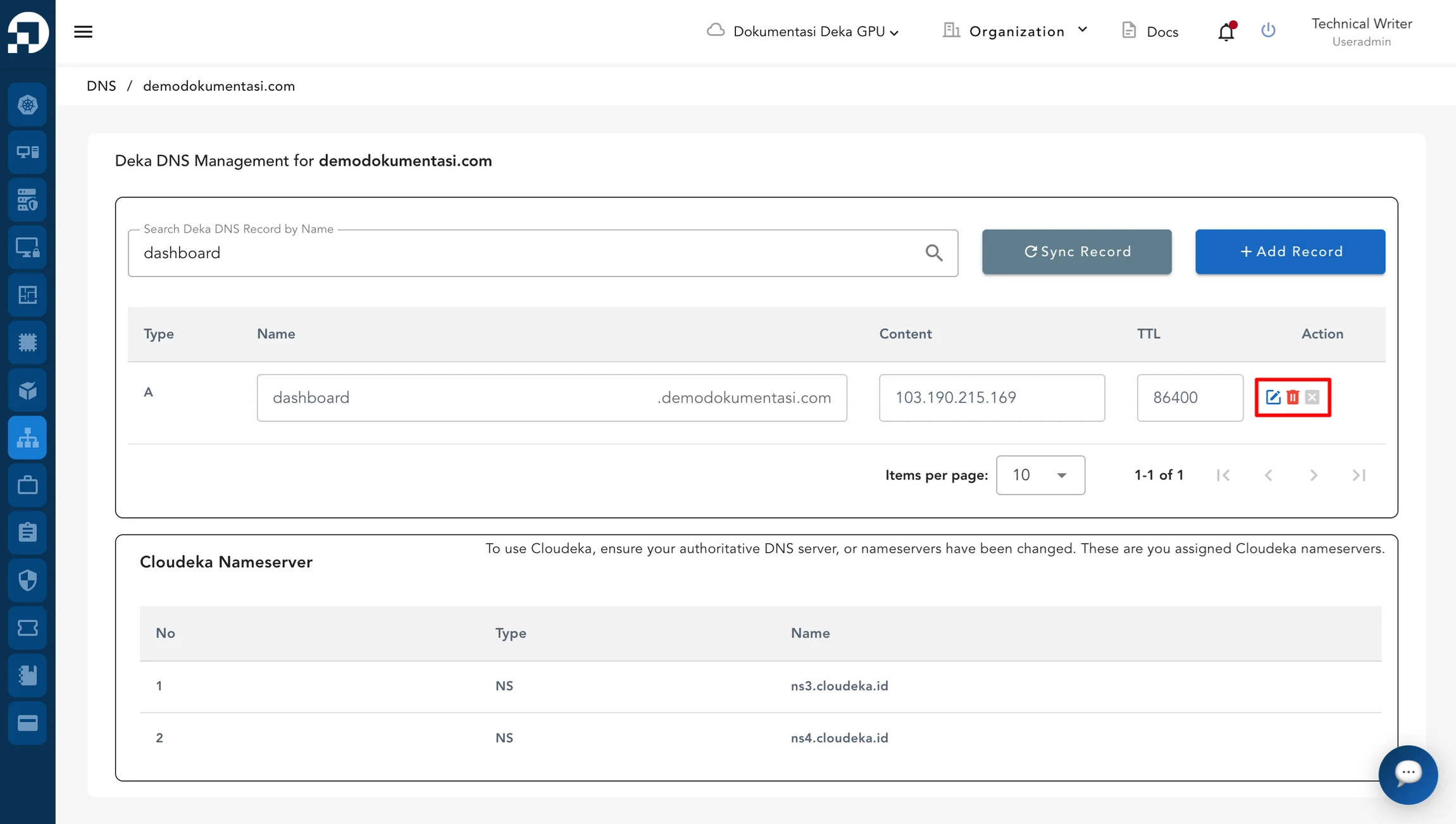
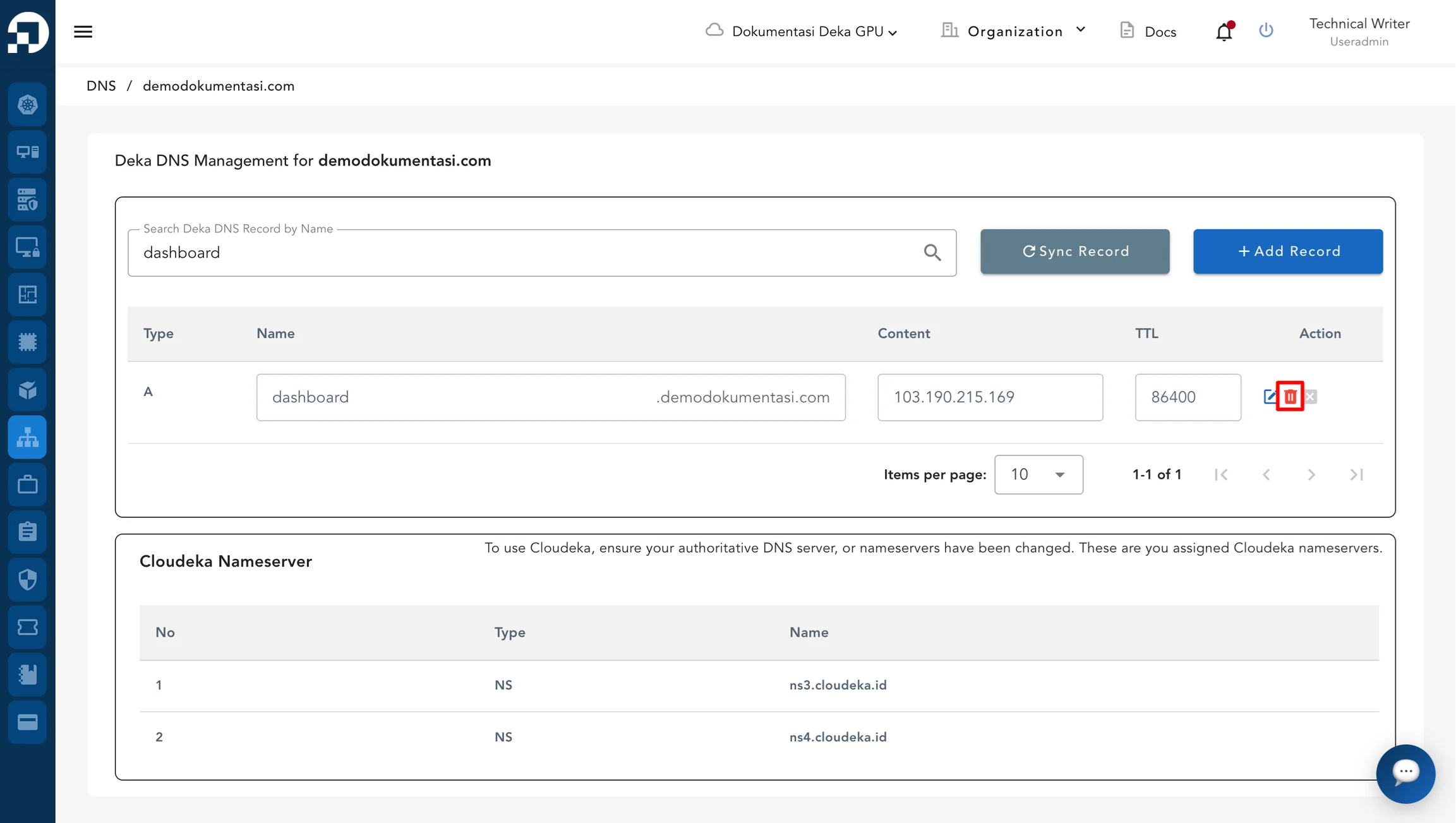
After clicking the Edit button, the record enters edit mode and additional actions are displayed in the Action column, including Update, Delete, and Cancel.

Update Record
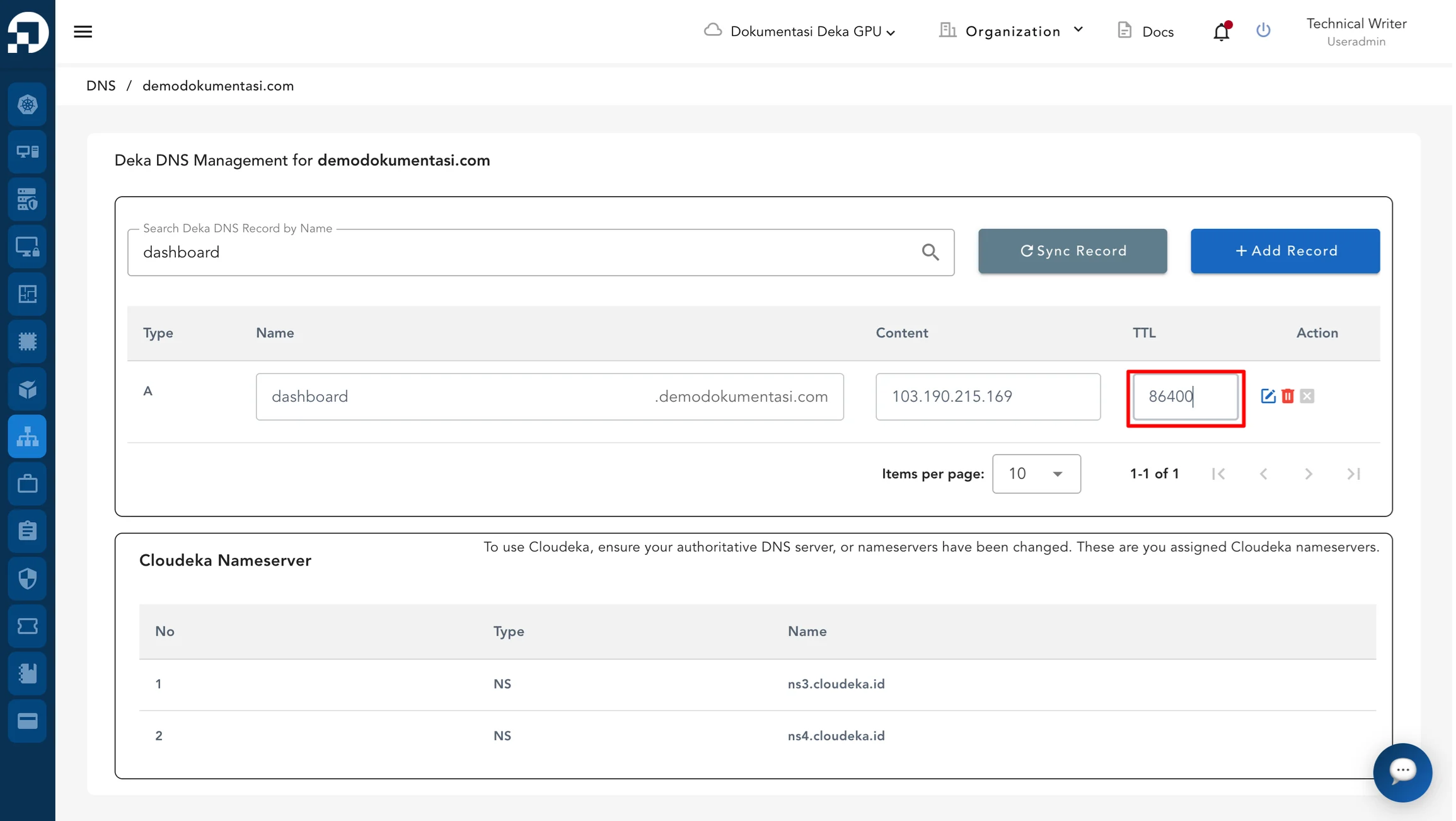
Update the required fields according to the new configuration.

Click the Update button to submit the changes.

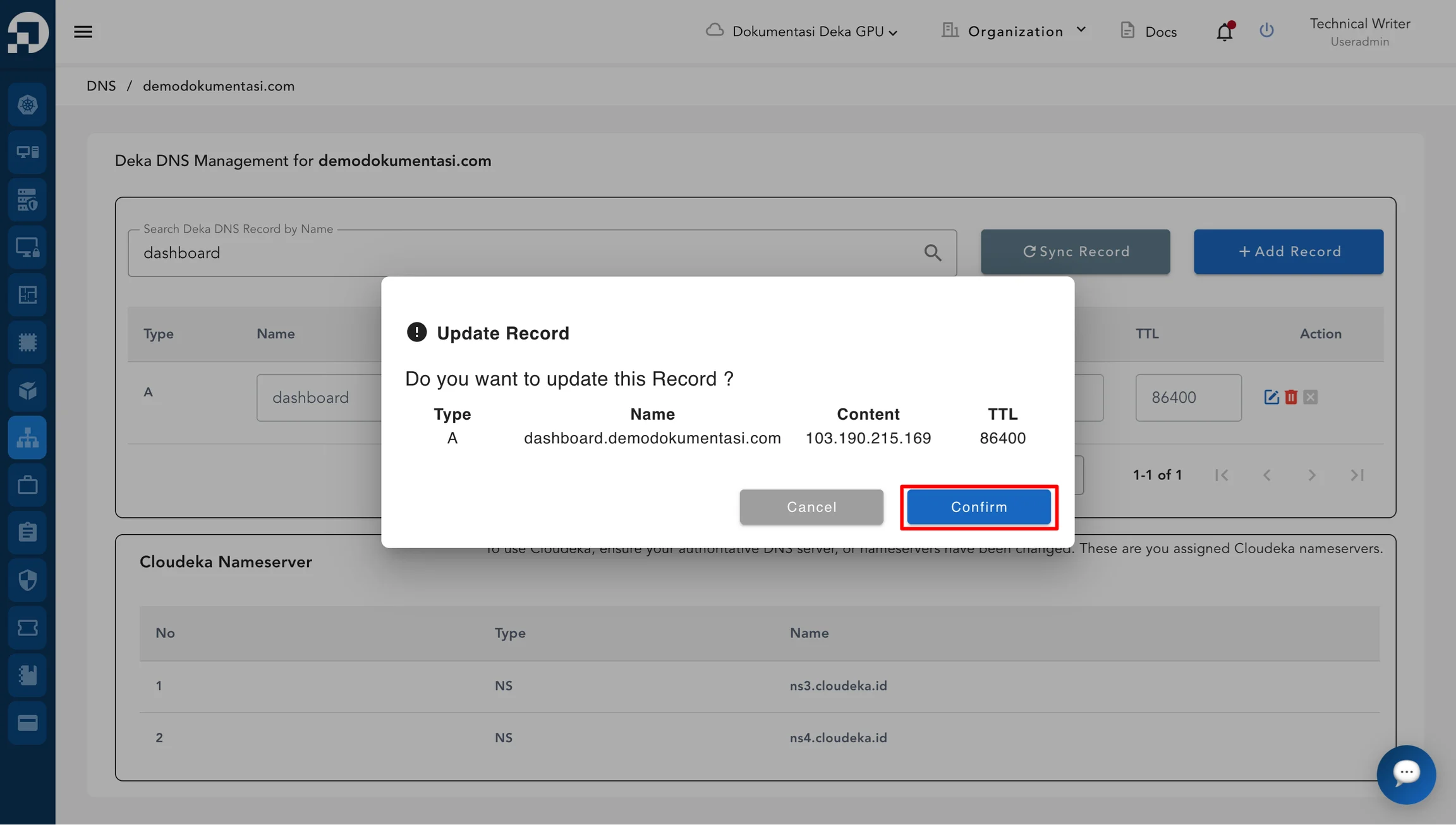
A confirmation dialog appears to verify the record update. Click Confirm to apply the updated record.

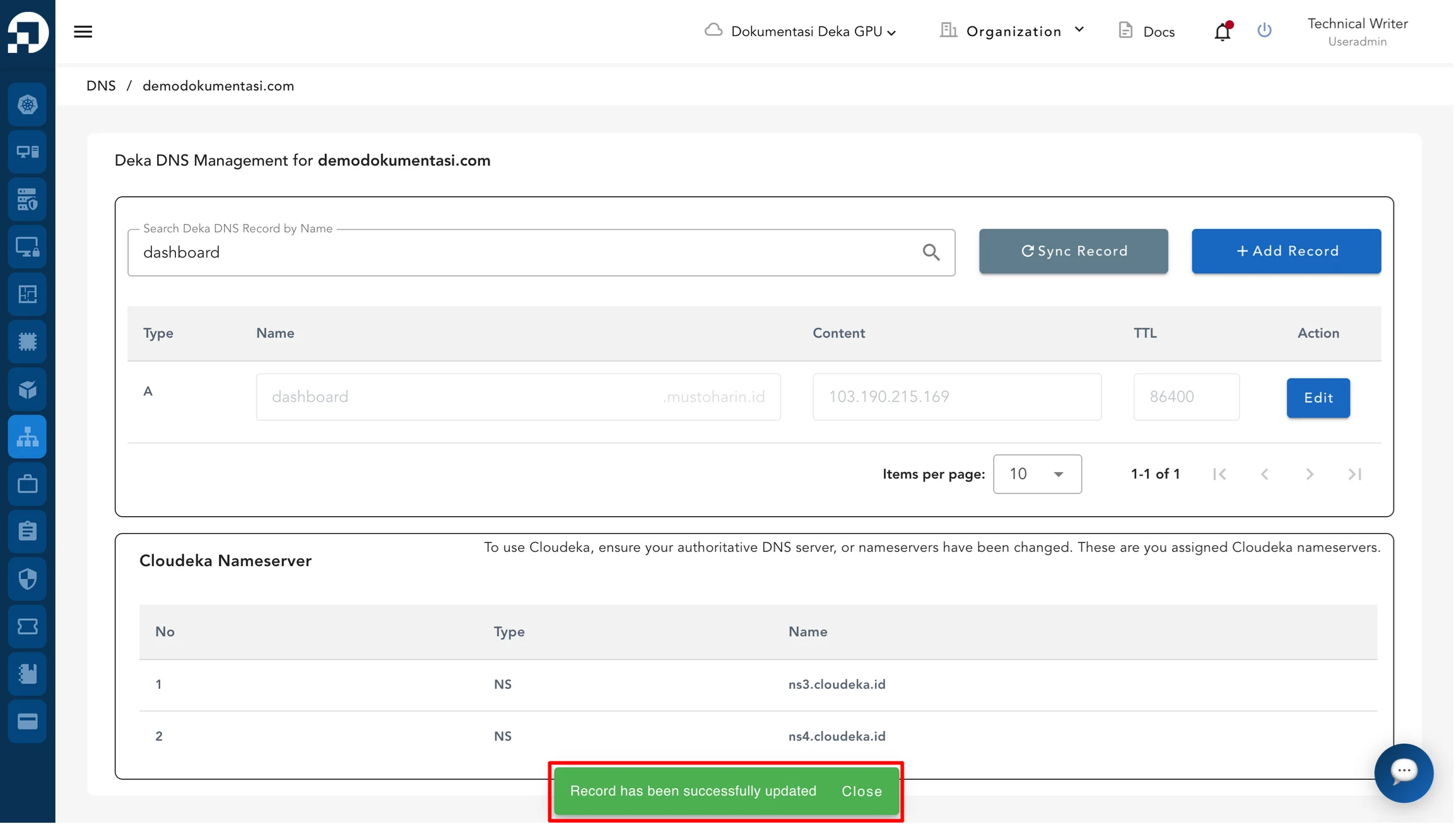
Once successful, the system displays “✓ Record has been successfully updated”.

Delete Record
Click the Delete button on the selected record.

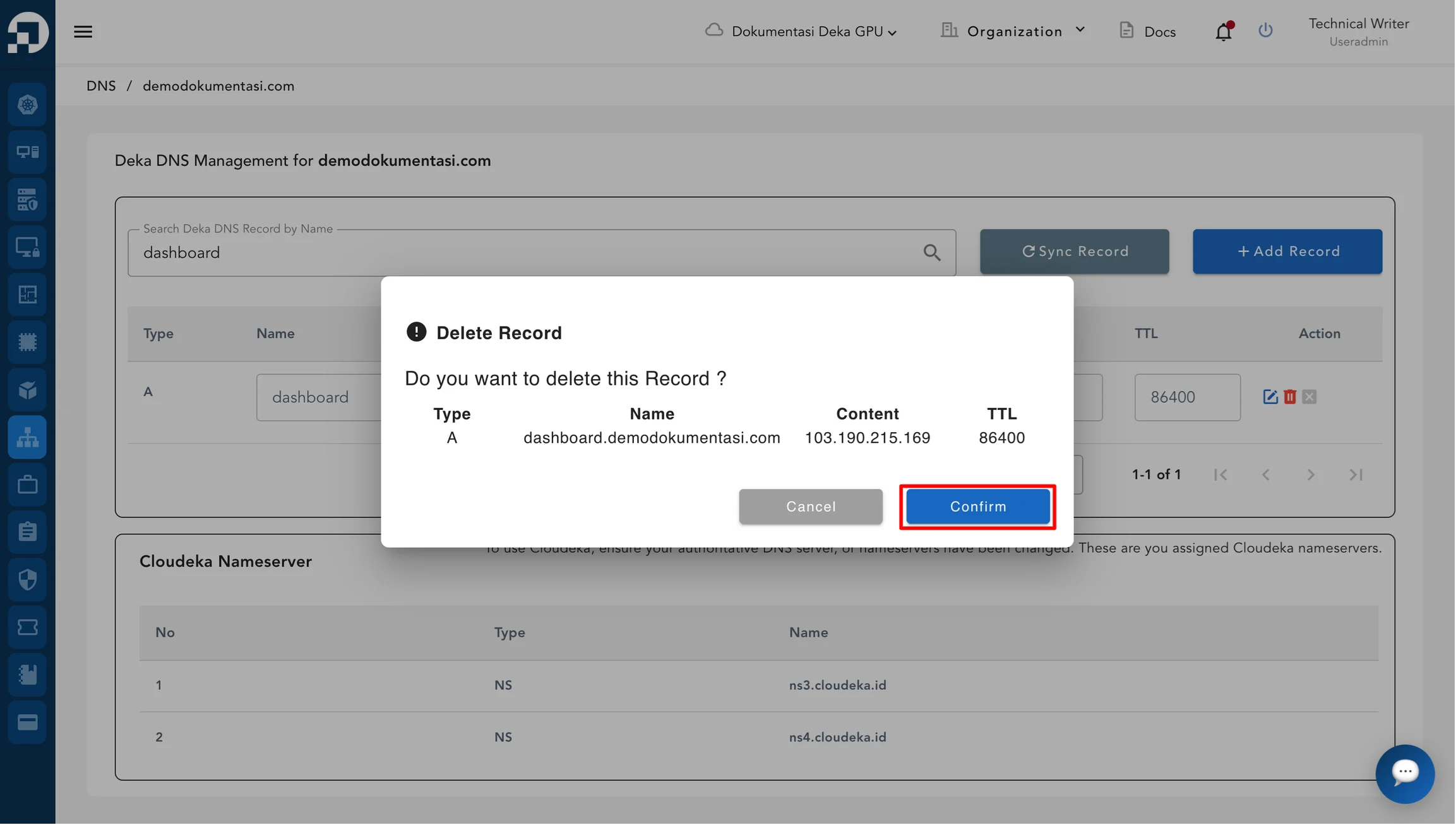
A confirmation dialog appears showing the record details. Click Confirm to delete the record.

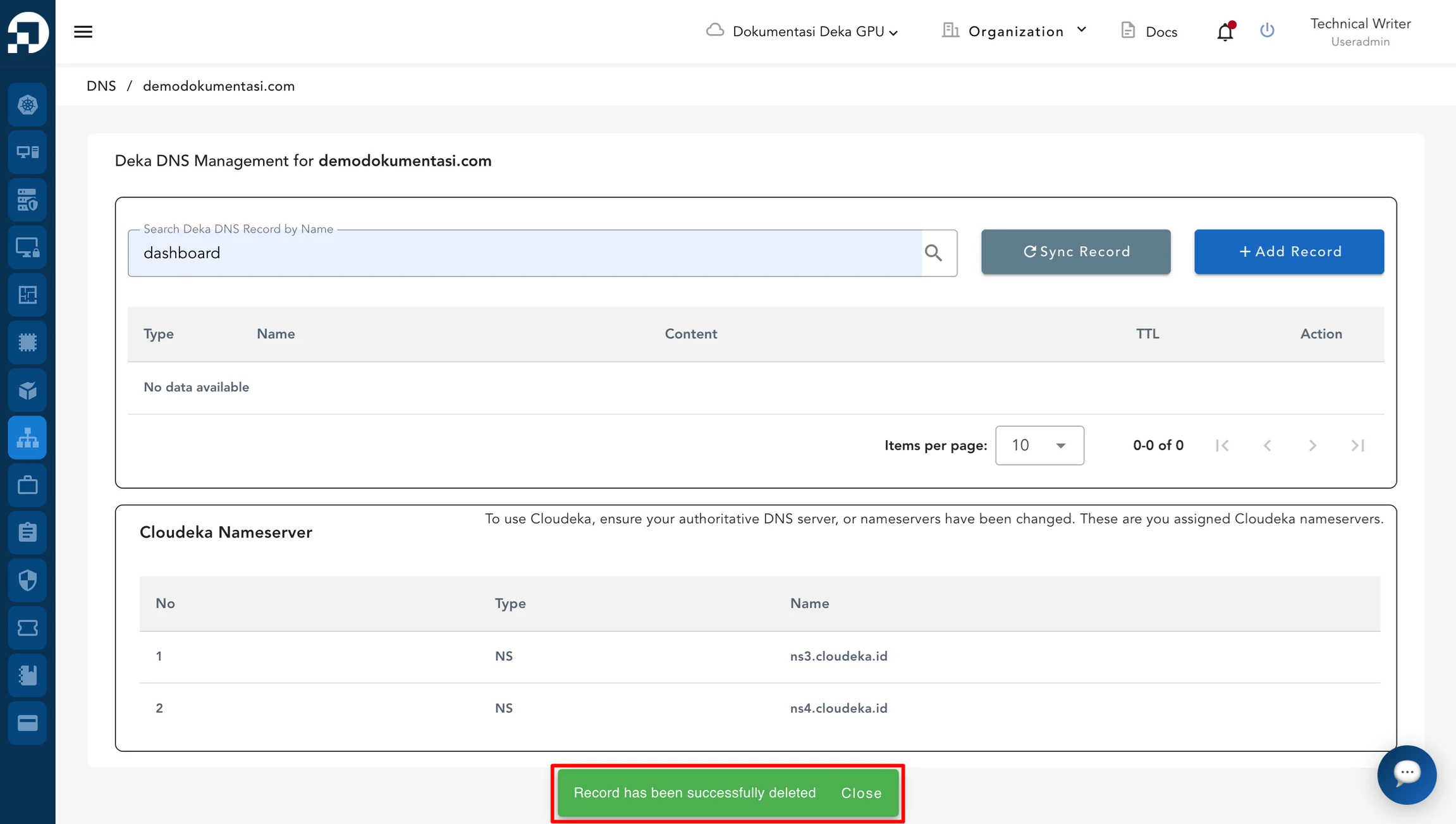
Once successful, the system displays the message “Record has been successfully deleted.”

Cancel Record
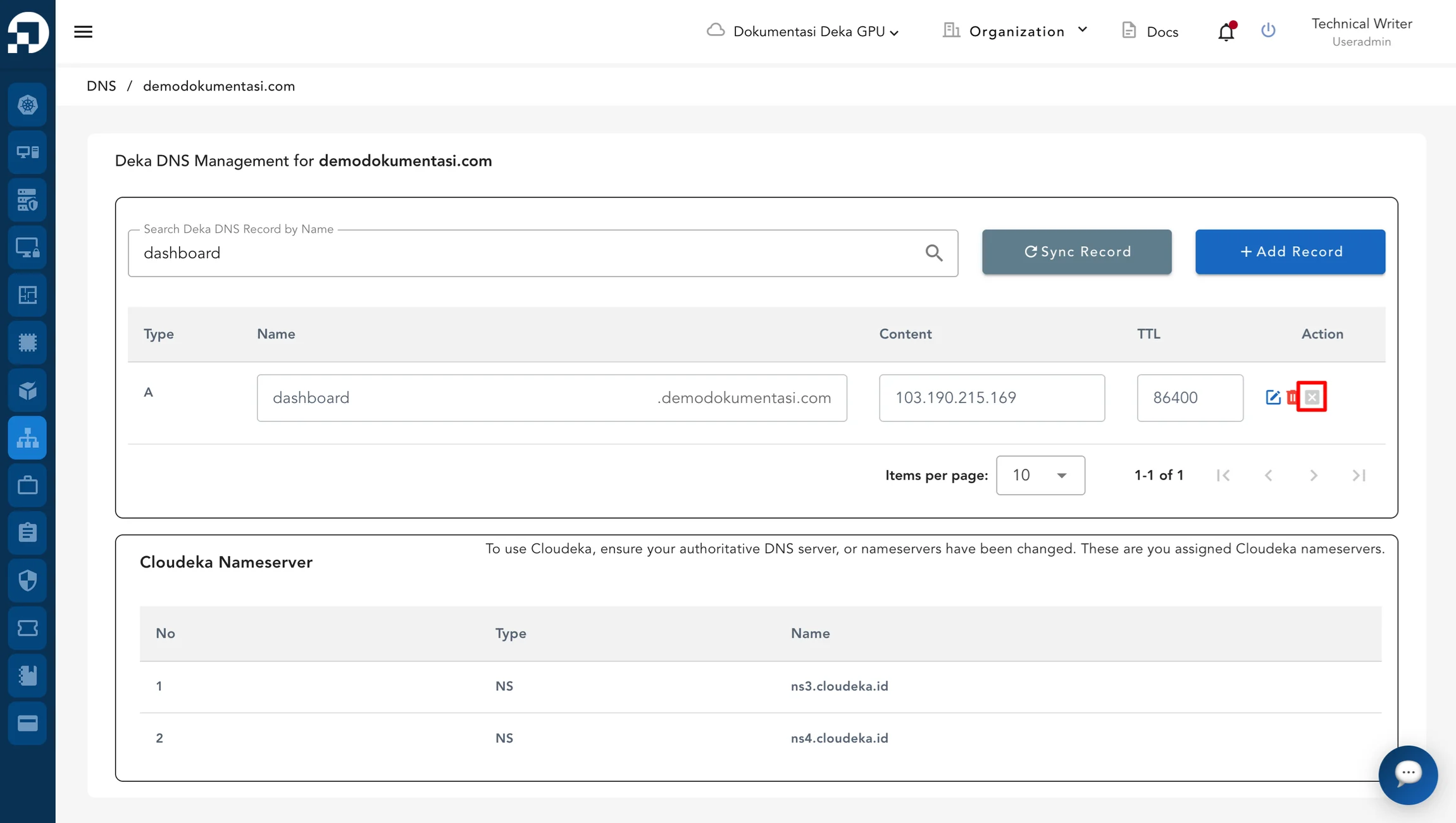
Click the Cancel button to exit edit mode. After clicking Cancel, the DNS record returns to its previous state and the record fields are no longer editable. To make further changes, the Edit button must be selected again to re-enter edit mode.

Cloudeka Nameservers
The Clouddeka Nameserver section shows the list of nameservers assigned by Clouddeka. To use Clouddeka DNS Management, ensure that the domain is configured to use these nameservers at the domain registrar.
Last updated