> For the complete documentation index, see [llms.txt](https://docs.cloudeka.ai/llms.txt). Markdown versions of documentation pages are available by appending `.md` to page URLs; this page is available as [Markdown](https://docs.cloudeka.ai/deka-gpu-documentations/deka-gpu-mlops/notebook-culler-activation.md).
# Notebook Culler Activation
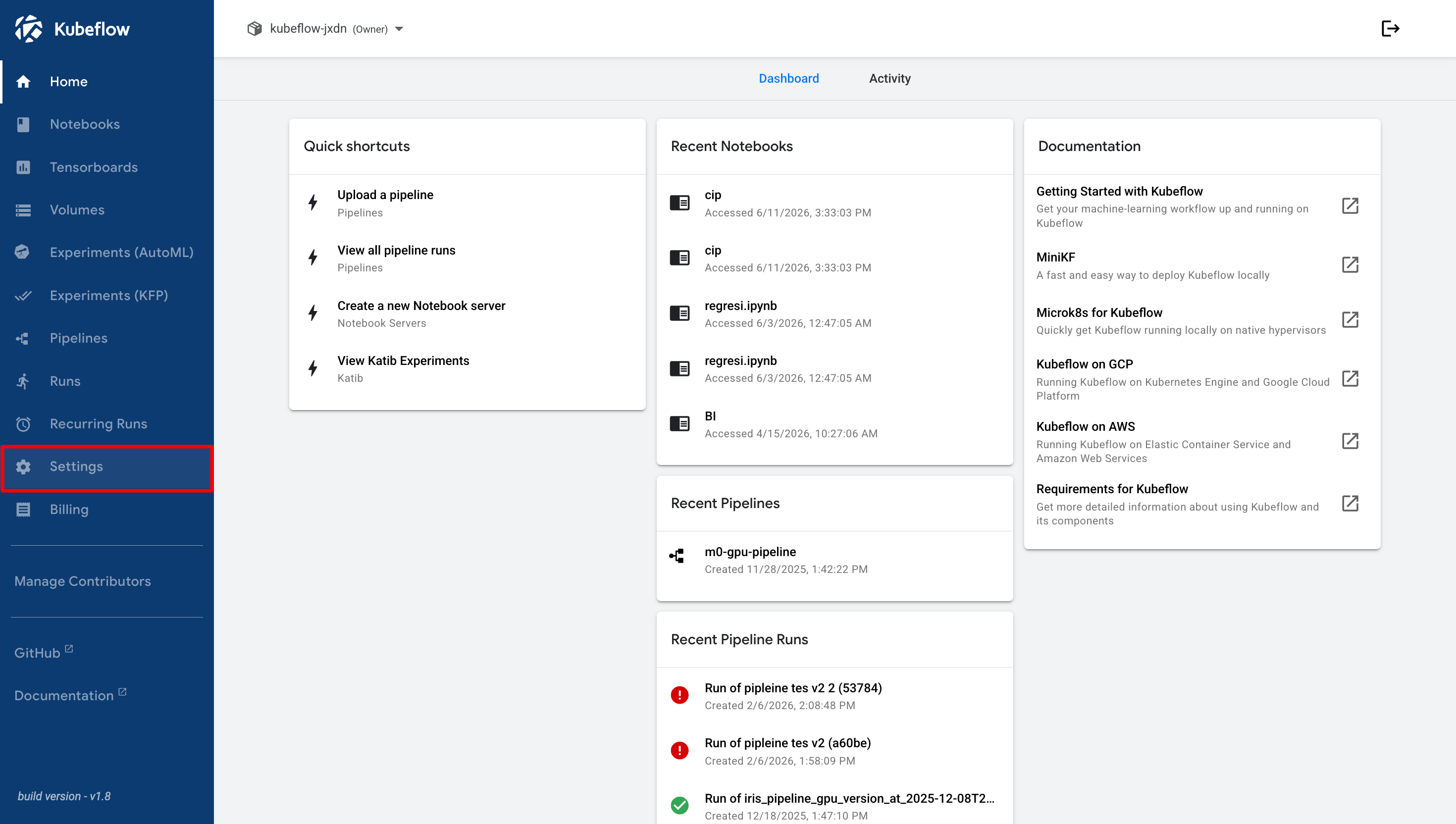
This guide explains how to enable and configure the **Notebook Culler** directly from the Cloudeka Deka MLOps Service Portal dashboard. It is assumed that you are already signed in and have selected the appropriate namespace. To begin, navigate to the **Settings** menu located in the main sidebar.
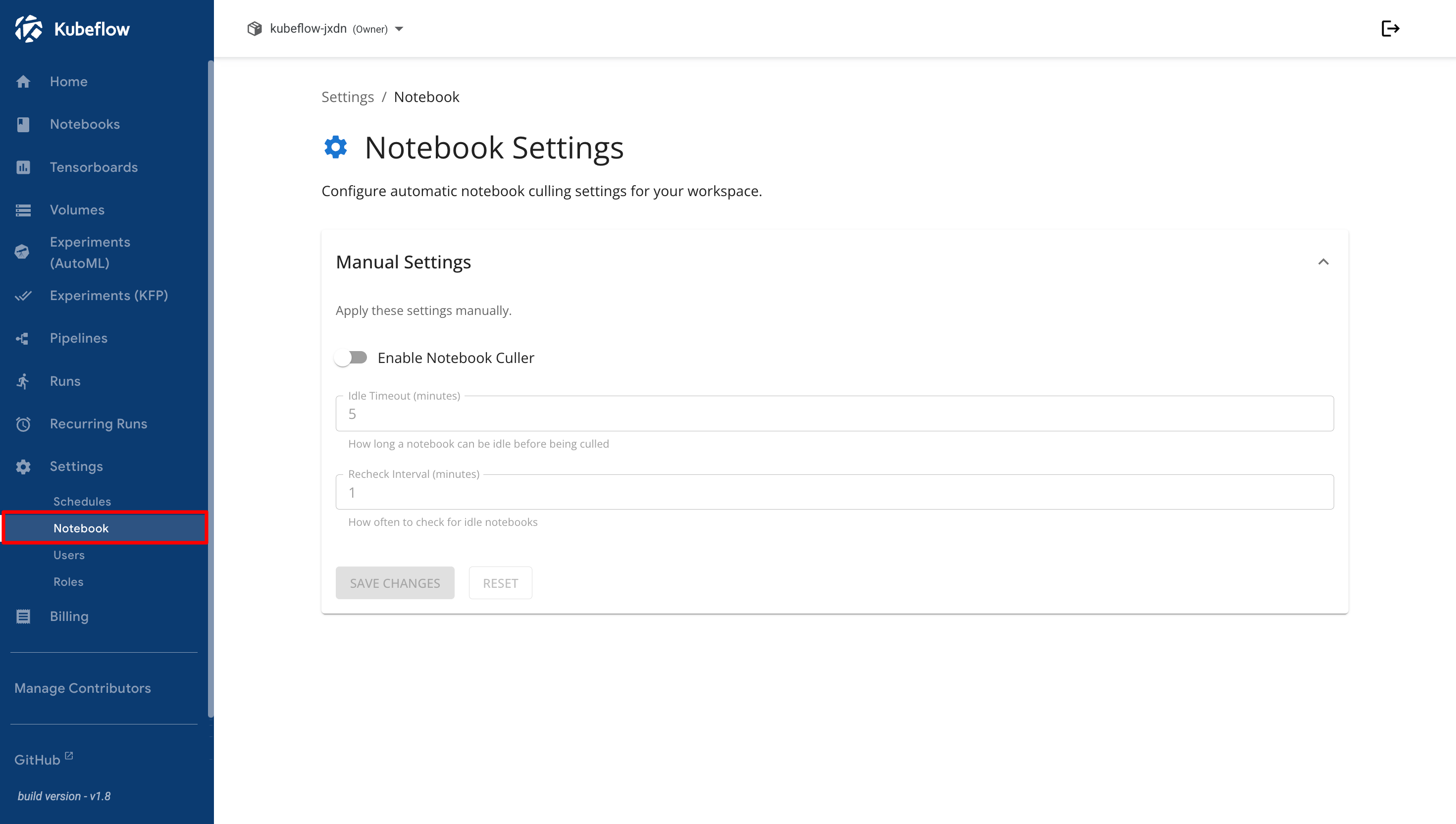
After clicking **Settings**, several options are available, including **Schedules**, **Notebook**, **Users**, and **Roles**. Make sure that you select the **Notebook** option.
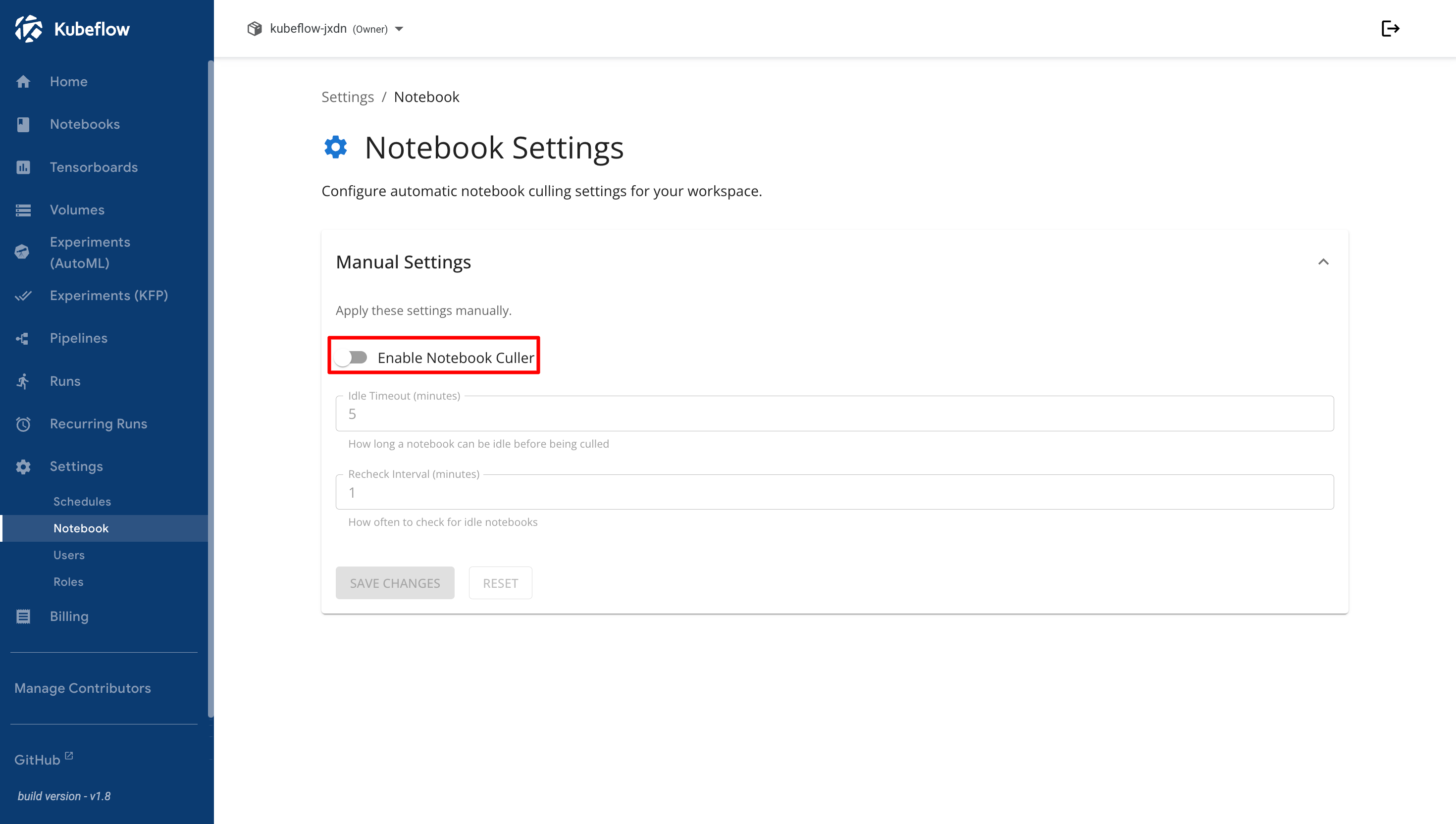
In the **Notebook** settings page, you will find the **Enable Notebook Culler** option, which is disabled by default.
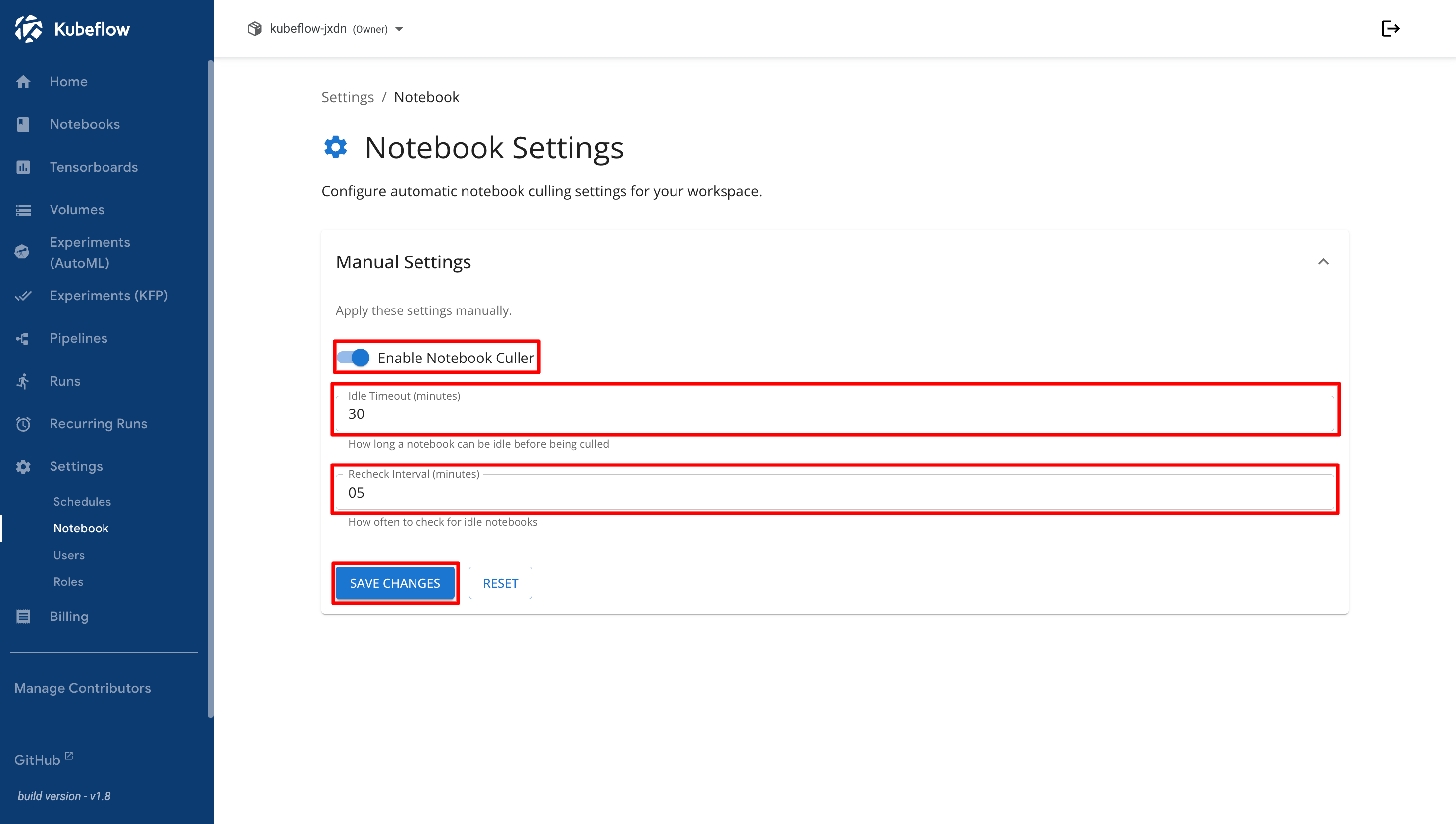
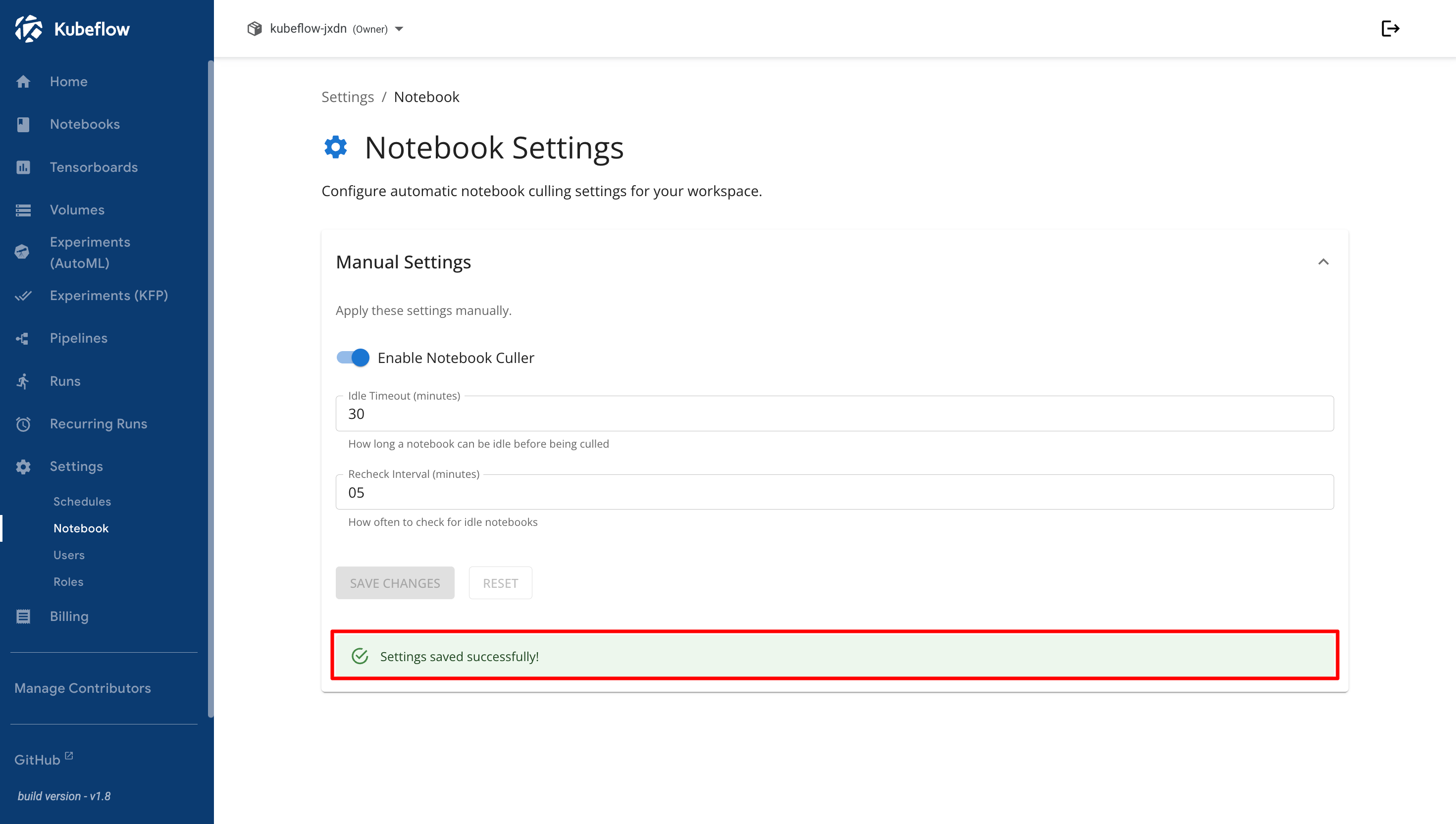
To enable the feature, click the toggle switch. The toggle turns blue to indicate that the feature is enabled. Once enabled, two configuration fields become available.
The **Idle Timeout (minutes)** field specifies how long a notebook can remain inactive before it is automatically stopped, while the **Recheck Interval (minutes)** field determines how often the system checks for idle notebooks.
After entering the desired values, click the **Save Changes** button to apply the configuration.
A confirmation message appears indicating that the settings have been saved successfully.