> For the complete documentation index, see [llms.txt](https://docs.cloudeka.ai/llms.txt). Markdown versions of documentation pages are available by appending `.md` to page URLs; this page is available as [Markdown](https://docs.cloudeka.ai/deka-gpu-documentations/panduan-untuk-enterprise/deka-flexi/deka-volume-storage/creating-and-attaching-a-storage-or-disk.md).

# Membuat dan Menambahkan Storage atau Disk

Anda dapat membuat disk kosong dan memasangnya pada instance VM. Disk ini berfungsi sebagai disk non-root.

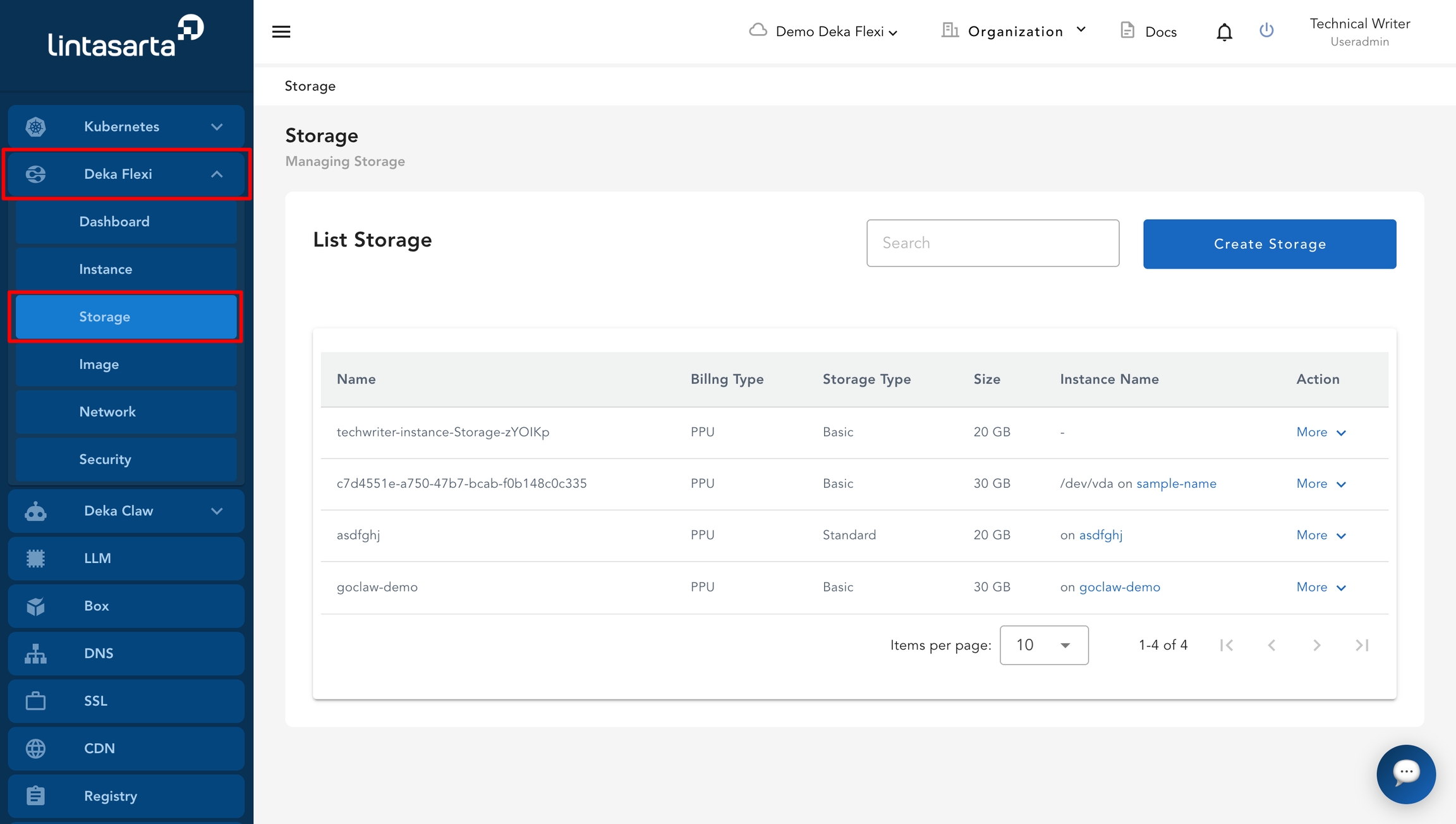
* Pada halaman utama Service Portal Cloudeka, pilih menu **Storage**.

<figure><img src="https://putri.box.cloudeka.id/cloudeka-assets/docs.cloudeka.ai/6dekaflexi/createattachstorage_01.jpg" alt=""><figcaption></figcaption></figure>

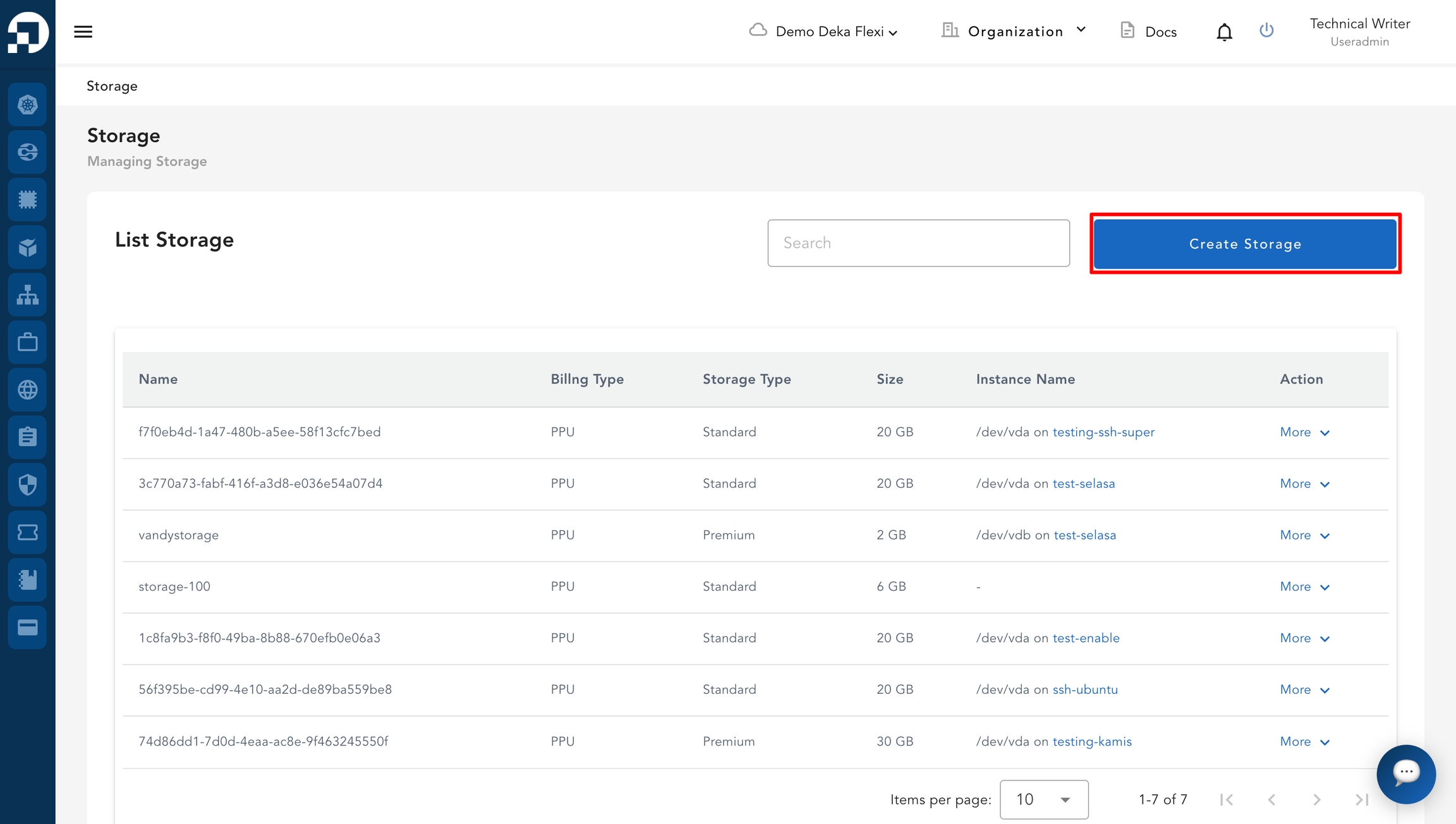
* Klik tombol **Create Storage**.

<figure><img src="https://putri.box.cloudeka.id/cloudeka-assets/docs.cloudeka.ai/6dekaflexi/createattachstoragee_02.jpg" alt=""><figcaption></figcaption></figure>

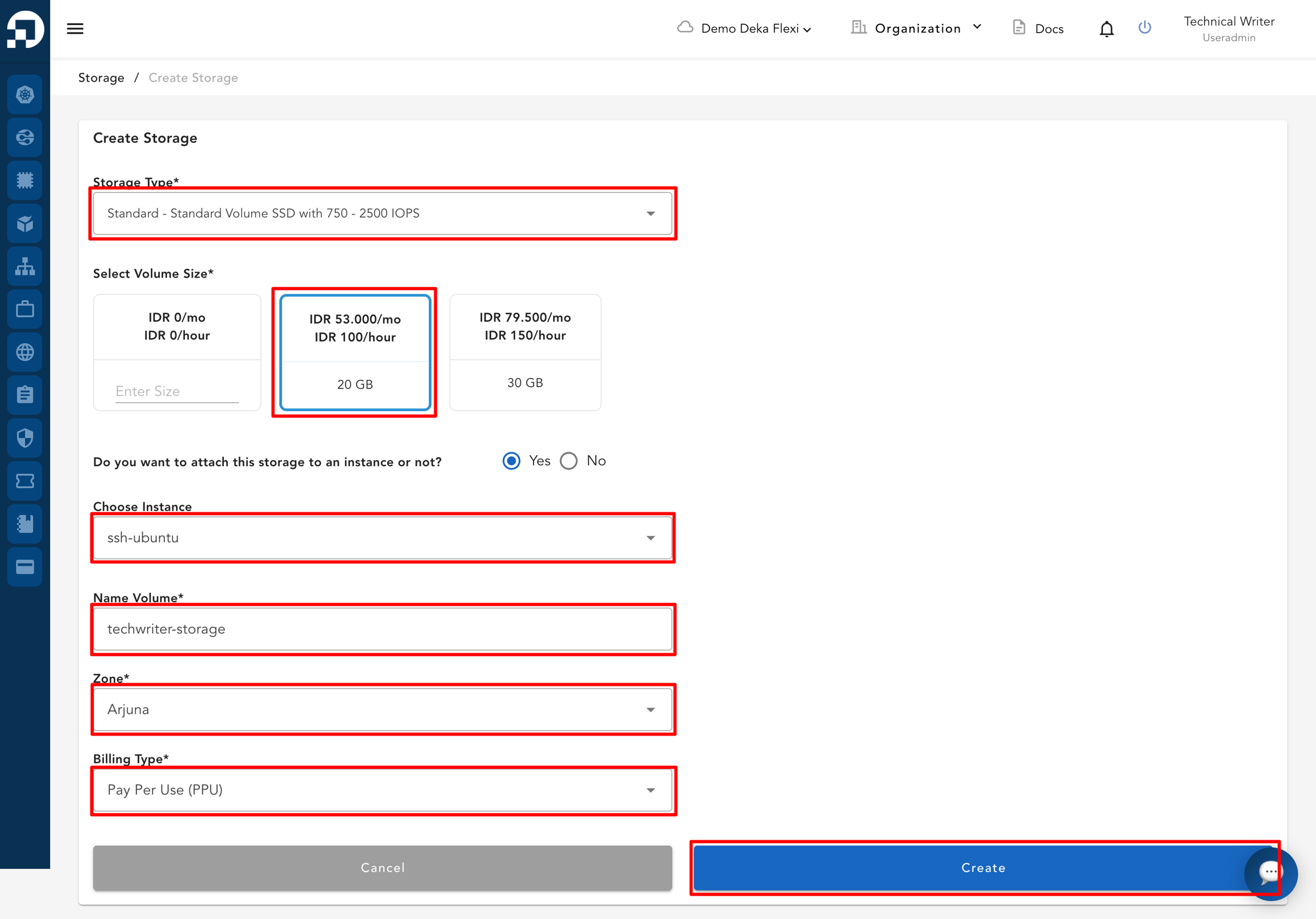
* Isi formulir **Create Storage** dengan informasi berikut.

<table data-full-width="true"><thead><tr><th width="322">Kolom</th><th>Deskripsi</th></tr></thead><tbody><tr><td><strong>Storage Type</strong></td><td>Pilih jenis storage yang akan digunakan. Opsi yang tersedia meliputi Basic, Standard, Premium, NVMe Standard, dan NVMe Premium. Lihat tabel perbandingan jenis storage di bawah untuk detail performa dan fitur yang didukung.</td></tr><tr><td><strong>Select Volume Size</strong></td><td>Tentukan ukuran storage yang dibutuhkan.</td></tr><tr><td><strong>Do you want to attach this storage to an instance or not?</strong></td><td>Pilih <strong>Yes</strong> untuk memasang storage pada instance, atau pilih <strong>No</strong> untuk memasangnya nanti.</td></tr><tr><td><strong>Select Instance</strong></td><td>Pilih instance tempat storage akan dipasang.</td></tr><tr><td><strong>Name Volume</strong></td><td>Nama untuk volume.</td></tr><tr><td><strong>Billing Type</strong></td><td>Berdasarkan jenis billing project yang digunakan.</td></tr><tr><td><strong>Zone</strong></td><td>Zone yang digunakan untuk storage.</td></tr></tbody></table>

Tabel berikut membandingkan setiap jenis storage, termasuk rentang IOPS dan ketersediaan fitur. Tinjau informasi berikut sebelum memilih jenis storage.

<table><thead><tr><th>Tier</th><th width="245.5625">IOPS</th><th width="75.453125">TBS</th><th width="95.0677490234375">TKP</th><th width="76.5625">JAH</th></tr></thead><tbody><tr><td>Basic</td><td>Tanpa jaminan IOPS</td><td>Ya</td><td>Ya</td><td>Tidak</td></tr><tr><td>Standard</td><td>750 - 2,500 IOPS</td><td>Ya</td><td>Ya</td><td>Ya</td></tr><tr><td>Premium</td><td>2,250 - 4,500 IOPS</td><td>Ya</td><td>Ya</td><td>Ya</td></tr><tr><td>NVMe Standard</td><td>4,500 - 10,000 IOPS</td><td>Ya</td><td>Tidak</td><td>Tidak</td></tr><tr><td>NVMe Premium</td><td>10,000 - 15,000 IOPS</td><td>Ya</td><td>Tidak</td><td>Tidak</td></tr></tbody></table>

* Klik tombol **Create** untuk menyimpan data, atau **Cancel** jika Anda tidak ingin menyimpannya.

<figure><img src="https://putri.box.cloudeka.id/cloudeka-assets/docs.cloudeka.ai/6dekaflexi/createattachstoragee_03.png" alt=""><figcaption></figcaption></figure>

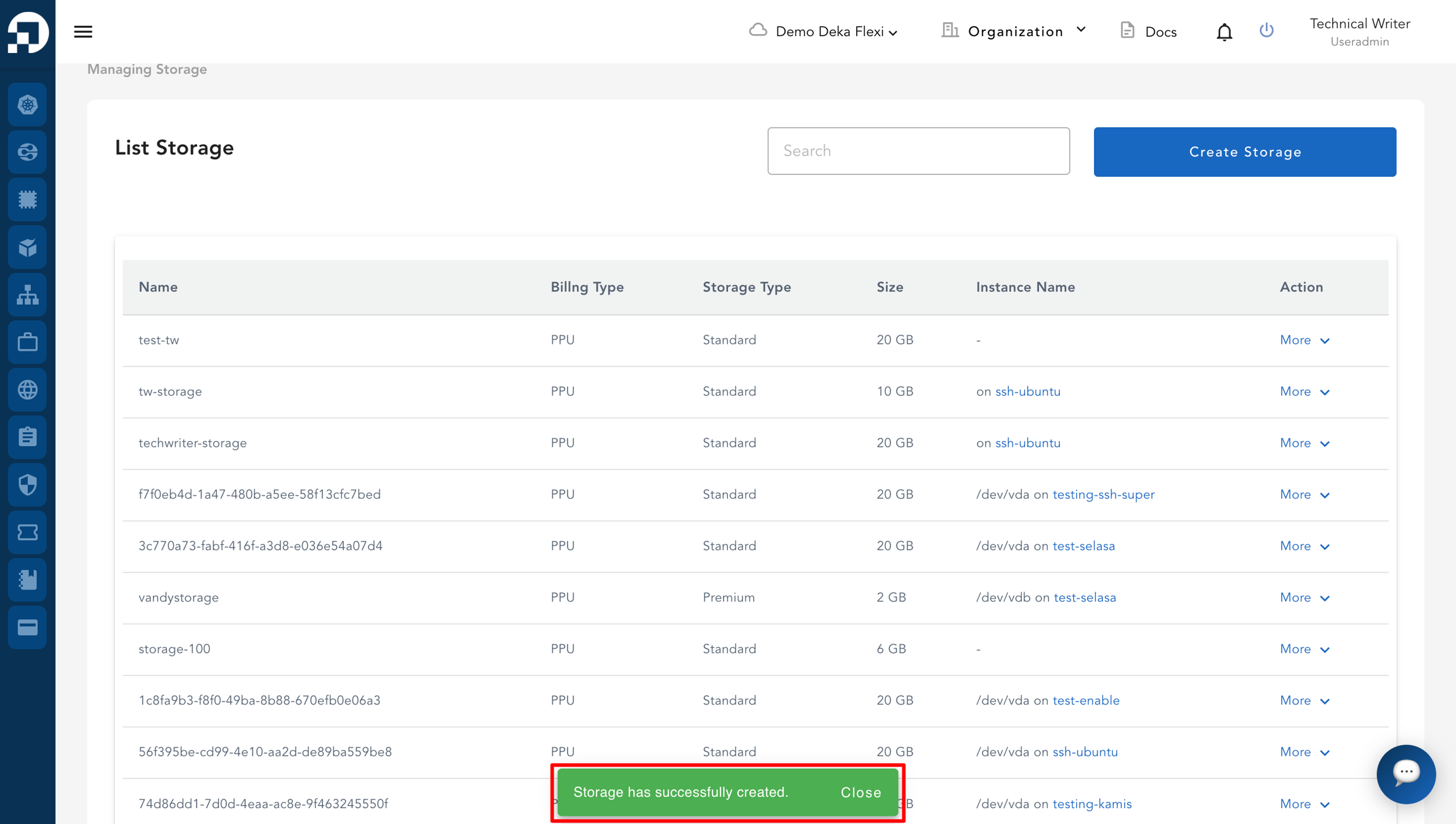
* Notifikasi dengan pesan "**Storage has successfully created**" akan muncul.

<figure><img src="https://putri.box.cloudeka.id/cloudeka-assets/docs.cloudeka.ai/6dekaflexi/createattachstoragee_04.png" alt=""><figcaption></figcaption></figure>