> For the complete documentation index, see [llms.txt](https://docs.cloudeka.ai/llms.txt). Markdown versions of documentation pages are available by appending `.md` to page URLs; this page is available as [Markdown](https://docs.cloudeka.ai/deka-gpu-documentations/panduan-untuk-enterprise/deka-gpu-mlops/volumes.md).

# Penyimpanan

Menu *Volumes* digunakan untuk membuat dan mengelola penyimpanan yang dapat diakses oleh *container* yang berjalan pada *pod* di *Service Portal* Cloudeka. Menu *Volumes* menyediakan fitur untuk membuat dan menghapus volume.

## Buat volume baru

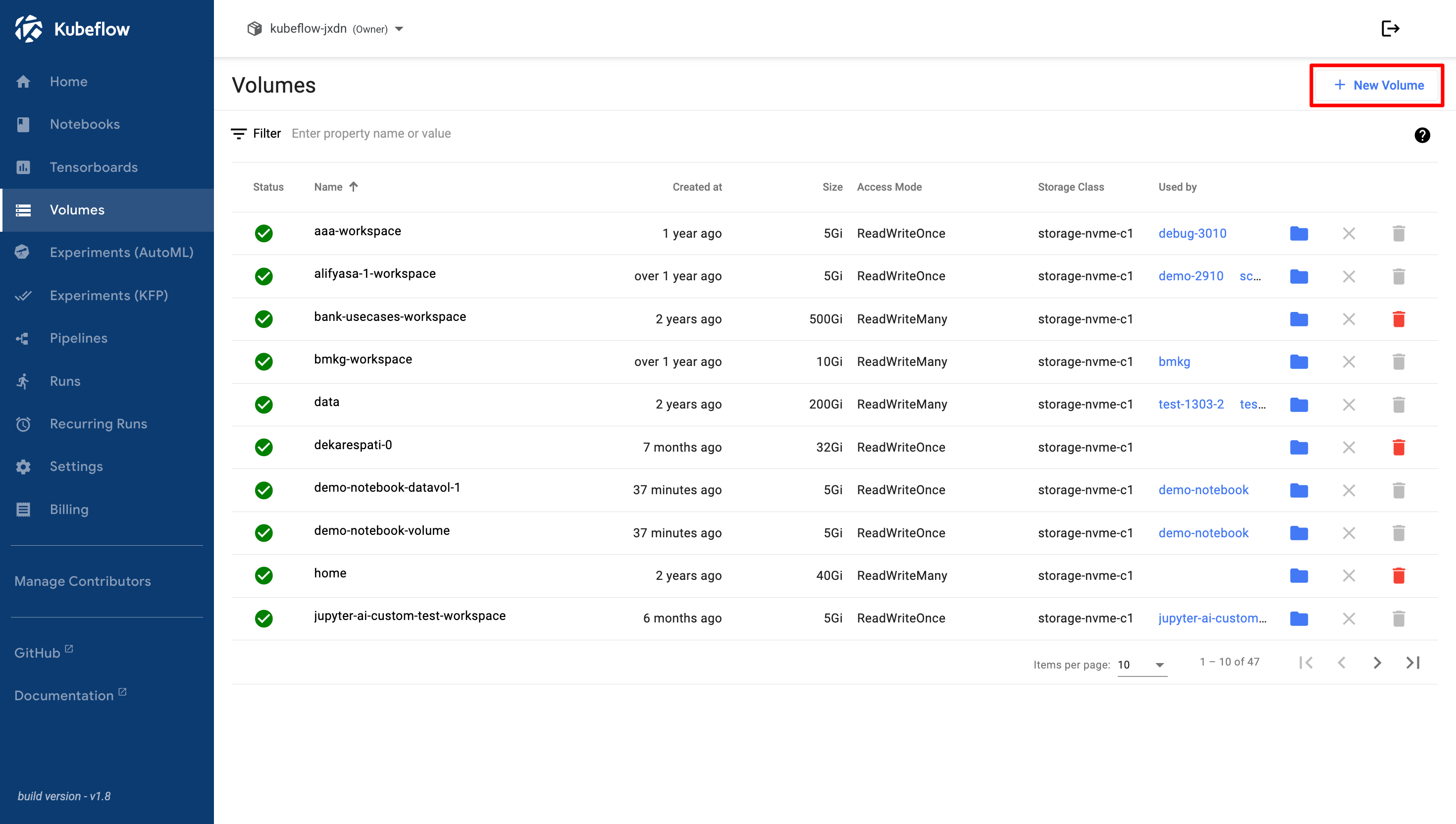
*Create Volumes* digunakan untuk membuat *Persistent Volume (PV)* atau *Persistent Volume Claim (PVC)* sebagai penyimpanan persisten bagi berbagai komponen di *Service Portal* Cloudeka, seperti *Notebooks*, *Pipelines*, serta komponen lain yang membutuhkan penyimpanan data konsisten. Pada halaman *Volumes*, klik tombol *+ New Volume*.

<figure><img src="https://753761090-files.gitbook.io/~/files/v0/b/gitbook-x-prod.appspot.com/o/spaces%2FtAYQyBIz2BclZ3ZHHlS4%2Fuploads%2Fgit-blob-a763eb9707fe3609645a9f8e888cb2789e04c33f%2Fimage.png?alt=media" alt=""><figcaption></figcaption></figure>

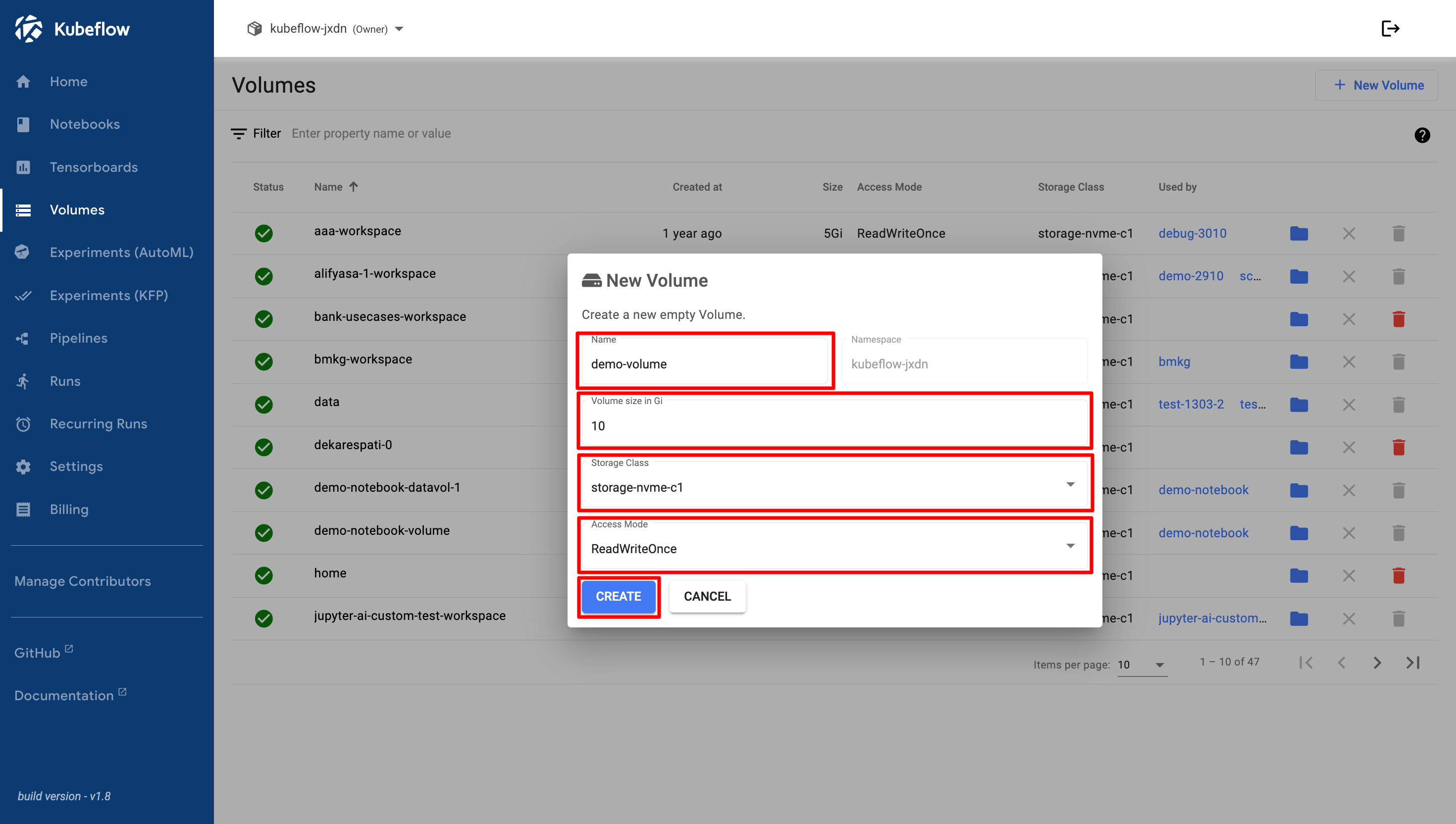
Jendela *New Volume* akan muncul. Kolom yang dapat dikonfigurasi adalah *Name*, *Volume Size (Gi)*, *Storage Class*, dan *Access Mode*. Setelah melengkapi semua kolom wajib dalam jendela *New Volume*, klik tombol *Create* untuk membuat volume baru.

<figure><img src="https://753761090-files.gitbook.io/~/files/v0/b/gitbook-x-prod.appspot.com/o/spaces%2FtAYQyBIz2BclZ3ZHHlS4%2Fuploads%2Fgit-blob-1568ce66bd9035ae1d0a55cacee18dd5826ccb73%2Fimage.png?alt=media" alt=""><figcaption></figcaption></figure>

## *PVCViewer*

*PVC Viewer* memudahkan proses melihat dan mengelola *Persistent Volume Claims (PVC)* di *Kubernetes*.

Untuk menggunakan fitur unduh dan unggah pada *PVC Viewer*, pastikan mode akses volume diatur ke *ReadWriteMany* saat membuat volume. Kemudian, klik ikon *Folder* untuk membuka *PVC Viewer*.

<figure><img src="https://lh7-rt.googleusercontent.com/docsz/AD_4nXfs2UpCssc2pVz3v5HVyJh-QXK2LhzoKXN-pAbQGBHZNnT2eVi4yBwC7RdiPee8dfyCcYNoB7jV2CE0HUlRocOg5cXv7m8QIfIjmKimii5qqWEyuSpr_MDIzGiYXb6CveEbj-D5o2wzejEL_71yEyFfcfg?key=LVQ1qyxGTmR2_dnptAsYnQ" alt=""><figcaption></figcaption></figure>

Setelah mengeklik ikon *Folder*, tab baru akan muncul seperti pada gambar berikut.

<figure><img src="https://lh7-rt.googleusercontent.com/docsz/AD_4nXeX0qH8khwly2F22WCsYPrZHMxmlkwyk-_icak-Wsf56xnj2VWJeTtUEyZEmdBRTnSOS6SKFbjTlMcRgUpFWhwtuW4u4K78j-bPsGqNmU8x-u_88b6GZ00YsBcWELIfS9GyWOZOYzTfTfH1yoWe-YP13pZl?key=LVQ1qyxGTmR2_dnptAsYnQ" alt=""><figcaption></figcaption></figure>

### Buat folder baru

*Create New Folder* digunakan untuk membuat direktori baru dalam *PVC* guna mengatur data. Pada halaman *PVC Viewer*, klik tombol *New Folder*.

<figure><img src="https://lh7-rt.googleusercontent.com/docsz/AD_4nXd2jCOdwwxFR6joSk2JU_RR-gI1CksVGHxH95CZU5FDOzli23t7xpy6BwNkHBznAmKsurdQ9Lud4eJL6xZLytnPL3NifWGEAFG0OGqg0qvE_xUp0EGCZ1bZFJAhJR6Yxls62jSToV0fZWDuMpyX3Q9mOlbl?key=LVQ1qyxGTmR2_dnptAsYnQ" alt=""><figcaption></figcaption></figure>

Jendela *New Directory* akan muncul. Masukkan nama folder, lalu klik tombol *Create*.

<figure><img src="https://lh7-rt.googleusercontent.com/docsz/AD_4nXcipONQiceq8KU0StvGrzw5bSY5FFKvK9NgO1eMIuVhGJglO6vvSeBuXrhSt0RRhRv5O4q61PJ-0B2do5I6FBOch8PRu1U8UO-N1B0opnfVFOO1NMY3pscKmtQgP6ArcQudN01sG7hJ723lvggMp_Lc7wOI?key=LVQ1qyxGTmR2_dnptAsYnQ" alt=""><figcaption></figcaption></figure>

Jika folder berhasil dibuat, folder akan muncul dalam daftar direktori.

<figure><img src="https://lh7-rt.googleusercontent.com/docsz/AD_4nXc4SHF25g63n0421YsP16o3F4N7xU7tbuH6-SSs9522zVshWMVpHCQgN7DChJV5a0G_eChCWaqnyyfQVVnAUwQ4FL5Zg9Y4fyOAq7q7-JFsEHvvBGeqMSJwjpQ3RQuvccKycd7vX1_o_kskYyblRdHKZt1m?key=LVQ1qyxGTmR2_dnptAsYnQ" alt=""><figcaption></figcaption></figure>

### Buat file baru

*Create New File* digunakan untuk membuat file baru dalam *PVC*. Pada halaman *PVC Viewer*, klik tombol *New File*.

<figure><img src="https://lh7-rt.googleusercontent.com/docsz/AD_4nXftg-RWh5nWaoc9ekrrpdD1BAoYcJJwfDQ-J-FgE7qD9UsQvMbzbQAOgYNfSwSu9k8P93eJmhsxW_7EgatwkQP9RFbMwJHTcE5w-Z8m8i_35v9mfTlVA2X1H-_FS2XI5Jh6o3Lu9GBl0hy2TvZ7iK-m27Jt?key=LVQ1qyxGTmR2_dnptAsYnQ" alt=""><figcaption></figcaption></figure>

Jendela *New File* akan muncul. Masukkan nama file, lalu klik tombol *CREATE*.

<figure><img src="https://lh7-rt.googleusercontent.com/docsz/AD_4nXfiutX2jdtTF58wxvKMSCAkiHXHnShPfb30oyrWOVzWfqAZeSS_stPBMVkse5VJC_B_hcg9bVsBllHn5_7eoQ2tAgaME_peLTu8pTXspktJZ19Jpu9oaTOLtEcqz1KpKhGgg5_G1SygC0Uibr50vaJZQGU?key=LVQ1qyxGTmR2_dnptAsYnQ" alt=""><figcaption></figcaption></figure>

Setelah file dibuat, tab baru akan terbuka secara otomatis. Anda dapat memasukkan dan menyimpan isi file.

<figure><img src="https://lh7-rt.googleusercontent.com/docsz/AD_4nXcN0lBmuDMwEOZvyIoVReePwJrMrH48kIAn0aIzT5iIGZXfdN_KNdkv3k0TmXO0GhmnC2EM4E9wgP2GoxVdKP_7gmatJ87ryjICooouAxXcwHtkuipxI_WPcSOIPeZUuarliRydAytd_BPFBa8GnrgRD90e?key=LVQ1qyxGTmR2_dnptAsYnQ" alt=""><figcaption></figcaption></figure>

### Pengaturan *PVCViewer*

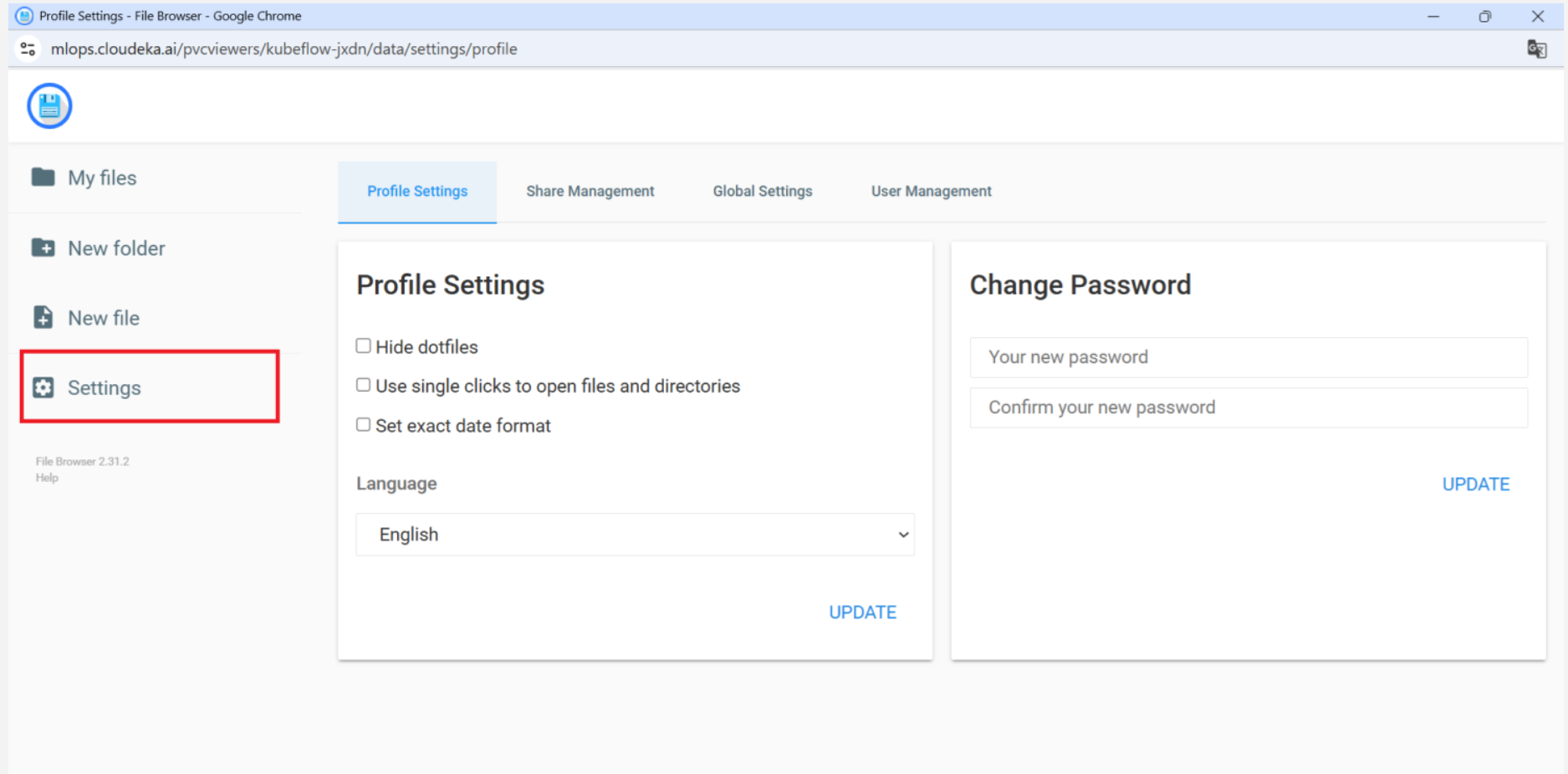
*PVC Viewer Settings* digunakan untuk mengelola konfigurasi *PVC Viewer*, seperti izin akses, pengaturan tampilan, dan integrasi penyimpanan. Pada halaman *PVC Viewer*, klik tombol *Settings*.

<figure><img src="https://753761090-files.gitbook.io/~/files/v0/b/gitbook-x-prod.appspot.com/o/spaces%2FtAYQyBIz2BclZ3ZHHlS4%2Fuploads%2Fgit-blob-794365afe53602354072eaf50ca413e104ec76b2%2Fimage.png?alt=media" alt=""><figcaption></figcaption></figure>

Halaman *PVCViewer Settings* menyediakan empat tab berikut:

a. *Profile Settings* digunakan untuk mengelola izin akses, pengguna, dan pengaturan global yang memengaruhi penggunaan, pembaruan, serta pembagian *PVC* dalam lingkungan *Service Portal* Cloudeka. Tab *Profile Settings* memuat bagian berikut:

* *Profile Settings* menyediakan opsi berikut:
  * *Hide dotfiles*, untuk menyembunyikan file atau direktori yang diawali titik (`.`) dalam tampilan pengelola file.
  * *Use single clicks to open files and directories*, untuk membuka file dan folder dengan satu klik.
  * *Set exact date format*, untuk menentukan format tanggal dan waktu yang ditampilkan dalam penampil file.
  * *Language*, untuk mengubah bahasa tampilan.
* *Change Password* digunakan untuk memperbarui kata sandi akun.

b. *Share Management* digunakan untuk mengonfigurasi *dataset* sebagai hanya-baca bagi anggota tim lain dan baca-tulis bagi administrator.

c. *Global Settings* digunakan untuk memastikan ukuran *PVC* tidak melebihi 50 GiB dan mengonfigurasi kebijakan pencadangan mingguan bagi *PVC* yang digunakan dalam *pipeline* utama.

d. *User Management* digunakan untuk menambahkan anggota tim baru ke *Kubeflow* dan menetapkan peran *Editor*. Peran ini memungkinkan mereka mengelola file *script* tanpa mengubah pengaturan global atau menghapus volume.

### Unggah file di *PVCViewer*

*Upload File in PVC Viewer* digunakan untuk mengunggah file dari komputer lokal ke direktori tertentu dalam *PVC*. Pada halaman *PVC Viewer*, klik ikon *Upload*.

<figure><img src="https://lh7-rt.googleusercontent.com/docsz/AD_4nXcOpvGONVswd2dGTGdkL8JSO3m56lpXxR7S7zU955uuQanLGdelMkRs4be1yUOWKytGZrJ4l0QiJJxZZrokA0pUgyYNdUs7thQ3yzZaf7Xg-6F3Tzw_L_0myZQl0DeFMTBcRZvYHqMDmD_0fVyu0bYmM2Q?key=LVQ1qyxGTmR2_dnptAsYnQ" alt=""><figcaption></figcaption></figure>

Jendela *Upload* akan muncul. Pilih file dari komputer Anda untuk diunggah.

<figure><img src="https://lh7-rt.googleusercontent.com/docsz/AD_4nXdqIozXJDe0CQBnUMVqp9LDrgWJr6v-gXAhU07CEFEtslD0yNupVX9GjcWVOWw3Pvy5Hqe2Z9rrmujSPE2XF7tLdNzBT83LBeIMgitJ_DDWmKZ7vvlsCXHnDLvxj9hnjBZy4yMlReIPkWYCuRSG1uLVoqw?key=LVQ1qyxGTmR2_dnptAsYnQ" alt=""><figcaption></figcaption></figure>

### Unduh file di *PVCViewer*

*Download File in PVC Viewer* digunakan untuk mengunduh file atau folder dari *PVC* ke komputer lokal. Pada halaman *PVC Viewer*, klik ikon *Download*.

<figure><img src="https://lh7-rt.googleusercontent.com/docsz/AD_4nXdTqRsgLgE0KO5-LxXkLBjC63dzH3C6sULYZZ58gVDAEGwFgVkZfT8w_u-Nv7n4u7HbSWTg5Pr7IkLs7OirNwqF-dNRfAmh1yMmFVR2-5WSpZOVzZ_8N0RRqaCsKk3umM2KRRKfnQp-UmBzEmkhPoo9n-Jx?key=LVQ1qyxGTmR2_dnptAsYnQ" alt=""><figcaption></figcaption></figure>

Jendela *Download Files* akan muncul. Pilih format file yang akan diunduh.

<figure><img src="https://lh7-rt.googleusercontent.com/docsz/AD_4nXe0Mg_R5TX0MSzPSE0tH9jqBkUGJDSmvupMBp0rxcK4m0qF1sR3ucYiATyI5Ara5Y3WARRab9950Sae3oqtFrg0yLvXtaLTsR7a1kdb1bgxQktZIz7we3e8K5BXQe5NN26x5L4ZBxeam33jTK5MiYrVo6JO?key=LVQ1qyxGTmR2_dnptAsYnQ" alt=""><figcaption></figcaption></figure>

## Hapus *PVCViewer*

Untuk menghapus volume di *Service Portal* Cloudeka, buka menu *Volumes* dan pilih volume yang ingin dihapus dengan mengeklik ikon *Delete*.

<figure><img src="https://lh7-rt.googleusercontent.com/docsz/AD_4nXcVLvet5J6jKcCLIQU0u8DZLLBsXKD9wA00vfQ9i0rvW219RHZe_Gpk_ezeL66gnPrPwXQYgrRziNkzR_sF1i7KzLk-TwfAWsqPc8Dlz8UmEMq-LqvJ3_lQsTzbUF_95MMwdzf8Q8ahsFO6AcwuV8_KKwCs?key=LVQ1qyxGTmR2_dnptAsYnQ" alt=""><figcaption></figcaption></figure>

Klik tombol *Delete* untuk melanjutkan proses penghapusan volume.
<figure><img src="https://lh7-rt.googleusercontent.com/docsz/AD_4nXfTgy_ZdU1Nm36MZQY-8STgzRf6QAWfWgiP_ZkgLKtSpMmINfR6NORB-n3DG3ozNAvn8fi-CUX1UhSBHH6fy1okXUzDsIInGy9z1J1WnPRB-hS37JVWMLRXI--8TBTG6zRVg-VAHC8reqVvXFR1pNUMOH4s?key=LVQ1qyxGTmR2_dnptAsYnQ" alt=""><figcaption></figcaption></figure>