> For the complete documentation index, see [llms.txt](https://docs.cloudeka.ai/llms.txt). Markdown versions of documentation pages are available by appending `.md` to page URLs; this page is available as [Markdown](https://docs.cloudeka.ai/deka-gpu-documentations/panduan-untuk-enterprise/troubleshooting/nvidia-driver-not-detected-after-upgrade-kernel.md).
# Driver NVIDIA Tidak Terdeteksi Setelah Upgrade Kernel
{% hint style="warning" %}
Panduan ini digunakan jika driver NVIDIA tidak terdeteksi setelah upgrade kernel.
{% endhint %}
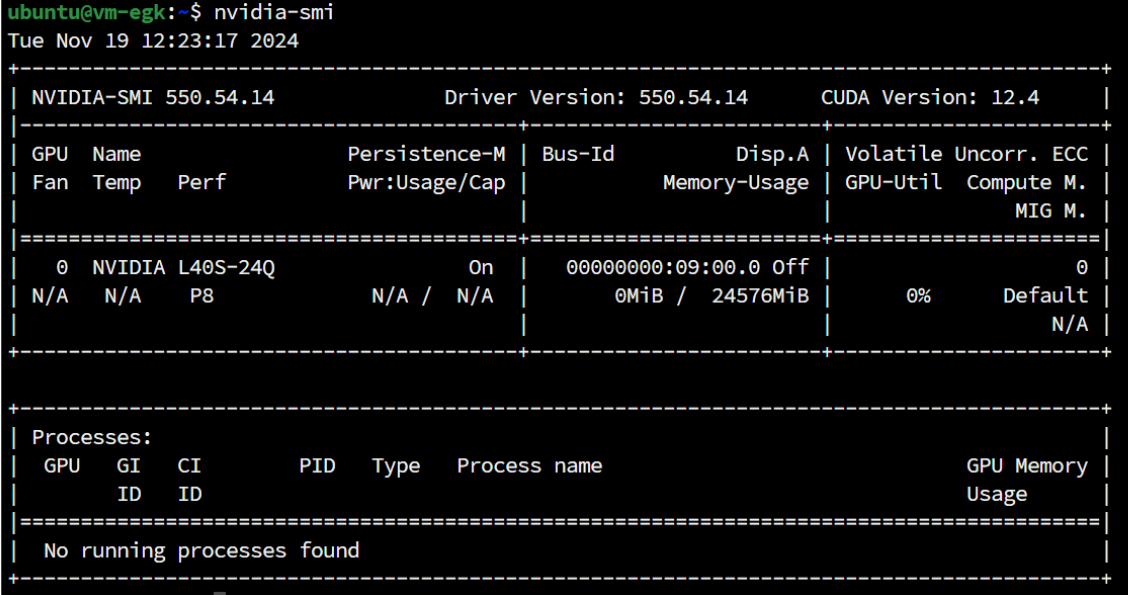
Sebelum pembaruan kernel, driver NVIDIA berhasil diinstal menggunakan berkas `NVIDIA-Linux-x86_64-550.54.14-grid.run`. Saat menjalankan perintah `nvidia-smi`, driver masih terdeteksi pada sistem komputer Anda.
nvida-smi
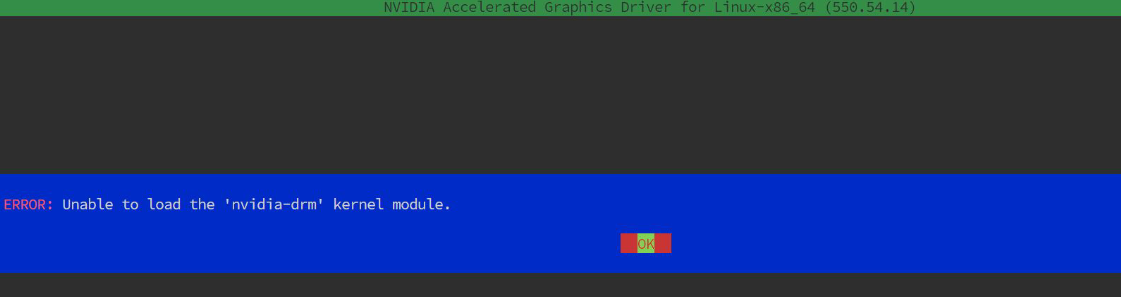
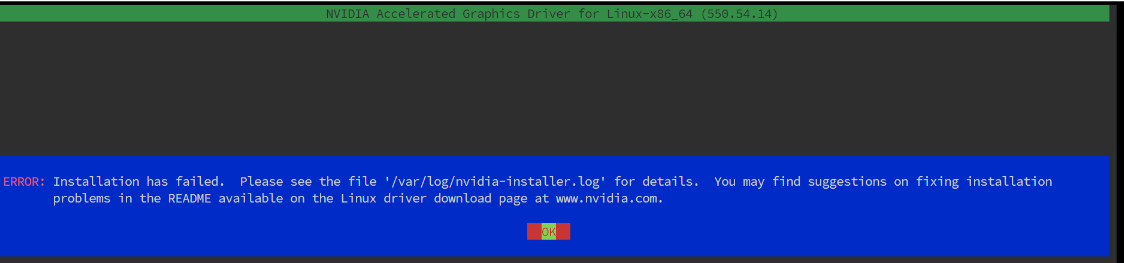
Namun, setelah pembaruan kernel, instalasi ulang menggunakan `NVIDIA-Linux-x86_64-550.54.14-grid.run` gagal.
Error
Error
Pada kasus ini, driver NVIDIA tidak terdeteksi. Ikuti beberapa langkah berikut untuk mengatasinya.
## Menghapus Instalasi Driver NVIDIA
Pertama, hapus paket NVIDIA yang sebelumnya terinstal. Perintah berikut menghapus seluruh paket terkait NVIDIA dari sistem.
```bash
sudo apt-get remove nvidia*
```
Perintah berikut menghapus seluruh paket library terkait NVIDIA dari sistem.
```bash
sudo apt-get remove libnvidia*
```
Perintah berikut membersihkan paket yang tidak lagi diperlukan setelah paket NVIDIA dihapus.
```bash
sudo apt-get autoremove
```
Perintah berikut menampilkan daftar paket terkait NVIDIA yang masih terinstal. Gunakan untuk memastikan semua paket telah dihapus atau mengidentifikasi paket yang tersisa.
```bash
dpkg -l | grep nvidia
```
Perintah berikut menghapus paket `libnvidia-compute-550:amd64` dari sistem. Gunakan untuk menghapus versi library NVIDIA tertentu saat terjadi konflik atau masalah kompatibilitas.
```bash
sudo apt-get remove libnvidia-compute-550:amd64
```
## Menginstal Ulang Driver NVIDIA
Selanjutnya, instal ulang driver NVIDIA pada komputer Anda.
```bash
sudo ./NVIDIA-Linux-x86_64-550.54.14-grid.run
```
## Memulai Ulang Layanan
Kemudian, mulai ulang layanan yang digunakan.
```bash
sudo systemctl restart nvidia-gridd.service
sudo systemctl status nvidia-gridd.service
nvidia-smi
```
## Pencegahan
Untuk mencegah masalah ini terjadi kembali, tahan pembaruan kernel.
#### 1. **Memeriksa Versi Kernel Saat Ini**
Jalankan perintah berikut di terminal untuk memeriksa versi kernel aktif.
```bash
uname -r
```
**Contoh keluaran**
#### 2. **Melihat Kernel yang Terinstal**
Untuk melihat semua kernel yang terinstal pada sistem, gunakan perintah berikut.
```bash
dpkg --list | grep linux-image
```
**Contoh keluaran**
#### 3. **Menahan Pembaruan Kernel**
Tahan upgrade kernel menggunakan perintah berikut. Sesuaikan versinya dengan kernel yang terinstal.
```bash
sudo apt-mark hold linux-image-5.15.0-56-generic
```
Menahan pembaruan kernel
```bash
sudo apt-mark hold linux-image-virtual
```