> For the complete documentation index, see [llms.txt](https://docs.cloudeka.ai/llms.txt). Markdown versions of documentation pages are available by appending `.md` to page URLs; this page is available as [Markdown](https://docs.cloudeka.ai/deka-gpu/deka-gpu-vms/feature-overview-of-virtual-machine/update.md).
# Update
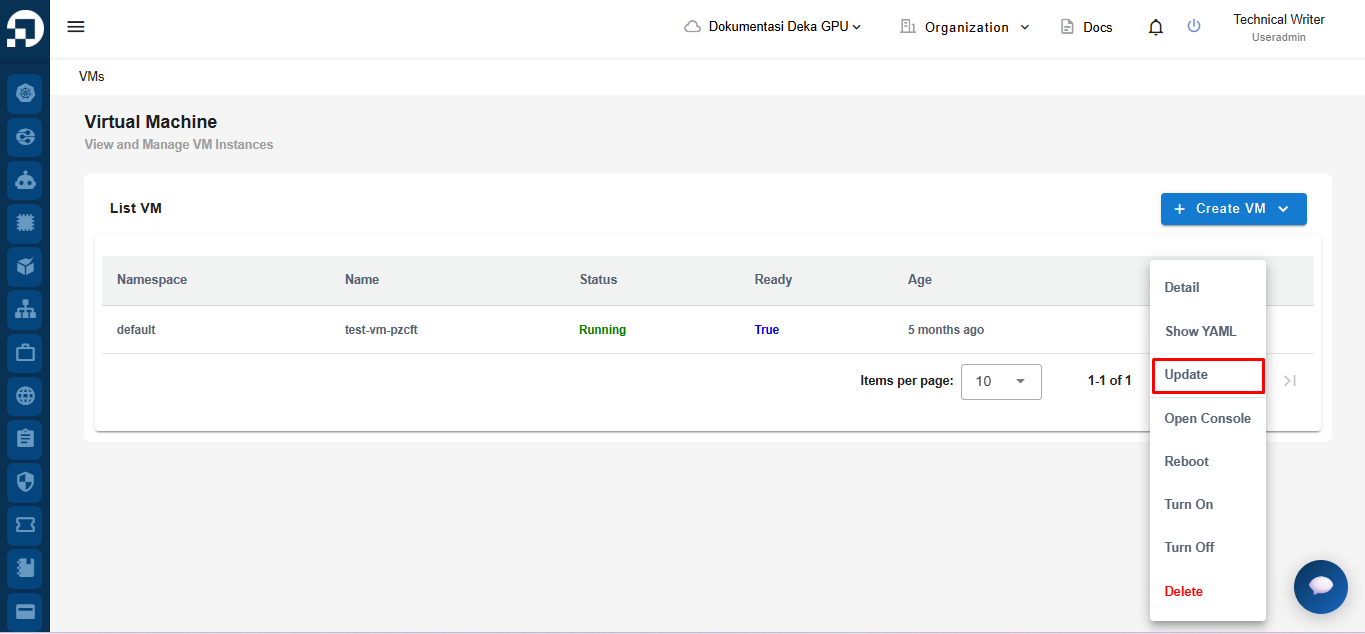
To update a Virtual Machine, click **Update** from the VM action menu.
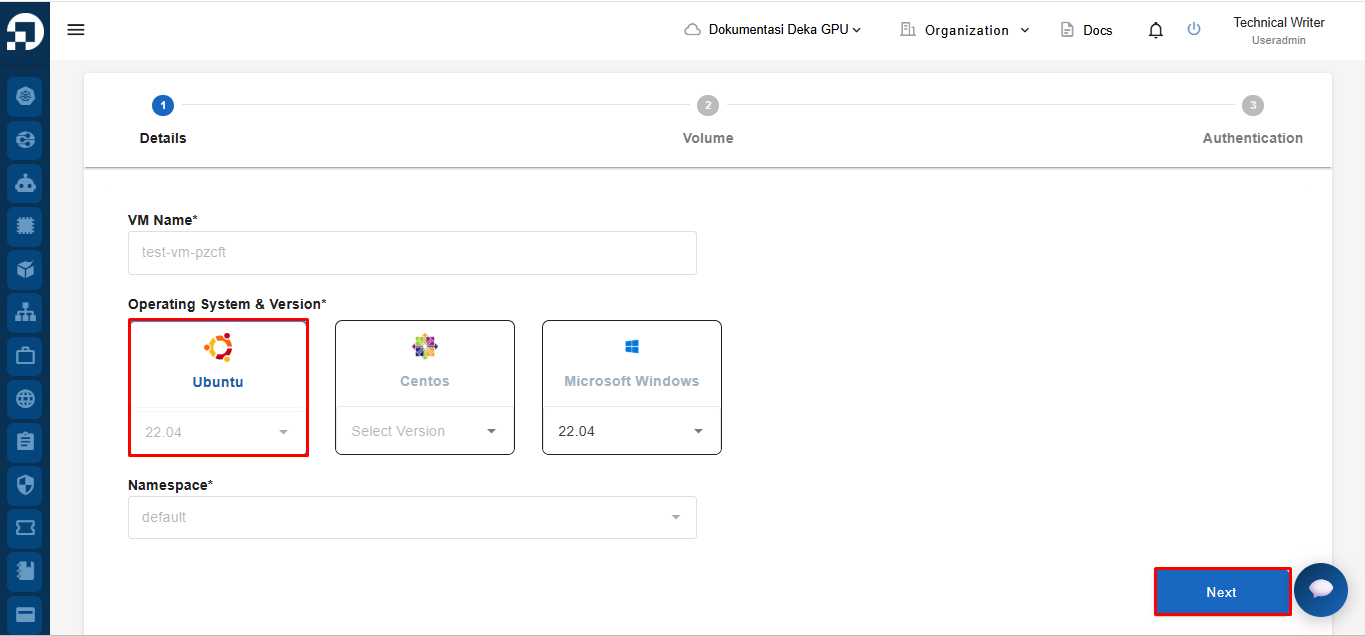
After clicking **Update**, you will be taken to **Step 1: Details**. At this step, only the **Operating System & Version** can be changed. Select a different operating system if needed, then click **Next** to continue to the next step.
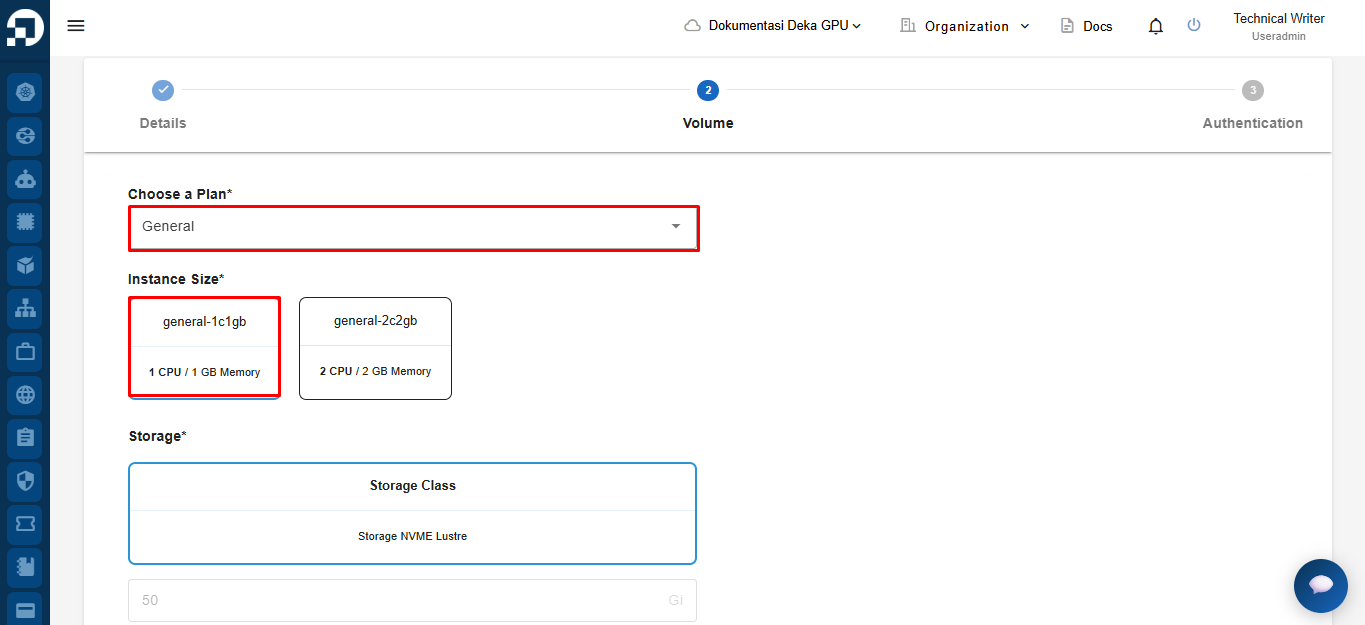
On the **Step 2:Volume** step, select or update the **Plan** and **Instance Size** as needed. The **Storage Class** and **Storage Size** are automatically configured and cannot be modified.
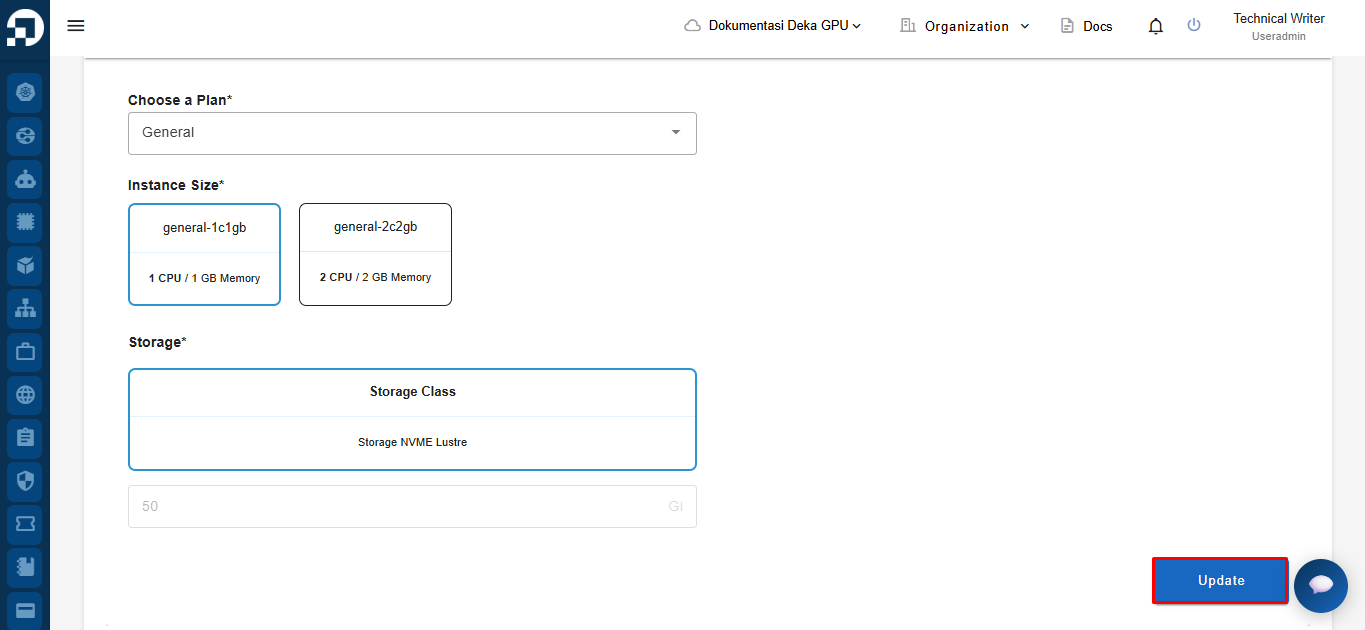
After completing the configuration, click **Update**.
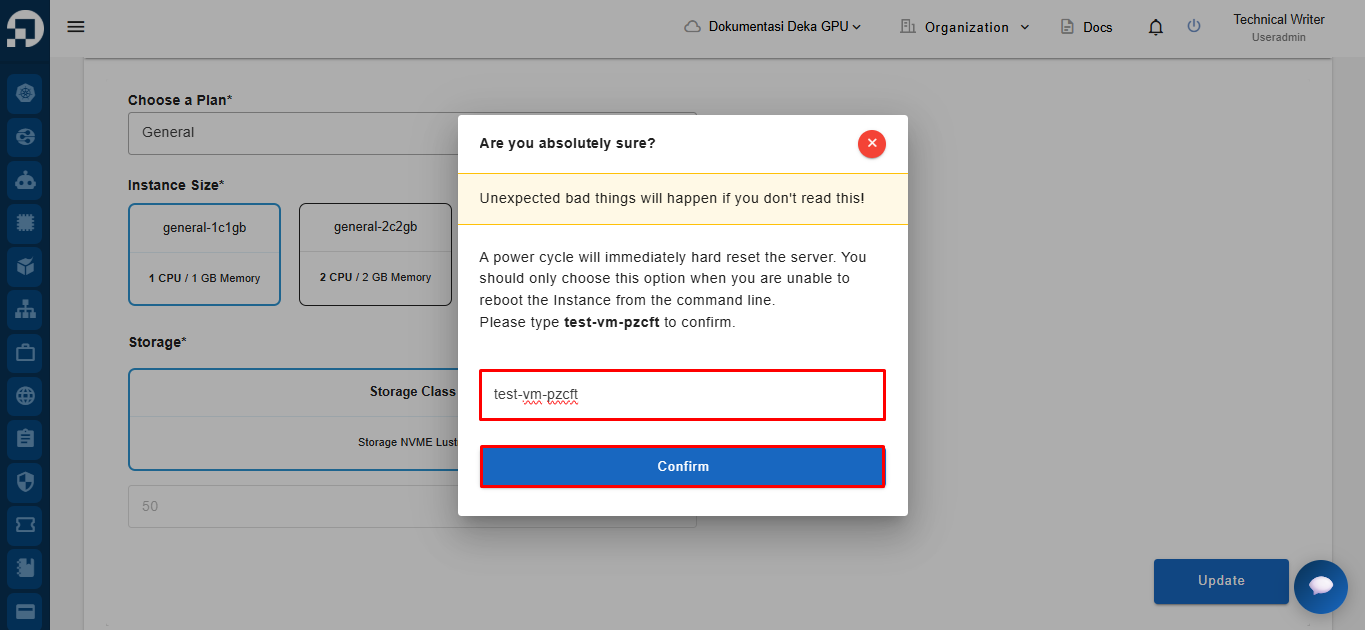
The system displays a confirmation dialog. Type the instance name in the confirmation field, then click **Confirm** to proceed with the update.
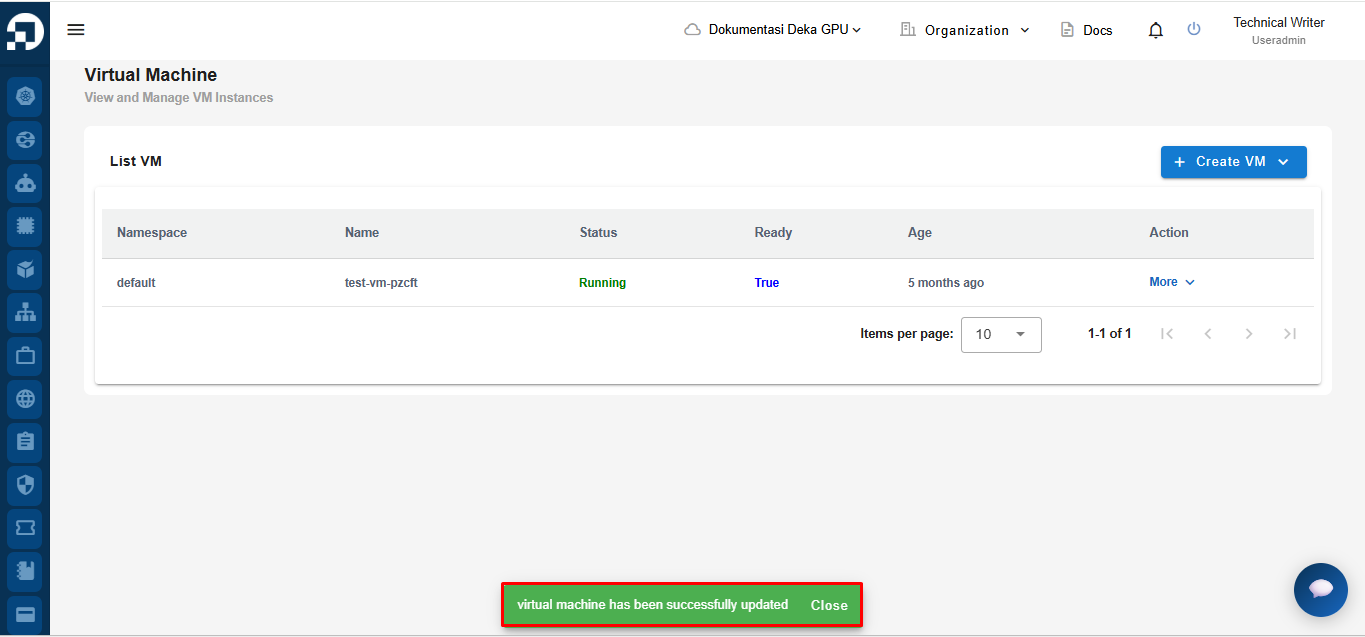
The system displays a notification, **"Virtual machine has been successfully updated."**, indicating that the virtual machine has been updated successfully.