# Create Deka Box

{% hint style="success" %}
If you failed create, contact Administrator for make sure your project have limit for create Deka Box.
{% endhint %}

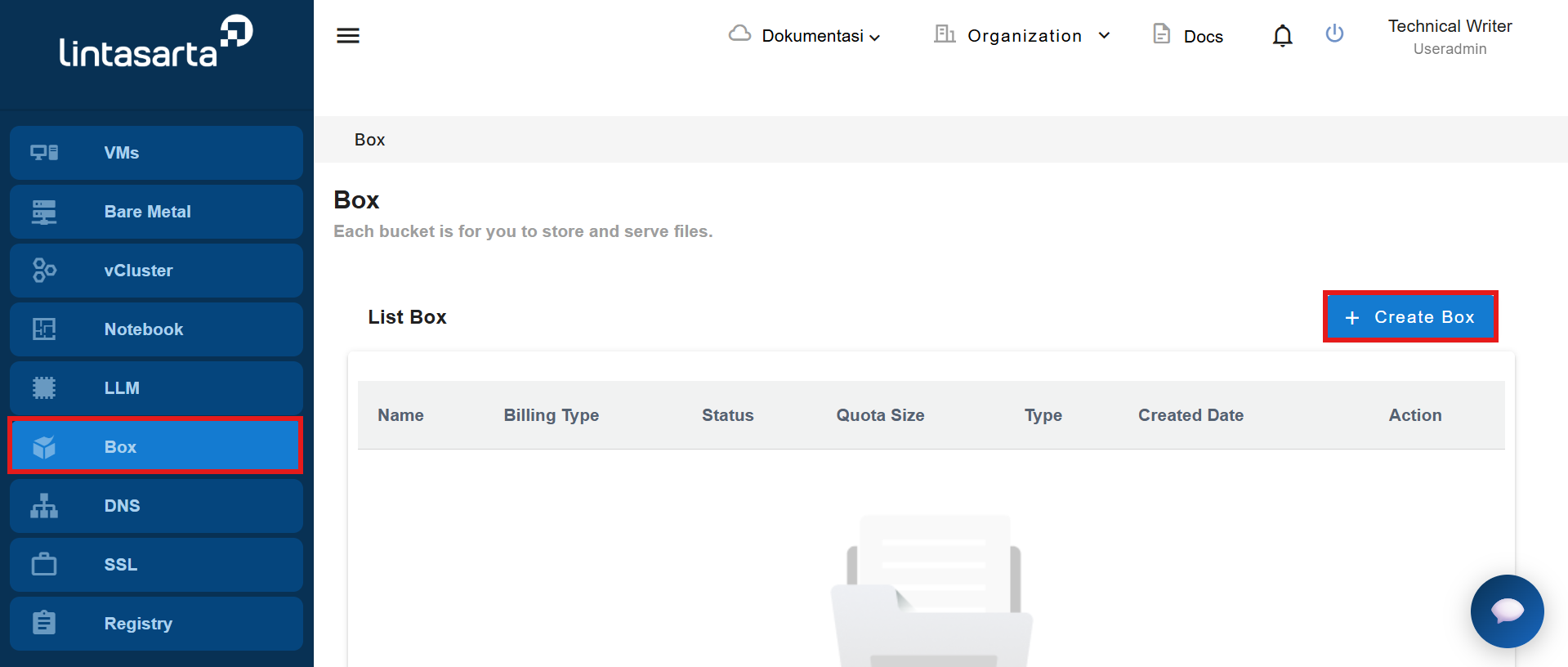
Create Deka Box, on the Service Portal AI select the Box menu and then click the Create Box button.

<figure><img src="https://2882153758-files.gitbook.io/~/files/v0/b/gitbook-x-prod.appspot.com/o/spaces%2Fi9YWb69HFXLHYlXffReU%2Fuploads%2FaPXWlsuYqO24JilnnIEv%2Fimage.png?alt=media&#x26;token=4d6c9d80-9a8c-483a-b1e9-0897351dd07a" alt=""><figcaption></figcaption></figure>

The Create Deka Box form page appears, fill in all the columns available on the Create Deka Box page.

<table><thead><tr><th width="232">Column</th><th>Description</th></tr></thead><tbody><tr><td>Dekabox Type</td><td>There are one types of Deka Box available namely Basic.</td></tr><tr><td>Choose Region</td><td><p>The Deka Box region to use. Currently there are several areas available that can be used including:</p><ul><li>Kencana JKT</li><li>Putri JKT</li><li>Halimun JKT-BTN-JBR</li><li>Karang JKT-BTN</li><li>Parahu - JBR</li><li>Salak BTN-JBR</li><li>Krakatau BTN</li></ul></td></tr><tr><td>Select Volume Size</td><td>Enter the volume size in GB.</td></tr><tr><td>Billing Type</td><td>Type of billing is Default</td></tr><tr><td>Choose a unique name</td><td>Give your Deka Box a unique name, using only lowercase letters, numbers and a dash (-).</td></tr></tbody></table>

* If you first create a Deka Box, you should begin by reading the 'Subscription Agreement' and the 'Scope of Work'. Once you have finished reviewing both documents, you can check the boxes 'I confirm I have read and agree to the Subscription Agreement' and 'I confirm that I understand the Scope of Work provided by Deka GPU services.' Click the Create button to proceed with the Deka Box creation process on the Service Portal AI.
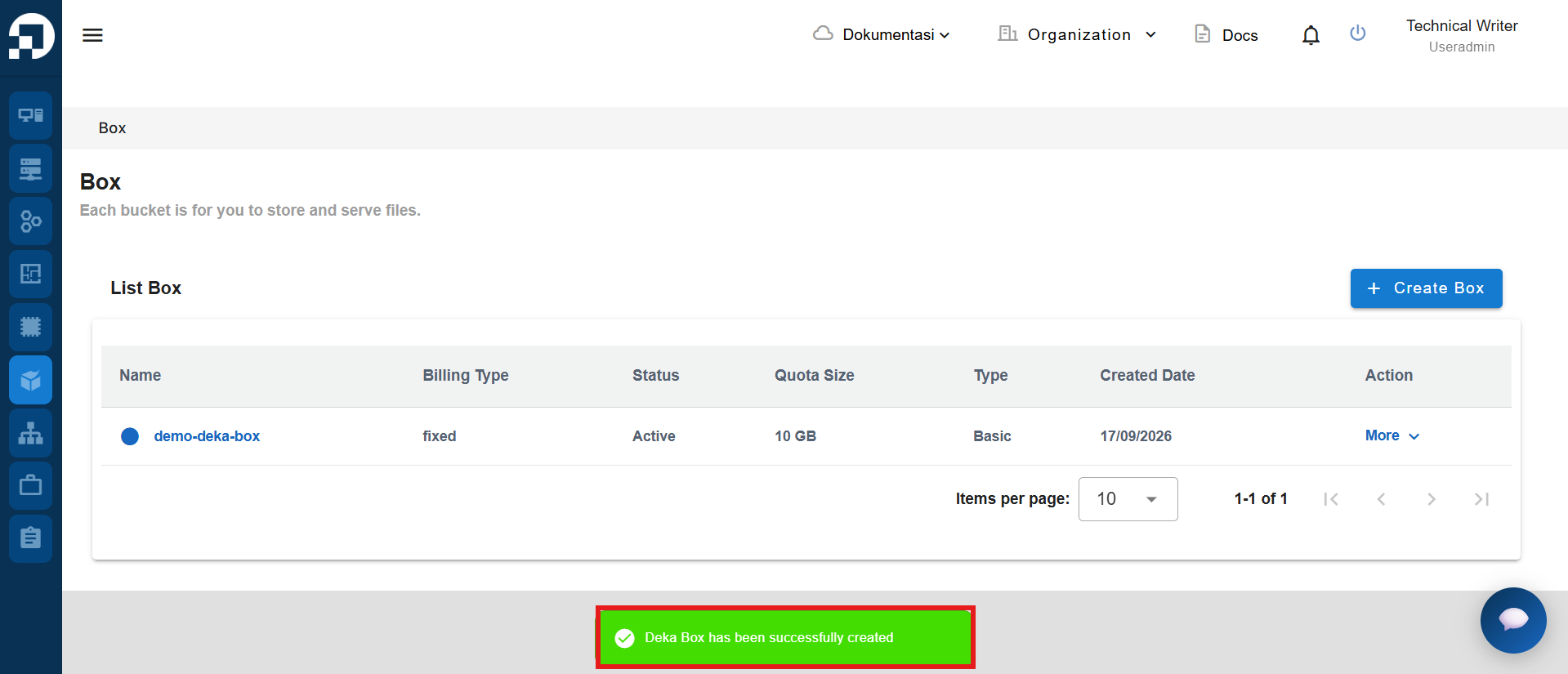
* If Deka Box is successfully created a notification will appear "Deka Box has been successfully created".&#x20;