> For the complete documentation index, see [llms.txt](https://docs.cloudeka.ai/llms.txt). Markdown versions of documentation pages are available by appending `.md` to page URLs; this page is available as [Markdown](https://docs.cloudeka.ai/deka-metal/deka-metal-deka-box/overview-deka-box.md).
# Overview Deka Box
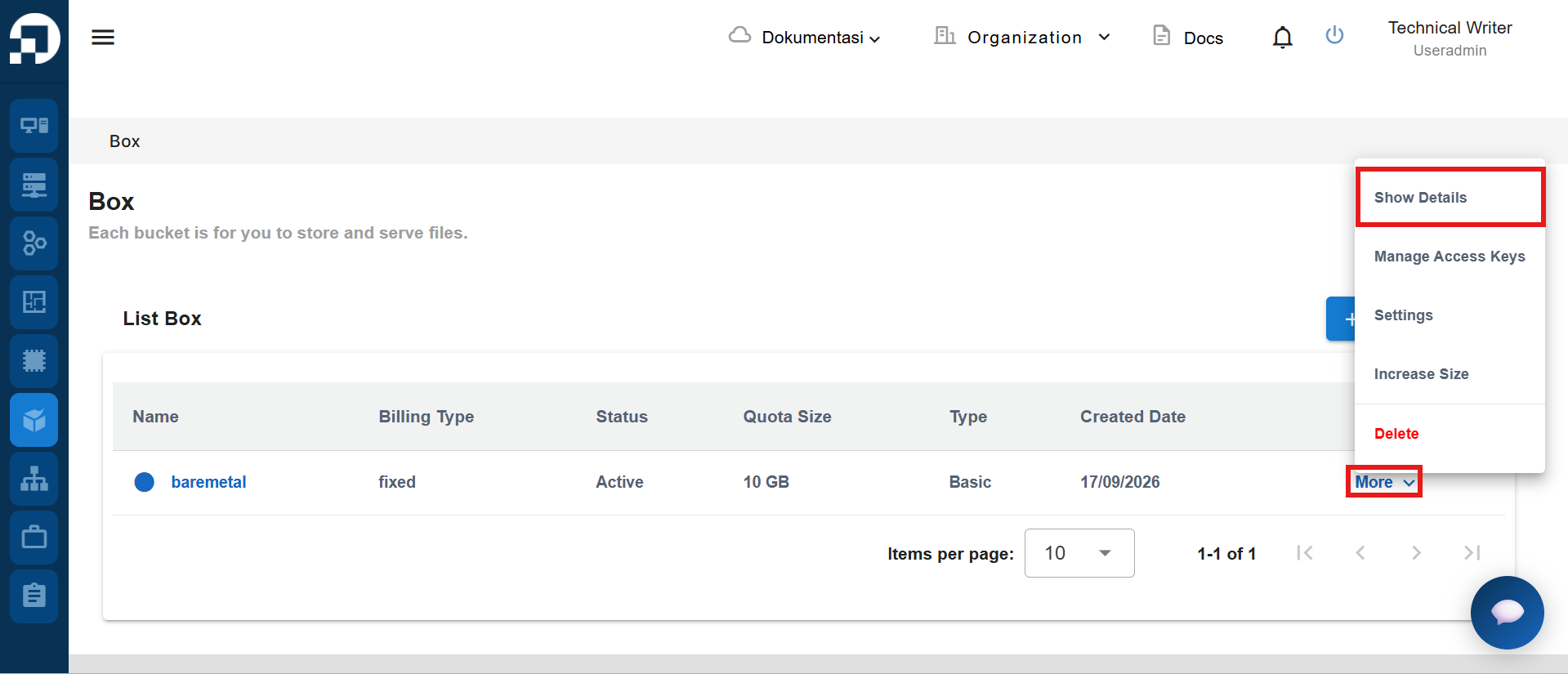
On the Deka Box page in the Service Portal AI, click the More button then select Show Details.
On the **Deka Box Overview** page, several features are available, including:
1. **Total Usage** which displays the total storage capacity used in the bucket compared to the total available quota.
2. The [**Add Bucket** ](/deka-box/overview-deka-box/add-bucket.md)button is used to create a new bucket within the Deka Box. A bucket serves as a container to store objects (files/data).
3. A **Bucket** is used to store data or objects in the object storage service. The bucket display includes the following information:
* **Object Count** shows the total number of objects or files currently stored in the bucket.
* **Usage** indicates the total storage capacity used by the bucket, measured in gigabytes (GB).
* **Region** displays the data center location where the storage is hosted.
* **S3 URL** is the S3-style endpoint URL that you can use to access the bucket.
* **Site** shows the type of bucket deployment site. “Dual-region-basic” means that data is stored in two separate locations for redundancy.
4. The [**CORS Settings**](/deka-box/overview-deka-box/cors-settings.md) button is used to configure Cross-Origin Resource Sharing (CORS).\
CORS is used when you want to access the bucket from a web application hosted on a different domain than the Cloudeka bucket domain.
5. The [**Delete Bucket**](/deka-box/overview-deka-box/delete-bucket.md) button is used to remove a bucket that is no longer needed from the Deka Box you created.