# Add/EditPort

You can add ports to a VPC for other instances to use.

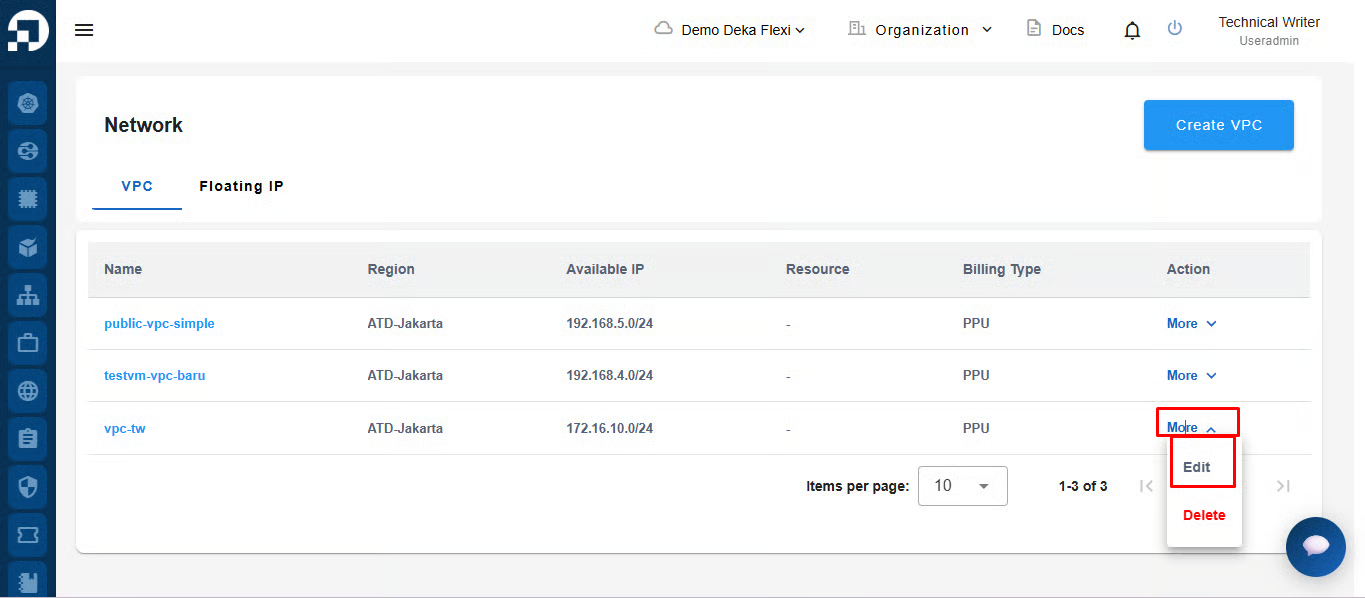
* On the **Network** page, click the **Edit** button.

<figure><img src="/files/Cvse6jaxfLoG4I87Cwtd" alt=""><figcaption></figcaption></figure>

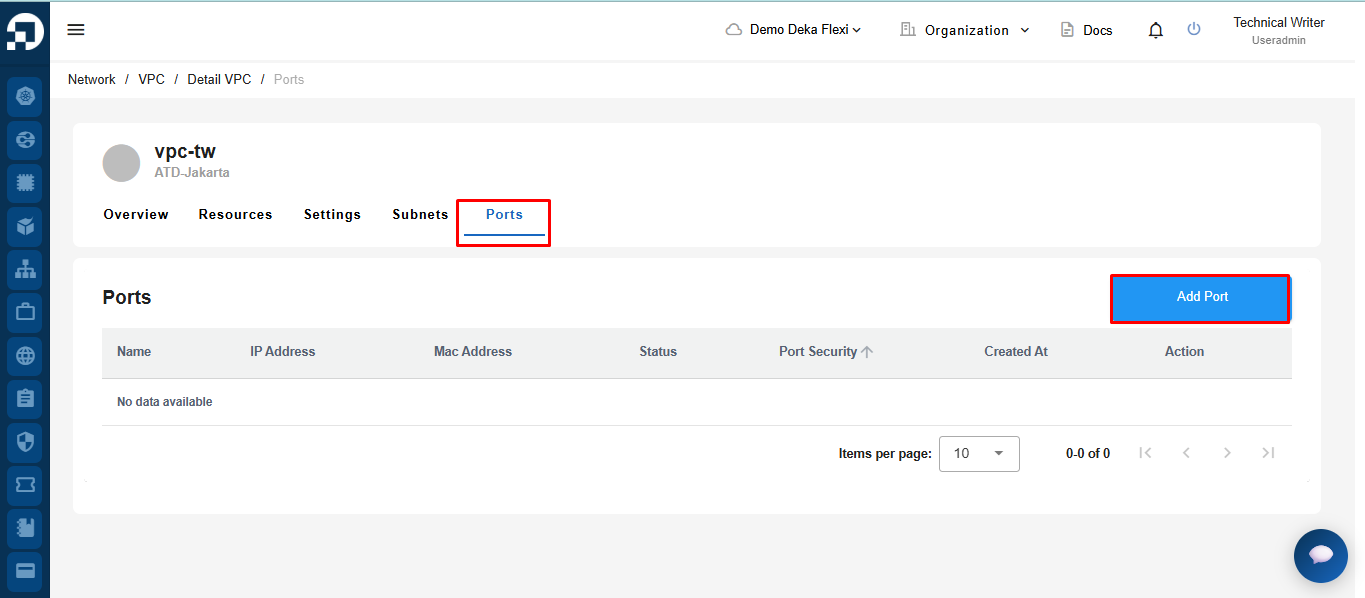
* On the **Edit** page, several tabs are available cick the **Ports** tab, then click the **Add Port** button to add a new port.

<figure><img src="/files/wZWhMOS9uHBkHadfM0y2" alt=""><figcaption></figcaption></figure>

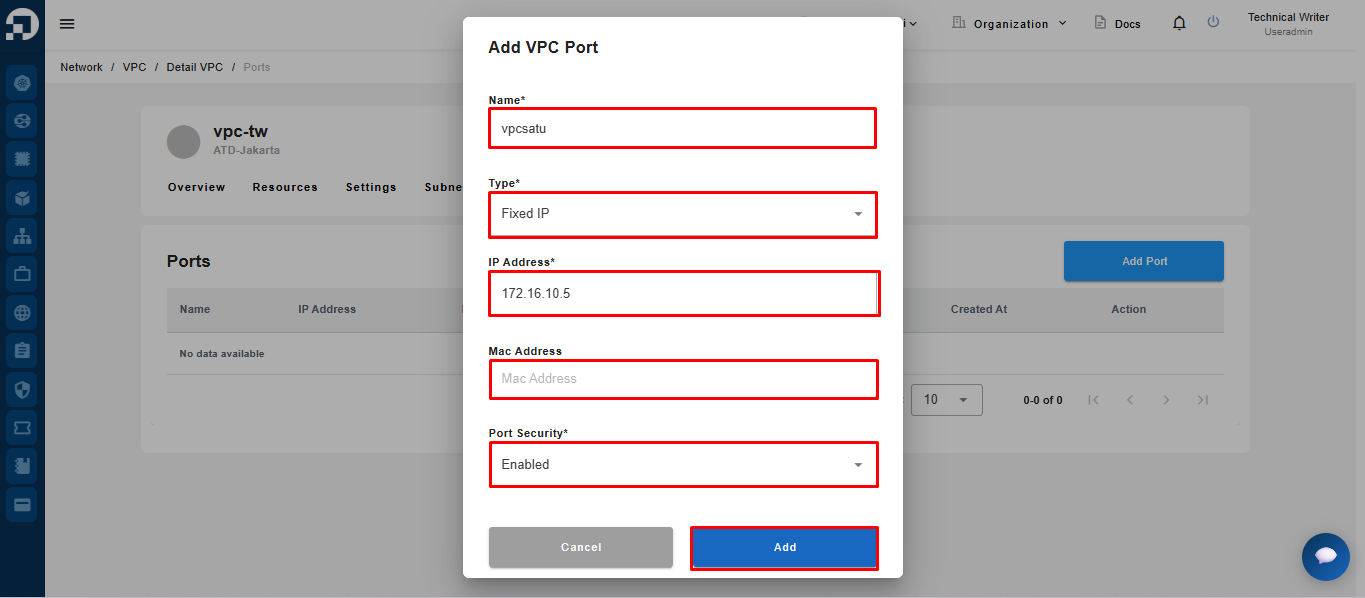
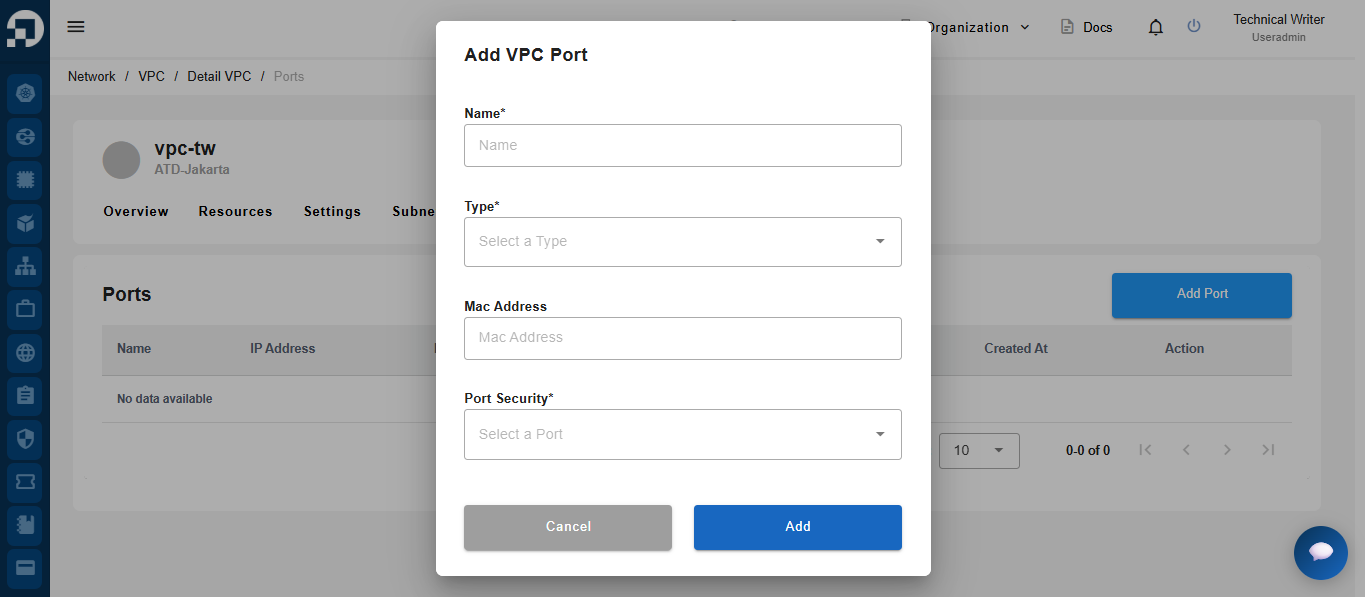
* The Add VPC Port window appears, with three columns that you must fill in.

<figure><img src="/files/VWGfa9XGC3KxatgEEPih" alt=""><figcaption></figcaption></figure>

<table><thead><tr><th width="176">Column</th><th>Description</th></tr></thead><tbody><tr><td><strong>Name</strong></td><td>Port name used. The minimum name length is 5 characters.</td></tr><tr><td><strong>IP Address</strong></td><td>IP address used. For example, if the IP address on the network that uses a class C IP address is 198.18.1.0/24, then you must fill in the IP Address column with the host address starting from 198.18.1.2 to a maximum of 192.18.1 254.</td></tr><tr><td><strong>MAC Address</strong></td><td>A unique address used to identify a device. This column is optional to fill in, because when you add a port your port automatically gets a MAC Address.</td></tr><tr><td><strong>Port Security</strong></td><td>Two options are available:<br>a.Enabled can be directly used by Instances<br>b.Disabled is available in the VPC Port list but cannot be used by the Instance.</td></tr></tbody></table>

* After filling in all the columns, the next step is to press the Add button to continue the process of adding ports to the VPC.

<figure><img src="/files/grVOJ0svDSaIYcKzzQtd" alt=""><figcaption></figcaption></figure>

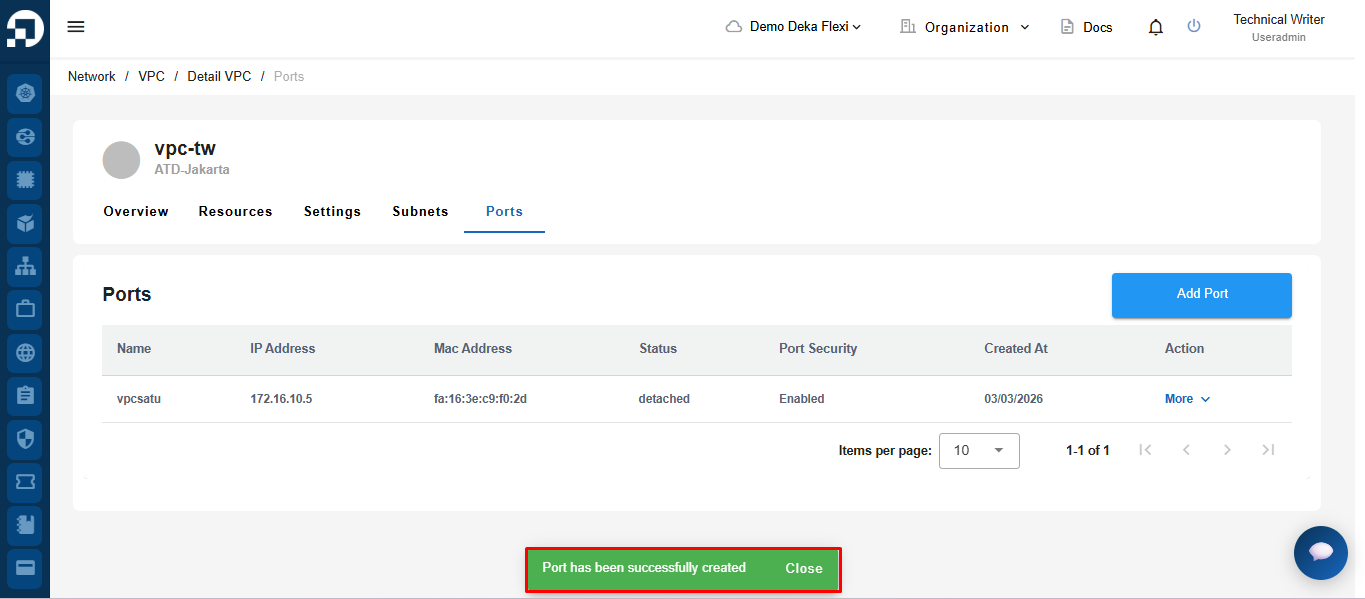
* A notification **"port has been successfully added"** appears and the port is available in the VPC Port list.

<figure><img src="/files/z5eUaSnBt7vK1lIxKz4w" alt=""><figcaption></figcaption></figure>

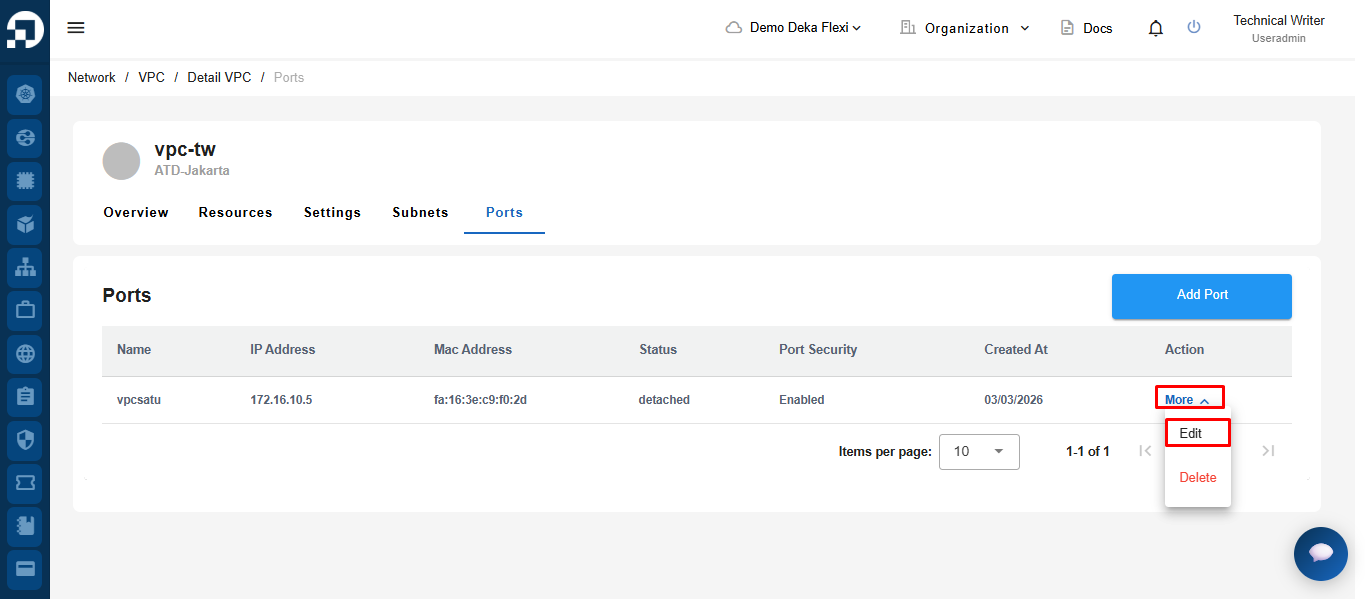
* To be able to update the data used by the port on the VPC Details page, press the More button and select Edit.

<figure><img src="/files/7Y1j5WX8wFtdPuKuSNev" alt=""><figcaption></figcaption></figure>

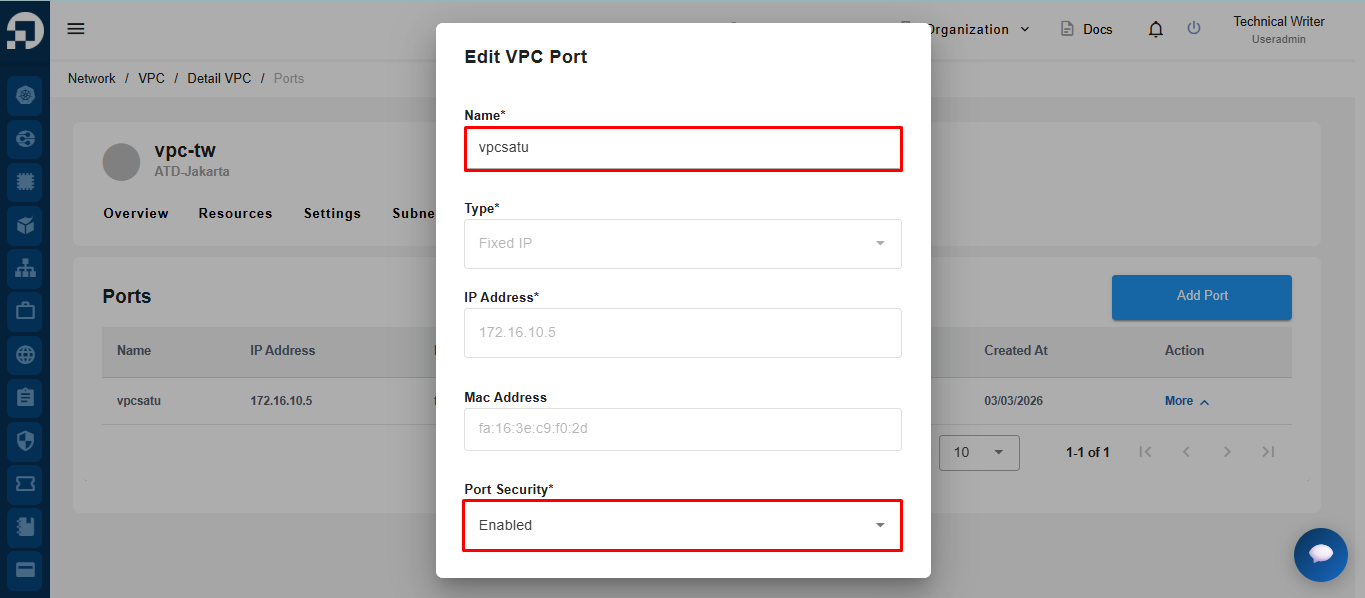
* You can only change the port configuration that has been added to VPC Ports, namely Name and Port Security.

<figure><img src="/files/Nz9MJoSW1ZvrgCzzyZFu" alt=""><figcaption></figcaption></figure>


---

# Agent Instructions
This documentation is published with GitBook. GitBook is the documentation platform designed so that both humans and AI agents can read, navigate, and reason over technical content effectively. Learn more at gitbook.com.

## Querying This Documentation
If you need additional information that is not directly available in this page, you can query the documentation dynamically by asking a question.

Perform an HTTP GET request on the current page URL with the `ask` query parameter:

```
GET https://docs.cloudeka.ai/guidance-for-individual/deka-flexi/deka-flexi-network/vpc-network/add-editport.md?ask=<question>
```

The question should be specific, self-contained, and written in natural language.
The response will contain a direct answer to the question and relevant excerpts and sources from the documentation.

Use this mechanism when the answer is not explicitly present in the current page, you need clarification or additional context, or you want to retrieve related documentation sections.