# Add rule

Adding the Immutability Tag is a tag rule for the project. The following are the steps for adding tags to immutability:

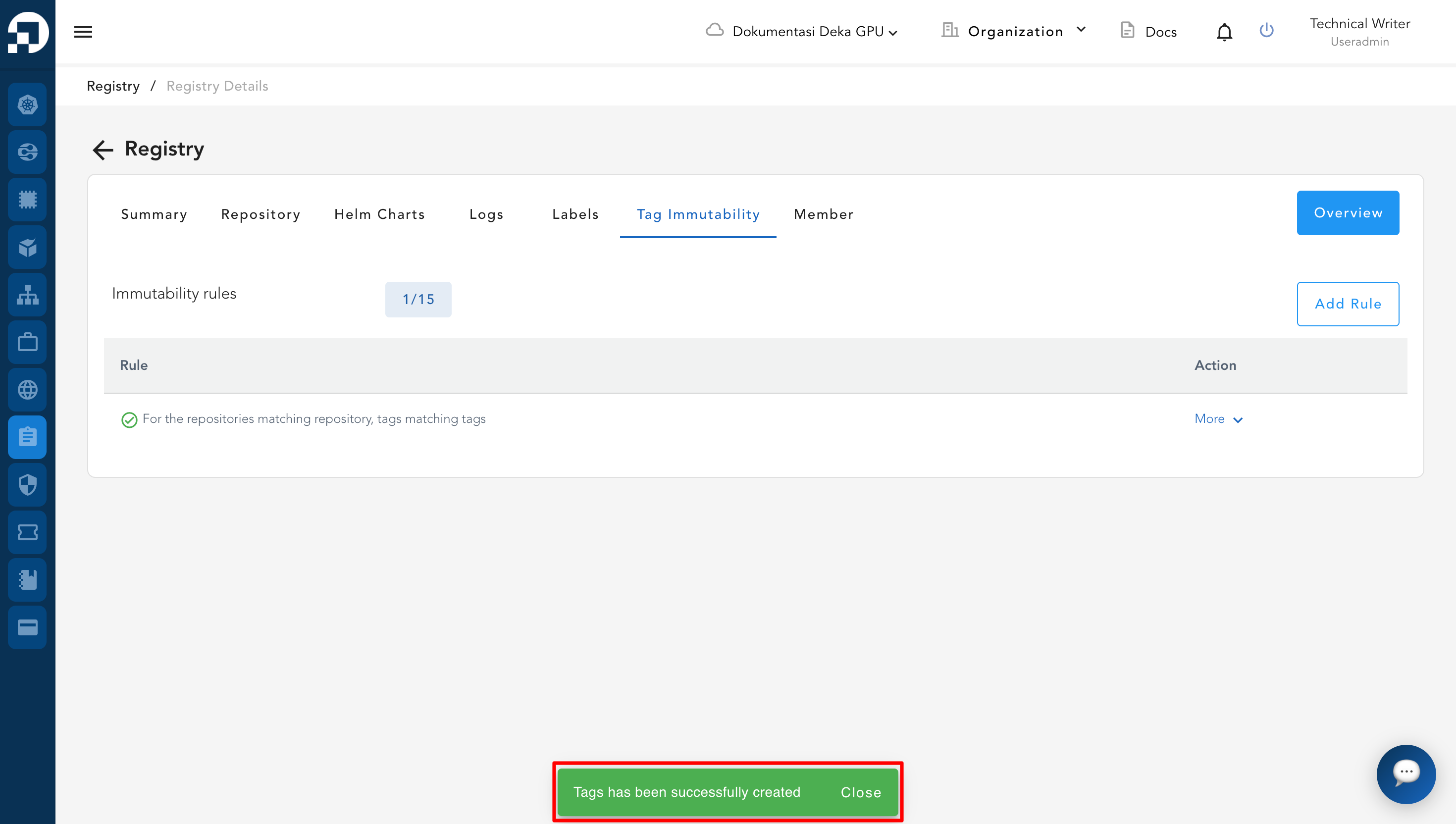
* Select the Tag Immutability tab, and press the **Add Rule button.**

<figure><img src="/files/qAhN5SZGTrV6elSGn2c3" alt=""><figcaption></figcaption></figure>

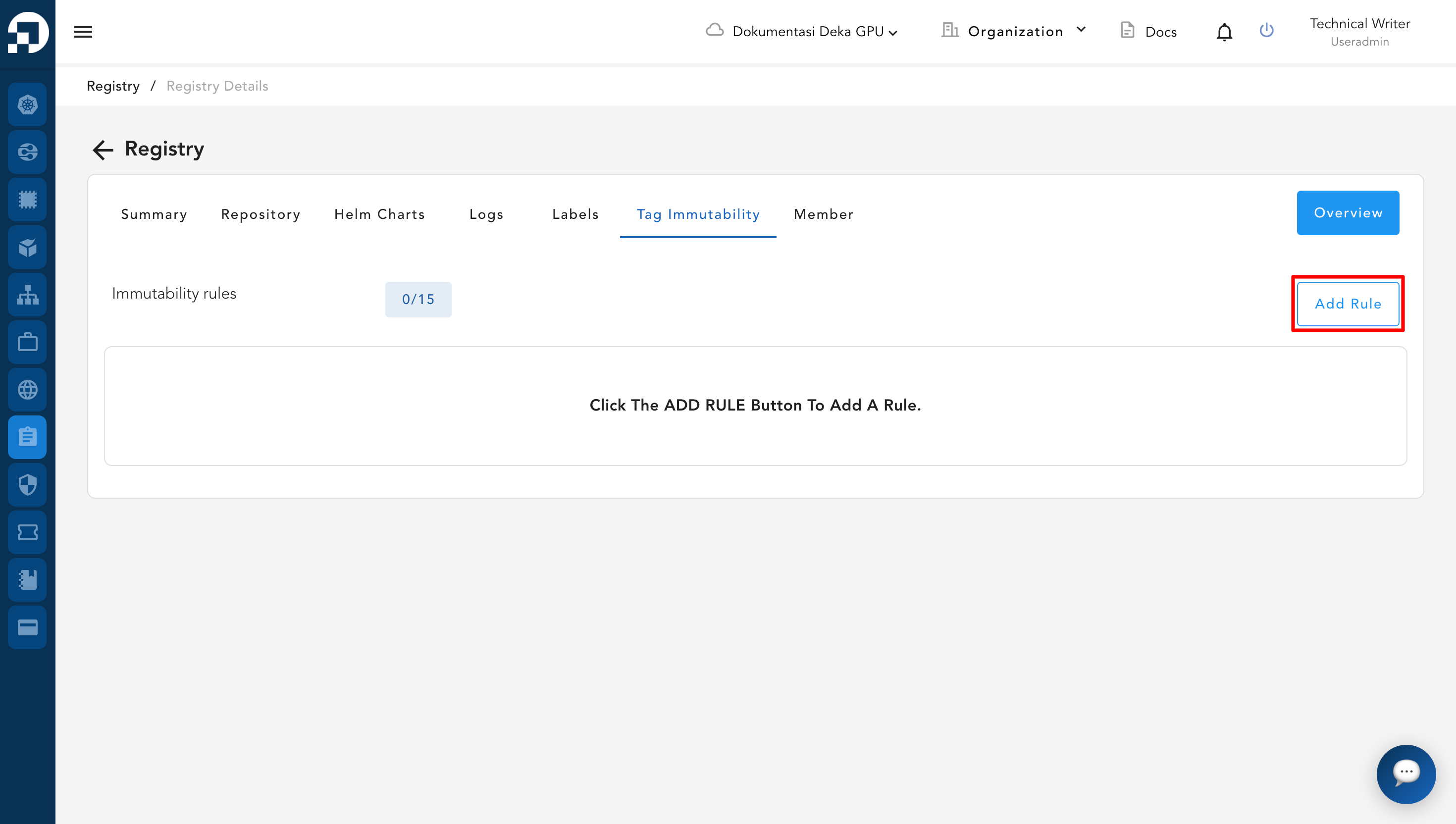
* The Add Tag Immutability Rule window appears, in the For the repositories section select matching or excluding according to your needs. Click the Add button to **add** tags.

<figure><img src="/files/TE1vWcMeVqrzWrVuHAwt" alt=""><figcaption></figcaption></figure>

Below are several explanations related to the rule input fields:

<table><thead><tr><th width="235.3333740234375">Column</th><th>Description</th></tr></thead><tbody><tr><td><strong>For the repositories</strong></td><td>This section is used to choose <strong>which repositories the rule will apply to</strong>.<br><br>- <strong>Matching :</strong> The rule is applied <strong>only to the repositories specified by the user</strong>.<br><br><strong>- Excluding :</strong> The rule is applied <strong>to all repositories, except those specified by the user</strong>.</td></tr><tr><td><strong>Tags</strong></td><td>This section allows you to define <strong>which image tags are protected from modification or overwrite</strong>.<br><br>- <strong>Matching :</strong> The rule is applied <strong>only to the tags specified by the user</strong>.<br><br><strong>- Excluding :</strong> The rule is applied <strong>to all tags, except those specified by the user</strong>.</td></tr></tbody></table>

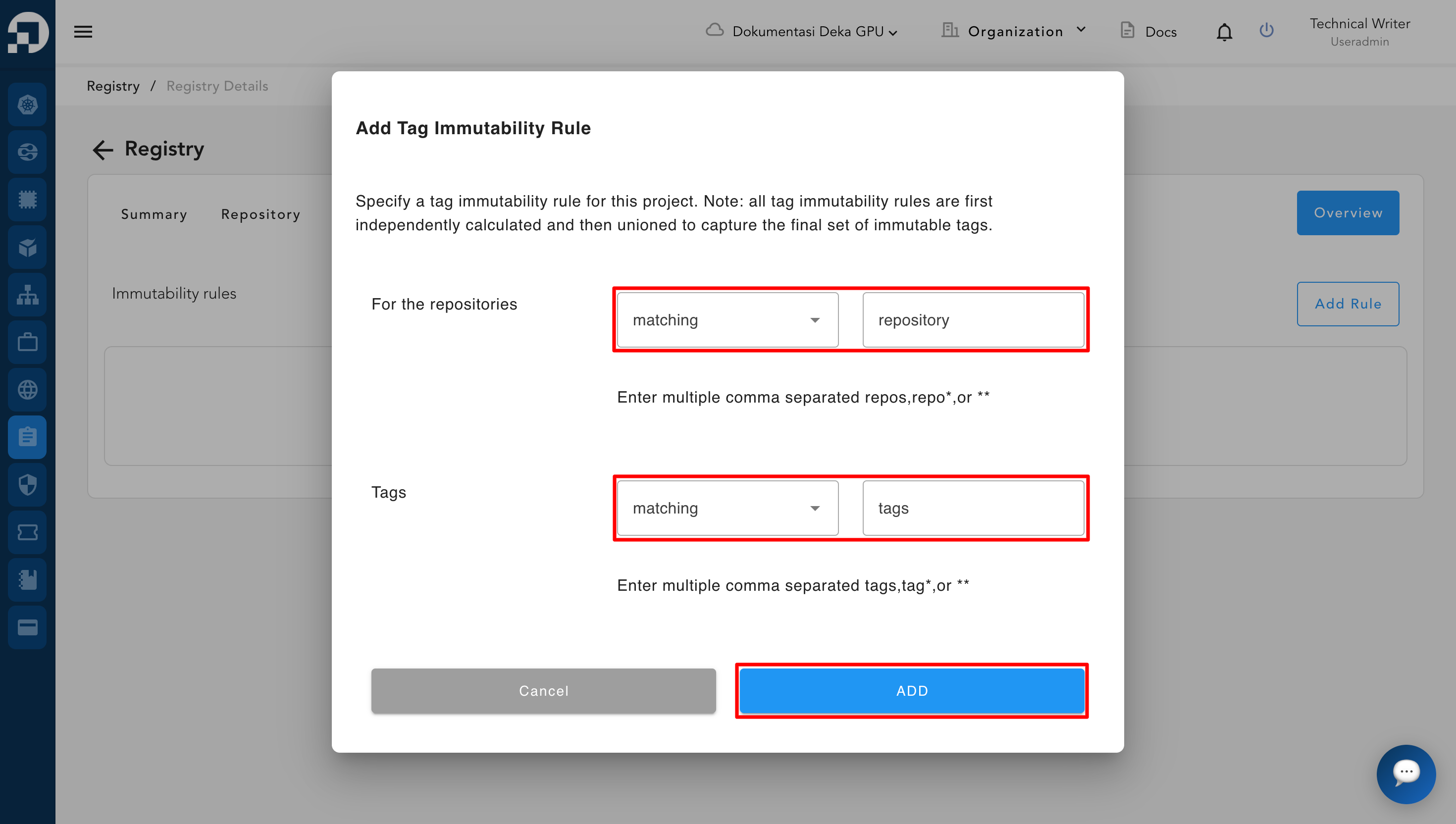
* After the tag is successfully added, the system will display a notification **“Tags has been successfully created”**, indicating that the data has been added successfully and is now listed in the tags table.

<figure><img src="/files/MByiWwqWo12oql4K6rG2" alt=""><figcaption></figcaption></figure>


---

# Agent Instructions
This documentation is published with GitBook. GitBook is the documentation platform designed so that both humans and AI agents can read, navigate, and reason over technical content effectively. Learn more at gitbook.com.

## Querying This Documentation
If you need additional information that is not directly available in this page, you can query the documentation dynamically by asking a question.

Perform an HTTP GET request on the current page URL with the `ask` query parameter:

```
GET https://docs.cloudeka.ai/guidance-for-individual/deka-gpu/deka-gpu-registry/detail-registry/tag-immutability/add-rule.md?ask=<question>
```

The question should be specific, self-contained, and written in natural language.
The response will contain a direct answer to the question and relevant excerpts and sources from the documentation.

Use this mechanism when the answer is not explicitly present in the current page, you need clarification or additional context, or you want to retrieve related documentation sections.