# Import Deka SSL

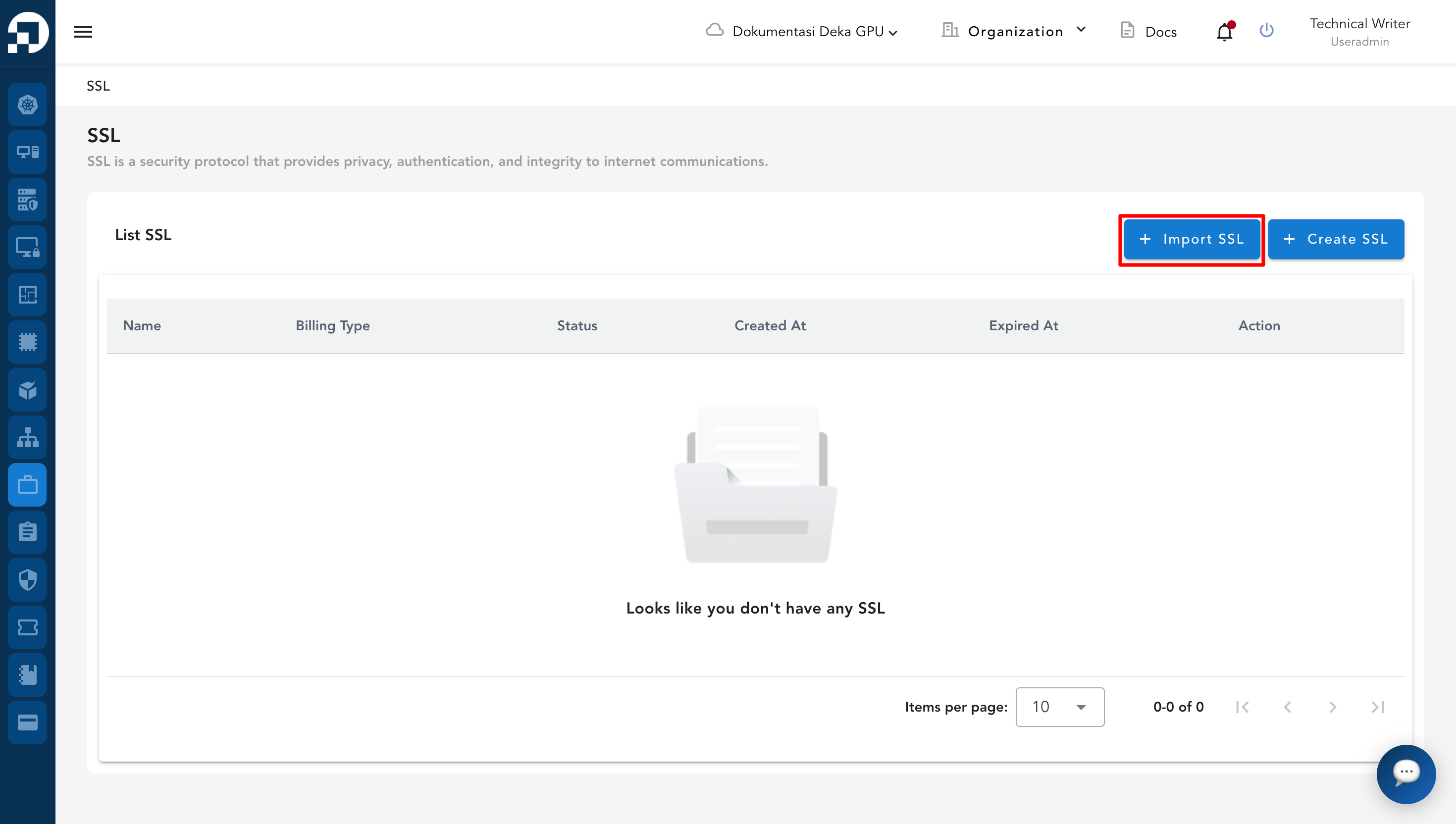
To use the SSL import service, you must prepare a certificate file and a key file before importing. On the SSL page, click the **+ Import SSL** button.

<figure><img src="/files/dximZFFhQRx9wzcKylhc" alt=""><figcaption></figcaption></figure>

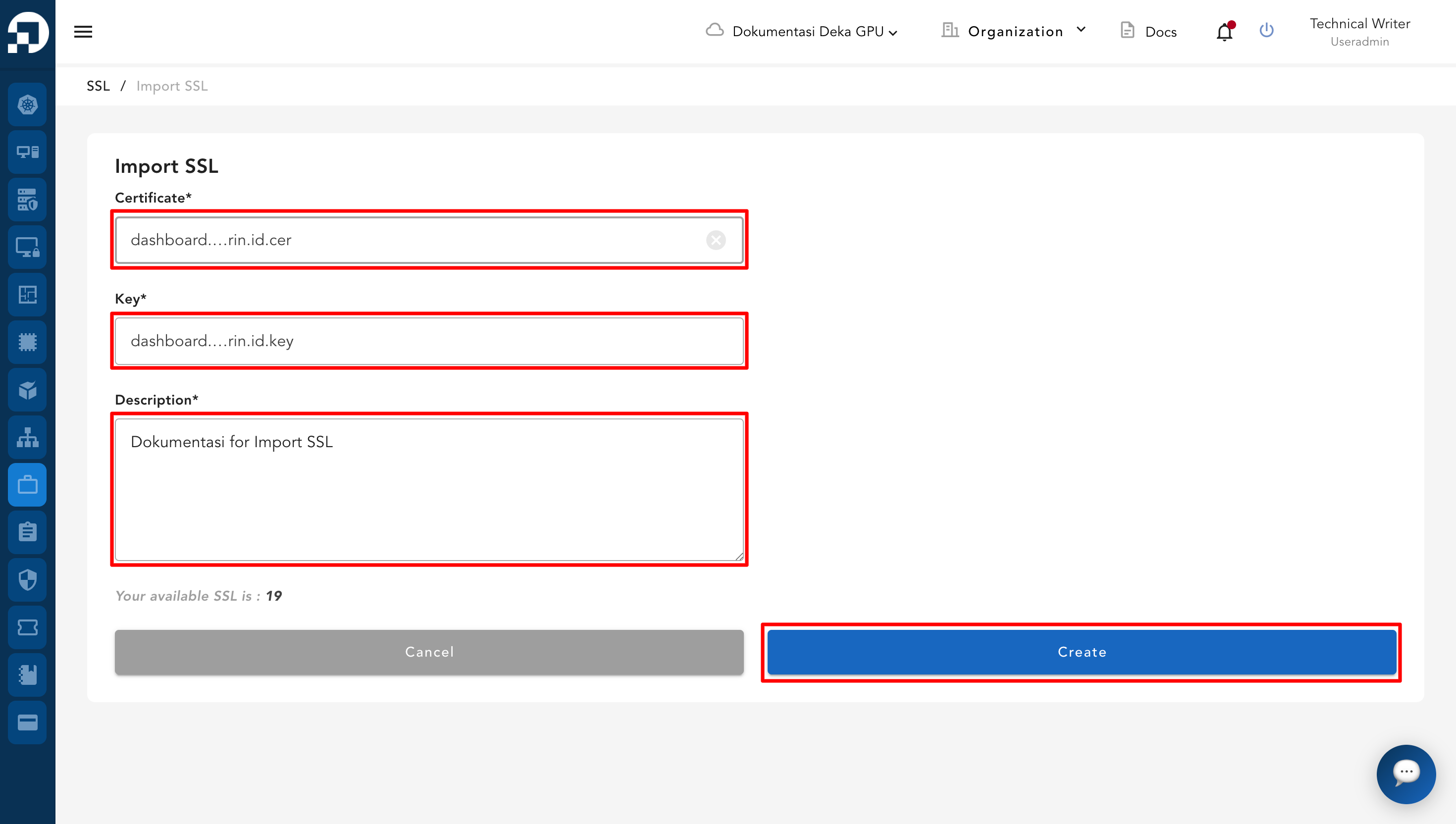
On the Import SSL page, complete the required fields. After that, click the Create button.

<figure><img src="/files/KparOSbd76htYbf3v2lF" alt=""><figcaption></figcaption></figure>

The following table describes the fields available on the Import SSL form.

| Column          | Description                          |
| --------------- | ------------------------------------ |
| Certificate     | Certificate file to be used for SSL. |
| **Key**         | Key file to be used for SSL.         |
| **Description** | Description of the imported SSL.     |

Wait until the process completes, then a notification appears indicating that the SSL has been successfully imported.
<figure><img src="/files/nc040gu9HRIAM0wLr1VH" alt=""><figcaption></figcaption></figure>


---

# Agent Instructions
This documentation is published with GitBook. GitBook is the documentation platform designed so that both humans and AI agents can read, navigate, and reason over technical content effectively. Learn more at gitbook.com.

## Querying This Documentation
If you need additional information that is not directly available in this page, you can query the documentation dynamically by asking a question.

Perform an HTTP GET request on the current page URL with the `ask` query parameter:

```
GET https://docs.cloudeka.ai/guidance-for-individual/deka-ssl/import-deka-ssl.md?ask=<question>
```

The question should be specific, self-contained, and written in natural language.
The response will contain a direct answer to the question and relevant excerpts and sources from the documentation.

Use this mechanism when the answer is not explicitly present in the current page, you need clarification or additional context, or you want to retrieve related documentation sections.
