# Add New User

The Add New User feature in the OpenVPN User section is used to create a new OpenVPN user account. This allows administrators to register users who will be able to connect to the VPN service. The following are the steps to Add a New User from the Service Portal AI:

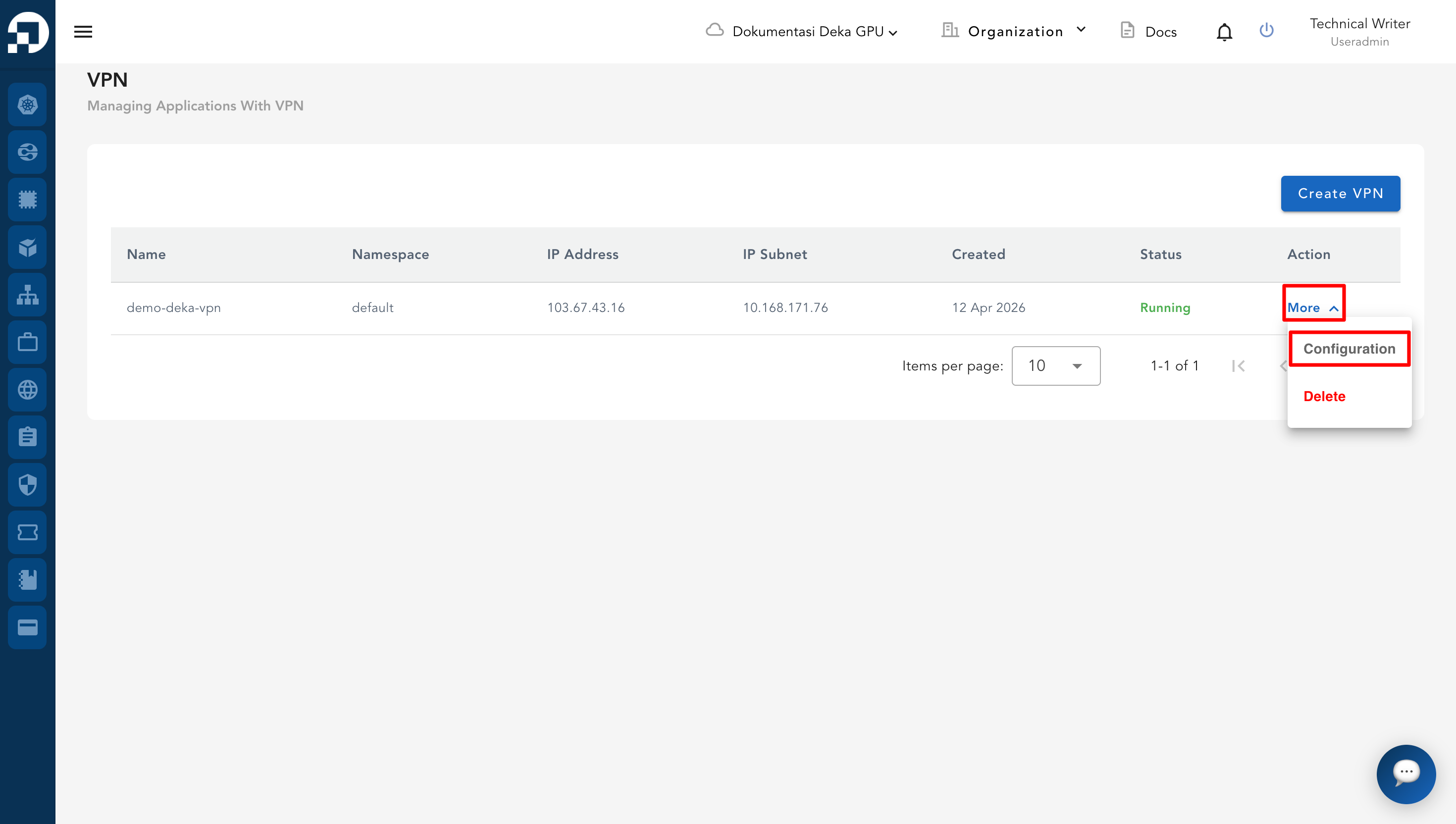
* From the **VPN List Table**, click **More** and select **Configuration** on the VPN that will be managed.

<figure><img src="/files/dR0L5gYzZciy2CSJax3k" alt=""><figcaption></figcaption></figure>

* On the configuration page, go to the **OpenVPN** tab.

<figure><img src="/files/GlrPhc801CJr9MkUIXil" alt=""><figcaption></figcaption></figure>

* Scroll down to the **OpenVPN User** section. Click the **Add New User** button on the right side of the page.

<figure><img src="/files/pvSLrONge3VCJkfwG753" alt=""><figcaption></figcaption></figure>

* The **Create User** form will appear. Fill in the required fields:

<table><thead><tr><th width="195.66668701171875">Column</th><th>Description</th></tr></thead><tbody><tr><td>Username</td><td>Enter the name of the OpenVPN user account to be created.</td></tr><tr><td><strong>New Password</strong></td><td>Set a password for the new user account.</td></tr><tr><td>Confirm Password</td><td>Re-enter the same password to confirm.</td></tr><tr><td>Expiration Date</td><td>Define the validity period of the account by selecting an expiration date.</td></tr></tbody></table>

* If the process is canceled, click the **Close** button.

<figure><img src="/files/PrfJpbk21f0zyQJafO7a" alt=""><figcaption></figcaption></figure>

* Click **Create** to save the new user account.

<figure><img src="/files/BhmKGJqv9DG7cAxwFG2S" alt=""><figcaption></figcaption></figure>

* After clicking **Create**, the system processes the request.A notification appears with the message **"User has been successfully created."** The newly created user account is displayed in the **OpenVPN User** list, along with its expiration date and available actions.

<figure><img src="/files/gNnaAlKdyzPep1FbJU2I" alt=""><figcaption></figcaption></figure>


---

# Agent Instructions
This documentation is published with GitBook. GitBook is the documentation platform designed so that both humans and AI agents can read, navigate, and reason over technical content effectively. Learn more at gitbook.com.

## Querying This Documentation
If you need additional information that is not directly available in this page, you can query the documentation dynamically by asking a question.

Perform an HTTP GET request on the current page URL with the `ask` query parameter:

```
GET https://docs.cloudeka.ai/guidance-for-individual/deka-vpn/configuration-deka-vpn-openvpn/openvpn-user/add-new-user.md?ask=<question>
```

The question should be specific, self-contained, and written in natural language.
The response will contain a direct answer to the question and relevant excerpts and sources from the documentation.

Use this mechanism when the answer is not explicitly present in the current page, you need clarification or additional context, or you want to retrieve related documentation sections.
