> For the complete documentation index, see [llms.txt](https://docs.cloudeka.ai/llms.txt). Markdown versions of documentation pages are available by appending `.md` to page URLs; this page is available as [Markdown](https://docs.cloudeka.ai/guide-for-individual/bahasa/deka-flexi/deka-flexi-instance/connect-to-vm-instance/connect-to-linux-vm-instance-via-ssh.md).
# Connect to Linux VM Instance via SSH
If you are using Windows, you will have to use a third party tool. The following instructions show how to connect to a Linux VM using [PuTTY](https://www.putty.org/)*.*
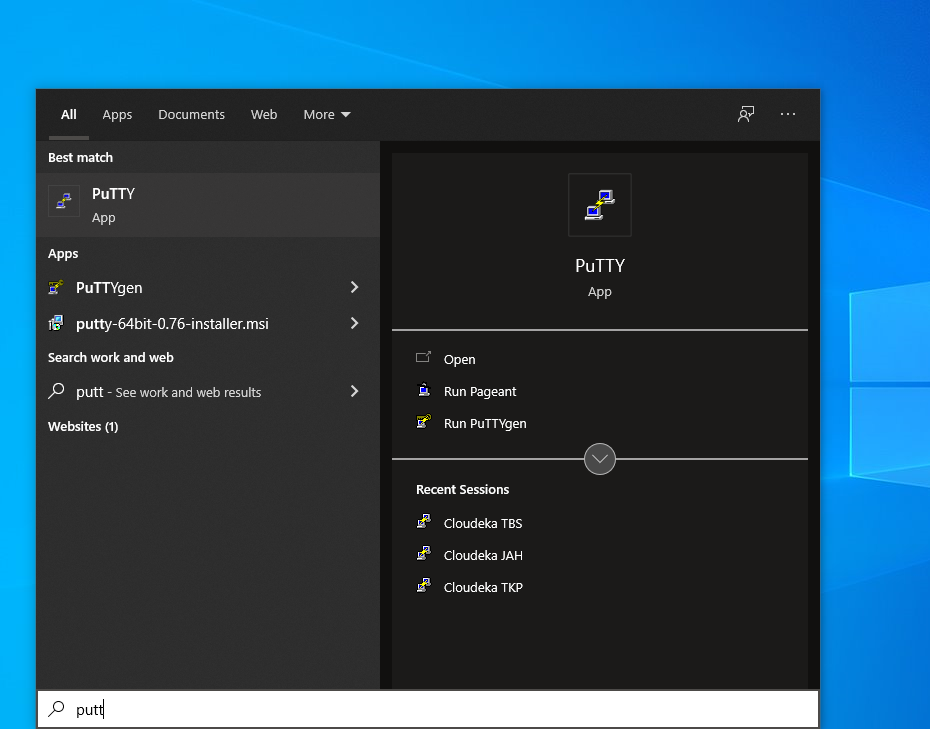
* Open **PuTTY** on your computer.
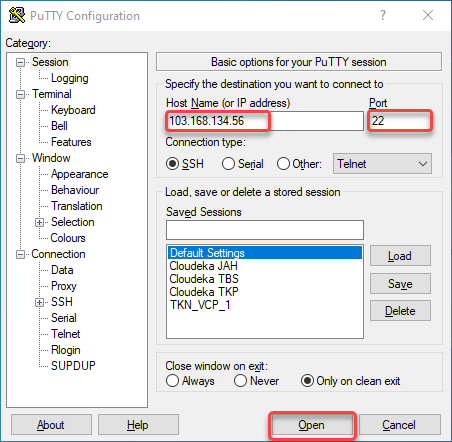
* In the **Host Name** field, enter the **Public IP Address** of the VM you want to connect to, as well as the port number if you are using your VM's custom port, then click **Open**.
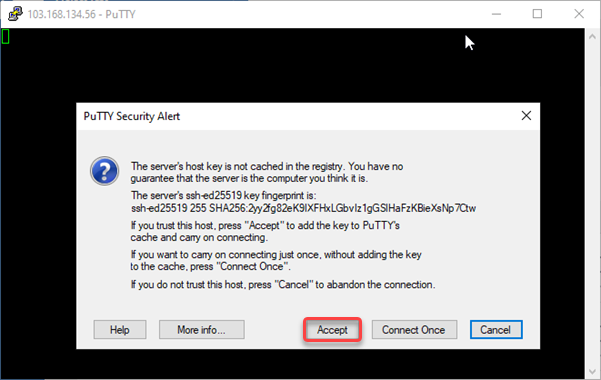
* If this is your first time using PuTTY to log in to your VM with SSH, there is a warning similar to the following, click **Accept**.
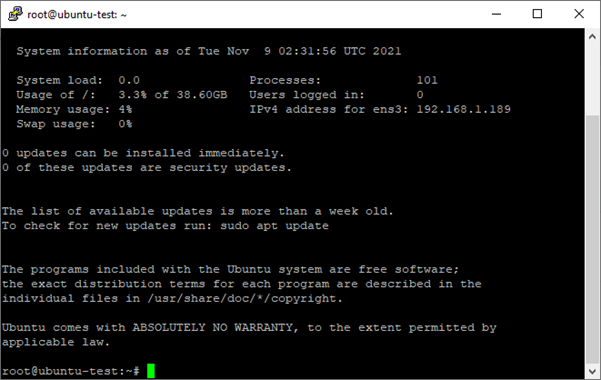
* After you receive the warning, the terminal asks for your username and password. Type in your **Username and Password**, then press **Enter**.