> For the complete documentation index, see [llms.txt](https://docs.cloudeka.ai/llms.txt). Markdown versions of documentation pages are available by appending `.md` to page URLs; this page is available as [Markdown](https://docs.cloudeka.ai/guide-for-individual/bahasa/deka-flexi/deka-flexi-network/floatting-ip/assign-floating-ip.md).
# Assign Floating IP
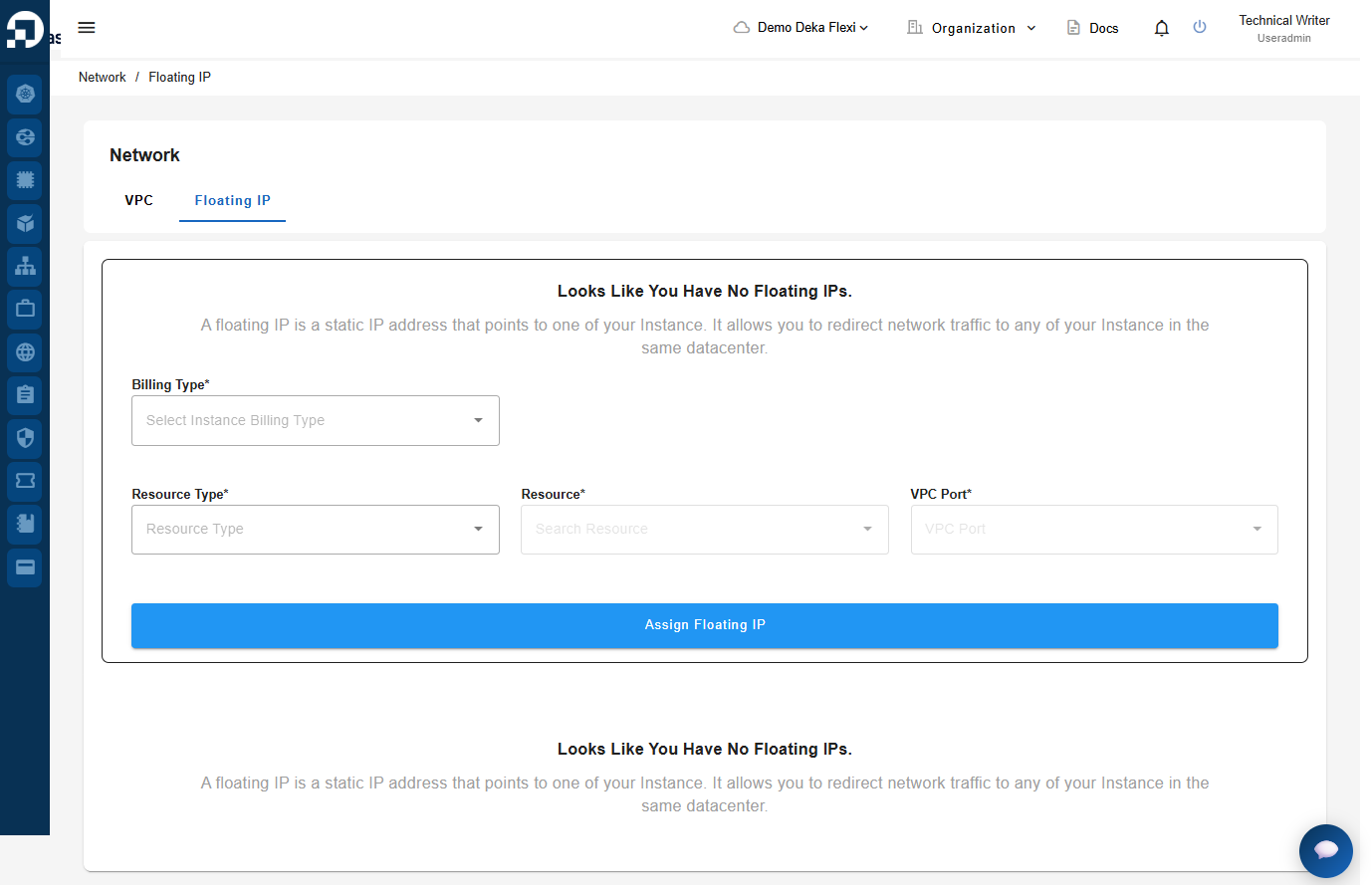
If your instance require an external IP address for external access, you can assign a Floating IP by following these steps:
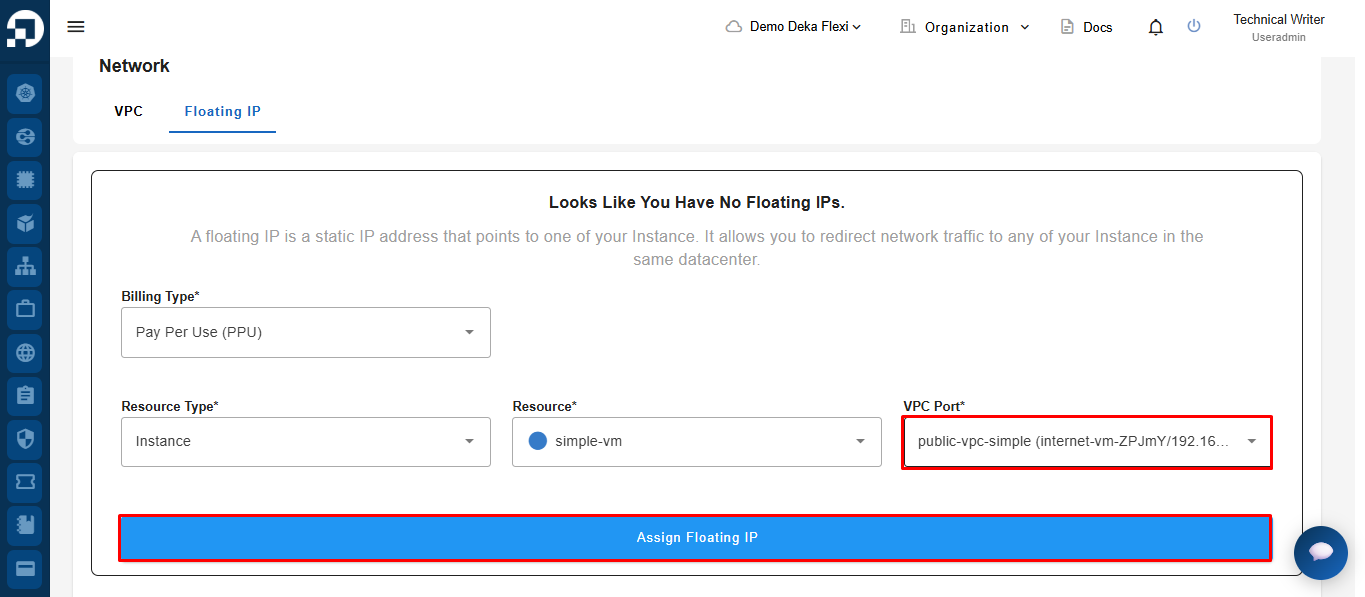
* On the **Network** page select the **Floating IP tab**.
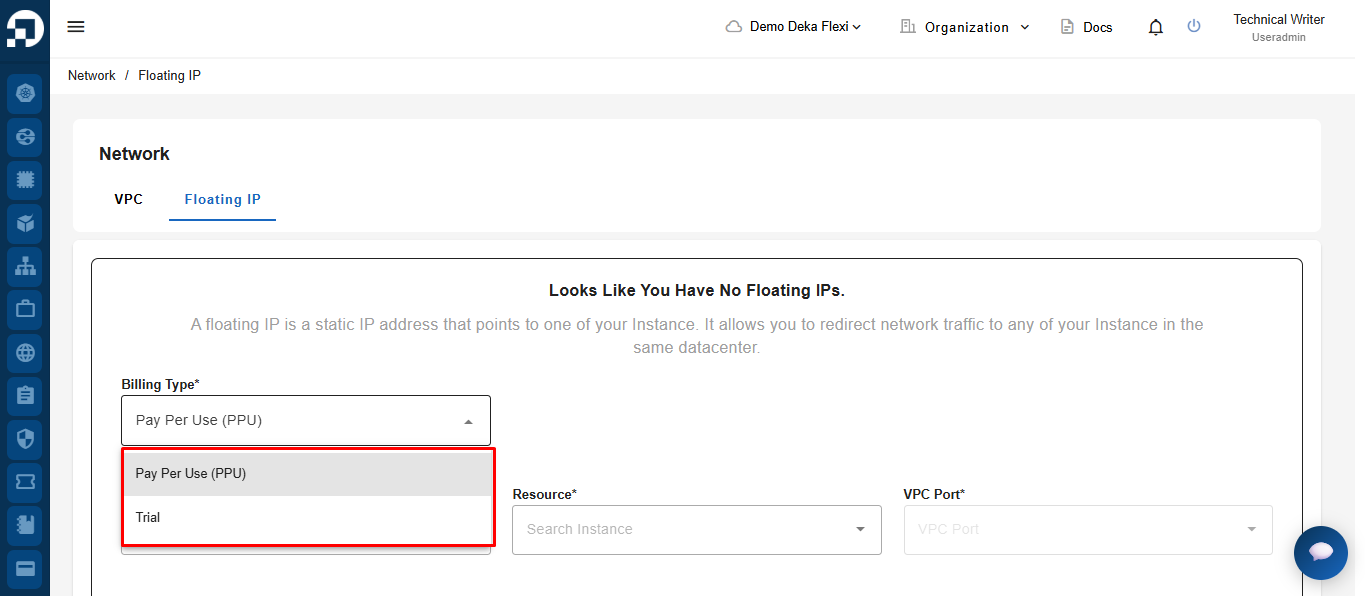
* In the **Floating IP** menu, under the **Billing Type** section, there are **Pay Per Use (PPU)** and **Trial** options, where the selected type determines the usage and billing scheme for the Floating IP assigned to the instance.
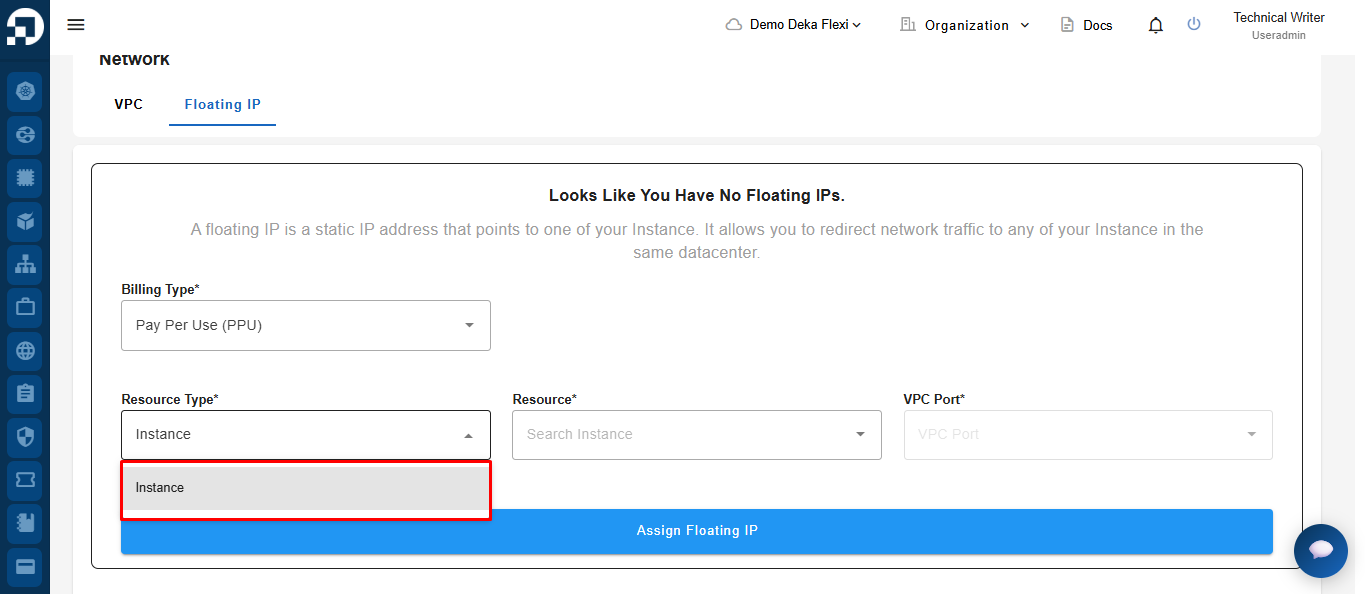
* On the **Resource Type**, there are two types of Resource Type, i.e **Instance** then select the instance that you want to assign Floating IP.
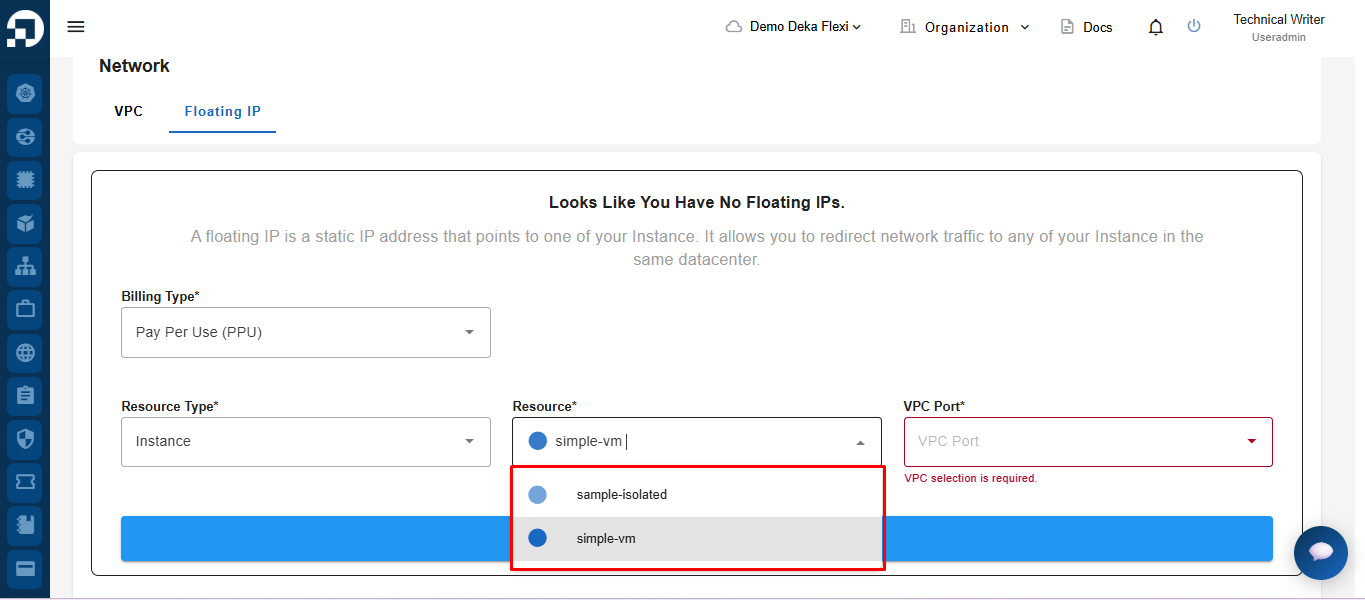
* Next, select the **Resource** by choosing one of the available instances from the list, then proceed by selecting the appropriate **VPC Port** based on the selected instance.
* Next, select the appropriate **VPC Port** based on the chosen resource, then click the **Assign Floating IP** button to complete the IP assignment process.
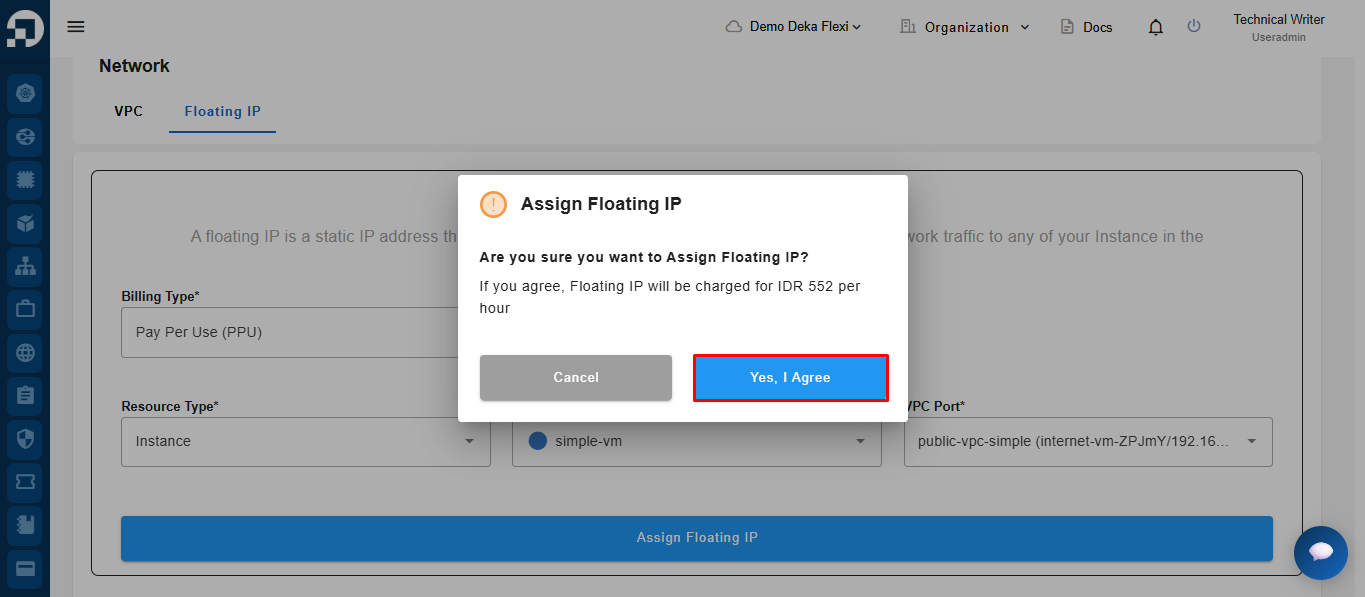
* After clicking **Assign Floating IP**, the system will display a billing confirmation pop-up, then click **Yes, I Agree** to proceed with the Floating IP assignment process.
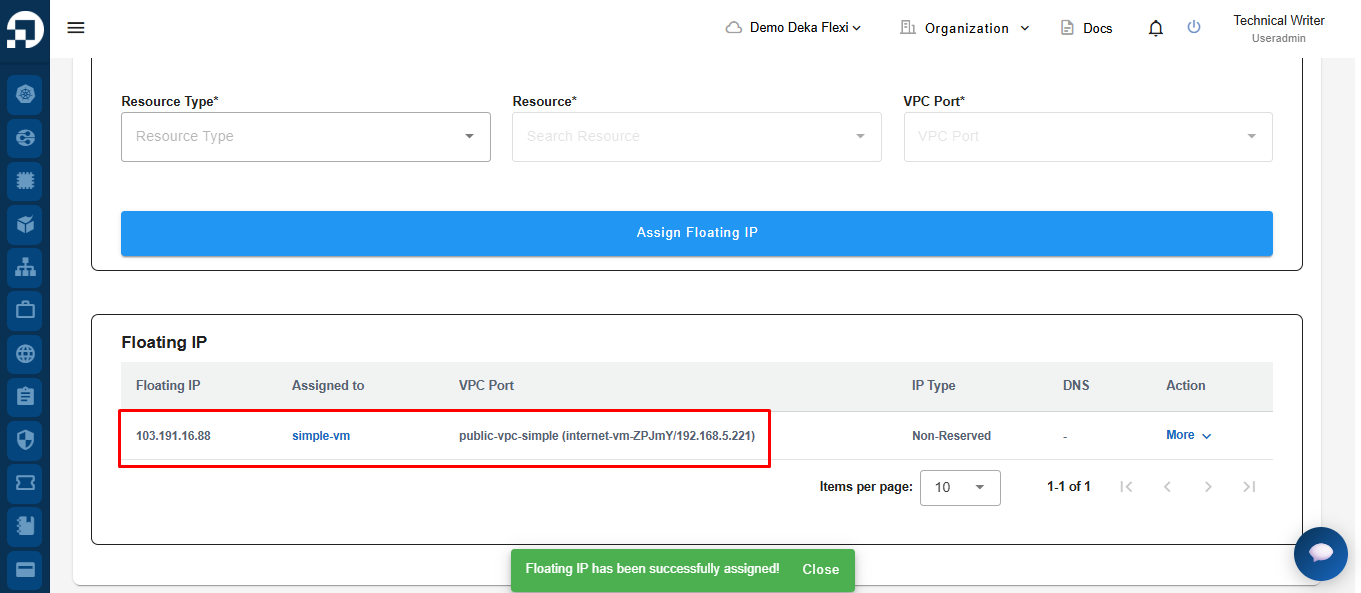
* If the Floating IP is succesfully assigned, the Floating IP will be display in Floating IP list.