> For the complete documentation index, see [llms.txt](https://docs.cloudeka.ai/llms.txt). Markdown versions of documentation pages are available by appending `.md` to page URLs; this page is available as [Markdown](https://docs.cloudeka.ai/guide-for-individual/bahasa/deka-gpu/deka-gpu-registry/detail-registry/tag-immutability/add-rule.md).

# Add rule

Adding the Immutability Tag is a tag rule for the project. The following are the steps for adding tags to immutability:

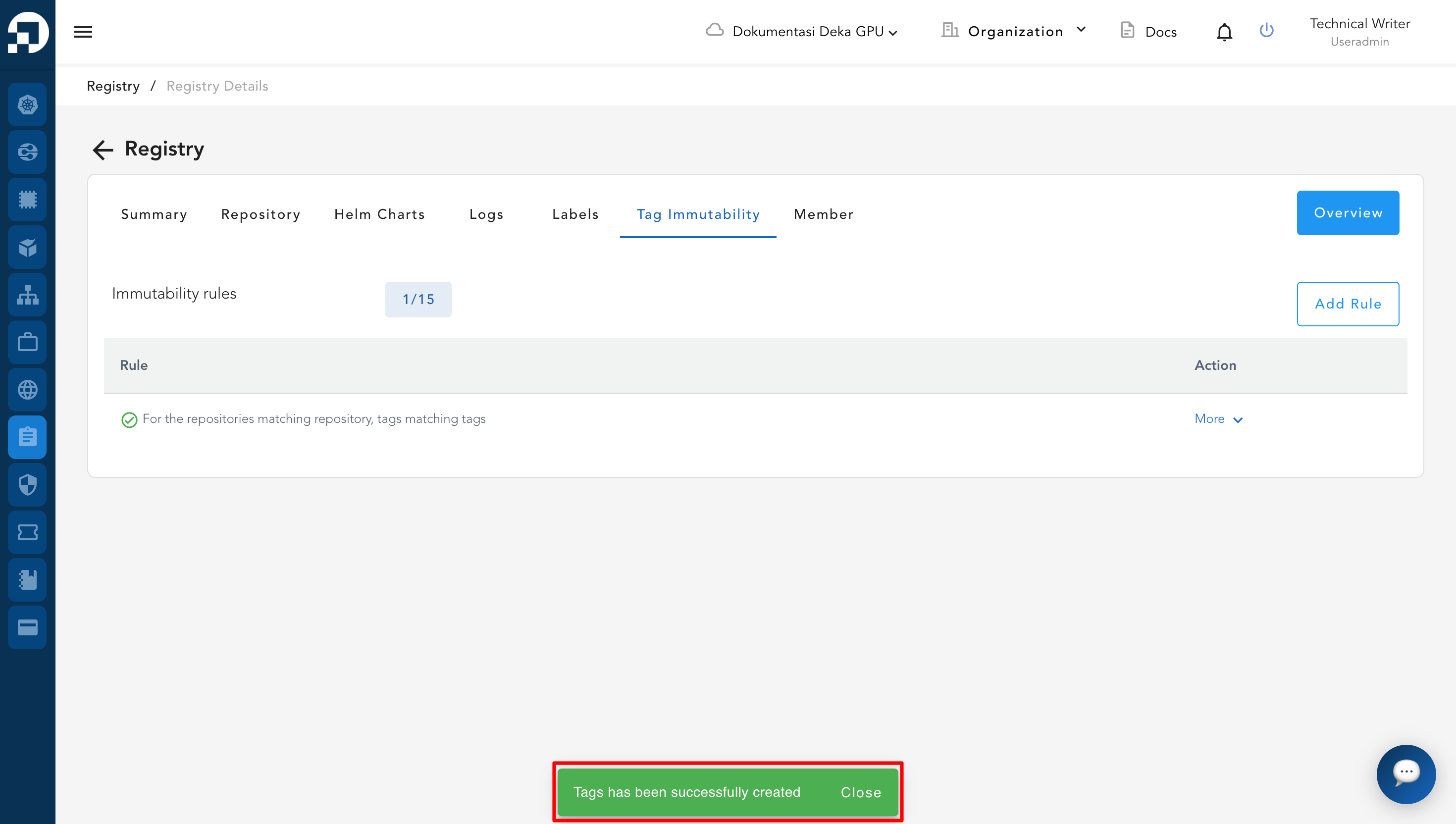
* Select the Tag Immutability tab, and press the **Add Rule button.**

<figure><img src="https://content.gitbook.com/content/cjAISi6xXwQD05JzCqqO/blobs/NPYxLGfFPe84bGTTMU0O/image.png" alt=""><figcaption></figcaption></figure>

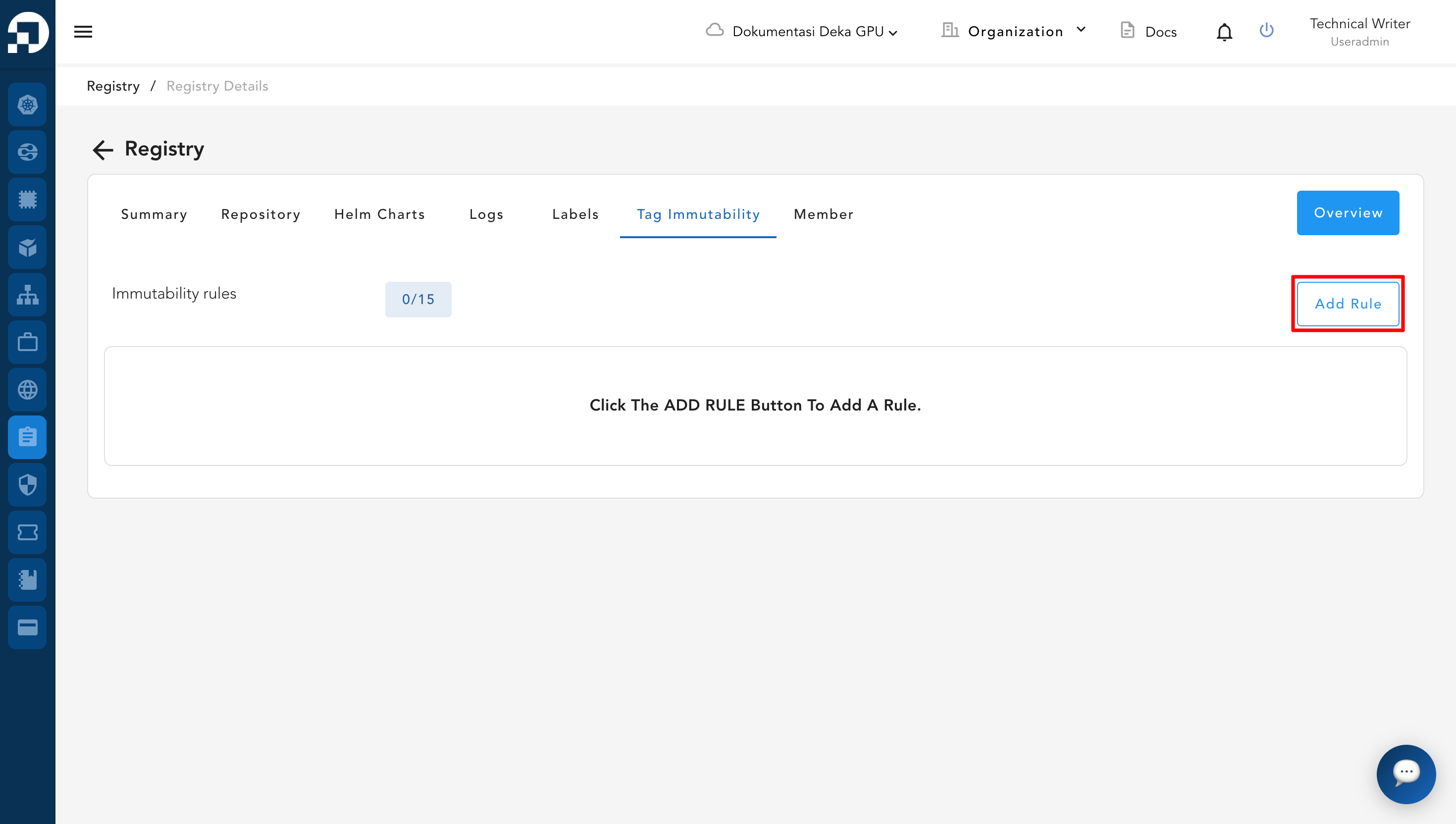
* The Add Tag Immutability Rule window appears, in the For the repositories section select matching or excluding according to your needs. Click the Add button to **add** tags.

<figure><img src="https://content.gitbook.com/content/cjAISi6xXwQD05JzCqqO/blobs/pHXOsvJlONTEtd43c8e8/image.png" alt=""><figcaption></figcaption></figure>

Below are several explanations related to the rule input fields:

<table><thead><tr><th width="235.3333740234375">Column</th><th>Description</th></tr></thead><tbody><tr><td><strong>For the repositories</strong></td><td>This section is used to choose <strong>which repositories the rule will apply to</strong>.<br><br>- <strong>Matching :</strong> The rule is applied <strong>only to the repositories specified by the user</strong>.<br><br><strong>- Excluding :</strong> The rule is applied <strong>to all repositories, except those specified by the user</strong>.</td></tr><tr><td><strong>Tags</strong></td><td>This section allows you to define <strong>which image tags are protected from modification or overwrite</strong>.<br><br>- <strong>Matching :</strong> The rule is applied <strong>only to the tags specified by the user</strong>.<br><br><strong>- Excluding :</strong> The rule is applied <strong>to all tags, except those specified by the user</strong>.</td></tr></tbody></table>

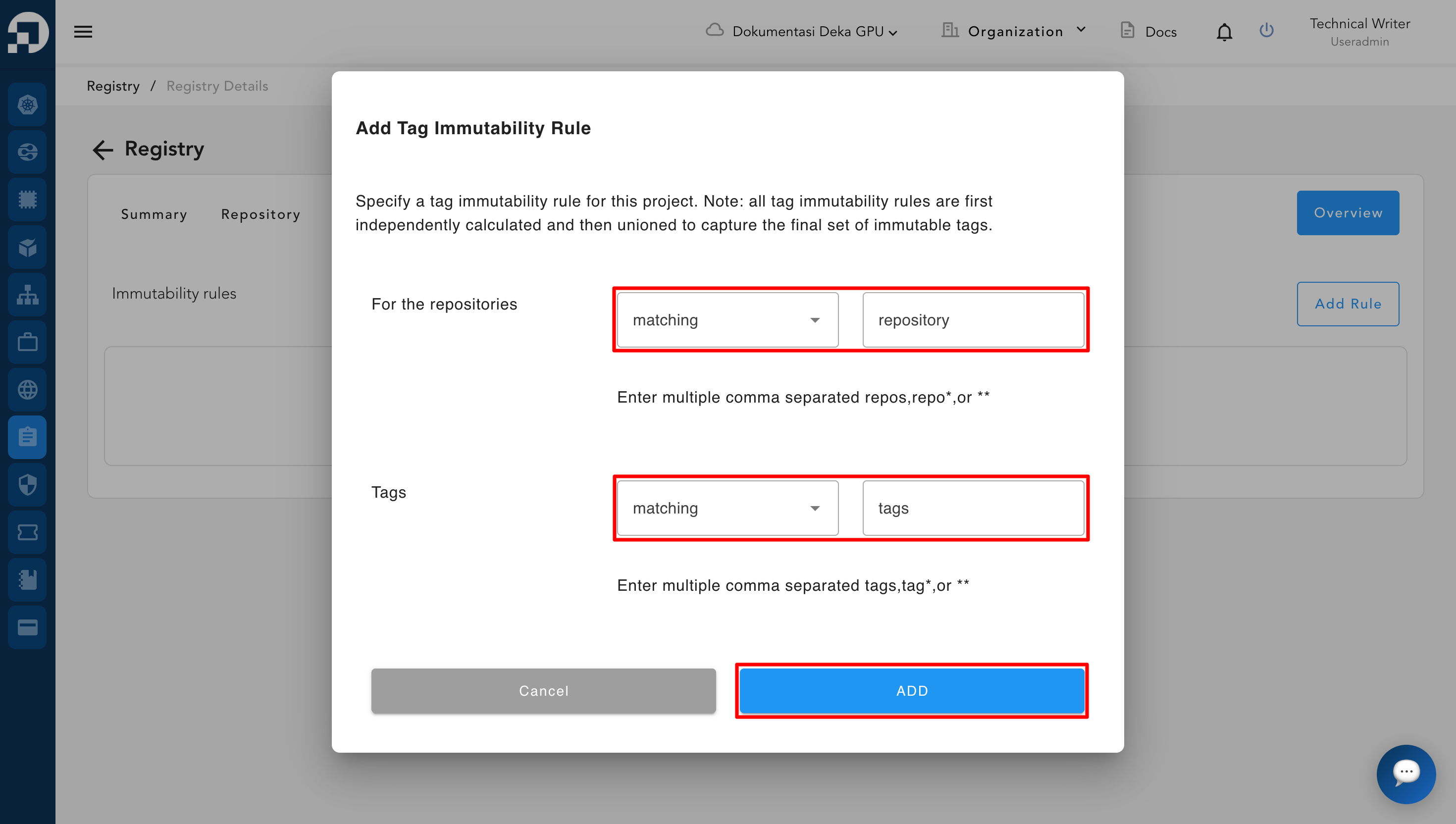
* After the tag is successfully added, the system will display a notification **“Tags has been successfully created”**, indicating that the data has been added successfully and is now listed in the tags table.

<figure><img src="https://content.gitbook.com/content/cjAISi6xXwQD05JzCqqO/blobs/5n4ciNj62aQfKENmanXZ/image.png" alt=""><figcaption></figcaption></figure>