> For the complete documentation index, see [llms.txt](https://docs.cloudeka.ai/llms.txt). Markdown versions of documentation pages are available by appending `.md` to page URLs; this page is available as [Markdown](https://docs.cloudeka.ai/guide-for-individual/bahasa/deka-llm/detail-deka-llm/keys-tab/edit-a-key.md).
# Edit a Key
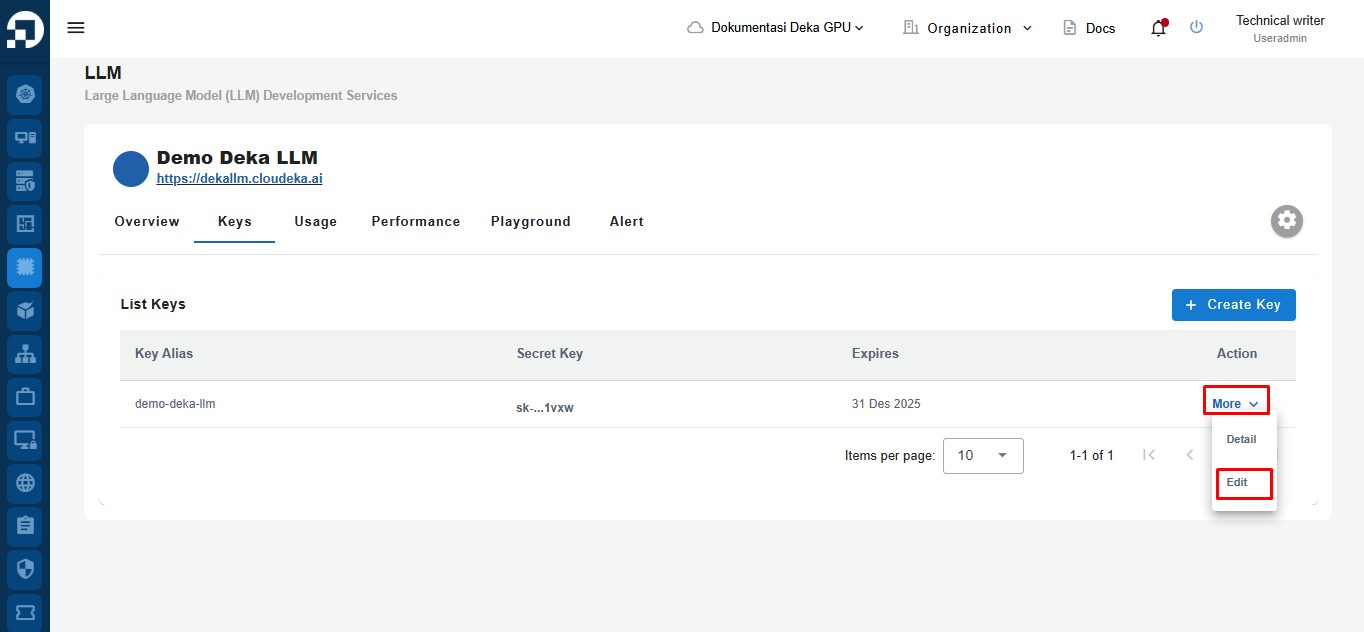
**Edit a Key** is a feature in the **Deka GPU Service Portal** that allows you to update an existing **Key**. If you have not created a **Key** yet, you can follow [**Create a New Key**](/guide-for-individual/bahasa/deka-llm/detail-deka-llm/keys-tab/create-a-new-key.md) **sub-section** . On the **Keys Tab** page, click the **Edit** button.
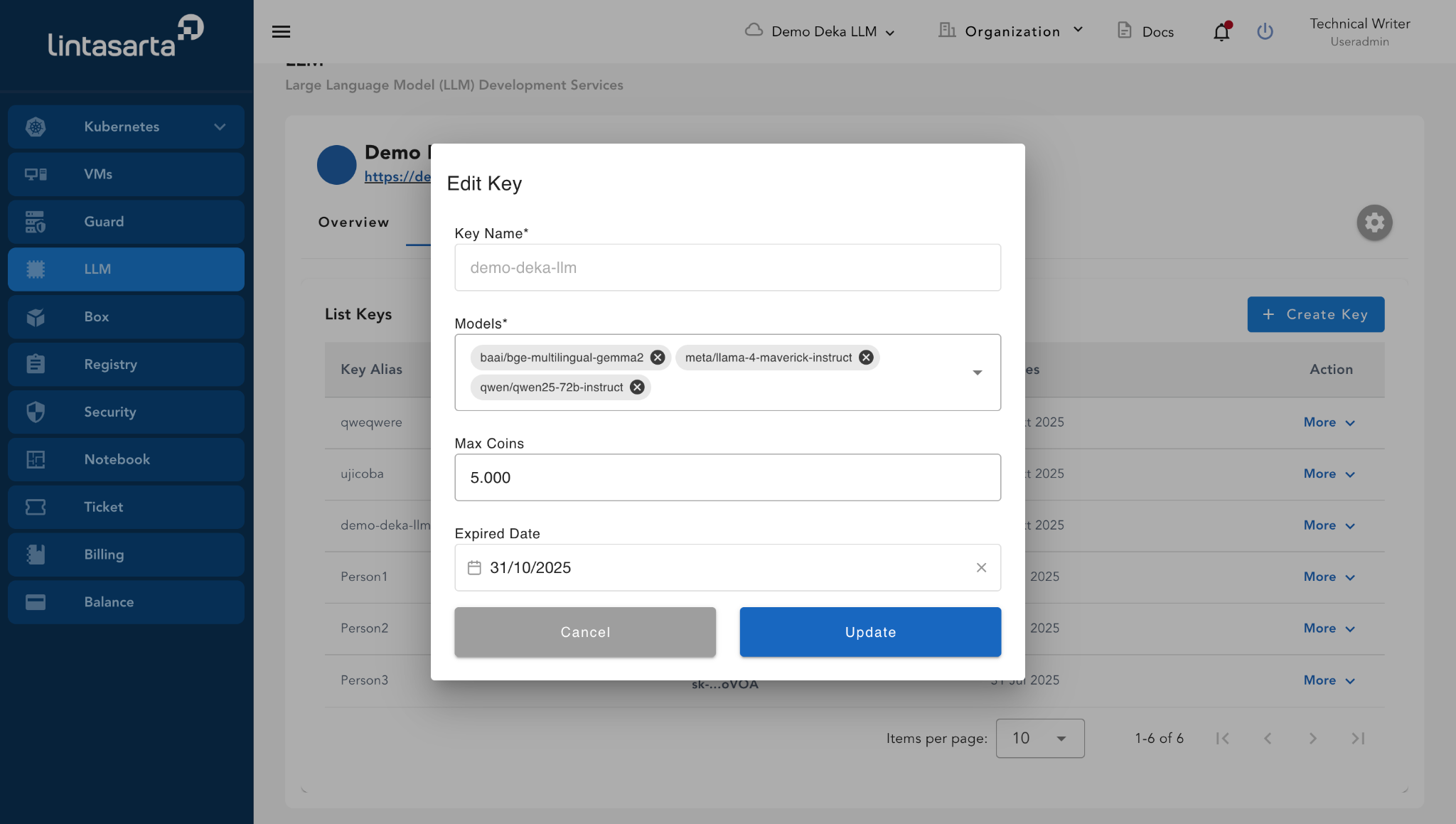
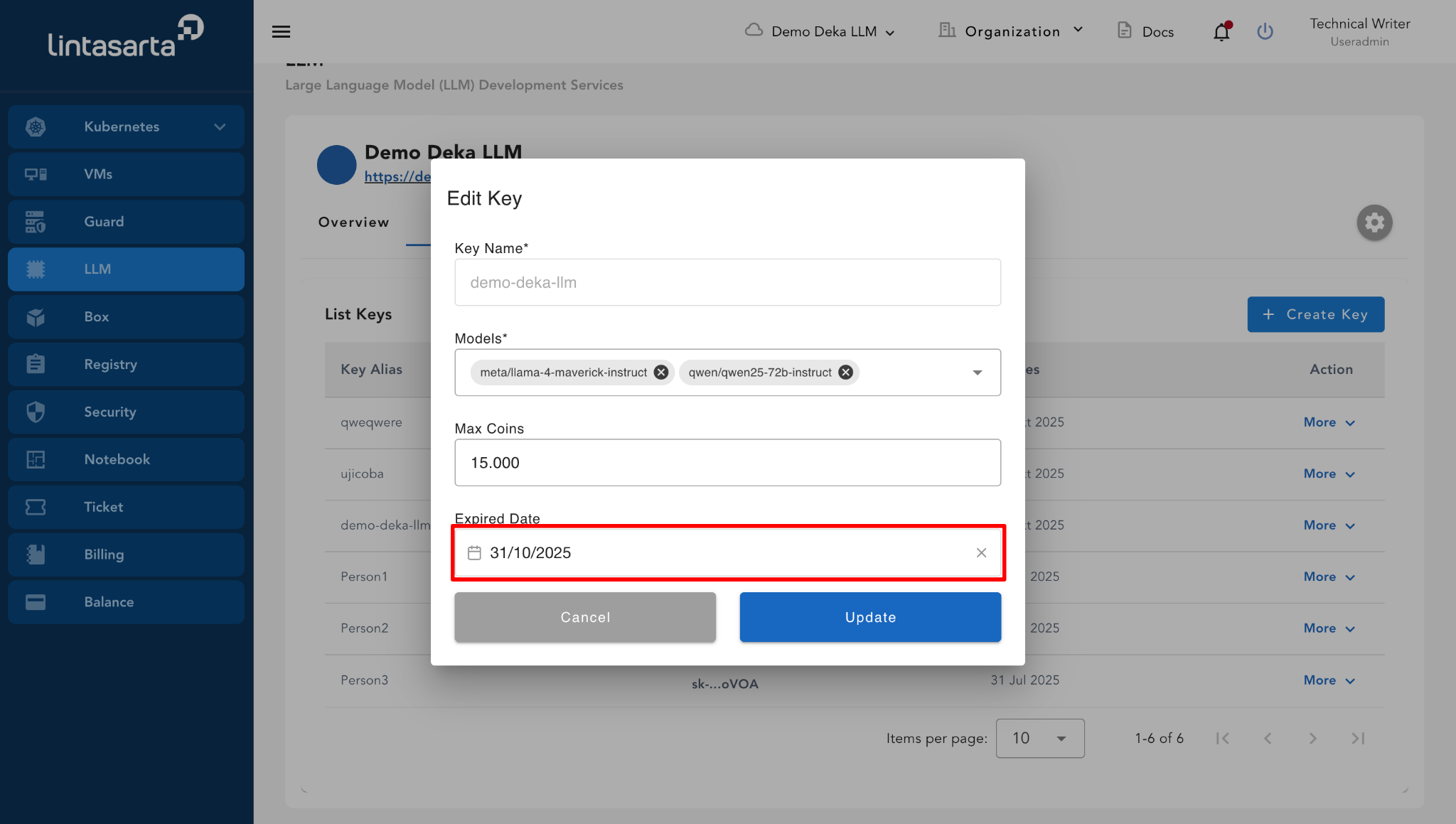
The **Edit Key** window will appear, where you can only update the **Model, Max Coins, and Expired Date** fields.
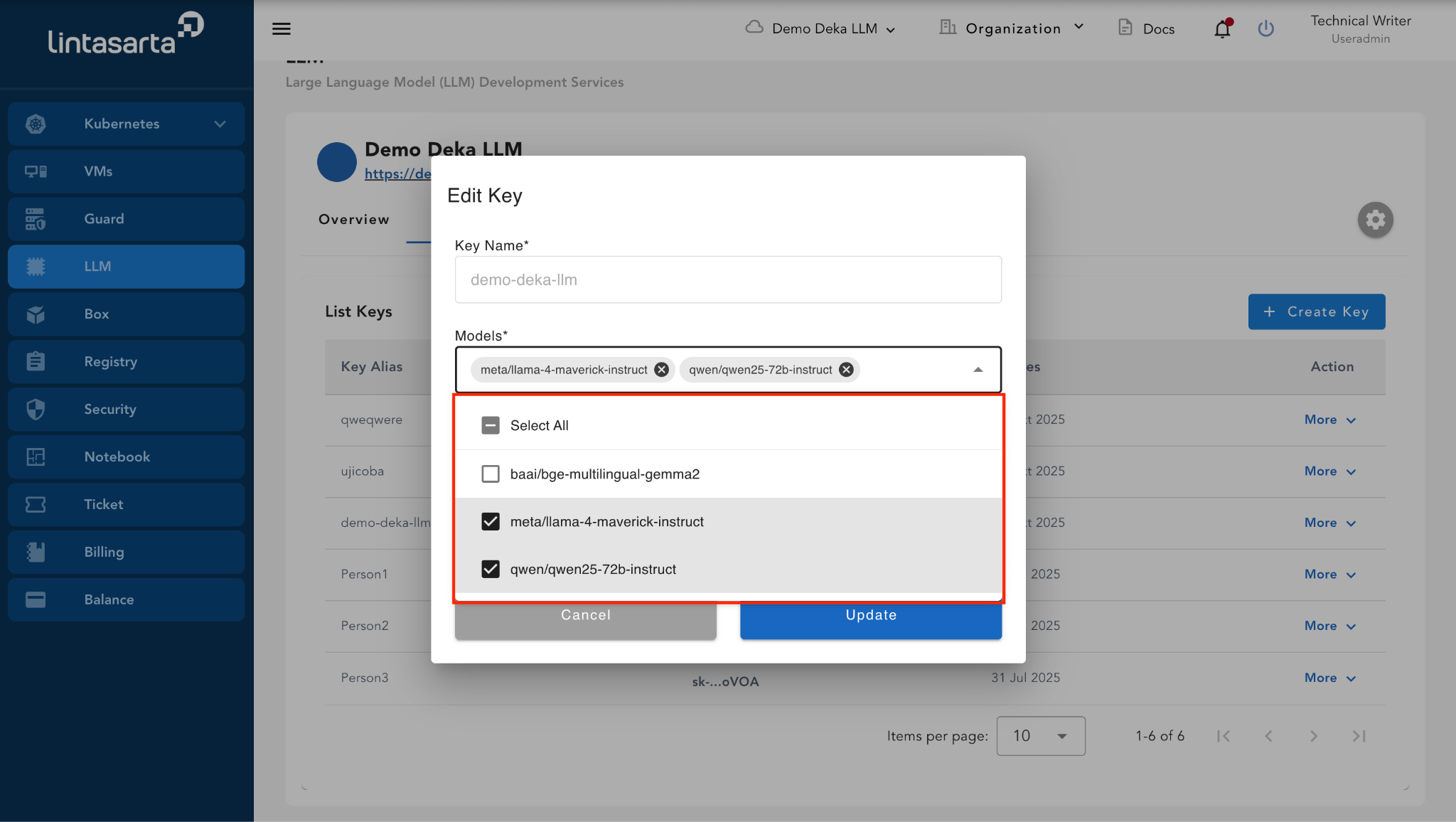
You can add the model you want to use, if you want to use different model, follow the steps in the [Update Model](/guide-for-individual/bahasa/deka-llm/detail-deka-llm/update-models.md) section.
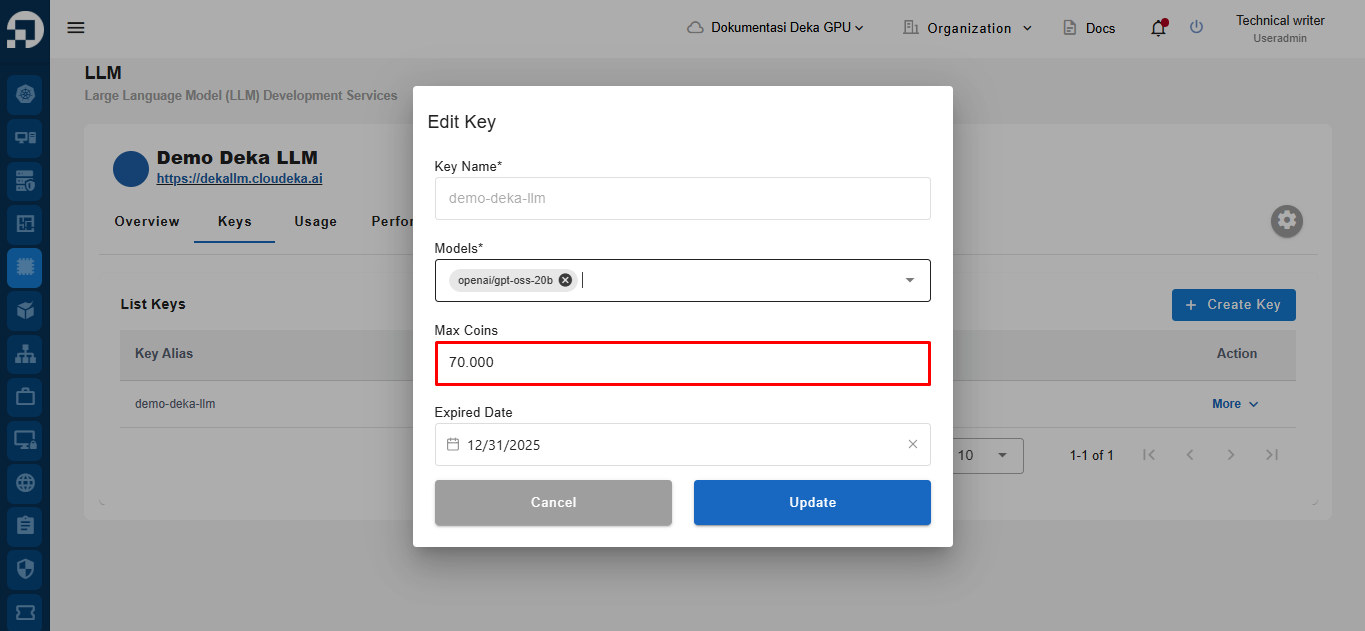
You can update the maximum number of coins to be used.
{% hint style="success" %}
To check your remaining coin balance, refer to the [Overview Tab](/guide-for-individual/bahasa/deka-llm/detail-deka-llm/overview-tab.md). If you want to add more coins, follow the steps in the [Top Up Coin](/guide-for-individual/bahasa/deka-llm/detail-deka-llm/top-up-coin.md).
{% endhint %}
{% hint style="warning" %}
Make sure not to enter an amount that exceeds your available coin balance.
{% endhint %}
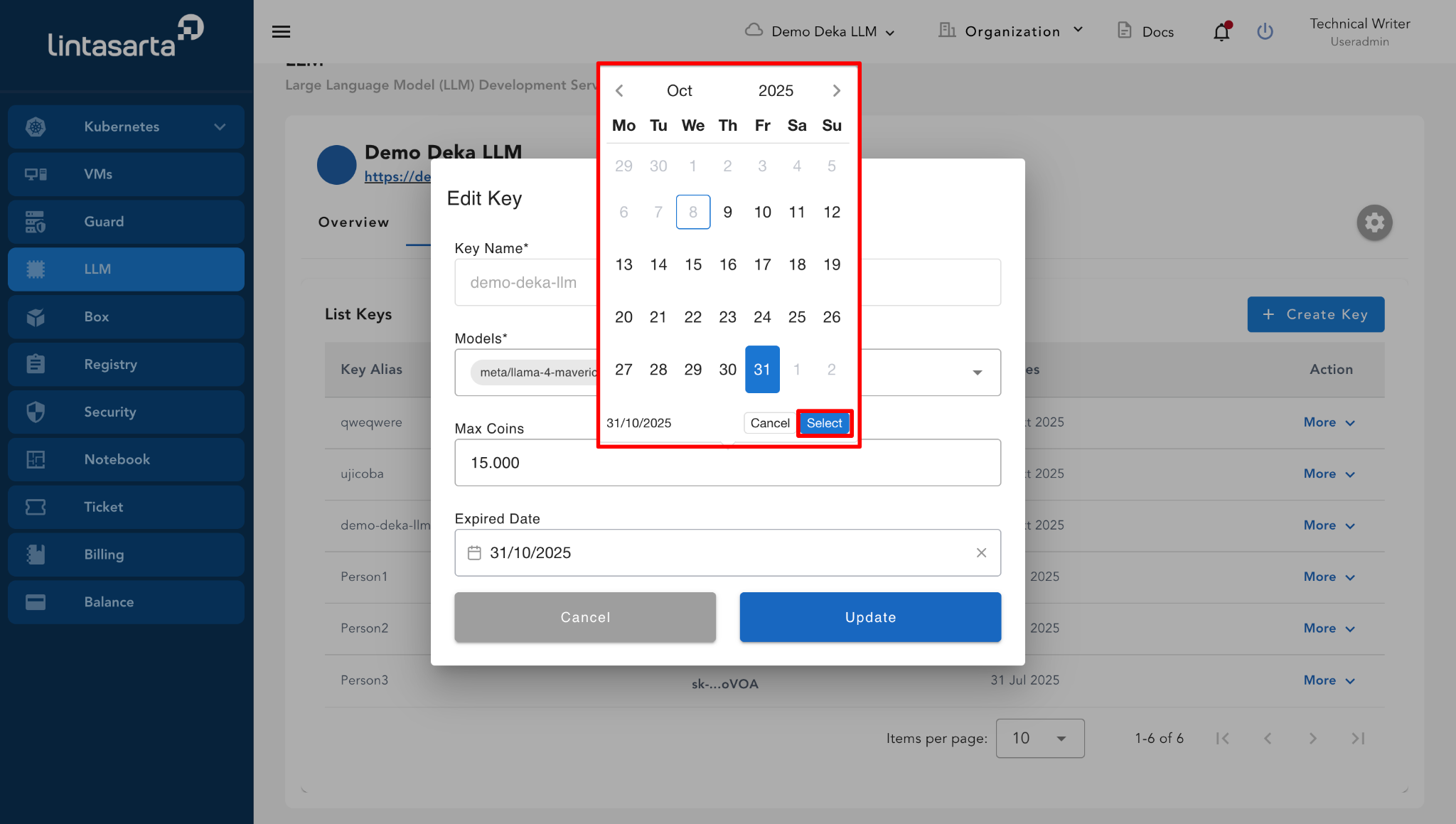
You can update the expiration date of the key by clicking the **Expired Date** field.
Select the date when the key should expire. Click the **Select** button to save the chosen expiration date or click the **Cancel** button to return to the **Edit Key** window.
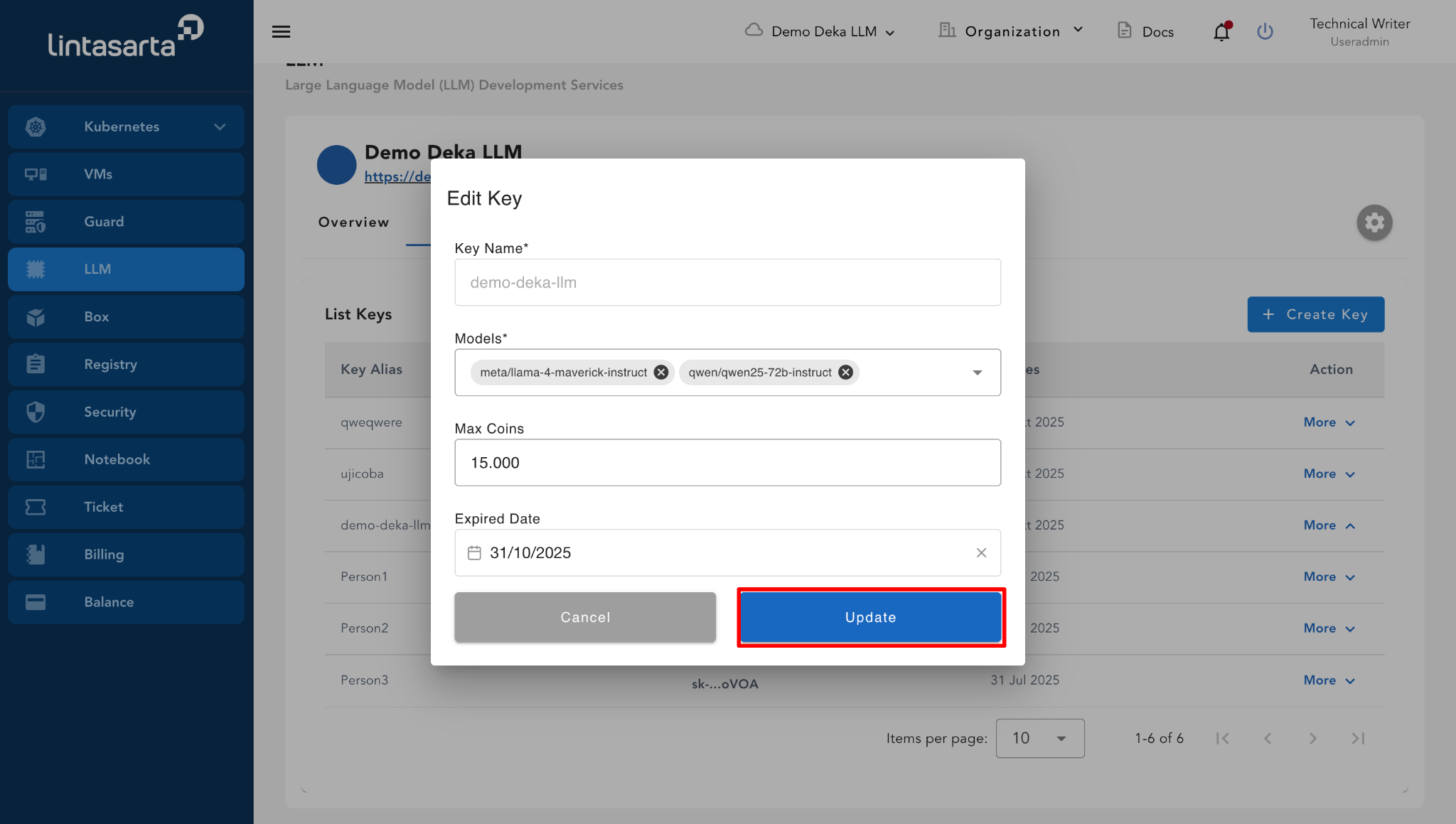
Click the **Update** button to save the changes you have made.
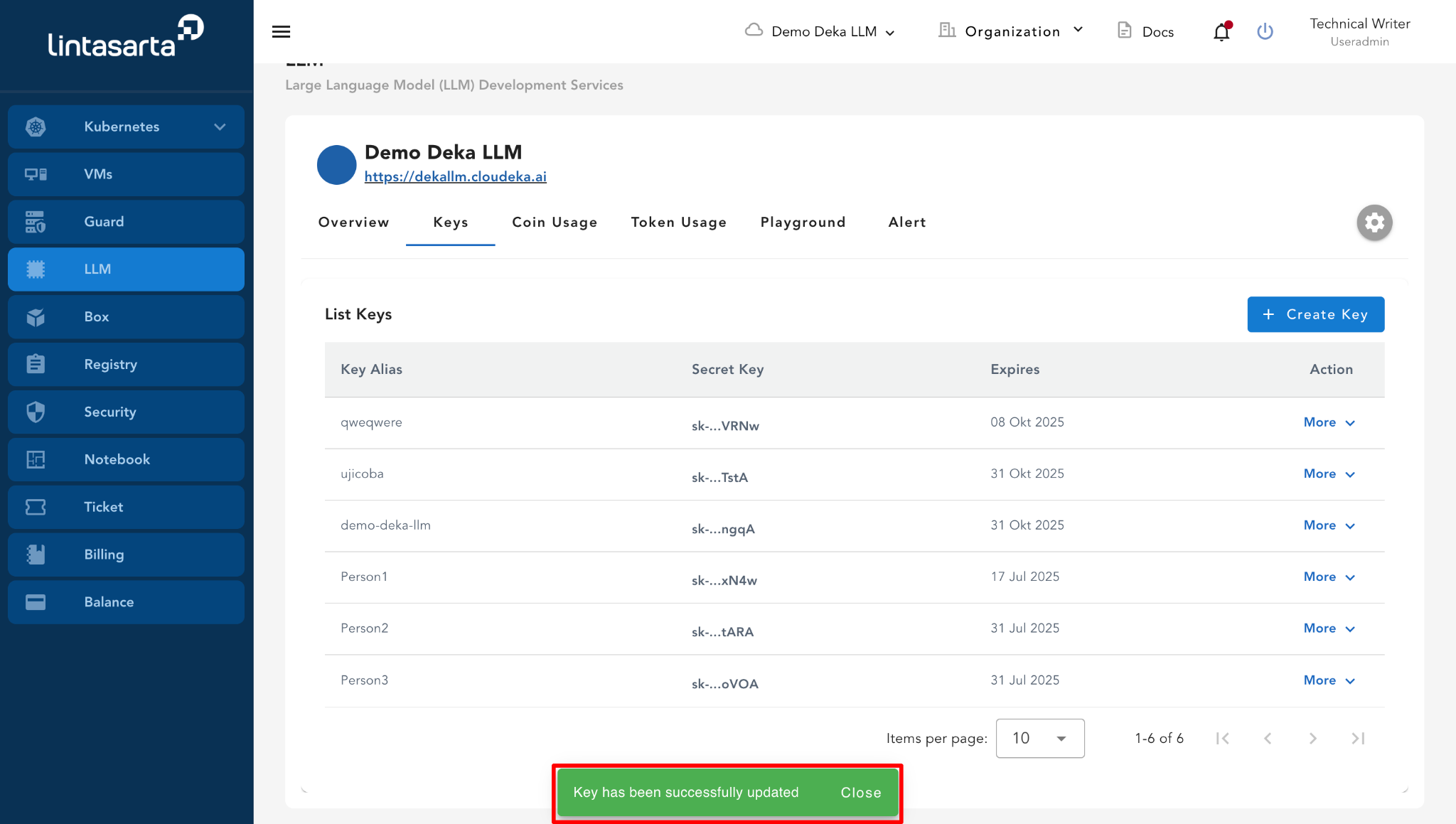
After you update, a notification will appear saying "Key has been successfully updated".