> For the complete documentation index, see [llms.txt](https://docs.cloudeka.ai/llms.txt). Markdown versions of documentation pages are available by appending `.md` to page URLs; this page is available as [Markdown](https://docs.cloudeka.ai/guide-for-individual/bahasa/deka-metal/deka-metal-deka-registry/create-deka-registry.md).
# Create Deka Registry
This section explains how to add a repository to the Deka GPU Service in the Cloudeka Portal Service. The following are the steps for creating a registry in the Deka GPU Service:
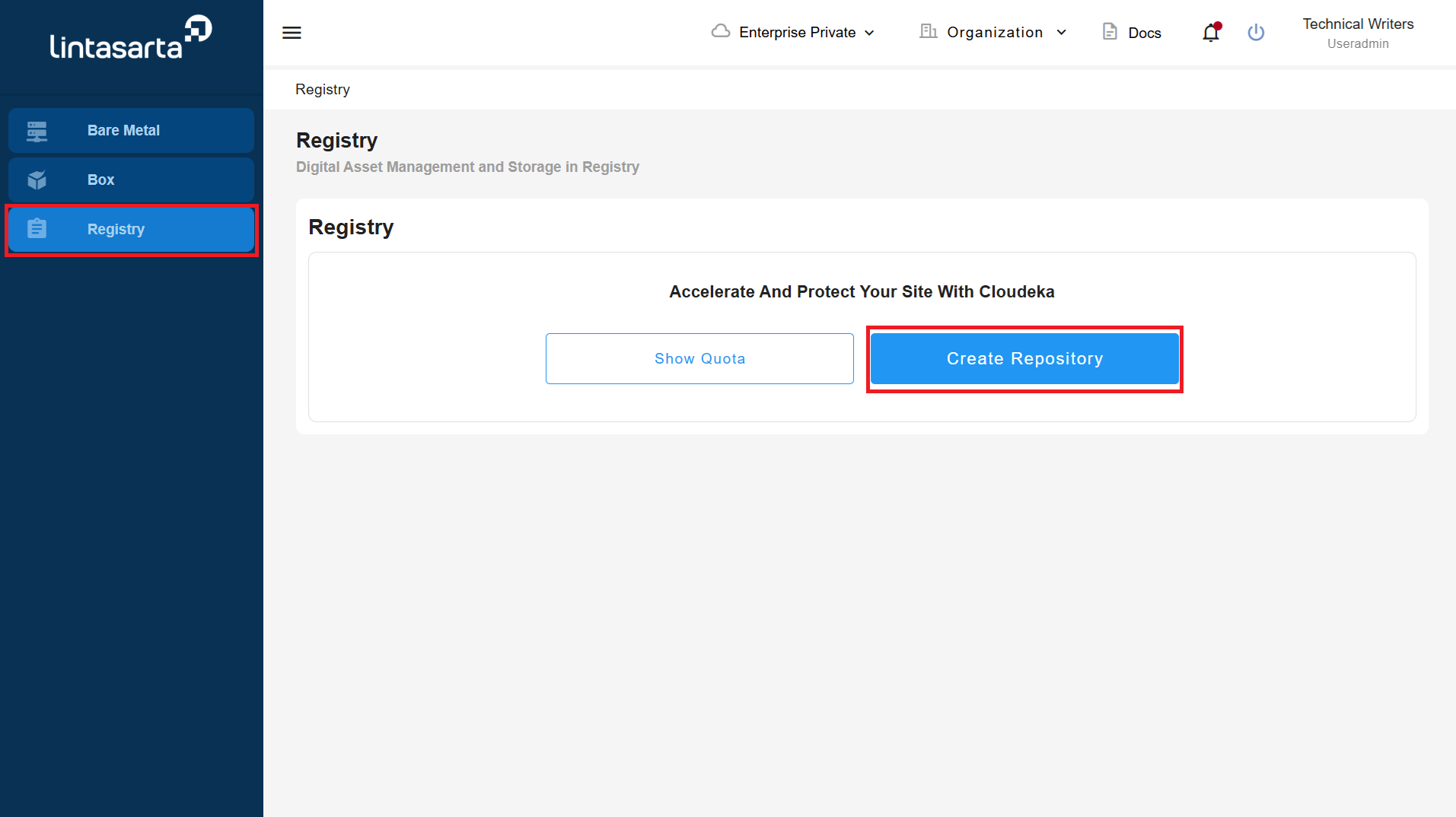
* On the Deka GPU Services page, select the Registry menu. Click the Create Repository button.
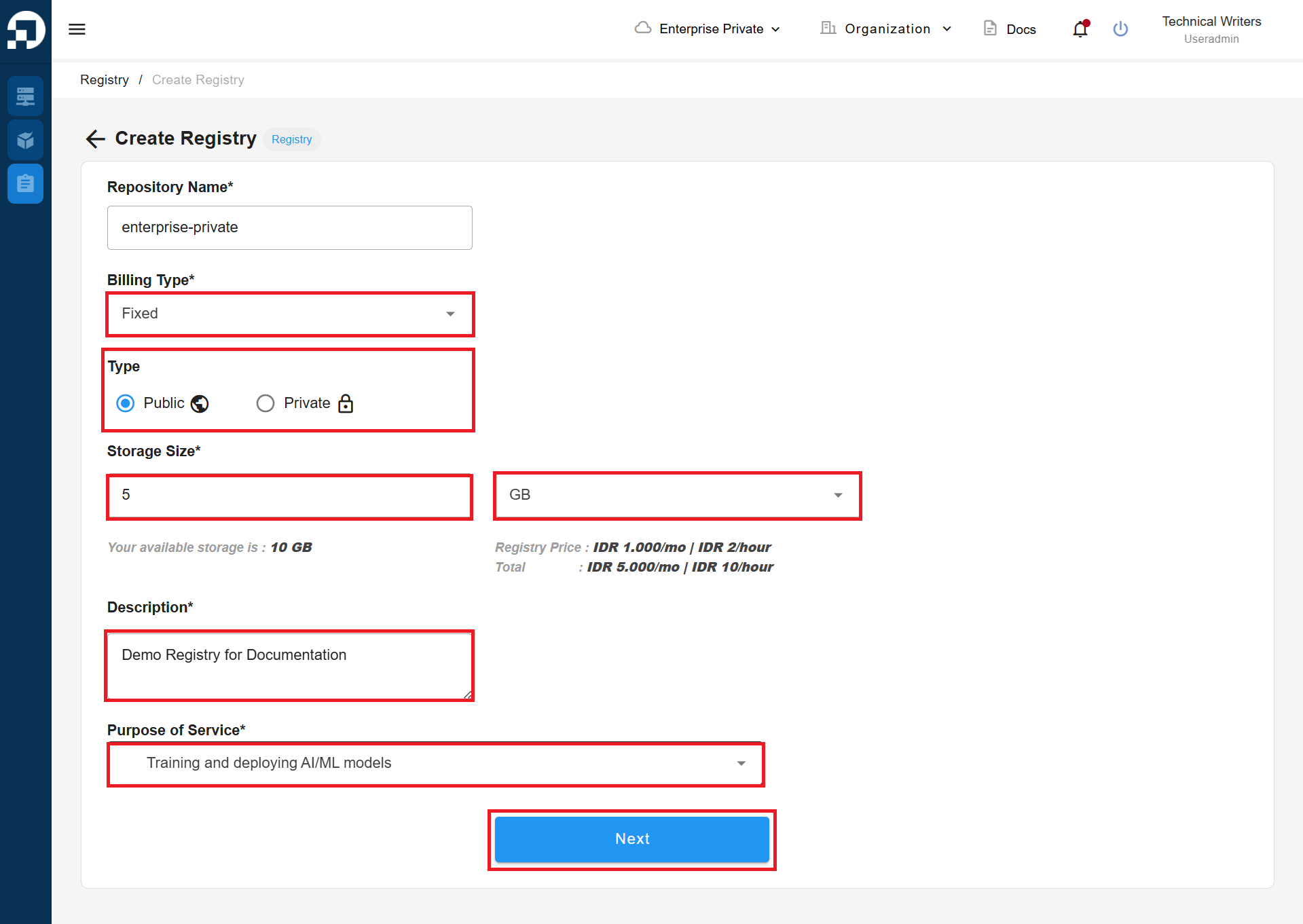
* Fill in all available columns and click the Next button after filling in all available columns on the Create Registry page. Click the Next button to continue the create registry.
{% hint style="warning" %}
Use the Private type when creating the registry to make it safer.
{% endhint %}
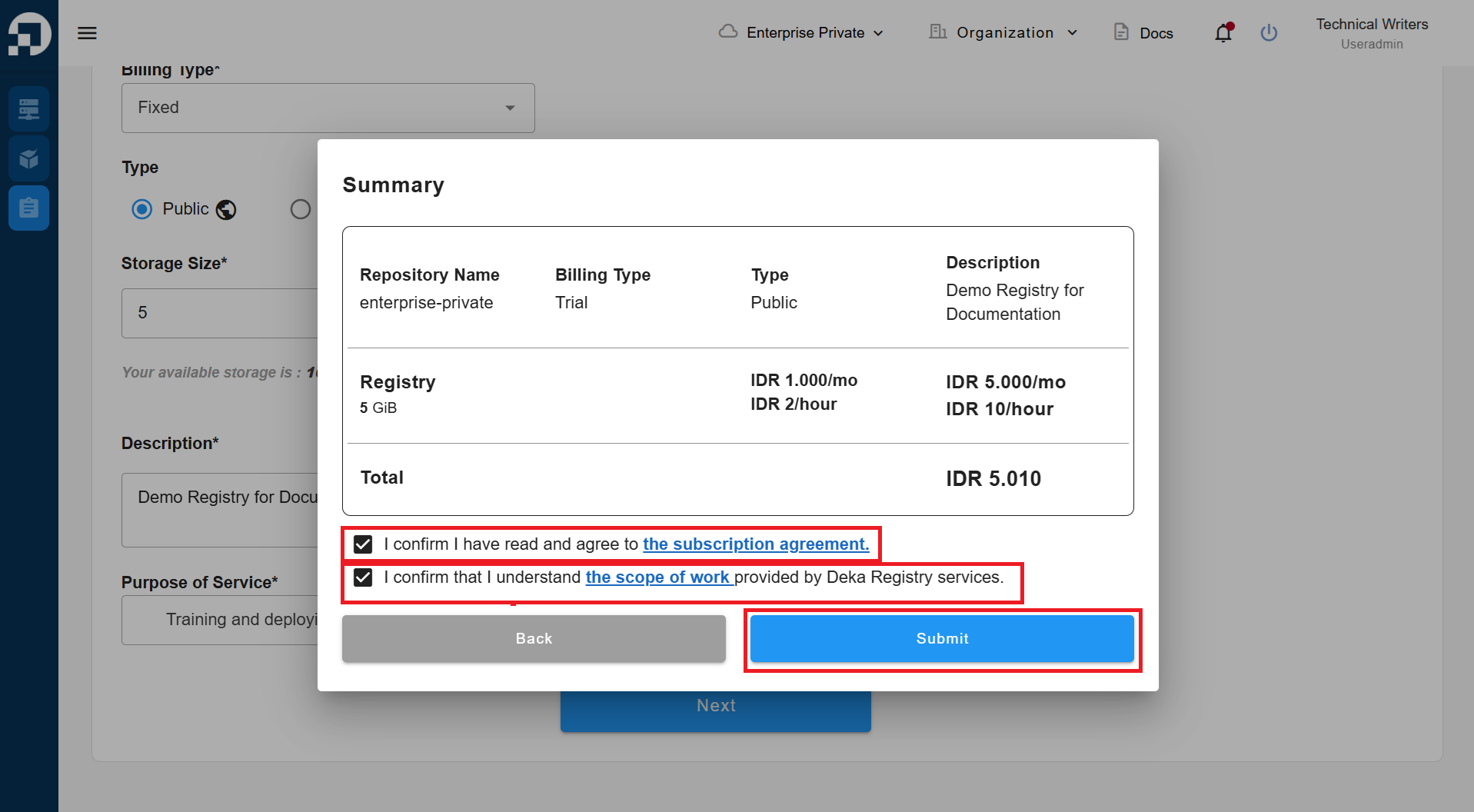
* The Summary window appears, checklist **I confirm I have and agree to the subscription agreement** and **I confirm that I understand the scope of work provided by Deka Registry services**.
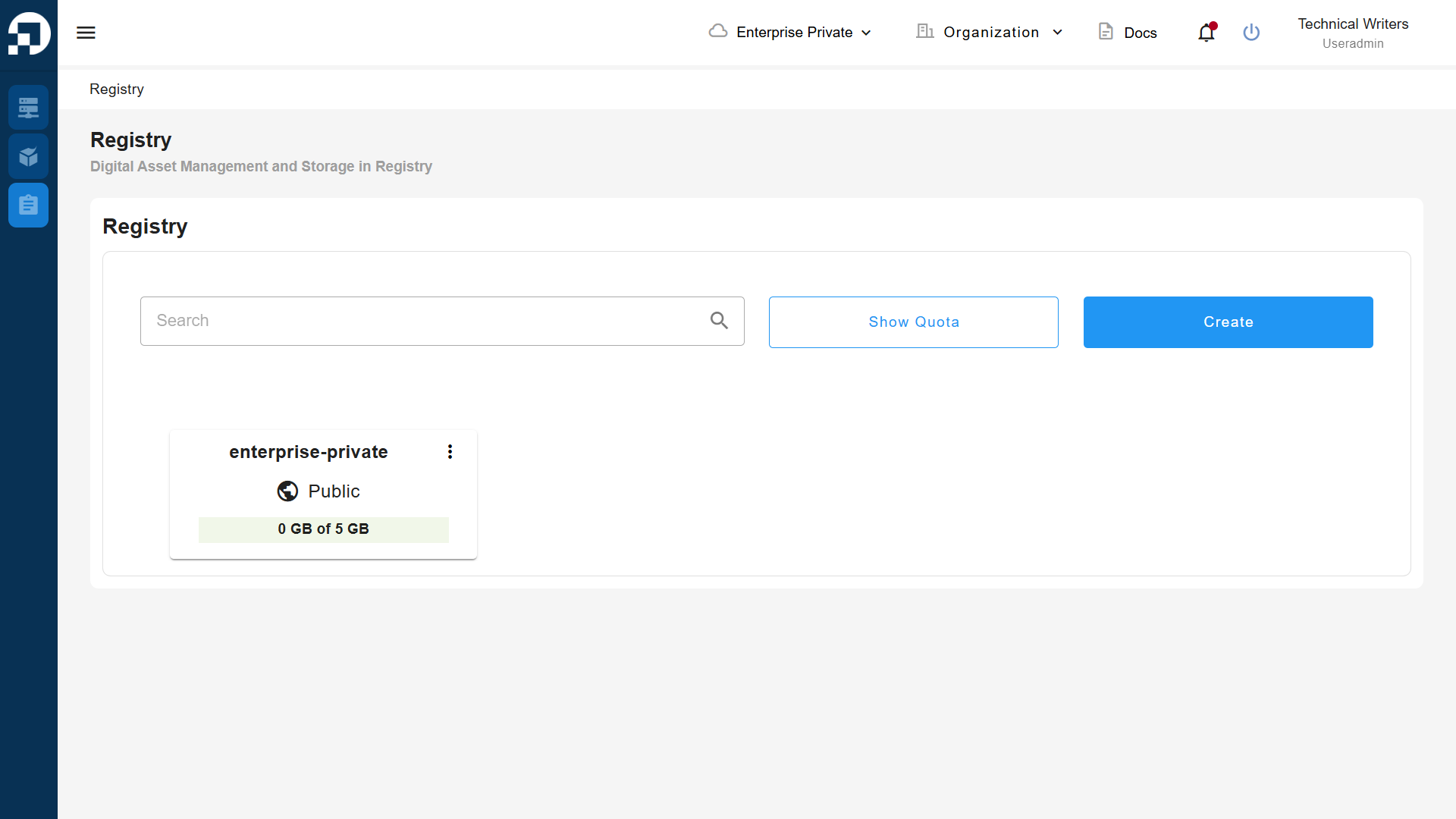
* The created registry appears on the registry page on the Service Portal AI.