> For the complete documentation index, see [llms.txt](https://docs.cloudeka.ai/llms.txt). Markdown versions of documentation pages are available by appending `.md` to page URLs; this page is available as [Markdown](https://docs.cloudeka.ai/guide-for-individual/bahasa/deka-vault-gpu/restore/create-restore-backup.md).
# Create Restore Backup
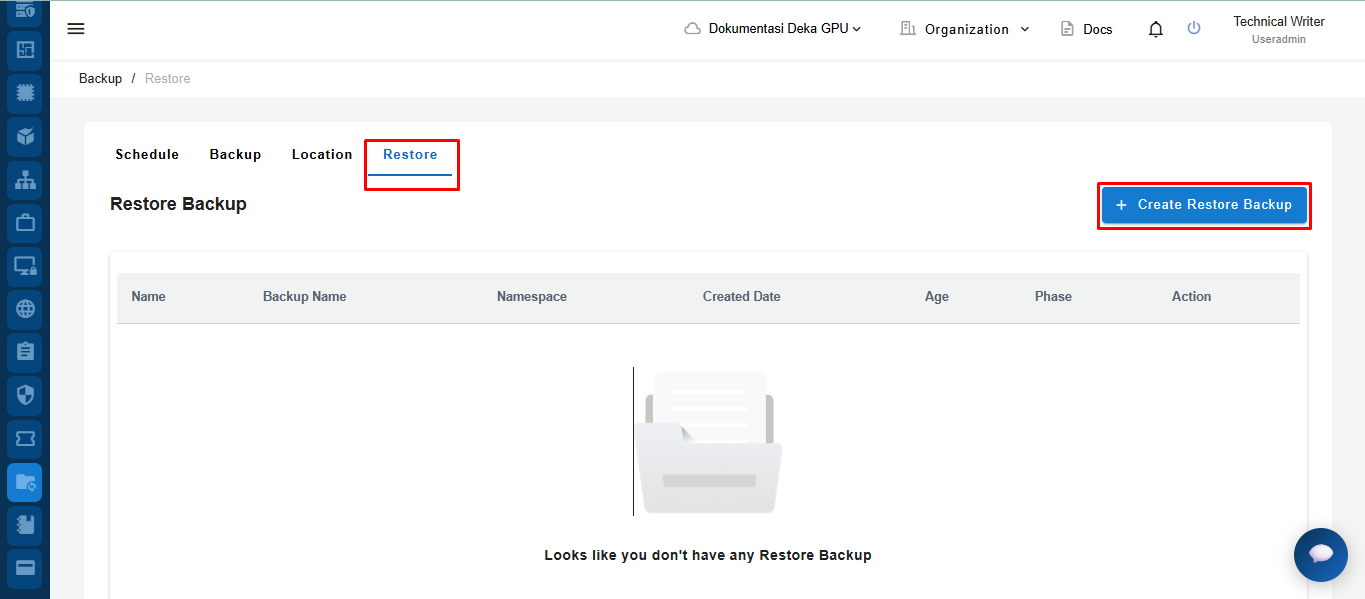
To create a new backup restore process, select the Restore tab, then click the Create Restore Backup button on the Restore page.
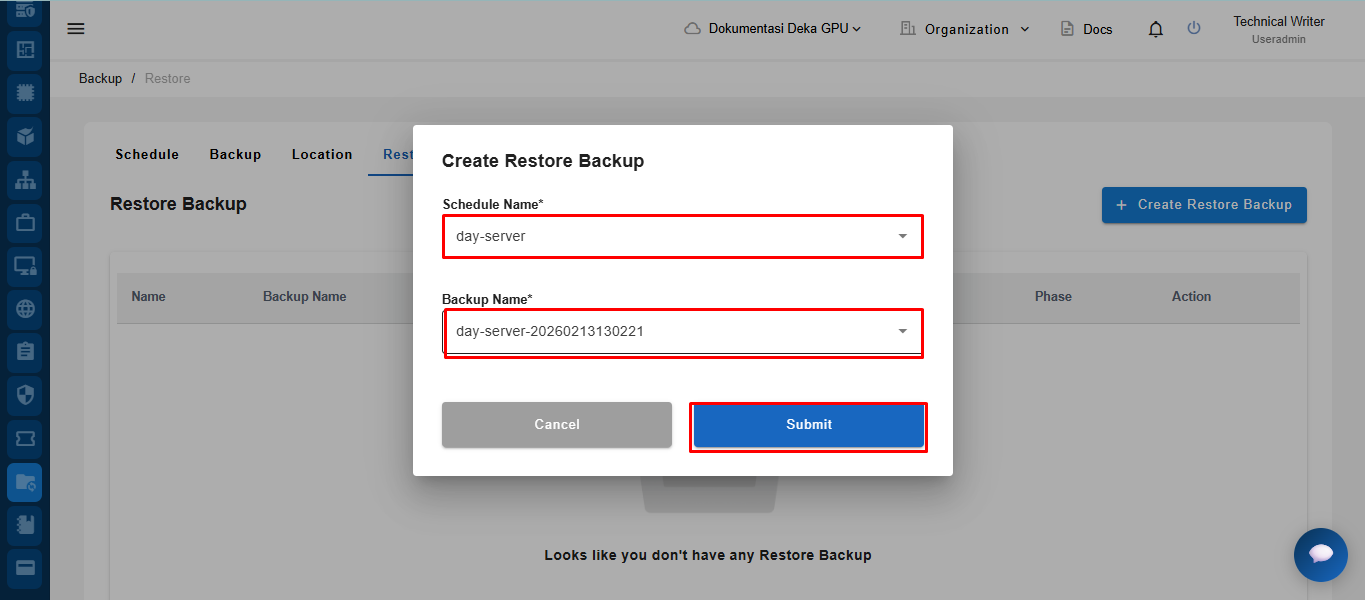
In the Create Restore Backup window, select the Schedule Name and Backup Name to be restored, then click the Submit button to start the backup restore process.
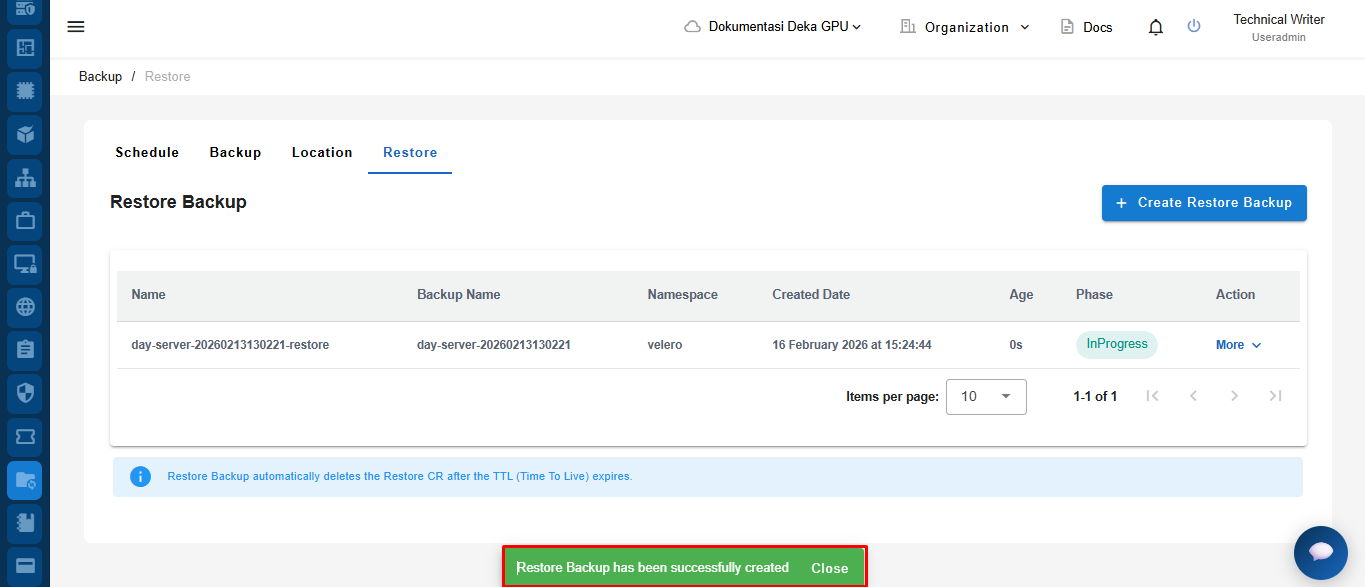
After the process is successfully initiated, the system will display the notification “Restore Backup has been successfully created” to indicate that the restore process has been successfully created.