> For the complete documentation index, see [llms.txt](https://docs.cloudeka.ai/llms.txt). Markdown versions of documentation pages are available by appending `.md` to page URLs; this page is available as [Markdown](https://docs.cloudeka.ai/guide-for-individual/bahasa/deka-vpn/configuration-deka-vpn-openvpn/download-component-client-export/connection-with-openvpn.md).

# Connection with OpenVPN

The Connection with OpenVPN section provides steps to establish a secure VPN connection using the downloaded configuration file and the OpenVPN application. The following are the steps to use **Connection with OpenVPN**:

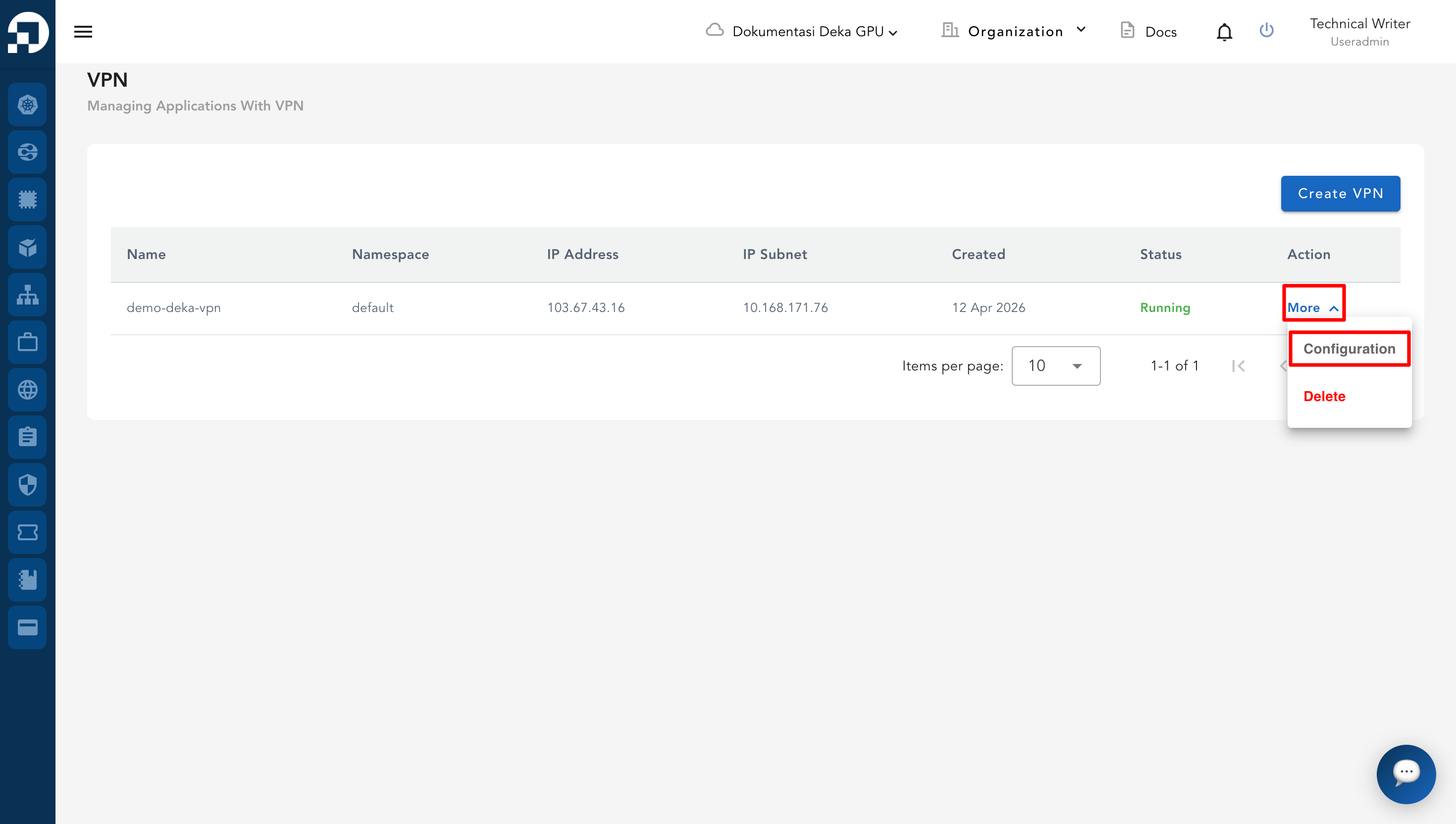
* In the VPN list, click **More** then **Configuration** for the VPN you want to manage.

<figure><img src="https://content.gitbook.com/content/cjAISi6xXwQD05JzCqqO/blobs/LIz5WgRnhAweIJWIOrwF/image.png" alt=""><figcaption></figcaption></figure>

* On the Configuration page, click the **OpenVPN** tab.

<figure><img src="https://content.gitbook.com/content/cjAISi6xXwQD05JzCqqO/blobs/fOWoyeVfSxcFSlifAuao/image%20(3).png" alt=""><figcaption></figcaption></figure>

* In the **Download Component Client Export** section, click **Viscosity Inline Config** to download the `.ovpn` configuration file.

<figure><img src="https://content.gitbook.com/content/cjAISi6xXwQD05JzCqqO/blobs/YaA9VvcSY8IT1OkcweyA/image%20(4).png" alt=""><figcaption></figcaption></figure>

* After the file has been downloaded, open it from your browser’s download manager or your Downloads folder.
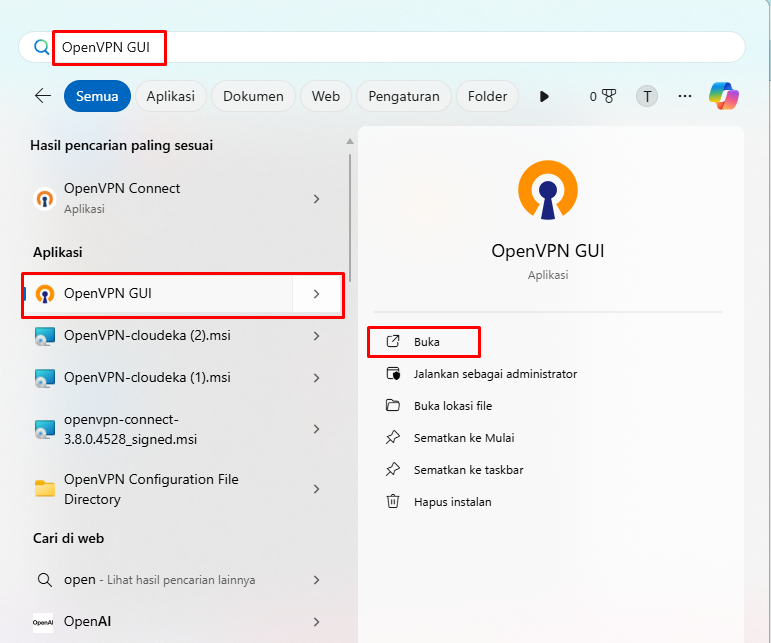
* Open **OpenVPN GUI** from the system search or Start menu.

<figure><img src="https://content.gitbook.com/content/cjAISi6xXwQD05JzCqqO/blobs/UNYPHMLiLPUHttjdflkp/image.png" alt=""><figcaption></figcaption></figure>

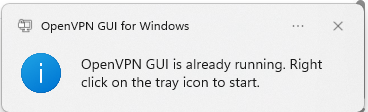
* If already running, access it from the system tray.

<figure><img src="https://content.gitbook.com/content/cjAISi6xXwQD05JzCqqO/blobs/nYeayzKPdHqImjsM20Tm/image.png" alt=""><figcaption></figcaption></figure>

* Right-click the **OpenVPN tray icon**, then choose **Import file…**.

<figure><img src="https://content.gitbook.com/content/cjAISi6xXwQD05JzCqqO/blobs/TgFsi9ngrunw3gyezDG9/image%20(5).png" alt=""><figcaption></figcaption></figure>

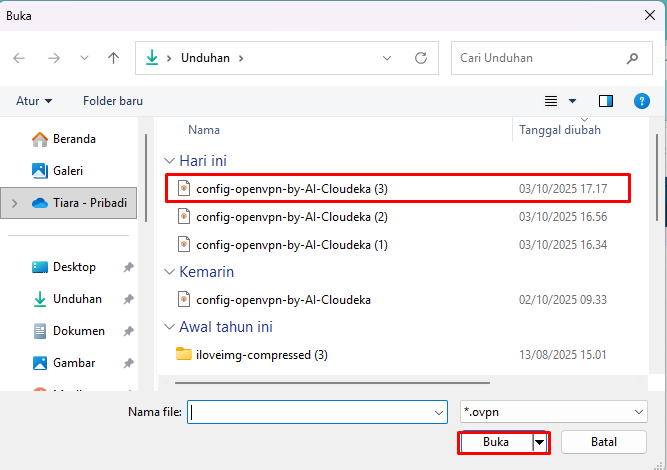
* Select the downloaded `.ovpn` configuration file and click **Open**.

<figure><img src="https://content.gitbook.com/content/cjAISi6xXwQD05JzCqqO/blobs/xwTEHaeGcmOOcdjQqxAs/image.png" alt=""><figcaption></figcaption></figure>

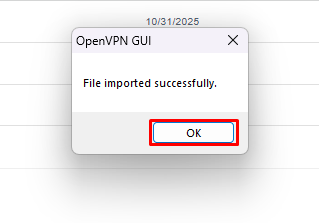
* A notification appears confirming that the file has been successfully imported.

<figure><img src="https://content.gitbook.com/content/cjAISi6xXwQD05JzCqqO/blobs/DYwoWvwUyOjXlZCKEHmM/image.png" alt=""><figcaption></figcaption></figure>

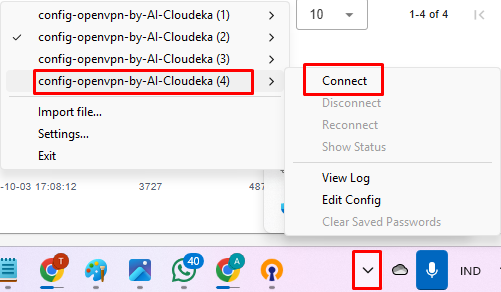
* Right-click the **OpenVPN tray icon** again, select the imported configuration, then click **Connect**.

<figure><img src="https://content.gitbook.com/content/cjAISi6xXwQD05JzCqqO/blobs/UymW7dHXKXBANESCyOhX/image.png" alt=""><figcaption></figcaption></figure>

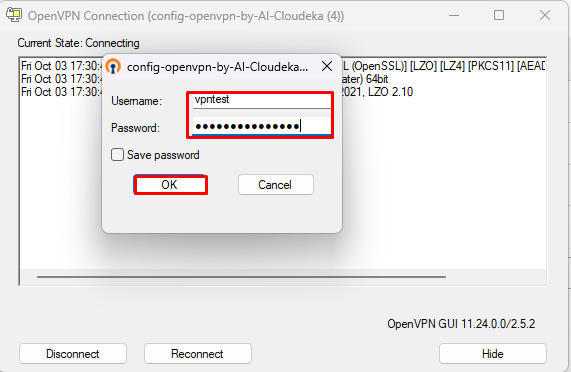
* Enter the **username** and **password** of the OpenVPN user account, then click **OK**.

<figure><img src="https://content.gitbook.com/content/cjAISi6xXwQD05JzCqqO/blobs/9Os8IjZtLlqBlZWVaHWX/image.png" alt=""><figcaption></figcaption></figure>

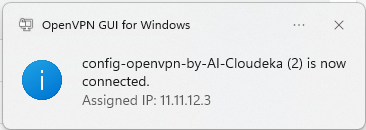
* Once connected, a notification appears showing the assigned IP address for the active VPN session.
<figure><img src="https://content.gitbook.com/content/cjAISi6xXwQD05JzCqqO/blobs/klittW8UBV5k03xIOayr/image.png" alt=""><figcaption></figcaption></figure>