> For the complete documentation index, see [llms.txt](https://docs.cloudeka.ai/llms.txt). Markdown versions of documentation pages are available by appending `.md` to page URLs; this page is available as [Markdown](https://docs.cloudeka.ai/guide-for-individual/bahasa/deka-vpn/configuration-deka-vpn-openvpn/download-component-client-export/download-for-mac-os.md).

# Download for Mac OS

The following are the steps to download and install the OpenVPN Mac OS client from the Service Portal AI:

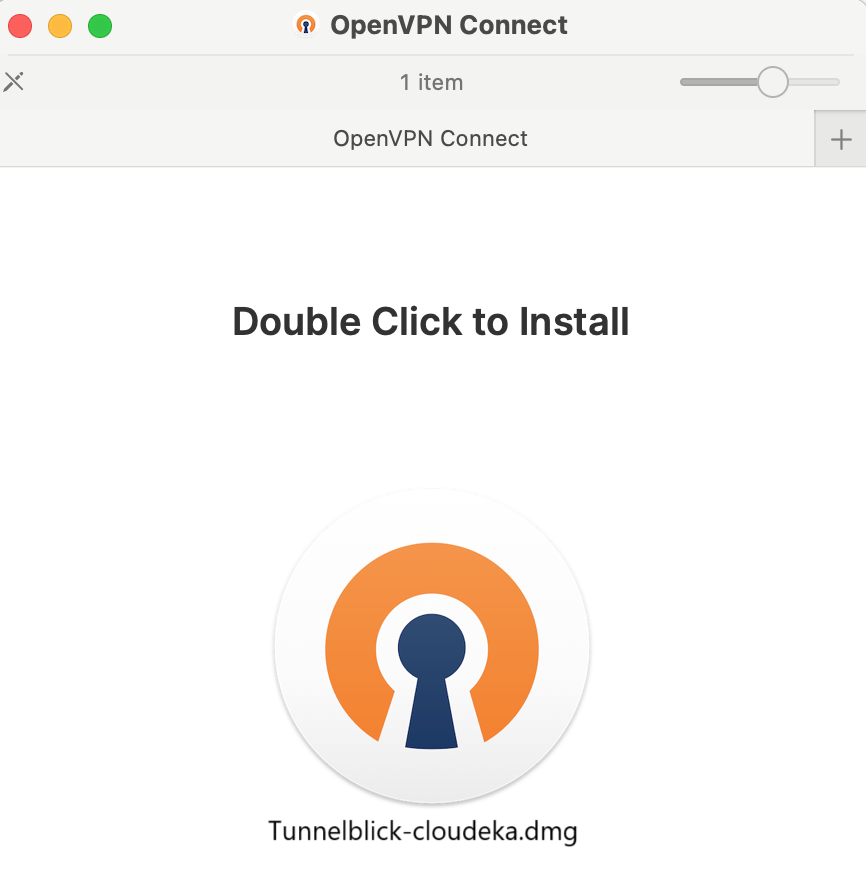
* Run the downloaded OpenVPN for MacOS installer.

<figure><img src="https://content.gitbook.com/content/cjAISi6xXwQD05JzCqqO/blobs/cx6JhPqSDZPP7qE6MPtx/image.png" alt="" width="375"><figcaption></figcaption></figure>

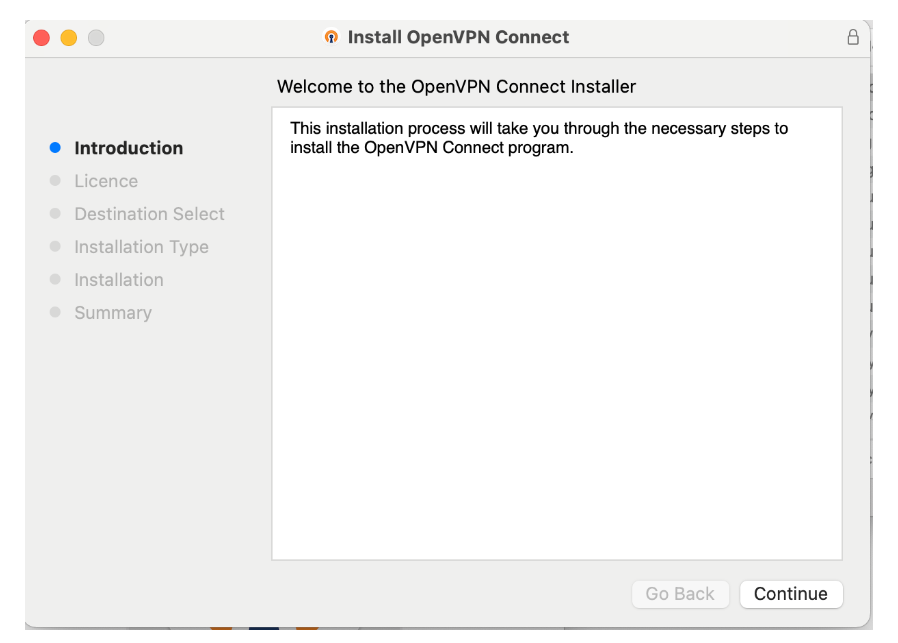
* The Install OpenVPN Connect page appears, press the Continue button.

<figure><img src="https://content.gitbook.com/content/cjAISi6xXwQD05JzCqqO/blobs/Y7IawcFyIP3puTzNztRo/image.png" alt="" width="375"><figcaption></figcaption></figure>

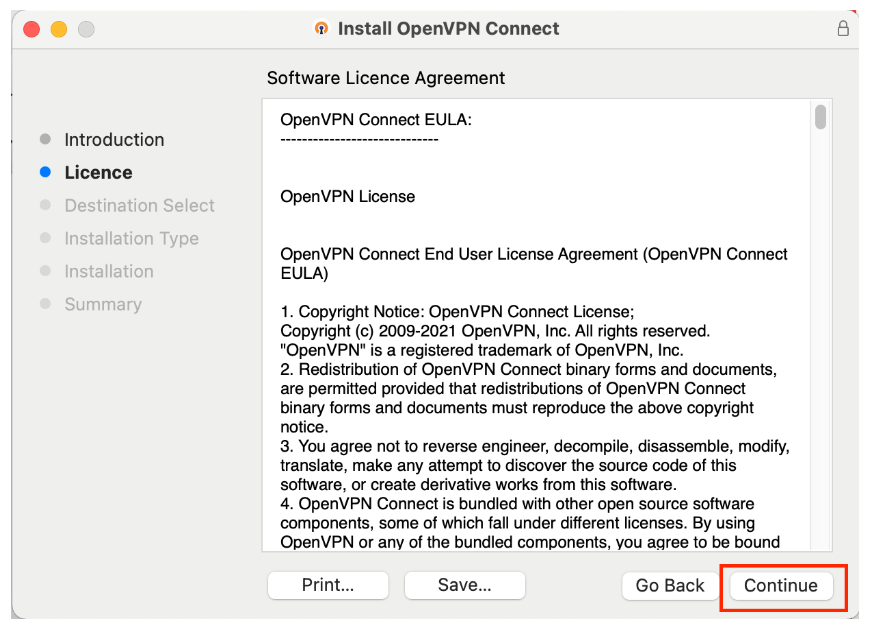
* Read the EULA and press the Continue button to continue the installation process.

<figure><img src="https://content.gitbook.com/content/cjAISi6xXwQD05JzCqqO/blobs/TU8Or8Y4sbEvA8419atr/image.png" alt="" width="375"><figcaption></figcaption></figure>

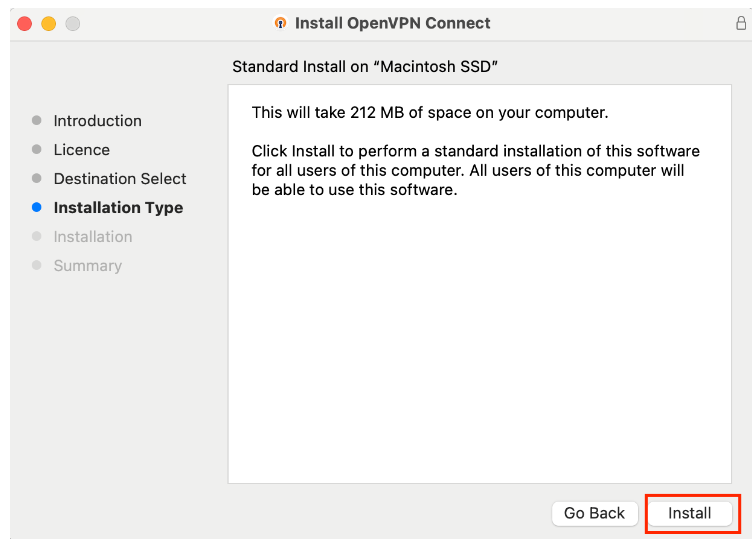
* In Installation Type, press Install.

<figure><img src="https://content.gitbook.com/content/cjAISi6xXwQD05JzCqqO/blobs/eXzvE8QxLaJtvwOUe8zm/image.png" alt="" width="375"><figcaption></figcaption></figure>

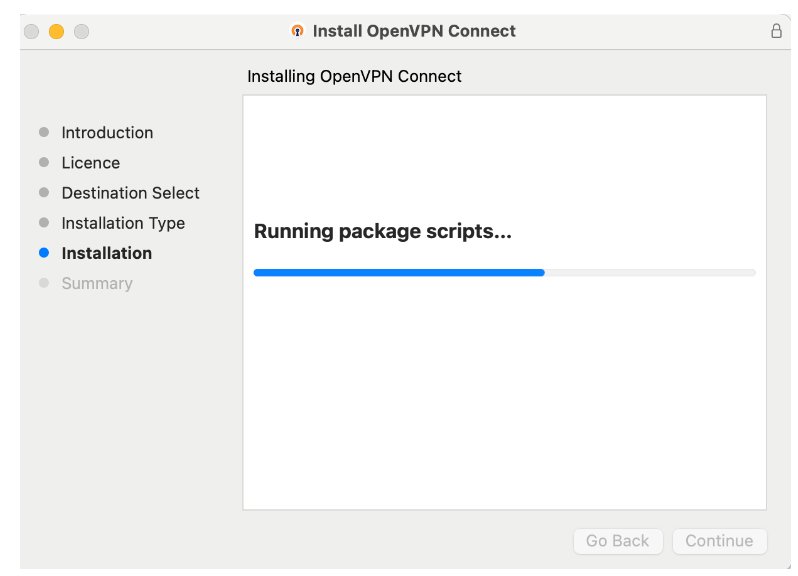
* Wait until the process is complete.

<figure><img src="https://content.gitbook.com/content/cjAISi6xXwQD05JzCqqO/blobs/Bk1iYQqfE8u9JWqQbf2Z/image.png" alt="" width="375"><figcaption></figcaption></figure>

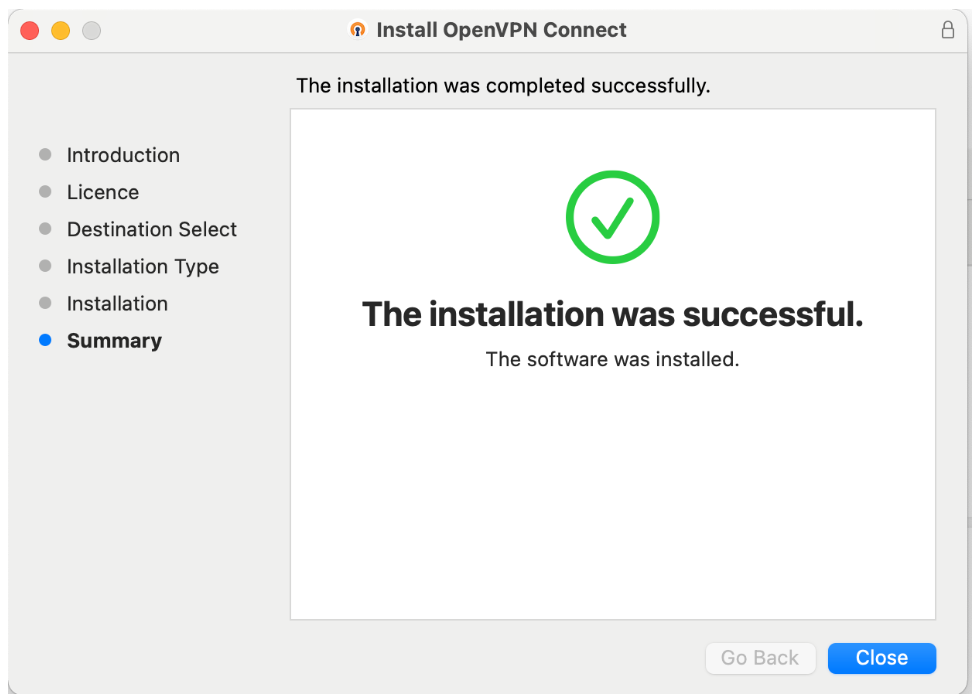
* The installation was completed successfully. The OpenVPN Connect software has been installed on your Mac. Click **Close** to exit the installer.

<figure><img src="https://content.gitbook.com/content/cjAISi6xXwQD05JzCqqO/blobs/CEOBGWmQdM08Y3x4olxZ/image.png" alt="" width="375"><figcaption></figcaption></figure>

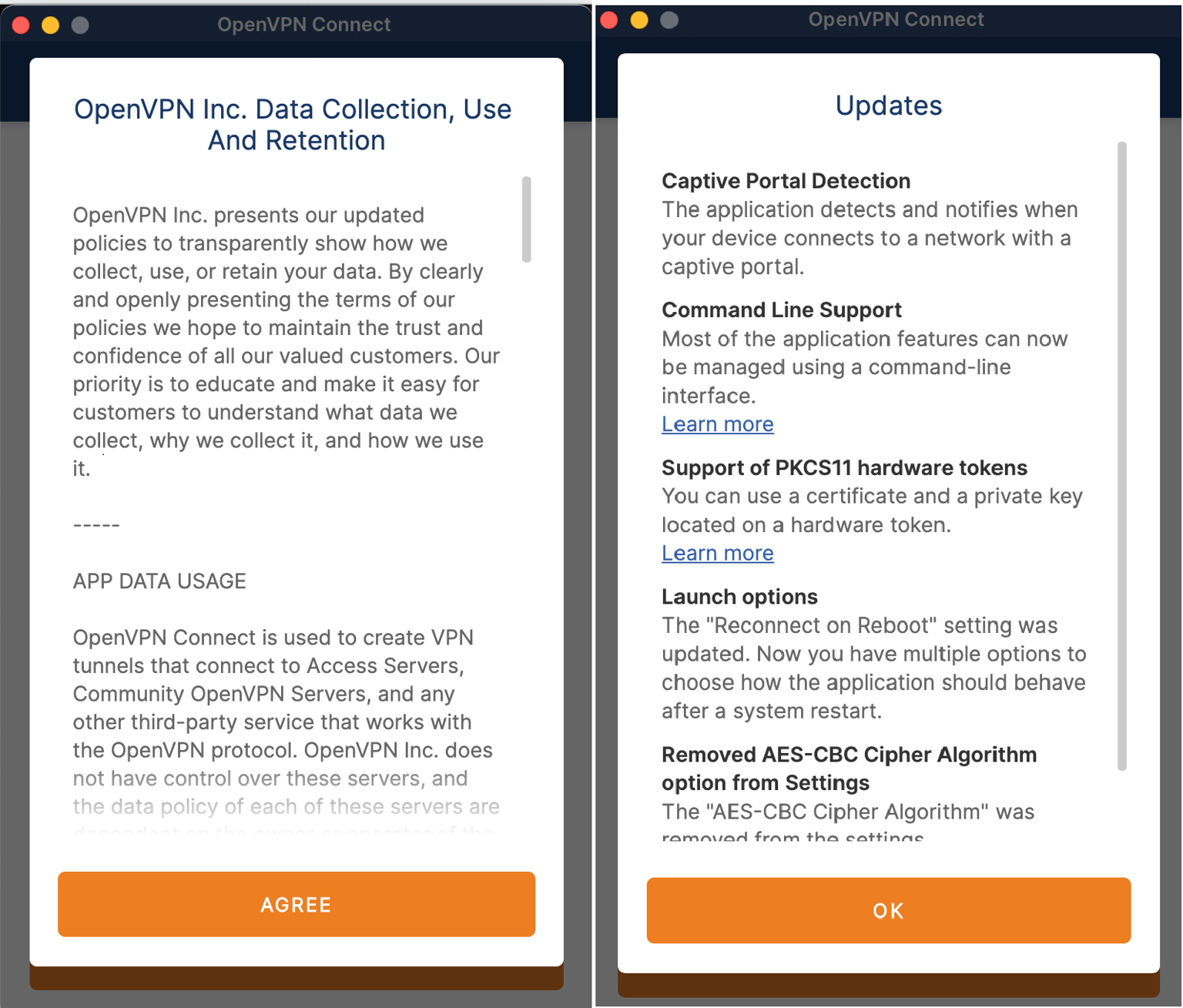
* Open the OpenVPN client application that you just installed in OpenVPN on your computer. Press the **Agree** and **OK** buttons. OpenVPN can now be run on your computer
<figure><img src="https://content.gitbook.com/content/cjAISi6xXwQD05JzCqqO/blobs/iGxhhSNp4jA13zDdha7H/image.png" alt="" width="375"><figcaption></figcaption></figure>