> For the complete documentation index, see [llms.txt](https://docs.cloudeka.ai/llms.txt). Markdown versions of documentation pages are available by appending `.md` to page URLs; this page is available as [Markdown](https://docs.cloudeka.ai/guideline-for-enterprise/cloudeka-service-portal/organization-settings/create-user/resend-invitation.md).
# Resend Invitation
After the user is successfully created, the system will send an invitation email for verification.\
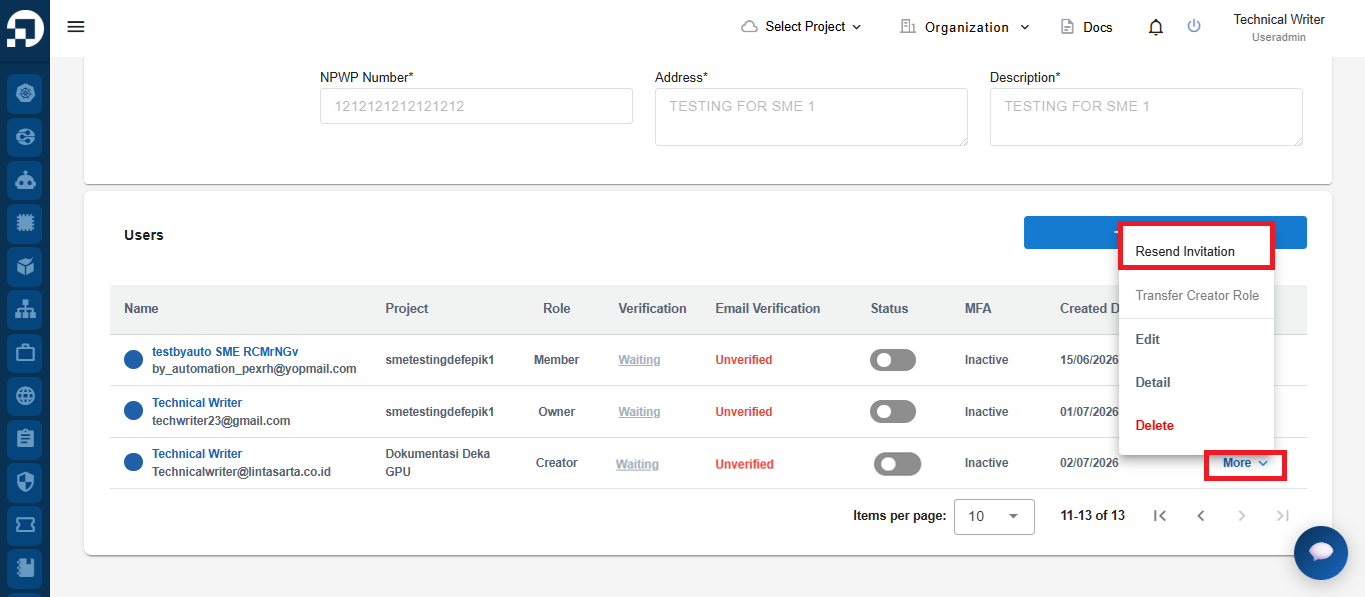
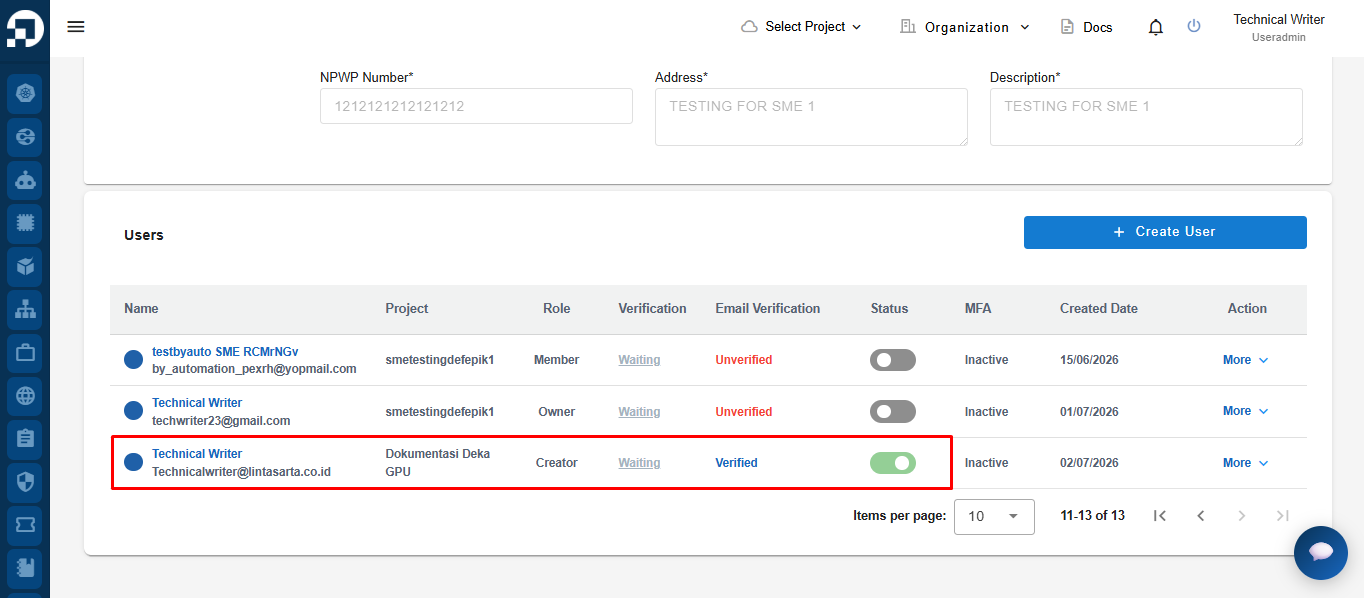
If the user has not verified their email, the admin can open the **More** menu in the user list and select **Resend Invitation** to resend the verification email.
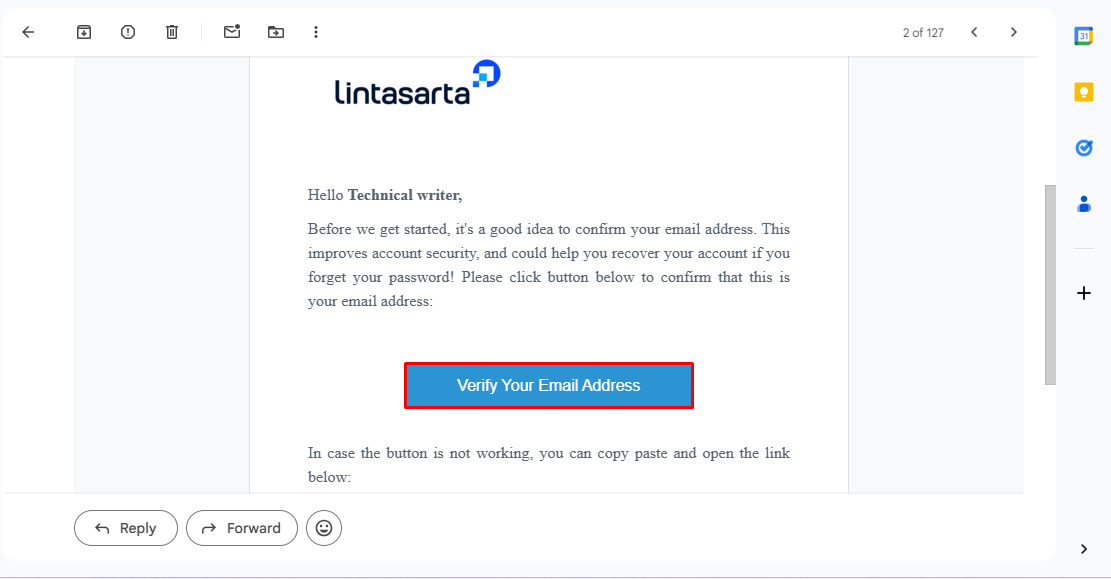
After **Resend Invitation** is selected, please check your email. You will receive a verification email. Click **Verify Your Email Address** to complete the email verification process.
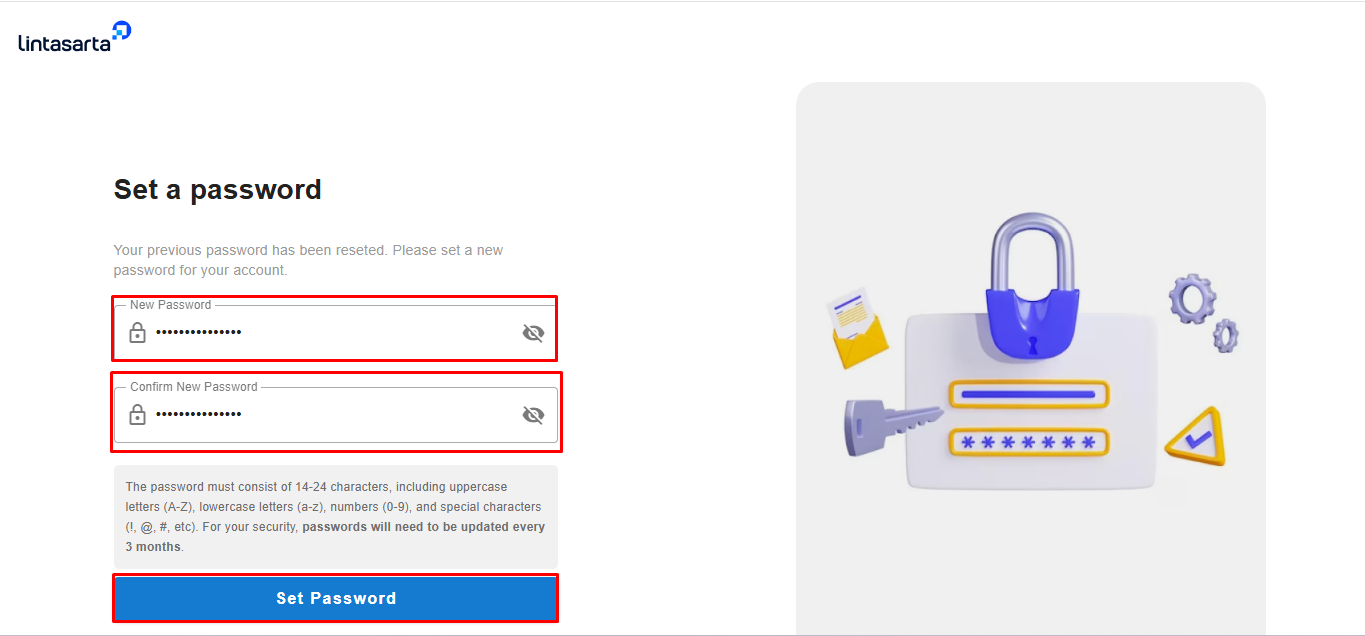
After clicking the **Verify Email** button, the system will automatically redirect the user to the **Set Password** page. On this page, the user is required to enter a **New Password** and **Confirm New Password**, then click the **Set Password** button to save the new password.
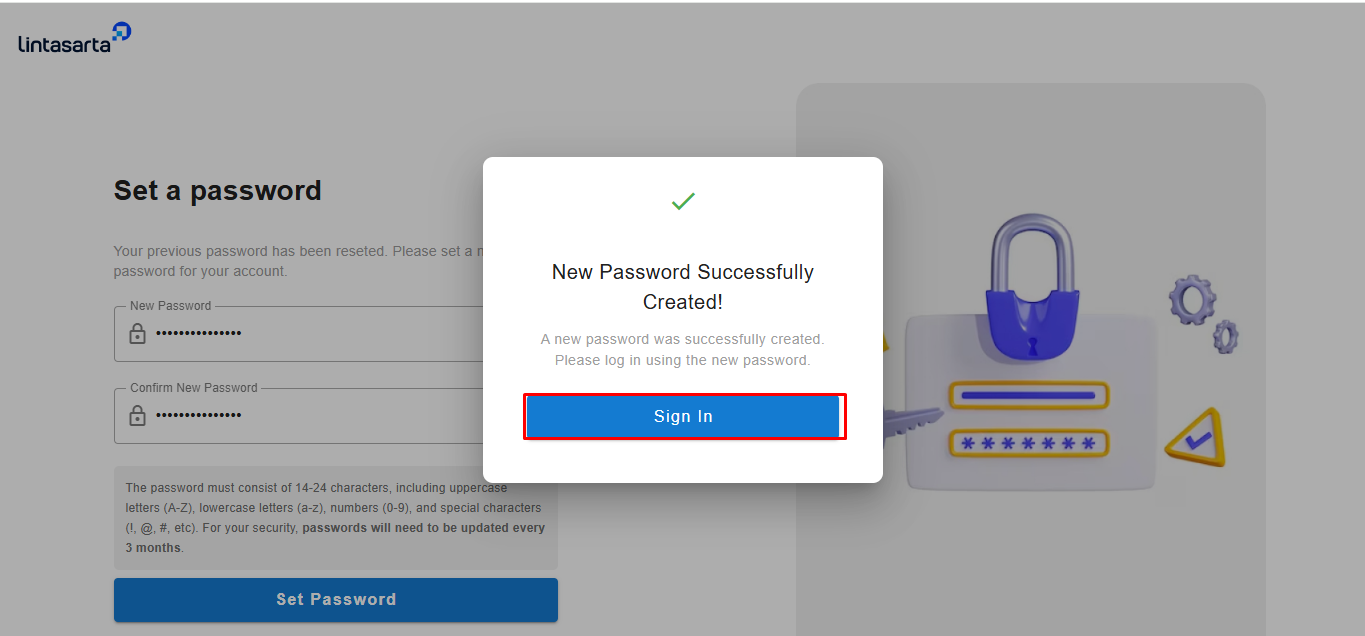
After clicking the **Set Password** button, the system will display a notification indicating that the new password has been successfully created. The user can proceed by clicking the **Sign In** button to log in to the account using the new password.
After the email verification process is completed, the user account status will automatically be updated to **Active**, allowing the user to proceed with the password setup and access the system.