> For the complete documentation index, see [llms.txt](https://docs.cloudeka.ai/llms.txt). Markdown versions of documentation pages are available by appending `.md` to page URLs; this page is available as [Markdown](https://docs.cloudeka.ai/guideline-for-enterprise/cloudeka-service-portal/sign-up.md).

# Sign Up

{% hint style="success" %}
This section just for project type Small and Medium Enterprise using payment method Prepaid.
{% endhint %}

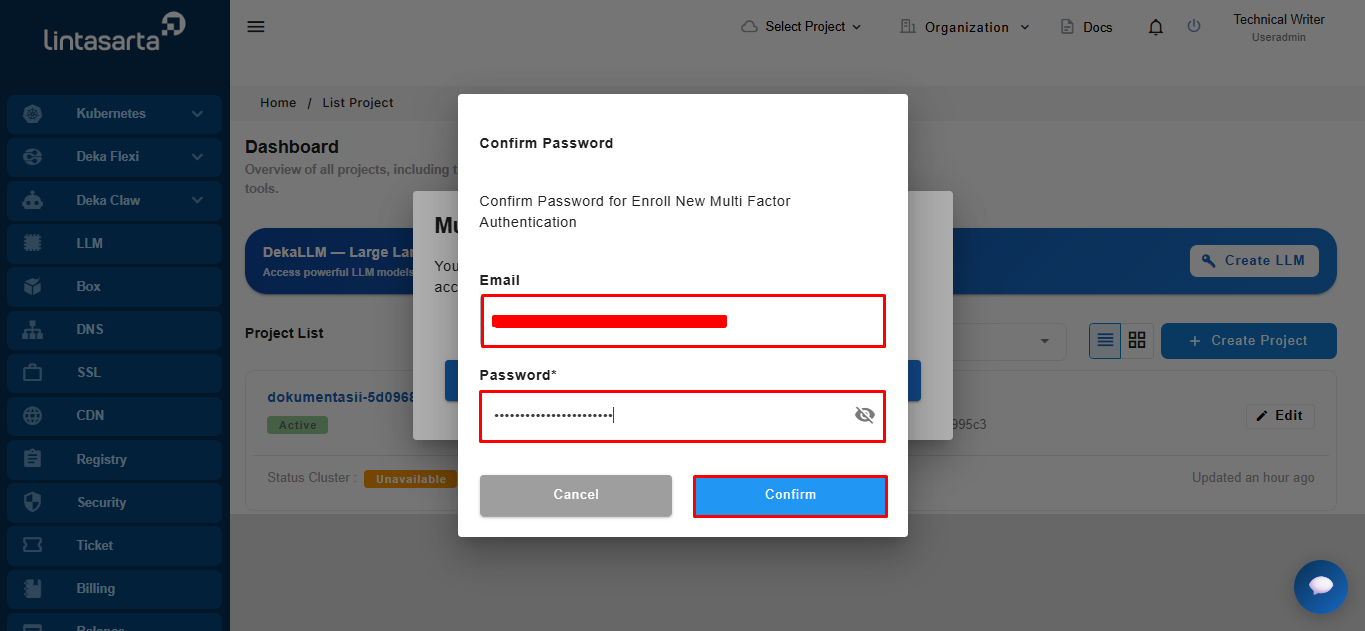
To access the Service Portal Cloudeka, you must first have an account. You need to register once by visiting the Service Portal Cloudeka at the following link[ https://ai.cloudeka.id](https://ai.cloudeka.id) in your browser, then the "Sign In Now!" page will be displayed. Click the "Sign Up" button.

<figure><img src="https://2882153758-files.gitbook.io/~/files/v0/b/gitbook-x-prod.appspot.com/o/spaces%2Fi9YWb69HFXLHYlXffReU%2Fuploads%2Fgit-blob-8d1bf98ea43f2deb72cdf3c09a9979742fa07708%2Funknown.png?alt=media" alt=""><figcaption></figcaption></figure>

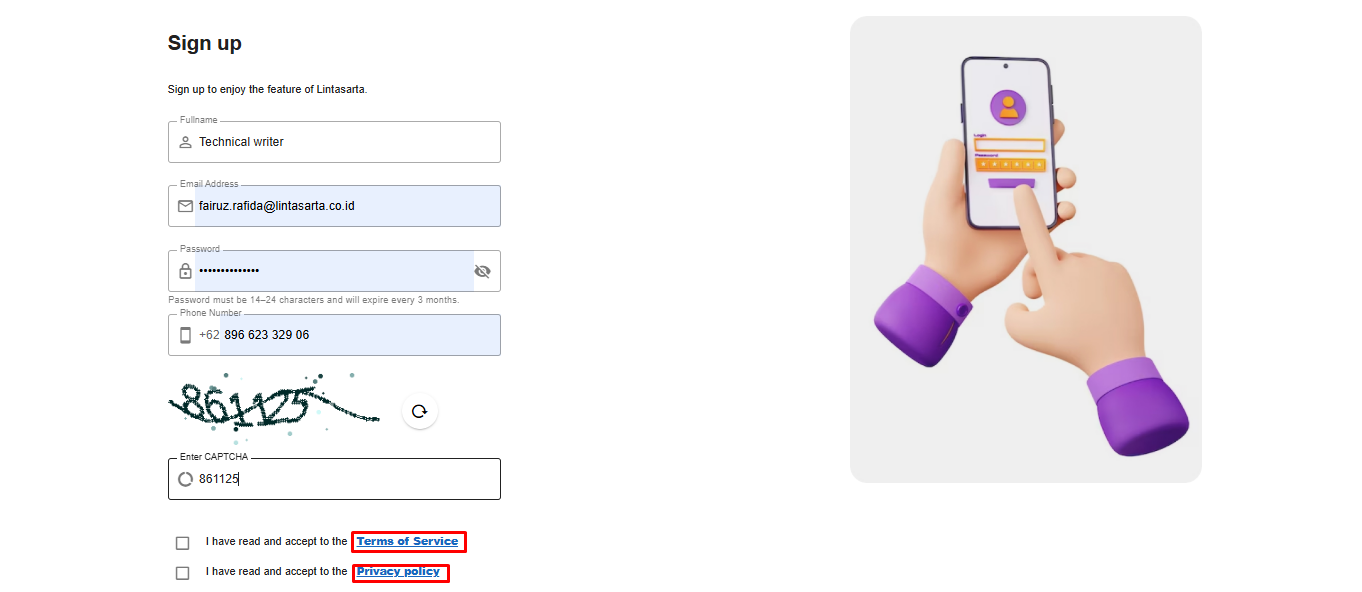
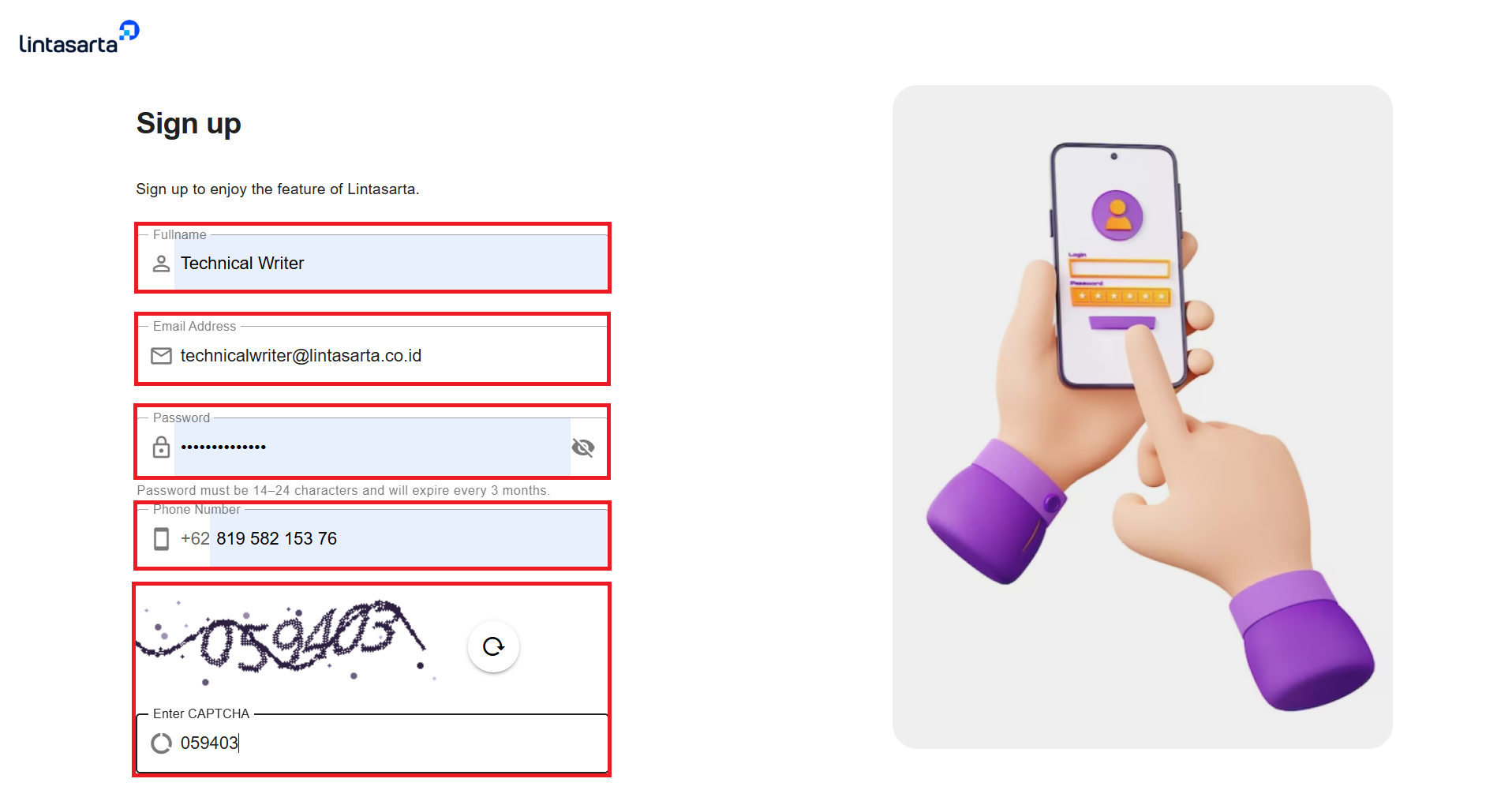
Since you are registering through the Sign In page of the **Service Portal Cloudeka**, the account created will automatically be of the SME type for personal use. However, if you require an account for business or an organization with legal entity status, you can contact the Lintasarta Sales Team. On the Sign Up page, fill in several fields, including Full Name, Email Address, Password, and Phone Number. Finally, input the code displayed in the reCAPTCHA field.

<figure><img src="https://2882153758-files.gitbook.io/~/files/v0/b/gitbook-x-prod.appspot.com/o/spaces%2Fi9YWb69HFXLHYlXffReU%2Fuploads%2Fgit-blob-4176ec1842089a72b894e95b4930570bb55936c3%2Fimage.png?alt=media" alt=""><figcaption></figcaption></figure>

<table><thead><tr><th width="157">Column</th><th>Description</th></tr></thead><tbody><tr><td>Full Name</td><td>Full name of the prospective user.</td></tr><tr><td>Email Address</td><td>Electronic mail that will be registered using the Service Portal Cloudeka.</td></tr><tr><td>Password</td><td><p>Consists of a minimum of 14 characters using a combination of uppercase letters, lowercase letters, numbers, and special character (e.g., !, @, #, $). If the password created does not comply with the existing provisions, a warning will appear, for example: must include symbols.</p><p>For security reasons, you are required to change your password every 90 days.</p></td></tr><tr><td>Phone Number</td><td>The telephone number of the user to be registered.</td></tr><tr><td>CAPCTHA</td><td>A security verification code used to confirm that the user is a human and prevent automated or bot activity during the sign-up process.</td></tr></tbody></table>

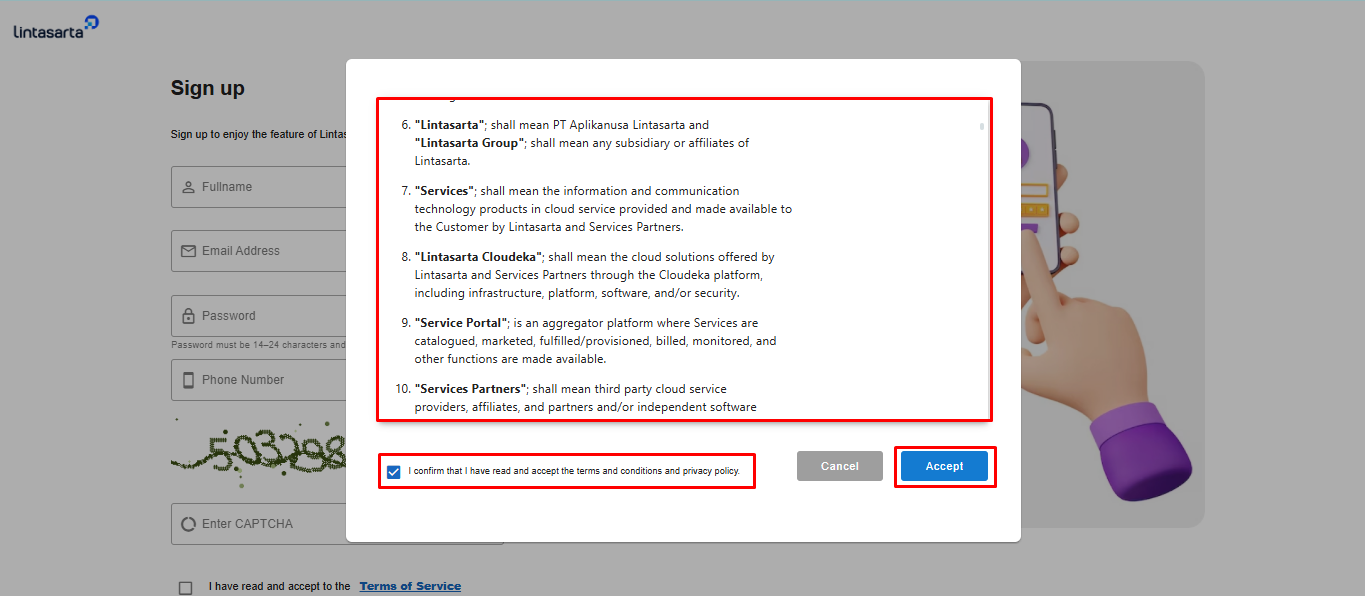
At the bottom of the form, there are links to the "Terms of Service" and "Privacy Policy," which you must agree to as a user.

<figure><img src="https://2882153758-files.gitbook.io/~/files/v0/b/gitbook-x-prod.appspot.com/o/spaces%2Fi9YWb69HFXLHYlXffReU%2Fuploads%2Fgit-blob-690524de7d03d5e3204200866891a0106a2ed097%2Fimage.png?alt=media" alt=""><figcaption></figcaption></figure>

First, you can click the **"Terms of Service"** link. This link displays a **"Terms & Conditions"** window, where you need to read and understand the rules and conditions you must comply with as a user when using Lintasarta services. The checkbox will be automatically checked once you have read the **"Terms & Conditions."** Click the **"Accept"** button to agree to the **"Terms & Conditions"** provided by Lintasarta.

<figure><img src="https://2882153758-files.gitbook.io/~/files/v0/b/gitbook-x-prod.appspot.com/o/spaces%2Fi9YWb69HFXLHYlXffReU%2Fuploads%2Fgit-blob-65272cae3da6bedf901f28784c1354b893427d36%2Funknown.png?alt=media" alt=""><figcaption></figcaption></figure>

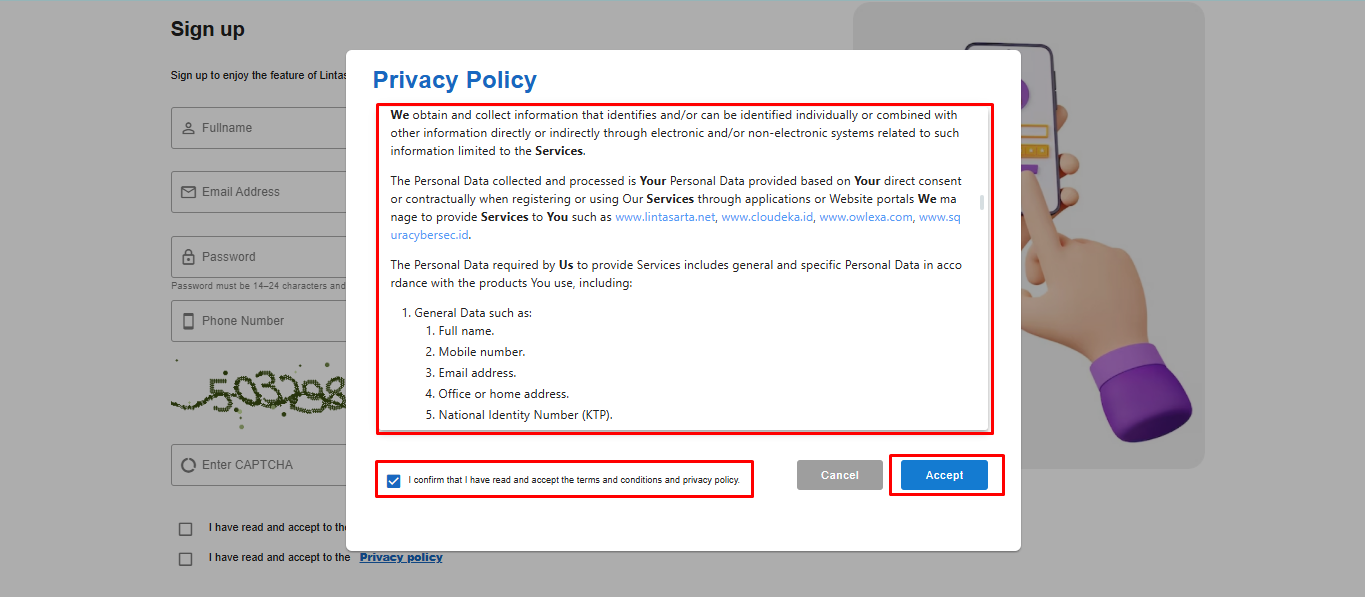
After agreeing to the **"Terms & Conditions"** provided by Lintasarta, you can click the **"Privacy Policy"** link. This link displays the **"Privacy Policy"** window, where you must read and understand how Lintasarta collects, stores, uses, and protects your personal data as a Lintasarta service user. The checkbox will be automatically checked once you have read the **"Privacy Policy."** Click the **"Accept"** button to agree to the **"Privacy Policy"** explained by Lintasarta.

<figure><img src="https://2882153758-files.gitbook.io/~/files/v0/b/gitbook-x-prod.appspot.com/o/spaces%2Fi9YWb69HFXLHYlXffReU%2Fuploads%2Fgit-blob-48f269063075daf1fe56914d23cd1b7891afdf1f%2Funknown.png?alt=media" alt=""><figcaption></figcaption></figure>

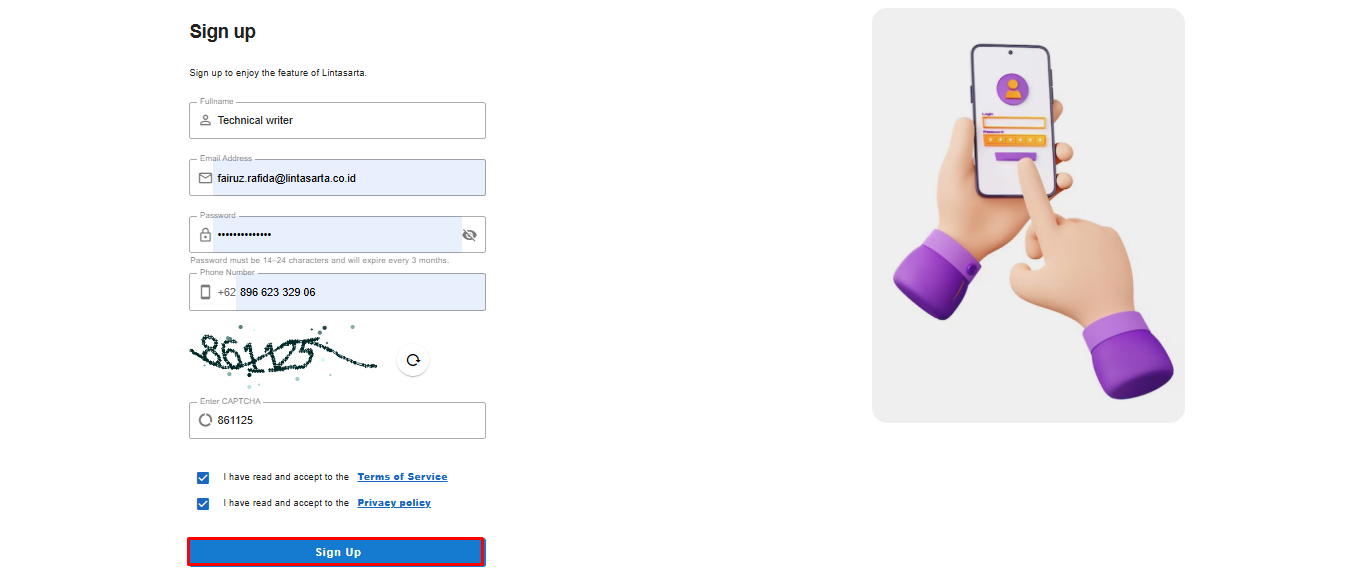
Click the "Sign Up" button to continue the account registration process.

<figure><img src="https://2882153758-files.gitbook.io/~/files/v0/b/gitbook-x-prod.appspot.com/o/spaces%2Fi9YWb69HFXLHYlXffReU%2Fuploads%2Fgit-blob-763dca86c8dd1211d29269920fd0f39f23451f84%2Fimage.png?alt=media" alt=""><figcaption></figcaption></figure>

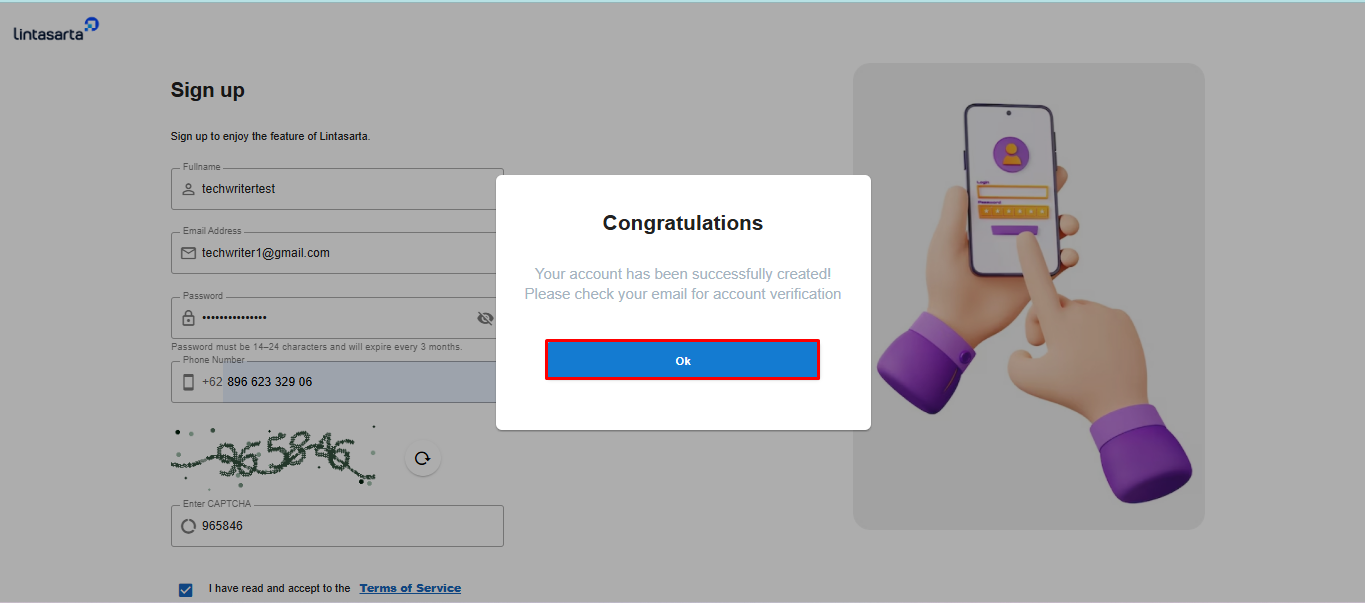
If the registration is successful, a "Congratulations" window will appear. You need to check the email you registered with Service Portal Cloudeka.

<figure><img src="https://2882153758-files.gitbook.io/~/files/v0/b/gitbook-x-prod.appspot.com/o/spaces%2Fi9YWb69HFXLHYlXffReU%2Fuploads%2Fgit-blob-c00802dc430a29ee42e090ed06118fe5d1d7da59%2Funknown.png?alt=media" alt=""><figcaption></figcaption></figure>

To verify your email, click the "Verify Your Email Address" button and follow the next steps. However, if the "Verify Your Email Address" button is not functional, you can use the available link by clicking it or copying it into your browser.

<figure><img src="https://lh7-rt.googleusercontent.com/docsz/AD_4nXfd9qXolcqbMxfmR-MxiX2-3663MR2EqkdQ6oihXZm_KcNvCaHBM2iLKFrs2mdPiQzGRkcyt7OEyFD-9ATWzWzfQO0q2u_R5MG_4CfKxg-bOKQZ9PXCped4dPz0IZ7qCTQ4_nCj1A?key=gaxZA46fxTtPmci_iDkvY-35" alt=""><figcaption></figcaption></figure>

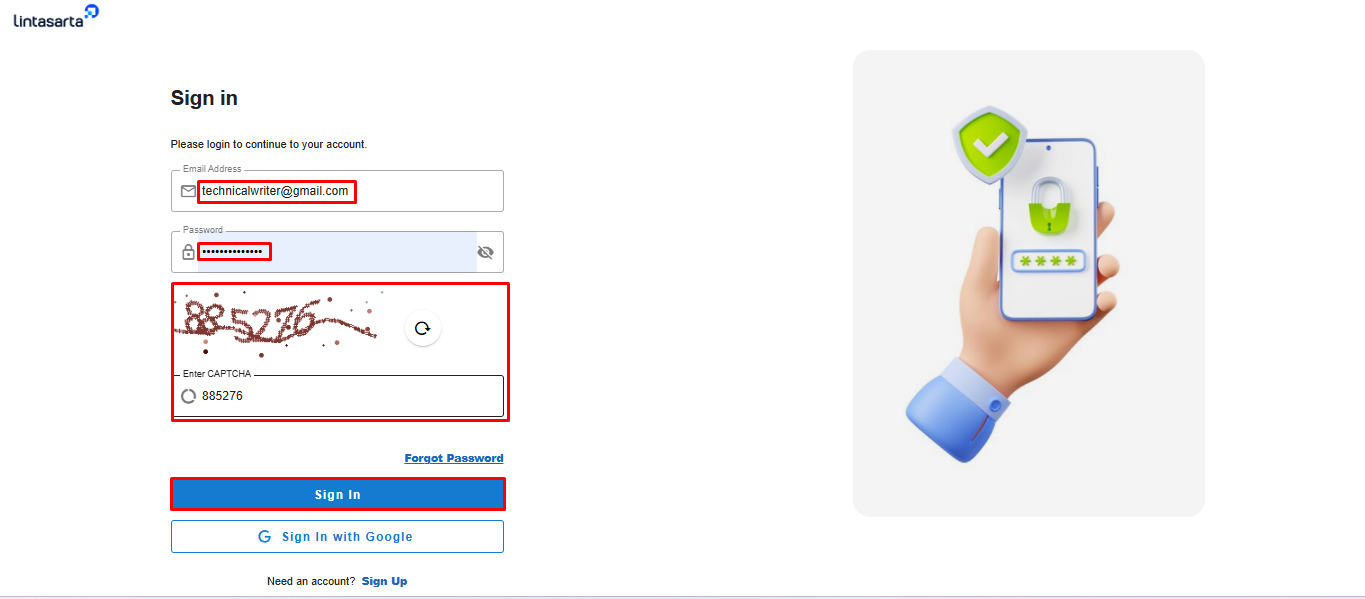
On the Service Portal Cloudeka Sign In page. Enter your registered email address and password for the Service Portal Cloudeka. Input the code in the reCAPTCHA field, then click the Sign In button.

<figure><img src="https://2882153758-files.gitbook.io/~/files/v0/b/gitbook-x-prod.appspot.com/o/spaces%2Fi9YWb69HFXLHYlXffReU%2Fuploads%2Fgit-blob-8fd092b422abe31ce9e04a0b7ac70bf679c63150%2Fimage.png?alt=media" alt=""><figcaption></figcaption></figure>

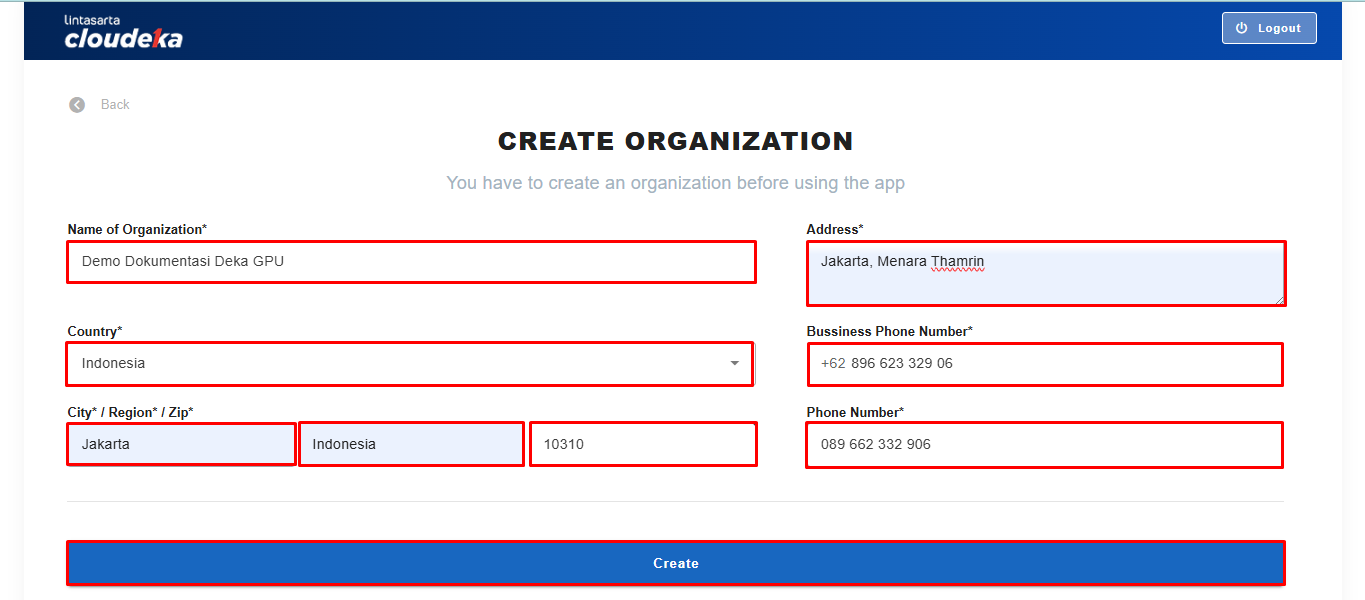
Once you have successfully logged in, since you are a new user who does not yet have an organization or registered project in the **Service Portal Cloudeka**, the first page displayed is the **"Create Organization"** page. You are required to fill in several fields. After completing all the fields on the **"Create Organization"** page, click the **"Create"** button to proceed to the project creation stage.

<figure><img src="https://putri.box.cloudeka.id/cloudeka-assets/docs.cloudeka.ai/0serviceportalai/signupbaru_01.png" alt=""><figcaption></figcaption></figure>

<table><thead><tr><th width="217.83331298828125">Column</th><th>Description</th></tr></thead><tbody><tr><td>Name Of Organization</td><td>The official name of the organization that will use the Service Portal Cloudeka.</td></tr><tr><td>Country</td><td>The country where the organization is located that uses the Service Portal Cloudeka.</td></tr><tr><td>City/Region/Zip</td><td>The city, region, and zip code where the organization is located that uses the Service Portal Cloudeka.</td></tr><tr><td>Address</td><td>The official address used of the organization using the Service Portal Cloudeka.</td></tr><tr><td>Bussiness Phone Number</td><td>The business telephone number used by organizations using the Service Portal Cloudeka.</td></tr><tr><td>Phone Number</td><td>The phone number used to contact the organization or user associated with the Service Portal Cloudeka.</td></tr></tbody></table>

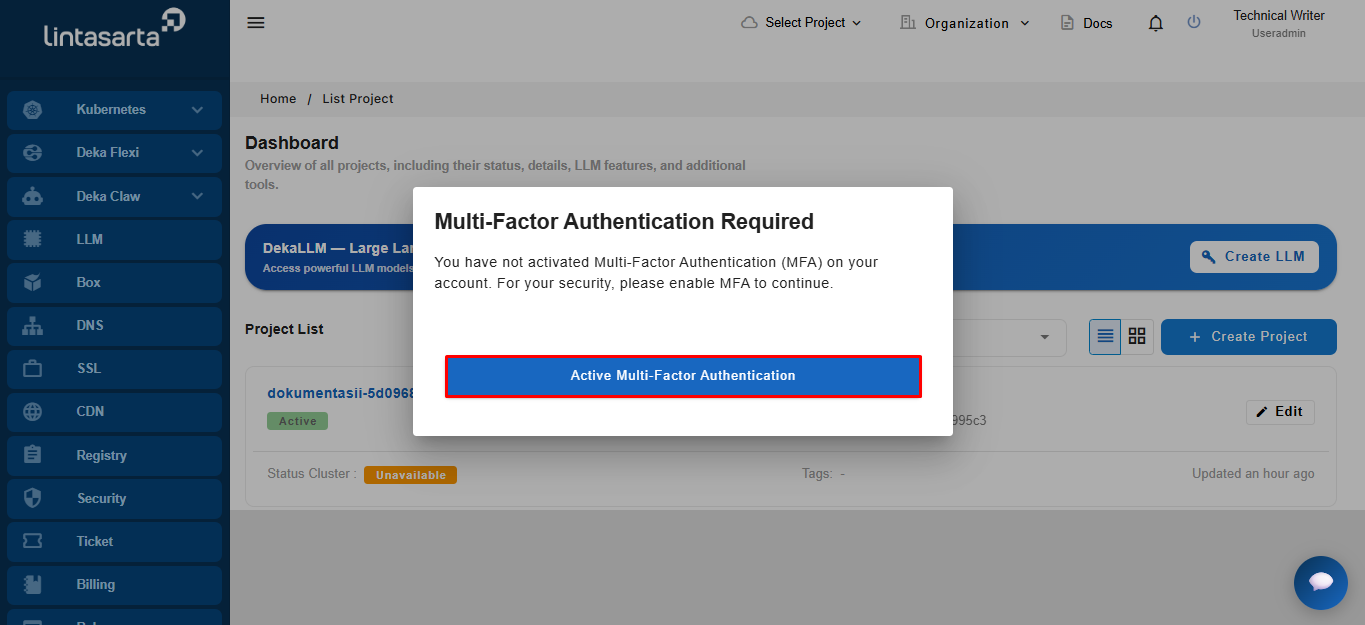
After you Create Organization, a window for Multi-Factor Authentication Required activation will appear. Click the **Active Multi-Factor Authentication**.

<figure><img src="https://putri.box.cloudeka.id/cloudeka-assets/docs.cloudeka.ai/0serviceportalai/signupbaru_02.png" alt=""><figcaption></figcaption></figure>

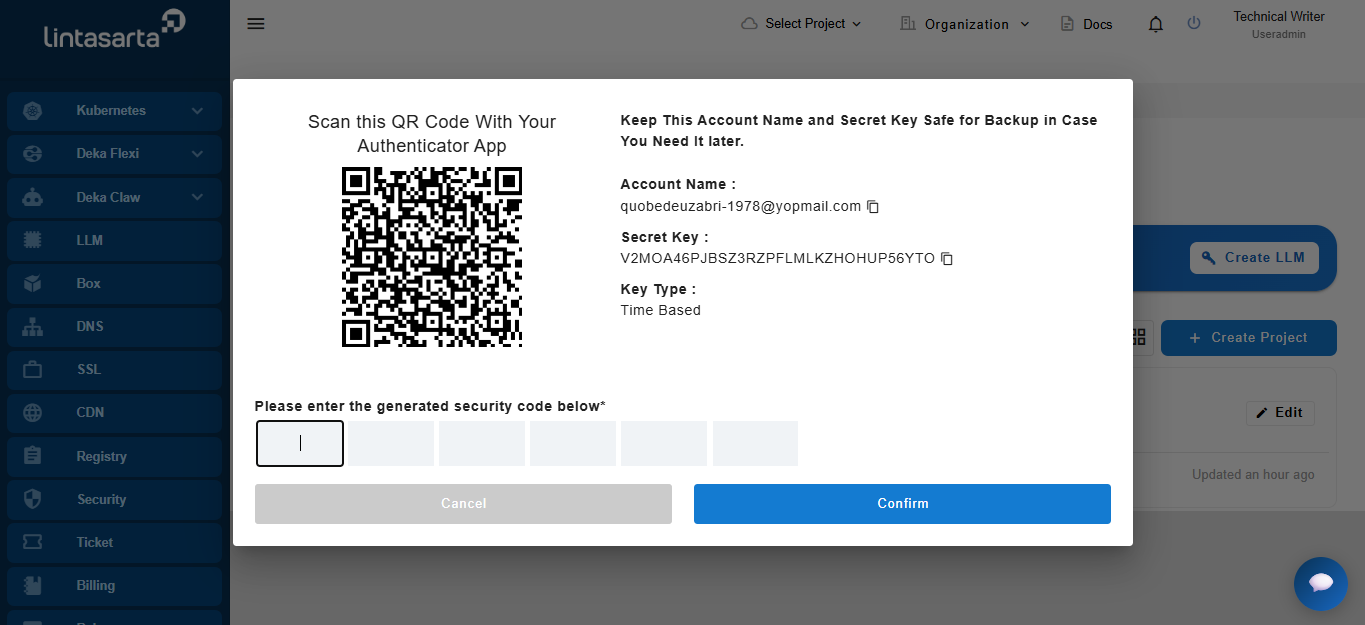
The Confirm Password window will then be displayed, enter your current password and click the Confirm button to proceed with the MFA activation.

<figure><img src="https://putri.box.cloudeka.id/cloudeka-assets/docs.cloudeka.ai/0serviceportalai/signupbaru_03.png" alt=""><figcaption></figcaption></figure>

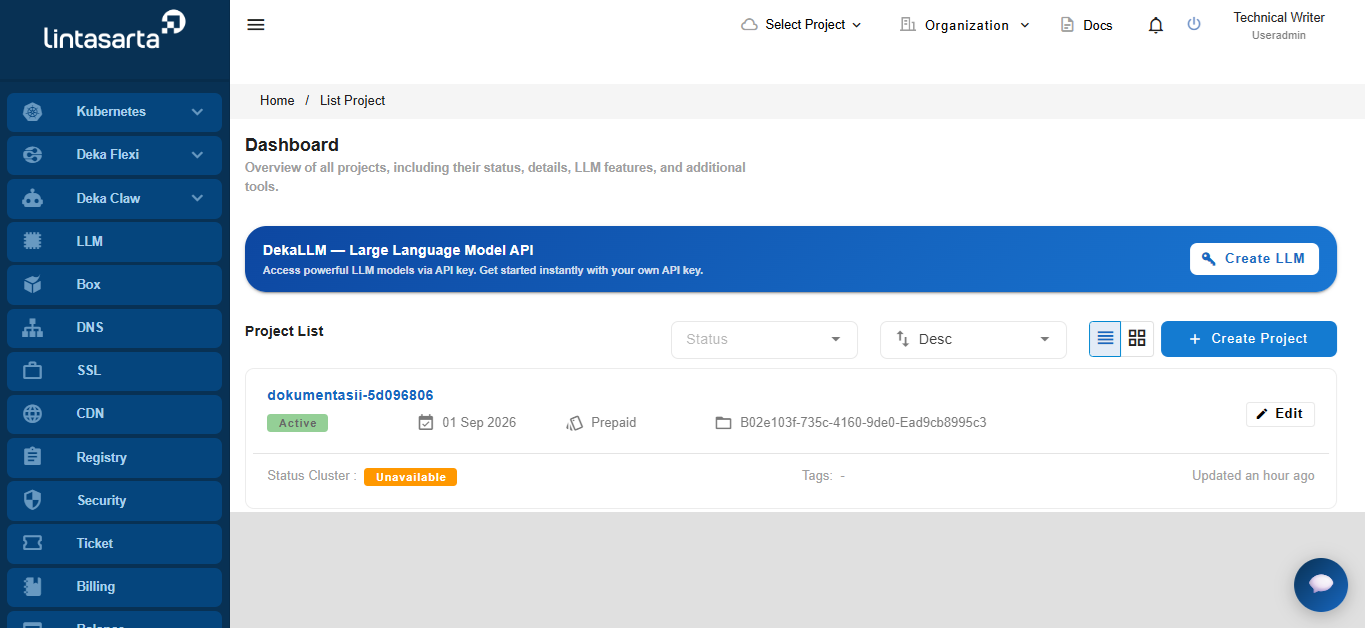
In the next step, you can download an authentication app on your smartphone. This guide only demonstrates the use of Google Authenticator and Microsoft Authenticator. For Android smartphone users, here are the links for [Google Authenticator](https://play.google.com/store/apps/details?id=com.google.android.apps.authenticator2) and [Microsoft Authenticator](https://play.google.com/store/apps/details?id=com.azure.authenticator). For iOS smartphone users, here are the links for [Google Authenticator](https://apps.apple.com/us/app/google-authenticator/id388497605) and [Microsoft Authenticator](https://apps.apple.com/us/app/microsoft-authenticator/id983156458).

<figure><img src="https://putri.box.cloudeka.id/cloudeka-assets/docs.cloudeka.ai/0serviceportalai/signupbaru_04.png" alt=""><figcaption></figcaption></figure>

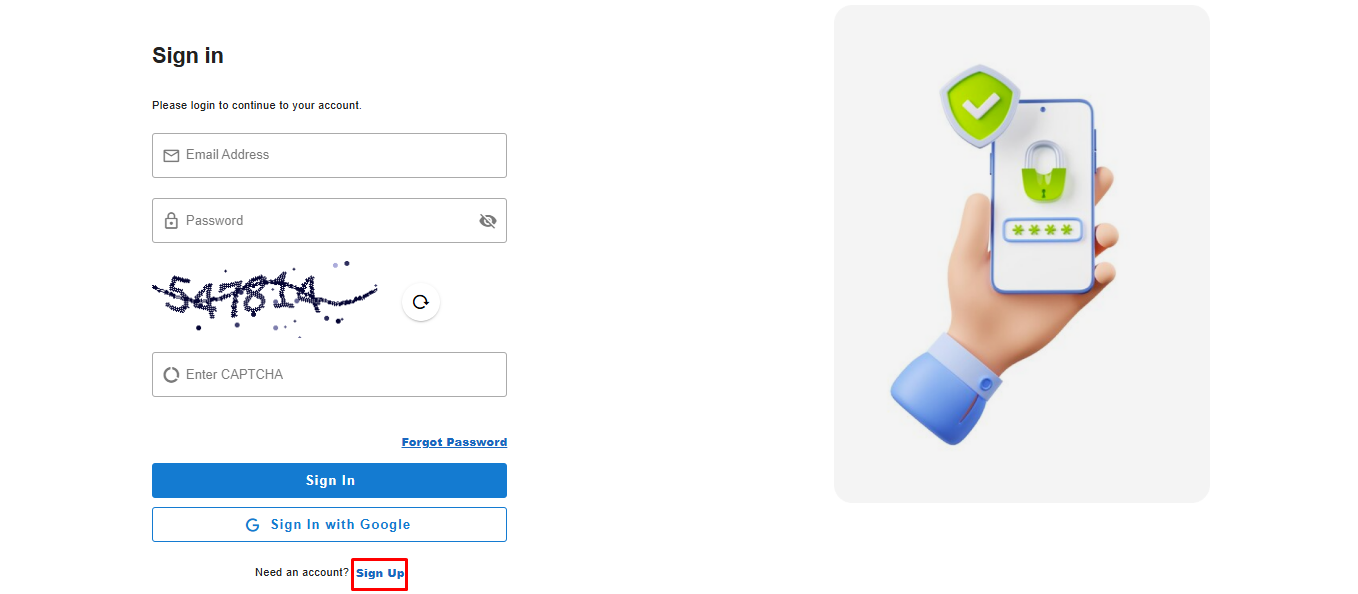
You can see the projects you have added in your organization in the Service Portal Cloudeka still with **Status Cluster "Pending"** wait a few moments for the email **Status Cluster** "**Ready**".

{% hint style="info" %}
A project has been automatically created based on your organization. The name is auto-generated with a unique identifier to prevent duplication and is available in the dashboard.
{% endhint %}

{% hint style="success" %}
The cluster status will change from “Pending” to “Ready” approximately 15 minutes after the project has been created.
{% endhint %}

<figure><img src="https://putri.box.cloudeka.id/cloudeka-assets/docs.cloudeka.ai/0serviceportalai/signupbaru_05.png" alt=""><figcaption></figcaption></figure>