> For the complete documentation index, see [llms.txt](https://docs.cloudeka.ai/llms.txt). Markdown versions of documentation pages are available by appending `.md` to page URLs; this page is available as [Markdown](https://docs.cloudeka.ai/guideline-for-enterprise/deka-flexi/deka-volume-images/snapshot/snapshot-for-storage/take-snapshot.md).

# Take Snapshot

This guide describes how to take a snapshot for a storage. You can create a storage snapshot even when the storage is attached to a running instance.

{% hint style="warning" %}
Before creating a snapshot for storage, make sure that you already have storage available. If you do not have storage yet, you can create one in **Create Block Storage**.
{% endhint %}

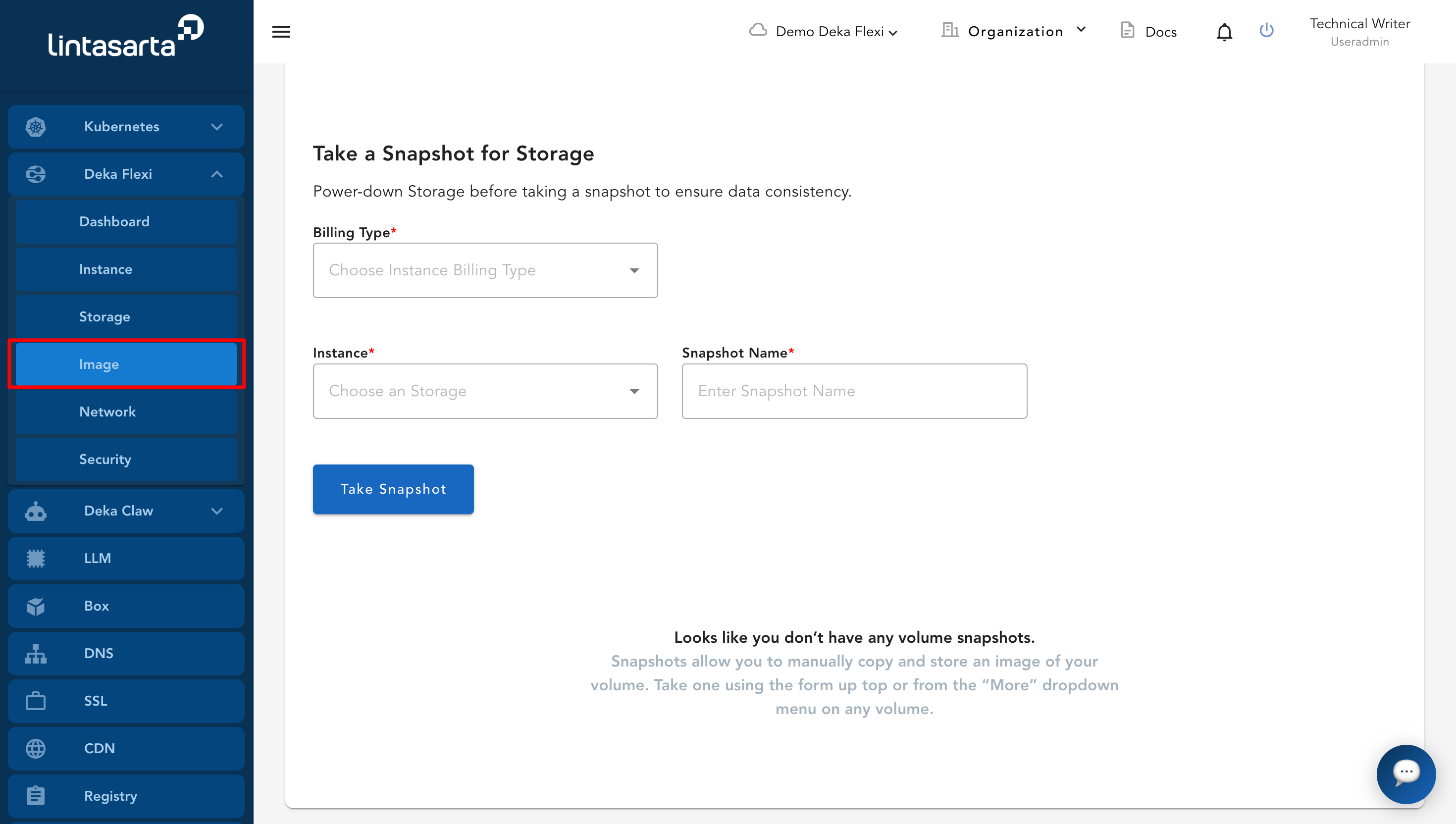
* Go to the **Snapshot** page. Under the **Take a Snapshot for Instance** form, you will find the **Take a Snapshot for Storage** form.

<figure><img src="https://putri.box.cloudeka.id/cloudeka-assets/docs.cloudeka.ai/6dekaflexi/takesnapshotstorage_01.png" alt=""><figcaption></figcaption></figure>

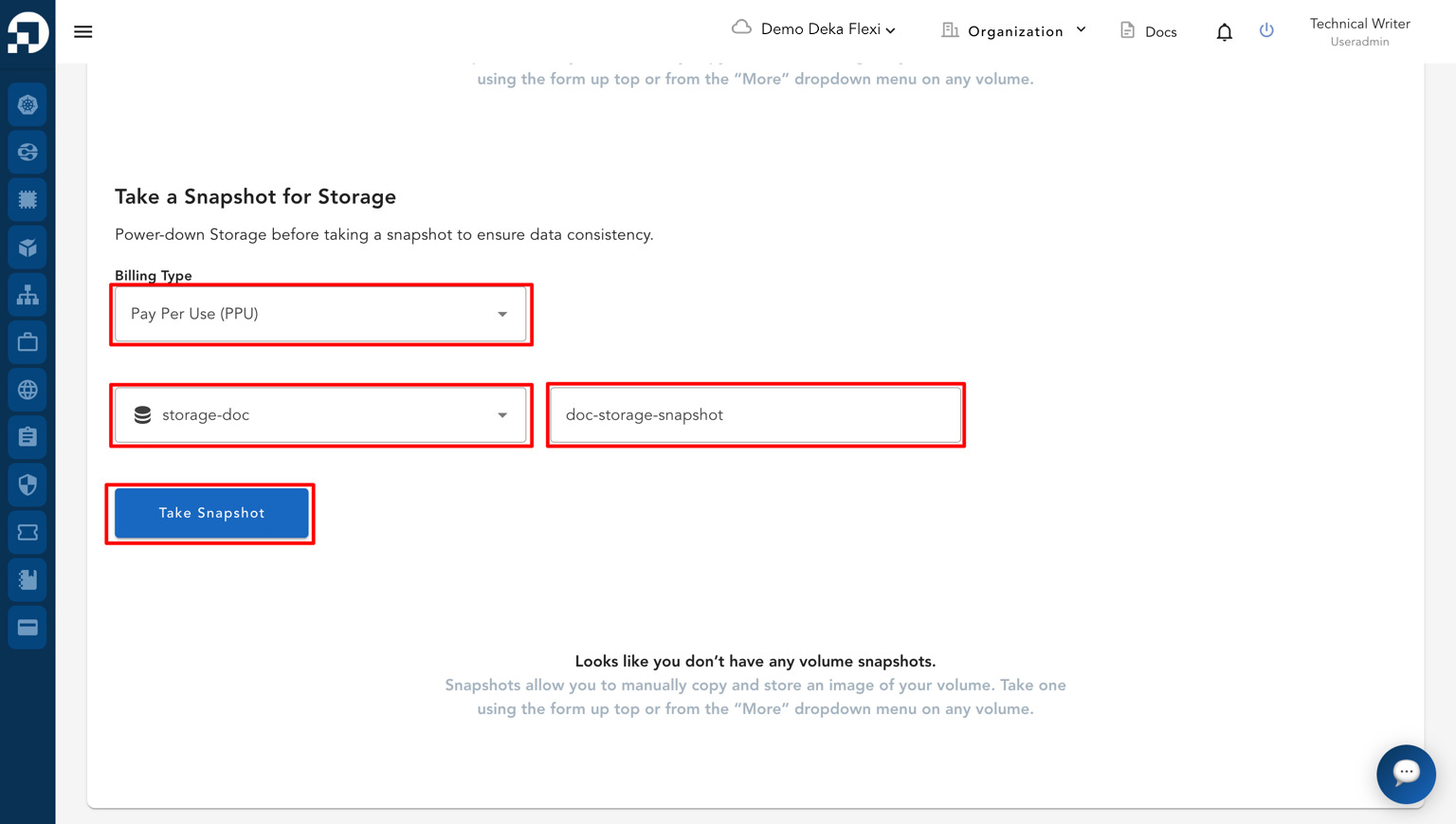
* Fill in the **Take a Snapshot for Storage** form.

<table><thead><tr><th width="250">Column</th><th>Description</th></tr></thead><tbody><tr><td><strong>Billing Type</strong></td><td>Select the billing type according to the payment method used in your project.</td></tr><tr><td><strong>Choose A Storage</strong></td><td>Select the storage that you want to create a snapshot from.</td></tr><tr><td><strong>Enter Snapshot Name</strong></td><td>Enter the name of the snapshot.</td></tr></tbody></table>

* After all fields are completed, click the **Take Snapshot** button.

<figure><img src="https://putri.box.cloudeka.id/cloudeka-assets/docs.cloudeka.ai/6dekaflexi/takesnapshotstorage_02.png" alt=""><figcaption></figcaption></figure>

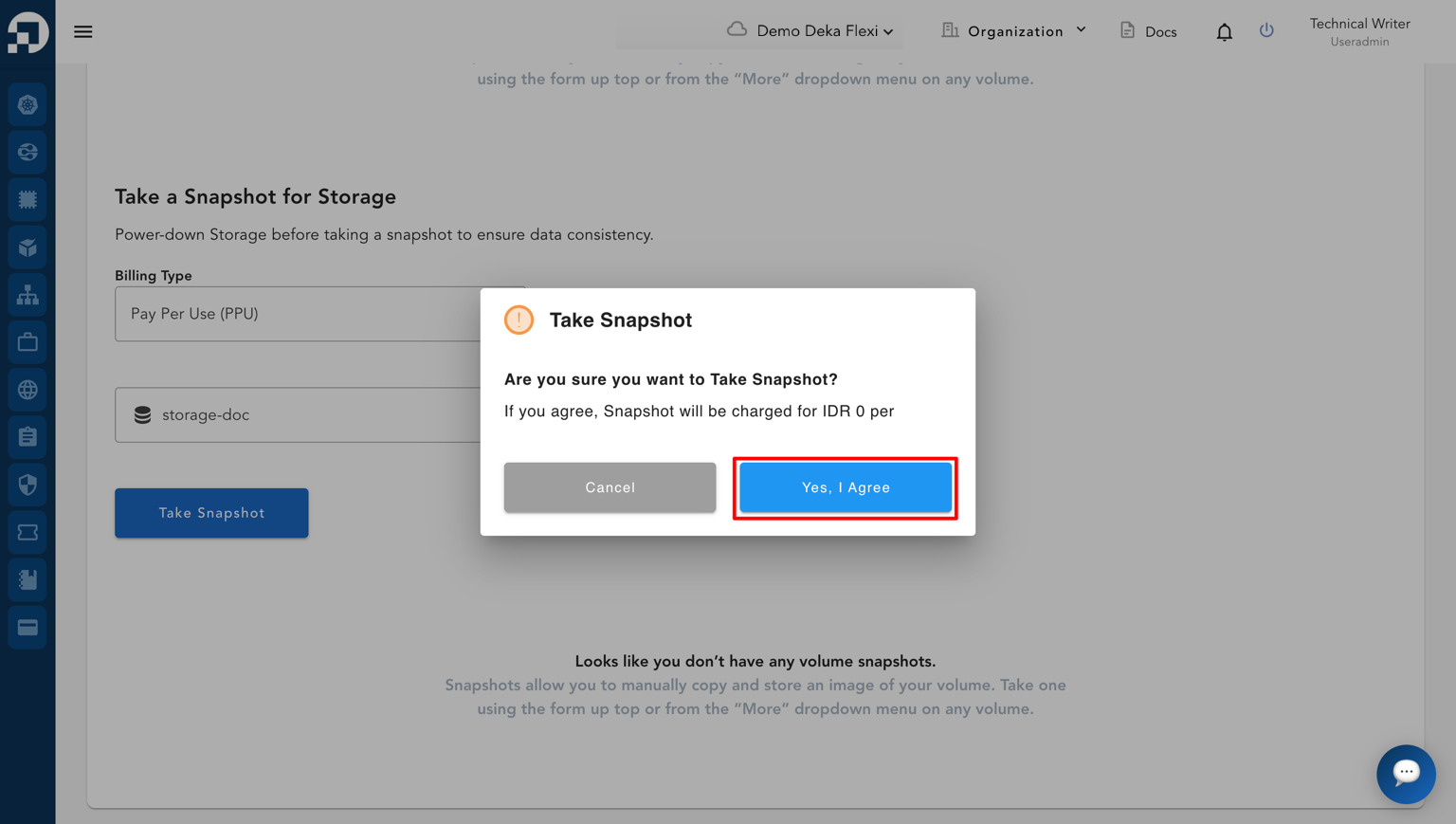
* A confirmation pop-up will appear. Click **Yes, I Agree** to continue the snapshot process.

<figure><img src="https://putri.box.cloudeka.id/cloudeka-assets/docs.cloudeka.ai/6dekaflexi/takesnapshotstorage_03.png" alt=""><figcaption></figcaption></figure>

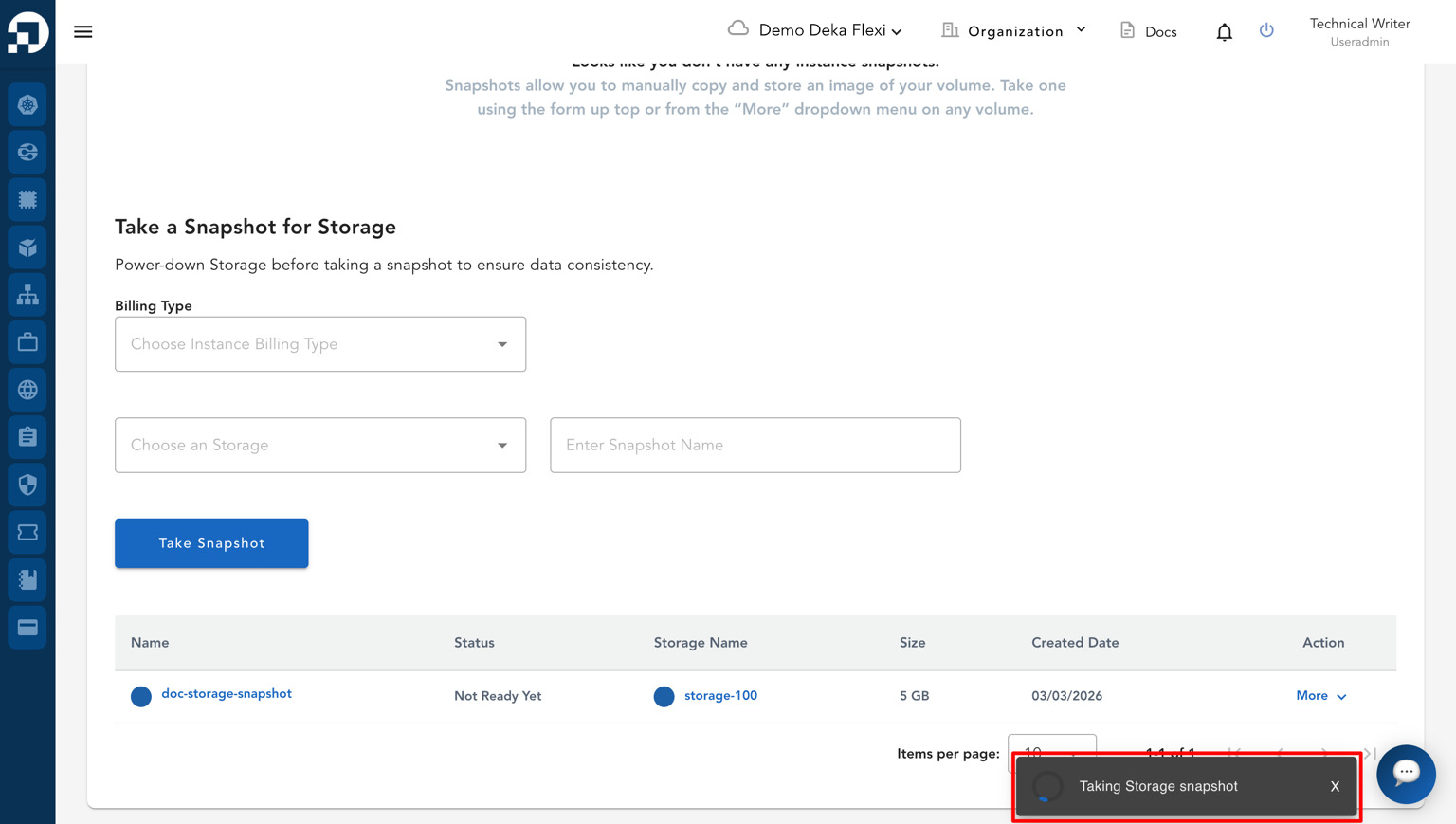
* The system will start creating the storage snapshot and display the snapshot process in the notification panel.

<figure><img src="https://putri.box.cloudeka.id/cloudeka-assets/docs.cloudeka.ai/6dekaflexi/takesnapshotstorage_04.png" alt=""><figcaption></figcaption></figure>

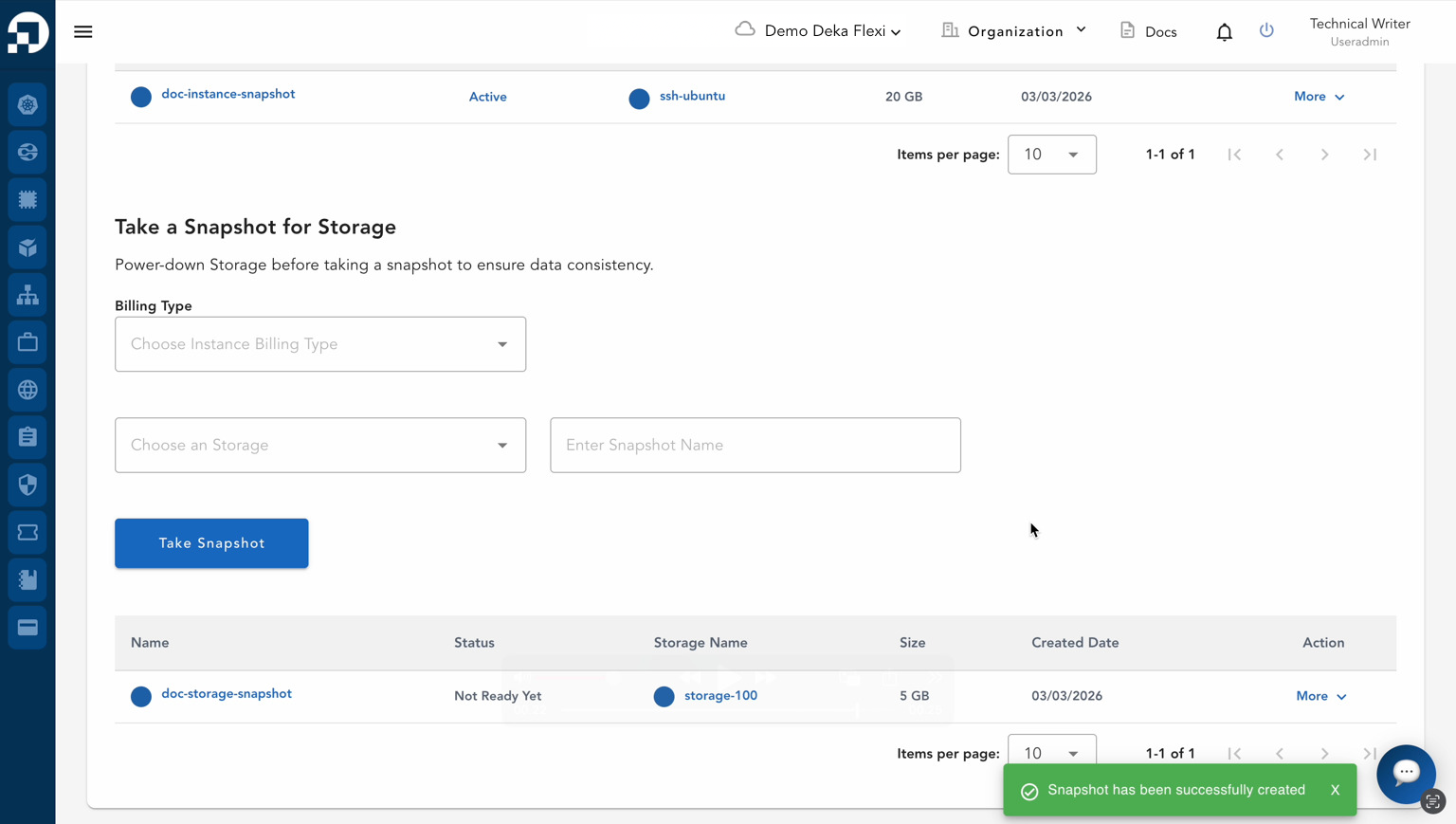
* If the process is successful, a notification will appear displaying the message "**Snapshot has been successfully created**".

<figure><img src="https://putri.box.cloudeka.id/cloudeka-assets/docs.cloudeka.ai/6dekaflexi/takesnapshotstorage_05.png" alt=""><figcaption></figcaption></figure>

* A list of storage snapshots will appear with the following information:

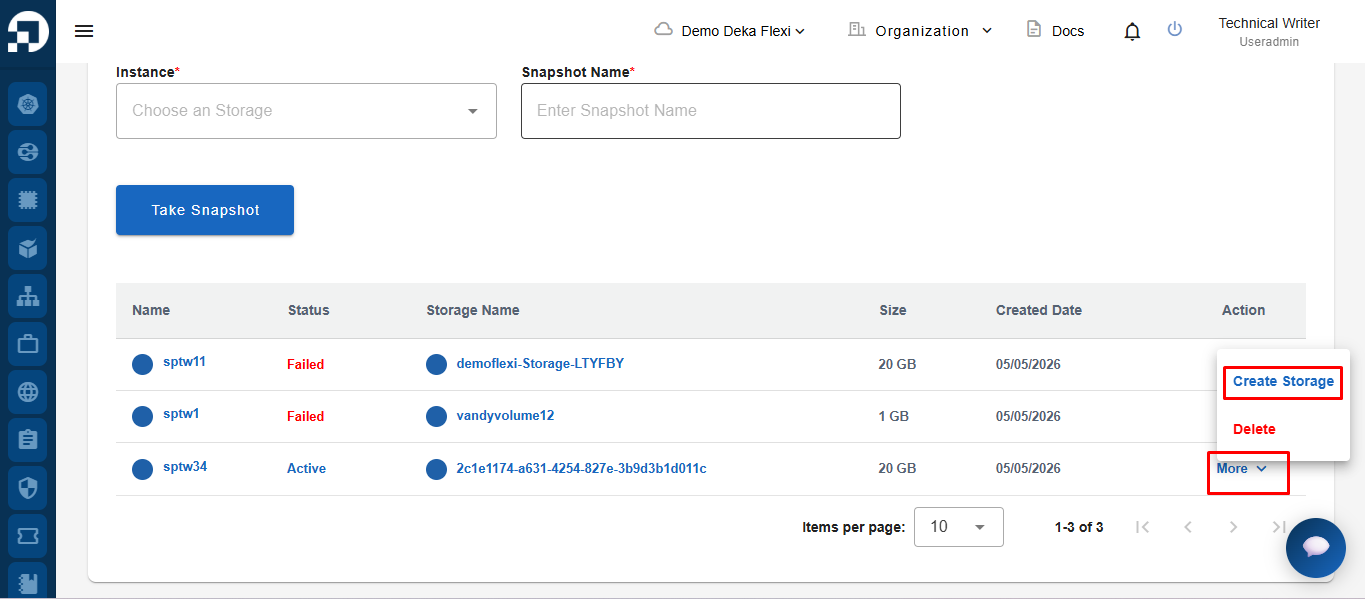
<table><thead><tr><th width="330">Column</th><th>Description</th></tr></thead><tbody><tr><td><strong>Name</strong></td><td>The name of the snapshot.</td></tr><tr><td><strong>Status</strong></td><td>The snapshot status, such as <strong>Active</strong> or <strong>Not Ready Yet</strong>.</td></tr><tr><td><strong>Storage Name</strong></td><td>The name of the storage from which the snapshot was created.</td></tr><tr><td><strong>Size</strong></td><td>The size of the snapshot.</td></tr><tr><td><strong>Created Date</strong></td><td>The date and time when the snapshot was created.</td></tr><tr><td><strong>Action</strong></td><td>Available actions for the snapshot, such as create or delete.</td></tr></tbody></table>

* To create an storage, click the **More** button on the desired snapshot data, then select **Create storage**.

<figure><img src="https://putri.box.cloudeka.id/cloudeka-assets/docs.cloudeka.ai/6dekaflexi/takesnapshotstorage_06.png" alt=""><figcaption></figcaption></figure>

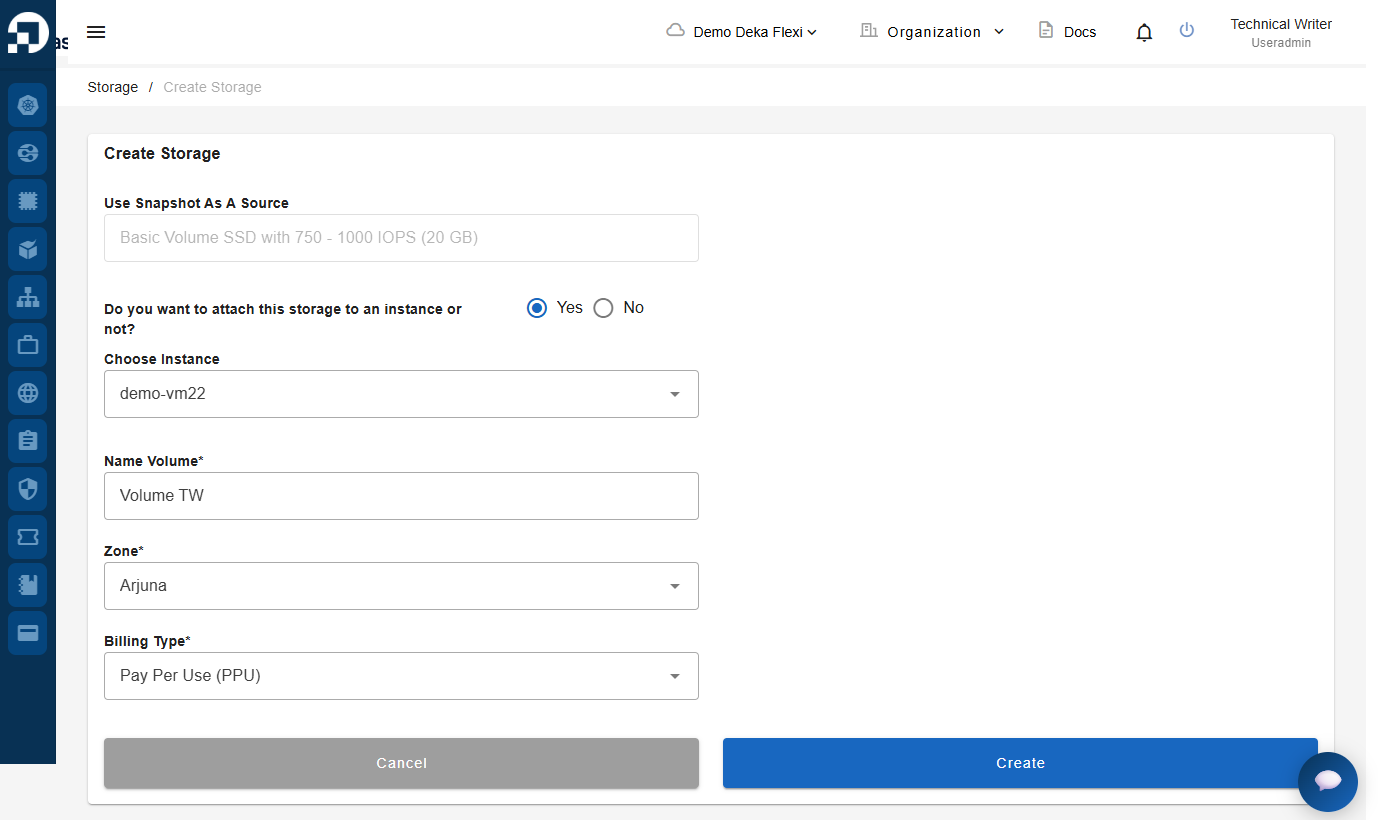
* After clicking **Create Storage**, the system will display the storage creation form similar to the standard create storage page. Fill in the required details accordingly. For more detailed instructions, you can refer to the [**Create Storage**](/guideline-for-enterprise/deka-flexi/deka-volume-storage/creating-and-attaching-a-storage-or-disk.md) section.

<figure><img src="https://putri.box.cloudeka.id/cloudeka-assets/docs.cloudeka.ai/6dekaflexi/takesnapshotstorage_07.png" alt=""><figcaption></figcaption></figure>