> For the complete documentation index, see [llms.txt](https://docs.cloudeka.ai/llms.txt). Markdown versions of documentation pages are available by appending `.md` to page URLs; this page is available as [Markdown](https://docs.cloudeka.ai/guideline-for-enterprise/deka-flexi/deka-vpn/openvpn-configuration/connection-with-openvpn.md).

# Connection with OpenVPN

Here are the steps to connect to the VPN configuration on OpenVPN:

In the Action column, click the More button then select Configuration.

<figure><img src="https://2882153758-files.gitbook.io/~/files/v0/b/gitbook-x-prod.appspot.com/o/spaces%2Fi9YWb69HFXLHYlXffReU%2Fuploads%2Fgit-blob-0538aa35c3476862336b4f6a374e1bfcab65c4ce%2Fimage.png?alt=media" alt=""><figcaption></figcaption></figure>

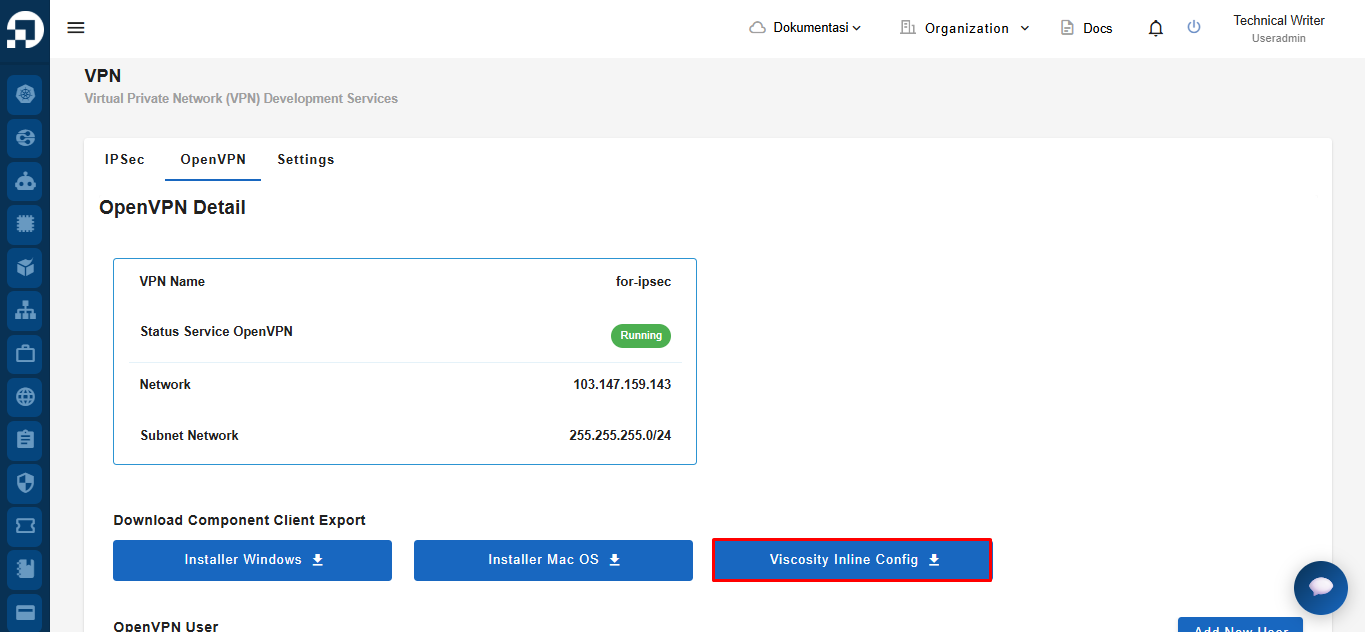
To download the VPN configuration, select the OpenVPN tab, click Viscosity Inline Config and wait until the download process is complete.

<figure><img src="https://2882153758-files.gitbook.io/~/files/v0/b/gitbook-x-prod.appspot.com/o/spaces%2Fi9YWb69HFXLHYlXffReU%2Fuploads%2Fgit-blob-e4db5943096abdee911487f4399cc503ad6c5cd1%2Fimage.png?alt=media" alt=""><figcaption></figcaption></figure>

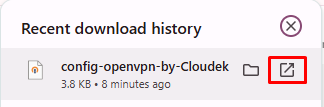
After the file (e.g., `config-openvpn-by-Cloudeka.ovpn`) has been downloaded, open it from your browser’s download manager or your Downloads folder.

<figure><img src="https://2882153758-files.gitbook.io/~/files/v0/b/gitbook-x-prod.appspot.com/o/spaces%2Fi9YWb69HFXLHYlXffReU%2Fuploads%2Fgit-blob-4783251b682e631b3a01a1234175481876e5a5e5%2Fimage.png?alt=media" alt=""><figcaption></figcaption></figure>

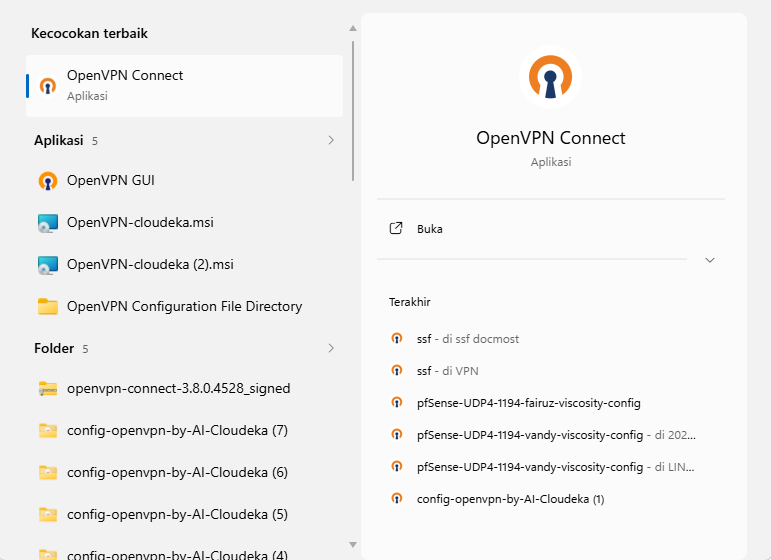
Run OpenVPN on the computer.

<figure><img src="https://2882153758-files.gitbook.io/~/files/v0/b/gitbook-x-prod.appspot.com/o/spaces%2Fi9YWb69HFXLHYlXffReU%2Fuploads%2Fgit-blob-e296a20df360d003d6cf285263e3d7ac4940e6ef%2Fimage.png?alt=media" alt=""><figcaption></figcaption></figure>

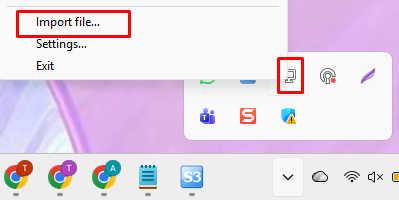
On the taskbar in the right corner of the screen, click the openVPN icon, then right click and click Import File...

<figure><img src="https://2882153758-files.gitbook.io/~/files/v0/b/gitbook-x-prod.appspot.com/o/spaces%2Fi9YWb69HFXLHYlXffReU%2Fuploads%2Fgit-blob-c72df0c34017edc75381c3ffd826e455f5e41ca0%2Fimage.png?alt=media" alt=""><figcaption></figcaption></figure>

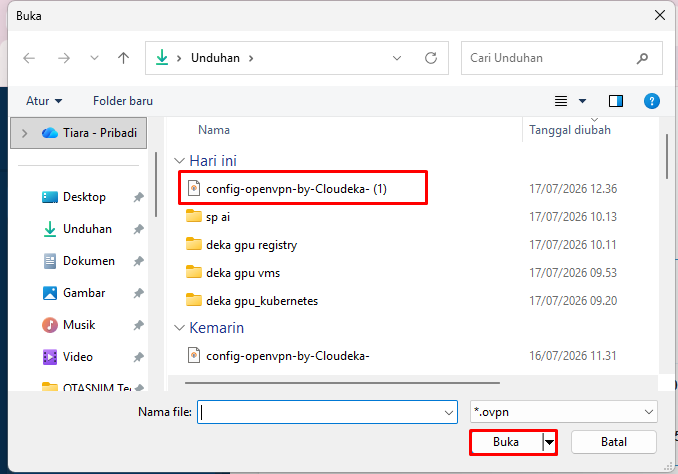
Select the downloaded **Viscosity Inline Config** file, which is saved as an **OpenVPN configuration (.ovpn)** file (for example, **config-openvpn-by-Cloudeka.ovpn**), then click **Open**.

<figure><img src="https://2882153758-files.gitbook.io/~/files/v0/b/gitbook-x-prod.appspot.com/o/spaces%2Fi9YWb69HFXLHYlXffReU%2Fuploads%2Fgit-blob-0254ef69ee23a7a130ac1b7c372a94a712196944%2Fimage.png?alt=media" alt=""><figcaption></figcaption></figure>

On the Windows taskbar, click the **OpenVPN** icon, select the imported OpenVPN configuration (**config-openvpn-by-Cloudeka**), then click **Connect**.

<figure><img src="https://2882153758-files.gitbook.io/~/files/v0/b/gitbook-x-prod.appspot.com/o/spaces%2Fi9YWb69HFXLHYlXffReU%2Fuploads%2Fgit-blob-87db4ee1c0b07572c794704dab523a2d646ddedc%2Fimage.png?alt=media" alt=""><figcaption></figcaption></figure>

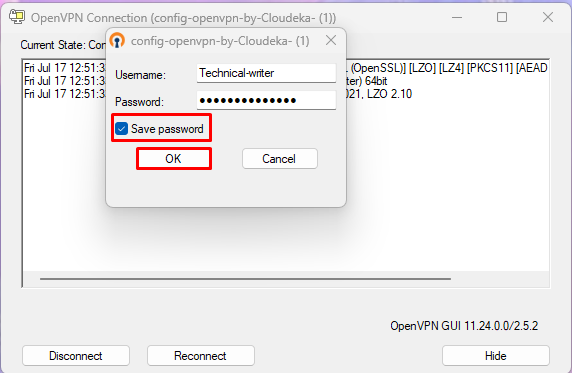
Enter the **Username** and **Password** that you created for the OpenVPN user. Optionally, select **Save password** to save your credentials, then click **OK** to establish the VPN connection.

<figure><img src="https://2882153758-files.gitbook.io/~/files/v0/b/gitbook-x-prod.appspot.com/o/spaces%2Fi9YWb69HFXLHYlXffReU%2Fuploads%2Fgit-blob-1442dc7e155a9b7507aeef149000873a67a57956%2Fimage.png?alt=media" alt=""><figcaption></figcaption></figure>

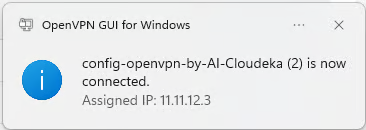
If the username and password entered are correct, the notification viscosity-config-vpn-1-openvpn-byCloudeka is now connected will appear.

<figure><img src="https://2882153758-files.gitbook.io/~/files/v0/b/gitbook-x-prod.appspot.com/o/spaces%2Fi9YWb69HFXLHYlXffReU%2Fuploads%2Fgit-blob-5242344314012572728164916157f37a298cda27%2Fimage.png?alt=media" alt=""><figcaption></figcaption></figure>

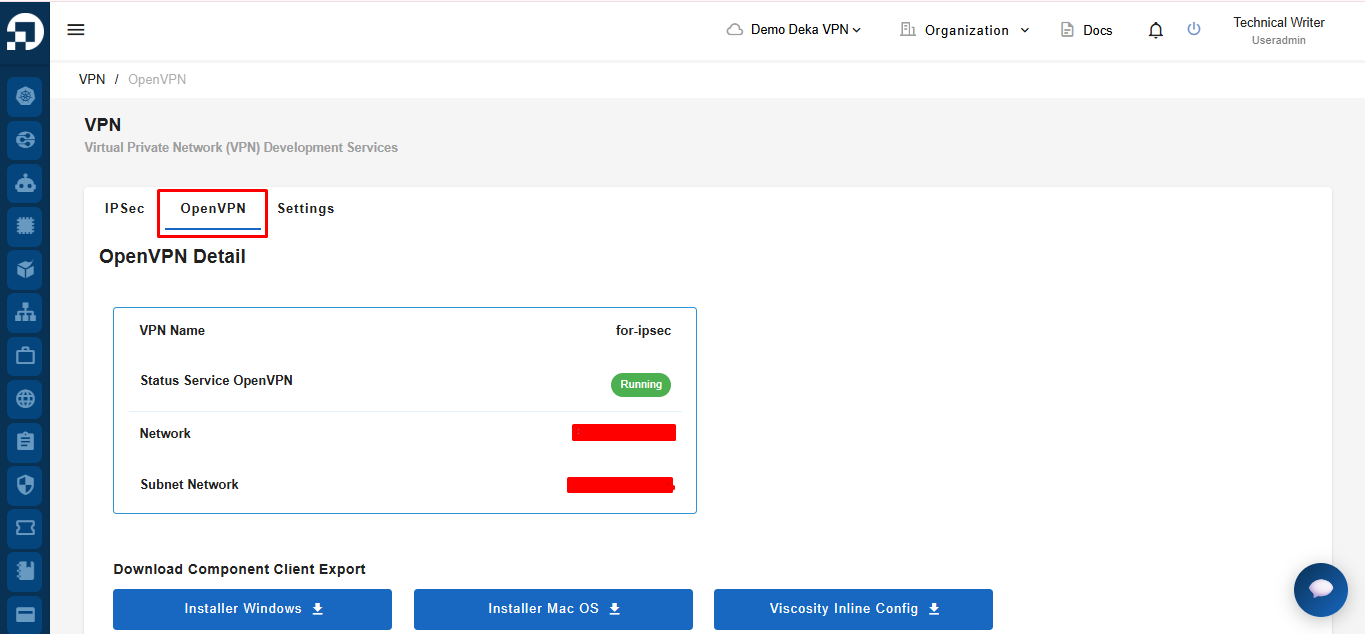
To see the running status of OpenVPN, select the **OpenVPN** tab.

<figure><img src="https://2882153758-files.gitbook.io/~/files/v0/b/gitbook-x-prod.appspot.com/o/spaces%2Fi9YWb69HFXLHYlXffReU%2Fuploads%2Fgit-blob-26822b2bb2b0960907185e17ddc8bd18629b3154%2Fimage.png?alt=media" alt=""><figcaption></figcaption></figure>

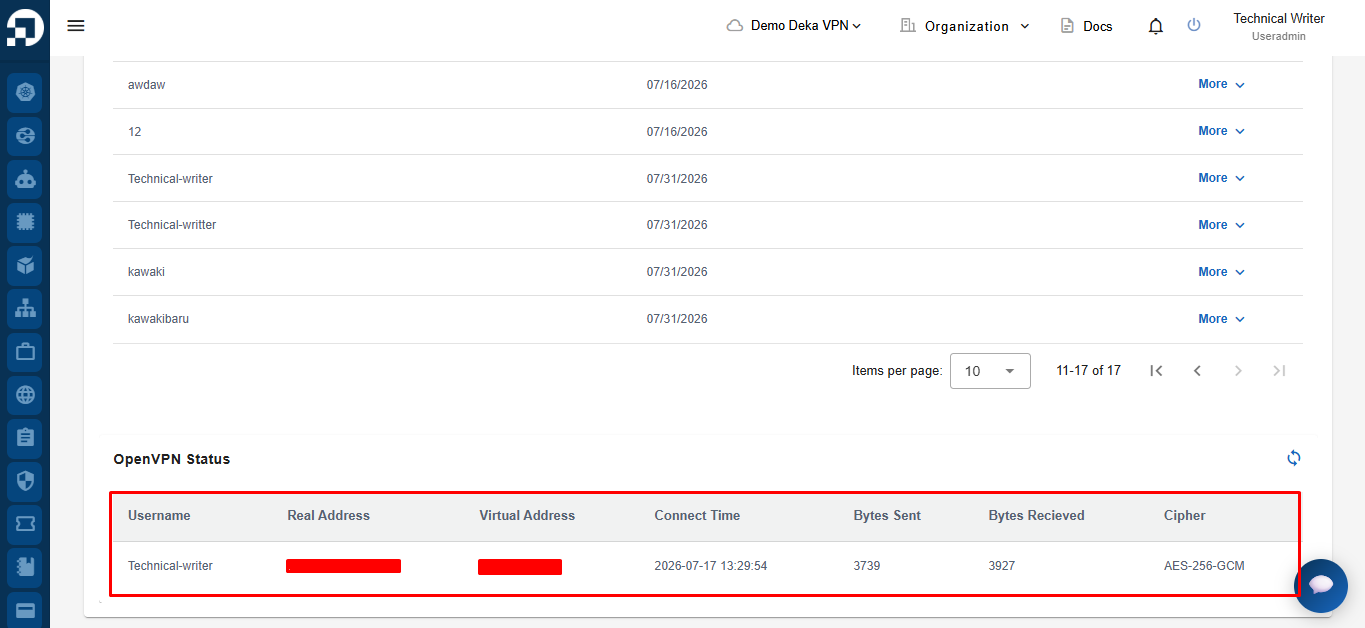
Scroll down to the **OpenVPN Status** section. If the VPN connection is active, the system displays the connected OpenVPN session, including the **Username**, **Real Address**, **Virtual Address**, **Connect Time**, **Bytes Sent**, **Bytes Received**, and **Cipher**.

<figure><img src="https://2882153758-files.gitbook.io/~/files/v0/b/gitbook-x-prod.appspot.com/o/spaces%2Fi9YWb69HFXLHYlXffReU%2Fuploads%2Fgit-blob-fd28f9f91f93b221d3c7def9fd128aa109bb8a2f%2Fimage.png?alt=media" alt=""><figcaption></figcaption></figure>

The OpenVPN Status section displays several columns

<table><thead><tr><th width="217">Column</th><th>Description</th></tr></thead><tbody><tr><td><strong>Username</strong></td><td>Username used to identify the connection to the OpenVPN server.</td></tr><tr><td><strong>Real Address</strong></td><td>The physical IP address that is connected to the OpenVPN server.</td></tr><tr><td><strong>Virtual Address</strong></td><td>A virtual IP address is used to communicate with other networks.</td></tr><tr><td><strong>Connected Since</strong></td><td>Displays the date and time when the user connected to the OpenVPN server.</td></tr><tr><td><strong>Bytes Sent</strong></td><td>Displays the total number of bytes a user has sent through an OpenVPN connection since connecting.</td></tr><tr><td><strong>Bytes Received</strong></td><td>Displays the total number of bytes that have been received by the user via the OpenVPN connection since connecting.</td></tr><tr><td><strong>Ciphers</strong></td><td>Displays the encryption algorithm used to protect data sent over an OpenVPN connection.</td></tr></tbody></table>