> For the complete documentation index, see [llms.txt](https://docs.cloudeka.ai/llms.txt). Markdown versions of documentation pages are available by appending `.md` to page URLs; this page is available as [Markdown](https://docs.cloudeka.ai/guideline-for-enterprise/deka-flexi/deka-vpn/openvpn-configuration/create-openvpn.md).

# Create OpenVPN

To create OpenVPN you will fill in several available columns including the following:

<table><thead><tr><th width="275">Column</th><th>Description</th></tr></thead><tbody><tr><td><strong>Username</strong></td><td>The username that will be used to identify the user when connecting to the OpenVPN server.</td></tr><tr><td><strong>Password</strong></td><td>The password that the user will use to authenticate when connecting to the OpenVPN server.</td></tr><tr><td><strong>Confirm Password</strong></td><td>Confirm the password that has been entered.</td></tr><tr><td><strong>Tunnel Settings - Protocol</strong></td><td>The protocol that will be used in VPN connections is currently the UDP On IPV4 only protocol.</td></tr><tr><td><strong>Tunnel Settings - Ports</strong></td><td>The port number that will be used by the OpenVPN server is automatically filled in using port 1194.</td></tr><tr><td><strong>Tunnel Settings - OpenVPN Client Network</strong></td><td>The virtual network that users will use when connecting to an OpenVPN server.</td></tr></tbody></table>

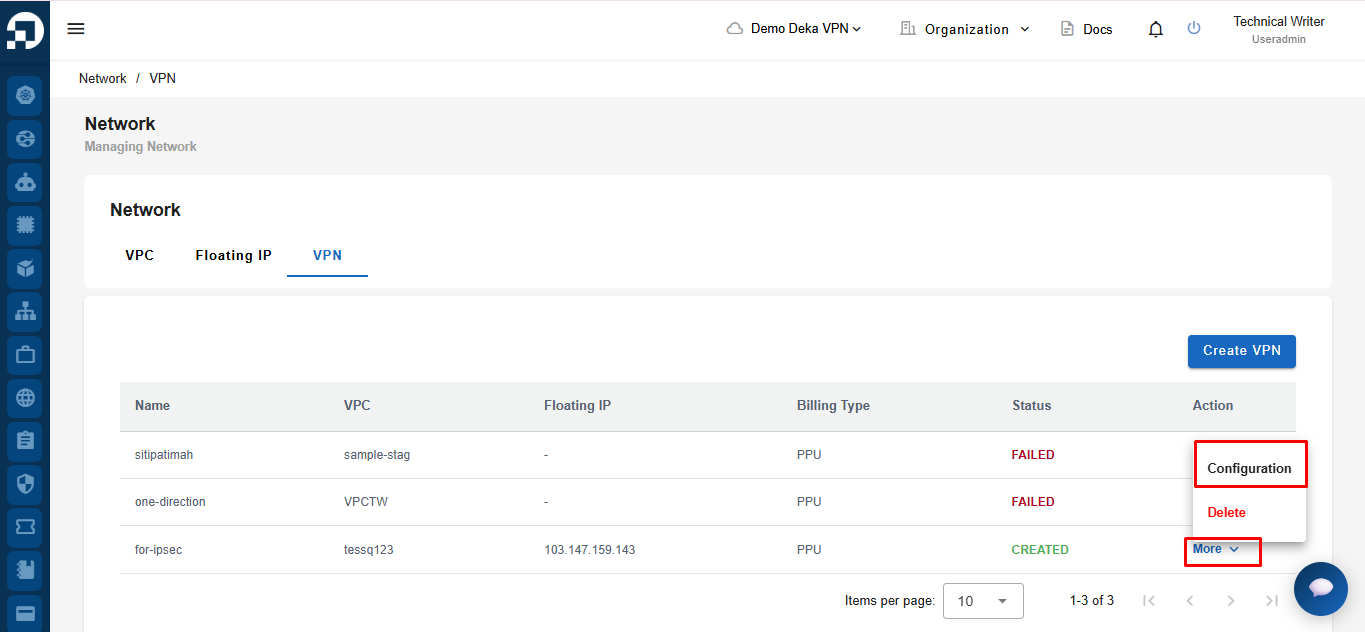
The Create OpenVPN feature is used to create a new OpenVPN user for the selected VPN. On the **VPN List** page, click **More** in the **Action** column, then select **Configuration**.

<figure><img src="https://2882153758-files.gitbook.io/~/files/v0/b/gitbook-x-prod.appspot.com/o/spaces%2Fi9YWb69HFXLHYlXffReU%2Fuploads%2Fgit-blob-a1264290f1a9c1ef0f05b259a23c74cef46cbcfc%2Fimage.png?alt=media" alt=""><figcaption></figcaption></figure>

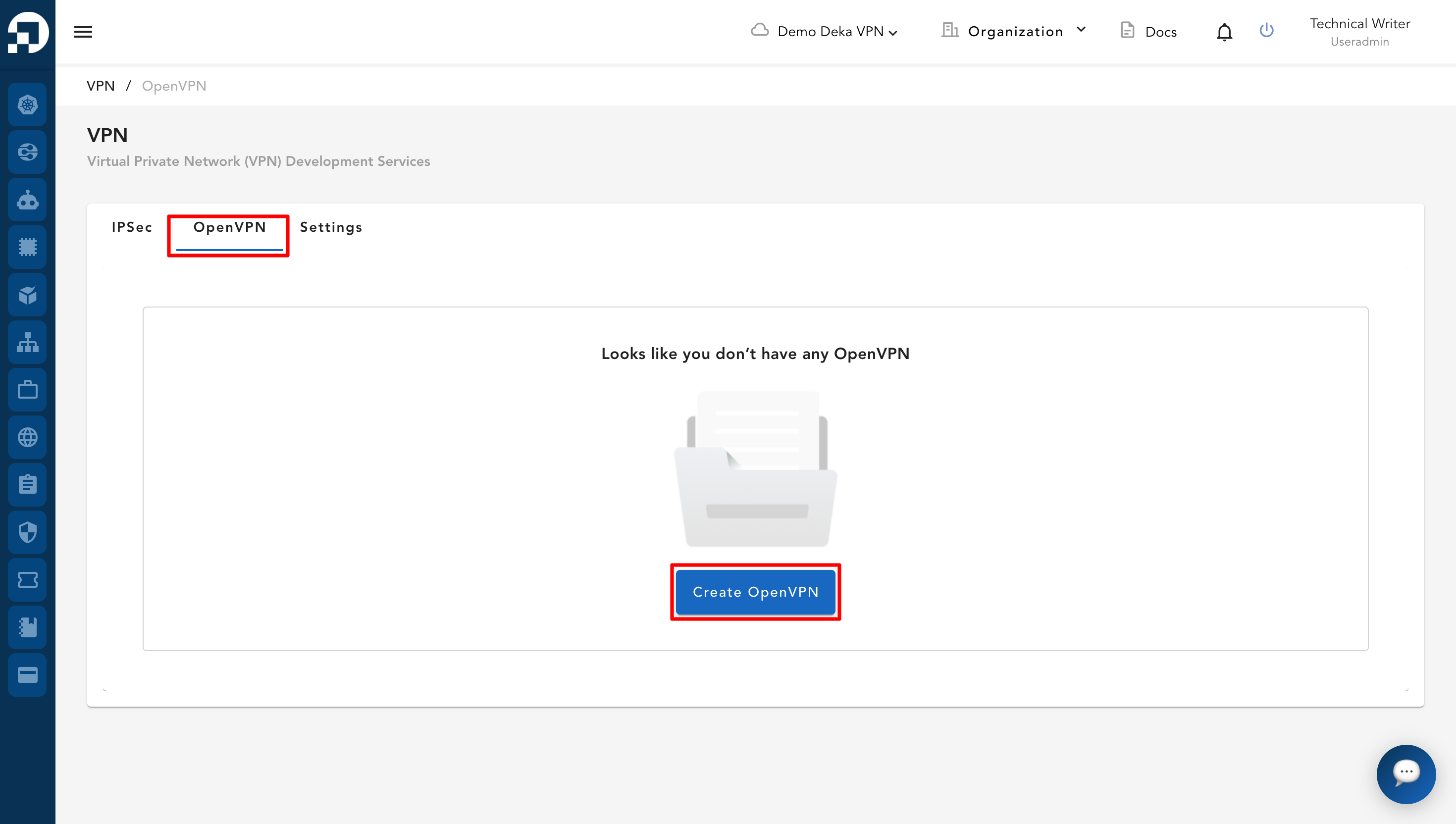
On the **OpenVPN** tab, click the **Create OpenVPN** button.

<figure><img src="https://2882153758-files.gitbook.io/~/files/v0/b/gitbook-x-prod.appspot.com/o/spaces%2Fi9YWb69HFXLHYlXffReU%2Fuploads%2Fgit-blob-77a4afc75bf64fd666ace2a70af7ace97d4eed72%2Fimage.png?alt=media" alt=""><figcaption></figcaption></figure>

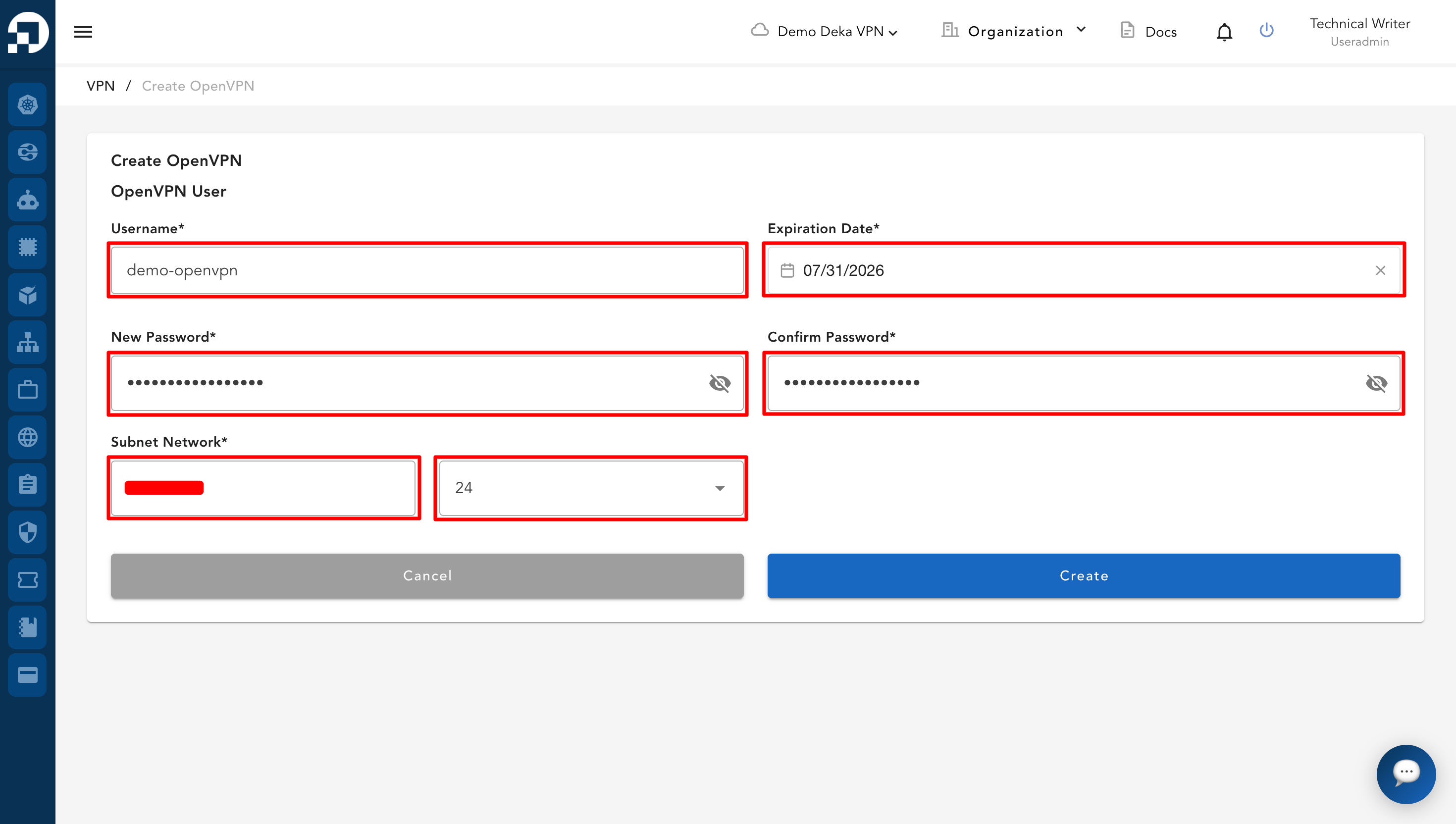
The **Create OpenVPN** page appears. The following table describes the fields required to create an OpenVPN user.

<table><thead><tr><th width="204">Column</th><th>Description</th></tr></thead><tbody><tr><td><strong>Username</strong></td><td>Specifies the username for the OpenVPN user.</td></tr><tr><td><strong>Expiration Date</strong></td><td>Specifies the expiration date for the OpenVPN user.</td></tr><tr><td><strong>New Password</strong></td><td>Specifies the password for the OpenVPN user.</td></tr><tr><td><strong>Confirm Password</strong></td><td>Confirms the password entered in the <strong>New Password</strong> field.</td></tr><tr><td><strong>Subnet Network</strong></td><td>Specifies the subnet network for the OpenVPN user.</td></tr><tr><td><strong>Network Size</strong></td><td>Specifies the network size for the selected subnet network.</td></tr></tbody></table>

Complete the required information, including the **Username**, **Expiration Date**, **New Password**, **Confirm Password**, **Subnet Network**, and **Network Size** fields.

<figure><img src="https://2882153758-files.gitbook.io/~/files/v0/b/gitbook-x-prod.appspot.com/o/spaces%2Fi9YWb69HFXLHYlXffReU%2Fuploads%2Fgit-blob-20efb5defa2125b94e71278d767240e943d115a2%2Fimage.png?alt=media" alt=""><figcaption></figcaption></figure>

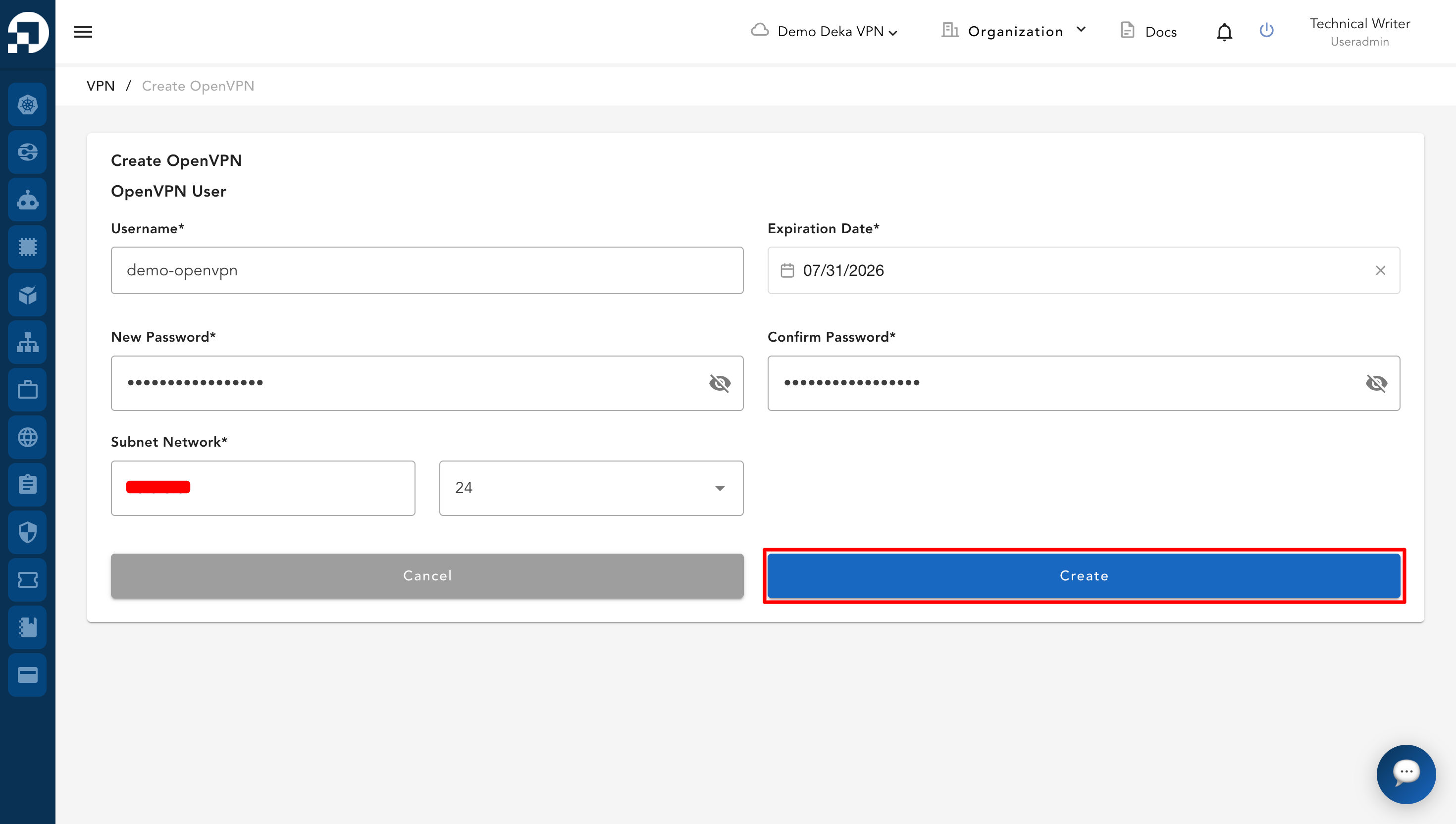
After all required fields have been completed, click the **Create** button.

<figure><img src="https://2882153758-files.gitbook.io/~/files/v0/b/gitbook-x-prod.appspot.com/o/spaces%2Fi9YWb69HFXLHYlXffReU%2Fuploads%2Fgit-blob-e931cf780ebe3ebd92344c645cb97c416c4d3c41%2Fimage.png?alt=media" alt=""><figcaption></figcaption></figure>

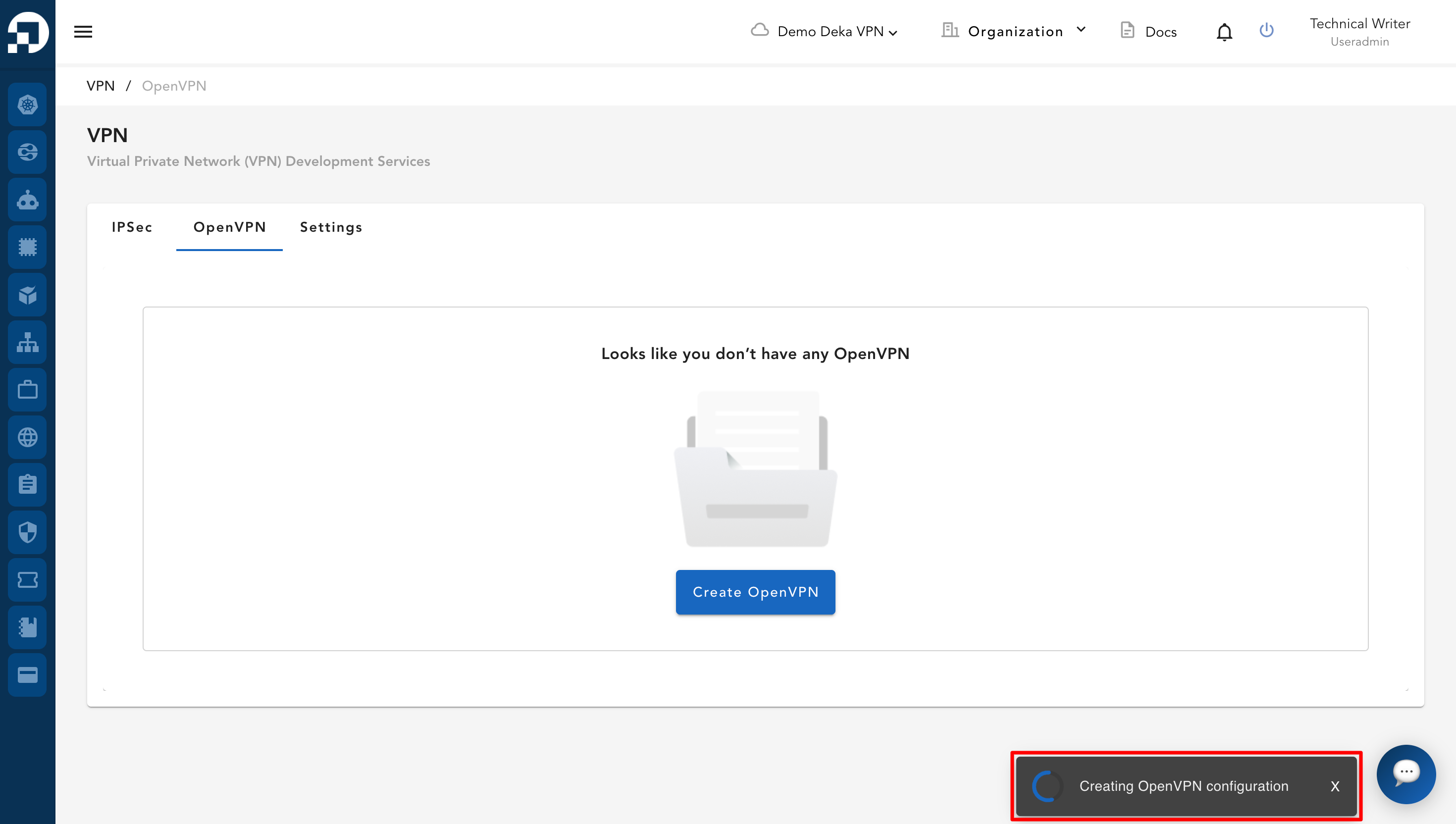
The system displays a notification indicating that the OpenVPN configuration is being created.

<figure><img src="https://2882153758-files.gitbook.io/~/files/v0/b/gitbook-x-prod.appspot.com/o/spaces%2Fi9YWb69HFXLHYlXffReU%2Fuploads%2Fgit-blob-9b1b7e7c32be8ea0df7f9ecf3b94cdda487a0106%2Fimage.png?alt=media" alt=""><figcaption></figcaption></figure>

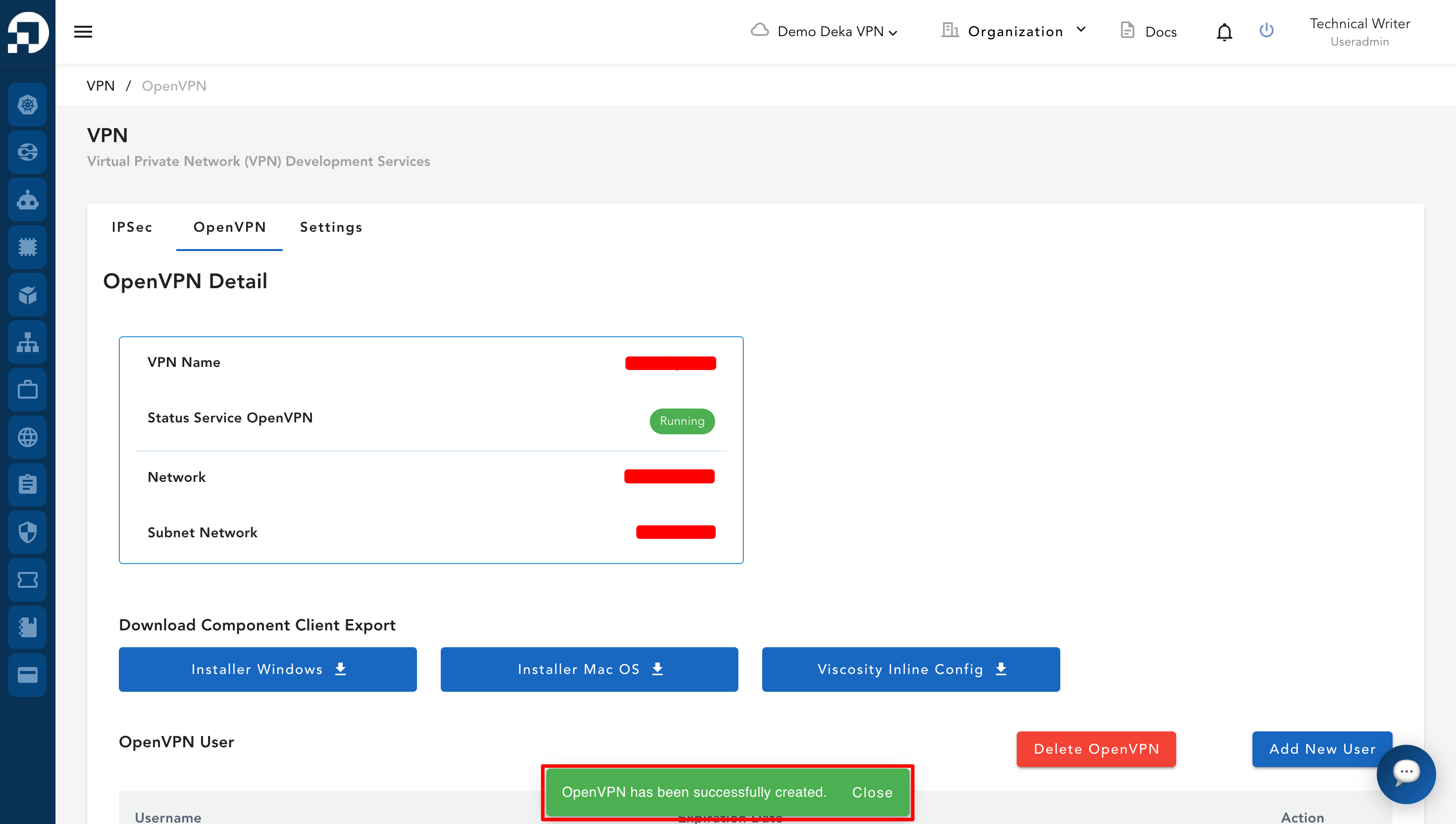
If the OpenVPN configuration is successfully created, the system redirects you to the **OpenVPN Detail** page. A notification appears indicating that the OpenVPN has been successfully created.

<figure><img src="https://2882153758-files.gitbook.io/~/files/v0/b/gitbook-x-prod.appspot.com/o/spaces%2Fi9YWb69HFXLHYlXffReU%2Fuploads%2Fgit-blob-80d29353af52fc3639f55260f3416a785c5ac623%2Fimage.png?alt=media" alt=""><figcaption></figcaption></figure>