> For the complete documentation index, see [llms.txt](https://docs.cloudeka.ai/llms.txt). Markdown versions of documentation pages are available by appending `.md` to page URLs; this page is available as [Markdown](https://docs.cloudeka.ai/guideline-for-enterprise/deka-flexi/deka-vpn/openvpn-configuration/download-openvpn/install-openvpn-on-macos.md).

# Install OpenVPN on MacOS

From the **VPN List Table**, click **More** then **Configuration** on the VPN to be managed.

<figure><img src="https://2882153758-files.gitbook.io/~/files/v0/b/gitbook-x-prod.appspot.com/o/spaces%2Fi9YWb69HFXLHYlXffReU%2Fuploads%2Fgit-blob-25440eb3d3da22331d85cd5d2063f43fef9184c1%2Fimage.png?alt=media" alt=""><figcaption></figcaption></figure>

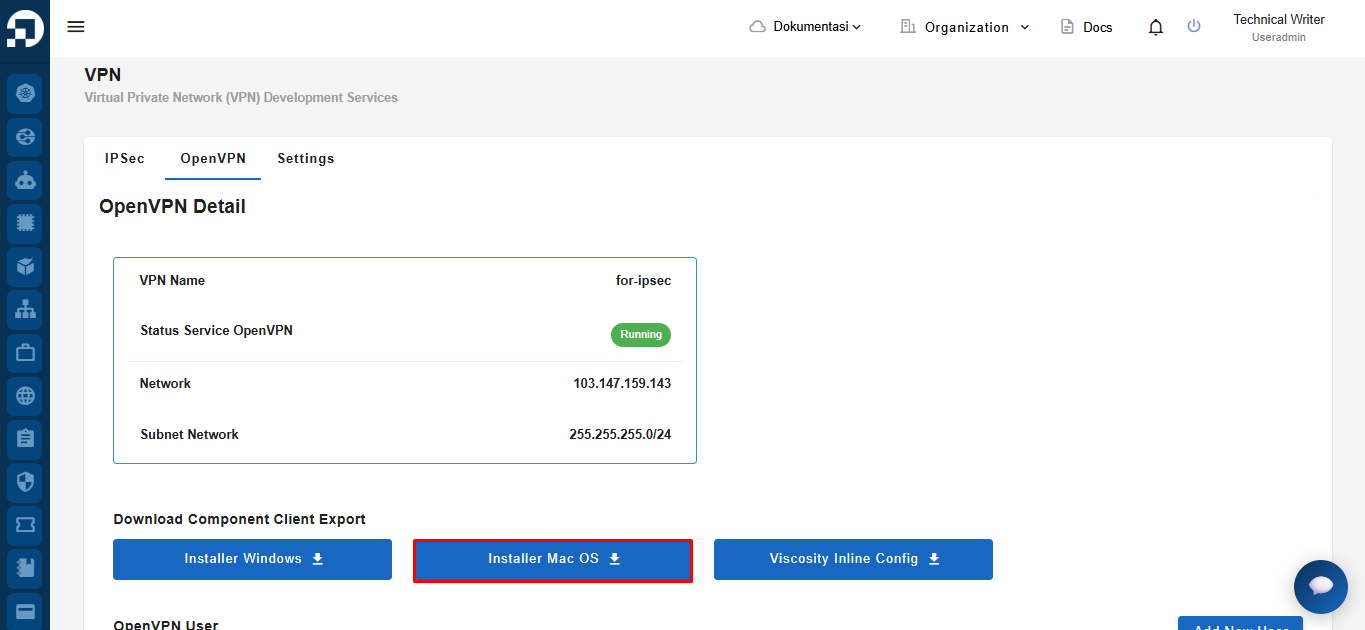
On the configuration page, click the **OpenVPN** tab. In the **Download Component Client Export** section, click **Installer Mac OS**.

<figure><img src="https://2882153758-files.gitbook.io/~/files/v0/b/gitbook-x-prod.appspot.com/o/spaces%2Fi9YWb69HFXLHYlXffReU%2Fuploads%2Fgit-blob-e8bae2db67854d43a1bfc27793fec4da5561af3a%2Fimage.png?alt=media" alt=""><figcaption></figcaption></figure>

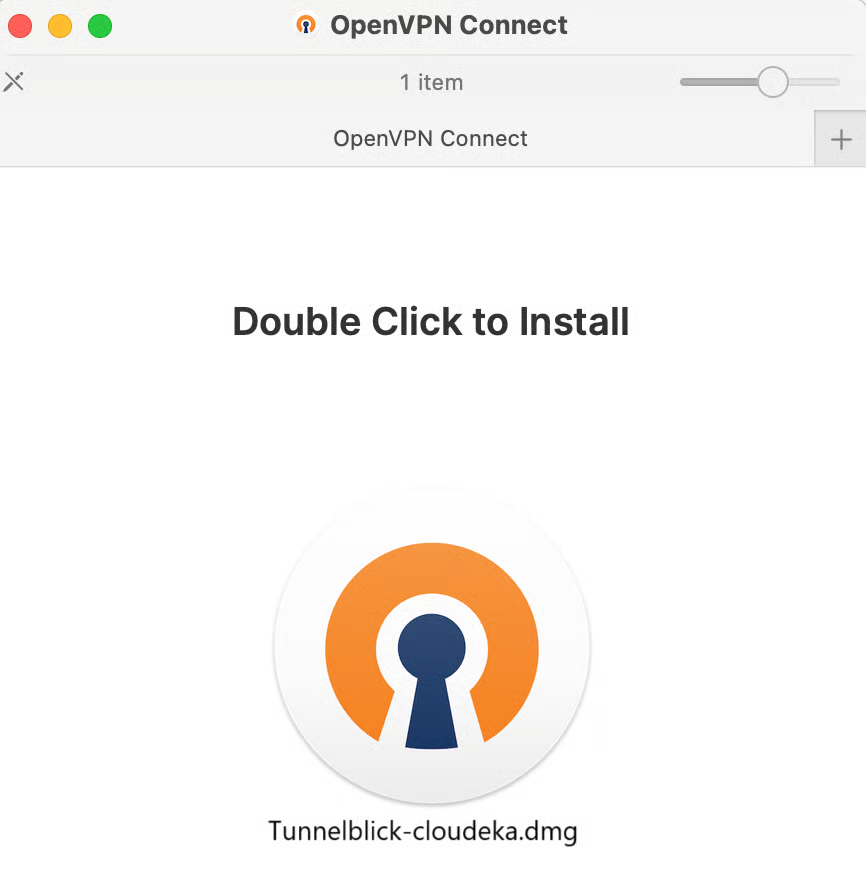
Run the downloaded OpenVPN for MacOS installer.

<figure><img src="https://2882153758-files.gitbook.io/~/files/v0/b/gitbook-x-prod.appspot.com/o/spaces%2Fi9YWb69HFXLHYlXffReU%2Fuploads%2Fgit-blob-c19daa50c260f0ba954904da83e2524cacaa349b%2Fimage.png?alt=media" alt=""><figcaption></figcaption></figure>

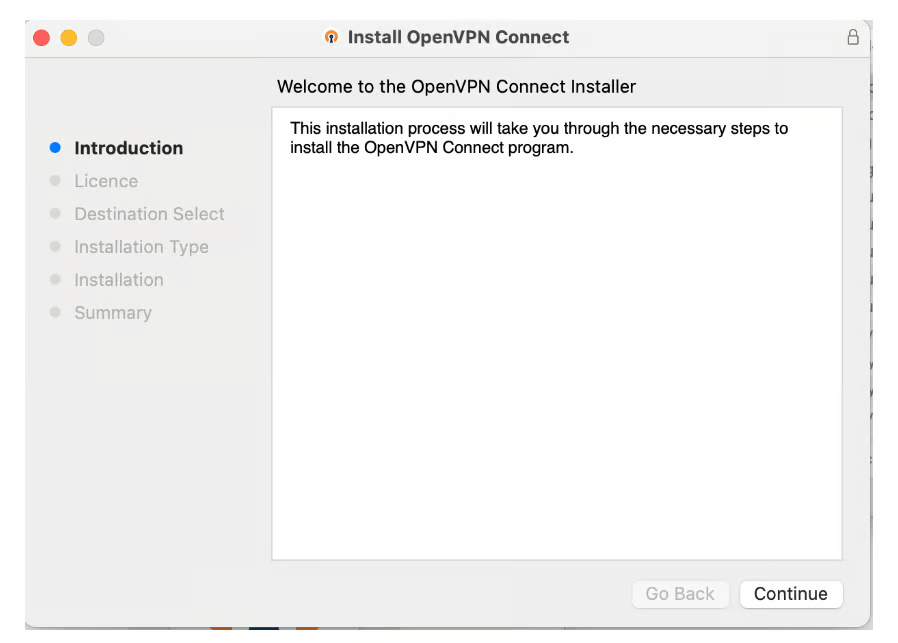
The Install OpenVPN Connect page appears, press the **Continue** button.

<figure><img src="https://2882153758-files.gitbook.io/~/files/v0/b/gitbook-x-prod.appspot.com/o/spaces%2Fi9YWb69HFXLHYlXffReU%2Fuploads%2Fgit-blob-59718bcfc91d8024d0cf73f037a8b6acc1846a8c%2Fimage.png?alt=media" alt=""><figcaption></figcaption></figure>

Read the EULA and press the Continue button to continue the installation process.

<figure><img src="https://2882153758-files.gitbook.io/~/files/v0/b/gitbook-x-prod.appspot.com/o/spaces%2Fi9YWb69HFXLHYlXffReU%2Fuploads%2Fgit-blob-bc29c95aedb245694ff9cbd4714a7fb47fd7b368%2Fimage.png?alt=media" alt=""><figcaption></figcaption></figure>

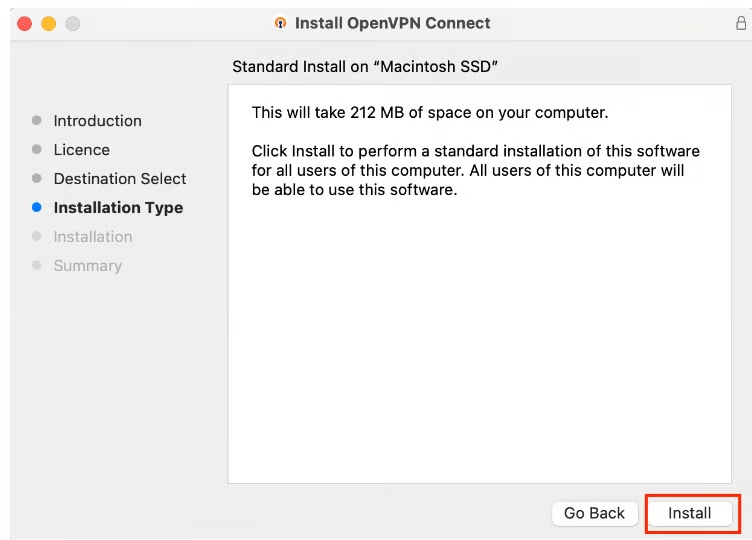
In Installation Type, press **Install**.

<figure><img src="https://2882153758-files.gitbook.io/~/files/v0/b/gitbook-x-prod.appspot.com/o/spaces%2Fi9YWb69HFXLHYlXffReU%2Fuploads%2Fgit-blob-66420fc6ba4919ff9a6335c04ffee6ff0ea1eab7%2Fimage.png?alt=media" alt=""><figcaption></figcaption></figure>

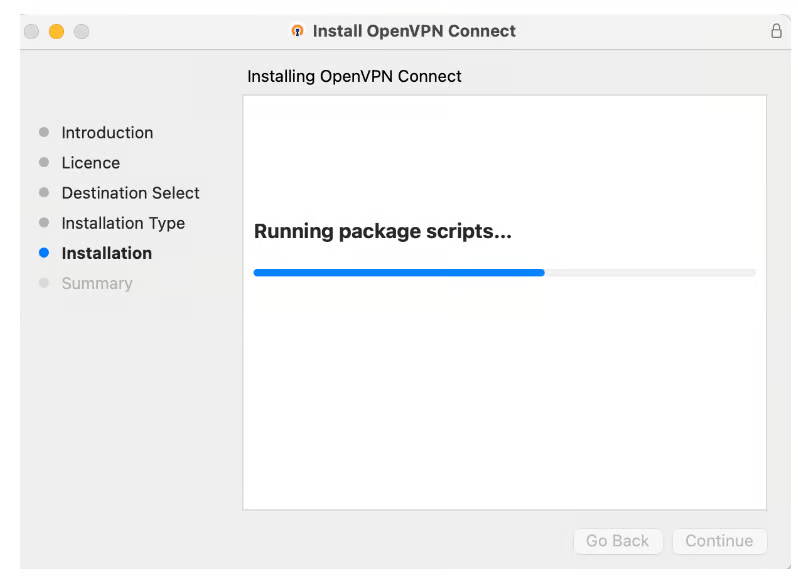
Wait until the process is complete.

<figure><img src="https://2882153758-files.gitbook.io/~/files/v0/b/gitbook-x-prod.appspot.com/o/spaces%2Fi9YWb69HFXLHYlXffReU%2Fuploads%2Fgit-blob-c00c48368792d8413b78d92bde273cb971362ab9%2Fimage.png?alt=media" alt=""><figcaption></figcaption></figure>

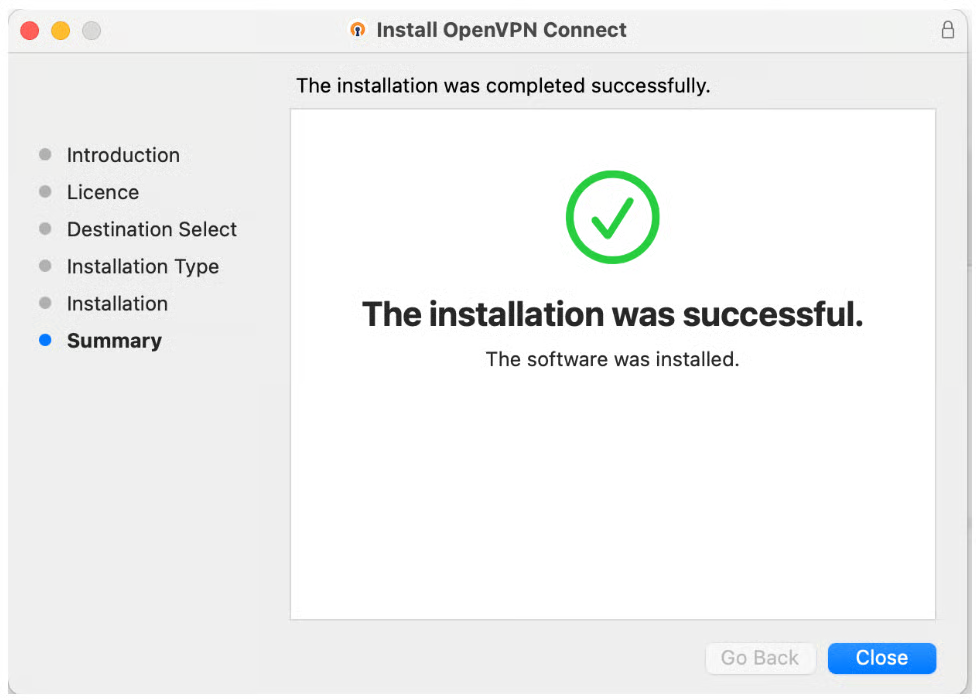
The installation was completed successfully. The OpenVPN Connect software has been installed on your Mac. Click **Close** to exit the installer.

<figure><img src="https://2882153758-files.gitbook.io/~/files/v0/b/gitbook-x-prod.appspot.com/o/spaces%2Fi9YWb69HFXLHYlXffReU%2Fuploads%2Fgit-blob-2e04a4db400f01f02c8d96664cb67f30a9668f7f%2Fimage.png?alt=media" alt=""><figcaption></figcaption></figure>

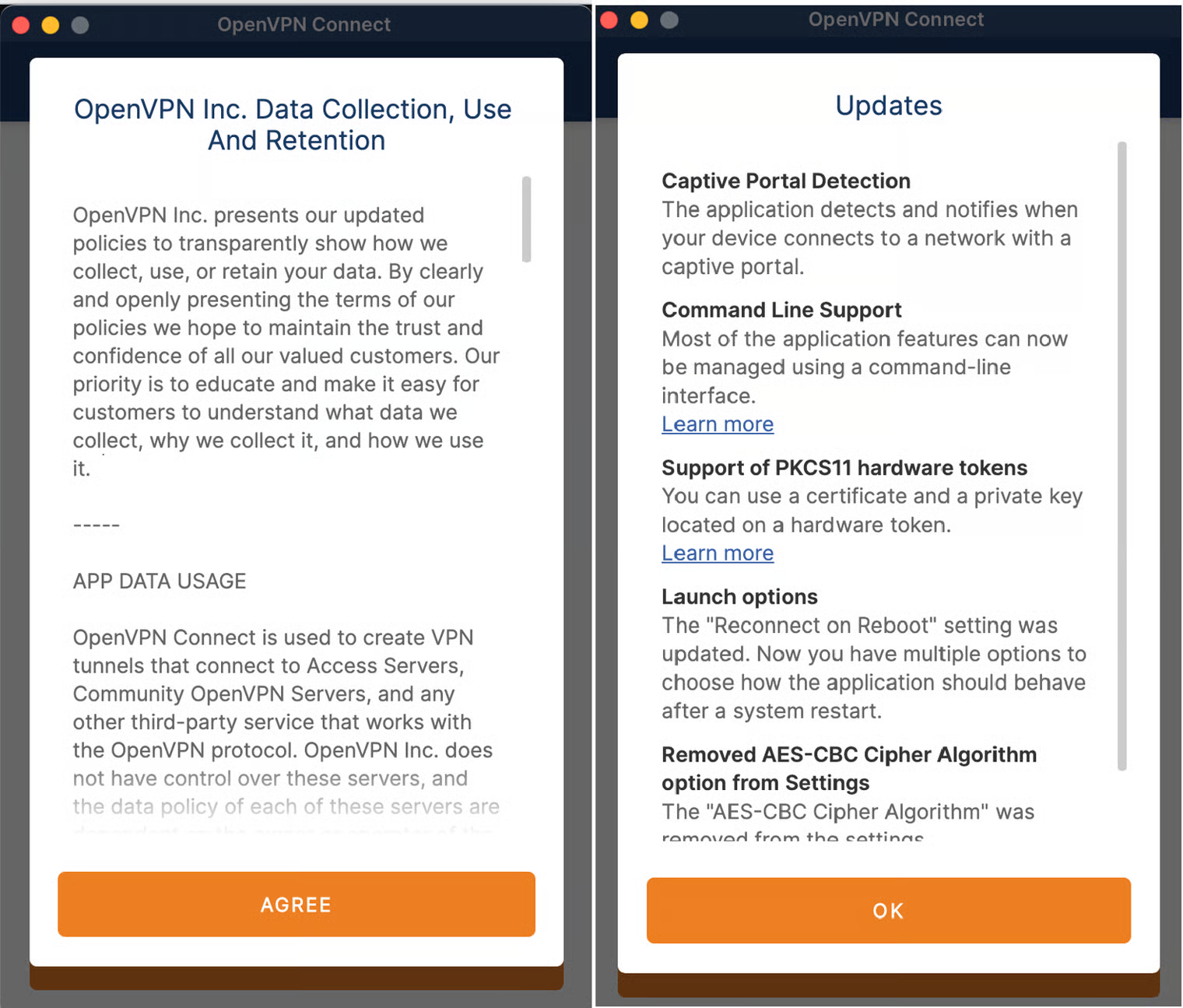
Open the OpenVPN client application that you just installed in OpenVPN on your computer. Press the **Agree** and **OK** buttons. OpenVPN can now be run on your computer.
<figure><img src="https://2882153758-files.gitbook.io/~/files/v0/b/gitbook-x-prod.appspot.com/o/spaces%2Fi9YWb69HFXLHYlXffReU%2Fuploads%2Fgit-blob-6bf67622cb5e62164f8dcdb4a9f9355b5efe46c5%2Fimage.png?alt=media" alt=""><figcaption></figcaption></figure>