> For the complete documentation index, see [llms.txt](https://docs.cloudeka.ai/llms.txt). Markdown versions of documentation pages are available by appending `.md` to page URLs; this page is available as [Markdown](https://docs.cloudeka.ai/guideline-for-enterprise/deka-flexi/deka-vpn/openvpn-configuration/download-openvpn/install-openvpn-on-windows.md).

# Install OpenVPN on Windows

The following are the steps to download and install the OpenVPN Windows client from the Service Portal Cloudeka:

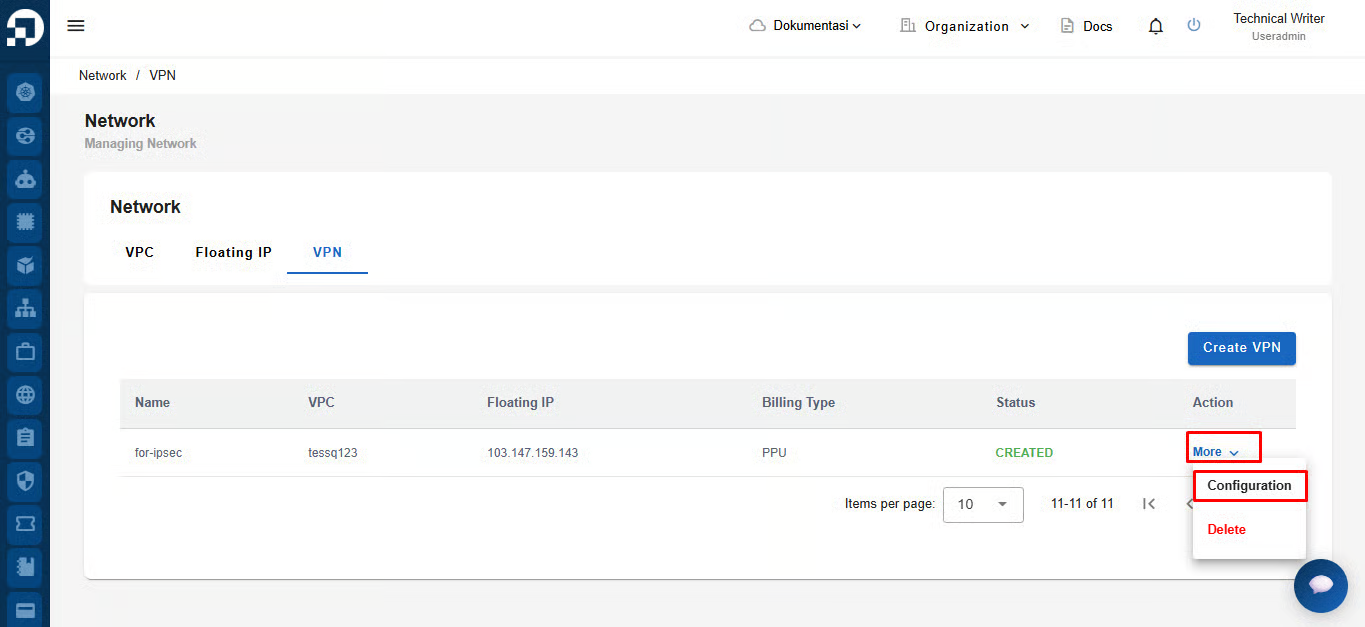
From the **VPN List Table**, click **More** then **Configuration** on the VPN to be managed.

<figure><img src="https://2882153758-files.gitbook.io/~/files/v0/b/gitbook-x-prod.appspot.com/o/spaces%2Fi9YWb69HFXLHYlXffReU%2Fuploads%2Fgit-blob-9665dd61892978f659c433594b881a1d71710c3c%2Fimage.png?alt=media" alt=""><figcaption></figcaption></figure>

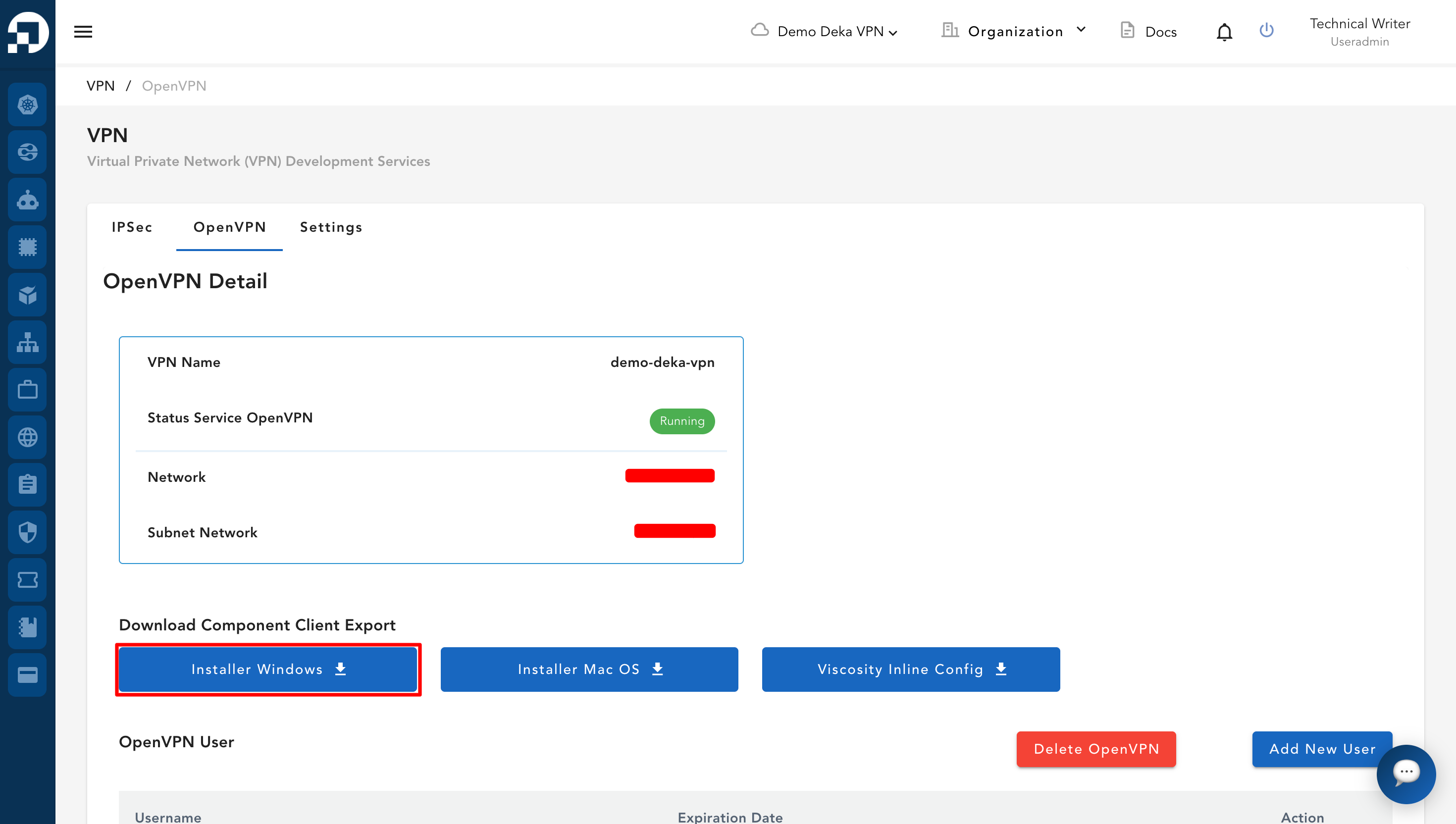
On the configuration page, click the **OpenVPN** tab. In the **Download Component Client Export** section, click **Installer Windows**.

<figure><img src="https://2882153758-files.gitbook.io/~/files/v0/b/gitbook-x-prod.appspot.com/o/spaces%2Fi9YWb69HFXLHYlXffReU%2Fuploads%2Fgit-blob-d4f90a03b4d36b6a3a49a5965489d973126b8c14%2Fimage.png?alt=media" alt=""><figcaption></figcaption></figure>

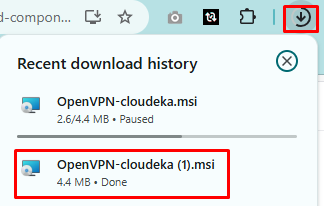
The OpenVPN installer file (e.g., *OpenVPN-cloudeka.msi*) will be downloaded.

<figure><img src="https://2882153758-files.gitbook.io/~/files/v0/b/gitbook-x-prod.appspot.com/o/spaces%2Fi9YWb69HFXLHYlXffReU%2Fuploads%2Fgit-blob-5b99ee7bb7c65455a7adb7f0afe3be442e2105ad%2Fimage.png?alt=media" alt=""><figcaption></figcaption></figure>

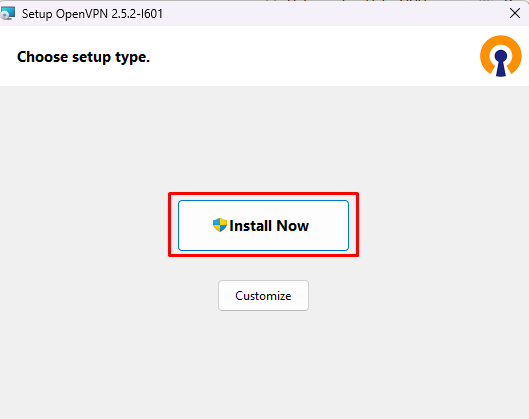
Once the download is complete, open the installer file from your browser’s download history or from your download folder. In the setup window, click **Install Now** to begin the installation process.

<figure><img src="https://2882153758-files.gitbook.io/~/files/v0/b/gitbook-x-prod.appspot.com/o/spaces%2Fi9YWb69HFXLHYlXffReU%2Fuploads%2Fgit-blob-6f5ff9f1fcfbefd5a107da25129cb5e337e198e4%2Fimage.png?alt=media" alt=""><figcaption></figcaption></figure>

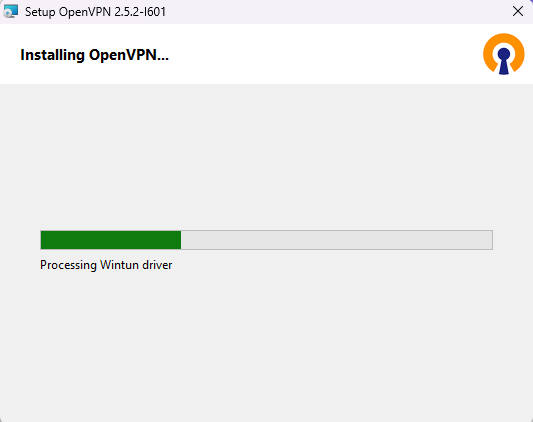
The system will process the installation.

<figure><img src="https://2882153758-files.gitbook.io/~/files/v0/b/gitbook-x-prod.appspot.com/o/spaces%2Fi9YWb69HFXLHYlXffReU%2Fuploads%2Fgit-blob-9b253f34a961472325f315f7b38d60003d59290c%2Fimage.png?alt=media" alt=""><figcaption></figcaption></figure>

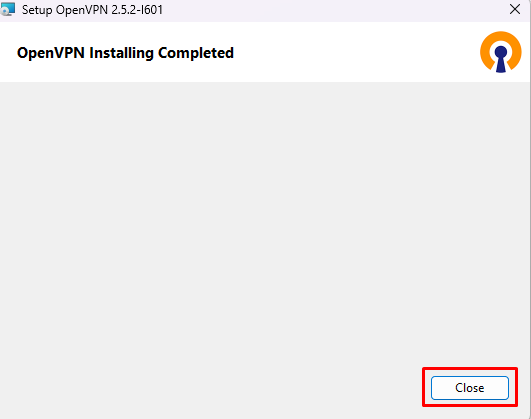
When the installation is finished, a message will appear: *OpenVPN Installing Completed*. Click **Close** to exit the installer.
<figure><img src="https://2882153758-files.gitbook.io/~/files/v0/b/gitbook-x-prod.appspot.com/o/spaces%2Fi9YWb69HFXLHYlXffReU%2Fuploads%2Fgit-blob-0a3c8aae3c9d0c6955e2c6875792315f213f4438%2Fimage.png?alt=media" alt=""><figcaption></figcaption></figure>