> For the complete documentation index, see [llms.txt](https://docs.cloudeka.ai/llms.txt). Markdown versions of documentation pages are available by appending `.md` to page URLs; this page is available as [Markdown](https://docs.cloudeka.ai/guideline-for-enterprise/deka-gpu-mlops/manage-notebook-schedules/notebook-culler-schedules.md).

# Notebook Culler Schedules

## Create Notebook Culler Schedules

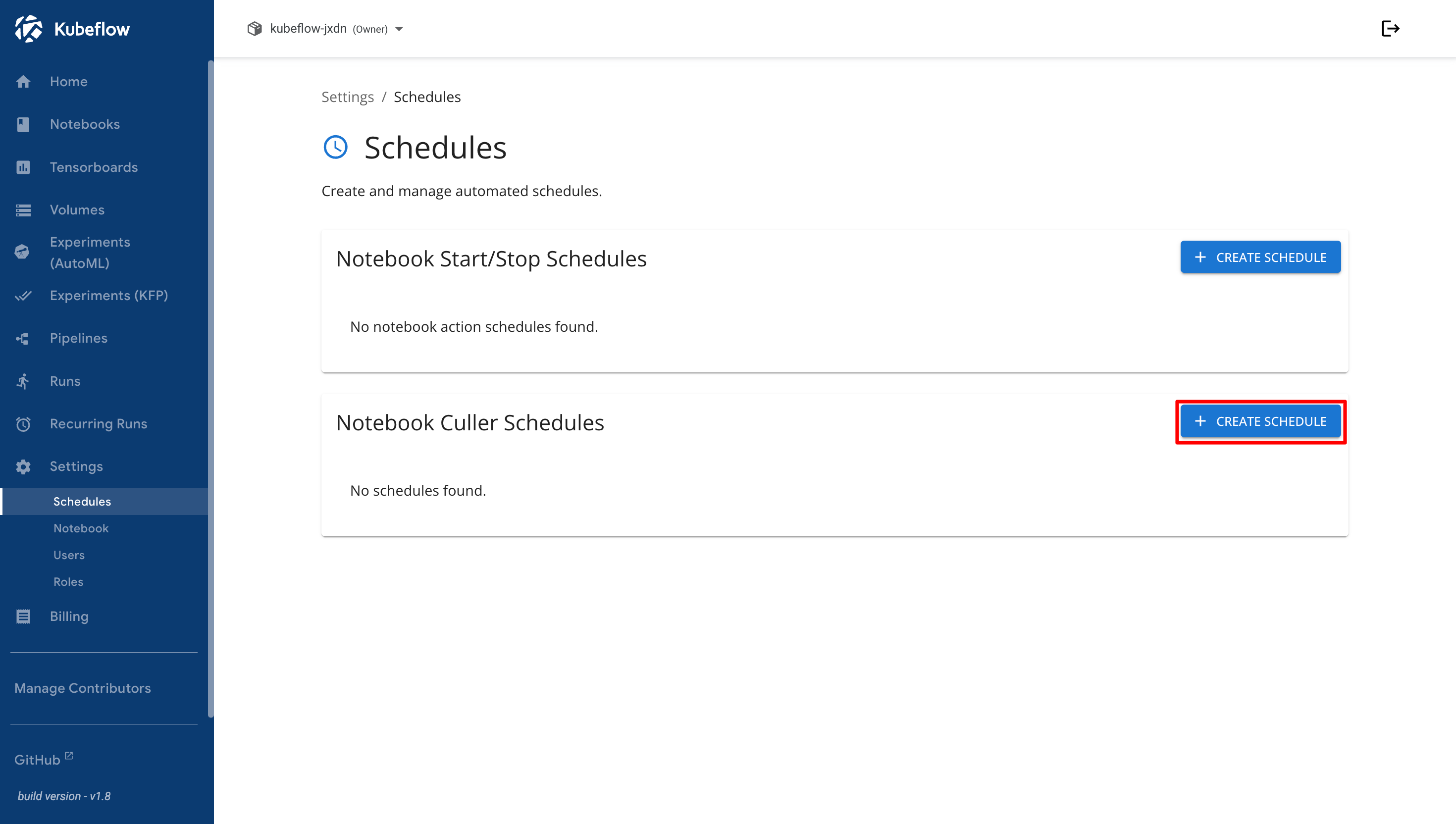
In the Notebook Culler Schedules section, click **Create Schedule** to create a new culler schedule.

<figure><img src="https://2882153758-files.gitbook.io/~/files/v0/b/gitbook-x-prod.appspot.com/o/spaces%2Fi9YWb69HFXLHYlXffReU%2Fuploads%2Fgit-blob-2cbf3f9dcfb496294fd620f028ce2cfd360a7229%2Fimage.png?alt=media" alt=""><figcaption></figcaption></figure>

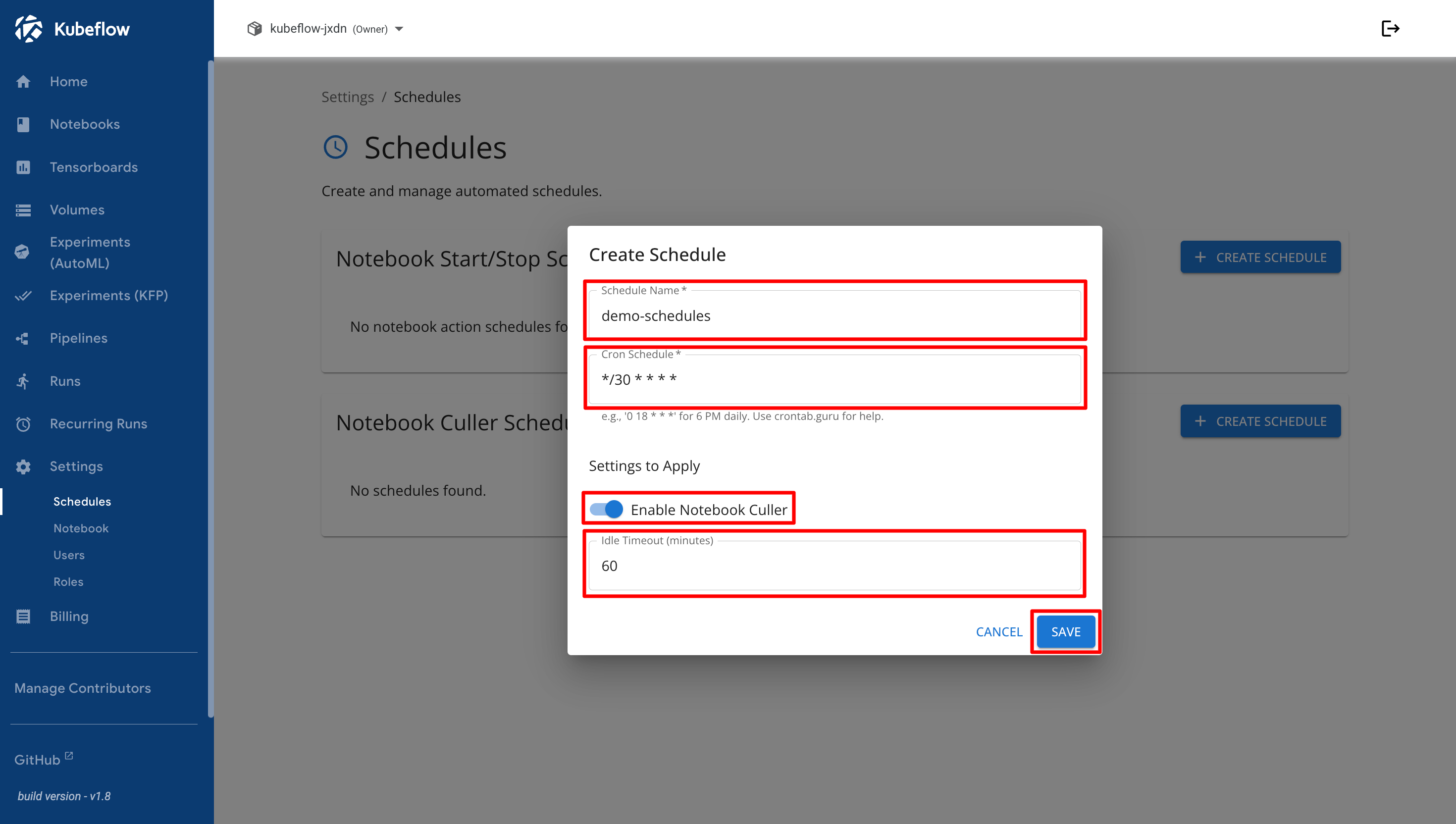
In the Create Schedule dialog, enter the schedule name, specify the cron schedule, enable the notebook culler option, and configure the idle timeout value. Click **Save** to create the schedule.

<figure><img src="https://2882153758-files.gitbook.io/~/files/v0/b/gitbook-x-prod.appspot.com/o/spaces%2Fi9YWb69HFXLHYlXffReU%2Fuploads%2Fgit-blob-3cbf838102a53bdb0a9b21a1e3d8cba7d92ae62e%2Fimage.png?alt=media" alt=""><figcaption></figcaption></figure>

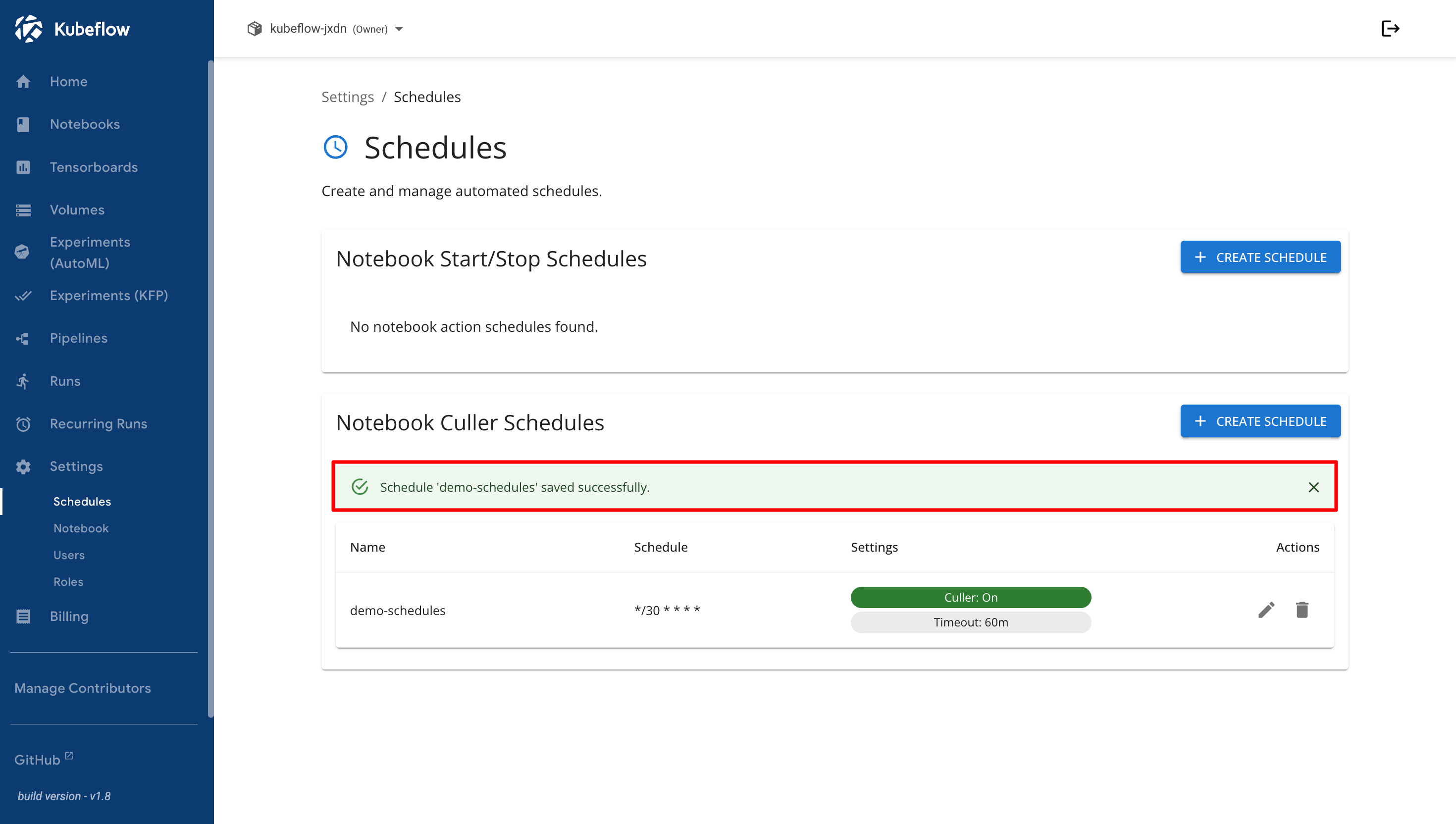
A success notification is displayed after the culler schedule has been created successfully.

<figure><img src="https://2882153758-files.gitbook.io/~/files/v0/b/gitbook-x-prod.appspot.com/o/spaces%2Fi9YWb69HFXLHYlXffReU%2Fuploads%2Fgit-blob-55d462db239145c61f634b67641ac0d1f2b92183%2Fimage.png?alt=media" alt=""><figcaption></figcaption></figure>

## Modify Notebook Culler Schedules

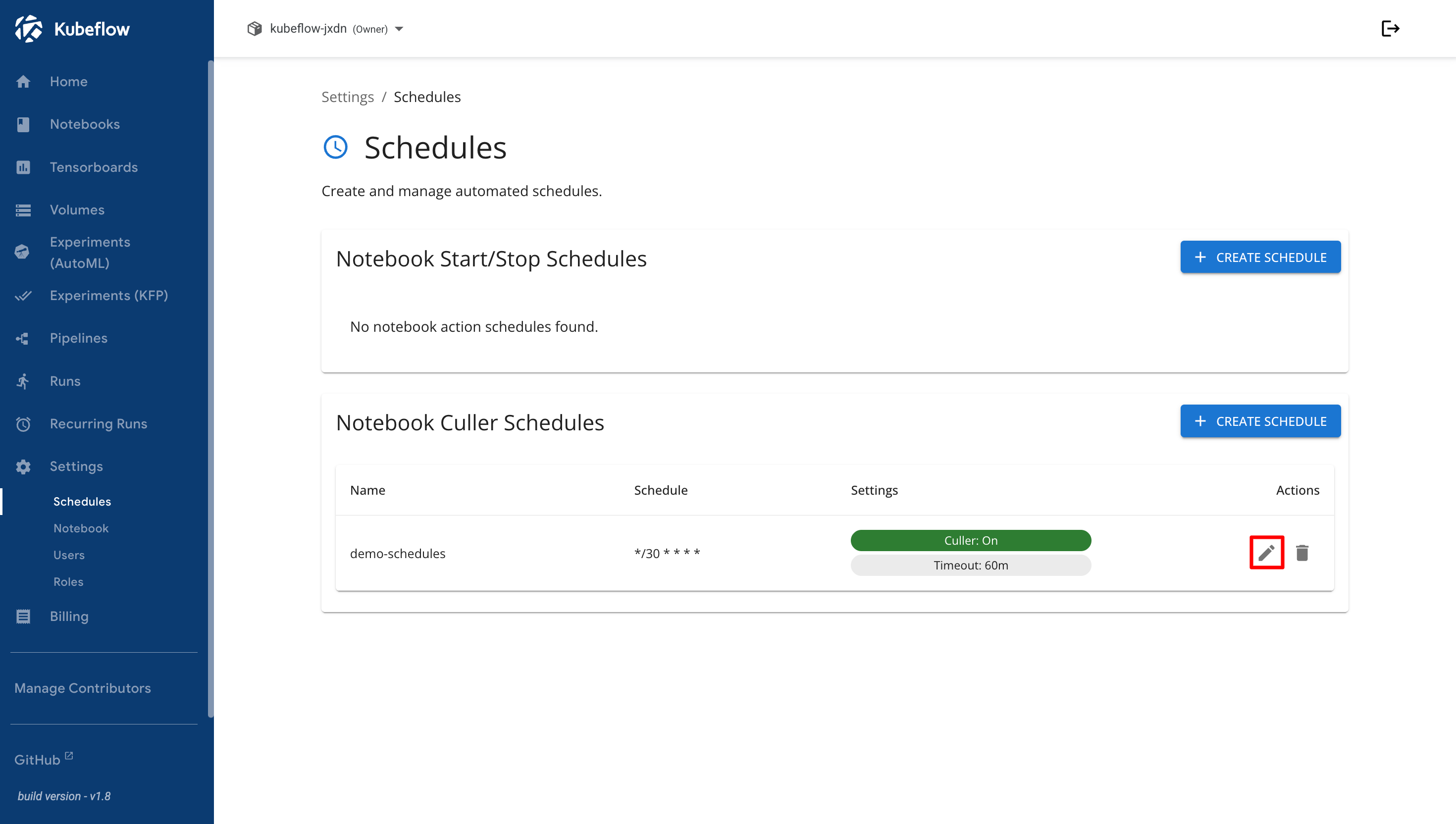
To modify an existing culler schedule, click the **Edit** icon in the Actions column.

<figure><img src="https://2882153758-files.gitbook.io/~/files/v0/b/gitbook-x-prod.appspot.com/o/spaces%2Fi9YWb69HFXLHYlXffReU%2Fuploads%2Fgit-blob-3dab5c93997223ffc3510670b87660115f32e80a%2Fimage.png?alt=media" alt=""><figcaption></figcaption></figure>

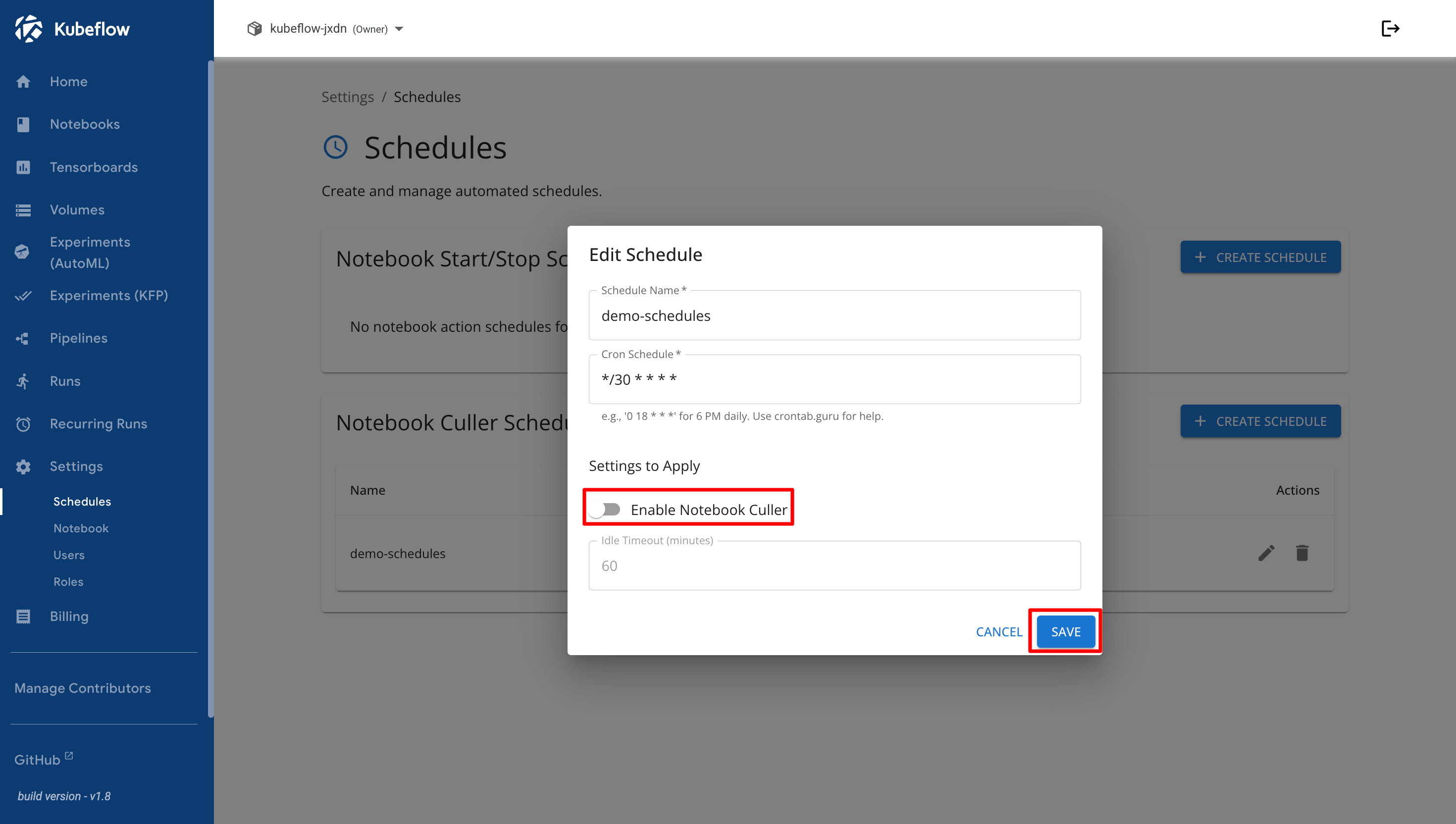
In the Edit Schedule dialog, update the schedule configuration as needed, such as the cron schedule, notebook culler setting, or idle timeout value. Click **Save** to apply the changes.

<figure><img src="https://2882153758-files.gitbook.io/~/files/v0/b/gitbook-x-prod.appspot.com/o/spaces%2Fi9YWb69HFXLHYlXffReU%2Fuploads%2Fgit-blob-f4571441c231af687cf212d1960be34dfe9e9008%2Fimage.png?alt=media" alt=""><figcaption></figcaption></figure>

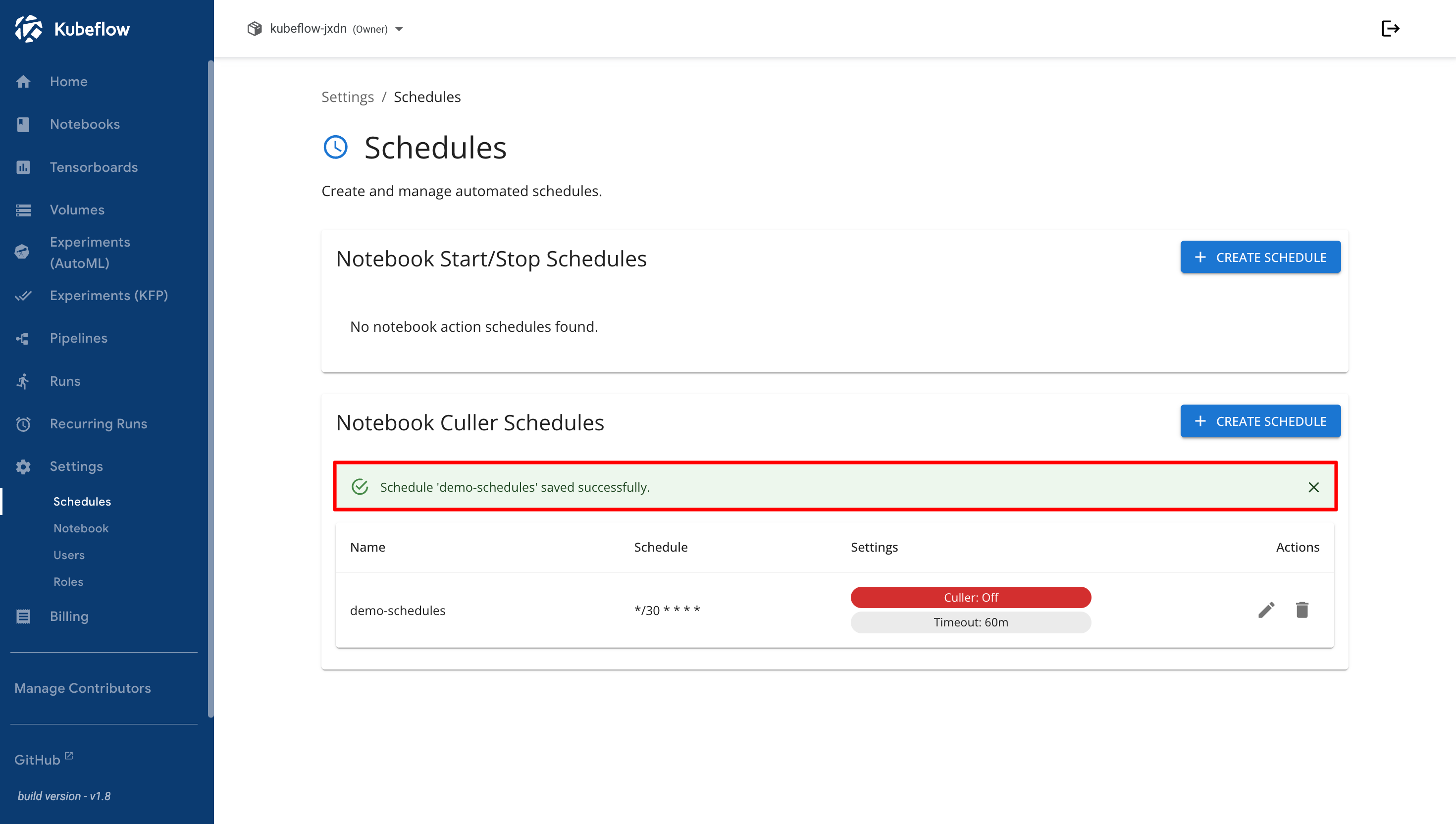
A success notification is displayed after the culler schedule has been updated successfully.

<figure><img src="https://2882153758-files.gitbook.io/~/files/v0/b/gitbook-x-prod.appspot.com/o/spaces%2Fi9YWb69HFXLHYlXffReU%2Fuploads%2Fgit-blob-dac82afcba905d12430cc7d36cfde4b8e336b799%2Fimage.png?alt=media" alt=""><figcaption></figcaption></figure>

## Delete Notebook Culler Schedules

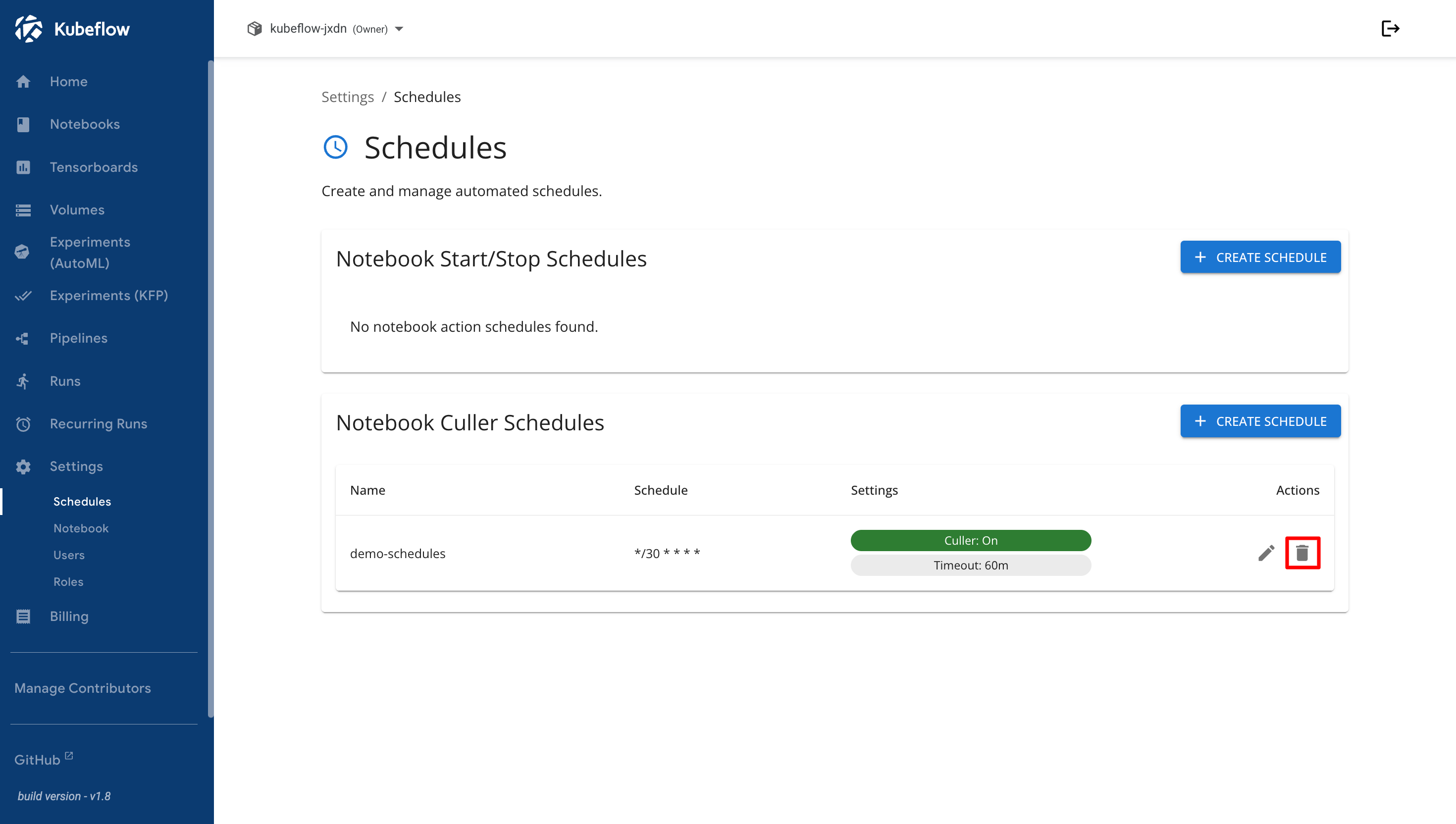
To remove a culler schedule, click the **Delete** icon in the Actions column.

<figure><img src="https://2882153758-files.gitbook.io/~/files/v0/b/gitbook-x-prod.appspot.com/o/spaces%2Fi9YWb69HFXLHYlXffReU%2Fuploads%2Fgit-blob-f799409cdad84734fbf01518b6bd07cf57740d9e%2Fimage.png?alt=media" alt=""><figcaption></figcaption></figure>

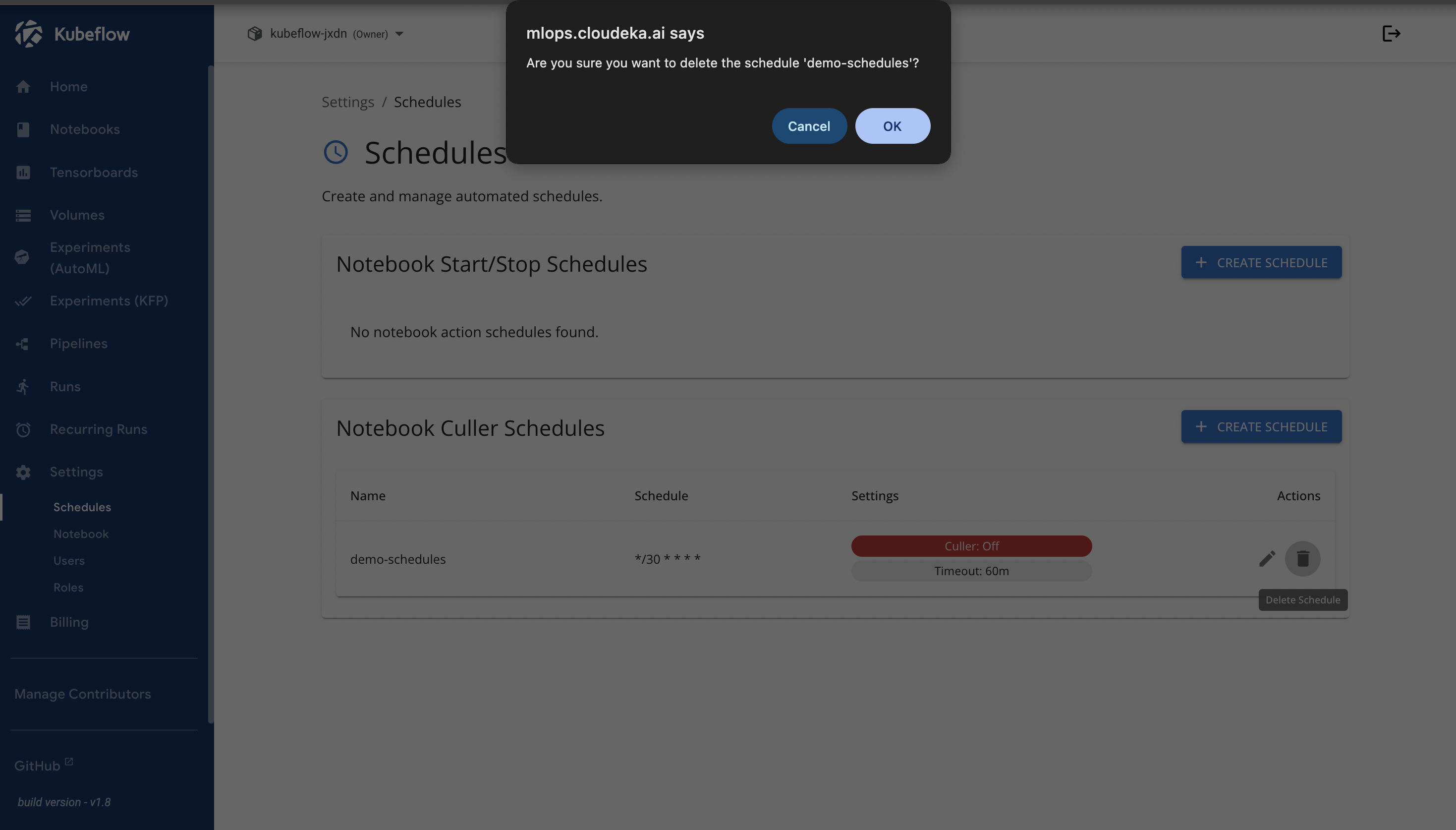
Review the confirmation message, then click **OK** to delete the selected culler schedule.

<figure><img src="https://2882153758-files.gitbook.io/~/files/v0/b/gitbook-x-prod.appspot.com/o/spaces%2Fi9YWb69HFXLHYlXffReU%2Fuploads%2Fgit-blob-74a7d5b69c9124baff902a055f69e0b0a0f76e76%2Fimage.png?alt=media" alt=""><figcaption></figcaption></figure>

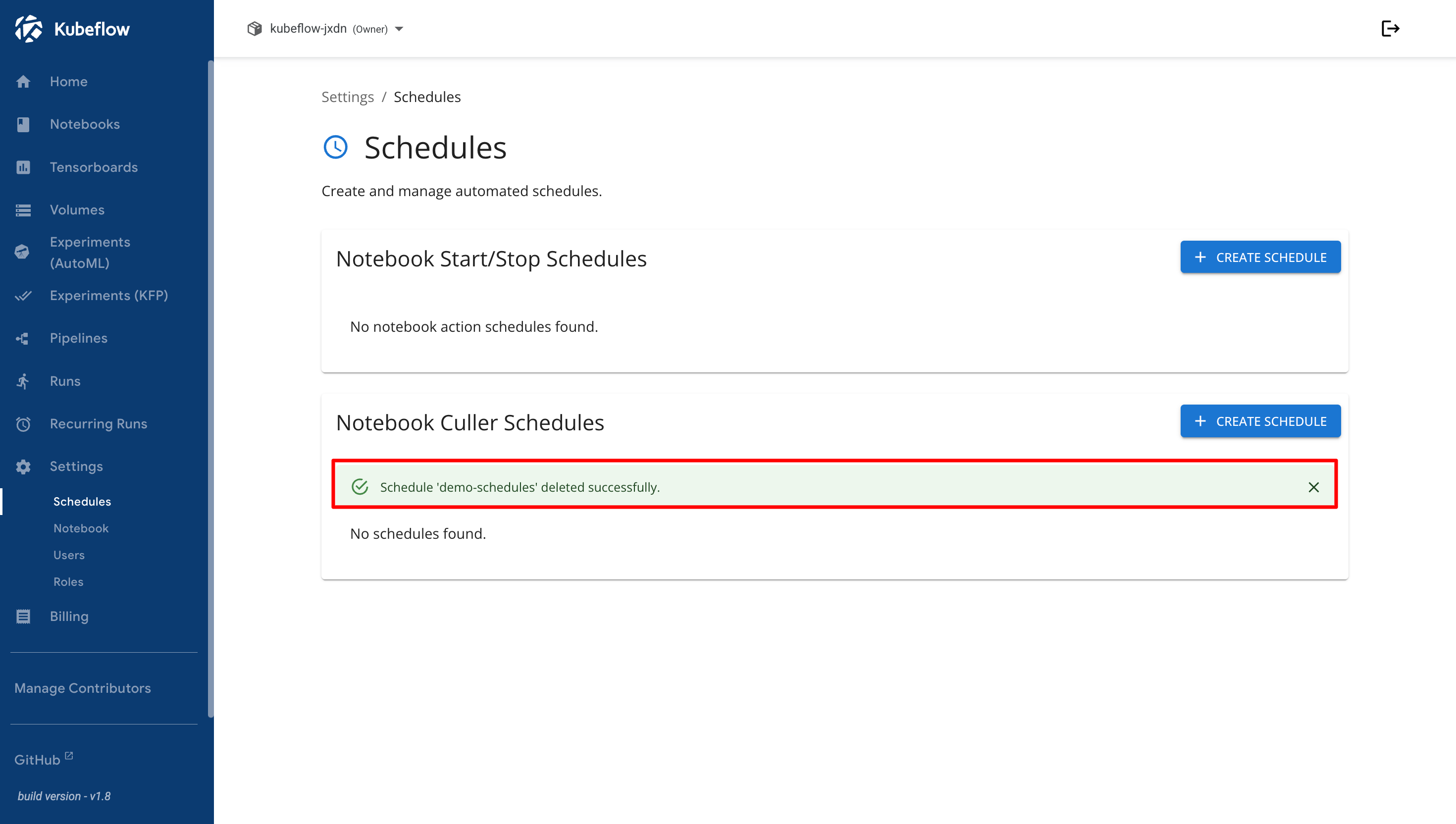
After the deletion process is completed, a notification is displayed to confirm that the culler schedule has been successfully removed.
<figure><img src="https://2882153758-files.gitbook.io/~/files/v0/b/gitbook-x-prod.appspot.com/o/spaces%2Fi9YWb69HFXLHYlXffReU%2Fuploads%2Fgit-blob-9adcb1c0251793ff3c567b9adb3c0db82d133769%2Fimage.png?alt=media" alt=""><figcaption></figcaption></figure>