> For the complete documentation index, see [llms.txt](https://docs.cloudeka.ai/llms.txt). Markdown versions of documentation pages are available by appending `.md` to page URLs; this page is available as [Markdown](https://docs.cloudeka.ai/guideline-for-enterprise/deka-metal/deka-metal-deka-box/manage-access-key/add-access-key.md).

# Add Access Key

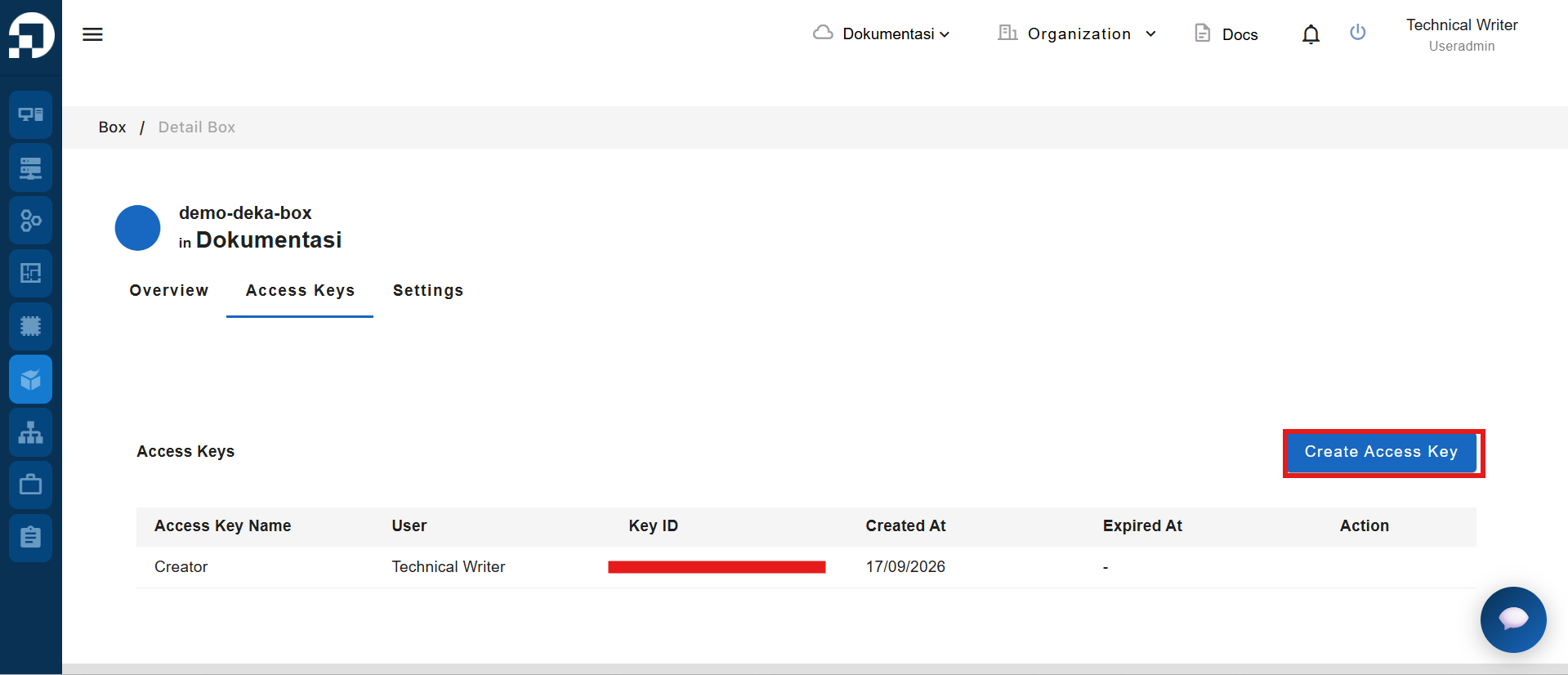
To add an Access Key to your Deka Box, simply click the **Create Access Key** button on the **Access Key** tab.

<figure><img src="https://2882153758-files.gitbook.io/~/files/v0/b/gitbook-x-prod.appspot.com/o/spaces%2Fi9YWb69HFXLHYlXffReU%2Fuploads%2Fgit-blob-60fe2951eca9db9782bd780c711555867e7e3d16%2Fimage.png?alt=media" alt=""><figcaption></figcaption></figure>

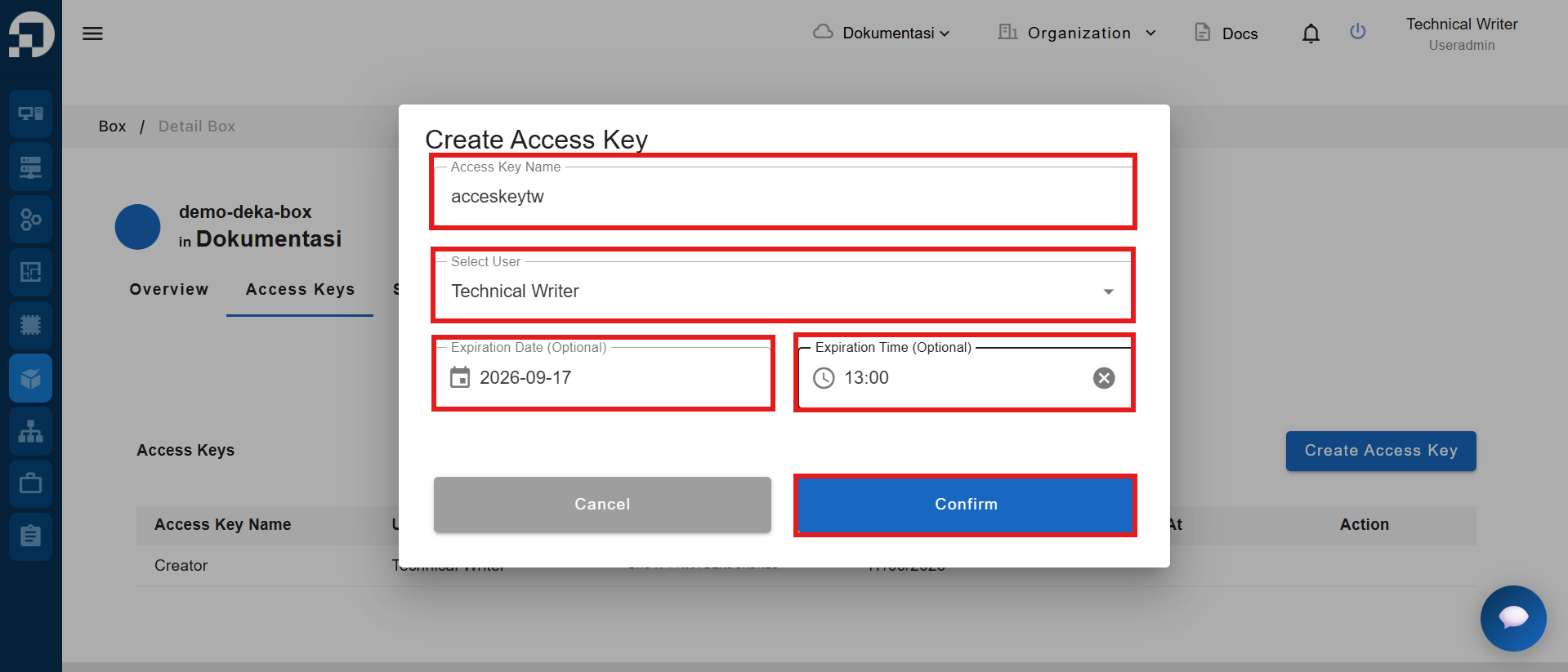
The **Create Access Key** window will appear. Enter the **Access Key Name** and specify the user who will use it. Then click the **Confirm** button.

<figure><img src="https://2882153758-files.gitbook.io/~/files/v0/b/gitbook-x-prod.appspot.com/o/spaces%2Fi9YWb69HFXLHYlXffReU%2Fuploads%2Fgit-blob-cceb4cb139591b0fdc67f9ce06c443887d3f028c%2Fimage.png?alt=media" alt=""><figcaption></figcaption></figure>

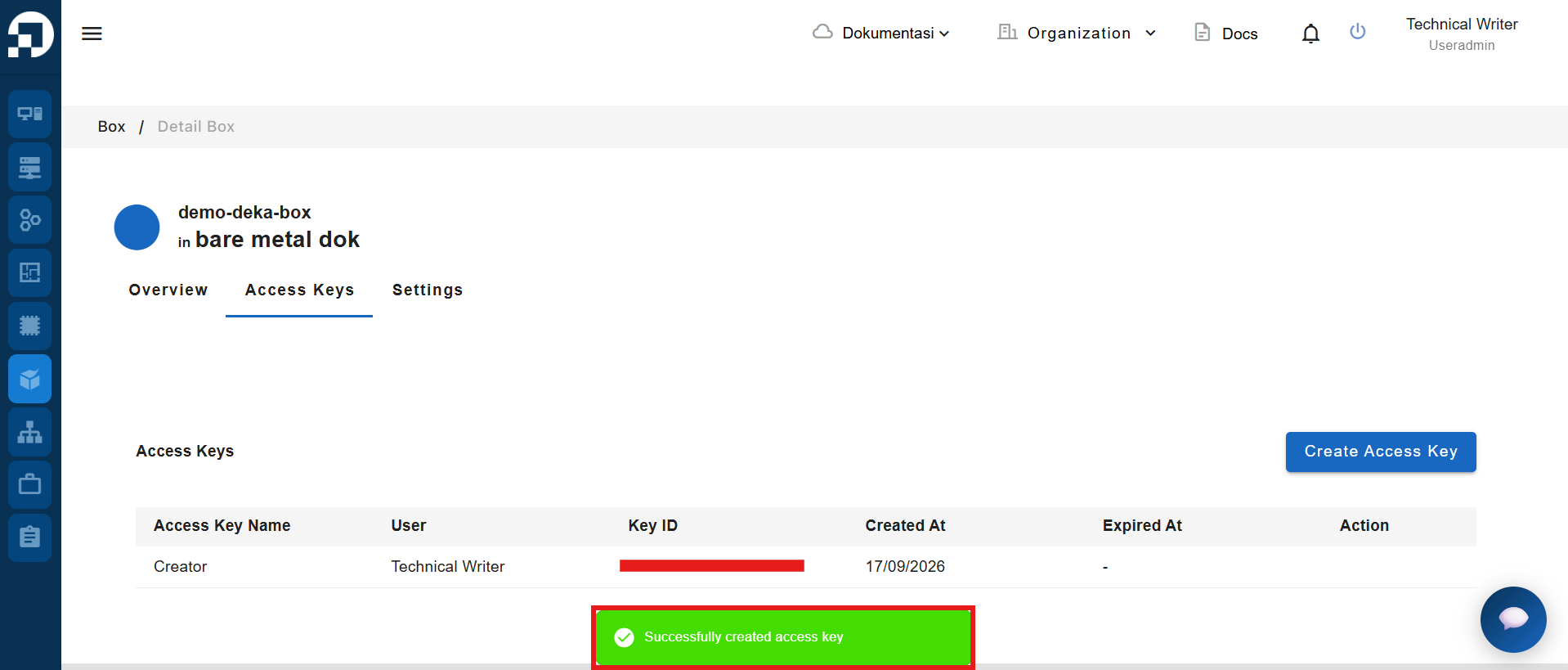
If the Access Key is successfully added, a notification will appear saying **"Successfully created access key."**
<figure><img src="https://2882153758-files.gitbook.io/~/files/v0/b/gitbook-x-prod.appspot.com/o/spaces%2Fi9YWb69HFXLHYlXffReU%2Fuploads%2Fgit-blob-727f96186fec12f9a34651ac76ec030875093668%2Fimage.png?alt=media" alt=""><figcaption></figcaption></figure>