> For the complete documentation index, see [llms.txt](https://docs.cloudeka.ai/llms.txt). Markdown versions of documentation pages are available by appending `.md` to page URLs; this page is available as [Markdown](https://docs.cloudeka.ai/guideline-for-enterprise/deka-metal/login.md).
# Login
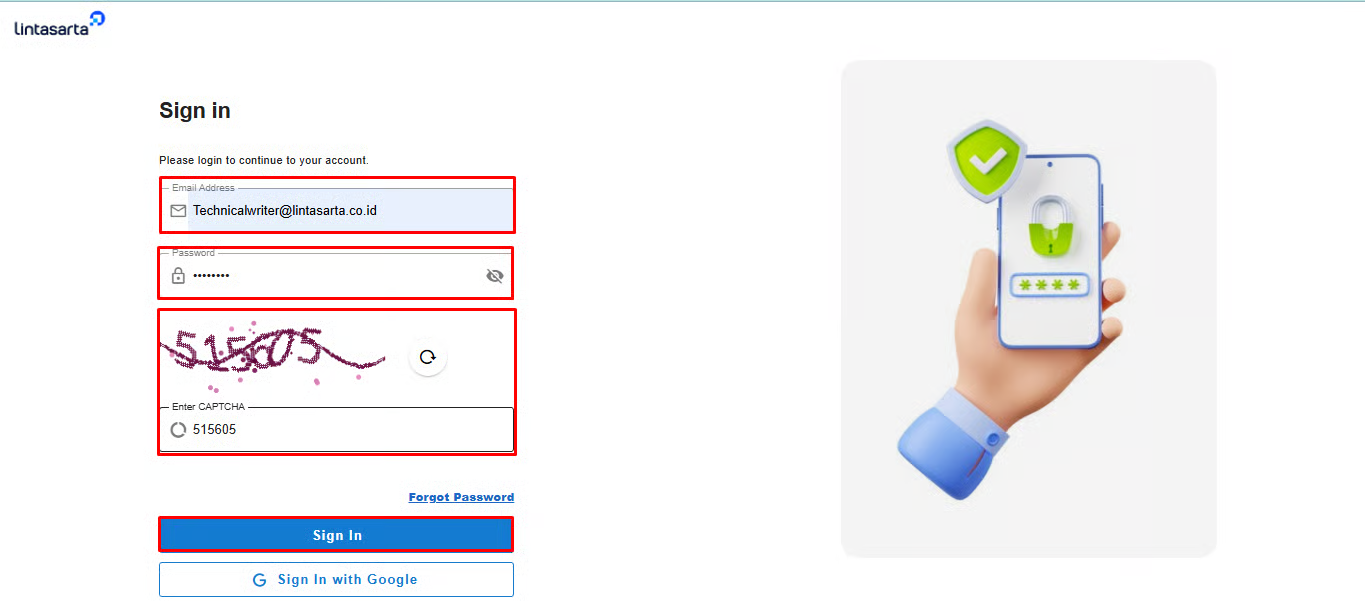
1\. Access the Service Portal AI through a browser. The Sign In Now page will appear to log in to the system.Fill in the Email Address and Password fields that were previously registered, then click the Sign In button.
Login
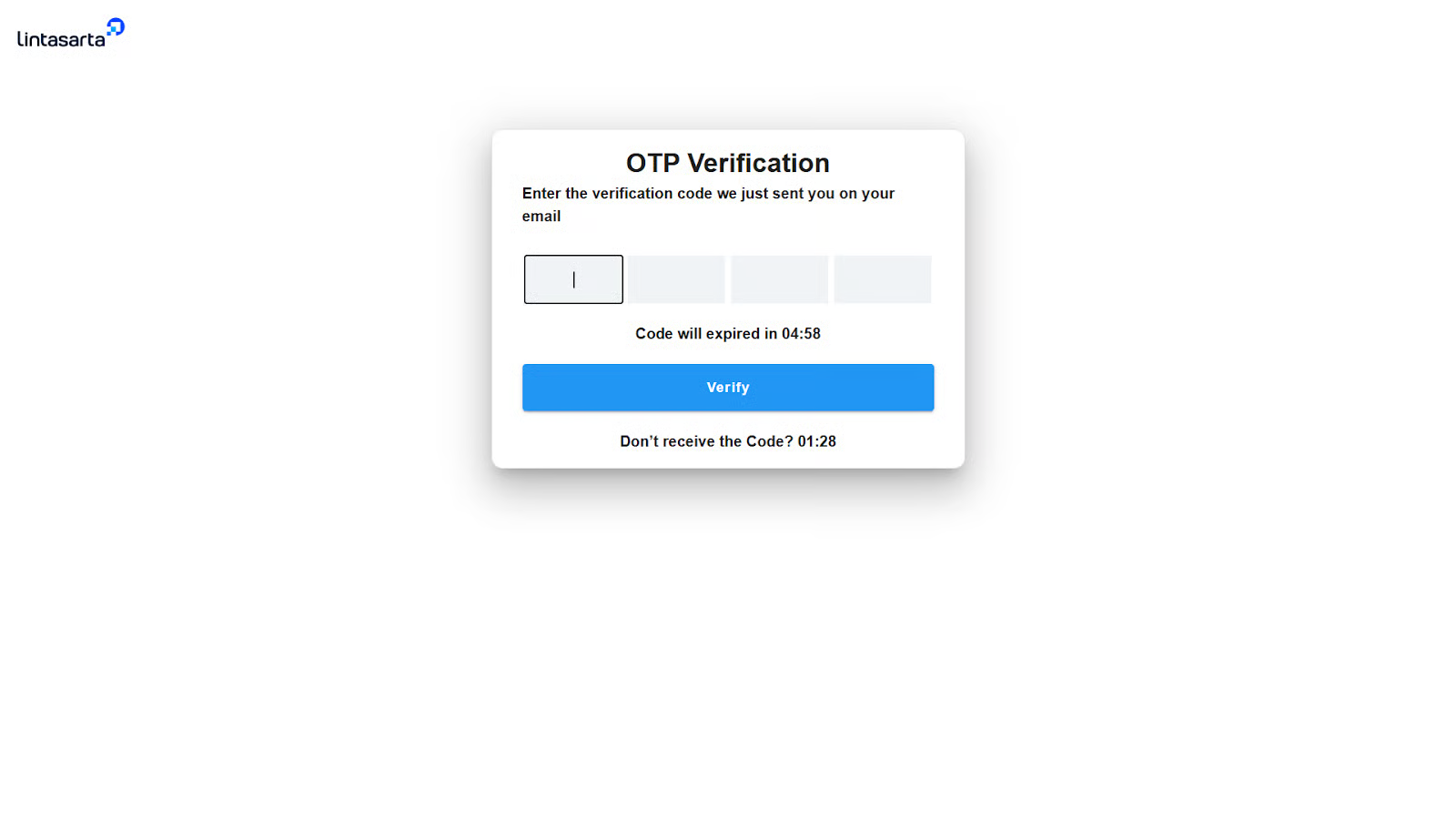
2\. The user will be redirected to the OTP Verification page.Enter the OTP code received via email.
Enter OTP code
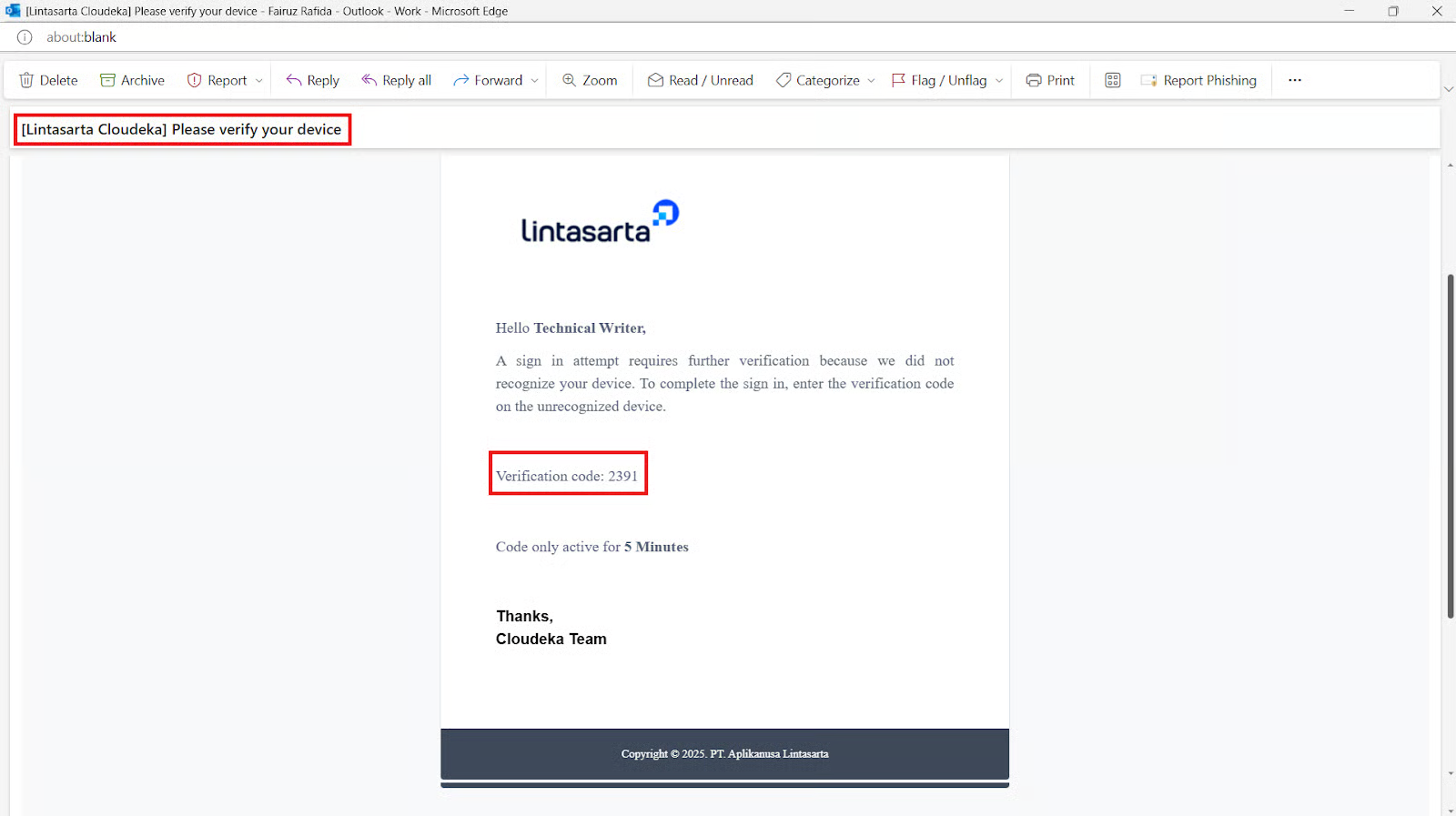
3\. Check the email inbox and make sure an email has been received from with the subject **\[Lintasarta Cloudeka]** Please verify your device.
Copy OTP code
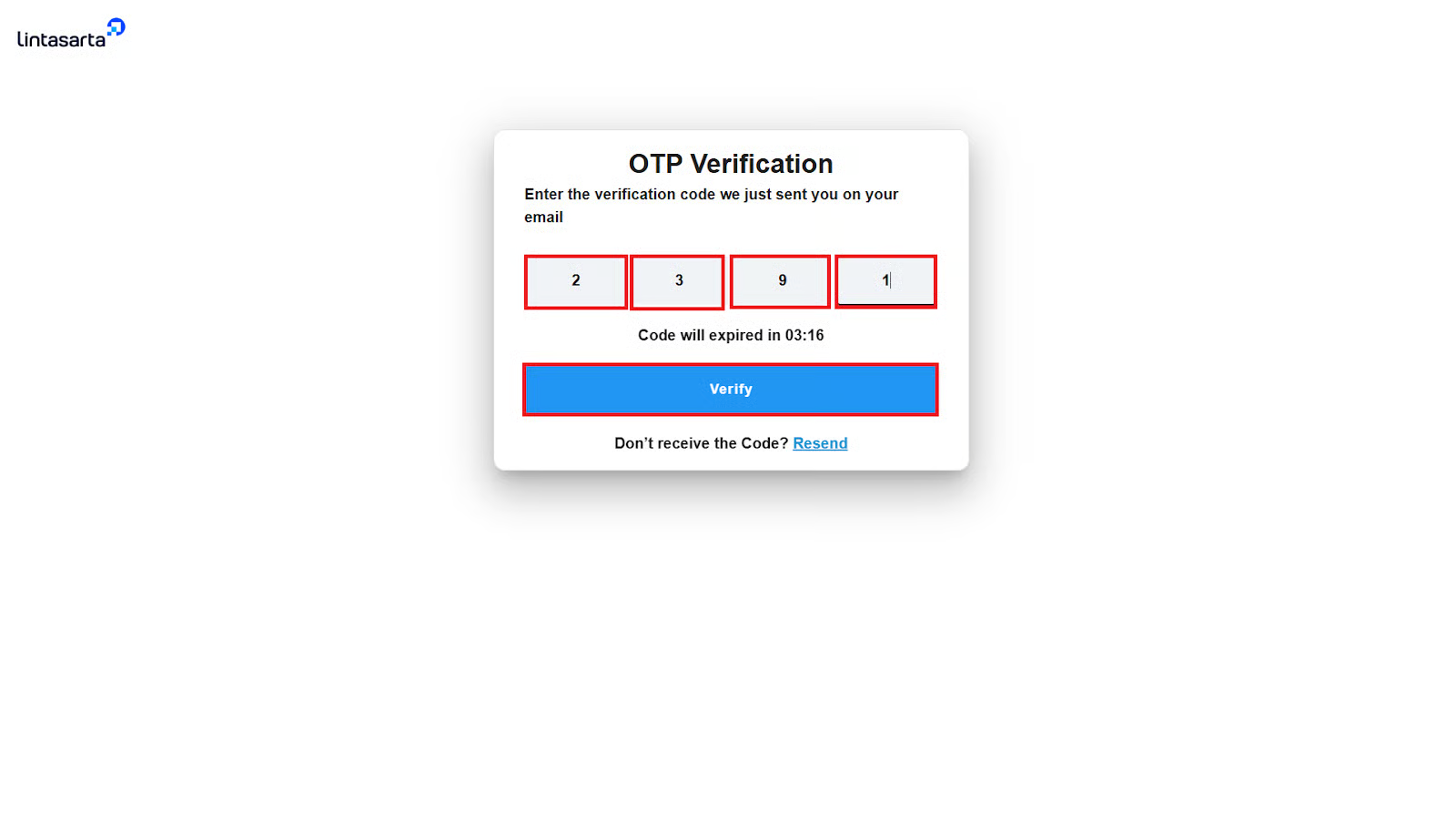
4\. Enter the OTP code, then click the Verify button.
Verify OTP code
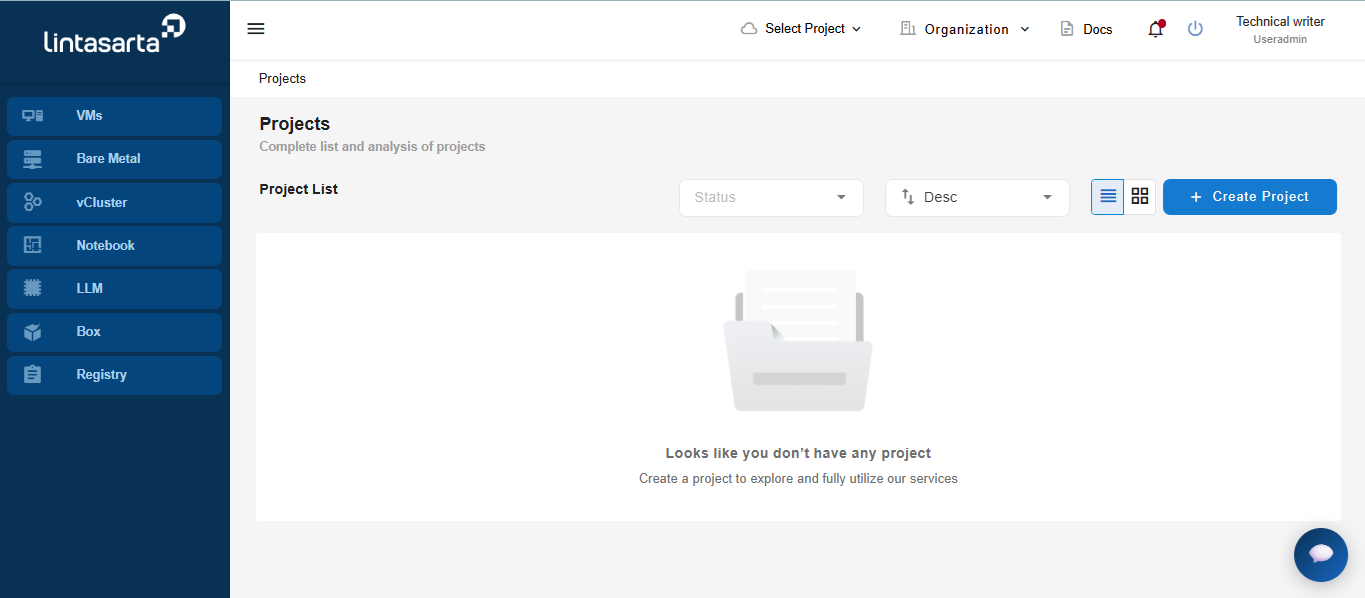
5\. After clicking the Verify button, the system will automatically display the main page