> For the complete documentation index, see [llms.txt](https://docs.cloudeka.ai/llms.txt). Markdown versions of documentation pages are available by appending `.md` to page URLs; this page is available as [Markdown](https://docs.cloudeka.ai/guideline-for-enterprise/panduan-untuk-enterprise/deka-flexi/deka-volume-storage/creating-and-attaching-a-storage-or-disk.md).

# Membuat dan Menambahkan Storage atau Disk

Anda dapat membuat *disk* kosong dan memasangnya pada *instance VM*. *Disk* ini berfungsi sebagai *disk non-root*.

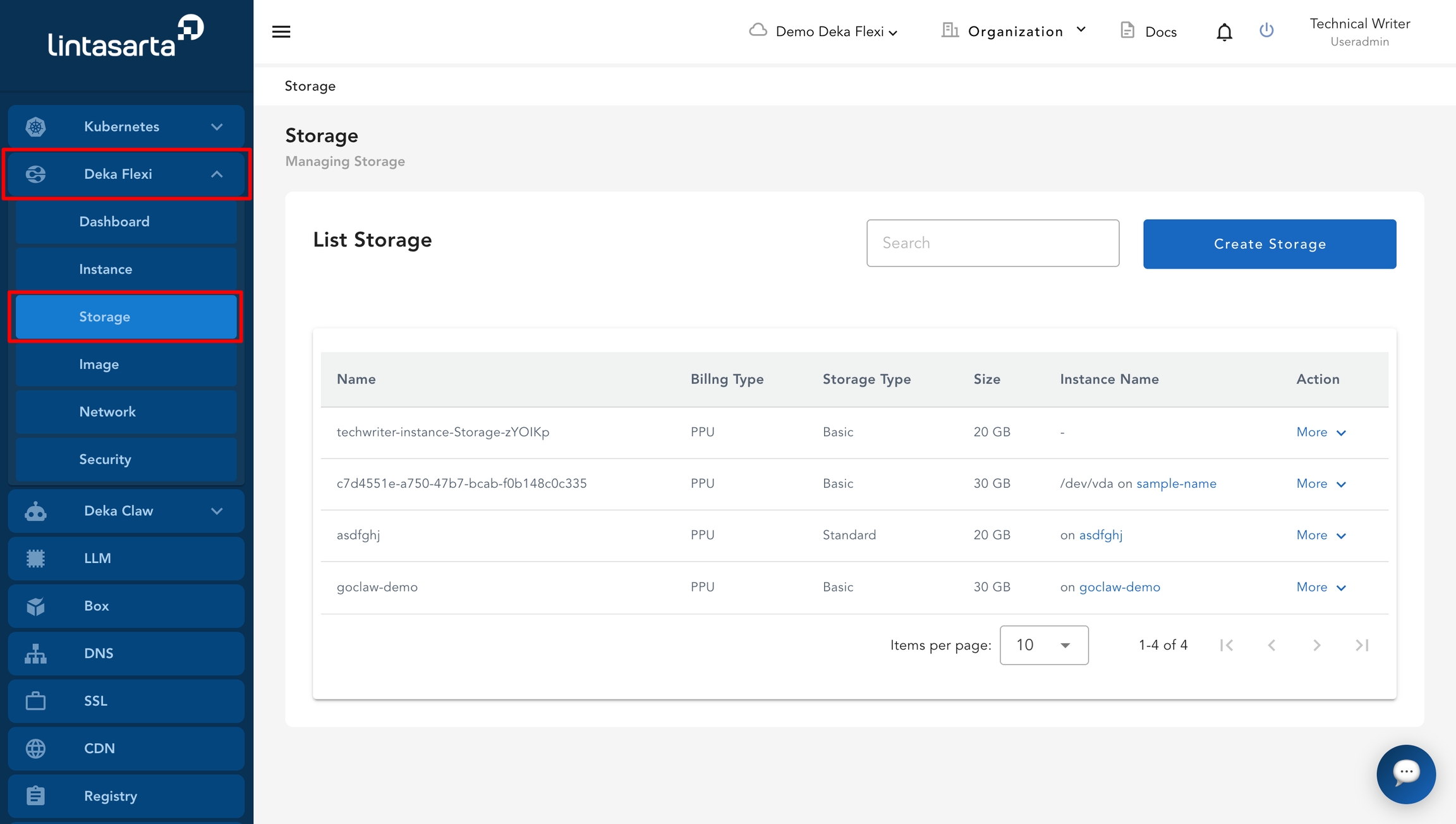
* Pada halaman utama *Service Portal* Cloudeka, pilih menu ***Storage***.

<figure><img src="https://putri.box.cloudeka.id/cloudeka-assets/docs.cloudeka.ai/6dekaflexi/createattachstorage_01.jpg" alt=""><figcaption></figcaption></figure>

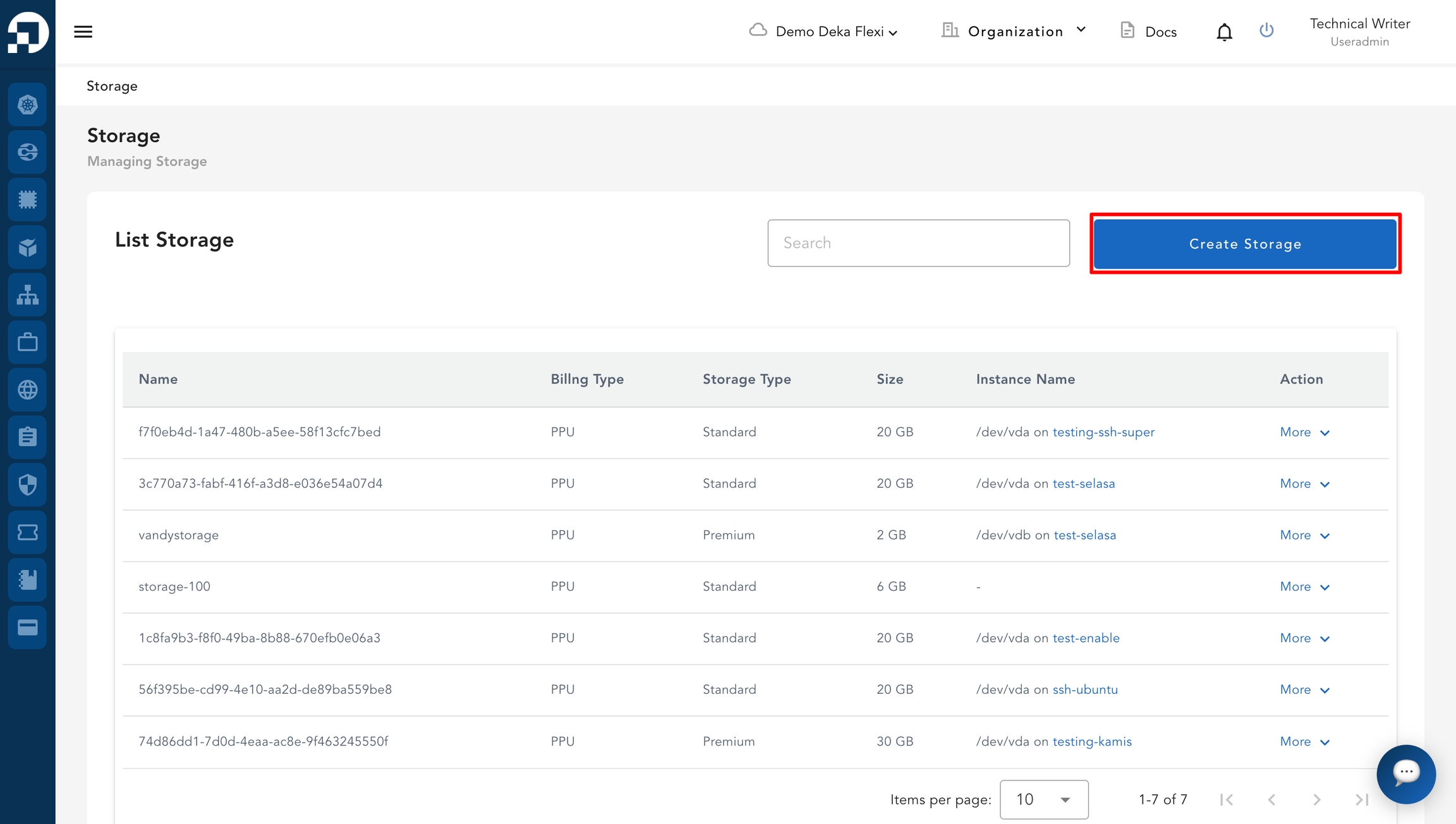
* Klik tombol ***Create Storage***.

<figure><img src="https://putri.box.cloudeka.id/cloudeka-assets/docs.cloudeka.ai/6dekaflexi/createattachstoragee_02.jpg" alt=""><figcaption></figcaption></figure>

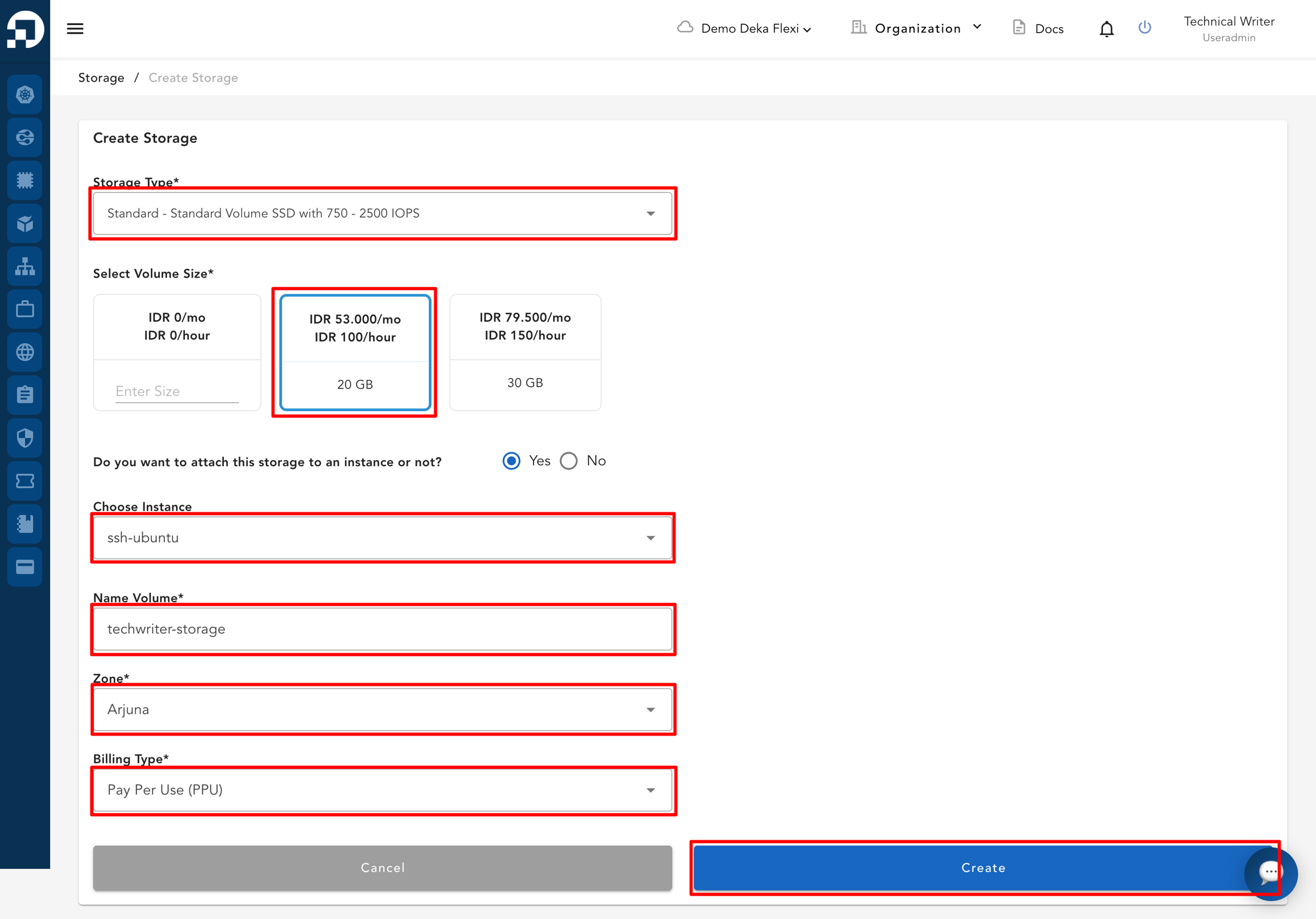
* Isi formulir ***Create Storage*** dengan informasi berikut.

<table data-full-width="true"><thead><tr><th width="322">Kolom</th><th>Deskripsi</th></tr></thead><tbody><tr><td><em><strong>Storage Type</strong></em></td><td>Pilih jenis <em>storage</em> yang akan digunakan. Opsi yang tersedia meliputi <em>Basic</em>, <em>Standard</em>, <em>Premium</em>, <em>NVMe Standard</em>, dan <em>NVMe Premium</em>. Lihat tabel perbandingan jenis <em>storage</em> di bawah untuk detail performa dan fitur yang didukung.</td></tr><tr><td><em><strong>Select Volume Size</strong></em></td><td>Tentukan ukuran <em>storage</em> yang dibutuhkan.</td></tr><tr><td><em><strong>Do you want to attach this storage to an instance or not?</strong></em></td><td>Pilih <em><strong>Yes</strong></em> untuk memasang <em>storage</em> pada <em>instance</em>, atau pilih <em><strong>No</strong></em> untuk memasangnya nanti.</td></tr><tr><td><em><strong>Select Instance</strong></em></td><td>Pilih <em>instance</em> tempat <em>storage</em> akan dipasang.</td></tr><tr><td><em><strong>Name Volume</strong></em></td><td>Nama untuk volume.</td></tr><tr><td><em><strong>Billing Type</strong></em></td><td>Berdasarkan jenis <em>billing project</em> yang digunakan.</td></tr><tr><td><em><strong>Zone</strong></em></td><td><em>Zone</em> yang digunakan untuk <em>storage</em>.</td></tr></tbody></table>

Tabel berikut membandingkan setiap jenis *storage*, termasuk rentang *IOPS* dan ketersediaan fitur. Tinjau informasi berikut sebelum memilih jenis *storage*.

| *Tier*          | *IOPS*                 | TBS | TKP   | JAH   |
| --------------- | ---------------------- | --- | ----- | ----- |
| *Basic*         | Tanpa jaminan *IOPS*   | Ya  | Ya    | Tidak |
| *Standard*      | 750 - 2,500 *IOPS*     | Ya  | Ya    | Ya    |
| *Premium*       | 2,250 - 4,500 *IOPS*   | Ya  | Ya    | Ya    |
| *NVMe Standard* | 4,500 - 10,000 *IOPS*  | Ya  | Tidak | Tidak |
| *NVMe Premium*  | 10,000 - 15,000 *IOPS* | Ya  | Tidak | Tidak |

* Klik tombol ***Create*** untuk menyimpan data, atau ***Cancel*** jika Anda tidak ingin menyimpannya.

<figure><img src="https://putri.box.cloudeka.id/cloudeka-assets/docs.cloudeka.ai/6dekaflexi/createattachstoragee_03.png" alt=""><figcaption></figcaption></figure>

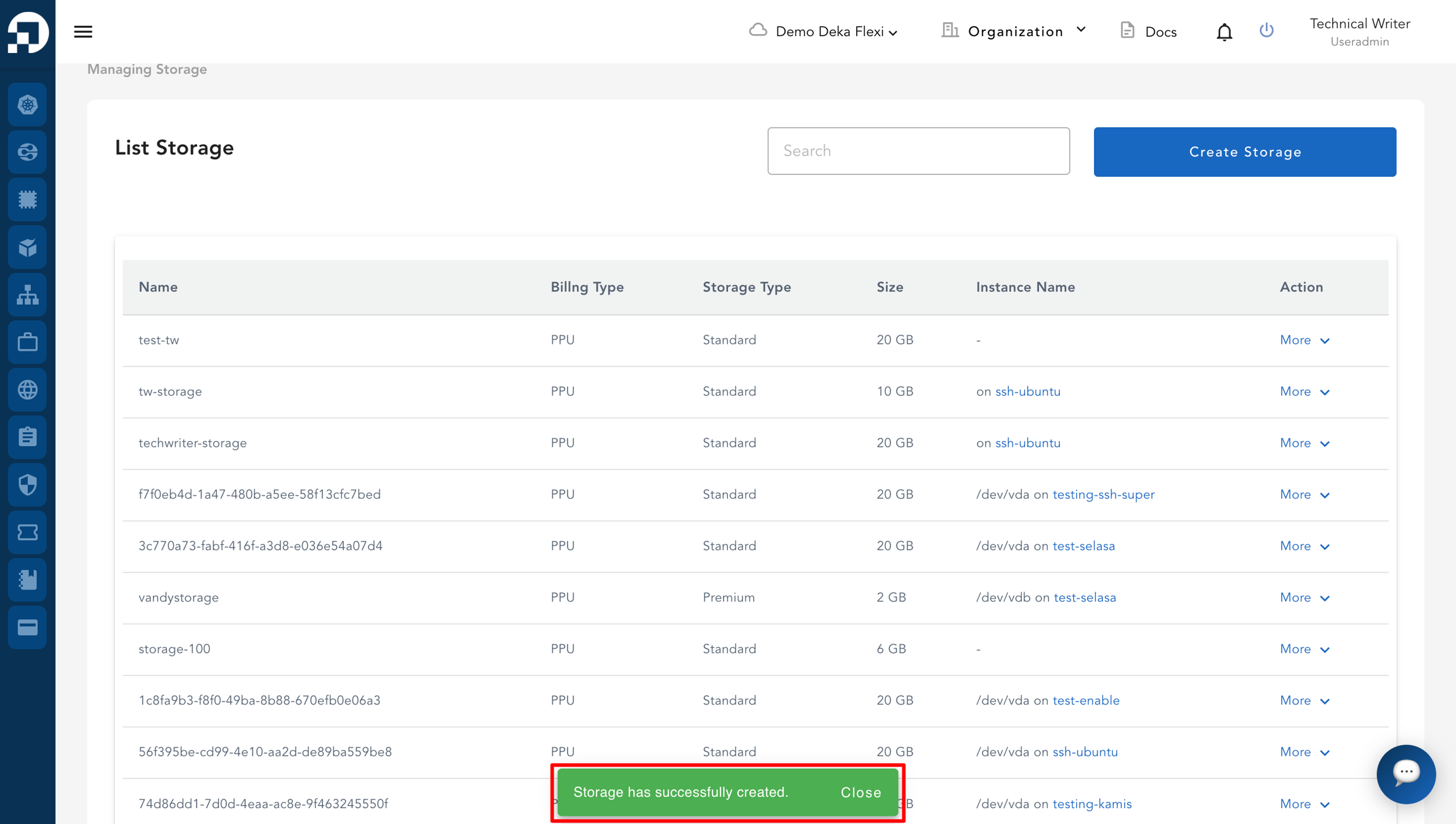
* Notifikasi dengan pesan ***"Storage has successfully created"*** akan muncul.

<figure><img src="https://putri.box.cloudeka.id/cloudeka-assets/docs.cloudeka.ai/6dekaflexi/createattachstoragee_04.png" alt=""><figcaption></figcaption></figure>