> For the complete documentation index, see [llms.txt](https://docs.cloudeka.ai/llms.txt). Markdown versions of documentation pages are available by appending `.md` to page URLs; this page is available as [Markdown](https://docs.cloudeka.ai/guideline-for-enterprise/panduan-untuk-enterprise/deka-notebook/how-to-create-a-simple-deka-notebook/running-the-deka-notebook.md).
# Menjalankan Deka Notebook
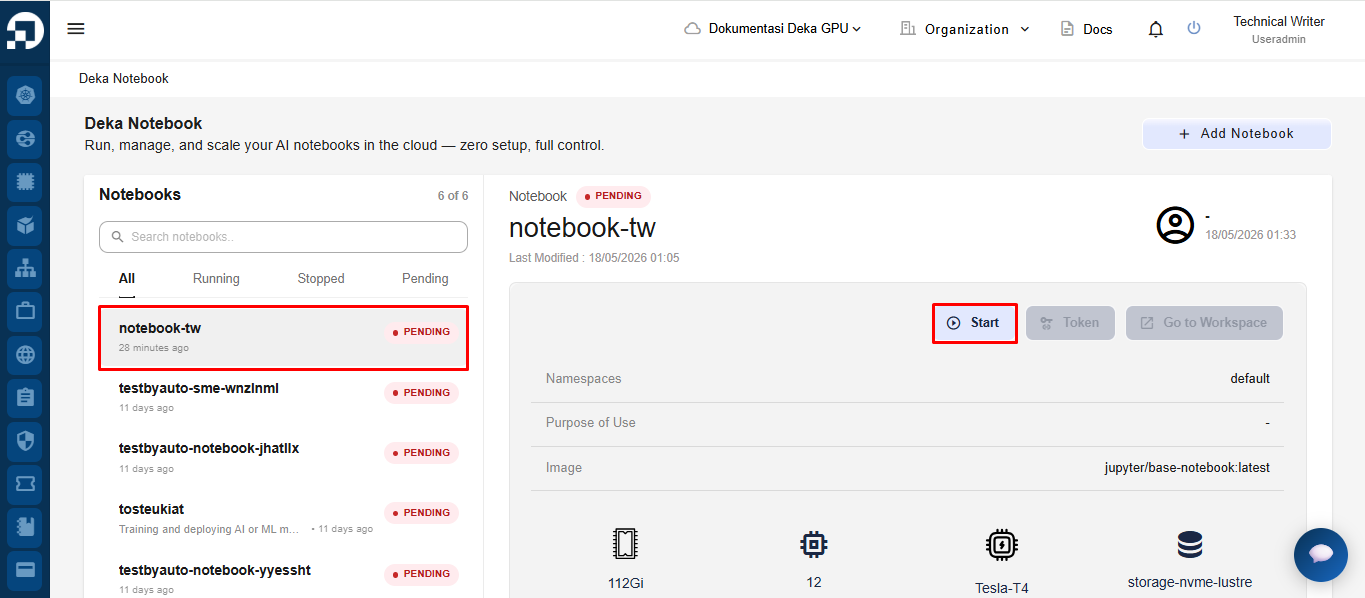
*Start Deka Notebook* adalah salah satu fitur yang tersedia di *Service Portal Cloudeka* untuk memulai layanan *Deka Notebook*. Pada halaman *Deka Notebook*, pilih *notebook* yang ingin dijalankan, lalu klik tombol *Start*.
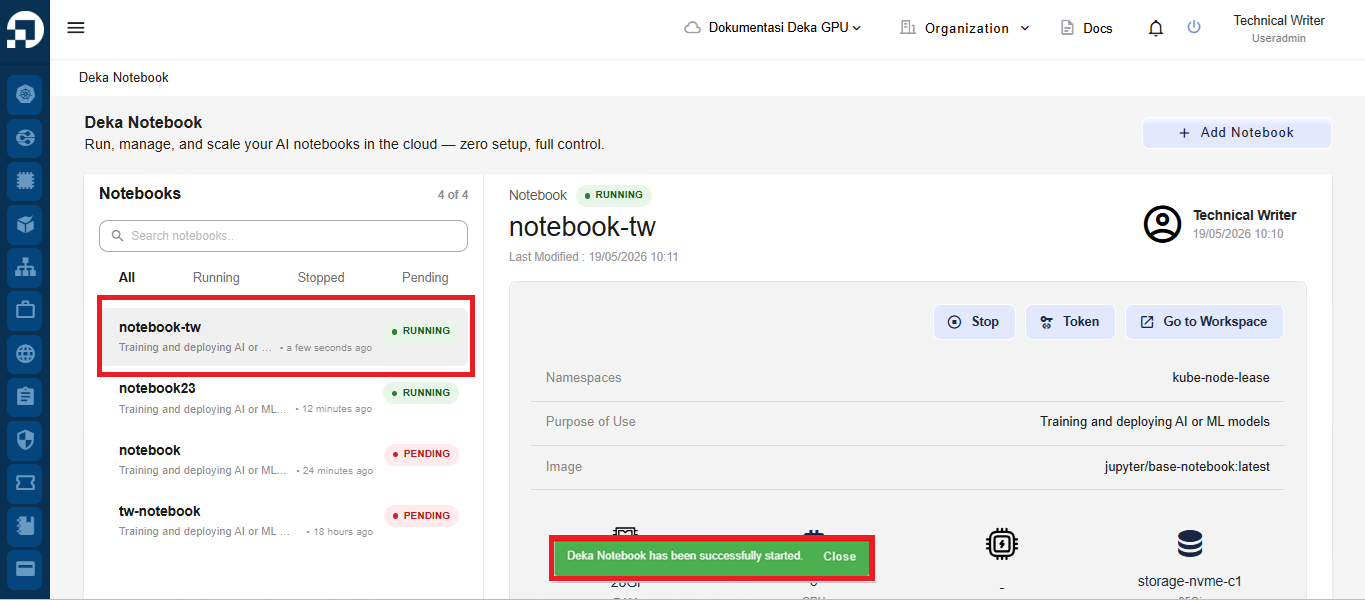
Jika proses berhasil, status *notebook* akan berubah menjadi *Running* dan sistem akan menampilkan notifikasi bahwa *notebook* berhasil dijalankan.
{% hint style="success" %}
Anda dapat menggunakan tombol *Start* pada *Deka Notebook* saat kolom *Running* menampilkan status *pending*.
{% endhint %}
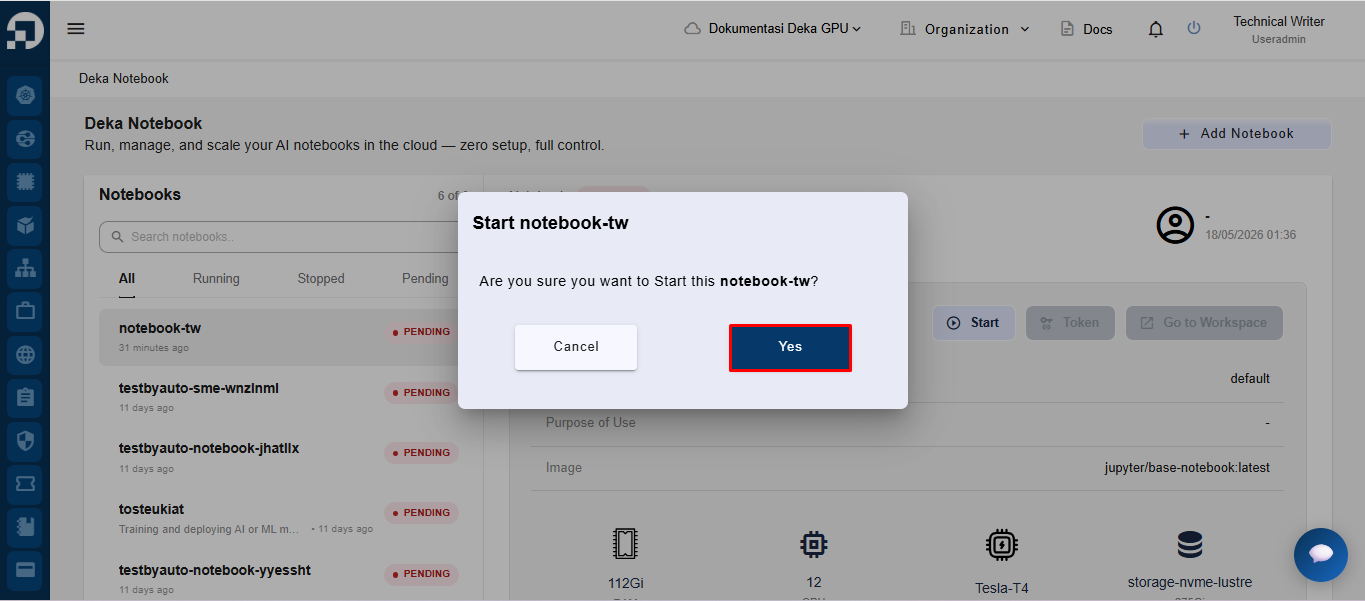
Jendela dengan nama *Deka Notebook* Anda akan muncul. Klik tombol *Yes* untuk melanjutkan.
Setelah proses *startup* selesai, sistem akan menampilkan notifikasi ***“Deka Notebook has been successfully started.”*****.** Saat proses *startup* berhasil, status *notebook* akan otomatis berubah menjadi ***“RUNNING”*****,** seperti yang ditampilkan pada daftar *notebook*.