> For the complete documentation index, see [llms.txt](https://docs.cloudeka.ai/llms.txt). Markdown versions of documentation pages are available by appending `.md` to page URLs; this page is available as [Markdown](https://docs.cloudeka.ai/guideline-for-individual/deka-box/manage-access-key/add-access-key.md).
# Add Access Key
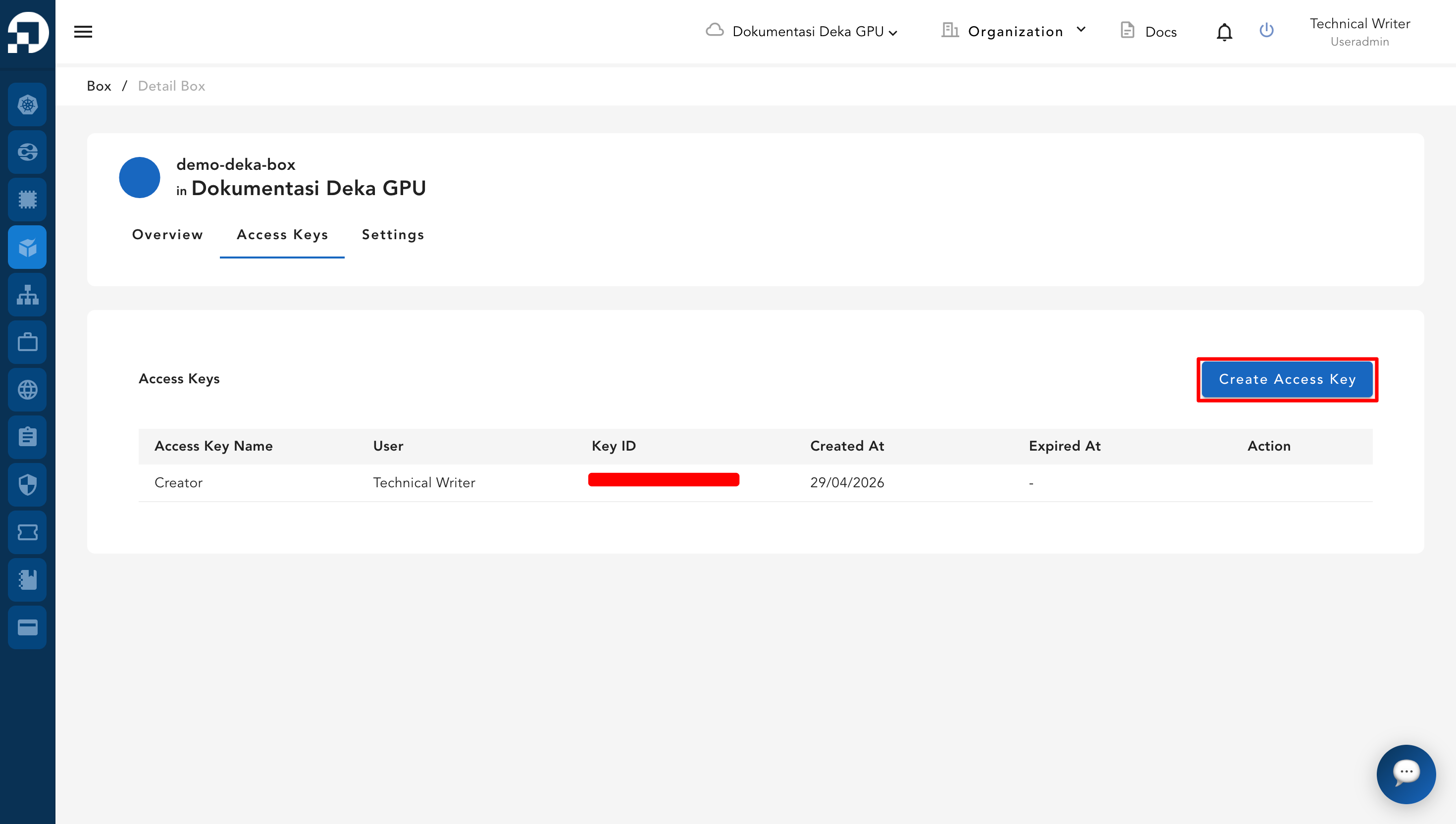
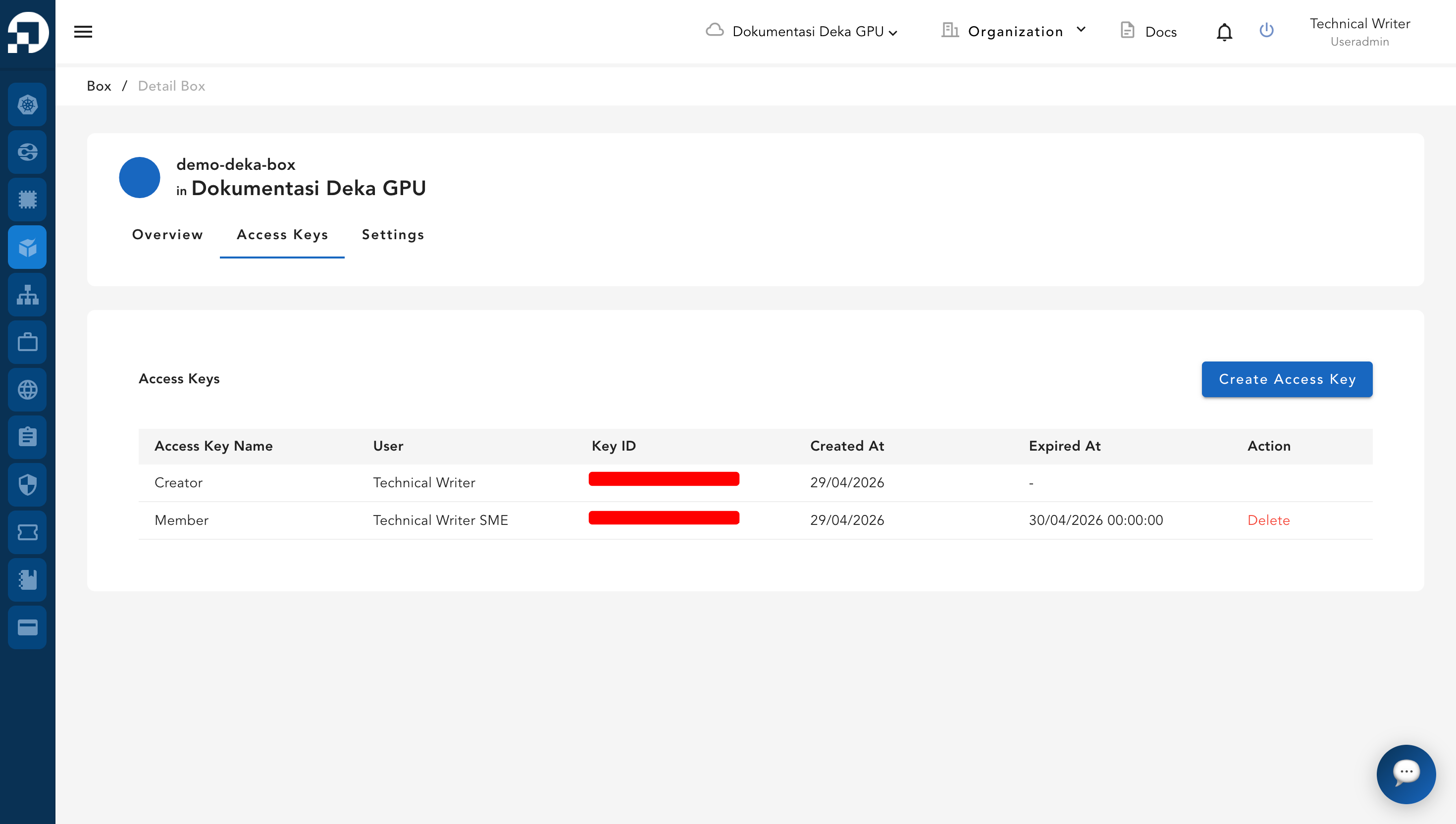
To add an Access Key to your Deka Box, simply click the **Create Access Key** button on the **Access Key** tab.
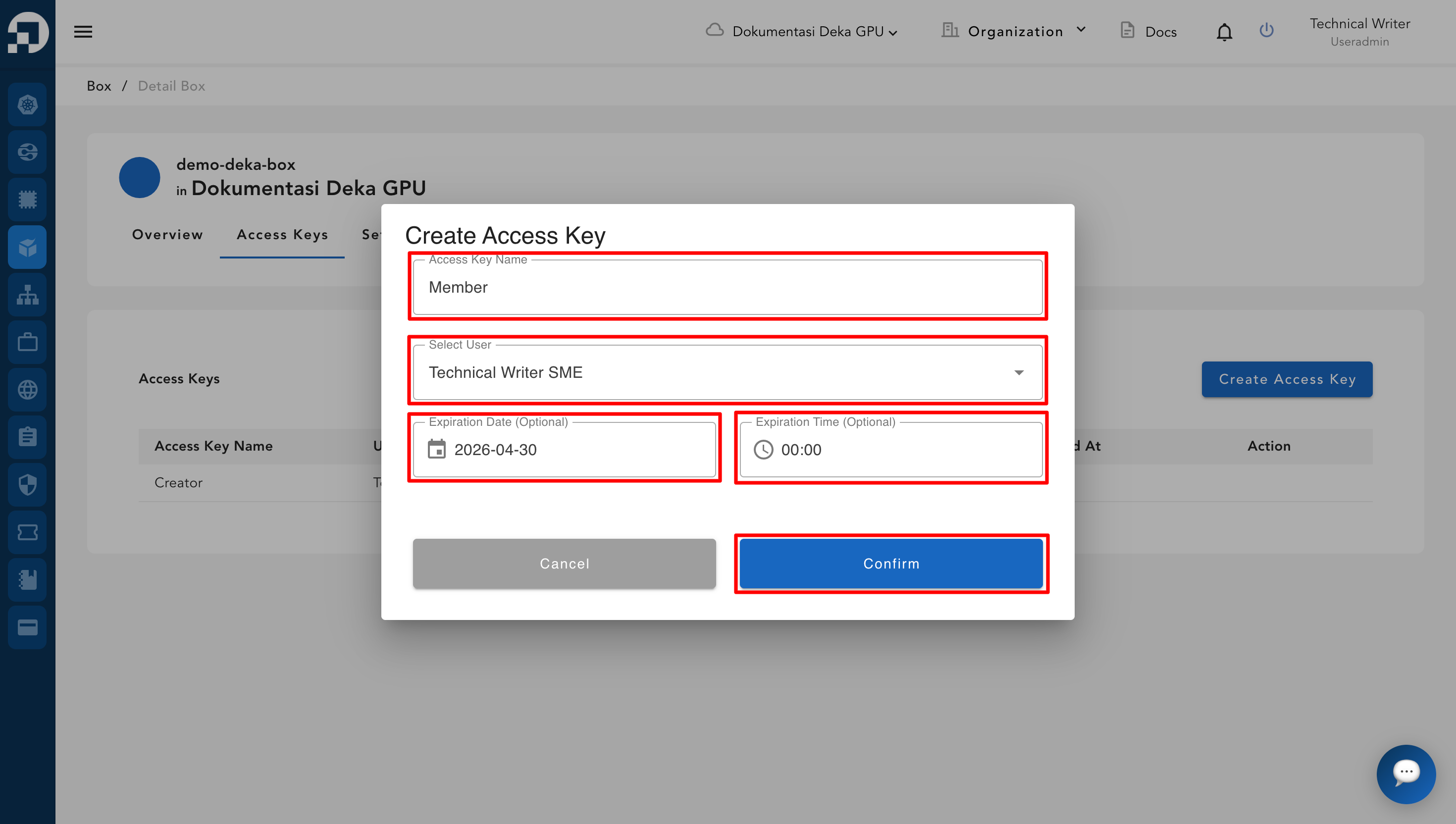
The **Create Access Key** window will appear. Fill in the required details, then click **Confirm**.
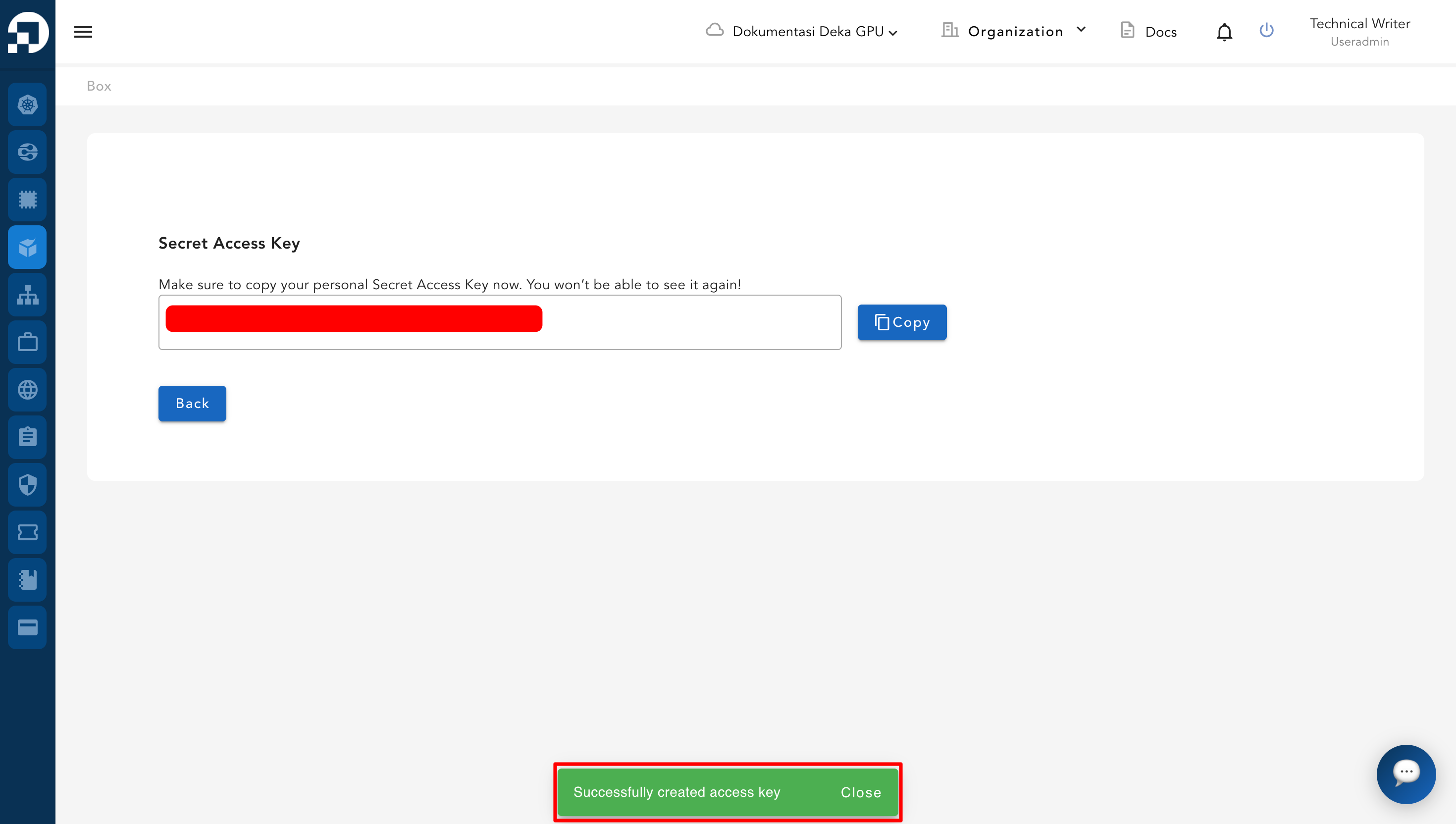
After the access key is successfully created, a notification will appear.
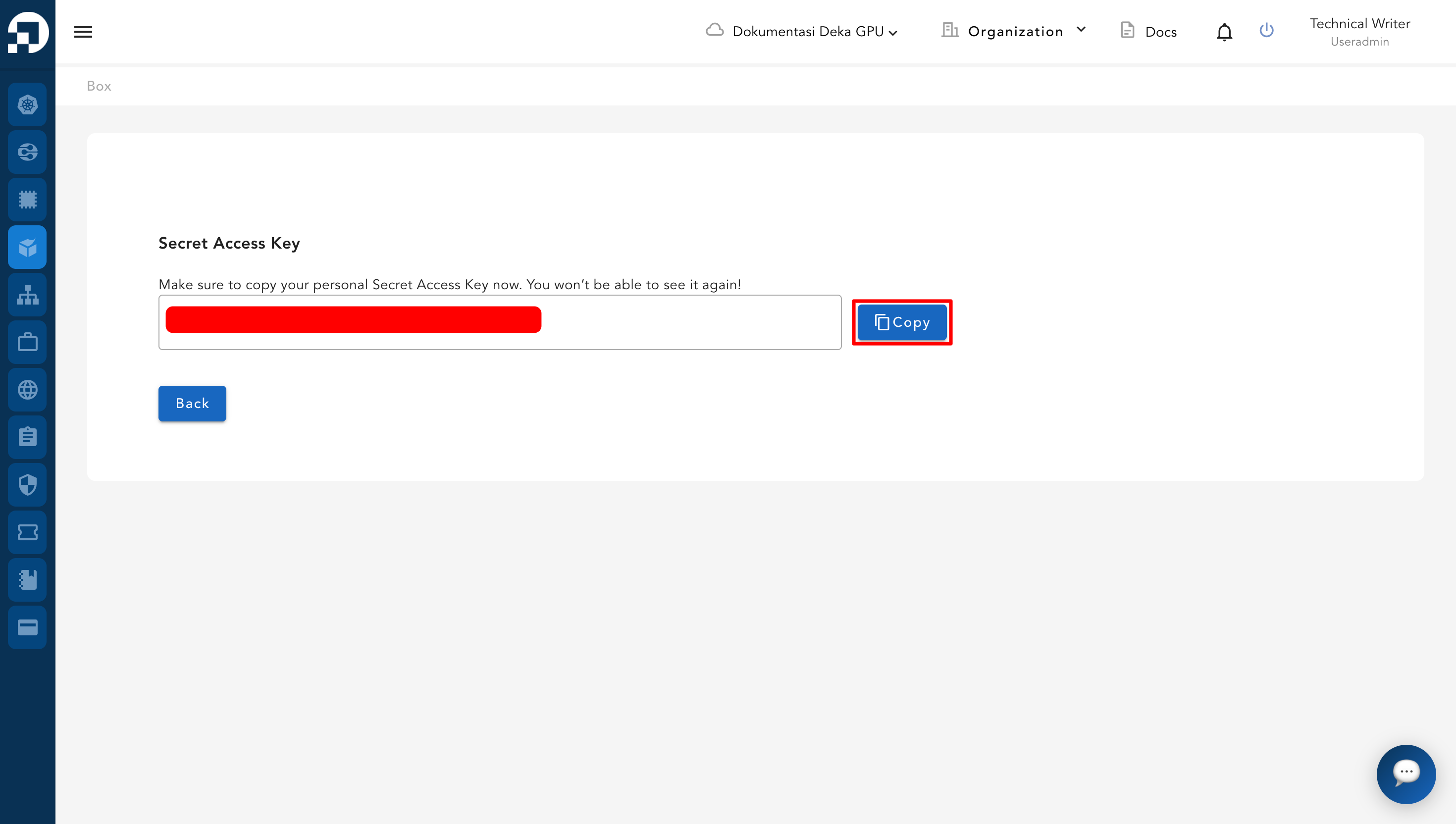
The secret access key will then be displayed. Copy and store it securely, as it will not be shown again.
The newly created access key will appear in the access key list and is ready to use.