> For the complete documentation index, see [llms.txt](https://docs.cloudeka.ai/llms.txt). Markdown versions of documentation pages are available by appending `.md` to page URLs; this page is available as [Markdown](https://docs.cloudeka.ai/guideline-for-individual/deka-box/overview-deka-box/cors-settings.md).

# CORS Settings

This section explains the **CORS Settings** on the Service Portal AI. **CORS** stands for *Cross-Origin Resource Sharing*, which allows web applications to access resources from a different domain than their original domain. CORS is an HTTP-based security mechanism that enables servers to control data requests coming from different domains. By default, browsers restrict cross-domain access for security reasons. CORS provides a secure and controlled way to allow exceptions to these restrictions. By using CORS, you can define whether a browser is allowed to permit a web page from one origin (domain, protocol, and port) to access resources from another origin. By using CORS, you can define whether a browser is allowed to permit a web page from one origin (domain, protocol, and port) to access resources from another origin.

Here is an example to help you better understand how CORS works:\
Suppose you have a website at `https://www.technicalwriters.id/`, and you store static files such as images, videos, or PDFs in the Deka Box Service Portal AI at the following link `https://putri.basic.box.cloudeka.id/demo-deka-box/logo.png`. When the browser tries to access this file from the Cloudeka domain, it automatically blocks the request because the bucket denies access for security reasons. Therefore, you need to configure **CORS settings** on your bucket to allow cross-domain access from your website.

In the CORS Configuration on Service Portal AI, you can [Add CORS Configuration](#add-cors-configuration) and [Delete CORS Configuration](#delete-cors-configuration).

## Add CORS Configuration

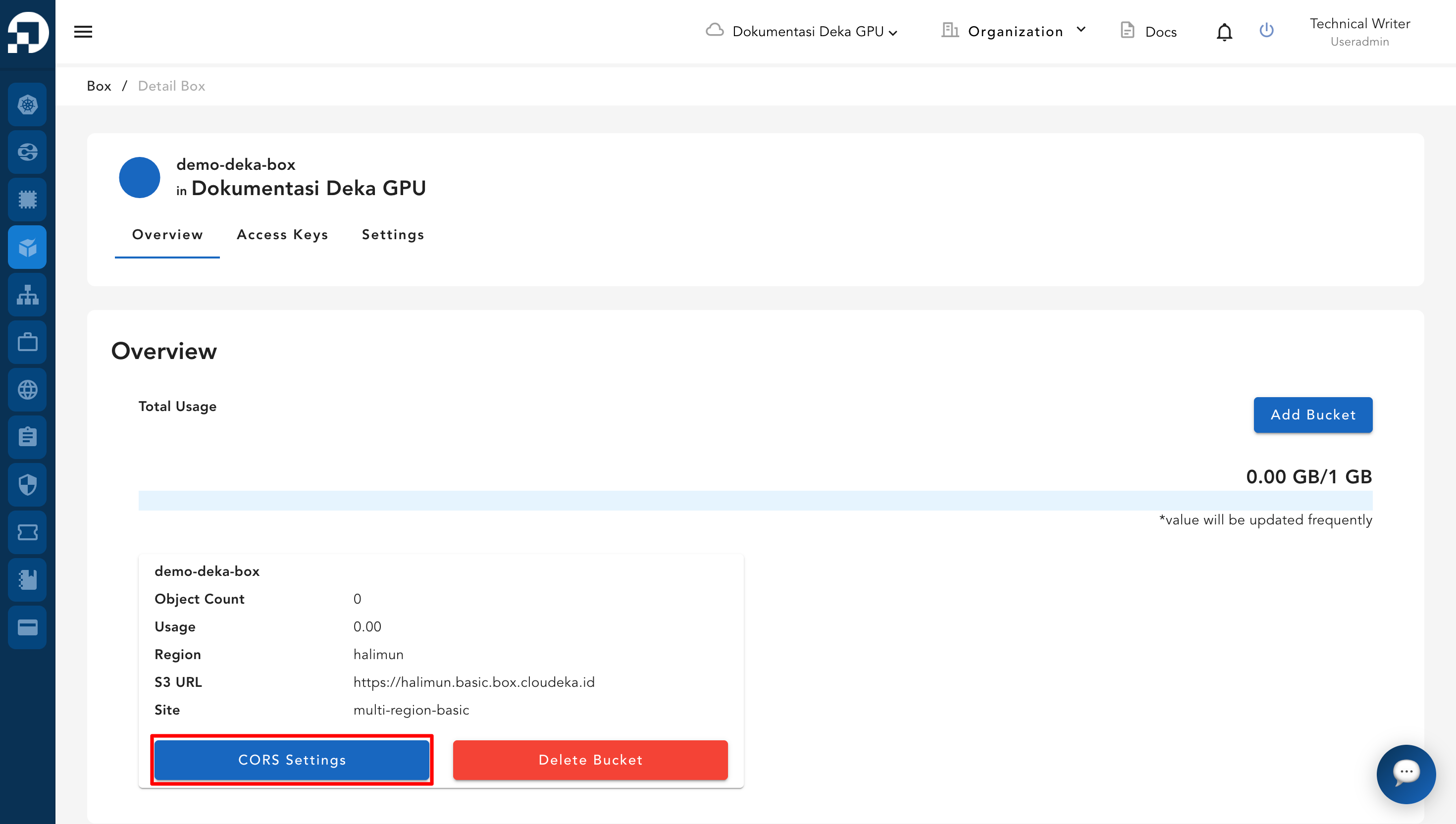
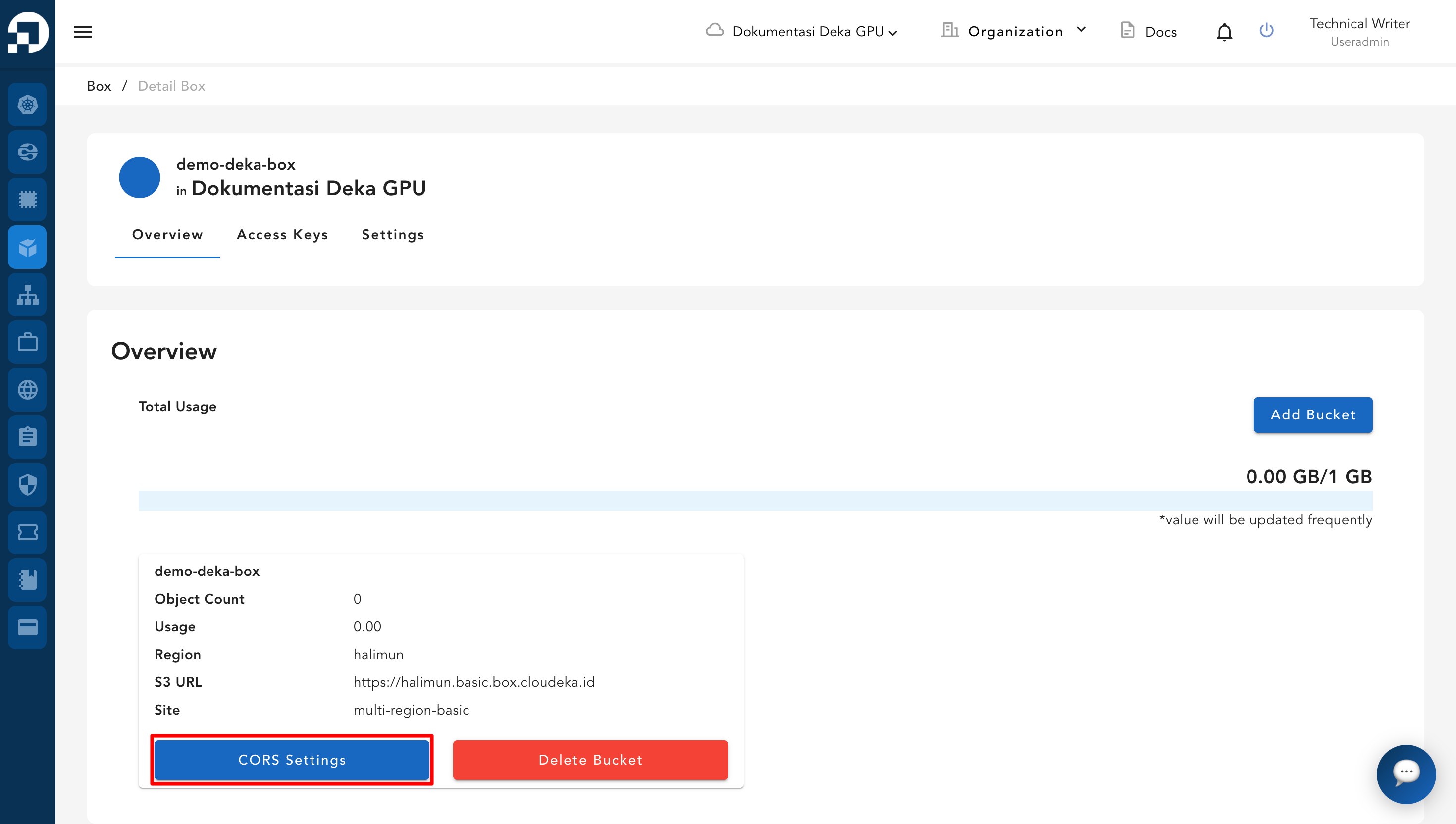
To add CORS configuration to Deka Box via the Service Portal AI. On the Overview Tab in Deka Box Details page click the CORS Settings button.

<figure><img src="https://content.gitbook.com/content/dRGHNSPw8ps5rkLJZT3A/blobs/kGYajECETz5jcLXWH5mL/image.png" alt=""><figcaption></figcaption></figure>

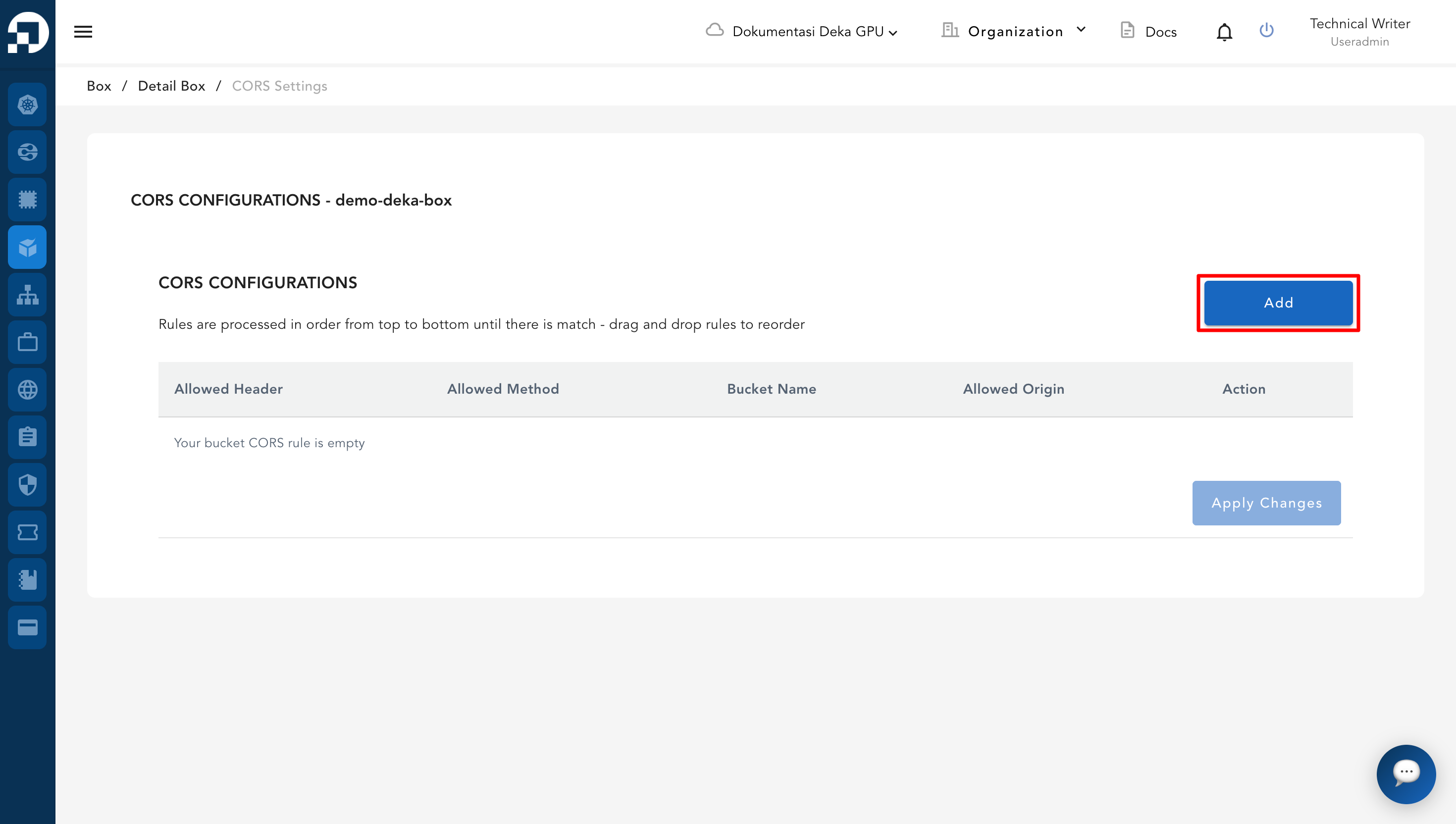
The Cors Configuration page appears, click the Add button.

<figure><img src="https://content.gitbook.com/content/dRGHNSPw8ps5rkLJZT3A/blobs/jF3eZUpSGO2nY0PFYQXq/image.png" alt=""><figcaption></figcaption></figure>

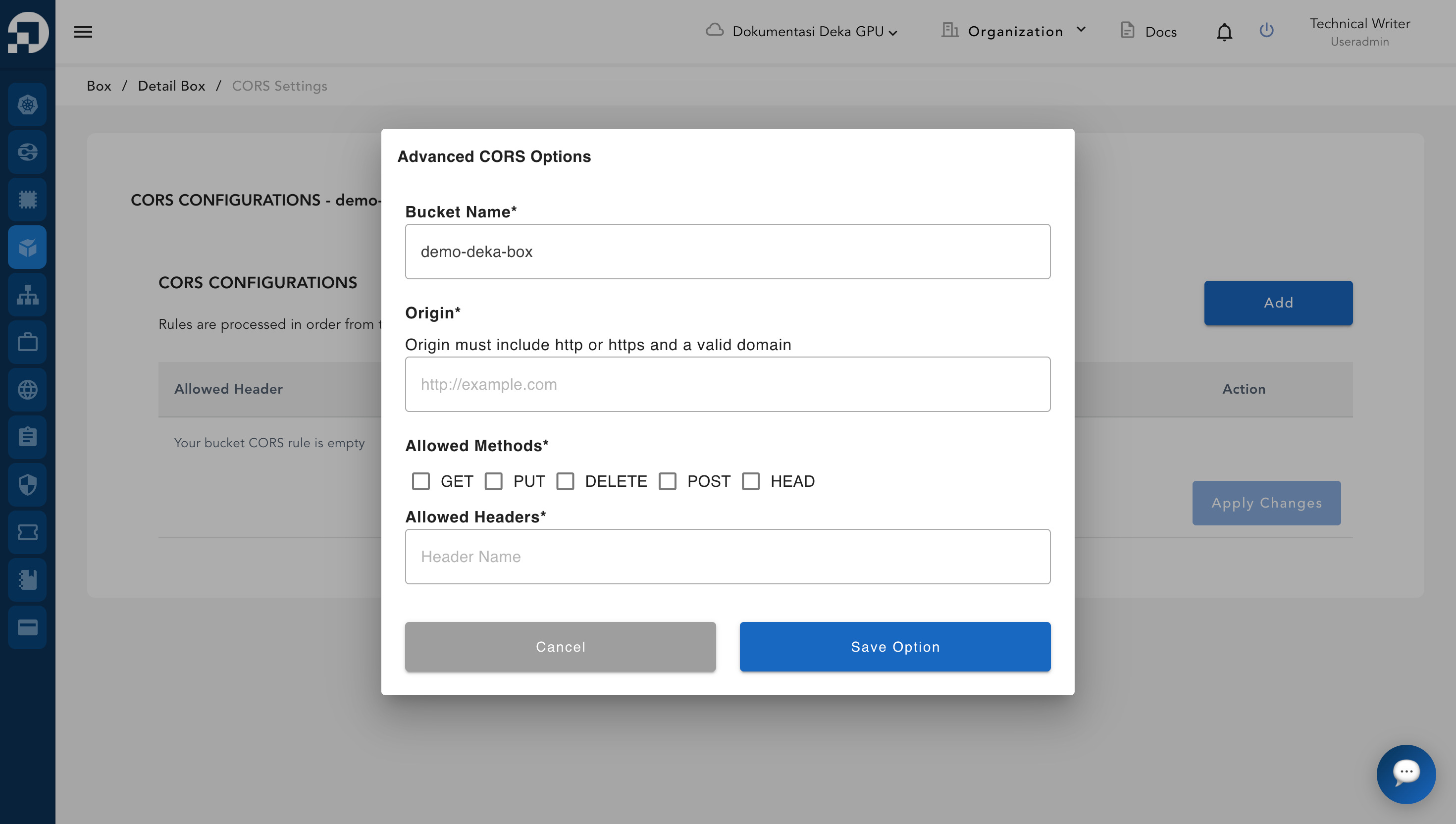
The Advanced CORS Options window appears, fill in the available columns. After filling in all the available columns, press the Save Option button.

<figure><img src="https://content.gitbook.com/content/dRGHNSPw8ps5rkLJZT3A/blobs/t44hWUG286gQIFh0aOBu/image.png" alt=""><figcaption></figcaption></figure>

<table><thead><tr><th width="197">Column</th><th>Description</th></tr></thead><tbody><tr><td>Bucket Name</td><td>The name used to identify the bucket.</td></tr><tr><td>Origin</td><td>The request CORS uses in the scheme (http or https), domain, and port from which the request is sent. </td></tr><tr><td>Allow Methods</td><td><p>List of methods that are allowed to be used in CORS requests to the bucket:</p><ul><li><strong>GET</strong> is used to retrieve or read data from the bucket. It is the most commonly used method for static files on websites and must be selected if you require read access,</li><li><strong>PUT</strong> is used to upload files or overwrite objects in the bucket. This is typically used by web applications that allow users to upload files to the bucket.</li><li><strong>DELETE</strong> is used to delete files via API,</li><li><strong>POST</strong> is used to upload files through multipart forms,</li><li><strong>HEAD</strong> is used to request a file’s metadata without downloading the actual content.</li></ul></td></tr><tr><td>Allow Header</td><td>List of HTTP headers that are allowed to be used in CORS requests</td></tr></tbody></table>

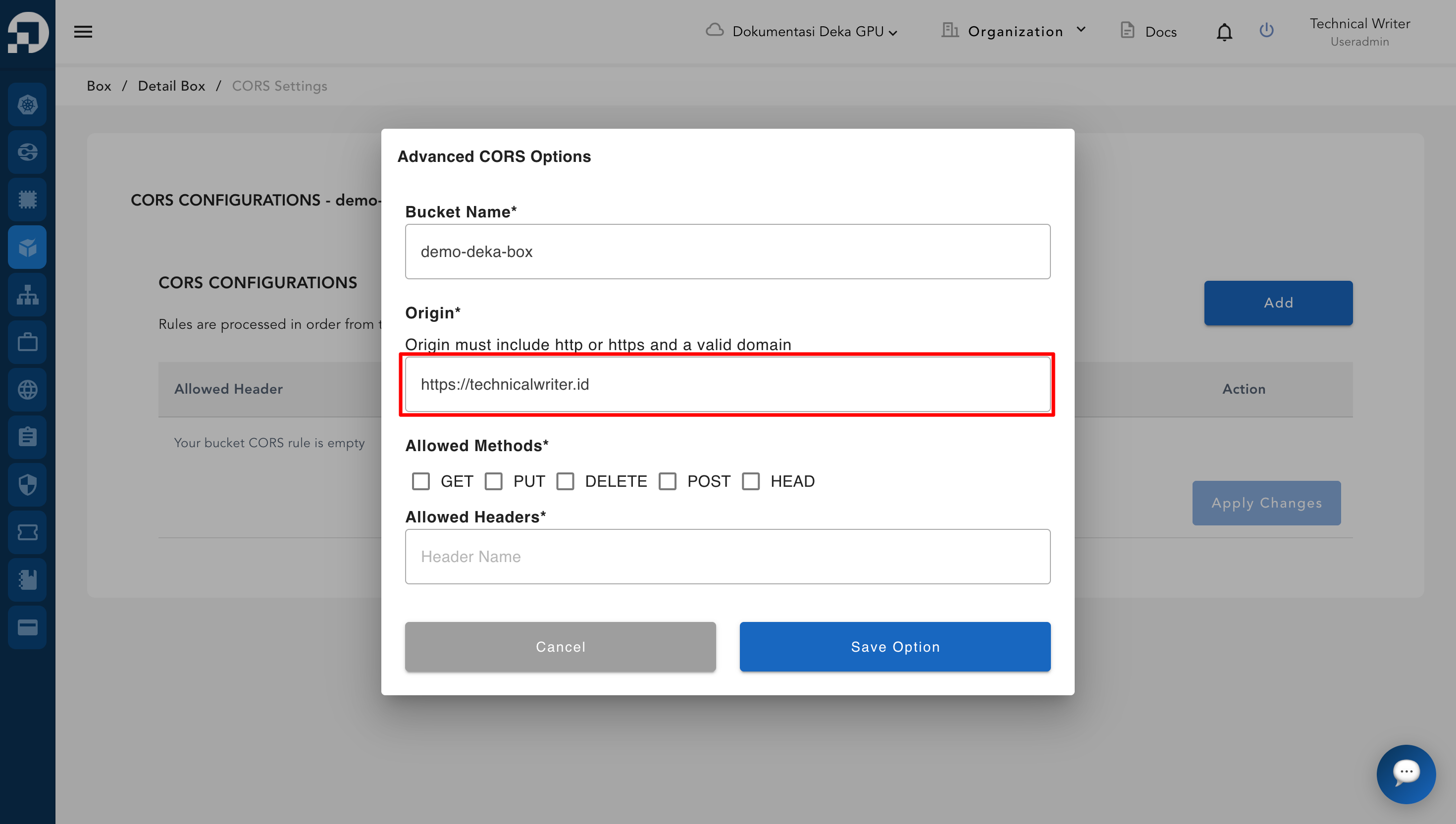
In the **Origin** section, you can enter a valid website address. In this guide, we use `https://technicalwriters.id`.

<figure><img src="https://content.gitbook.com/content/dRGHNSPw8ps5rkLJZT3A/blobs/Nn6PzBaphi7VX3Rn9owS/image.png" alt=""><figcaption></figcaption></figure>

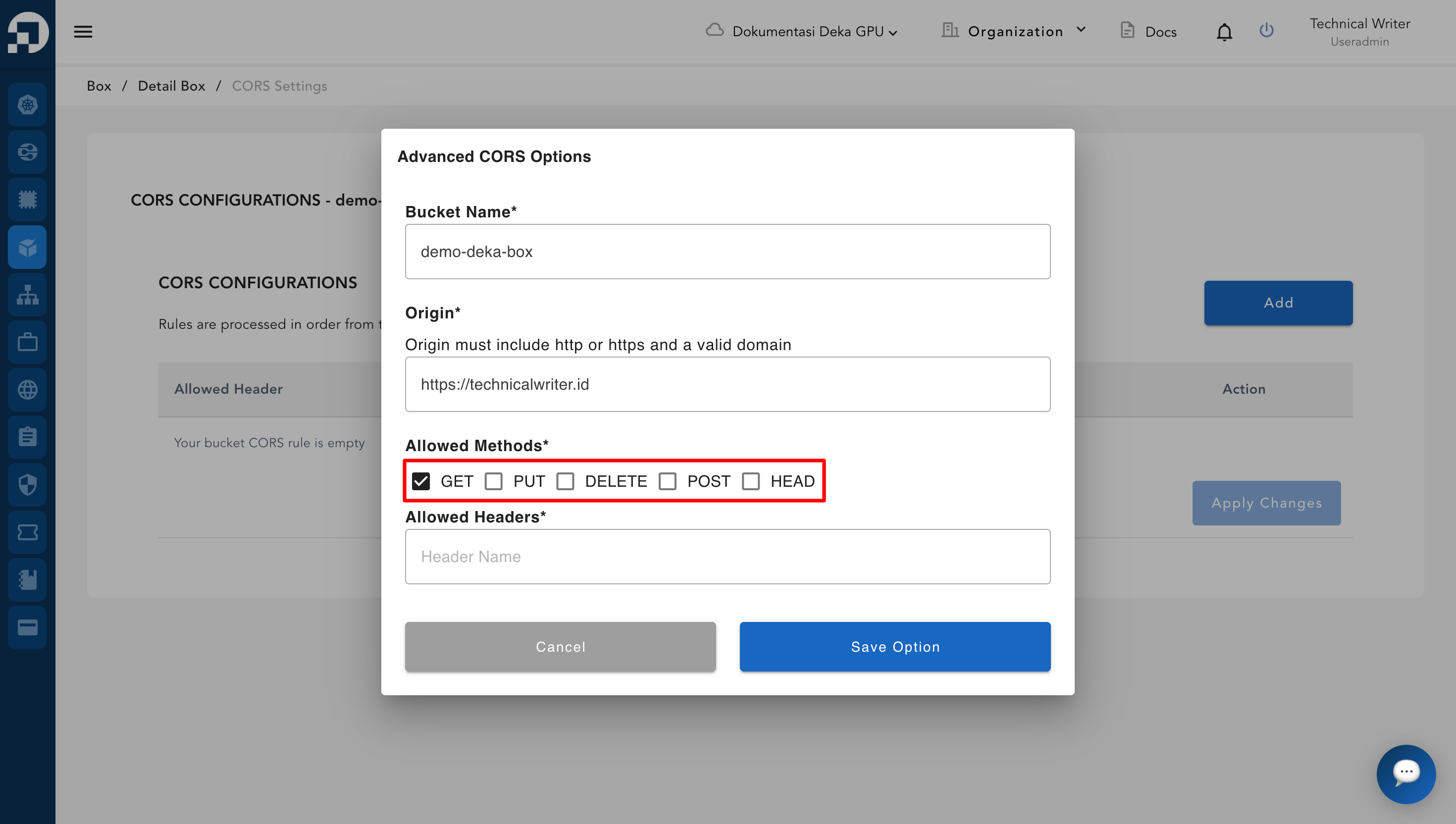
In the **Allowed Methods** section, since the website only displays images, it is sufficient to check the **GET** option.

<figure><img src="https://content.gitbook.com/content/dRGHNSPw8ps5rkLJZT3A/blobs/iHNhWfUMUeRg8GRnPLQJ/image.png" alt=""><figcaption></figcaption></figure>

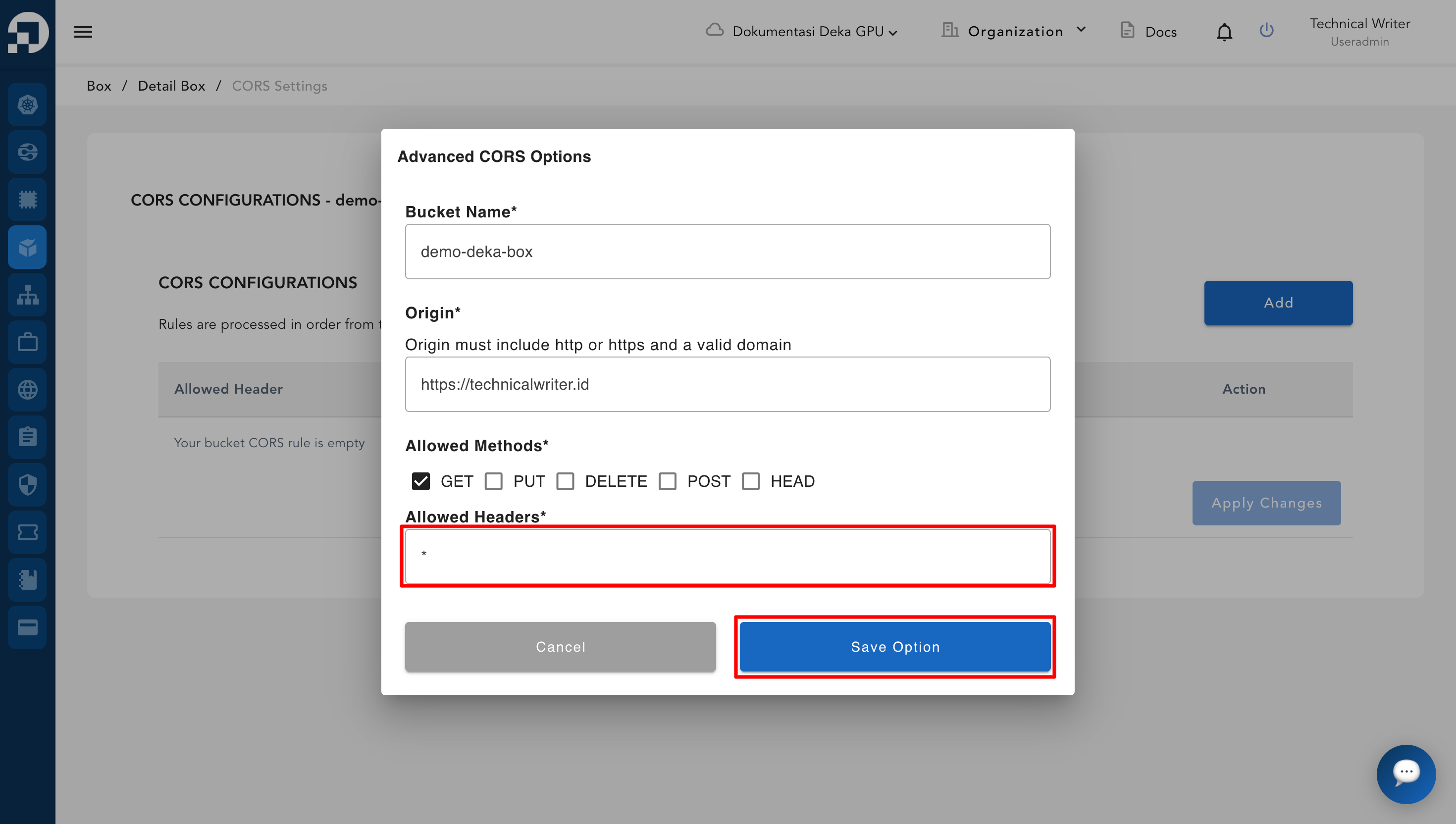
In the **Allowed Headers** section, you may leave it blank if no special headers are needed. However, for flexibility and safety, you can use a wildcard symbol `*`. The wildcard `*` means all types of headers are allowed (such as `Authorization`, `Content-Type`, etc.).

<figure><img src="https://content.gitbook.com/content/dRGHNSPw8ps5rkLJZT3A/blobs/4KnWjwjmSpFvBd4snwKc/image.png" alt=""><figcaption></figcaption></figure>

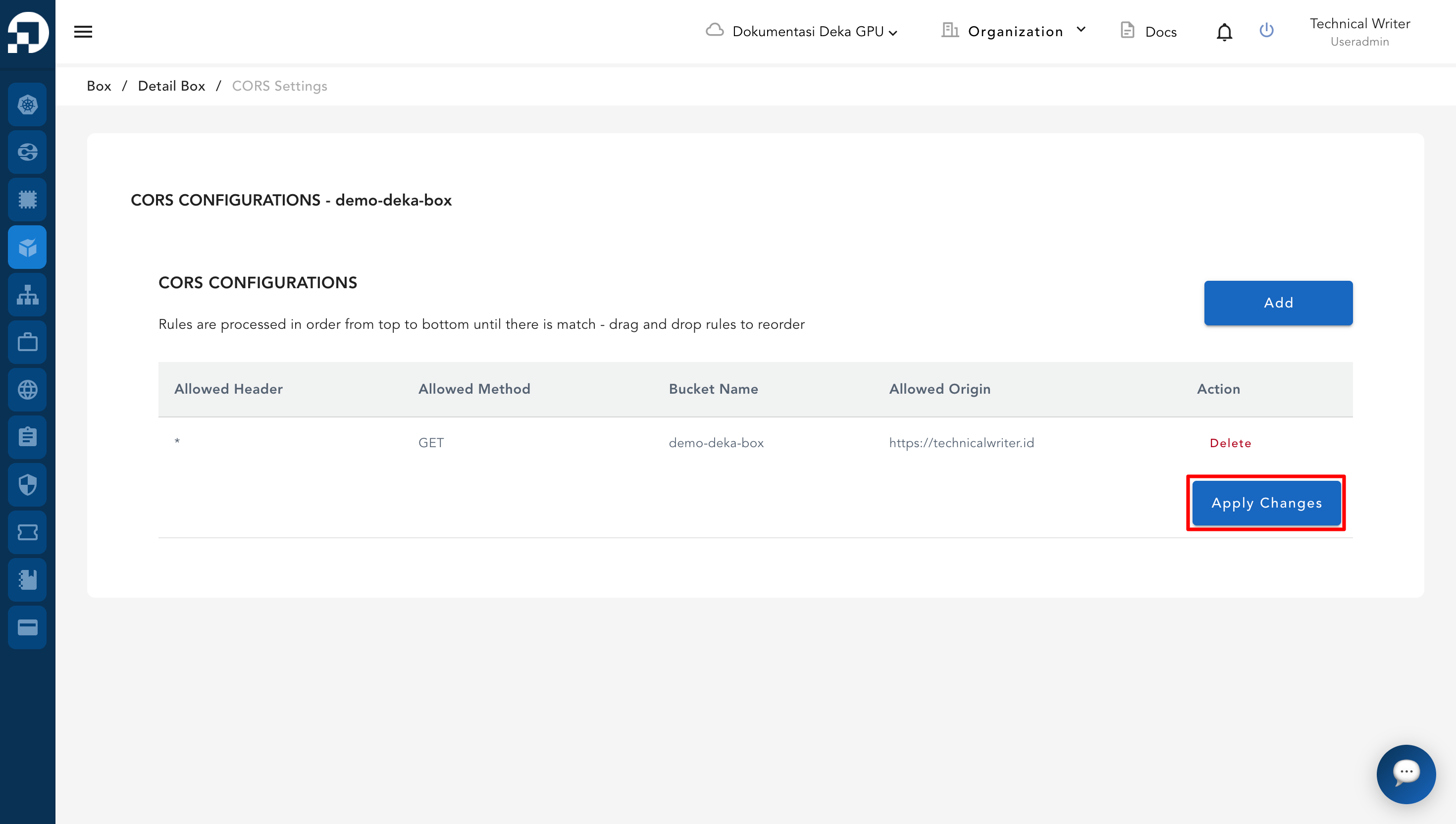
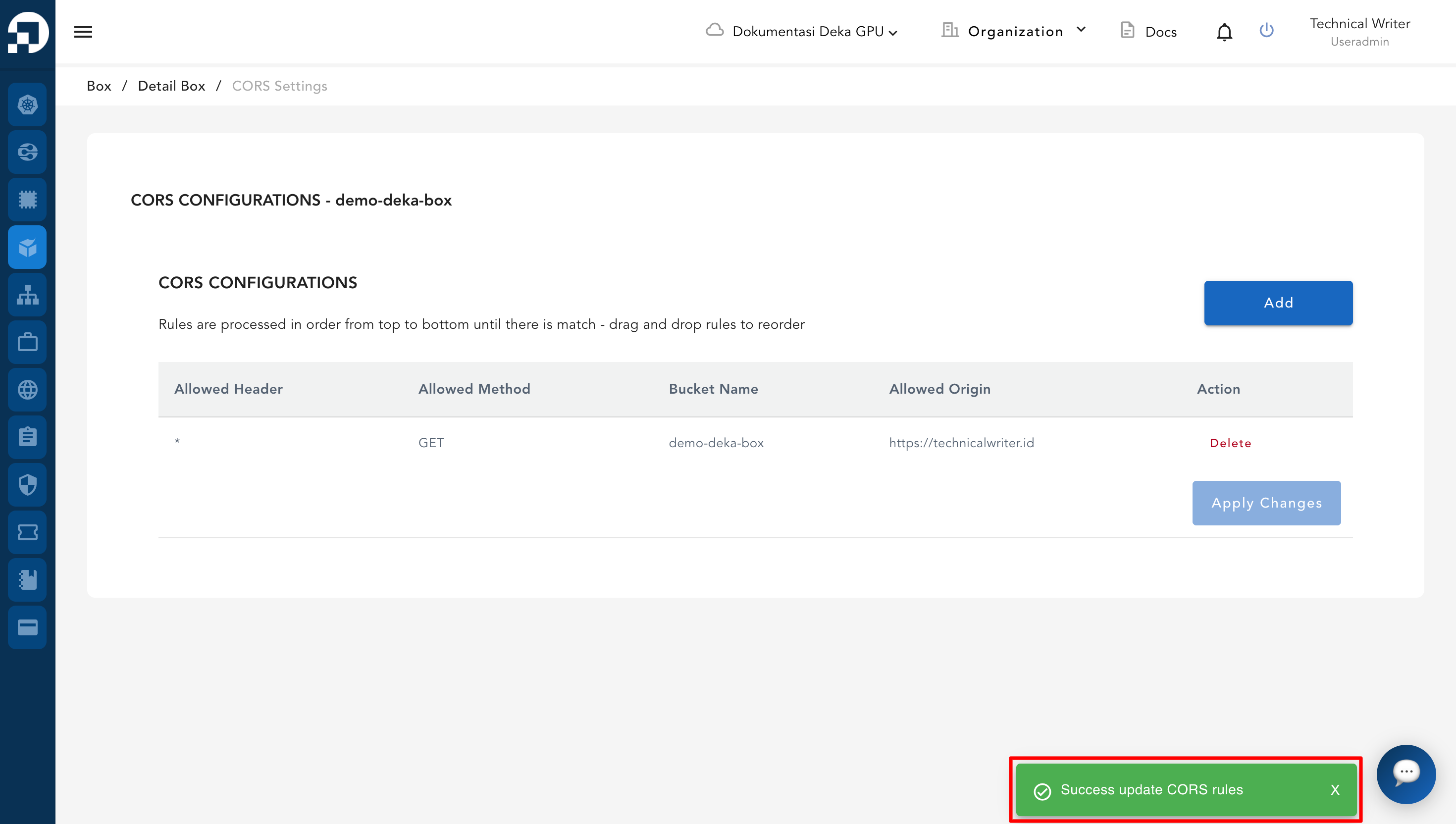
Once you have added the CORS configuration, click the **Apply Changes** button to save the settings.&#x20;

<figure><img src="https://content.gitbook.com/content/dRGHNSPw8ps5rkLJZT3A/blobs/9BTIKLIKOzsERGFAPGiG/image.png" alt=""><figcaption></figcaption></figure>

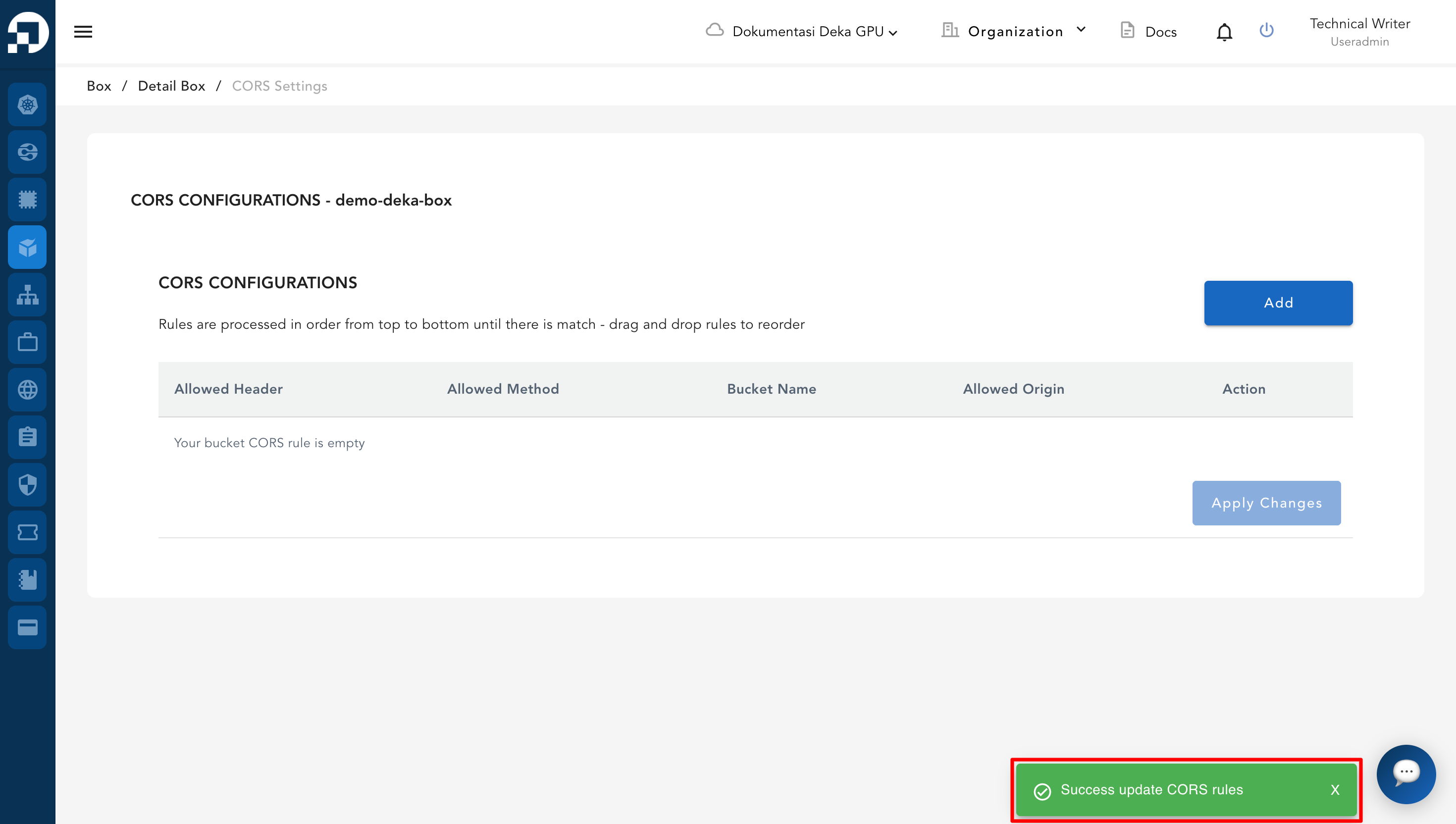
Wait until the process is complete and the notification **"Successfully updated CORS rules"** appears.

<figure><img src="https://content.gitbook.com/content/dRGHNSPw8ps5rkLJZT3A/blobs/TpXeh0cxuqzTYct8YHr7/image.png" alt=""><figcaption></figcaption></figure>

## Delete CORS Configuration

To delete the CORS configuration on a Deka Box that is no longer in use via the Service Portal AI. On the Overview Tab in Deka Box Details page click the CORS Settings button.

<figure><img src="https://content.gitbook.com/content/dRGHNSPw8ps5rkLJZT3A/blobs/V53lHoxtvgsboHXUEUNX/image.png" alt=""><figcaption></figcaption></figure>

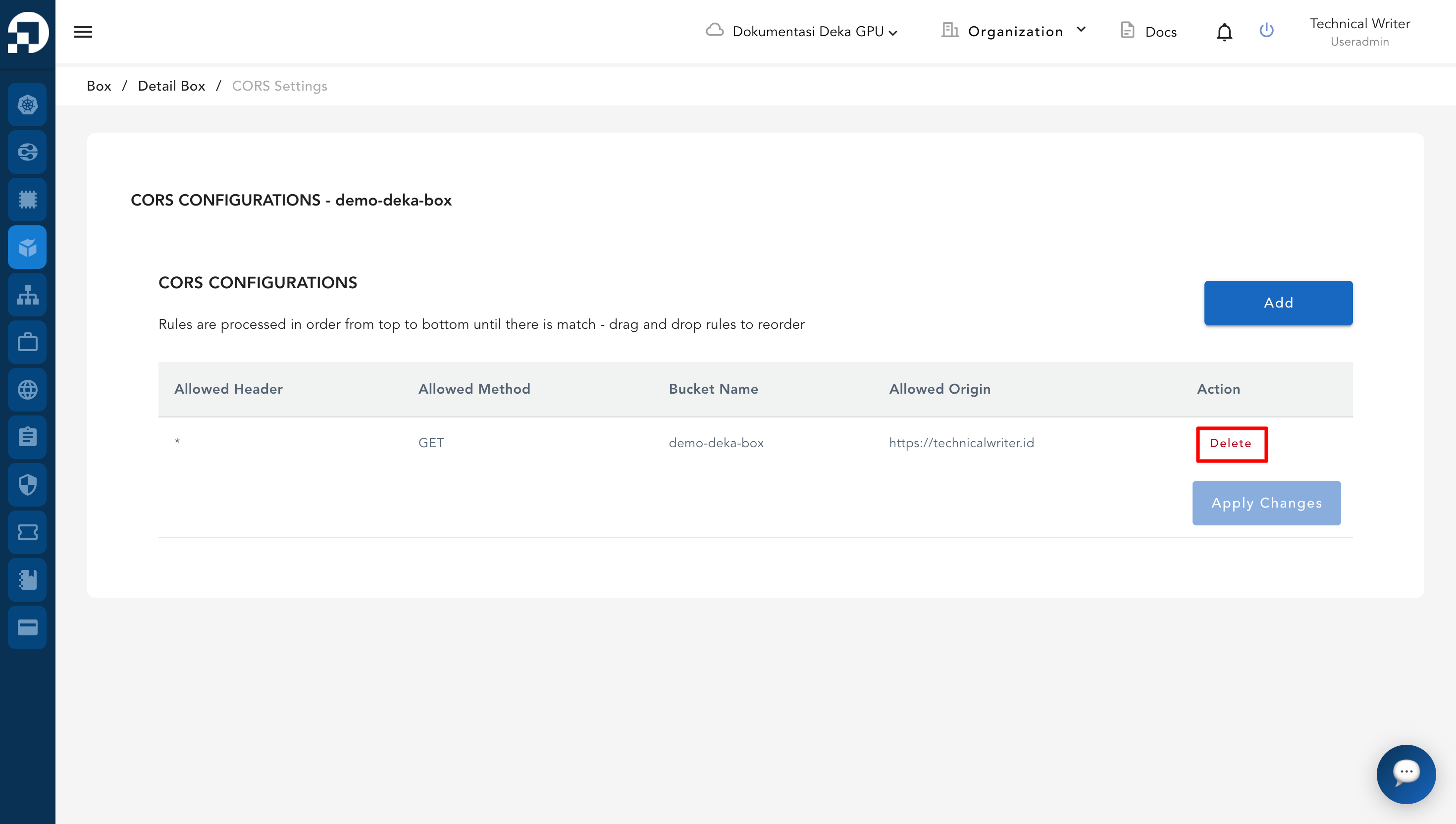
In the CORS Configuration list, click the Delete button on the CORS configuration that you want to delete.

<figure><img src="https://content.gitbook.com/content/dRGHNSPw8ps5rkLJZT3A/blobs/1nMexQNE5RfVYbgUndEP/image.png" alt=""><figcaption></figcaption></figure>

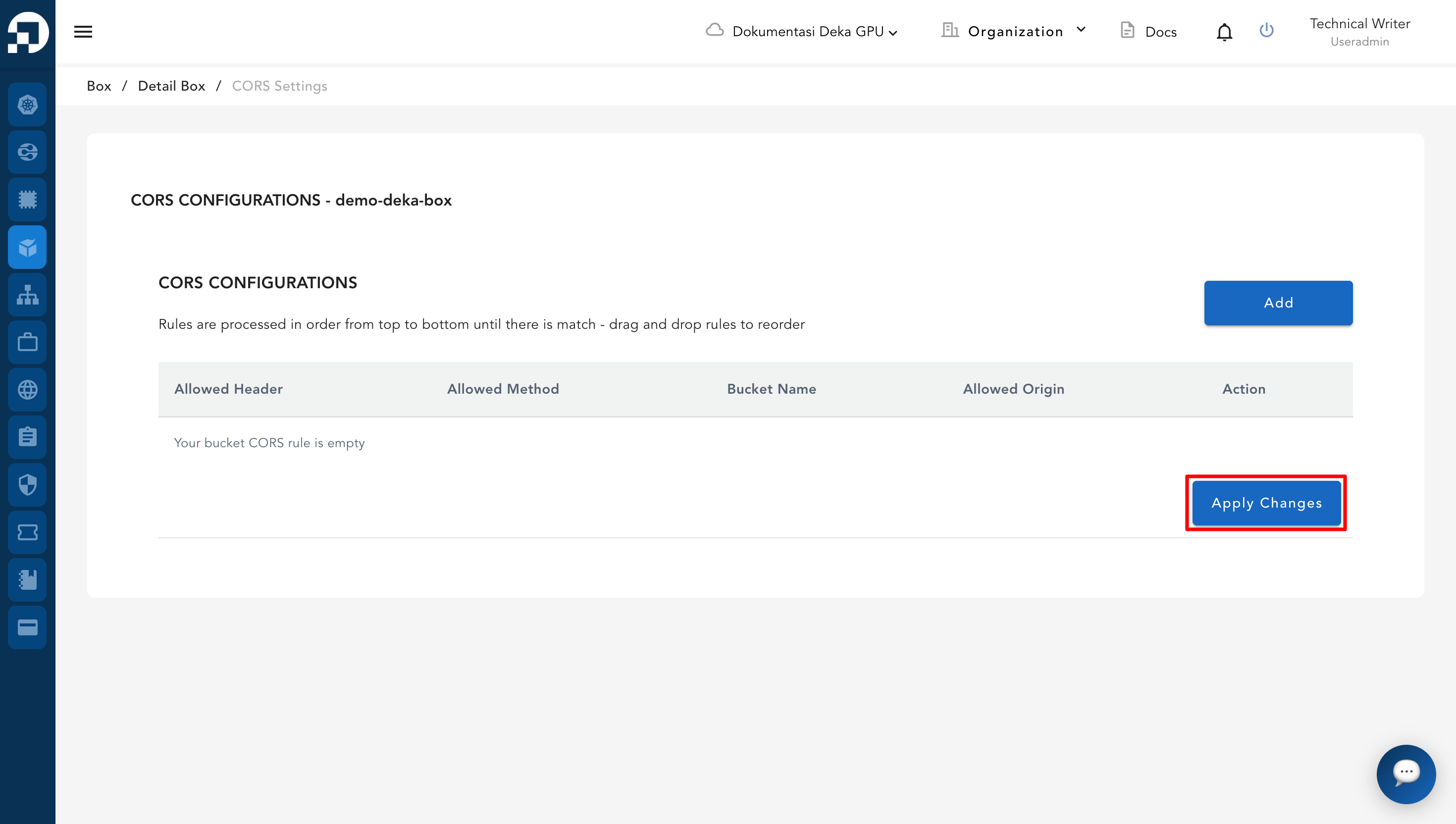
Then click **Apply Changes** to apply and save the configuration.

<figure><img src="https://content.gitbook.com/content/dRGHNSPw8ps5rkLJZT3A/blobs/yrtvJ9sk8nqrO5QJsekp/image.png" alt=""><figcaption></figcaption></figure>

A success notification will appear indicating that the CORS configuration has been updated.

<figure><img src="https://content.gitbook.com/content/dRGHNSPw8ps5rkLJZT3A/blobs/7uSa0v5yEzGD01Y38QID/image.png" alt=""><figcaption></figcaption></figure>