> For the complete documentation index, see [llms.txt](https://docs.cloudeka.ai/llms.txt). Markdown versions of documentation pages are available by appending `.md` to page URLs; this page is available as [Markdown](https://docs.cloudeka.ai/guideline-for-individual/deka-claw/create-deka-claw/connect-your-ai-set-up-llm-api-key.md).
# Connect Your AI (Set Up LLM API Key)
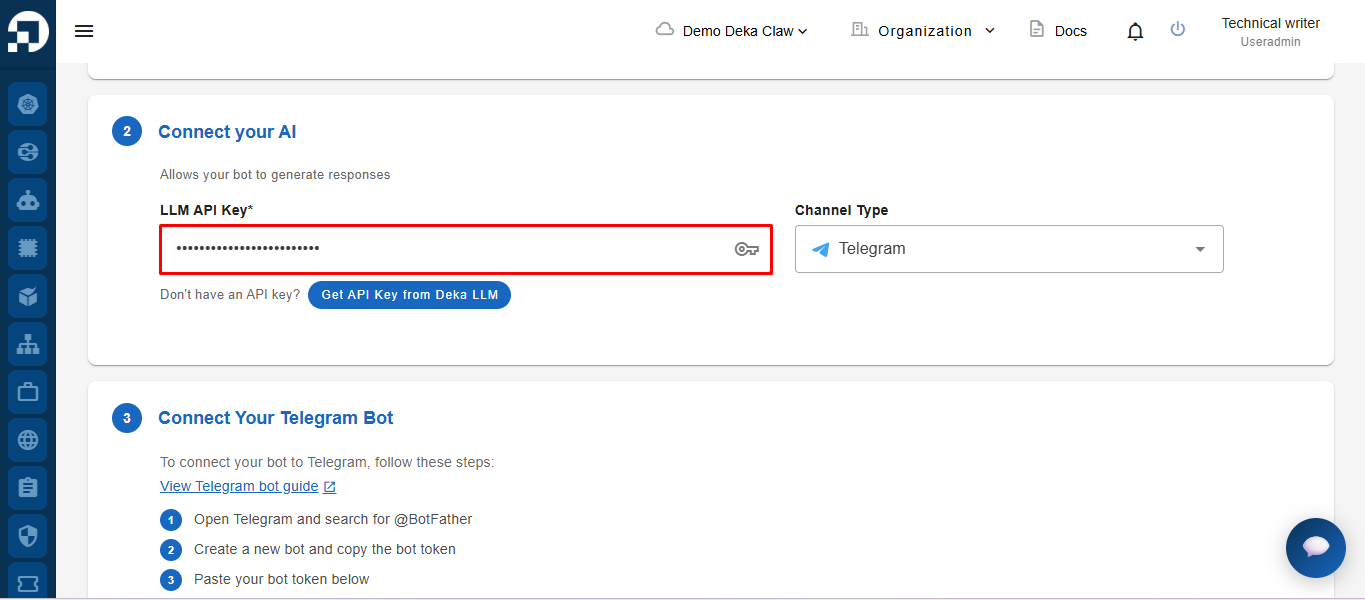
Next, go to the **Connect Your AI** section. To run the bot, you need to fill in the **LLM API Key**, which is used to connect to the AI service.\
To get your LLM API Key, you can refer to the guide in the
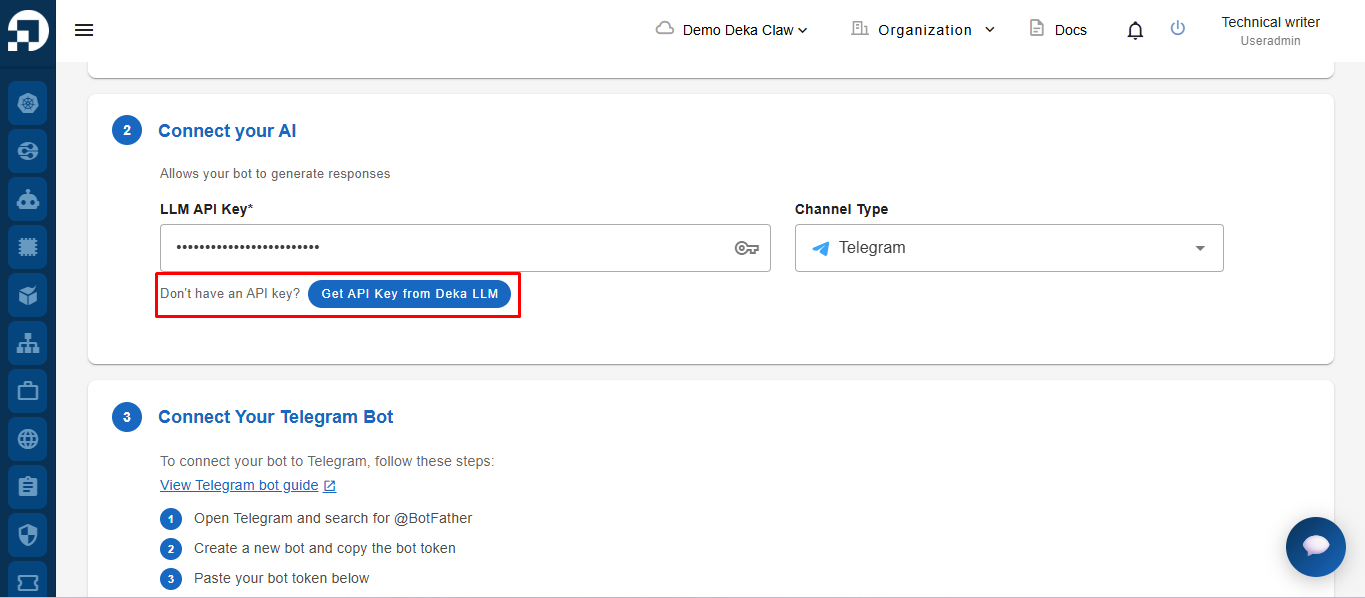
If the user does not yet have an **LLM API Key**, the user can follow the guide in the [**\[Keys Tab\]**](/guideline-for-individual/deka-llm/detail-deka-llm/keys-tab.md). menu to create an API Key first. In addition, the user can also directly click the **Get API Key from Deka LLM** button in the **Connect your AI** section, which will redirect the user to the API Key creation page.
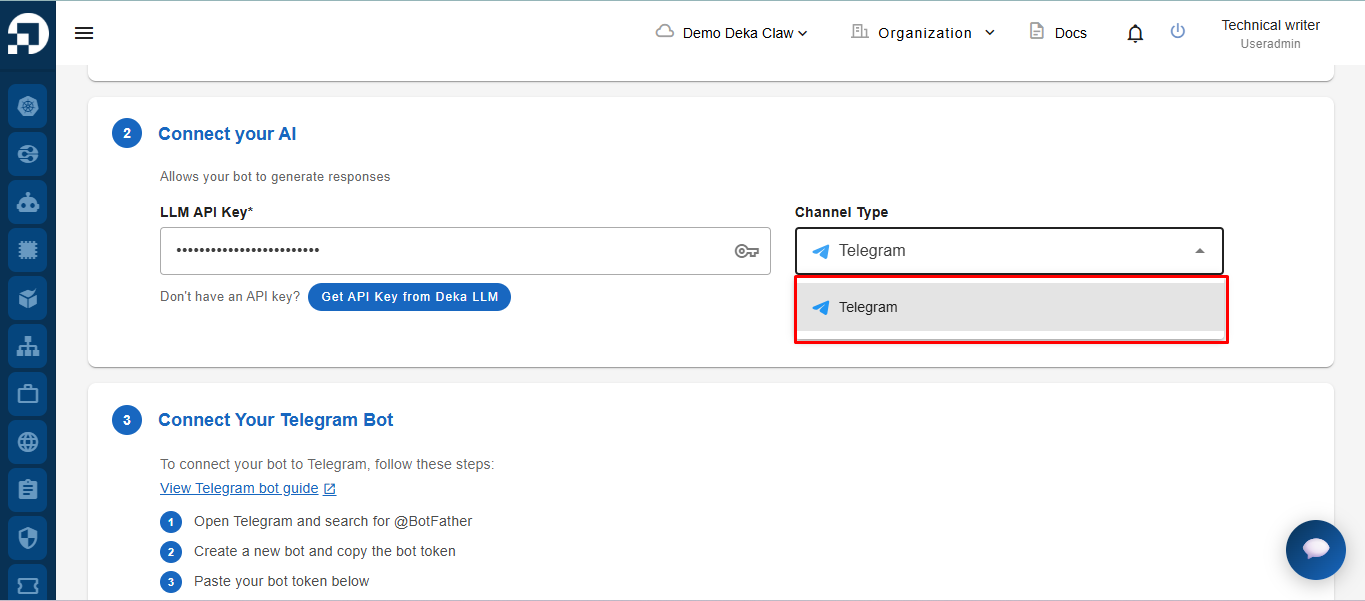
In the **Channel** section, select the channel to be used. Currently, the only available channel is **Telegram**.