> For the complete documentation index, see [llms.txt](https://docs.cloudeka.ai/llms.txt). Markdown versions of documentation pages are available by appending `.md` to page URLs; this page is available as [Markdown](https://docs.cloudeka.ai/guideline-for-individual/deka-flexi/deka-flexi-instance/connect-to-vm-instance/connect-to-linux-vm-instance-via-ssh-key.md).

# Connect to Linux VM Instance via SSH Key

If you using Windows, you must use a third-party tools. The following instructions show how to connect to Linux VM using PuTTY with SSH key.

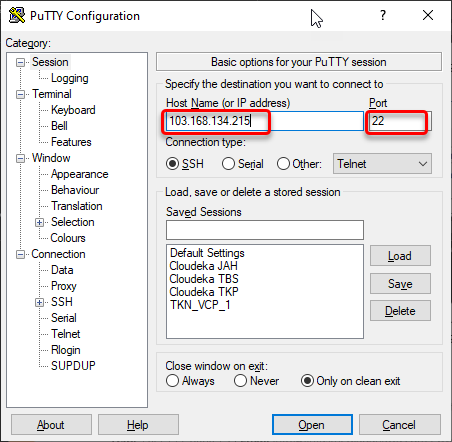
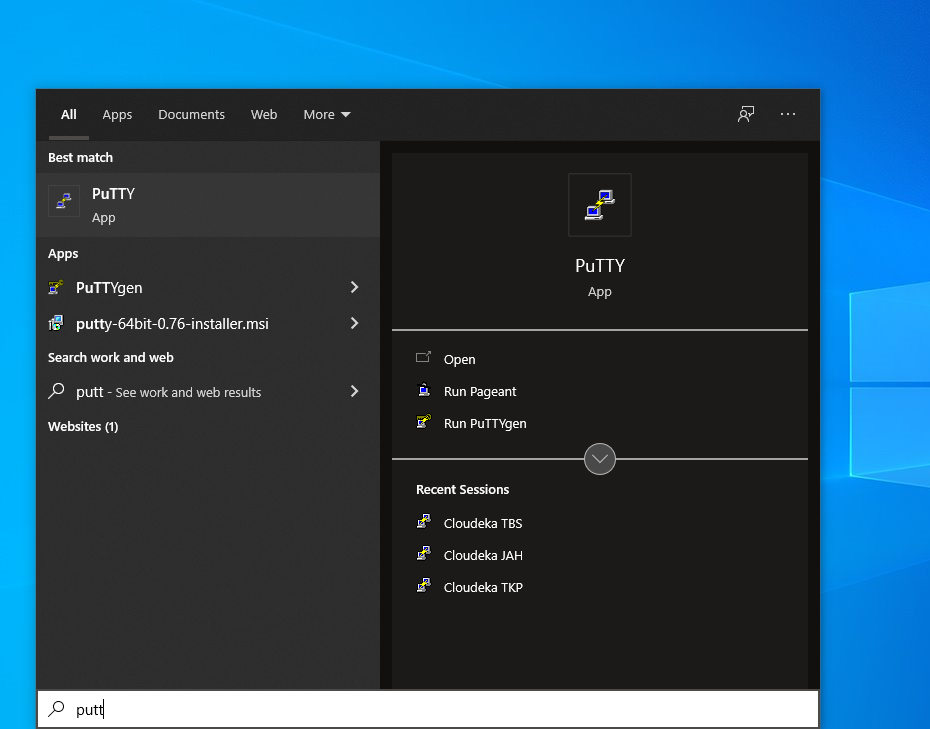
* Open **PuTTY** on your computer.

<figure><img src="https://content.gitbook.com/content/dRGHNSPw8ps5rkLJZT3A/blobs/RgtZzBdITgEYzBnqXPwn/image.png" alt=""><figcaption></figcaption></figure>

* In the **Host Name** field, enter the **Public IP Address** of the VM that you want to connect, also the port number.

<figure><img src="https://content.gitbook.com/content/dRGHNSPw8ps5rkLJZT3A/blobs/k0BxIFs4xyhFd7C4qjPR/image.png" alt=""><figcaption></figcaption></figure>

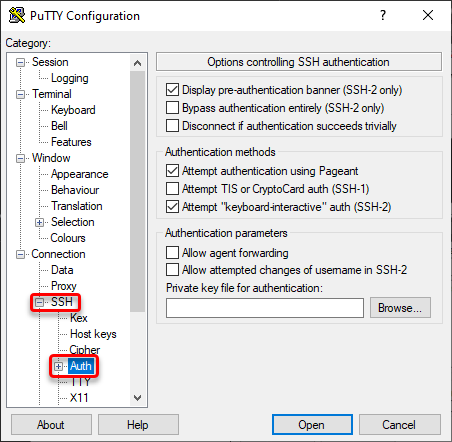
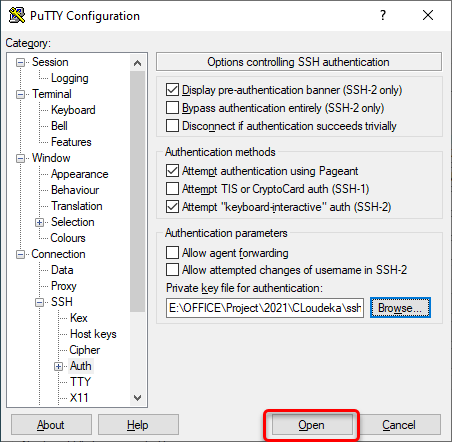
* In the category list, **Expand SSH** and click **Auth**.

<figure><img src="https://content.gitbook.com/content/dRGHNSPw8ps5rkLJZT3A/blobs/jqzxMFkar2HnfRwIiNZ9/image.png" alt=""><figcaption></figcaption></figure>

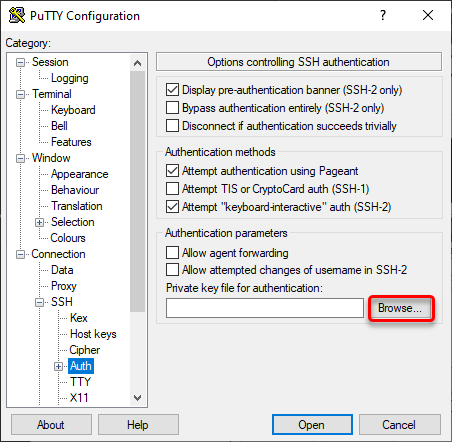
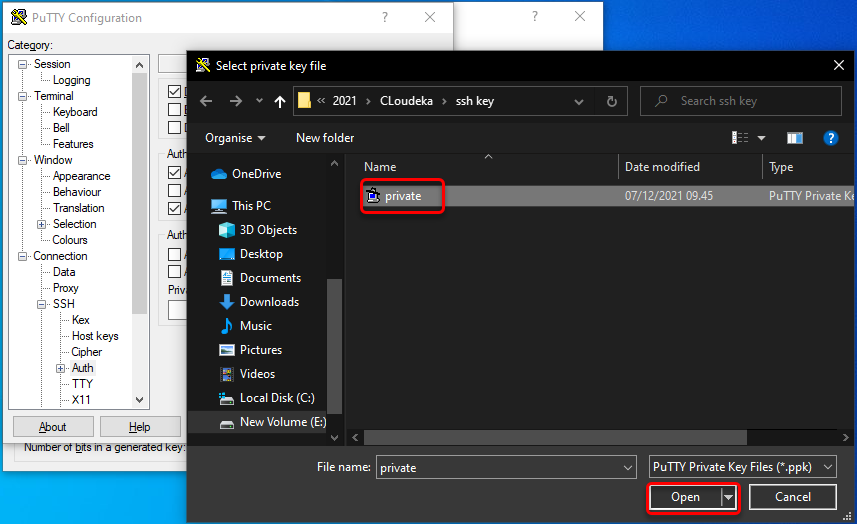
* Click **Browser**, choose private key that you saved before. Then click **Open**.

<figure><img src="https://content.gitbook.com/content/dRGHNSPw8ps5rkLJZT3A/blobs/rdaS5lzIwZLsbjROYbUq/image.png" alt=""><figcaption></figcaption></figure>

<figure><img src="https://content.gitbook.com/content/dRGHNSPw8ps5rkLJZT3A/blobs/cZJmYFxDCJZc32q3zcn2/image.png" alt=""><figcaption></figcaption></figure>

* After that, click **open** to connect to your VM Instance.

<figure><img src="https://content.gitbook.com/content/dRGHNSPw8ps5rkLJZT3A/blobs/1I7wbCsizFeqZLcd8RVK/image.png" alt=""><figcaption></figcaption></figure>

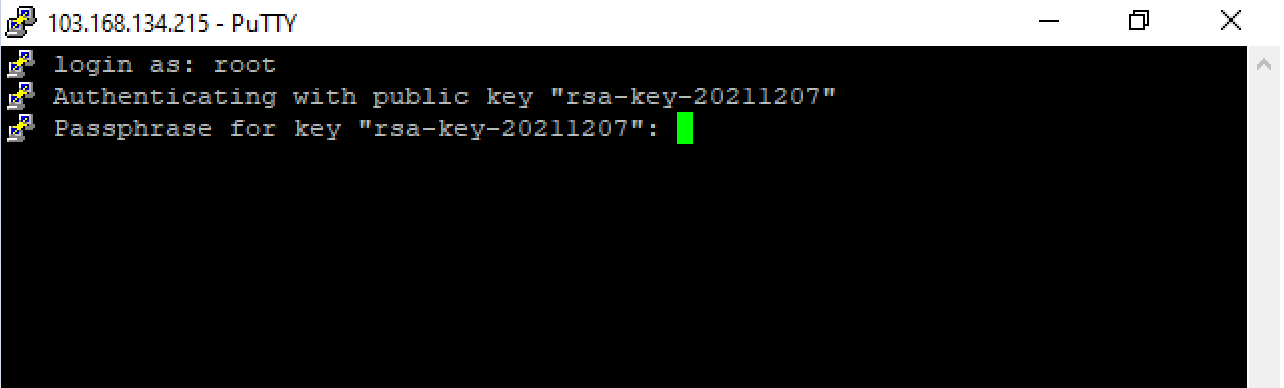
* It will be open the login session to your VM.

<figure><img src="https://content.gitbook.com/content/dRGHNSPw8ps5rkLJZT3A/blobs/7dN4KSUj2P10sYHTYwCS/image.png" alt=""><figcaption></figcaption></figure>

* Try login with user root and enter your passphrase key.

<figure><img src="https://content.gitbook.com/content/dRGHNSPw8ps5rkLJZT3A/blobs/p814es8WsRP74fTxdqSo/image.png" alt=""><figcaption></figcaption></figure>

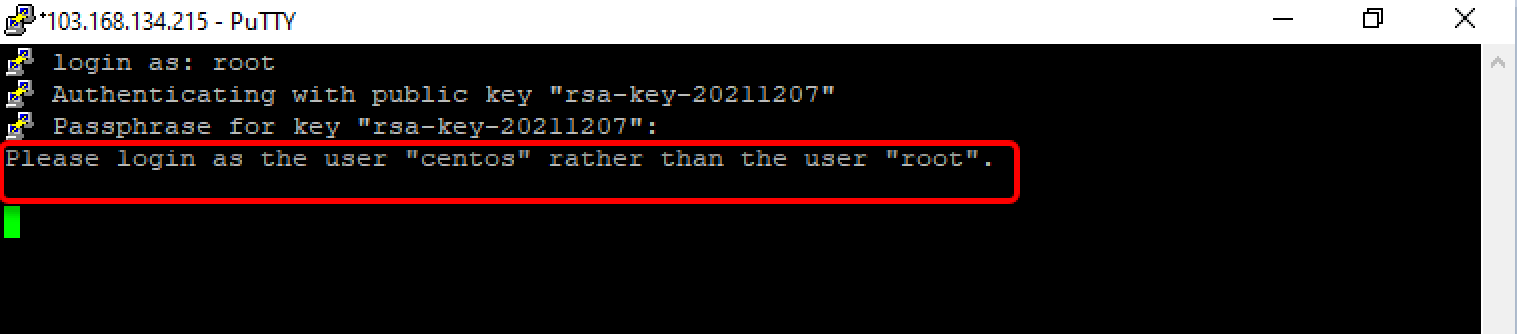
* If there is a notification **“Please login as the user “centos” rather than the user “root””**, so you only can login using “centos” user.

<figure><img src="https://content.gitbook.com/content/dRGHNSPw8ps5rkLJZT3A/blobs/2aca1342nADfB9f0BheP/image.png" alt=""><figcaption></figcaption></figure>

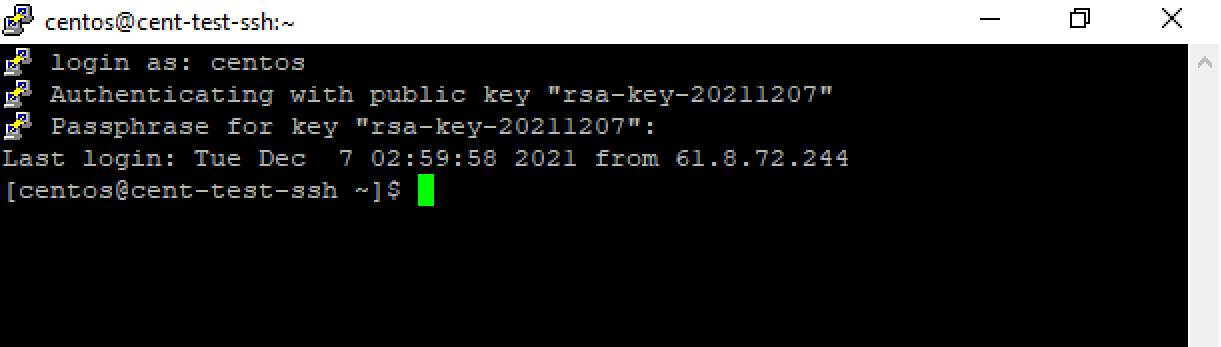
* Please try login using “centos” user, now you can login to your VM instance.
<figure><img src="https://content.gitbook.com/content/dRGHNSPw8ps5rkLJZT3A/blobs/HwhWxRtiHLjIV3suJOYQ/image.png" alt=""><figcaption></figcaption></figure>