> For the complete documentation index, see [llms.txt](https://docs.cloudeka.ai/llms.txt). Markdown versions of documentation pages are available by appending `.md` to page URLs; this page is available as [Markdown](https://docs.cloudeka.ai/guideline-for-individual/deka-flexi/deka-flexi-instance/connect-to-vm-instance/connect-to-windows-vm-instance-via-rdp-remote-desktop.md).
# Connect to Windows VM Instance via RDP (Remote Desktop)
This menu describes how to connect to a Windows Virtual Machine Instance by using RDP. Access to RDP in the following way.
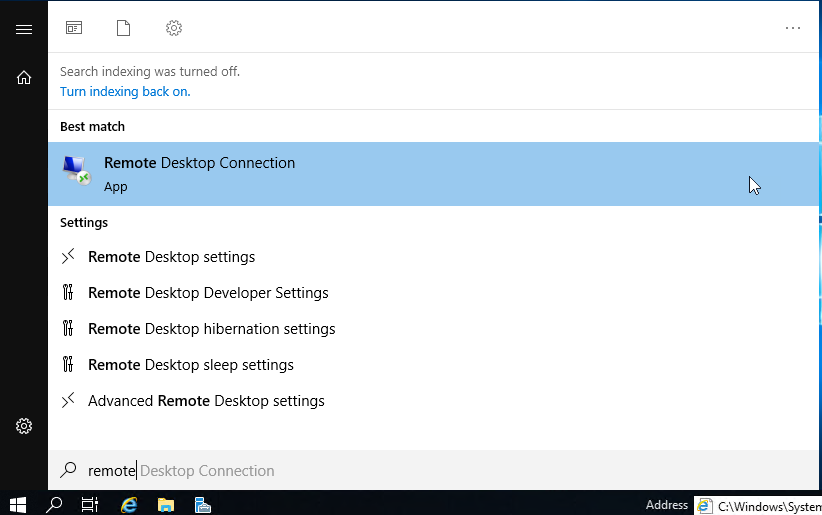
* On your computer, open the Remote Desktop Connection application or you can use a third party tool such as mRemoteNG or another tool.
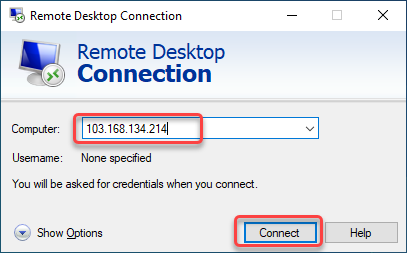
* Type the **Public IP Address** of the VM you want to remote/access, then click **Connect**.
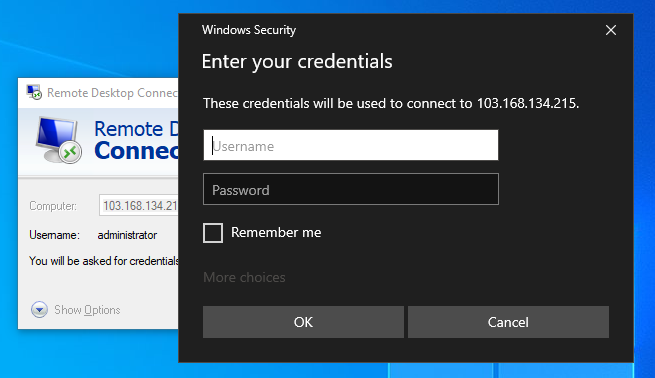
* Fill in your VM credential, then click **ok**.
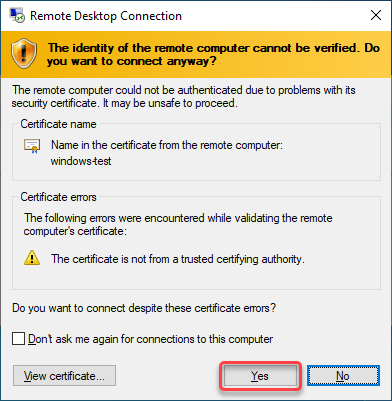
* A certificate will appear for connection verification, click **Yes**.
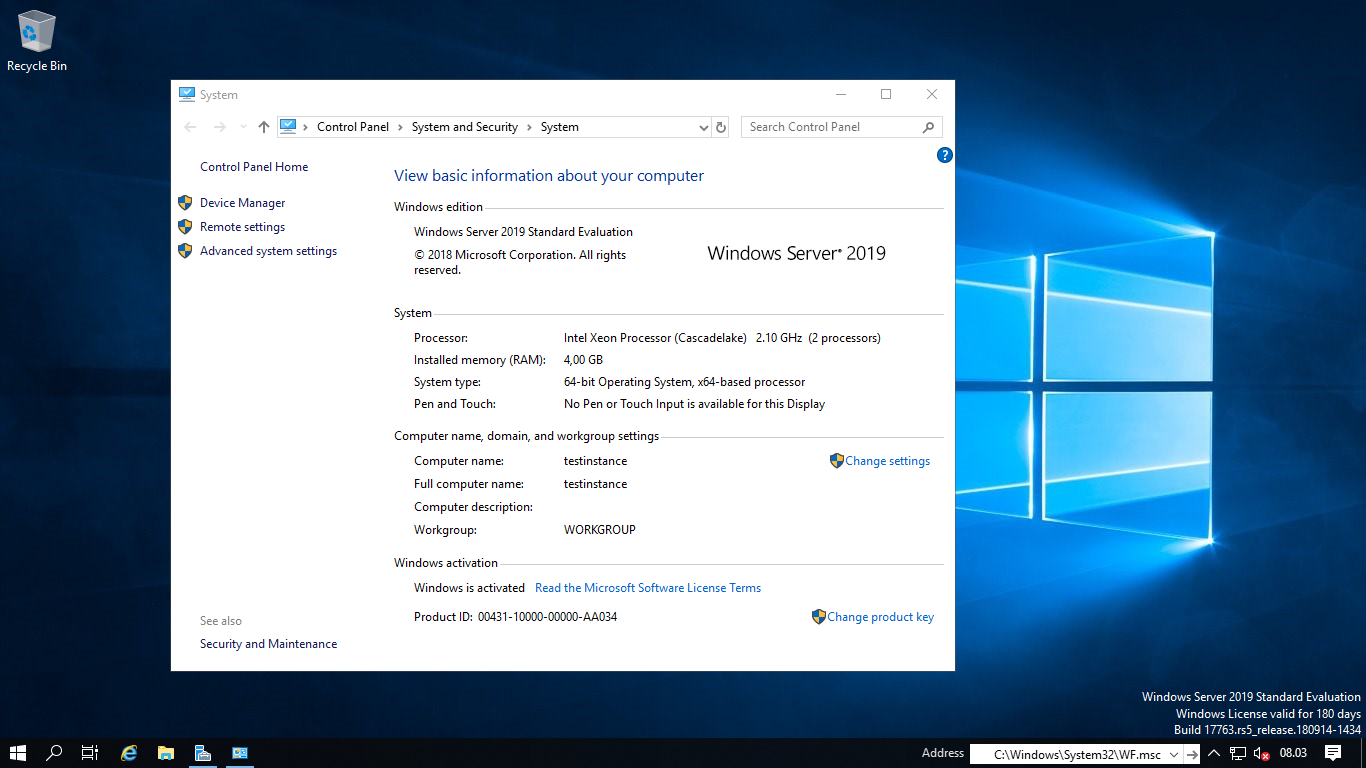
* Now you can access your VM.