> For the complete documentation index, see [llms.txt](https://docs.cloudeka.ai/llms.txt). Markdown versions of documentation pages are available by appending `.md` to page URLs; this page is available as [Markdown](https://docs.cloudeka.ai/guideline-for-individual/deka-flexi/deka-volume-images/backup/enable-backups.md).

# Enable Backups

This guide describes how to enable backups for an instance. A backup is an automatic snapshot of your instance that is created based on the configured backup schedule.

{% hint style="info" %}
Ensure that the project has enough storage for daily backups. The required volume is calculated as total VM volume × (retention day + 1).
{% endhint %}

{% hint style="warning" %}
Before creating a backup instance, you must already have an instance. If you do not have an instance yet, you can deploy one in **Create VM Instance**.
{% endhint %}

To enable backups for an instance, follow the steps below:

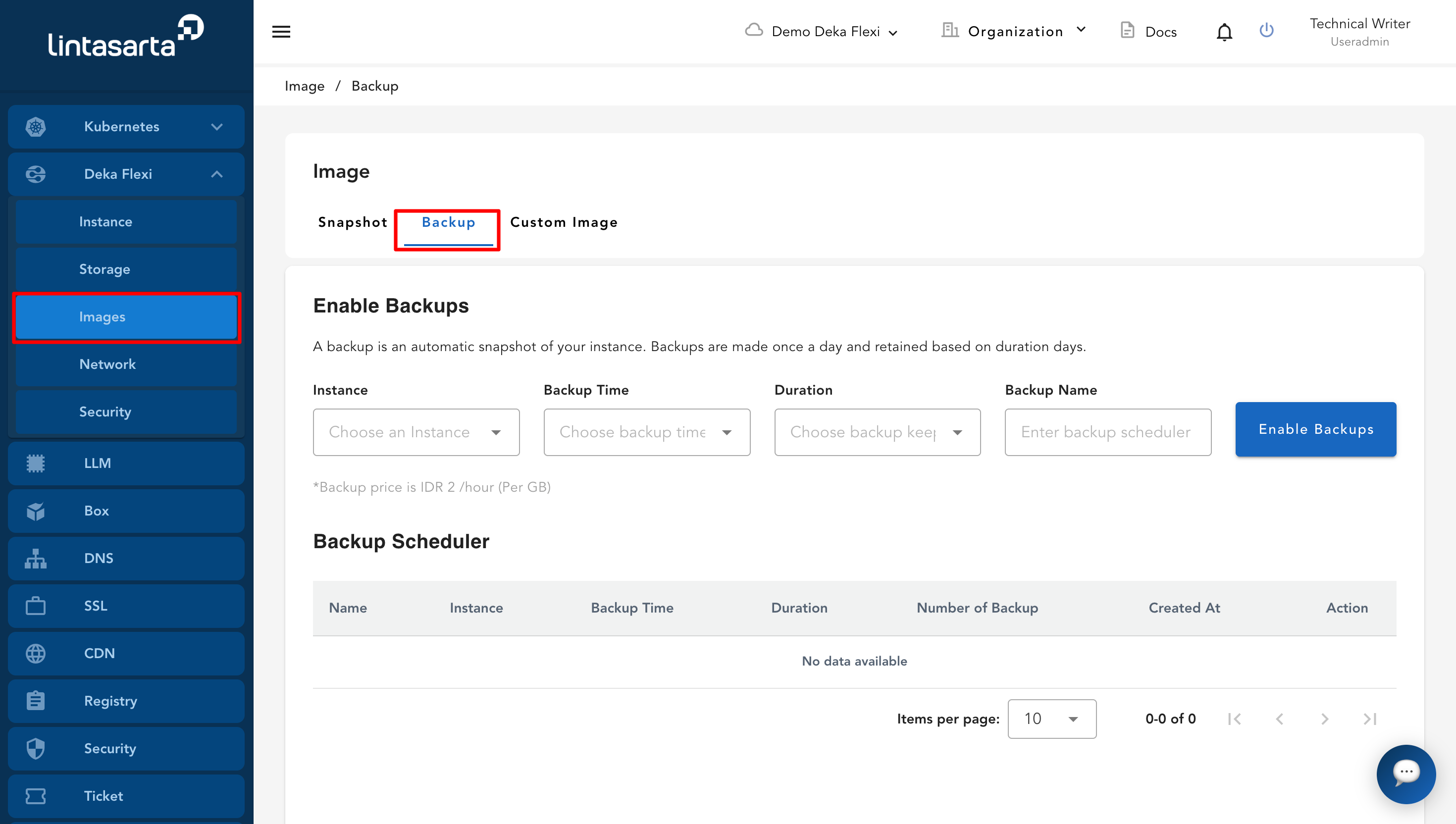
* Go to the **Images** menu, then select the **Backup** tab.

<figure><img src="https://content.gitbook.com/content/dRGHNSPw8ps5rkLJZT3A/blobs/VL3Kp2rE2lYL98dhQTPS/image.png" alt=""><figcaption></figcaption></figure>

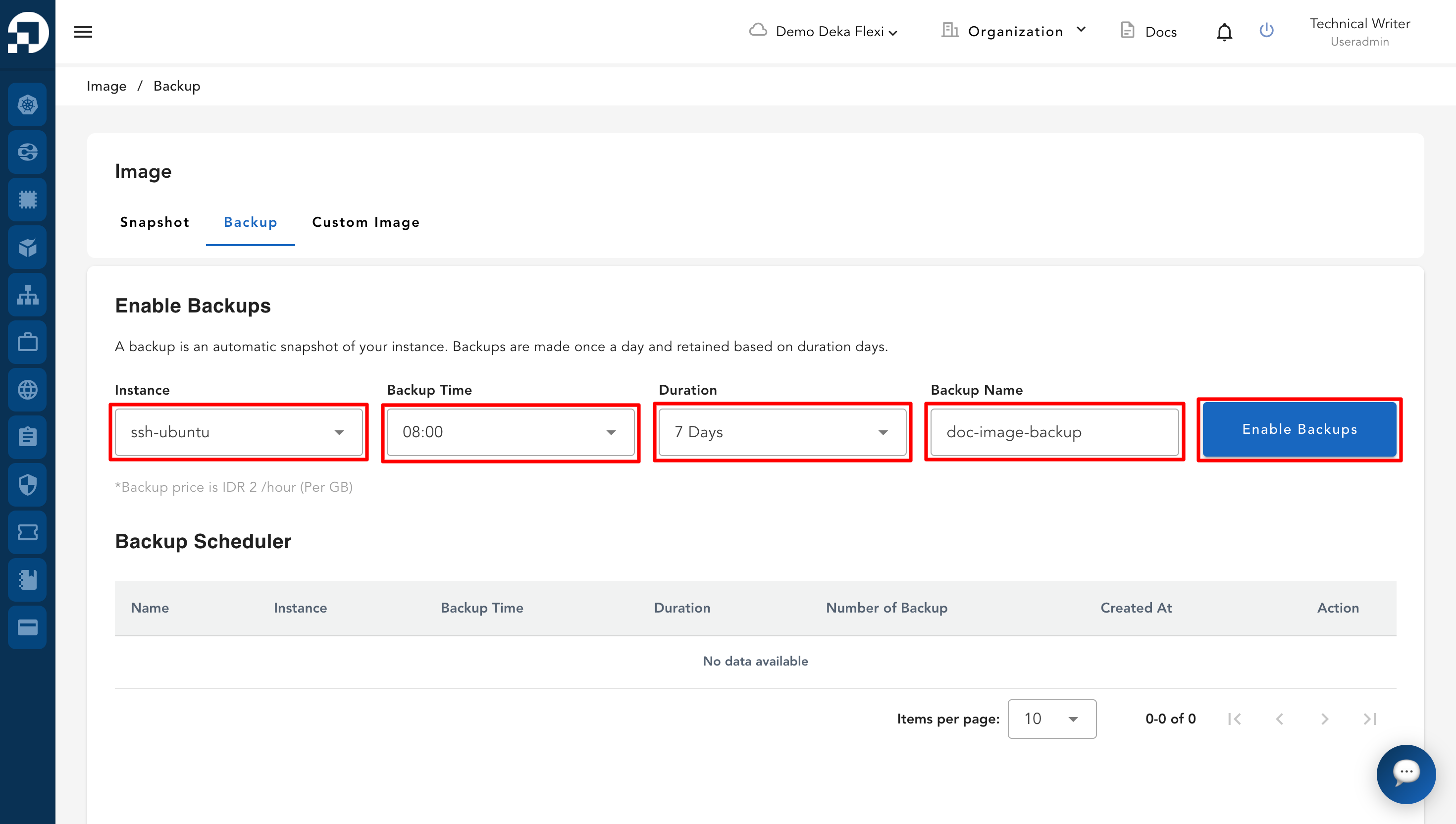
* Fill in the form **Enable Backups**.

<table><thead><tr><th width="222">Column</th><th>Description</th></tr></thead><tbody><tr><td><strong>Instance</strong></td><td>The instance that will be backed up.</td></tr><tr><td><strong>Backup Time</strong></td><td>The scheduled time when the backup process starts.</td></tr><tr><td><strong>Duration</strong></td><td>To determine the retention time of your backups, the duration options are:<br>- 7 Days<br>- 14 Days<br>- 30 Days<br>- 90 Days<br>- 365 Days</td></tr><tr><td><strong>Backup Name</strong></td><td>The name of the backup scheduler.</td></tr></tbody></table>

* After all fields are completed, click the **Enable Backups** button.

<figure><img src="https://content.gitbook.com/content/dRGHNSPw8ps5rkLJZT3A/blobs/lmJGaiTYILRlAWoezTO9/image.png" alt=""><figcaption></figcaption></figure>

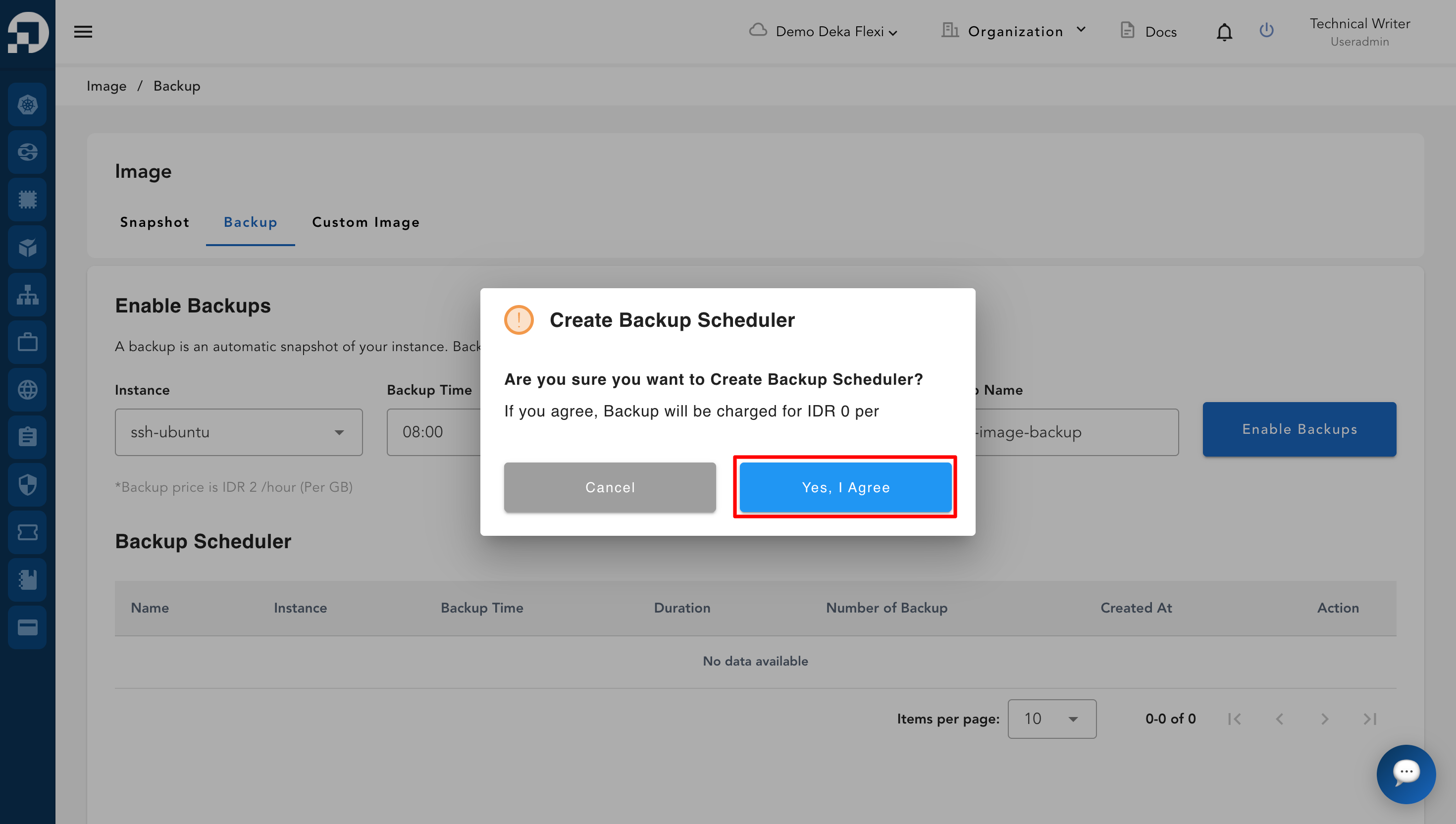
* A confirmation pop-up will appear to confirm the creation of the backup scheduler. Click **Yes, I Agree** to continue the process or click **Cancel** to cancel the action.

<figure><img src="https://content.gitbook.com/content/dRGHNSPw8ps5rkLJZT3A/blobs/Kygw1V7iWDTSyOKuJghG/image.png" alt=""><figcaption></figcaption></figure>

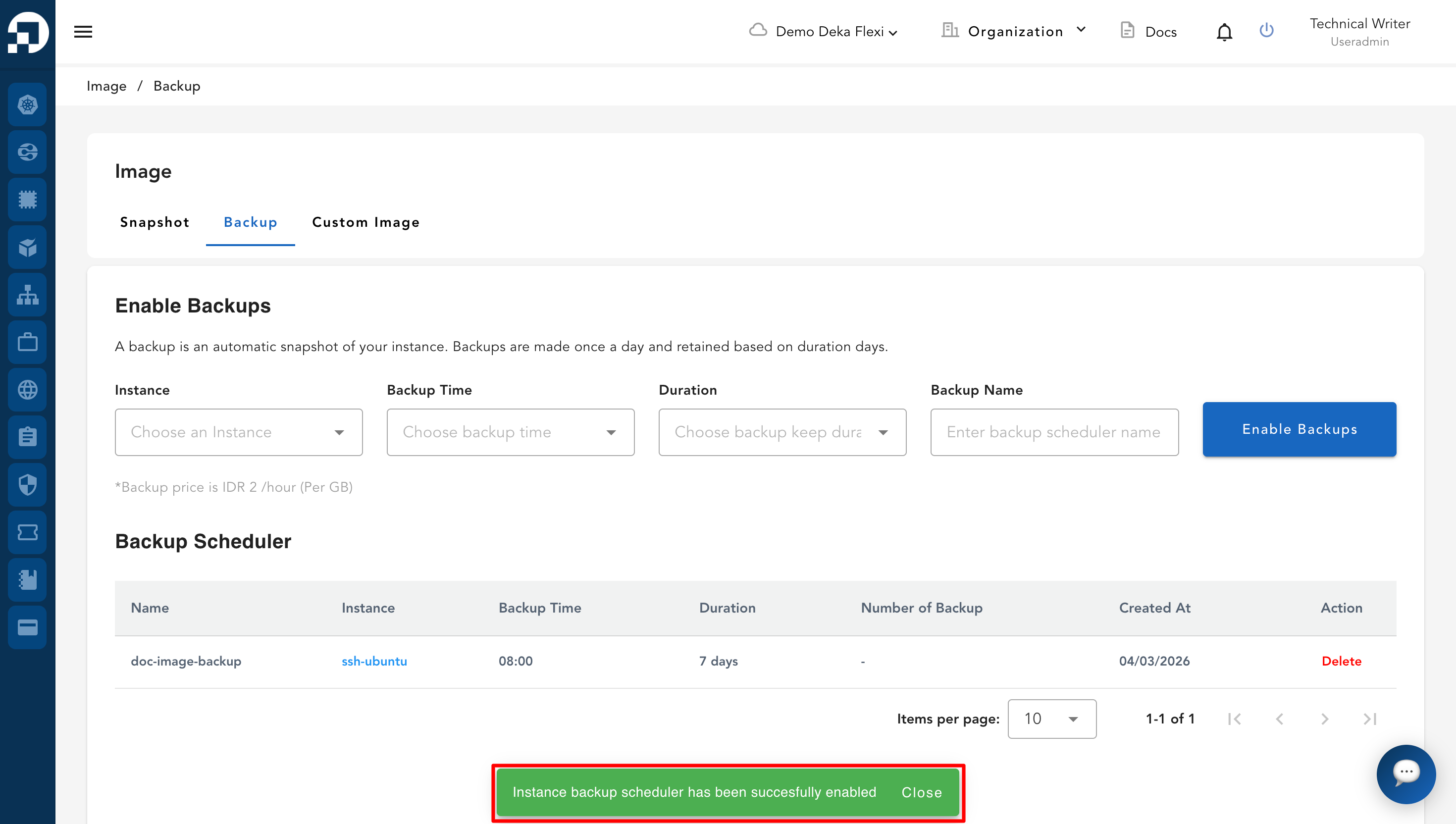
* If the process is successful, a notification will appear displaying the message "**Instance backup scheduler has been successfully enabled**".

<figure><img src="https://content.gitbook.com/content/dRGHNSPw8ps5rkLJZT3A/blobs/eebemSm16za4AWtvsF7T/image.png" alt=""><figcaption></figcaption></figure>

* A list of backup scheduler will appear, namely:

<table><thead><tr><th width="290">Column</th><th>Description</th></tr></thead><tbody><tr><td><strong>Name</strong></td><td>The name of the backup.</td></tr><tr><td><strong>Instance</strong></td><td>The instance that is being backed up.</td></tr><tr><td><strong>Backup Time</strong></td><td>The scheduled time when the backup process will run.</td></tr><tr><td><strong>Duration</strong></td><td>The retention period of the backup.</td></tr><tr><td><strong>Number of Backup</strong></td><td>Total number of backups created.</td></tr><tr><td><strong>Created At</strong></td><td>The time when the backup scheduler was created.</td></tr><tr><td><strong>Action</strong></td><td>Options to delete the backup scheduler, create an instance, or restore an instance from the backup.</td></tr></tbody></table>