> For the complete documentation index, see [llms.txt](https://docs.cloudeka.ai/llms.txt). Markdown versions of documentation pages are available by appending `.md` to page URLs; this page is available as [Markdown](https://docs.cloudeka.ai/guideline-for-individual/deka-flexi/deka-volume-storage/creating-and-attaching-a-storage-or-disk.md).

# Creating & Attaching a Storage or Disk

You can create a blank disk and attach it to your VM instance. This disk functions as a non-root disk.

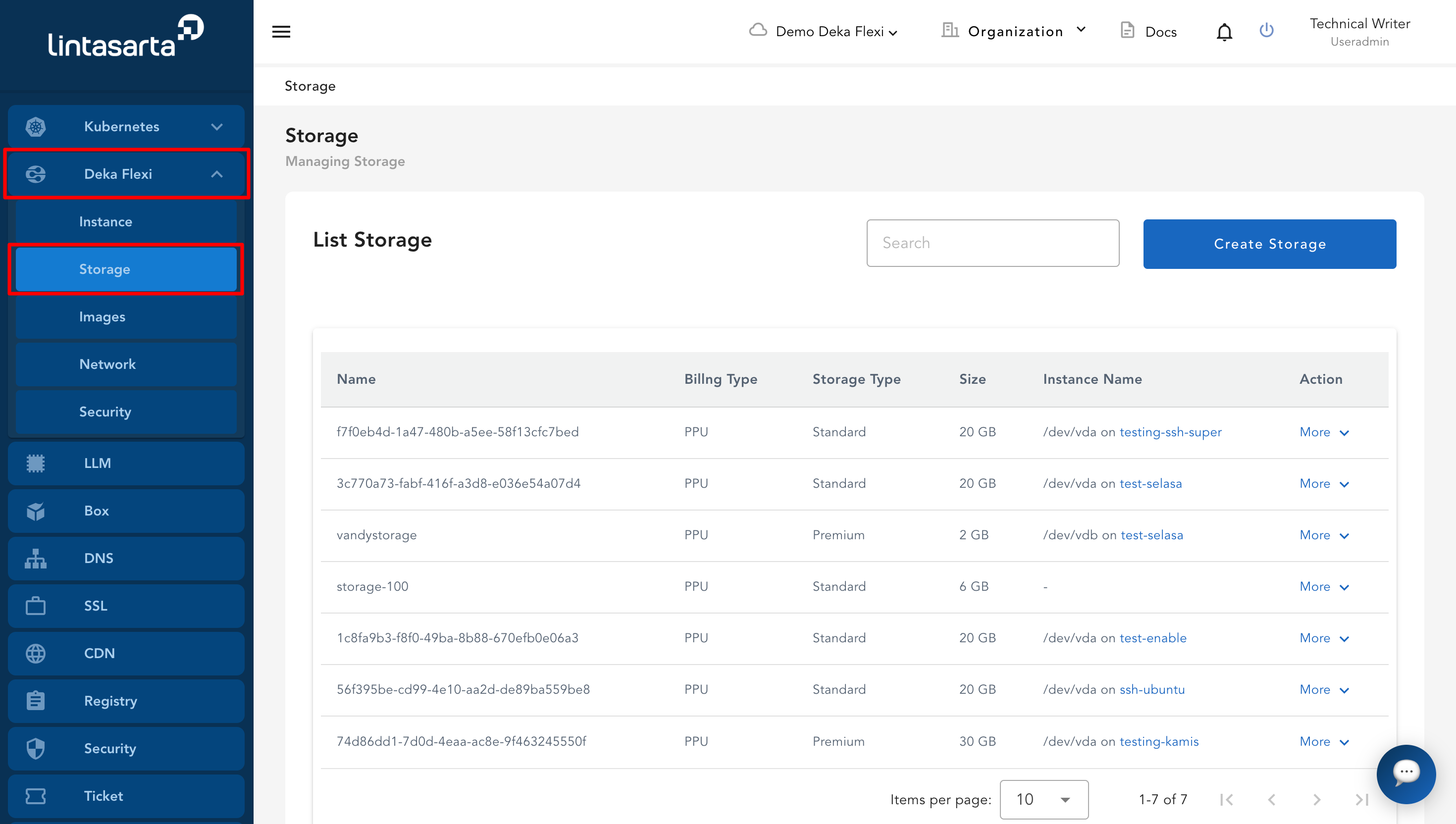
* On the main page of the Service Portal AI, select the **Storage** menu.

<figure><img src="https://content.gitbook.com/content/dRGHNSPw8ps5rkLJZT3A/blobs/PkeUKNjgXDlaDDTXKgVd/image.png" alt=""><figcaption></figcaption></figure>

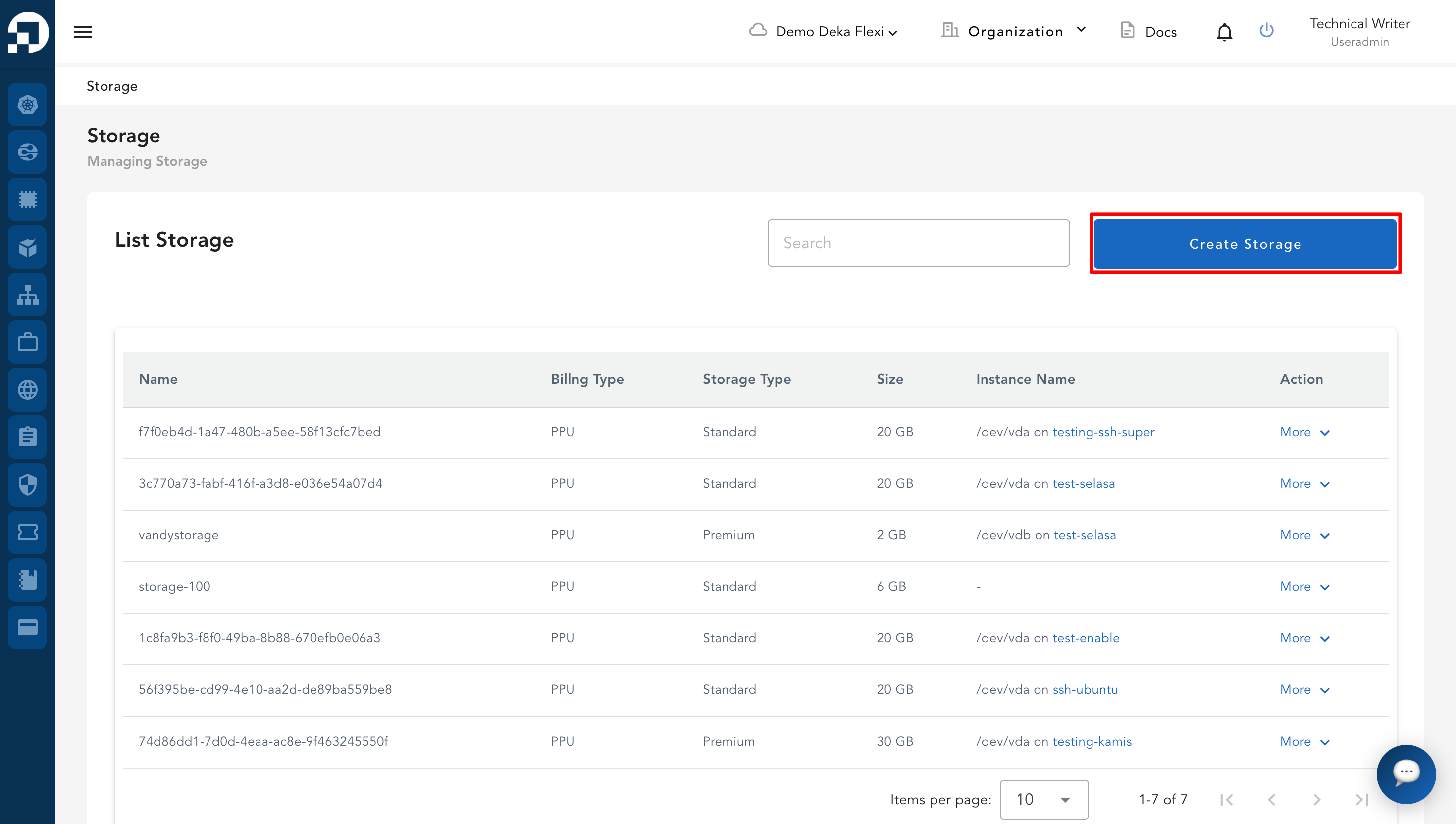
* Click the **Create Storage** button.

<figure><img src="https://content.gitbook.com/content/dRGHNSPw8ps5rkLJZT3A/blobs/uLnxbwvwpAOu9A0LEQ2K/image.png" alt=""><figcaption></figcaption></figure>

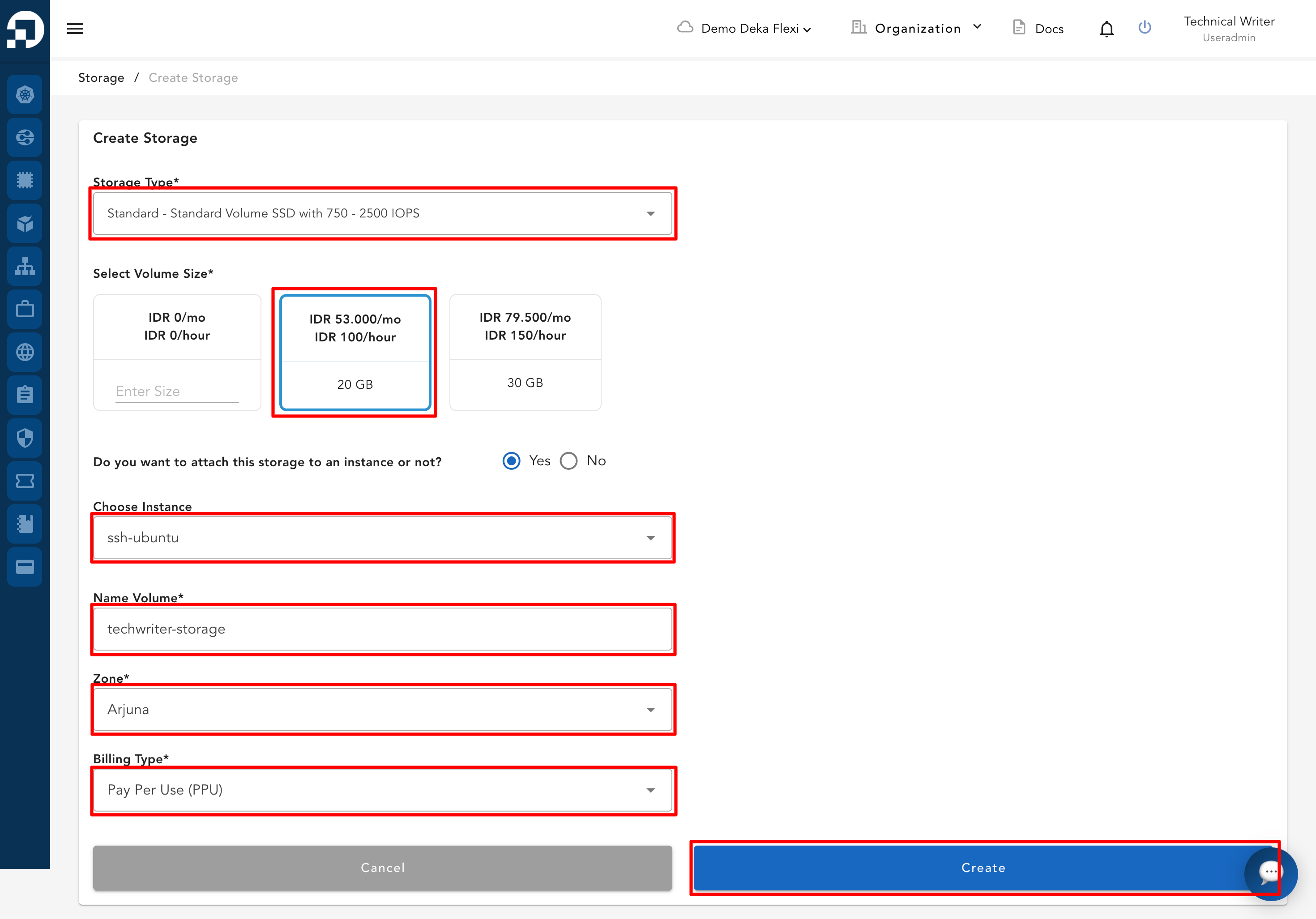
* Fill in the **Create Storage** form with the following information.

<table data-full-width="true"><thead><tr><th width="322">Column</th><th>Description</th></tr></thead><tbody><tr><td><strong>Storage Type</strong></td><td>- Premium Volume SSD with 2250 - 4500 IOPS<br>- Premium Volume SSD with 750 - 2500 IOPS</td></tr><tr><td><strong>Select Volume Size</strong></td><td>Specify the storage size required.</td></tr><tr><td><strong>Do you want to attach this storage to an instance or not?</strong></td><td>Select <strong>Yes</strong> if you want to attach the storage to an instance, or select <strong>No</strong> if you want to attach the storage later.</td></tr><tr><td><strong>Select Instance</strong></td><td>Select the instance where the storage will be attached.</td></tr><tr><td><strong>Name Volume</strong></td><td>Name for the volume.</td></tr><tr><td><strong>Billing Type</strong></td><td>Based on the project billing type used.</td></tr><tr><td><strong>Zone</strong></td><td>Zone used for the storage.</td></tr></tbody></table>

* Click the **Create** button to save the data or **Cancel** if you do not want to save the data.

<figure><img src="https://content.gitbook.com/content/dRGHNSPw8ps5rkLJZT3A/blobs/EJgeI3XVRGzBZUINWdGe/image.png" alt=""><figcaption></figcaption></figure>

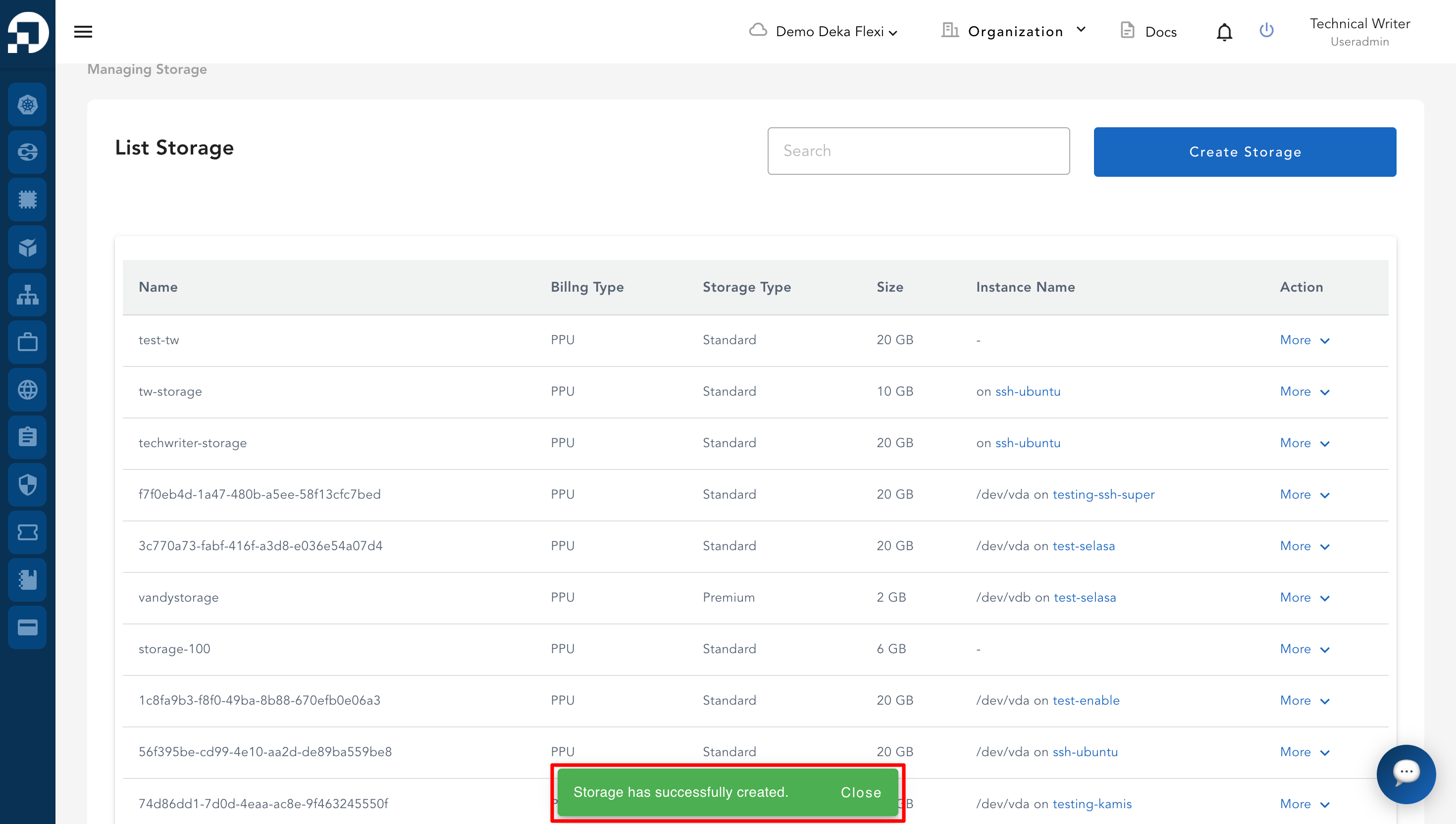
* A notification will appear displaying the message "**Storage has successfully created**".

<figure><img src="https://content.gitbook.com/content/dRGHNSPw8ps5rkLJZT3A/blobs/F6tJ0eWdrmtQ5StSzwAr/image.png" alt=""><figcaption></figcaption></figure>