> For the complete documentation index, see [llms.txt](https://docs.cloudeka.ai/llms.txt). Markdown versions of documentation pages are available by appending `.md` to page URLs; this page is available as [Markdown](https://docs.cloudeka.ai/guideline-for-individual/deka-gpu/deka-gpu-registry/detail-registry/helm-charts.md).
# Helm Charts
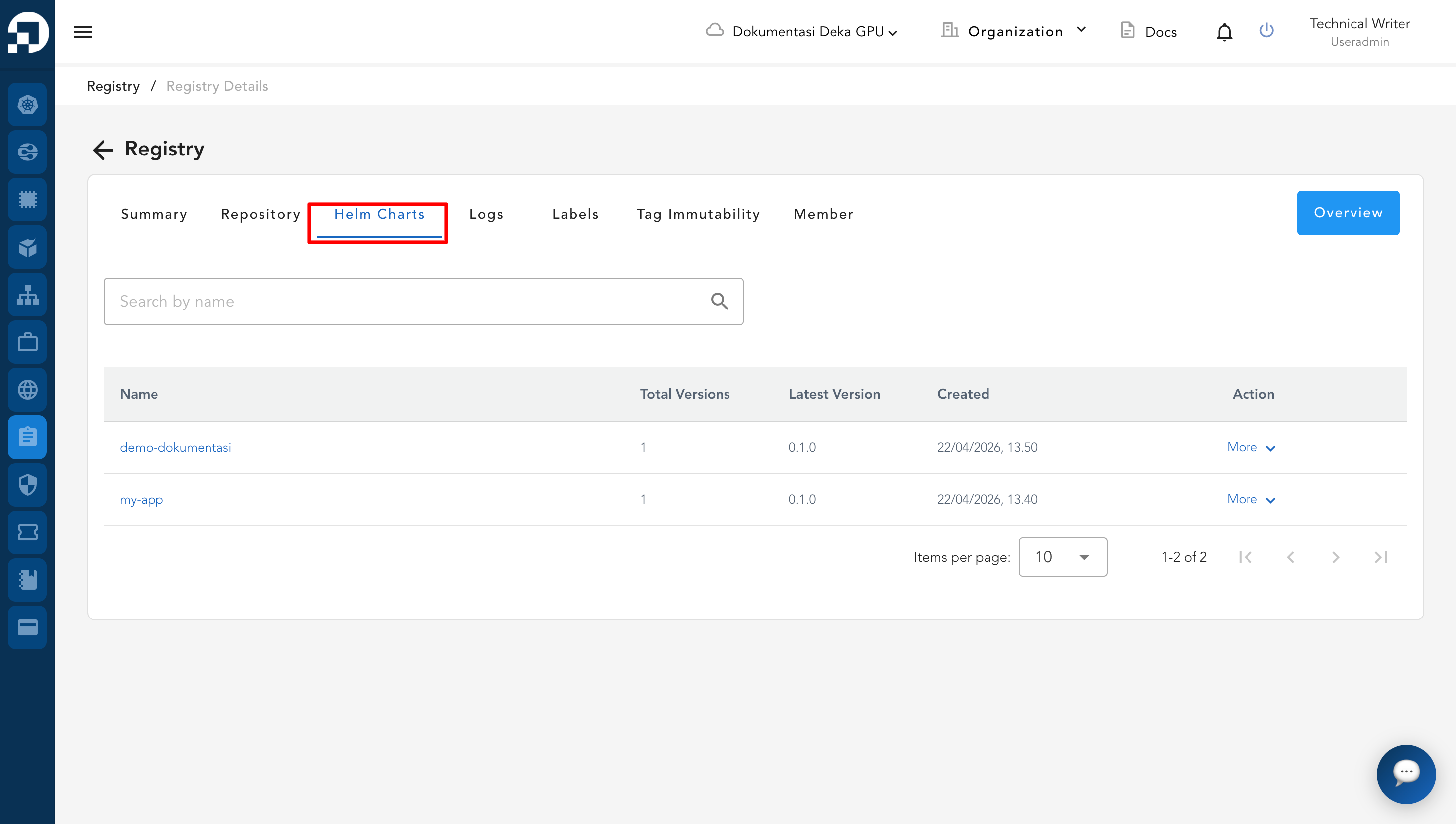
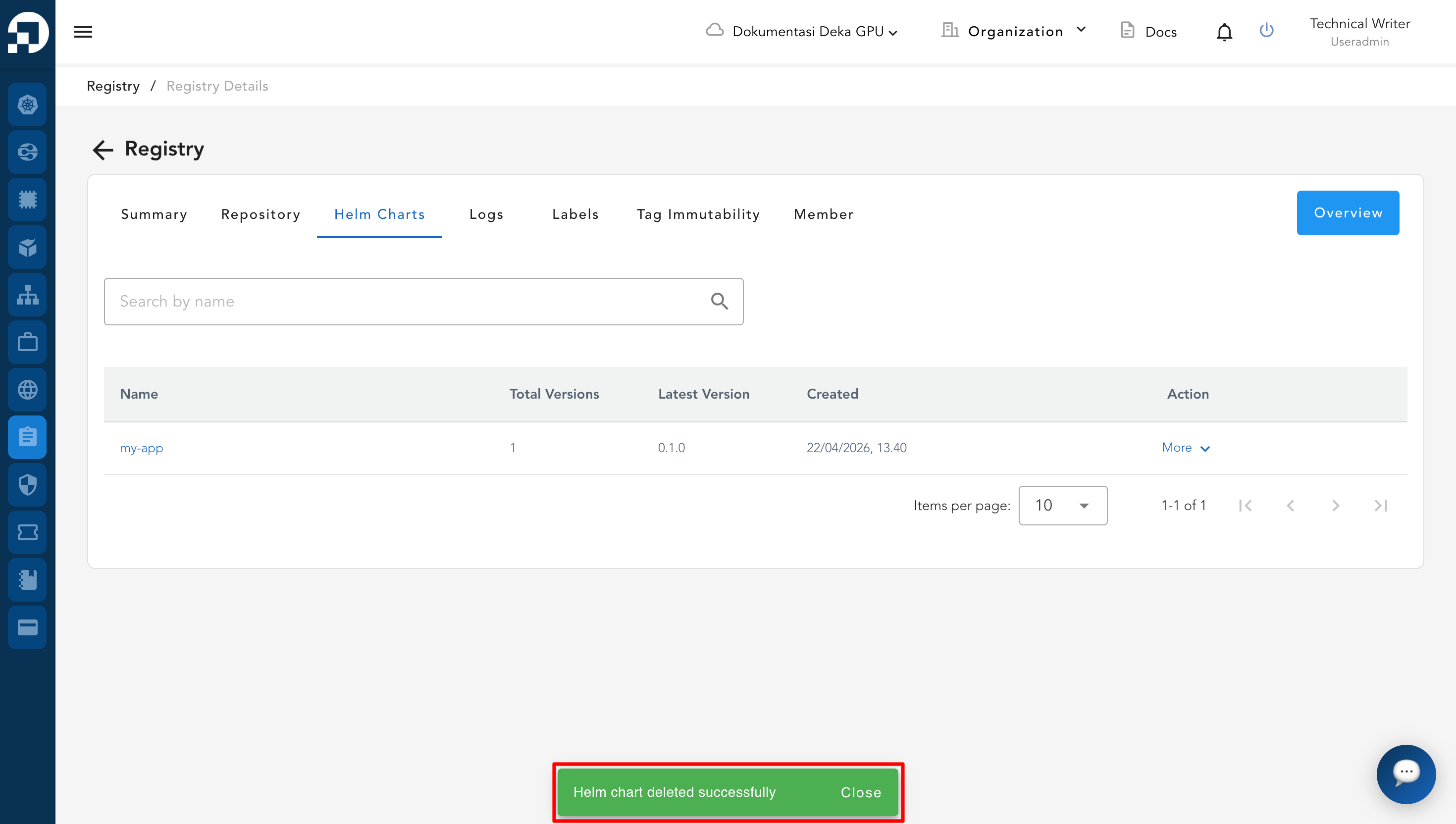
The **Helm Charts** tab displays a list of Helm charts stored in the registry. From this tab, users can view available charts, search for specific charts, and manage them as needed.
The Helm Charts tab provides several actions for managing Helm charts, as described below.
## Search by Name
* Navigate to the **Helm Charts** tab.
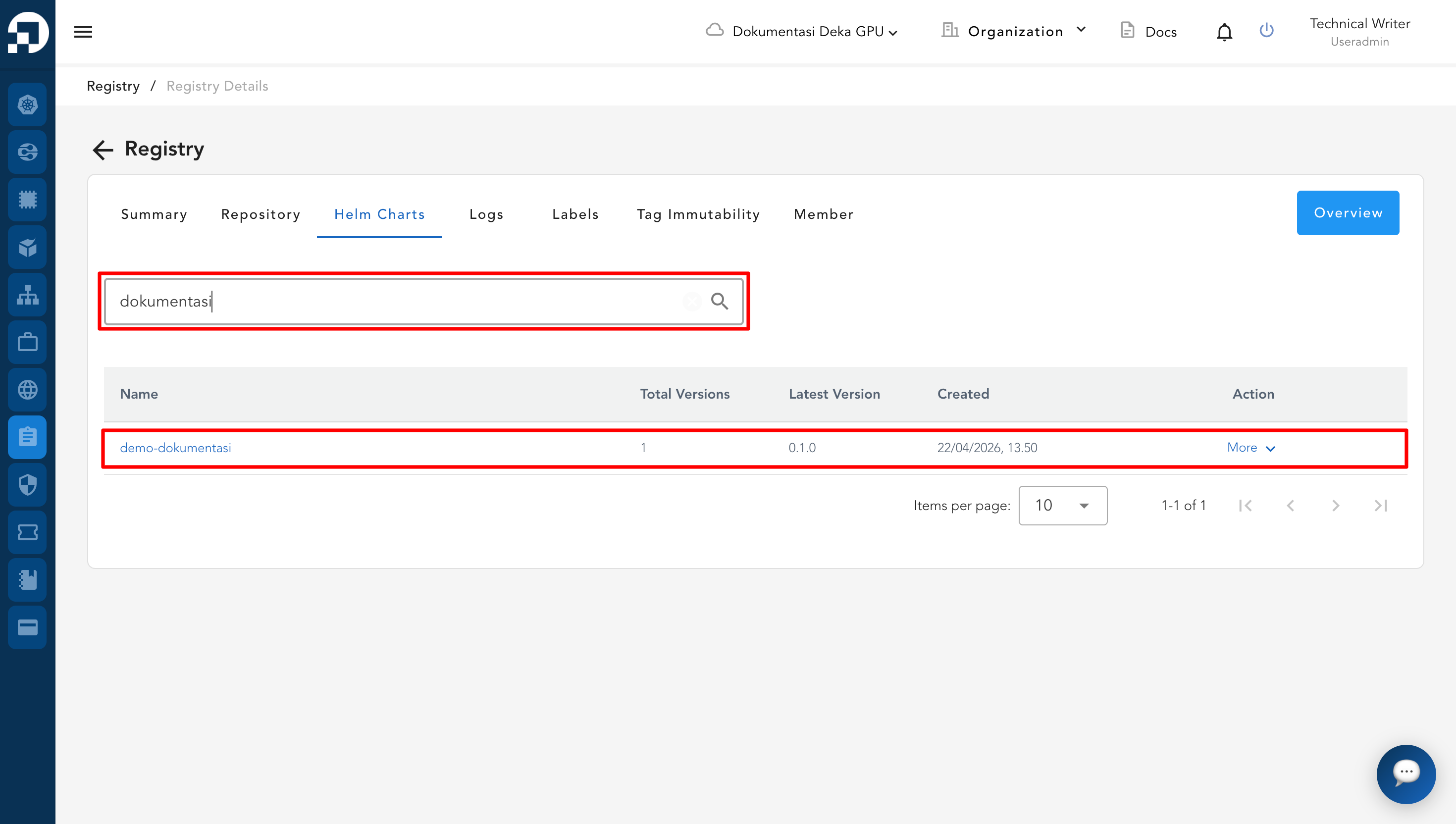
* In the search field, enter the name of the Helm chart.
* The system will automatically display the matching Helm chart.
## Delete
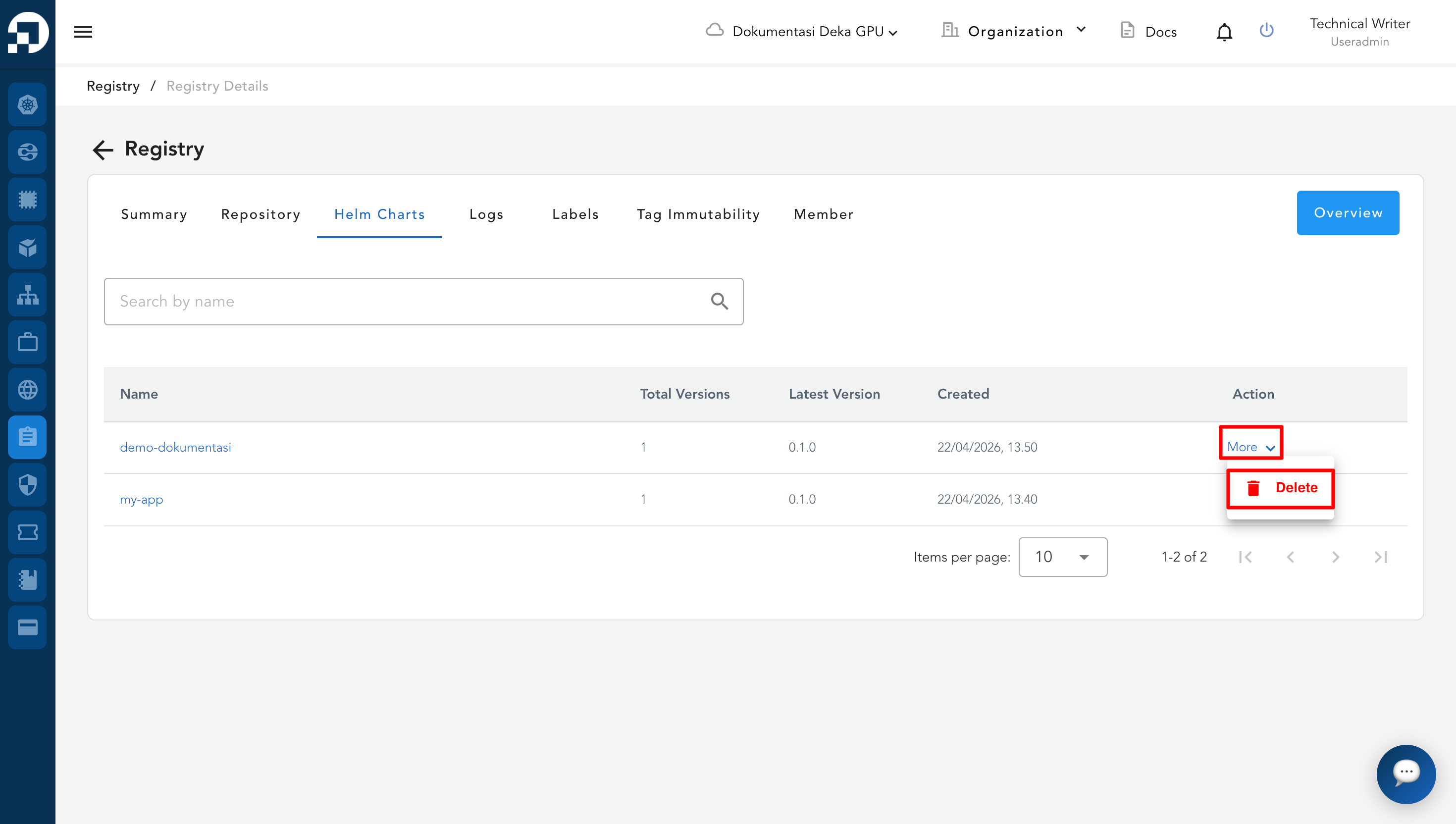
* In the **Helm Charts** tab, locate the Helm chart you want to delete.
* Click **More** in the **Action** column.
* Select **Delete**.
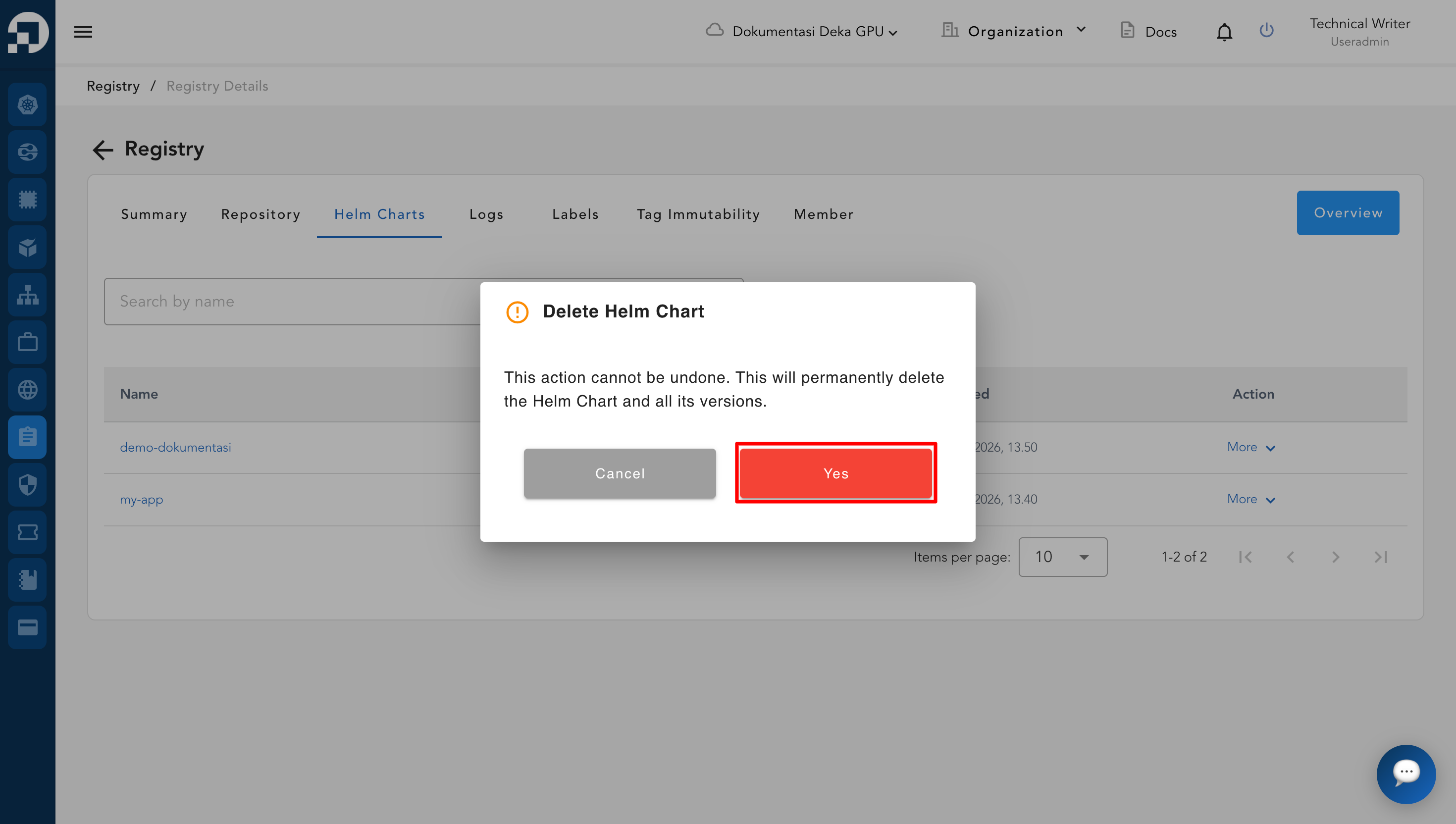
* In the confirmation dialog, click **Yes**.
* A success notification will appear indicating that the Helm chart has been successfully deleted.