> For the complete documentation index, see [llms.txt](https://docs.cloudeka.ai/llms.txt). Markdown versions of documentation pages are available by appending `.md` to page URLs; this page is available as [Markdown](https://docs.cloudeka.ai/guideline-for-individual/deka-gpu/deka-gpu-registry/detail-registry/labels/create-label.md).

# Create Label

To create a new label in the registry, follow the steps below:

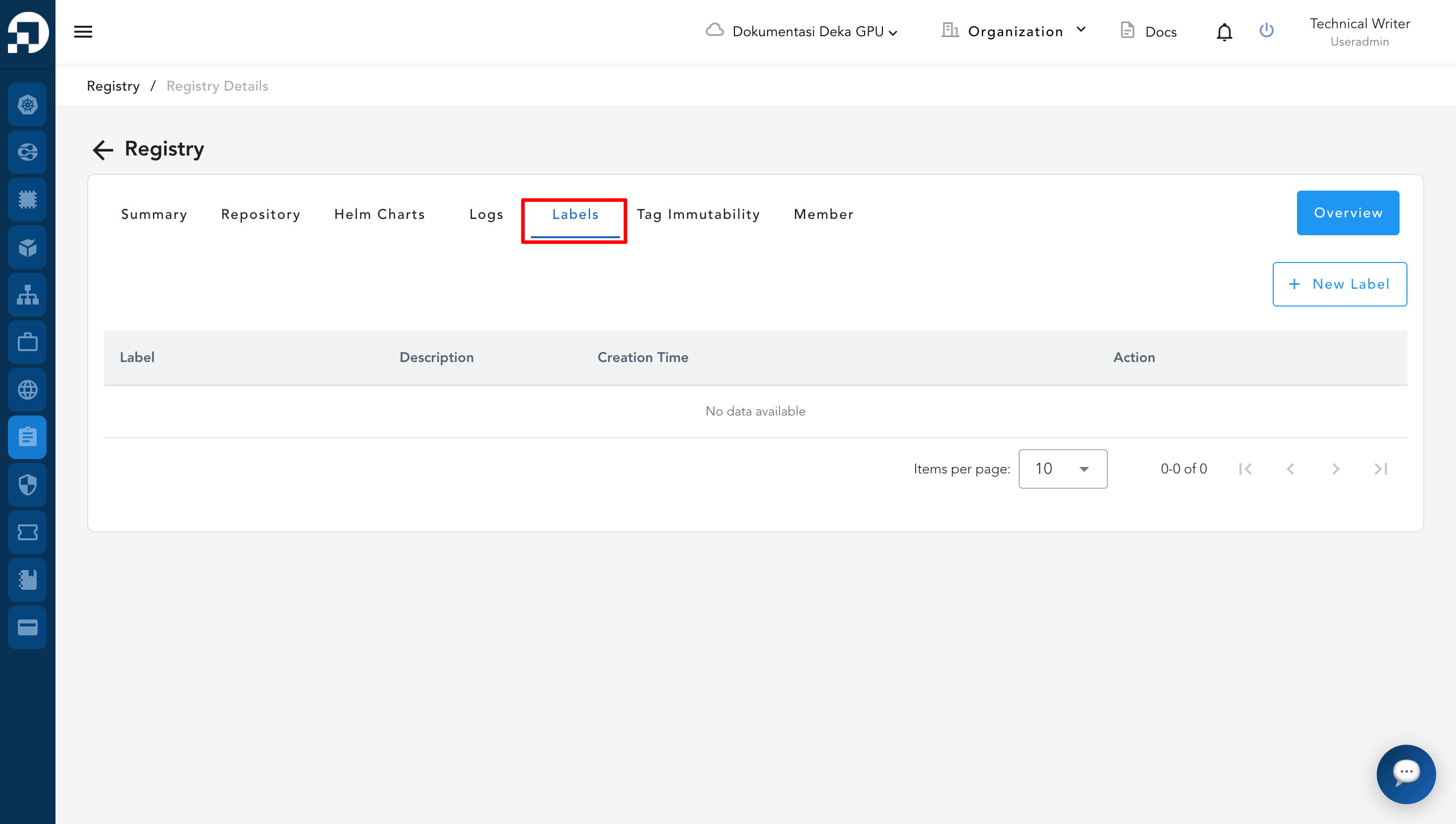
* To access labels, click the **Labels** tab on the registry details page.

<figure><img src="https://content.gitbook.com/content/dRGHNSPw8ps5rkLJZT3A/blobs/kq2zbwd4UPOi9SjEFhI1/image.png" alt=""><figcaption></figcaption></figure>

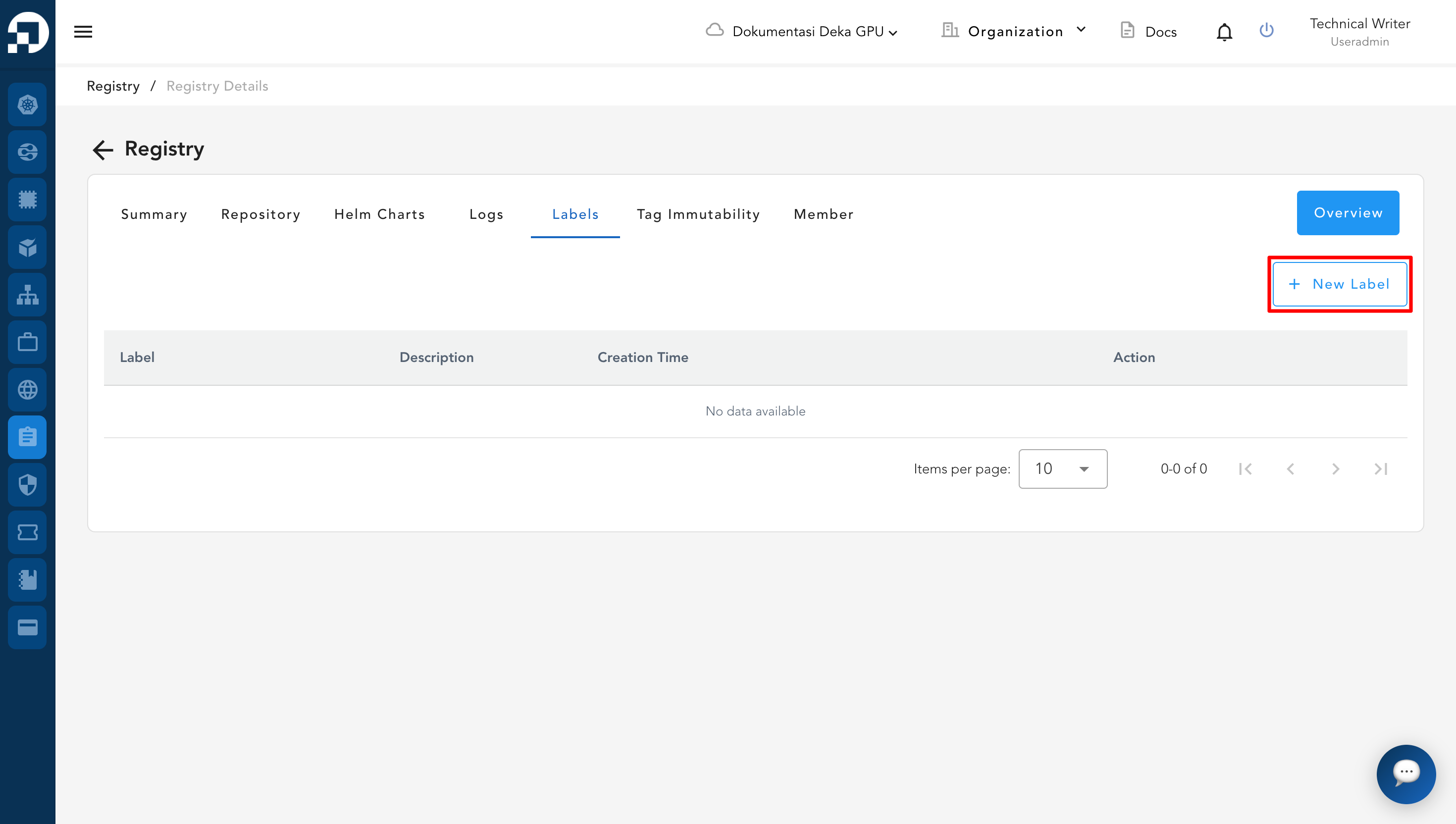
* Click the **New Label** button to create a new label.

<figure><img src="https://content.gitbook.com/content/dRGHNSPw8ps5rkLJZT3A/blobs/b1Q5SwRuVfApHP1DyMHn/image.png" alt=""><figcaption></figcaption></figure>

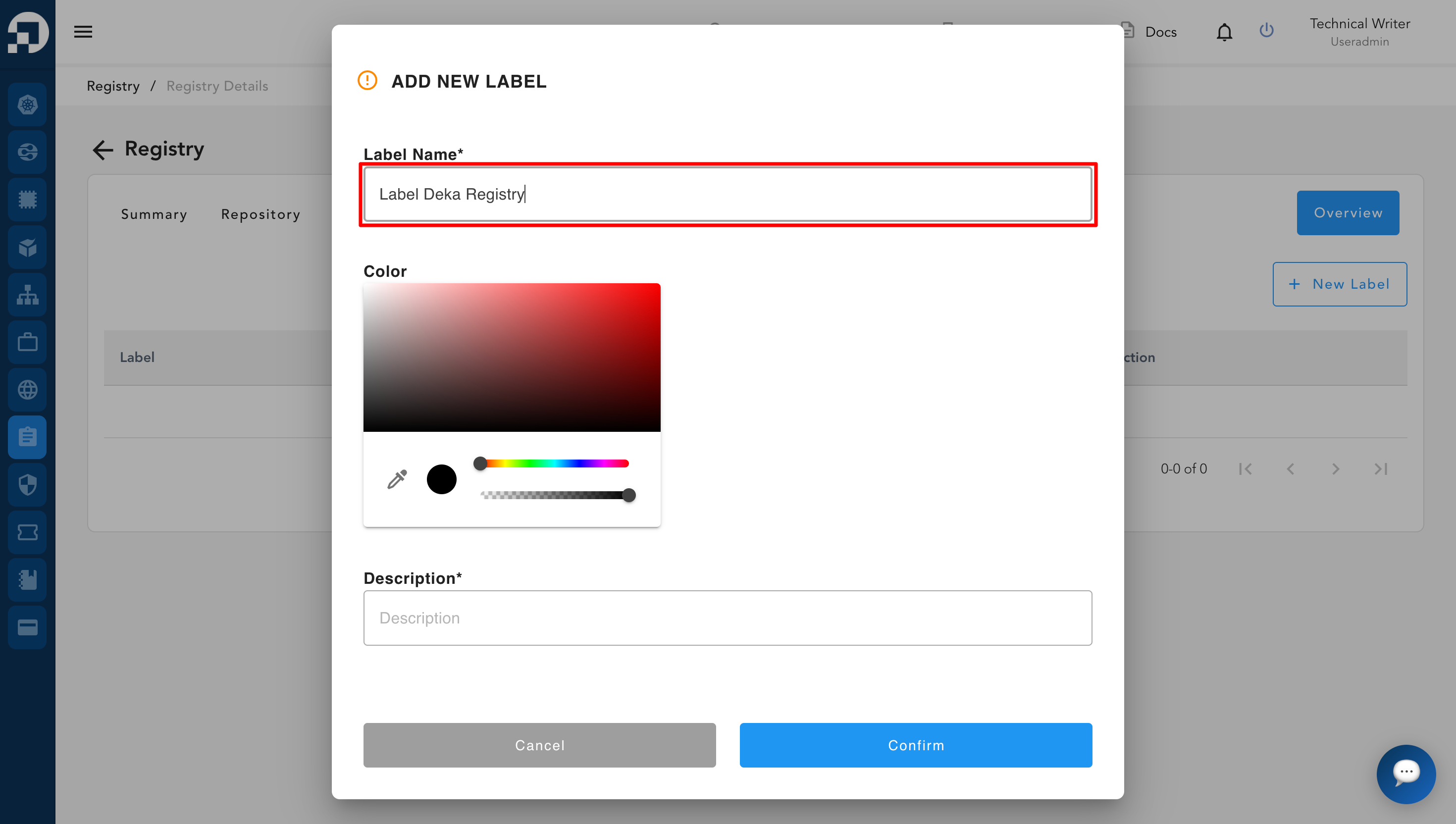
* After clicking the **New Label** button, the system will display the **Add New Label** page.

<figure><img src="https://content.gitbook.com/content/dRGHNSPw8ps5rkLJZT3A/blobs/sC20WjaglrshlSVRItym/image.png" alt=""><figcaption></figcaption></figure>

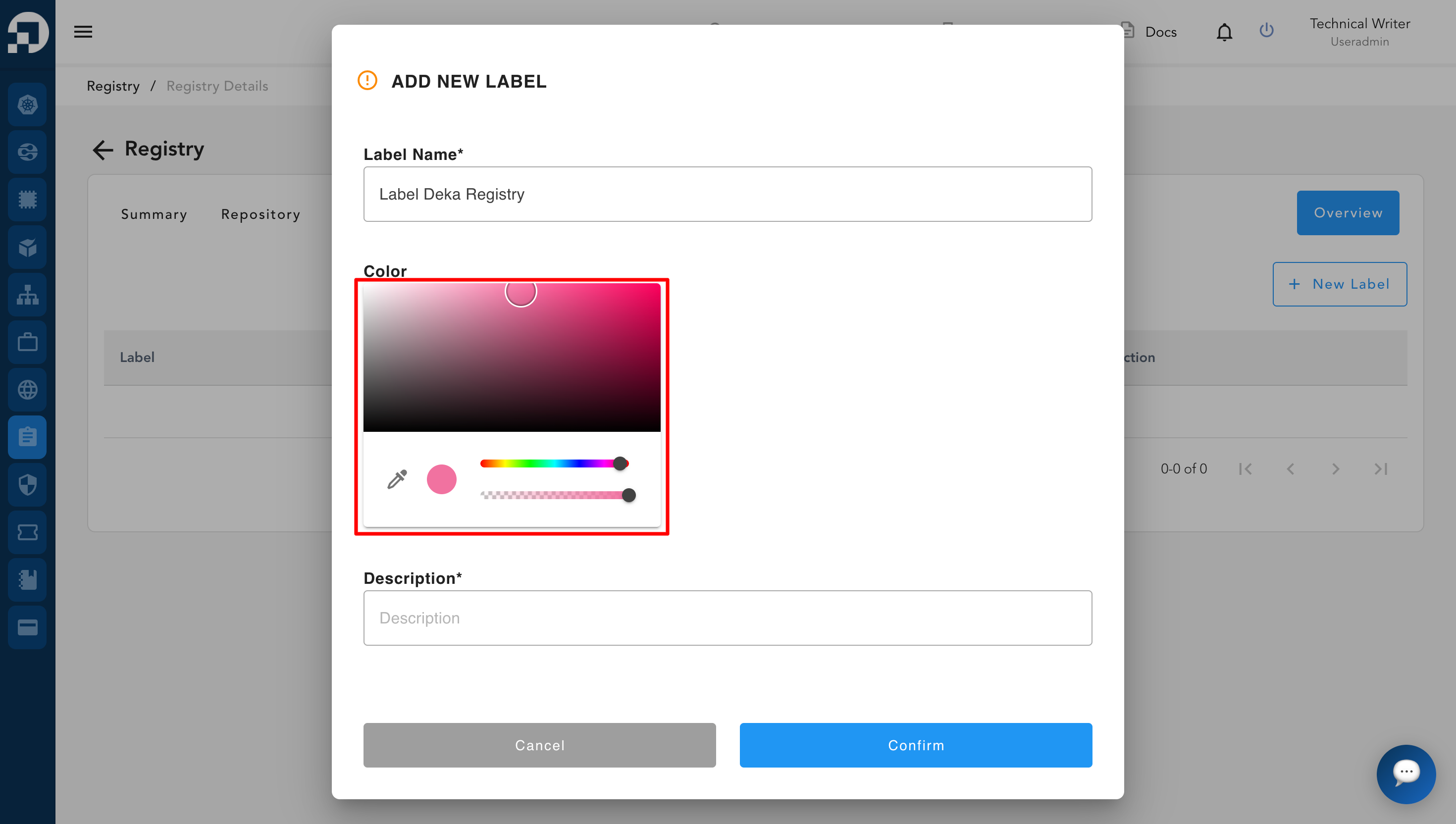
* In the **Color** section, select a label color using the available color picker.

<figure><img src="https://content.gitbook.com/content/dRGHNSPw8ps5rkLJZT3A/blobs/n2khO6ySveDJtVUDSeq3/image.png" alt=""><figcaption></figcaption></figure>

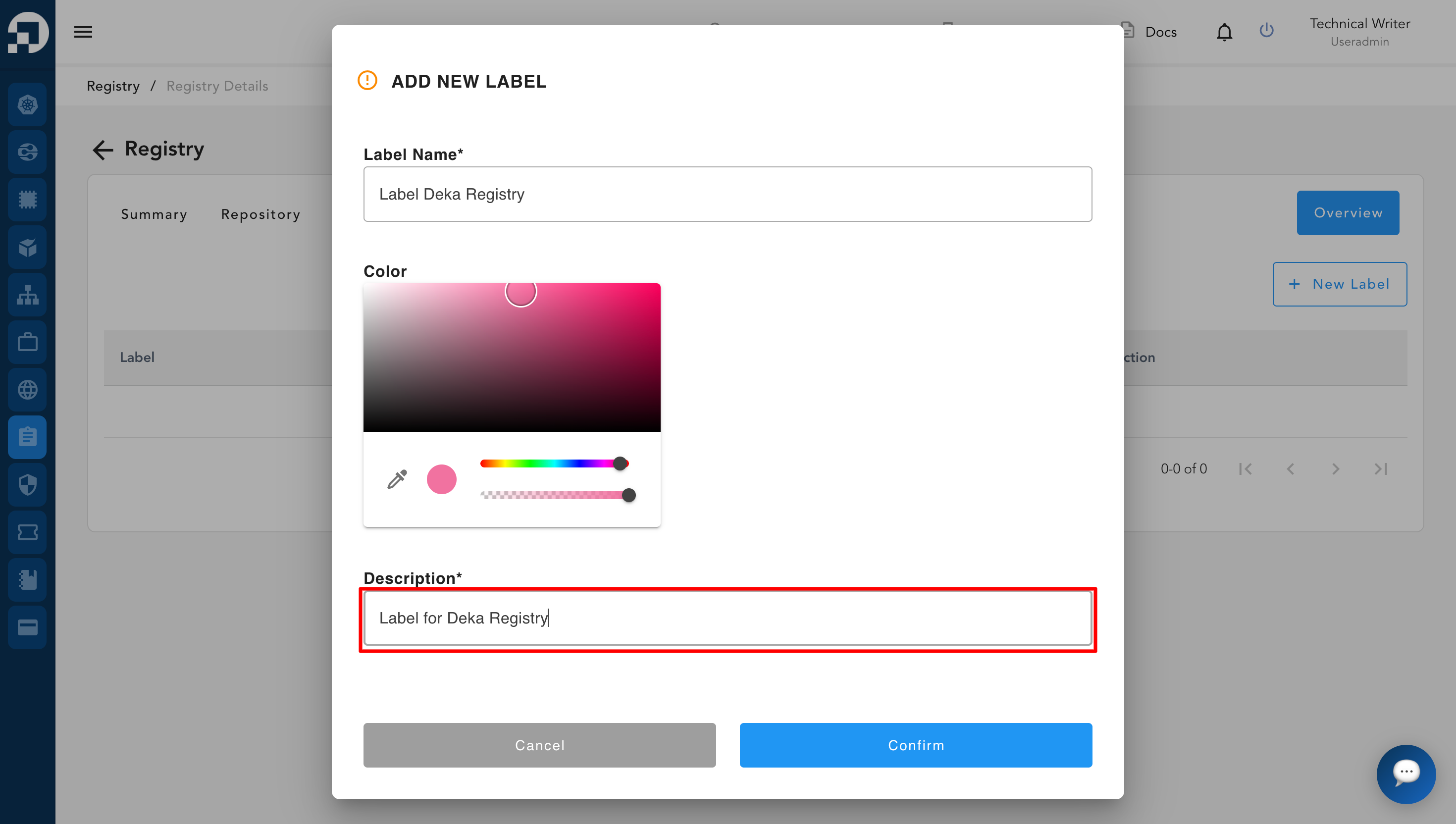
* Specify a description in the **Description** field to define the purpose of the label.

<figure><img src="https://content.gitbook.com/content/dRGHNSPw8ps5rkLJZT3A/blobs/xwip3MmzSLbULxFN1f2R/image.png" alt=""><figcaption></figcaption></figure>

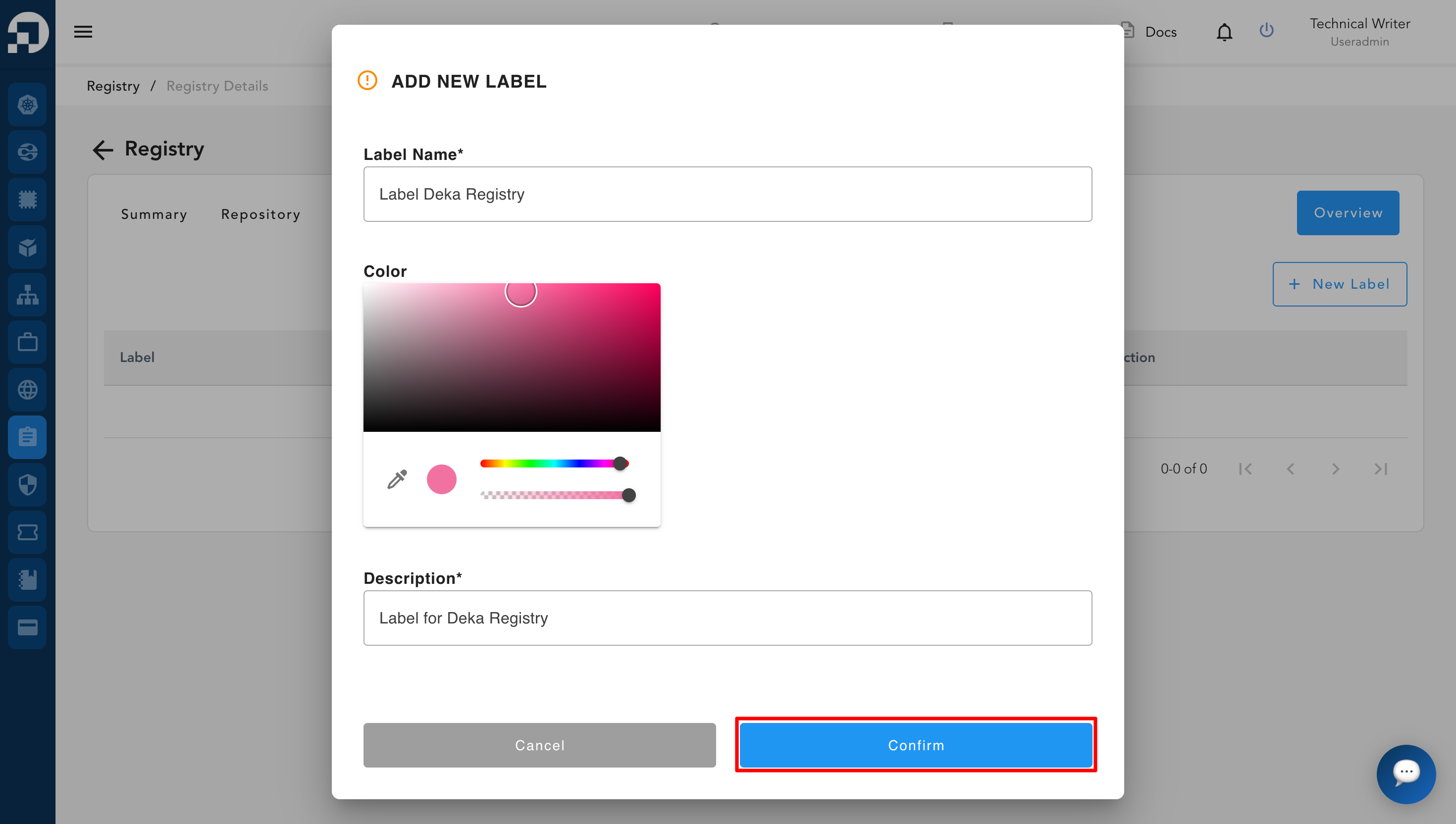
* Once all required fields are completed correctly, click the **Confirm** button to save the label and add the new label to the registry.

<figure><img src="https://content.gitbook.com/content/dRGHNSPw8ps5rkLJZT3A/blobs/YaxLOvau6ywfBGDbNBYW/image.png" alt=""><figcaption></figcaption></figure>

* Below are several explanations related to the label input fields:

<table><thead><tr><th width="130">Column</th><th>Description</th></tr></thead><tbody><tr><td><strong>Label name</strong> </td><td>Used to define the name of the label for easy identification and reference within the registry.</td></tr><tr><td><strong>Color</strong></td><td>Used to assign a specific color to the label, helping users visually distinguish labels from one another.</td></tr><tr><td><strong>Description</strong></td><td>Used to provide additional information or context about the label, making its purpose clearer to users.</td></tr></tbody></table>

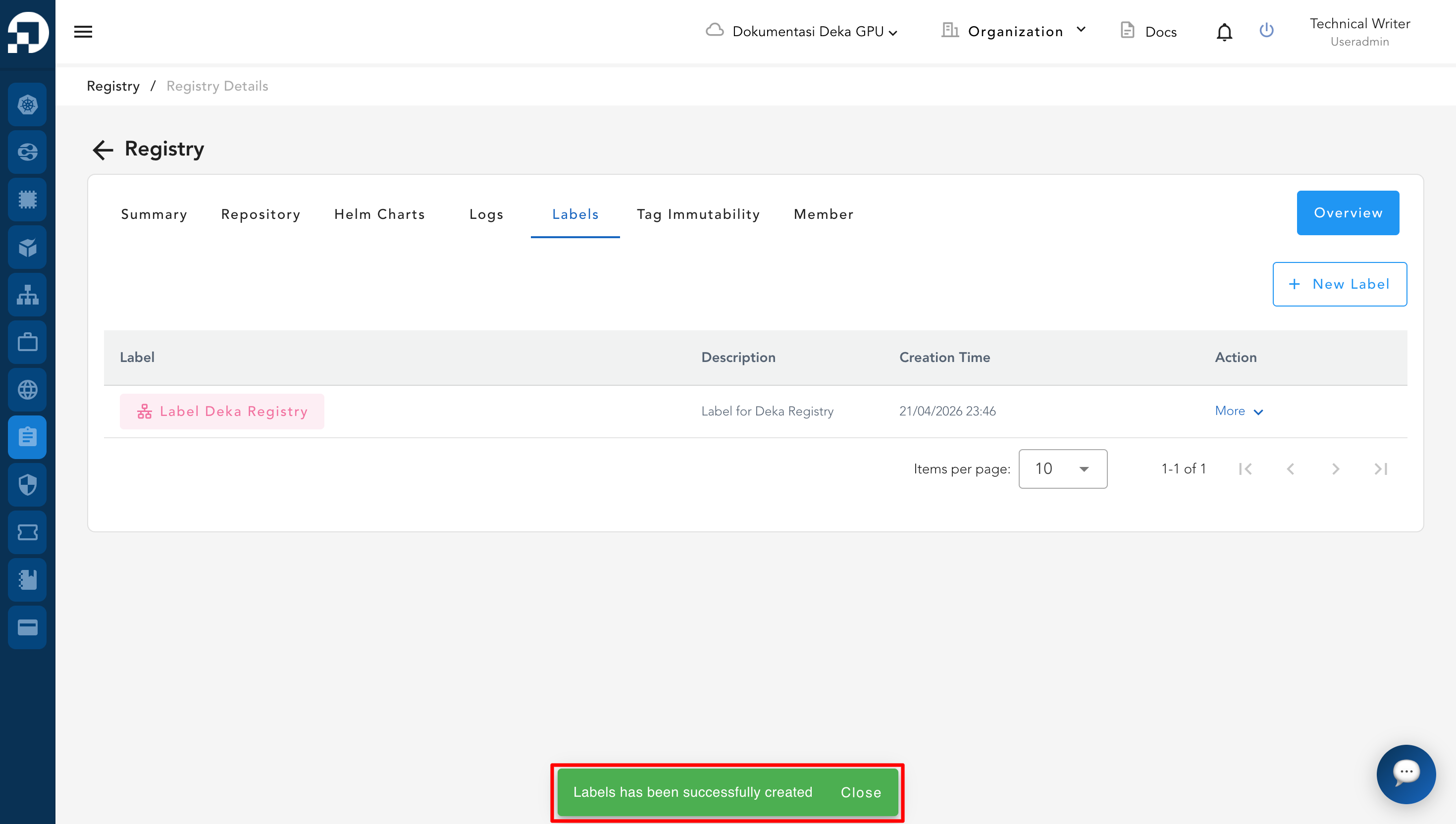
* After the data is successfully created, it will be added to the system and a notification saying **“Labels has been successfully created”** will automatically appear, indicating that the label has been created successfully.

<figure><img src="https://content.gitbook.com/content/dRGHNSPw8ps5rkLJZT3A/blobs/8Hgn9A7vjWi0yxksXgZn/image.png" alt=""><figcaption></figcaption></figure>