> For the complete documentation index, see [llms.txt](https://docs.cloudeka.ai/llms.txt). Markdown versions of documentation pages are available by appending `.md` to page URLs; this page is available as [Markdown](https://docs.cloudeka.ai/guideline-for-individual/deka-ssl/download-and-manage-keys-deka-ssl.md).
# Download and Manage Keys Deka SSL
## Download SSL Files
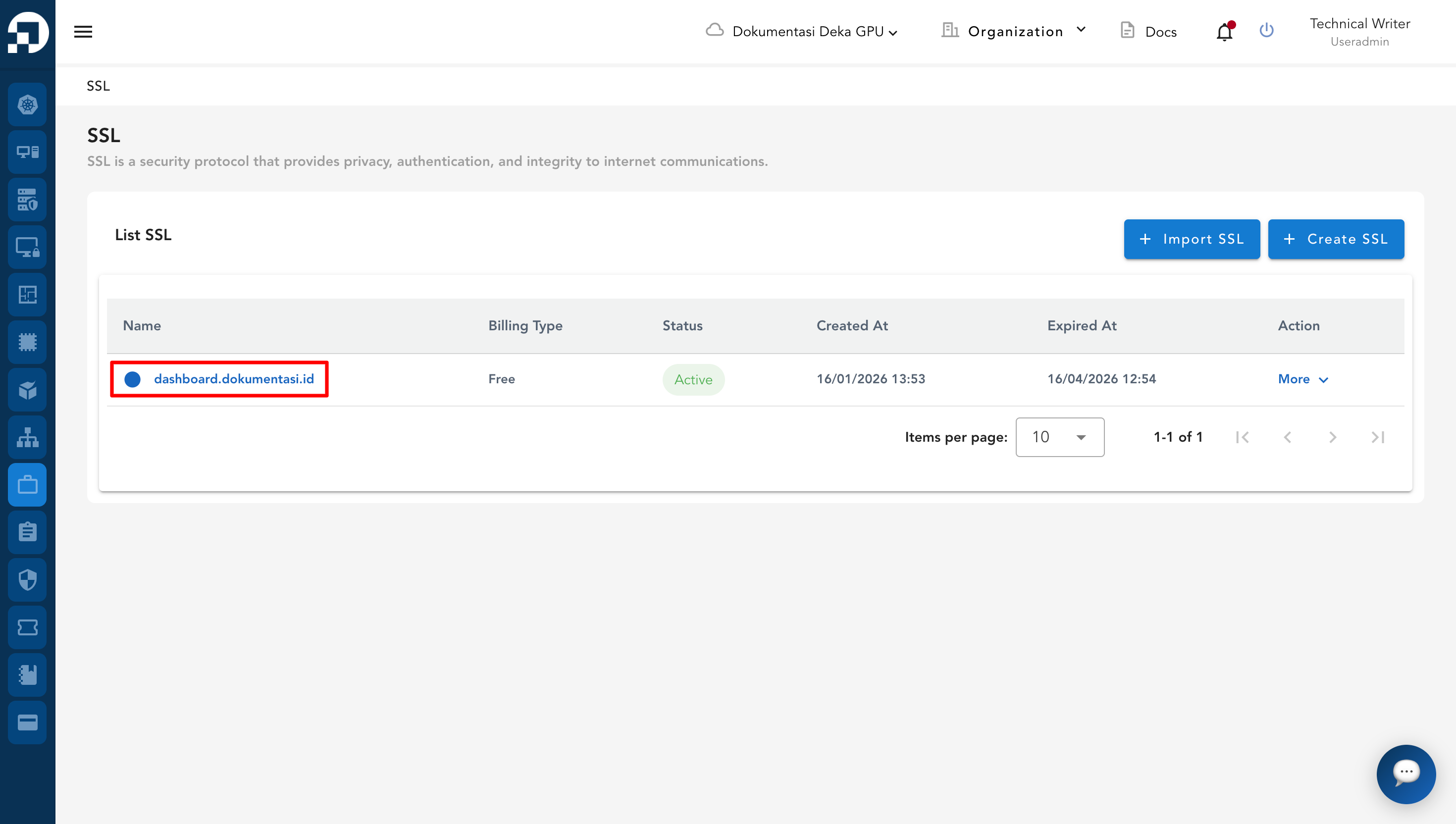
You can download the SSL certificate that you have created from the SSL page by selecting the previously created SSL.
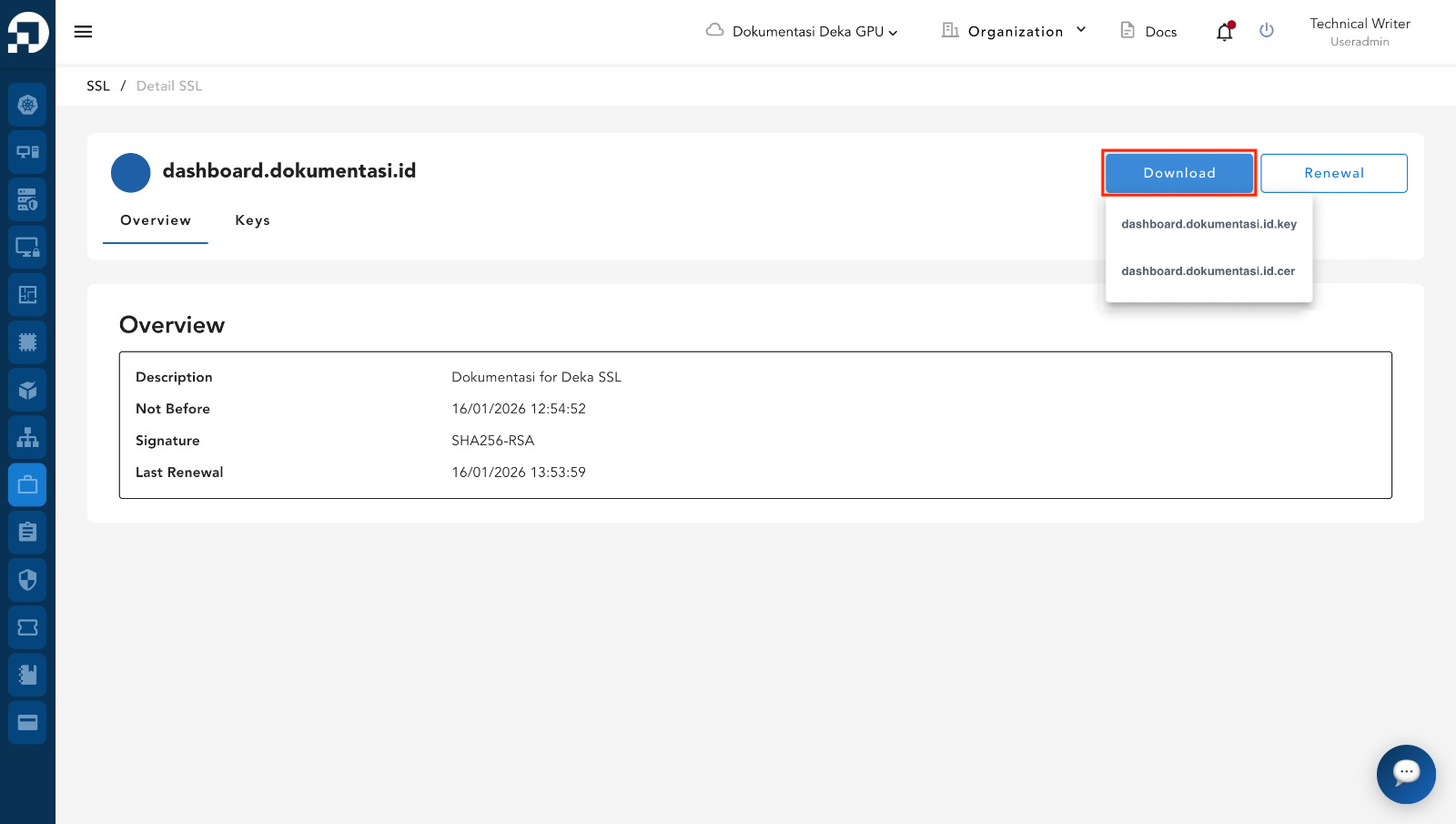
You will be redirected to the SSL Details page. Click the **Download** button and select either the `.key` or `.cer` file as needed.
## Manage SSL Keys
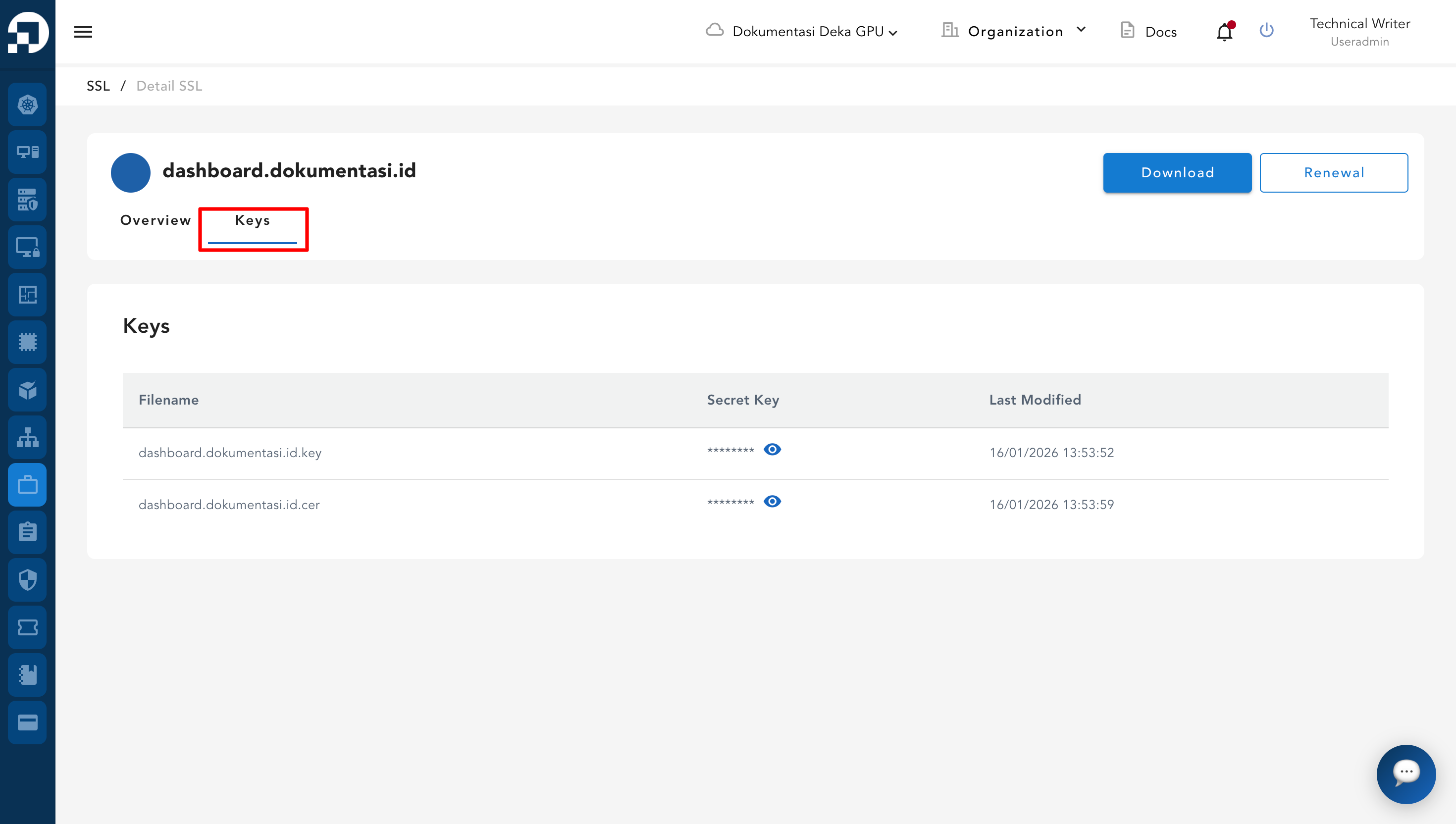
The Manage SSL Keys section displays the SSL key files for the selected domain and provides access to view the secret key.
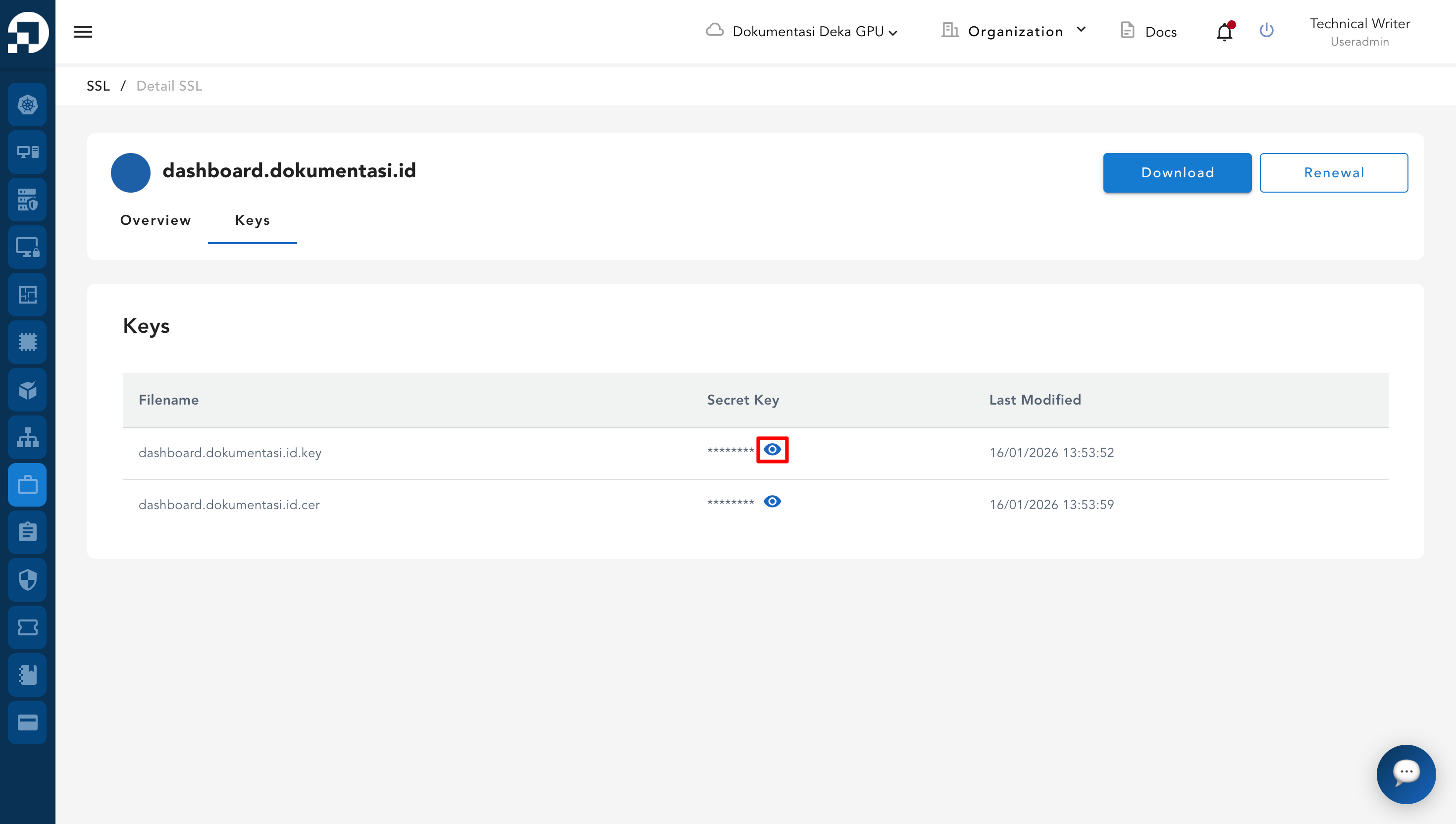
To view the secret key, click the eye icon in the **Secret Key** column.
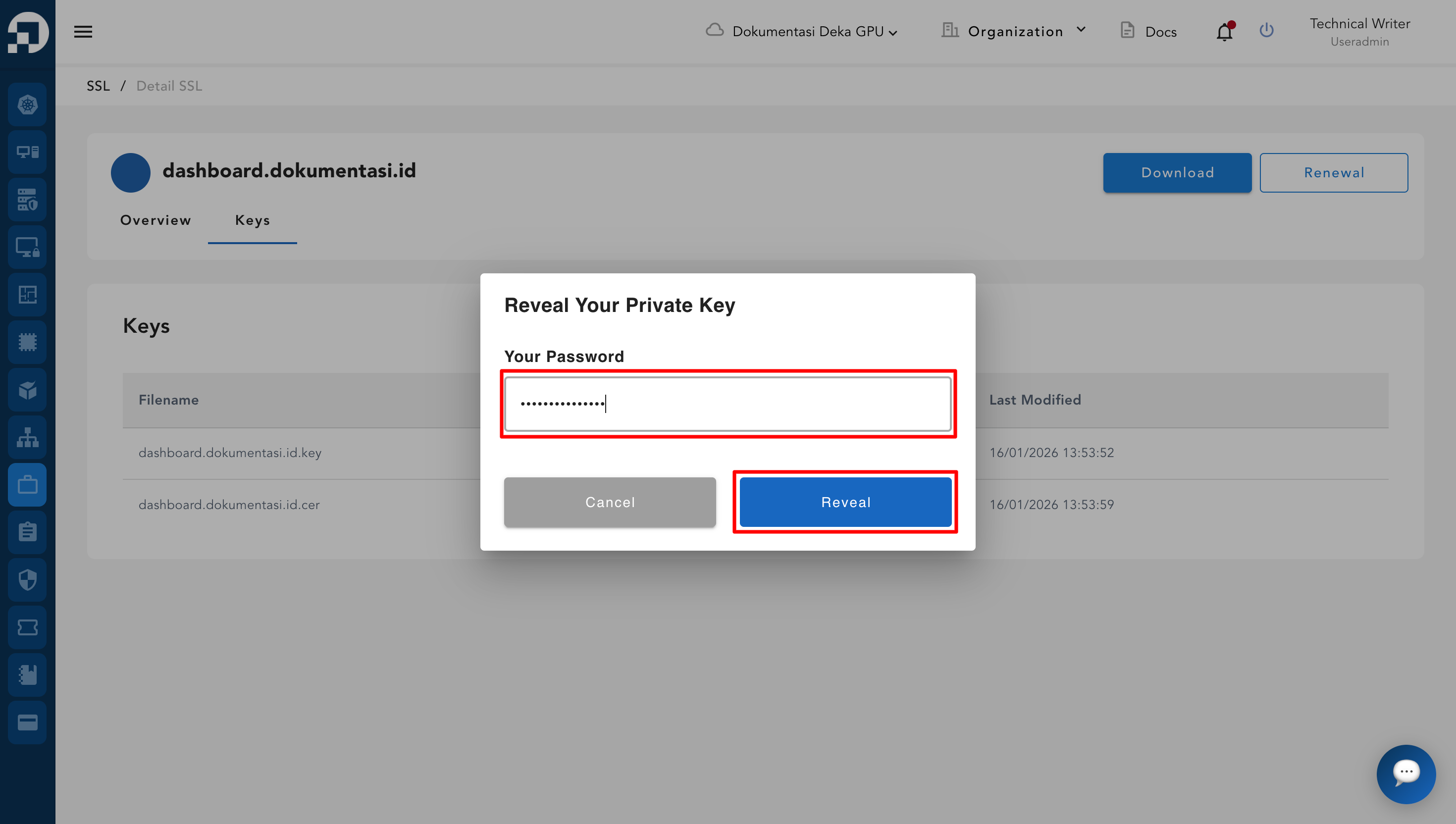
You are prompted to enter your account password for verification, then click **Reveal**.
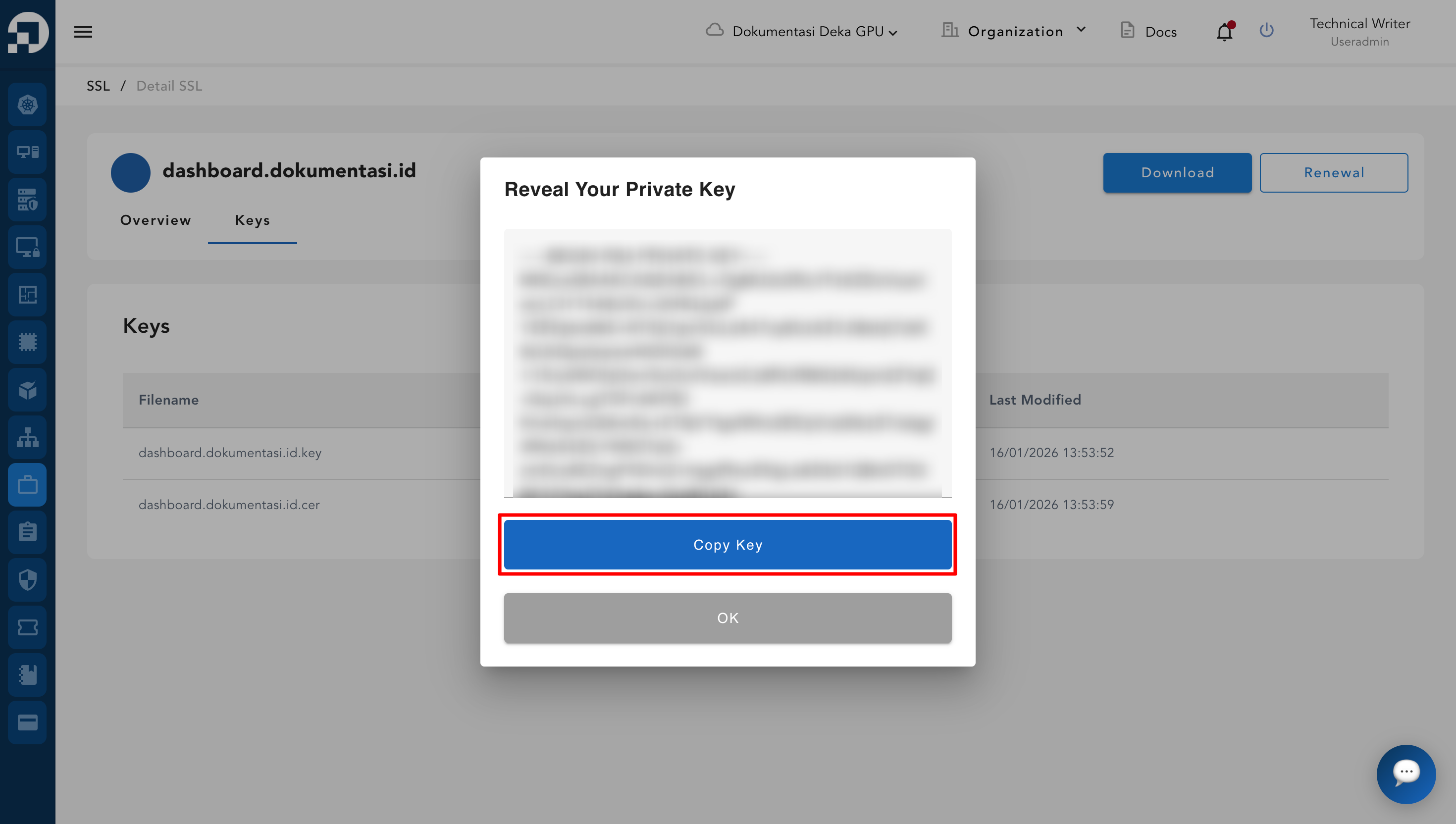
The secret key is displayed after verification. Click **Copy Key** to copy the secret key.